> ## Documentation Index
> Fetch the complete documentation index at: https://docs.t3planet.de/en/latest/llms.txt
> Use this file to discover all available pages before exploring further.
# Editor Guide
> Editor guide for T3 Avatar
After Setup of your Lovely Site follow below steps for making it standalone & versatile.
Create a standard Page on your TYPO3 setup.
Make it Root page from TYPO3 page property > Behavior Tab.
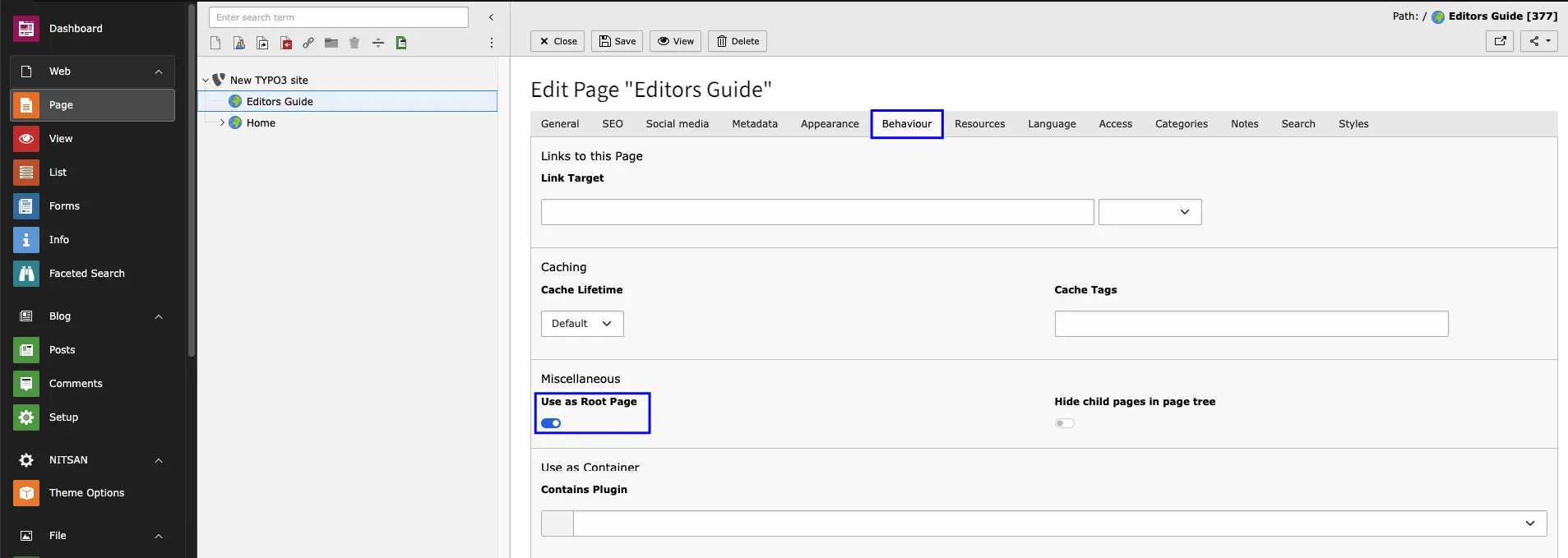 Go to TYPO3 Typoscript module & Create a template of your page.
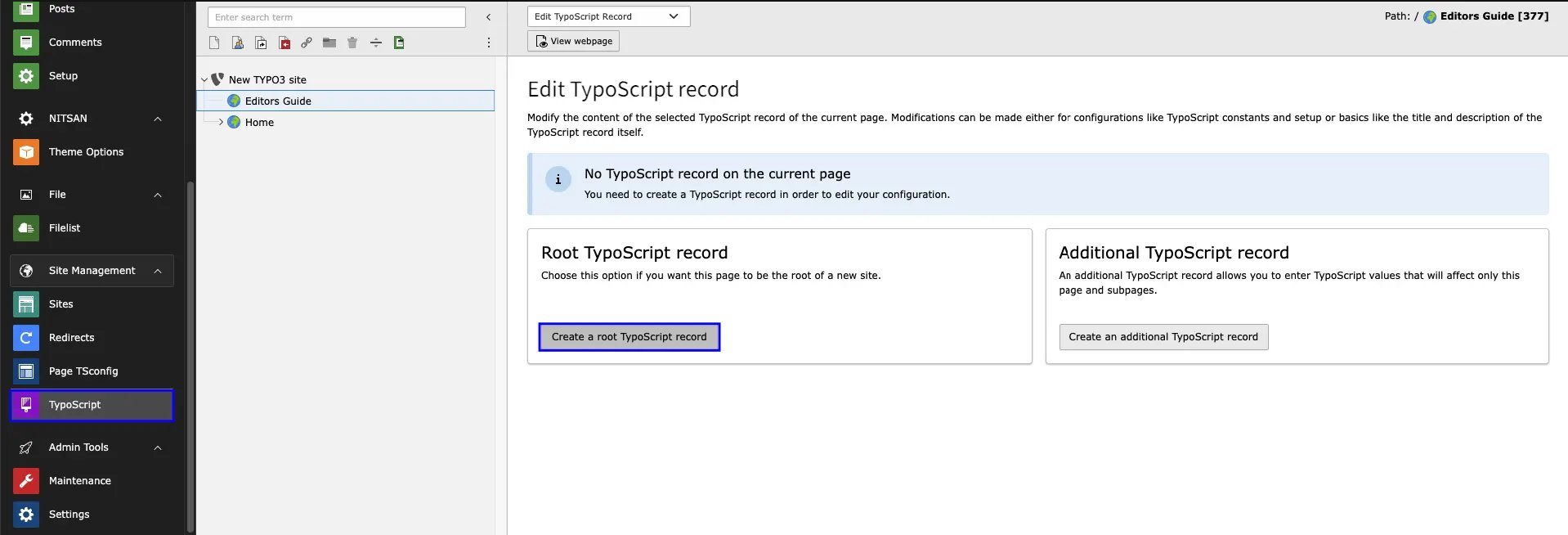 Now include all required Extension for that Go to Info/Modify from Template module. Make sure the order of the included extension. First it should be a EXT:Fluid Content Element & atlast EXT:Parent Theme & EXT:Child Theme respectively.
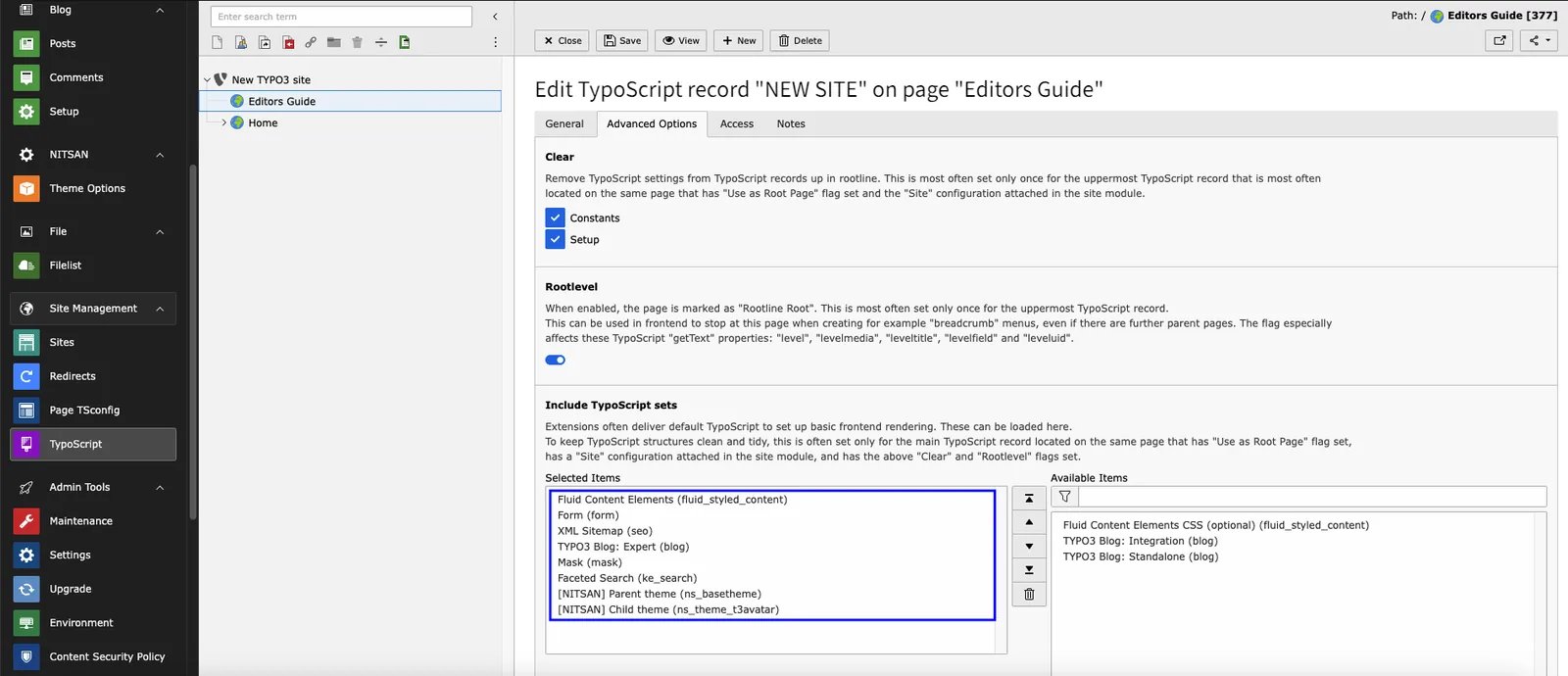 Its important to setup home page & main menu id so for that Go to Theme Options > General Tab - here you have to define root page id on the Home Page id & Main menu ID. Next, Its optional to configure all other settings.!
 Site Configuration > Setup youe website title, identifier and entry point.
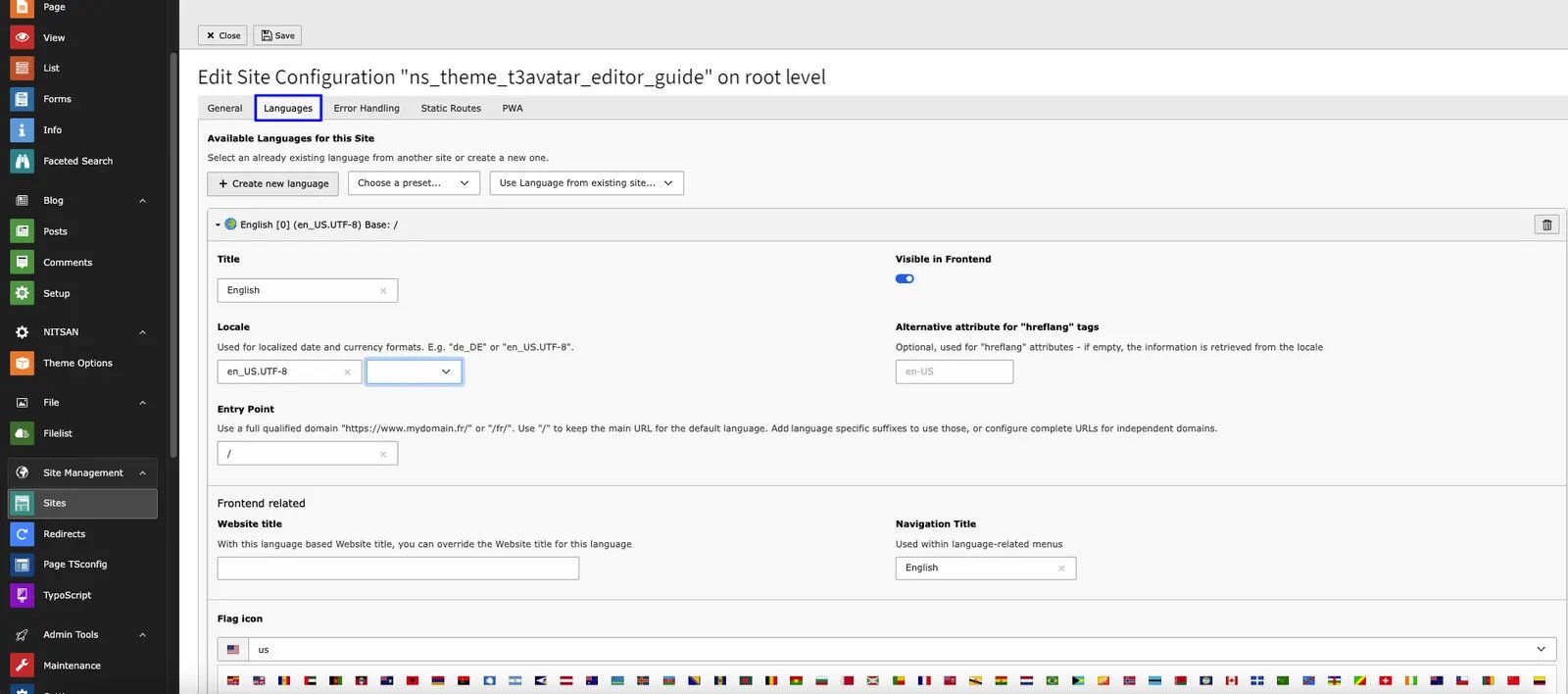
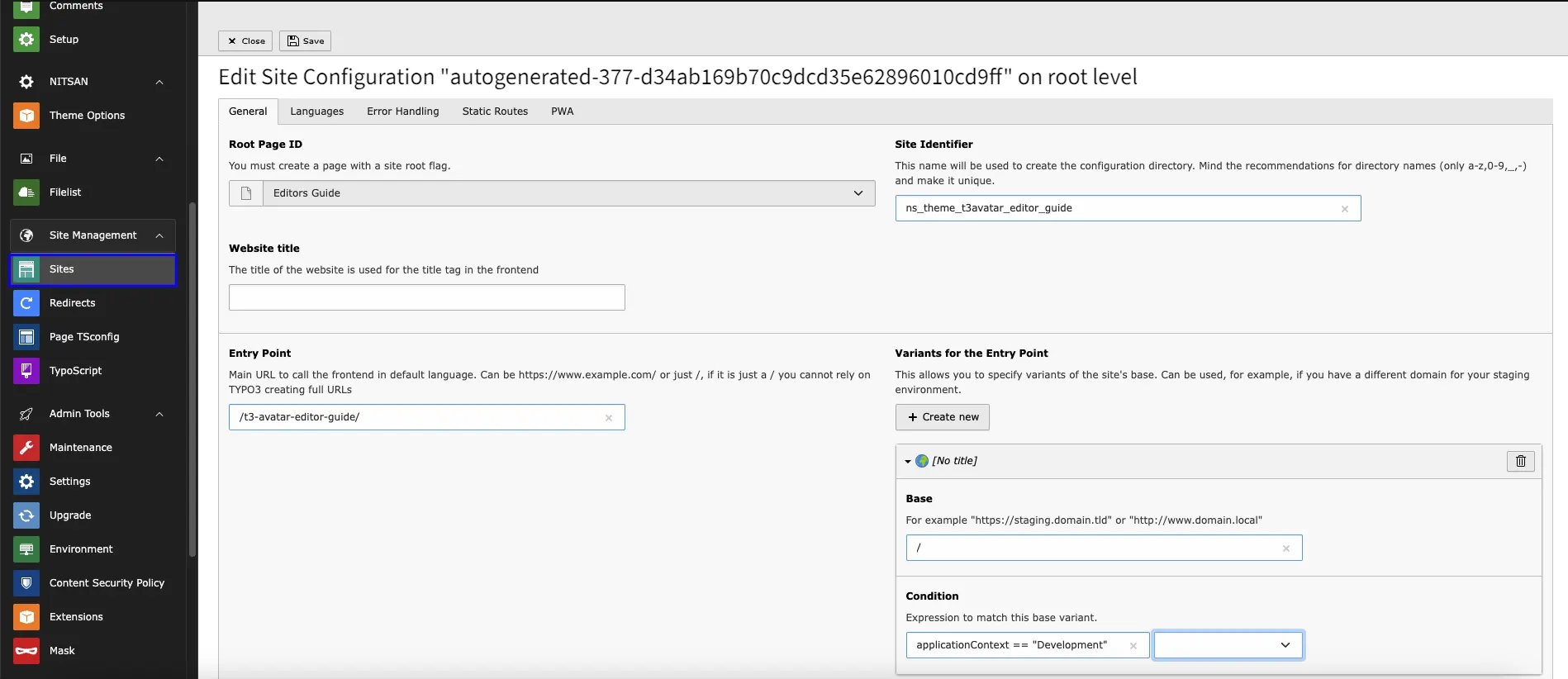 If you want to your website with multilanguage than Goto Site Configuration > Language Tab > Create New Language. After this, Insert each required details.!
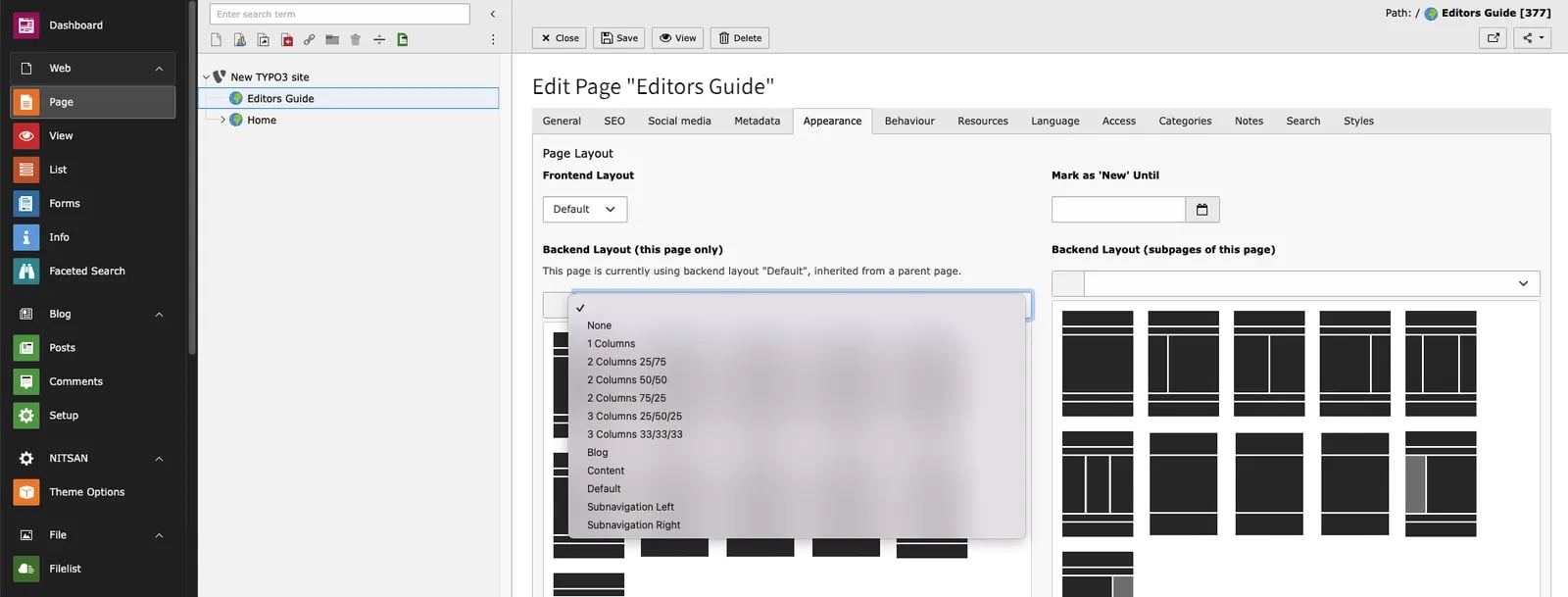
 Now Go to Page Module > TYPO3 Standard/Root Page > Page Property > Appearance Tab. Select the Backend & frontend Page layout accordingly your webpage layout.
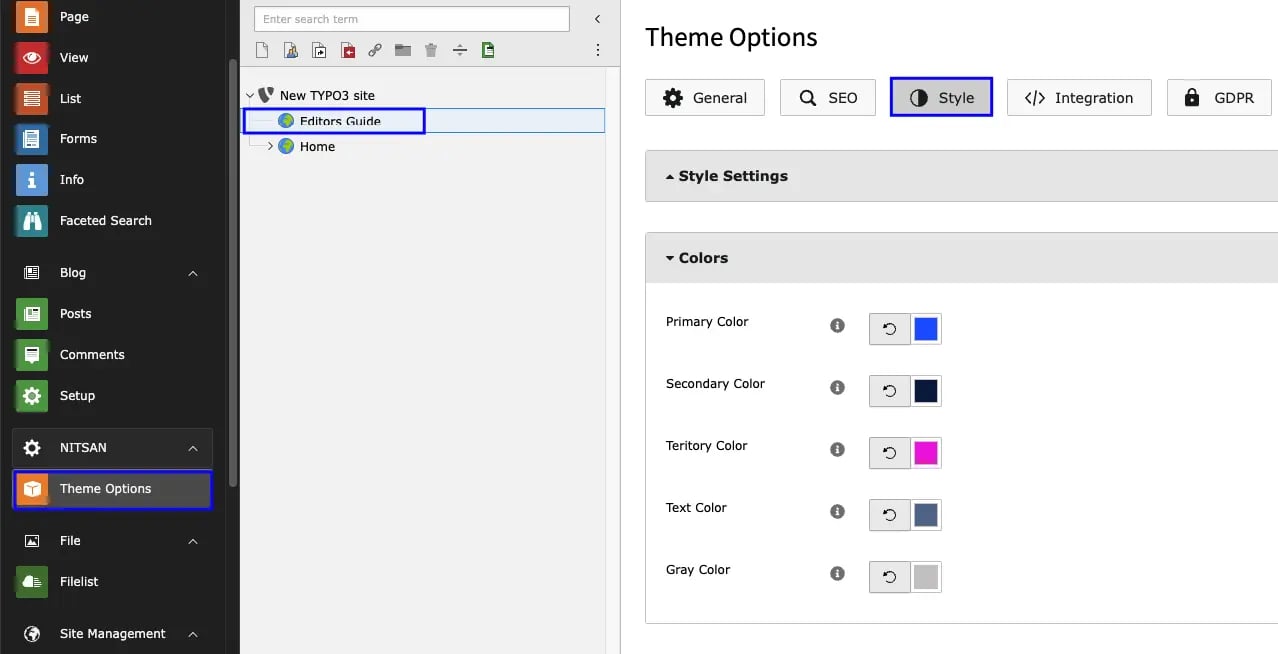
 Heart feature of the Website is a Style. To apply it on your website - Goto Theme Options > Style Tab.
Here you can configure the Header/Footer Setting, Color Schema, Navigation styles, Hover effect, Menu style, Font style etc.
Into the General Tab you can Enable & Disable Breadcrumb, Searchbar, Multilanguage Menu, Maintenance Mode, Speed Performance setting & much more.
Heart feature of the Website is a Style. To apply it on your website - Goto Theme Options > Style Tab.
Here you can configure the Header/Footer Setting, Color Schema, Navigation styles, Hover effect, Menu style, Font style etc.
Into the General Tab you can Enable & Disable Breadcrumb, Searchbar, Multilanguage Menu, Maintenance Mode, Speed Performance setting & much more.
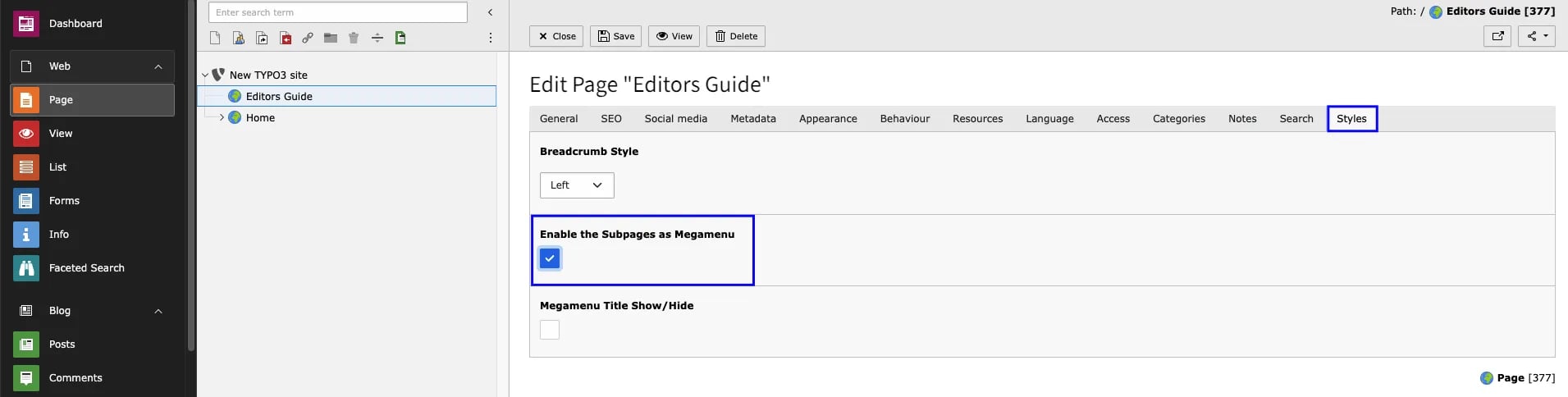
 **How To enable Mega menu on my Website?**
Answer is, Enable the option from the Styles Tab of Page Property. that's it Now your page having the mega menu.
**How To enable Mega menu on my Website?**
Answer is, Enable the option from the Styles Tab of Page Property. that's it Now your page having the mega menu.
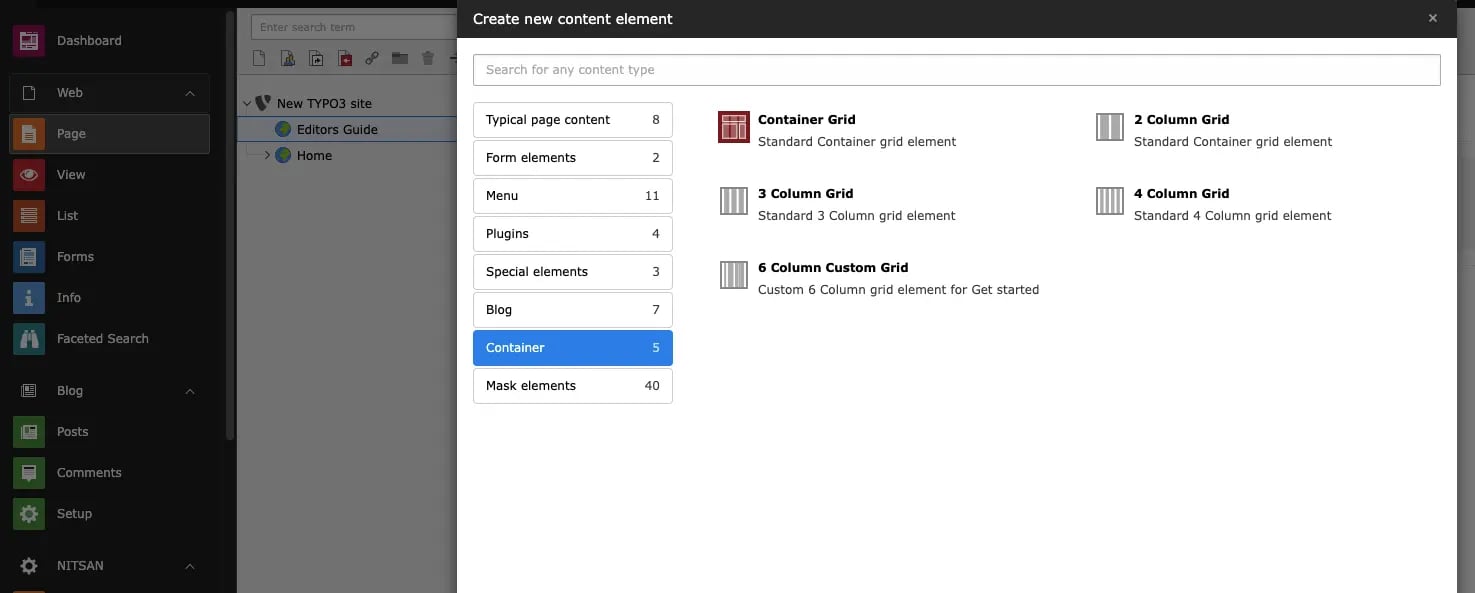
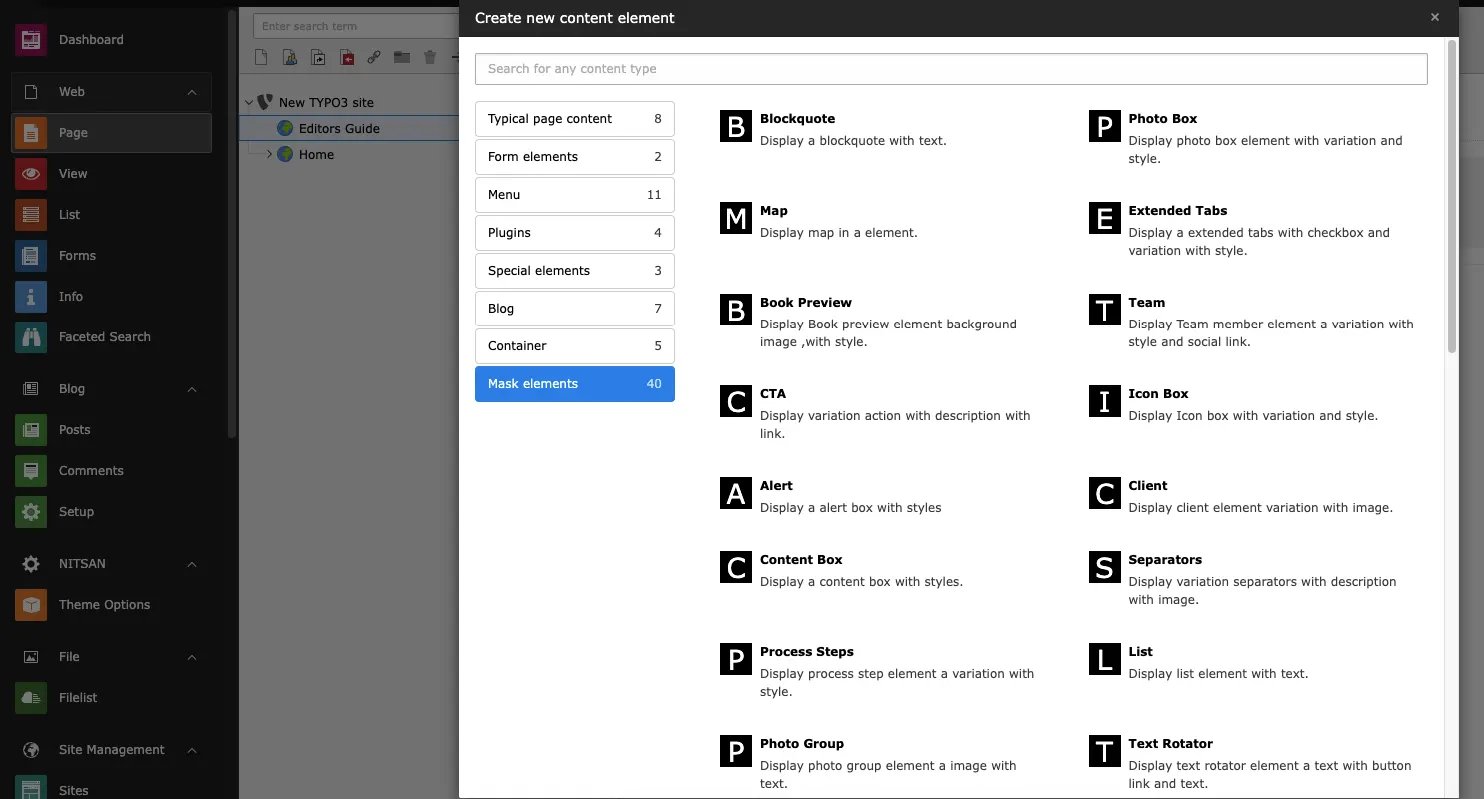
 Inserting the Container Element & Mask Elements on your webpage.
You can use the Custom & TYPO3 Default element within the container to provide more flexibility in content area.!
Inserting the Container Element & Mask Elements on your webpage.
You can use the Custom & TYPO3 Default element within the container to provide more flexibility in content area.!
 How to easy start; It’s all about we highly recommend to go with our demo-pages [https://demo.t3planet.de/t3-avatar/](https://demo.t3planet.de/t3-avatar/)