> ## Documentation Index
> Fetch the complete documentation index at: https://docs.t3planet.de/en/latest/llms.txt
> Use this file to discover all available pages before exploring further.
# SEO (Search Engine Optimization)
> SEO for T3 Bootstrap
## SEO (Search Engine Optimization)
## 1. Sitemap
You can access Sitemap of template by appending sitemap.xml at the end of BaseURL of template.
For example: [https://www.domain.com/sitemap.xml](https://www.domain.com/sitemap.xml)
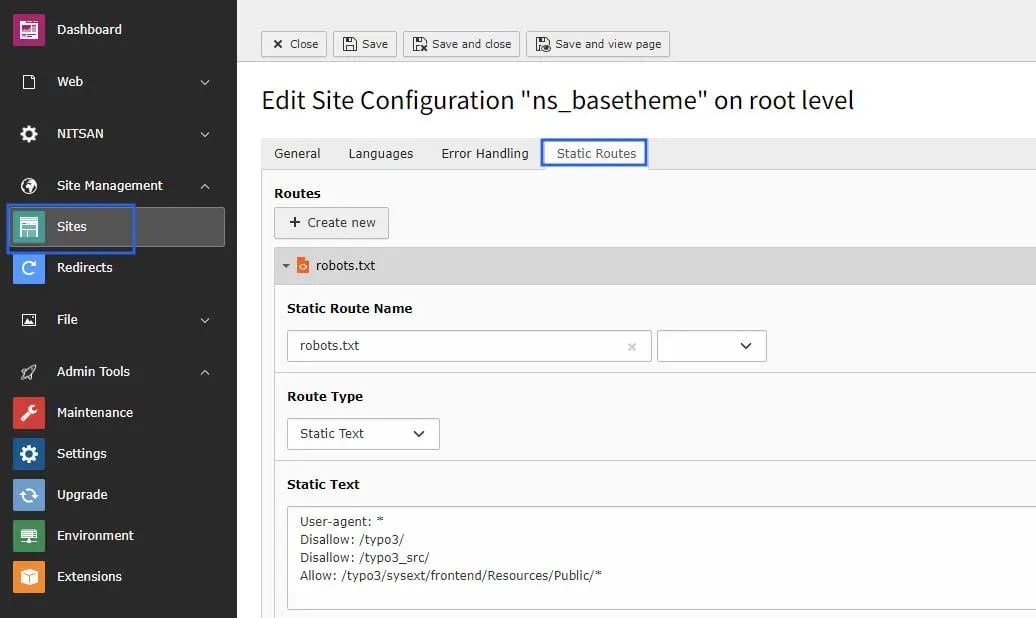
We have already take care during installation of Template but, Please make sure you've already settings from Site Management > Sites > Edit ns\_theme\_t3bootstrap > Static Routes
 ## 2. Robots.txt
You can access Robots.txt of template by appending robots.txt at the end of BaseURL of template
For example: [https://www.domain.com/robots.txt](https://www.domain.com/robots.txt)
## 3. Set Meta Description & Tags
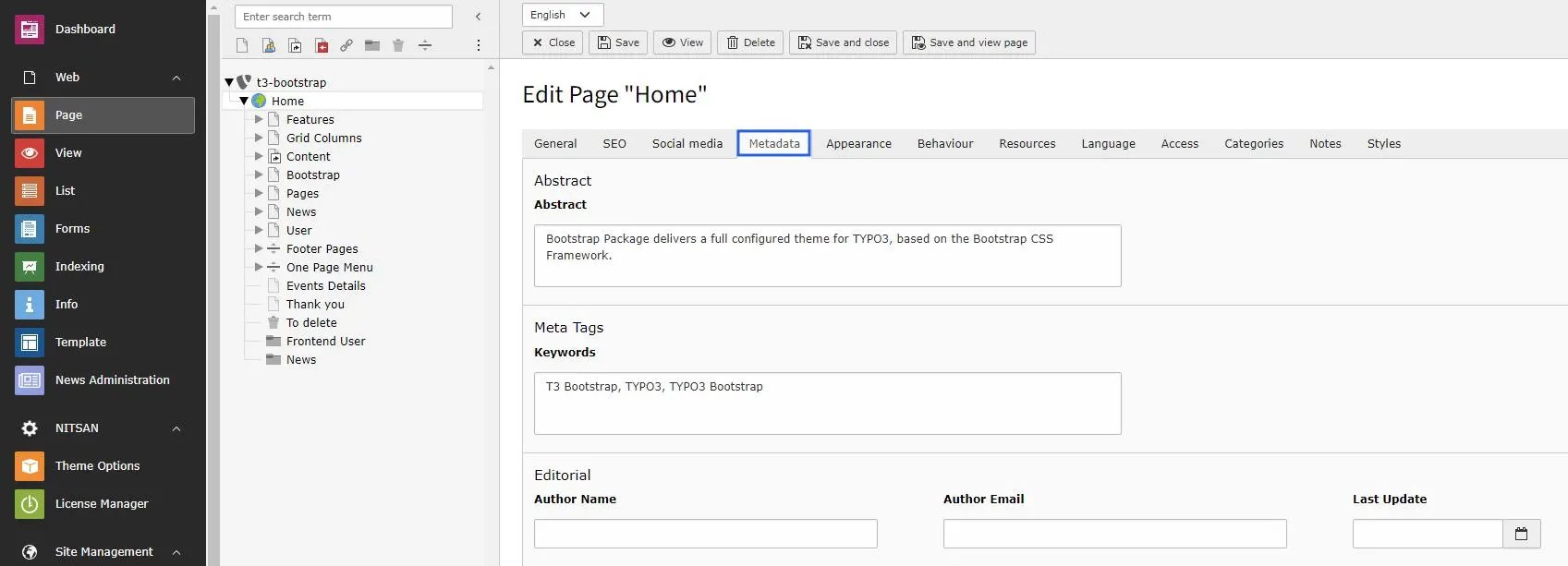
Set Meta Description and Tags of any page from Metadata tab in page properties. Check below screenshot.
## 2. Robots.txt
You can access Robots.txt of template by appending robots.txt at the end of BaseURL of template
For example: [https://www.domain.com/robots.txt](https://www.domain.com/robots.txt)
## 3. Set Meta Description & Tags
Set Meta Description and Tags of any page from Metadata tab in page properties. Check below screenshot.
 ## 4. Setup OG tags for Social Media
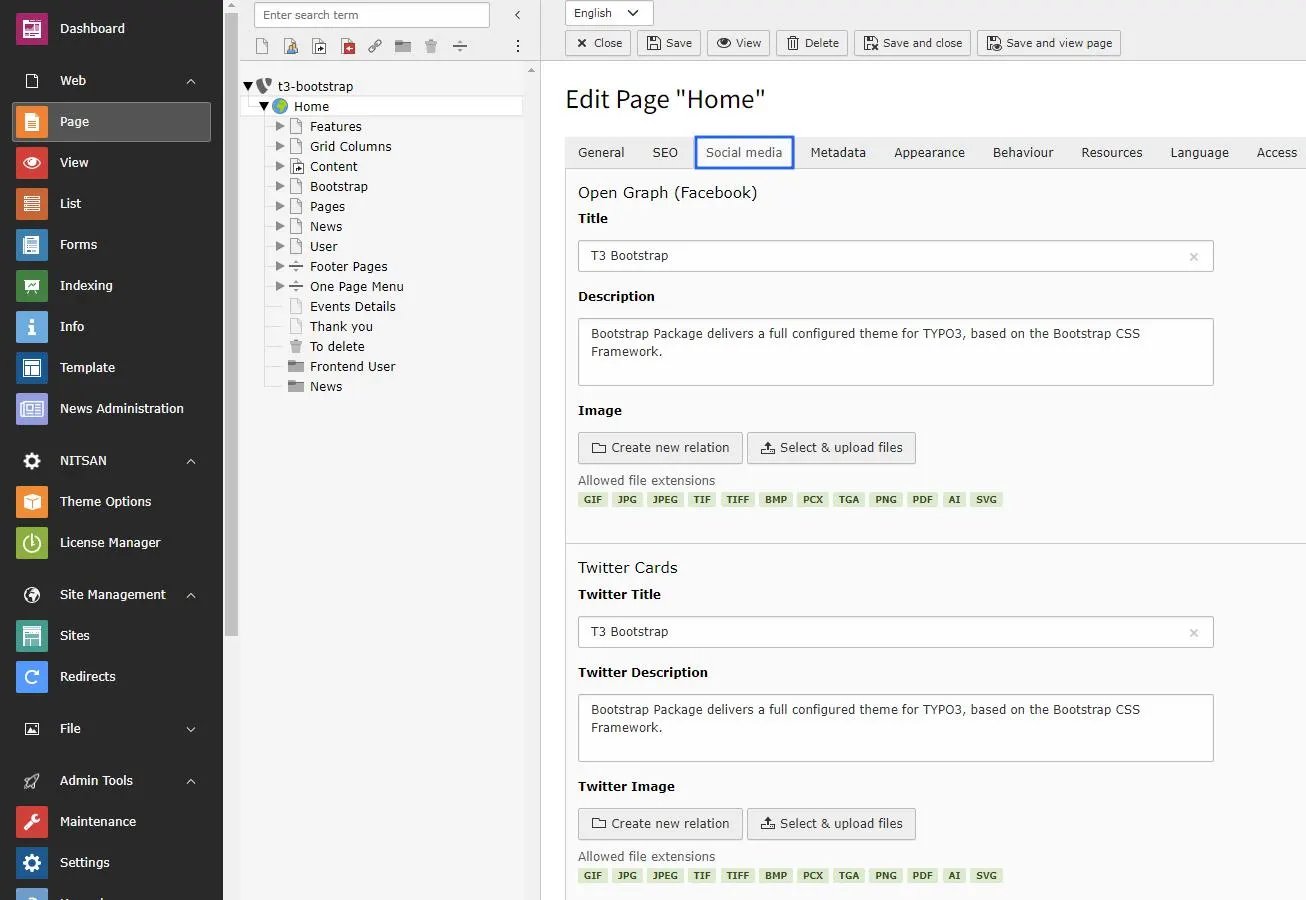
When any page is shared on Social Platforms like Facebook, Twitter, OG tags setup for that page will be used for page preview. Set them as below.
## 4. Setup OG tags for Social Media
When any page is shared on Social Platforms like Facebook, Twitter, OG tags setup for that page will be used for page preview. Set them as below.
 ## 5. Setup 404 page
You will get pre-configured 404 page with the template. You can access and modify it from Root Page > Main Menu > Pages > Extra > 404 - Page Not Found. Check below image for more info.
## 5. Setup 404 page
You will get pre-configured 404 page with the template. You can access and modify it from Root Page > Main Menu > Pages > Extra > 404 - Page Not Found. Check below image for more info.
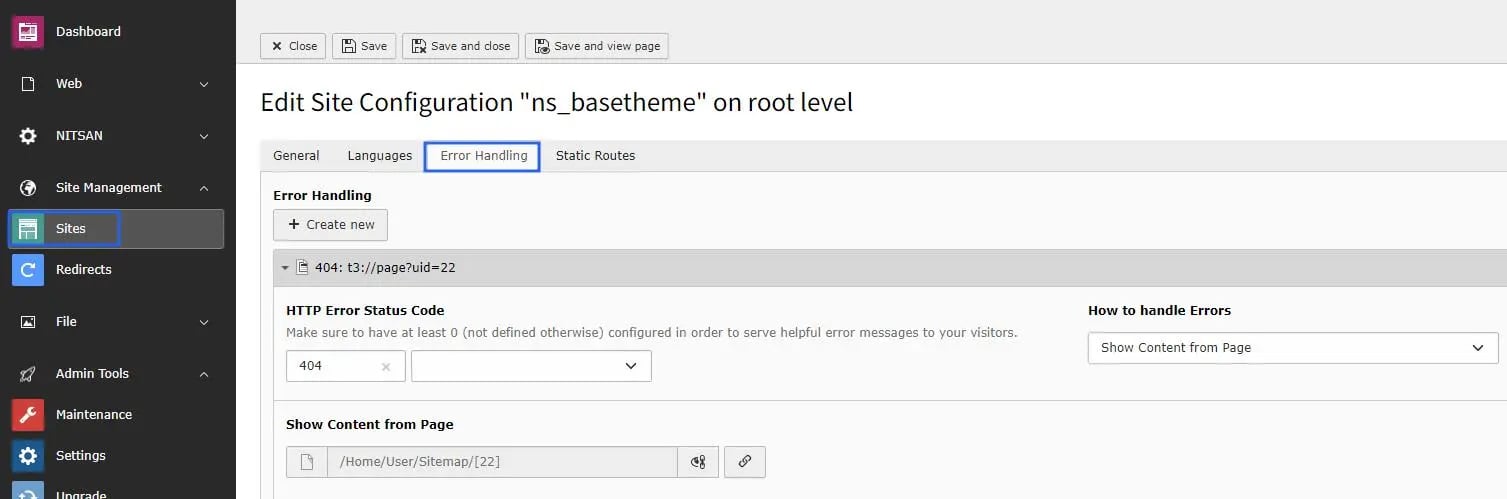
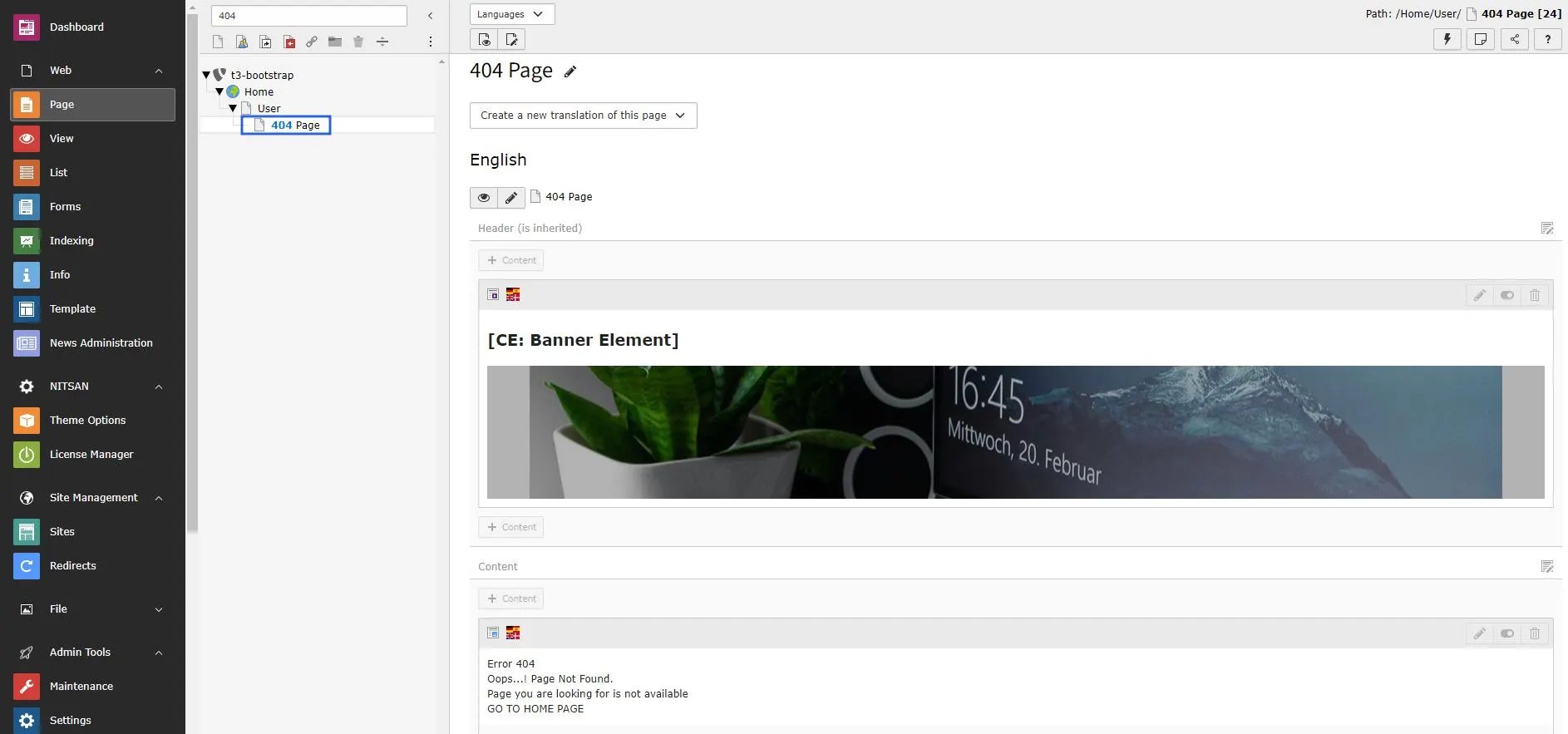 We have already take care during installation of Template but, Please make sure you've already settings from Site Management > Sites > Edit ns\_theme\_t3bootstrap > Error Handling