> ## Documentation Index
> Fetch the complete documentation index at: https://docs.t3planet.de/en/latest/llms.txt
> Use this file to discover all available pages before exploring further.
# Configuration
> Configuration — T3Planet documentation.
# Configuration
## Quick & Easy configuration of "All Lightbox" into TYPO3
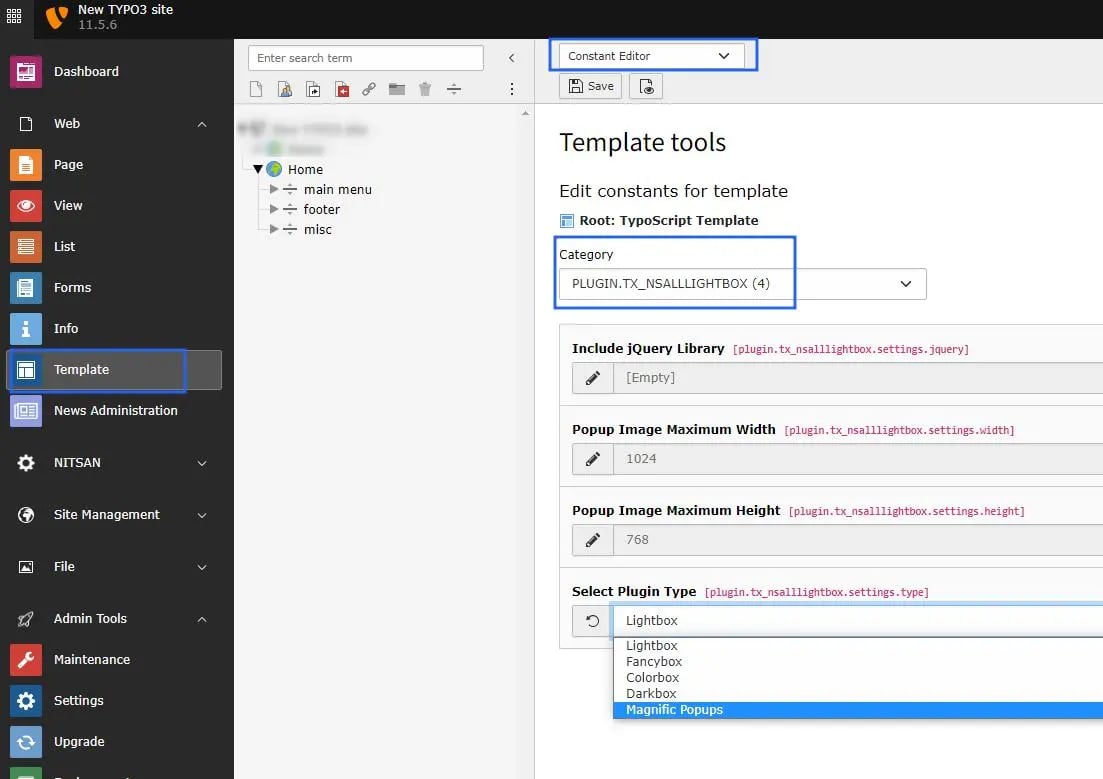
1. Switch to the *Template module* and select *Constant Editor*
2. Select Category *PLUGIN.TX\_NSALLLIGHTBOX* You can configure it as per your requirement.
 3. Behavior: *Enlarge on Click \[Checkbox]*.
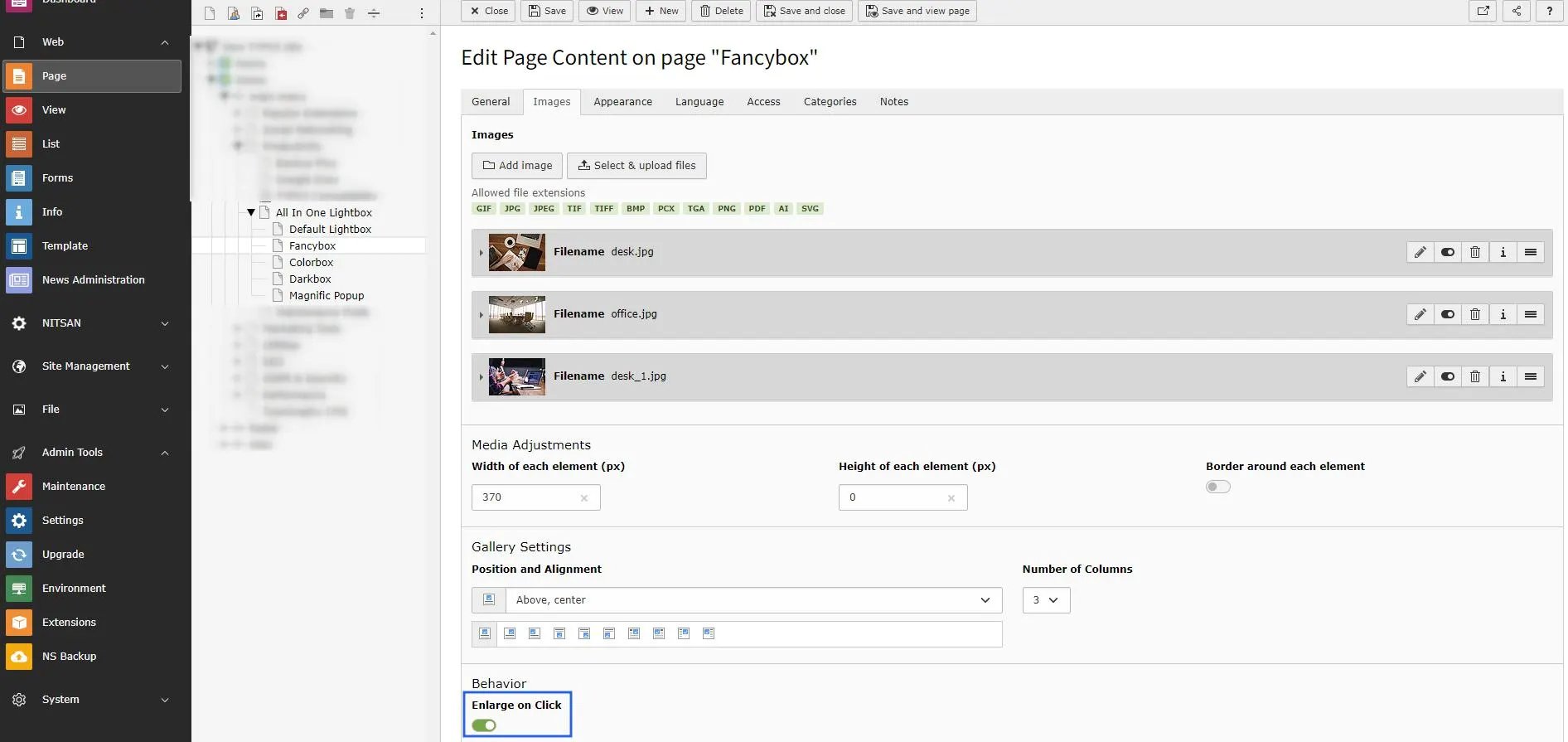
4. You can only setup "Text & Media" TYPO3 Elements. (Because, We have setup everything with fluid\_styled\_content)
5. Go to Images tab & Click on "Enlarge on click" checkbox. Checkout below screenshot.
3. Behavior: *Enlarge on Click \[Checkbox]*.
4. You can only setup "Text & Media" TYPO3 Elements. (Because, We have setup everything with fluid\_styled\_content)
5. Go to Images tab & Click on "Enlarge on click" checkbox. Checkout below screenshot.
 ## Clearing the cache
Please use the buttons 'Flush frontend caches' and 'Flush general caches'
from the top panel. The 'Clear cache' function of the install tool will also
work perfectly.
## Clearing the cache
Please use the buttons 'Flush frontend caches' and 'Flush general caches'
from the top panel. The 'Clear cache' function of the install tool will also
work perfectly.