> ## Documentation Index
> Fetch the complete documentation index at: https://docs.t3planet.de/en/latest/llms.txt
> Use this file to discover all available pages before exploring further.
# Comment Plugin Settings
## Add Comment Plugin
You can add Comment plugin from Add element wizard
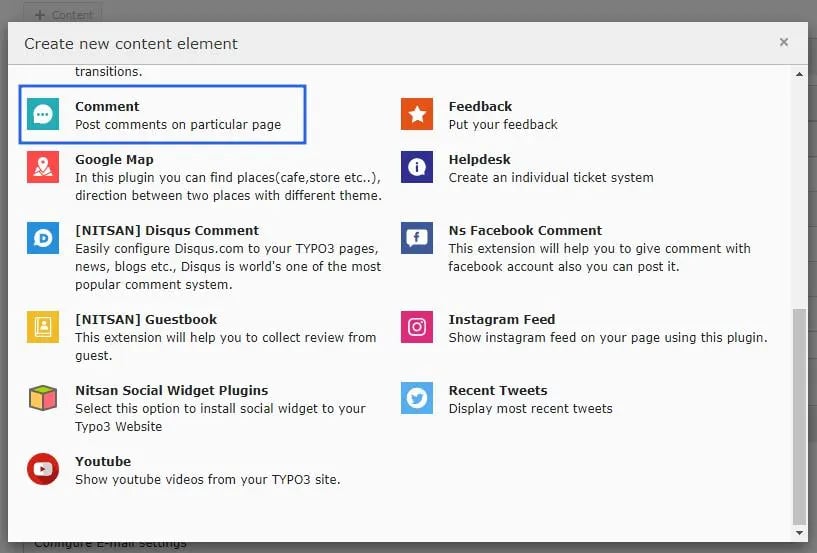 Now, set all the settings of Comment plugin
*Main Configuration*
Now, set all the settings of Comment plugin
*Main Configuration*
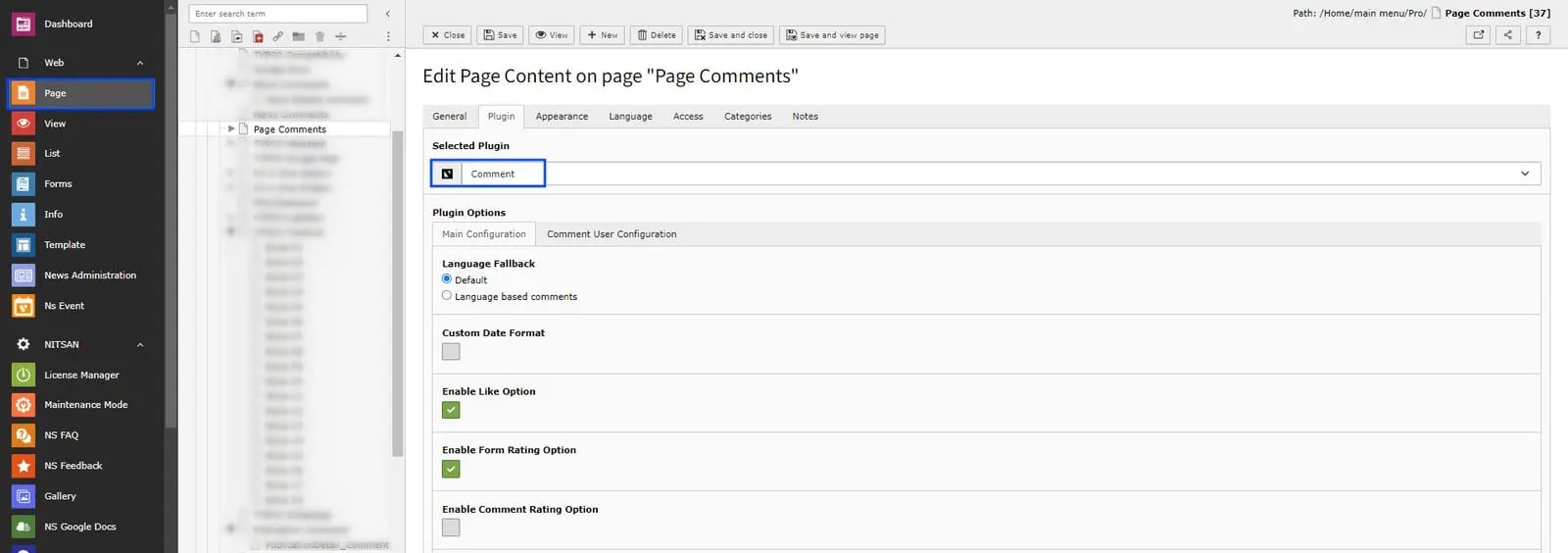 **Language Fallback:** Choose Default option to display the comment as per default language otherwise choose the Language Based Comment option for the multilingual comments.
**Custom Date Format:** Check this checkbox to use custom date format to display in Comment list.
**Disabled Like Option:** Enable the checkbox if you dont want to display the Like/Unlike feature on front end.
**Enable Like Option:** You can like/dislike comments.
**Enable Form Rating Option:** By enabling this,You can add ratings while adding comments!
**Enable Comment Rating Option:** By enabling this you can add ratings to comments!
**Language Fallback:** Choose Default option to display the comment as per default language otherwise choose the Language Based Comment option for the multilingual comments.
**Custom Date Format:** Check this checkbox to use custom date format to display in Comment list.
**Disabled Like Option:** Enable the checkbox if you dont want to display the Like/Unlike feature on front end.
**Enable Like Option:** You can like/dislike comments.
**Enable Form Rating Option:** By enabling this,You can add ratings while adding comments!
**Enable Comment Rating Option:** By enabling this you can add ratings to comments!
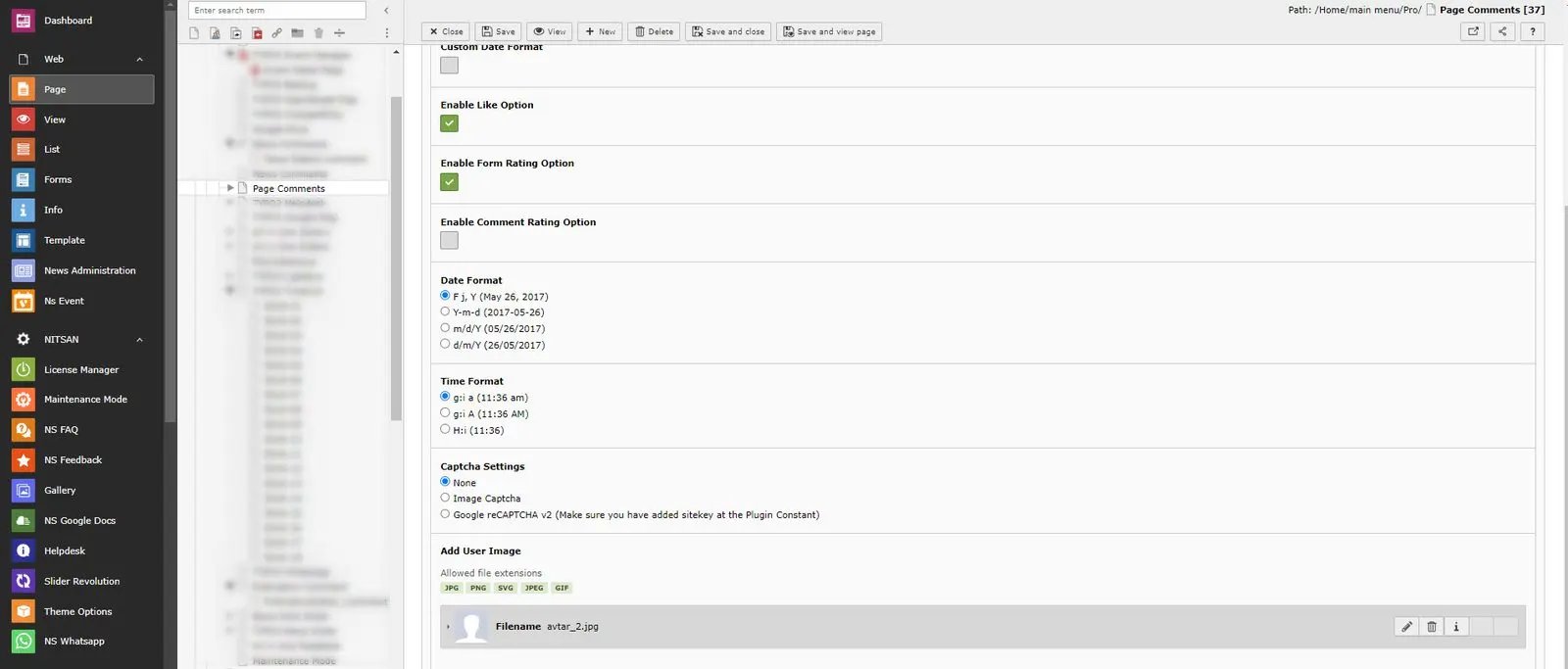 **Date Format:** You can use any of the standard date format as well.
**Time Format:** You can use any of the standard time format as well.
**Captcha Settings:** You can set whether to display Captcha or not. You can select one of the options from below:
* **None:** Disable Captcha
* **Image Captcha:** Display Image Captcha. It will look like this:
**Date Format:** You can use any of the standard date format as well.
**Time Format:** You can use any of the standard time format as well.
**Captcha Settings:** You can set whether to display Captcha or not. You can select one of the options from below:
* **None:** Disable Captcha
* **Image Captcha:** Display Image Captcha. It will look like this:
 If you are using Free version and have enabled captcha then Image Captcha will be displayed at comment form.
If you select Image Captcha, you need to rename \_.htaccess file to .htaccess at this folder /typo3conf/ext/ns\_comments/Resources/Private/
If you are using Free version and have enabled captcha then Image Captcha will be displayed at comment form.
If you select Image Captcha, you need to rename \_.htaccess file to .htaccess at this folder /typo3conf/ext/ns\_comments/Resources/Private/
 * **Google reCAPTCHA v2 :** Display Google reCAPTCHA v2. Make sure to add Sitekey in Constant. It will look like this:
 **Add User Image:** Add user image to display for all commments.
## Comment until feature
Users are allowed to leave comments up until the specified date.Eg if admin set any date eg.12:00 01-01-2030,user can comment until that date and time,after that date user will not be able to add comments in that page.
Follow below steps to configure it,
**Add User Image:** Add user image to display for all commments.
## Comment until feature
Users are allowed to leave comments up until the specified date.Eg if admin set any date eg.12:00 01-01-2030,user can comment until that date and time,after that date user will not be able to add comments in that page.
Follow below steps to configure it,
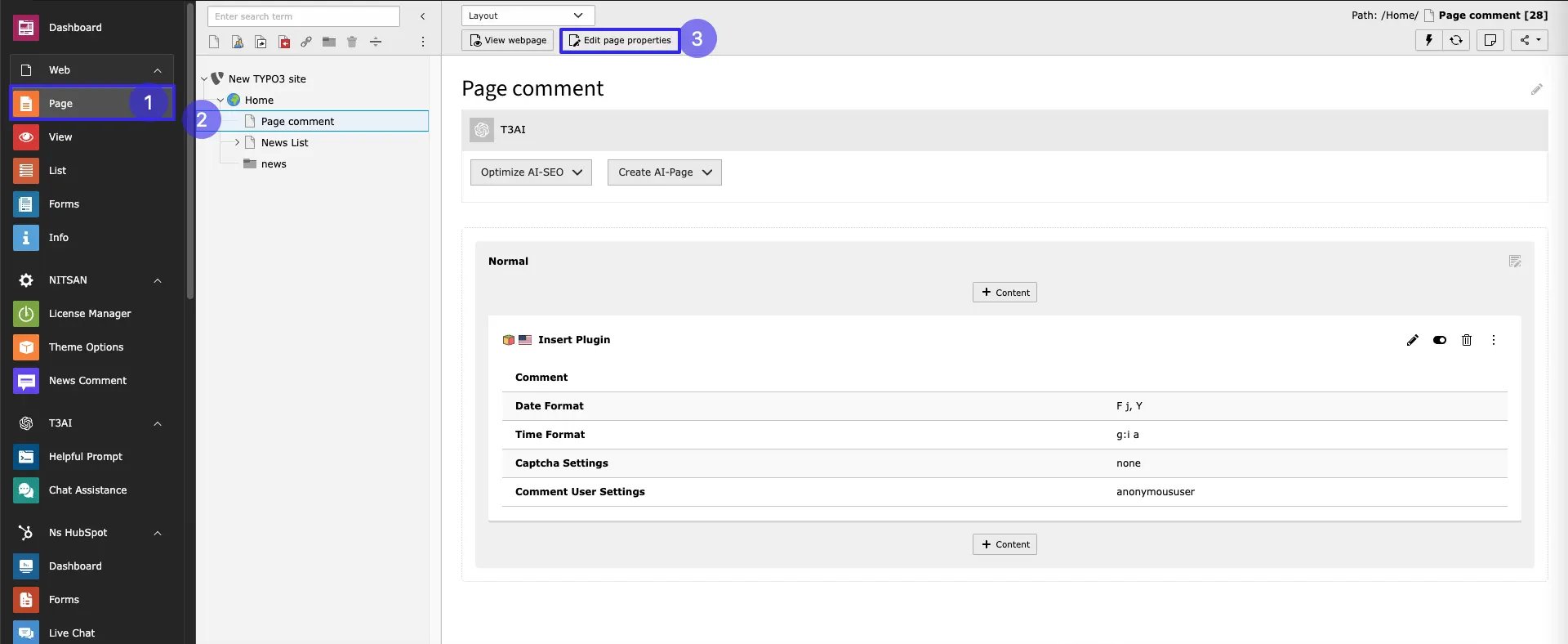 * **Step:1** Go to Page module
* **Step:2** Click on the page where comment plugin is added
* **Step:3** Click on edit page properties
* **Step:1** Go to Page module
* **Step:2** Click on the page where comment plugin is added
* **Step:3** Click on edit page properties
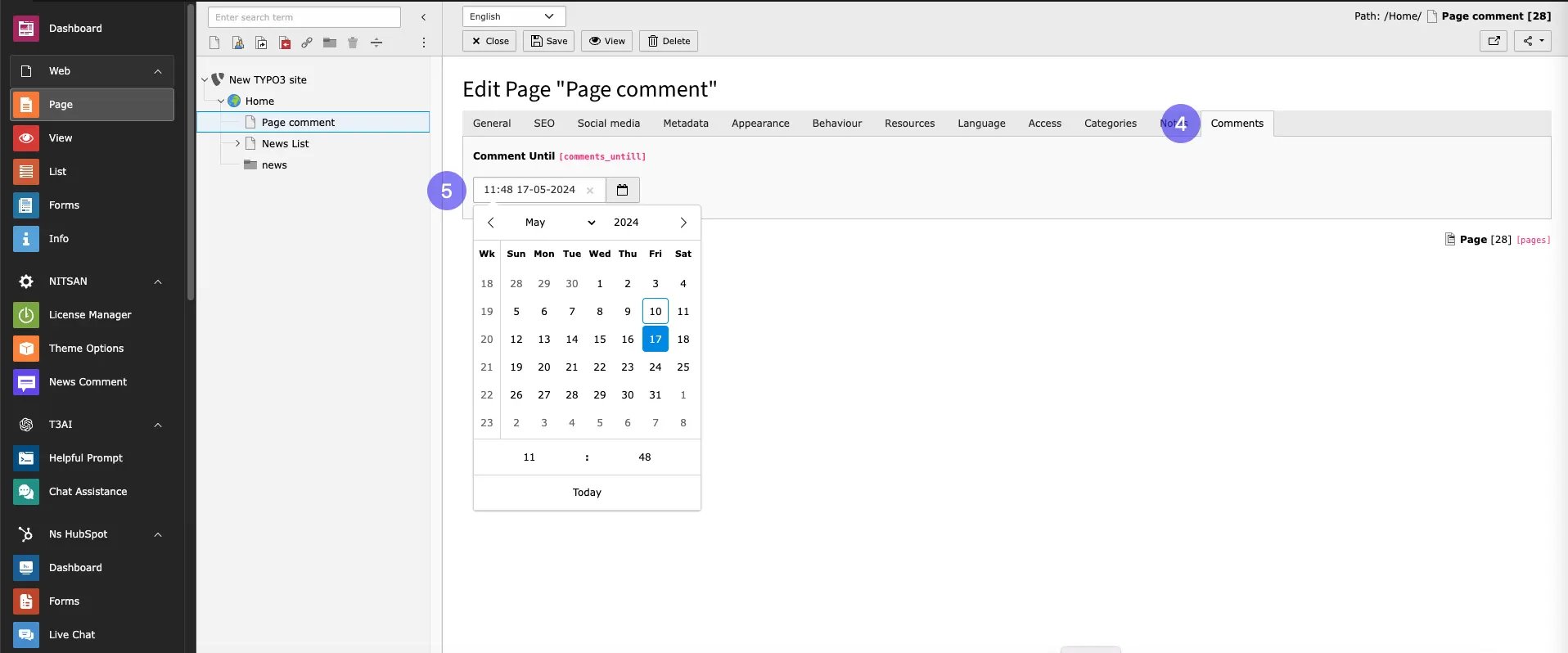 * **Step:4** Go to Tab Comments
* **Step:5** Set Date and time for enabling comment until feature.
Save the Configuration and configure plugin as per your requirements.
* **Step:4** Go to Tab Comments
* **Step:5** Set Date and time for enabling comment until feature.
Save the Configuration and configure plugin as per your requirements.