> ## Documentation Index
> Fetch the complete documentation index at: https://docs.t3planet.de/en/latest/llms.txt
> Use this file to discover all available pages before exploring further.
# Add Google Map Plugin
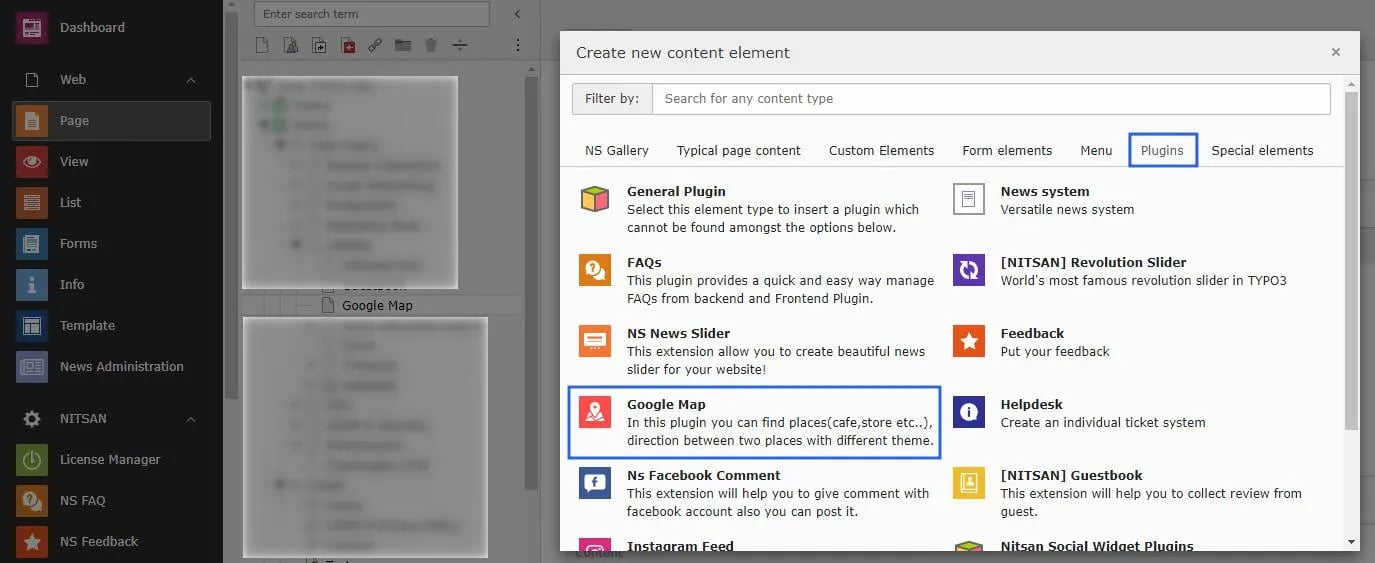
Add Google Map Plugin from the Plugin options.
 ## 2.1 General Settings
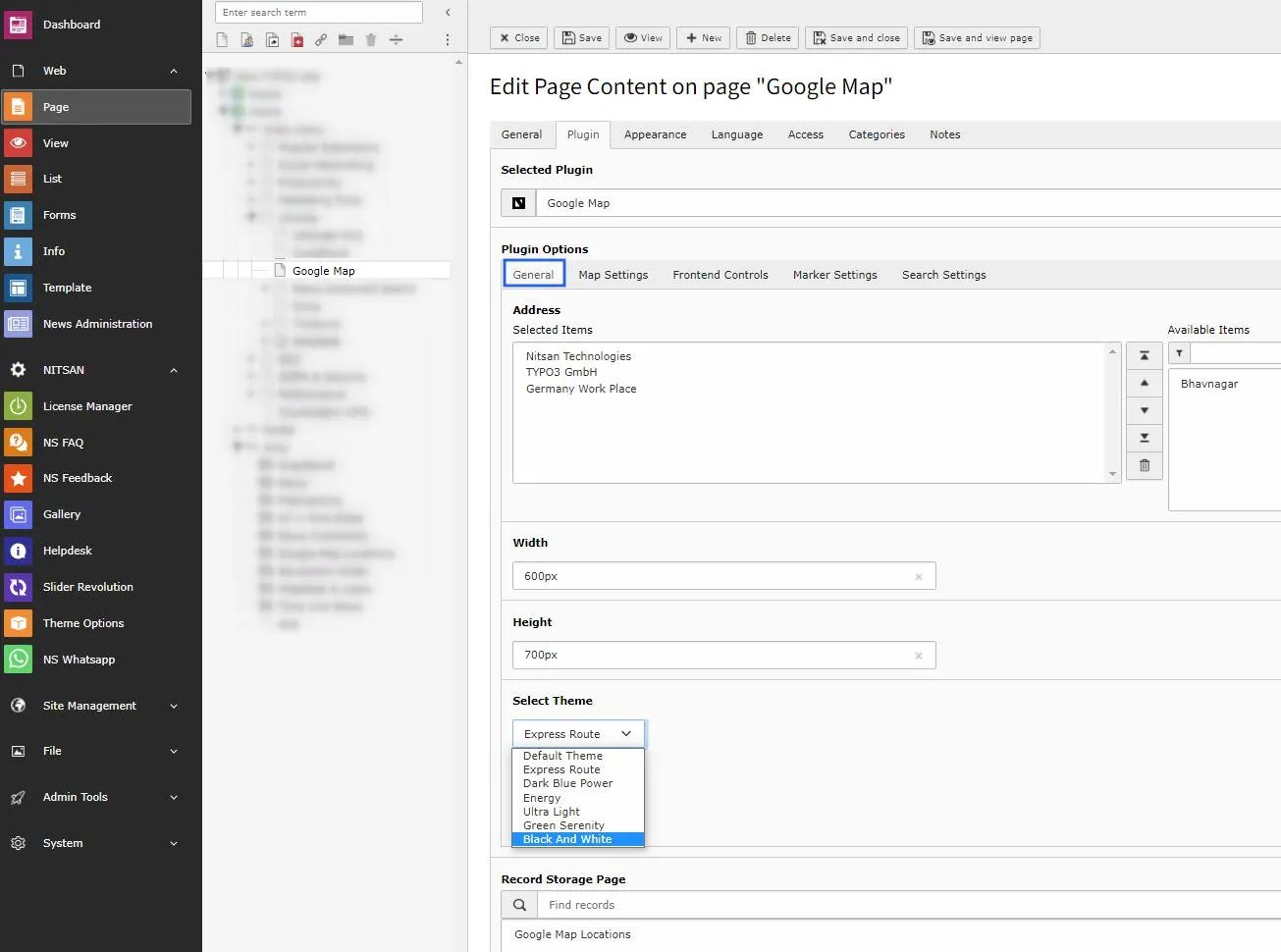 * **Address** -> Select the locations you want to display on the Map with Location marker.
* **Width** -> Set the width of Map
* **Height** -> Set the height of Map
* **Select Theme** -> Select appropriate theme for the map. You can select from following options: Default Theme, Express Route, Dark blue Power, Energy, Ultra Light, Green Serenity, Black And White
* **Record Storage Page** -> Select the storage folder to display the Map Location from that folder.
## 2.2 Map Settings
* **Address** -> Select the locations you want to display on the Map with Location marker.
* **Width** -> Set the width of Map
* **Height** -> Set the height of Map
* **Select Theme** -> Select appropriate theme for the map. You can select from following options: Default Theme, Express Route, Dark blue Power, Energy, Ultra Light, Green Serenity, Black And White
* **Record Storage Page** -> Select the storage folder to display the Map Location from that folder.
## 2.2 Map Settings
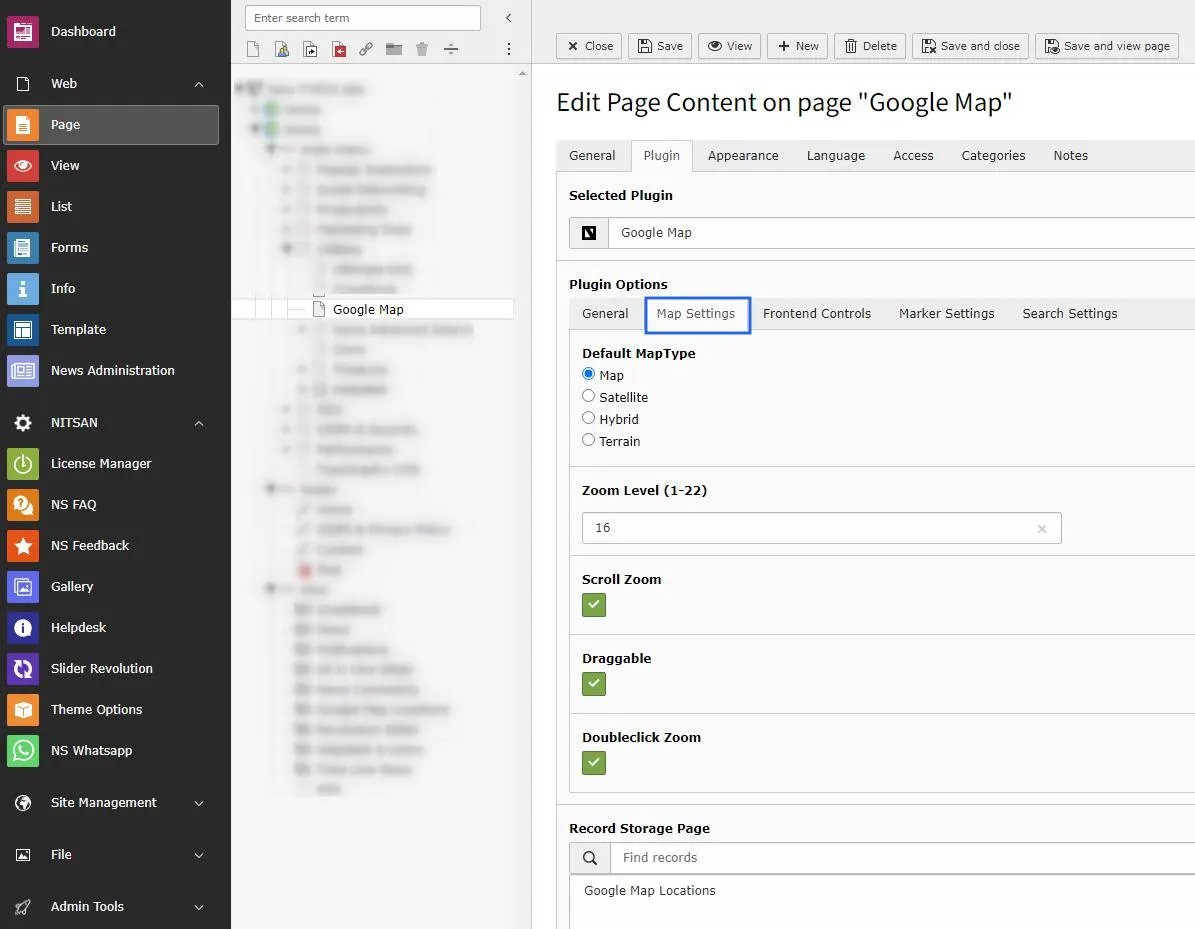 * **Map Type** -> Select the Map type you want to display from Map, Satellite, Hybrid and Terrain
* **Zoom Level** -> Select the default zoom level of map when map is displayed. You can select from range from 1 to 22 with 1 being completely Zoomed Out and 22 being completely Zoomed In.
* **Scroll Zoom** -> Check this to enable Zoom In and Zoom Out using Mouse scroll.
* **Draggable** -> Check this to allow users to drag map using mouse.
* **Doubleclick Zoom** -> Check this to enable Zoom In when user double-click on map.
## 2.3 Frontend Control Settings
* **Map Type** -> Select the Map type you want to display from Map, Satellite, Hybrid and Terrain
* **Zoom Level** -> Select the default zoom level of map when map is displayed. You can select from range from 1 to 22 with 1 being completely Zoomed Out and 22 being completely Zoomed In.
* **Scroll Zoom** -> Check this to enable Zoom In and Zoom Out using Mouse scroll.
* **Draggable** -> Check this to allow users to drag map using mouse.
* **Doubleclick Zoom** -> Check this to enable Zoom In when user double-click on map.
## 2.3 Frontend Control Settings
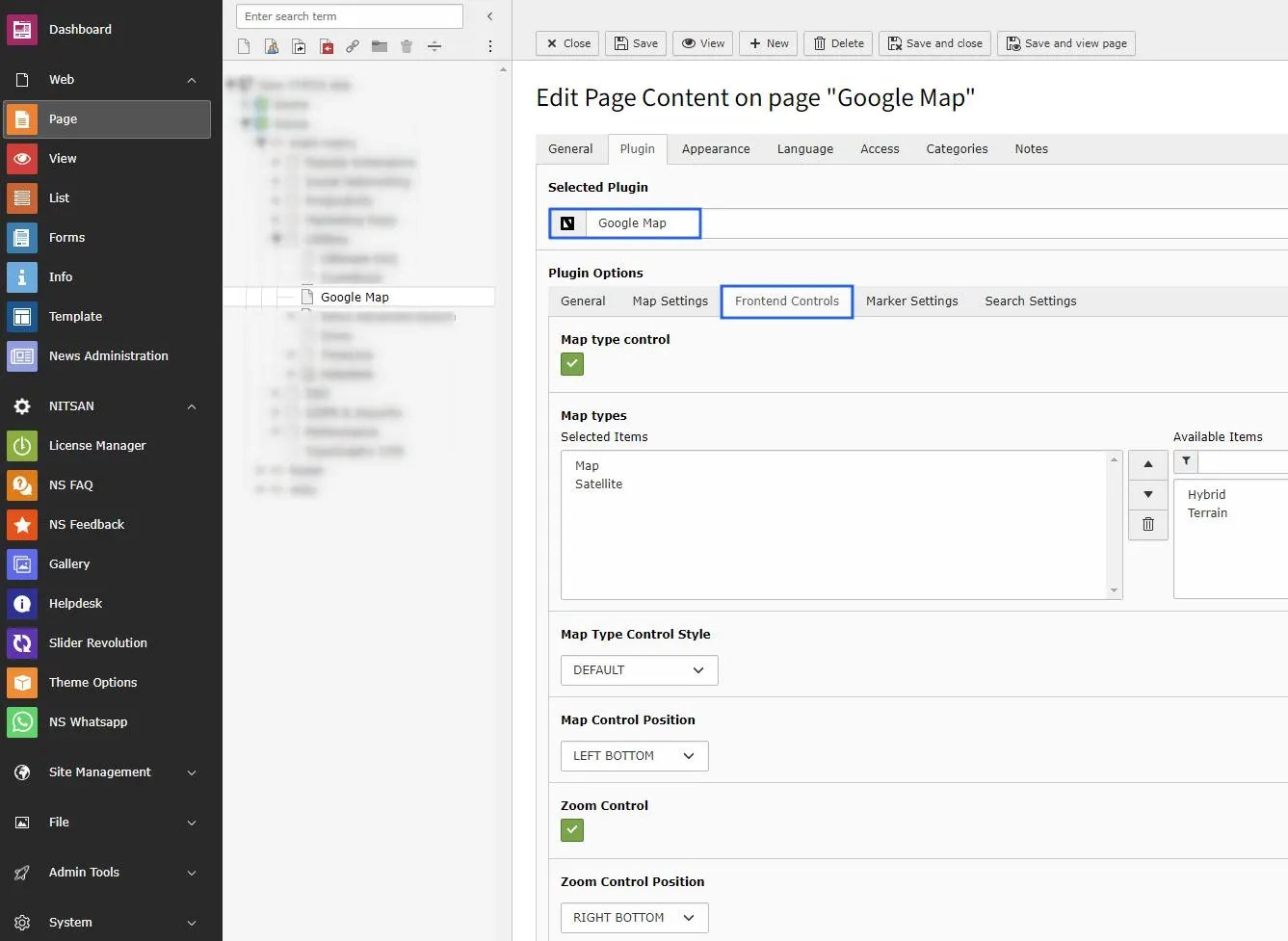
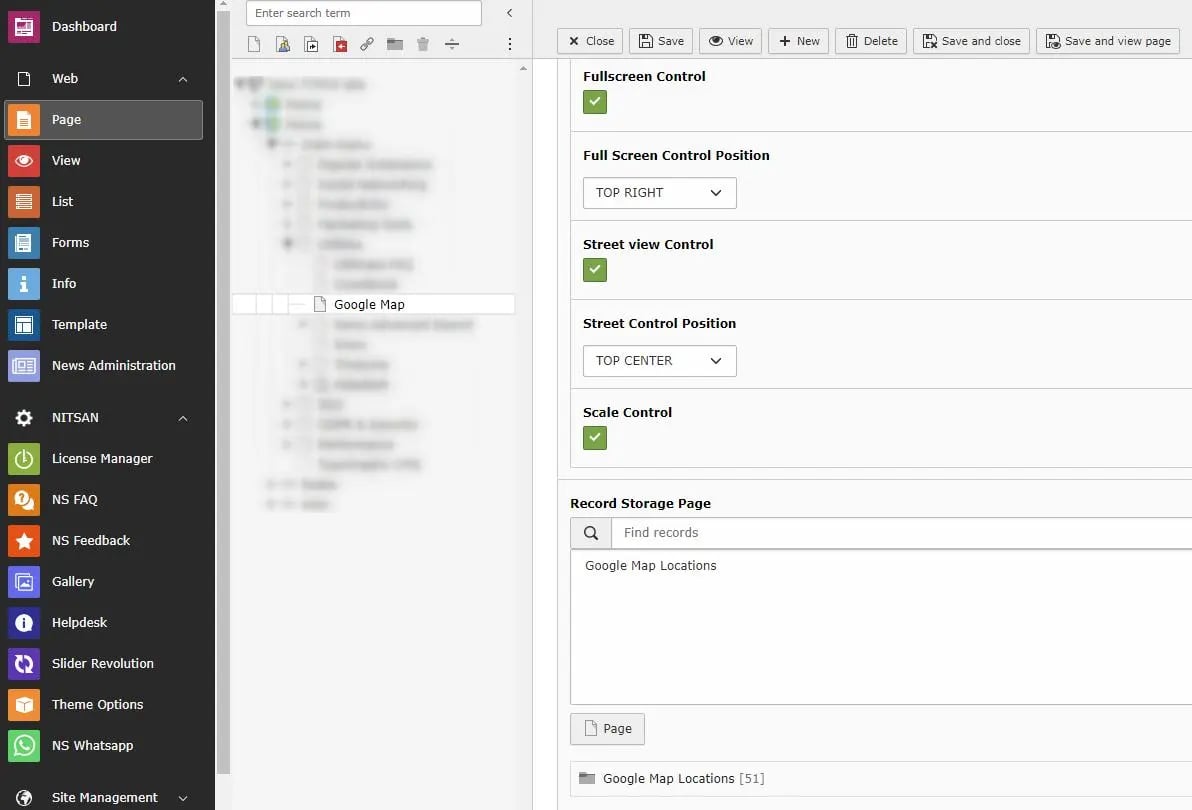 * **Map type Control** -> Check this to allow users to change Map type. Once checked, you can select which types of Map user can view. You can also set position on chart as well.
* **Map types** -> Choose map type you want to show on the front end.
* **Map Type Control Style** -> Select map control style from default, Dropdown menu, & Horizontal bar.
* **Map Control Position**-> Select position of the map controls from Top Left, Bottom Center, Right Top etc.
* **Zoom Control** -> Check this to display Zoom buttons on map. You can also set position of it on chart as well.
* **Zoom Control Position** -> Select position of the Zoom Controls from Top Left, Bottom Center, Right Top etc.
* **Fullscreen Control** -> Check this to display Full screen button on Map. You can also set position of it on chart as well.
* **Full Screen Control Position** -> Select position of the Full Screen Controls from Top Left, Bottom Center, Right Top etc.
* **Street View Control** -> Check this to display Streetview control on Map. You can also set position of it on chart as well.
* **Street Control Position** -> Select position of the Street Controls from Top Left, Bottom Center, Right Top etc.
* **Scale Control** -> Check this to display scale bar at the bottom right of Map.
## 2.4 Marker Settings
* **Map type Control** -> Check this to allow users to change Map type. Once checked, you can select which types of Map user can view. You can also set position on chart as well.
* **Map types** -> Choose map type you want to show on the front end.
* **Map Type Control Style** -> Select map control style from default, Dropdown menu, & Horizontal bar.
* **Map Control Position**-> Select position of the map controls from Top Left, Bottom Center, Right Top etc.
* **Zoom Control** -> Check this to display Zoom buttons on map. You can also set position of it on chart as well.
* **Zoom Control Position** -> Select position of the Zoom Controls from Top Left, Bottom Center, Right Top etc.
* **Fullscreen Control** -> Check this to display Full screen button on Map. You can also set position of it on chart as well.
* **Full Screen Control Position** -> Select position of the Full Screen Controls from Top Left, Bottom Center, Right Top etc.
* **Street View Control** -> Check this to display Streetview control on Map. You can also set position of it on chart as well.
* **Street Control Position** -> Select position of the Street Controls from Top Left, Bottom Center, Right Top etc.
* **Scale Control** -> Check this to display scale bar at the bottom right of Map.
## 2.4 Marker Settings
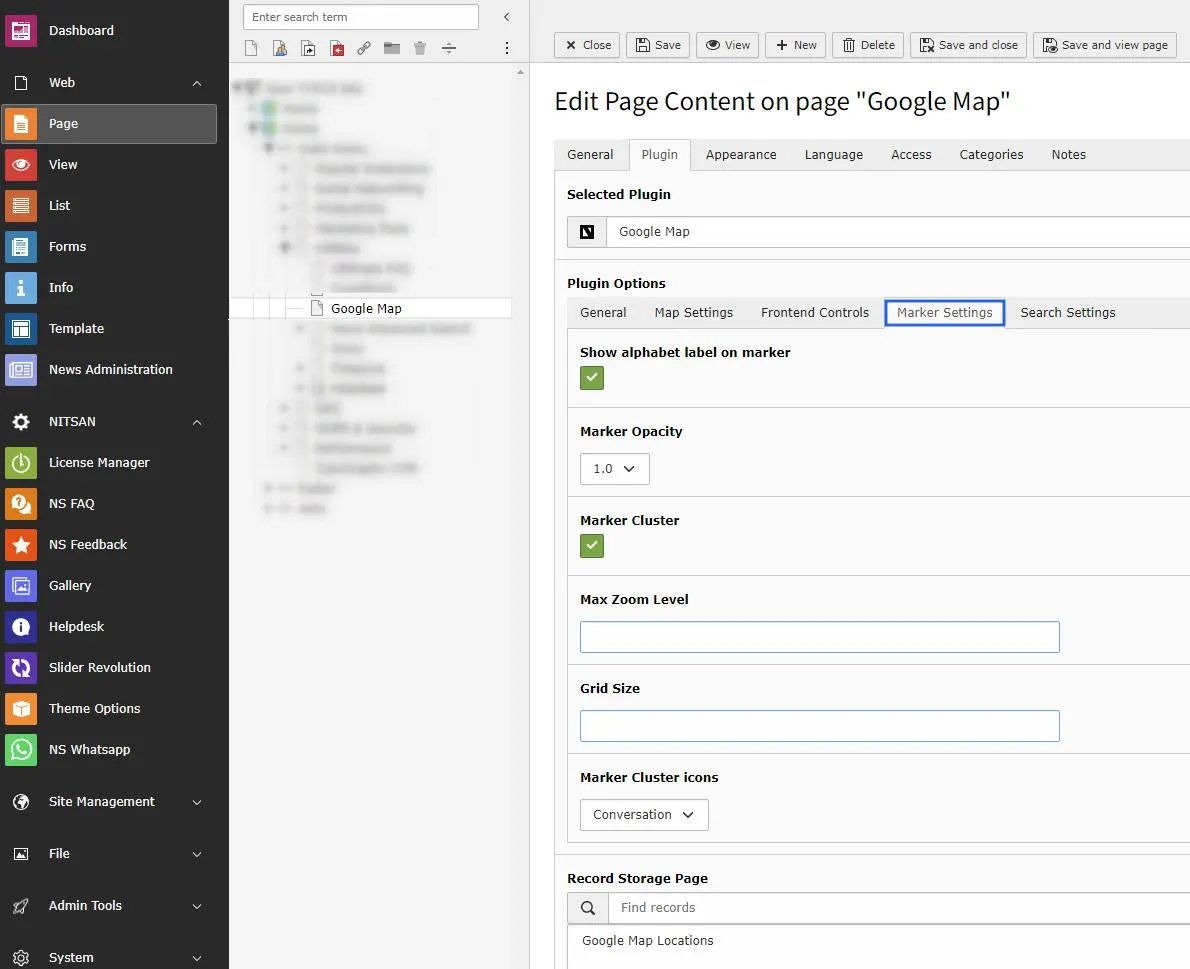 * **Show alphabet label on marker** -> Check this to display alphabet labels on Location markers. It will start from A-Z.
* **Marker Opacity** -> Set Marker Opacity. Select from 0.1 to 1.0 .
* **Marker Cluster** -> Check this to enable Marker Cluster.
After Enabling Marker Cluster checkbox, "Max Zoom level, Grid Size & Marker Cluster Icon" options will be visible.
* **Max Zoom Level** -> Define the Zoom level, It will zoom in fathest level before the regular markers.
* **Grid Size** -> Define the number of pixels within the cluster grid.
* **Marker Cluster icons** -> Choose marker cluster icon from Default, People, Conversation, Heart, & Pin.
## 2.5 Search Settings
* **Show alphabet label on marker** -> Check this to display alphabet labels on Location markers. It will start from A-Z.
* **Marker Opacity** -> Set Marker Opacity. Select from 0.1 to 1.0 .
* **Marker Cluster** -> Check this to enable Marker Cluster.
After Enabling Marker Cluster checkbox, "Max Zoom level, Grid Size & Marker Cluster Icon" options will be visible.
* **Max Zoom Level** -> Define the Zoom level, It will zoom in fathest level before the regular markers.
* **Grid Size** -> Define the number of pixels within the cluster grid.
* **Marker Cluster icons** -> Choose marker cluster icon from Default, People, Conversation, Heart, & Pin.
## 2.5 Search Settings
* **Search Type** -> Select type of search you want to display on your site, select none to display only map & saved locations otherwise choose "Record Based Search OR Radius Search" accordingly.
* **Search In Fields**
When the **First Search Box** is enabled, you can choose which fields are used to search for an address or location on the map.
Select the relevant fields such as **Title**, **Info**, or **Content** that contain address or location details.
The map will display results only from the selected fields, making it easier to quickly find the correct address on the map.
* **Radius Search** -> This feature will allow end user to search for places on Google Map by providing their preference of City, Point of Interest and radius.
* **Record Based Search** -> This feature will allow end user to search for location on Google Map, which are stored on the database & according to the selection of backend storage folder.
Based on the selection of "Record Based Search OR Radius Search" following options will be showing to customize input fields.
* **Enable Direction and Distance Feature** -> Check this to allow users to fetch routes b/w the places as per their choice of transportation mode. It'll also provide the directions for the selected route at the bottom of the Map.
* **Auto Complete Location** -> Check this to enable the auto suggestion on the address field appear above the map.
* **Allow Current Location to Fill Address** -> Check this to enable the access for Allow/Deny the user location.
## 2.6 GDPR Settings
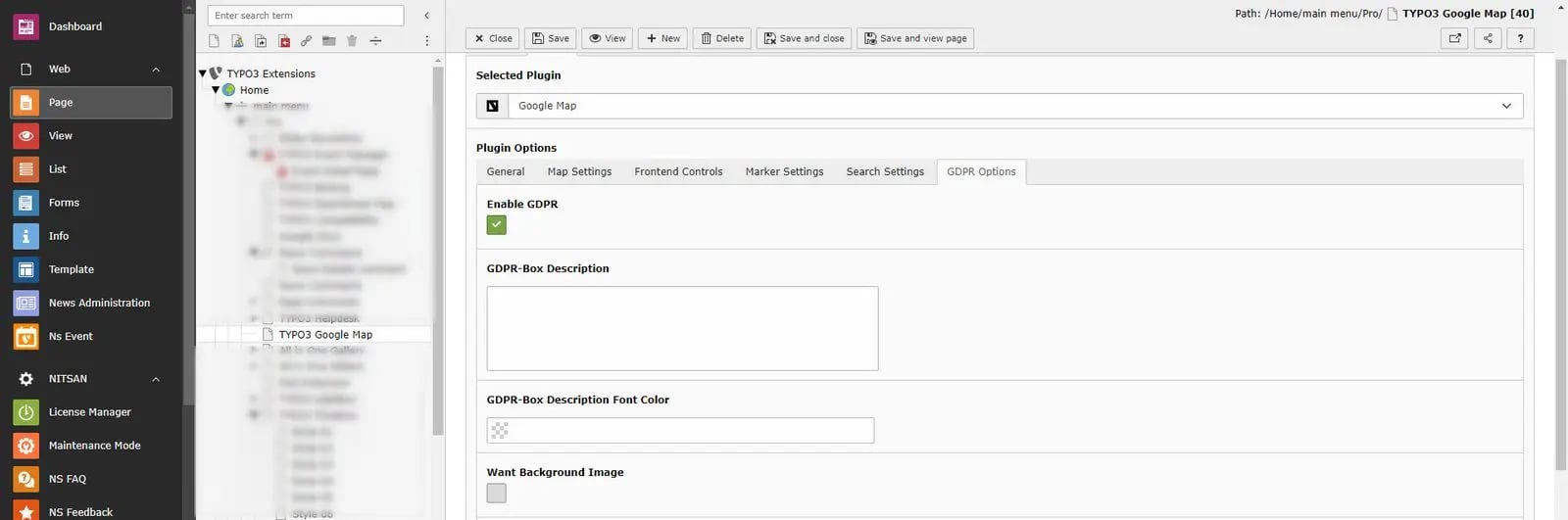
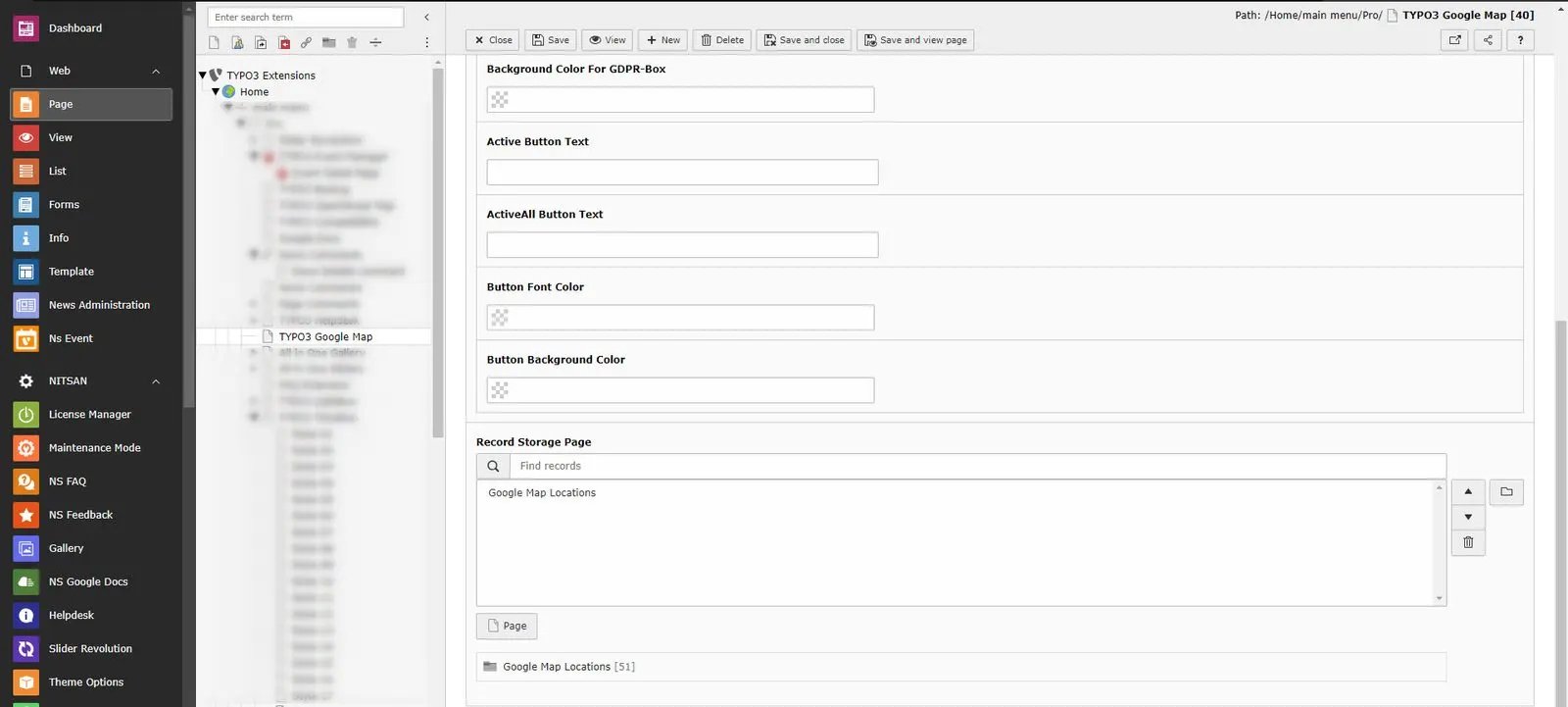 * **GDPR Box** -> Make sure your website collects all required user consent. Googlemap allows you to display consent notices.