> ## Documentation Index
> Fetch the complete documentation index at: https://docs.t3planet.de/en/latest/llms.txt
> Use this file to discover all available pages before exploring further.
# Configuration For Plugins in page
> Configuration For Plugins in page.
## 1.Personio Job List Plugin
Follow below steps to configure this exension:
**Step 1.** Click on “Plugin” menu
**Step 2.** Create New Content Element > Insert Plugin > Personio Job List
## 1.1 General
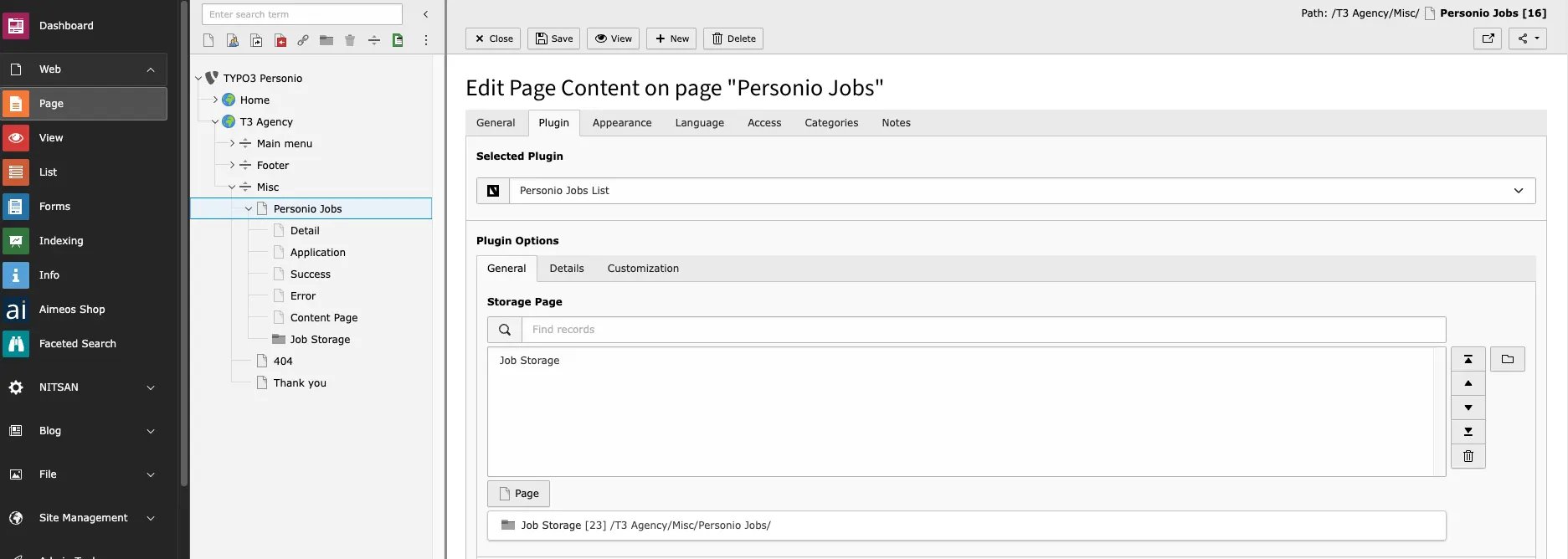
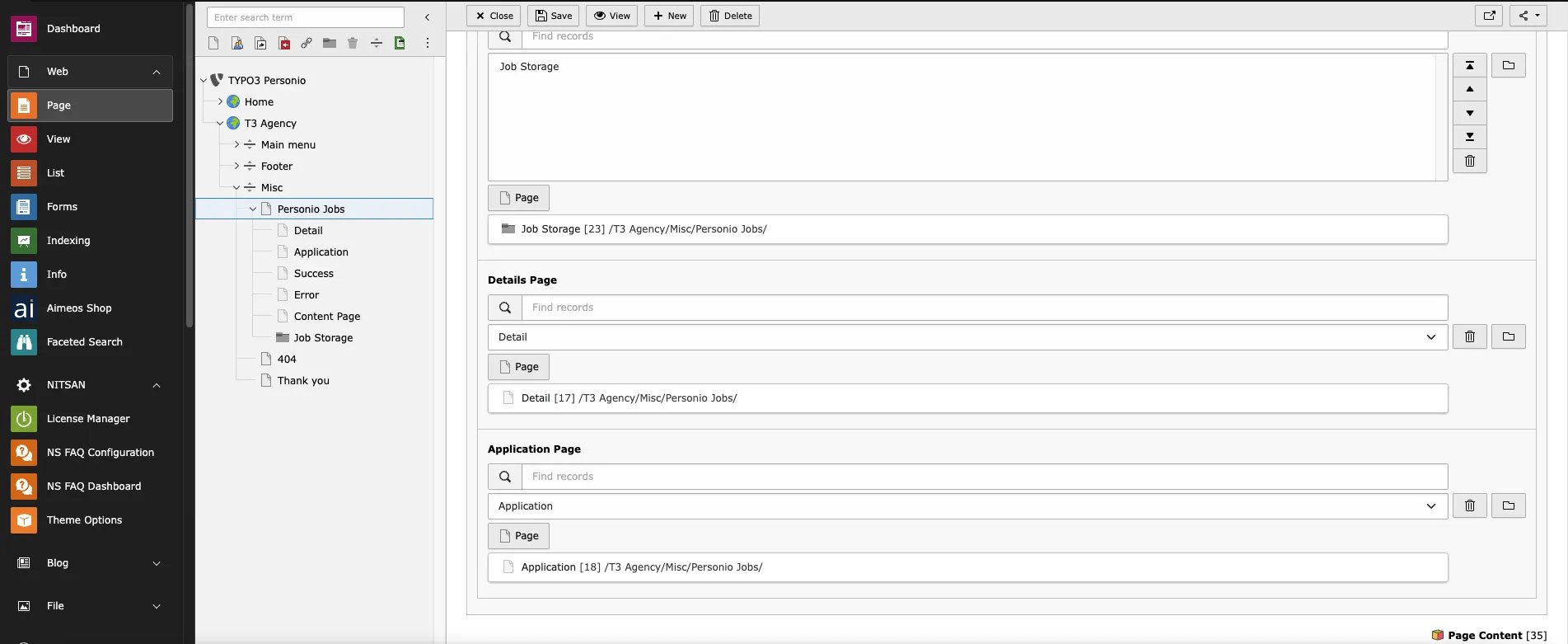 **Storage page:** Select Storage page id where your API data is stored
**Details Page:** Configure id of detail page
**Application Page:** Configure id of Application page
## 1.2 Details
**Storage page:** Select Storage page id where your API data is stored
**Details Page:** Configure id of detail page
**Application Page:** Configure id of Application page
## 1.2 Details
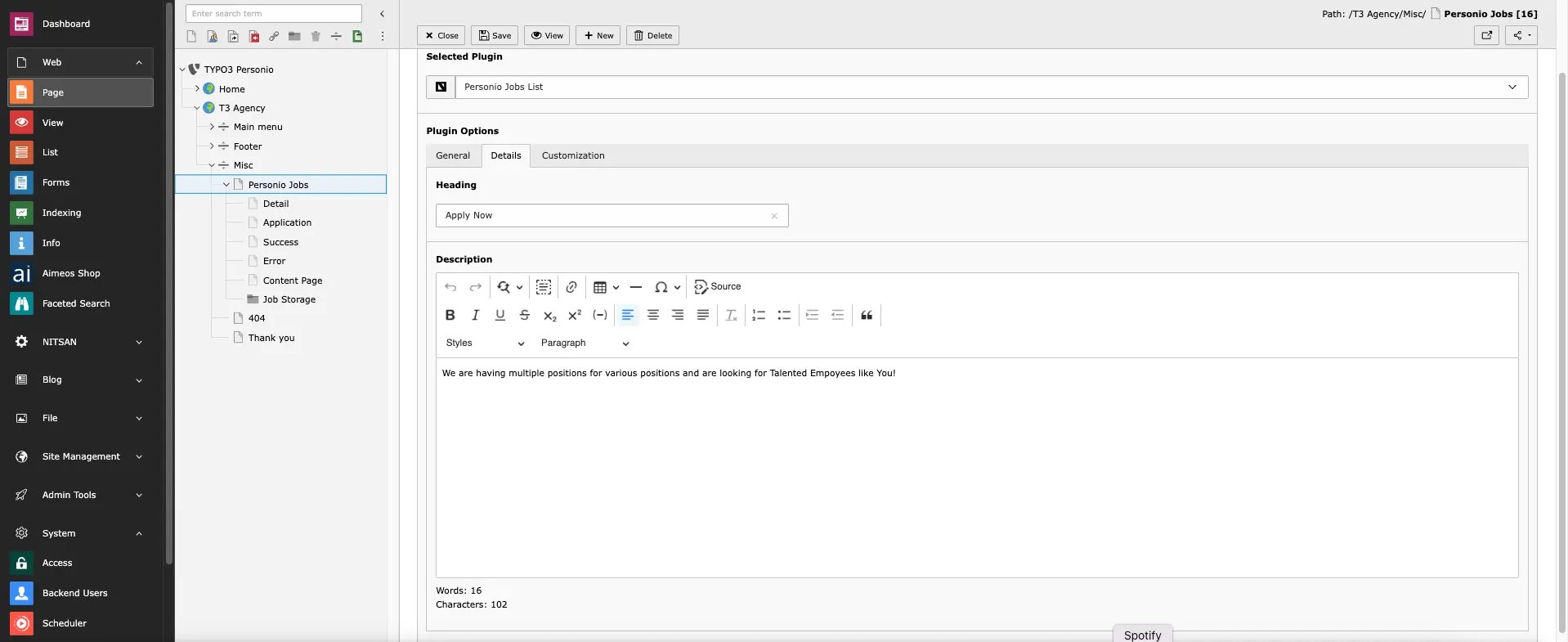 **Add Heading and Description**
## 1.3 Customization
**Add Heading and Description**
## 1.3 Customization
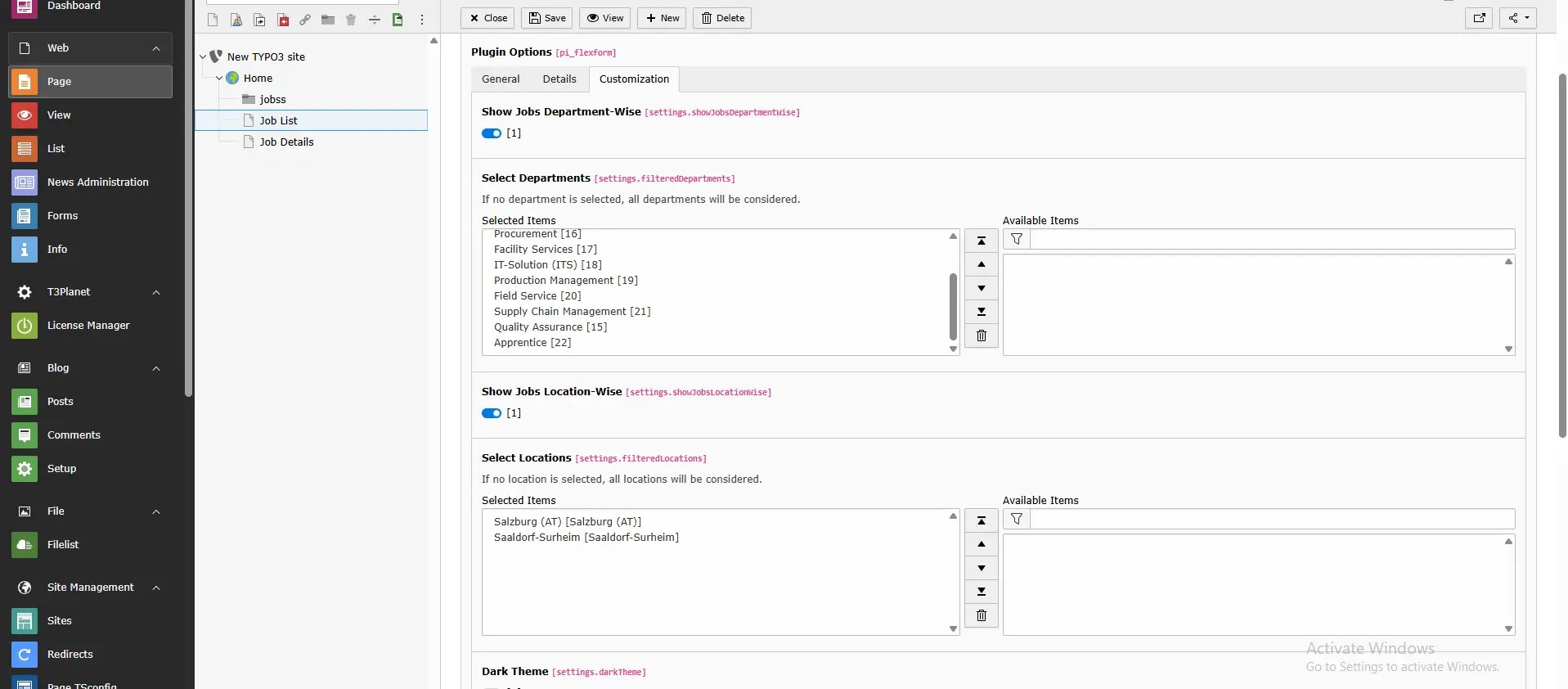
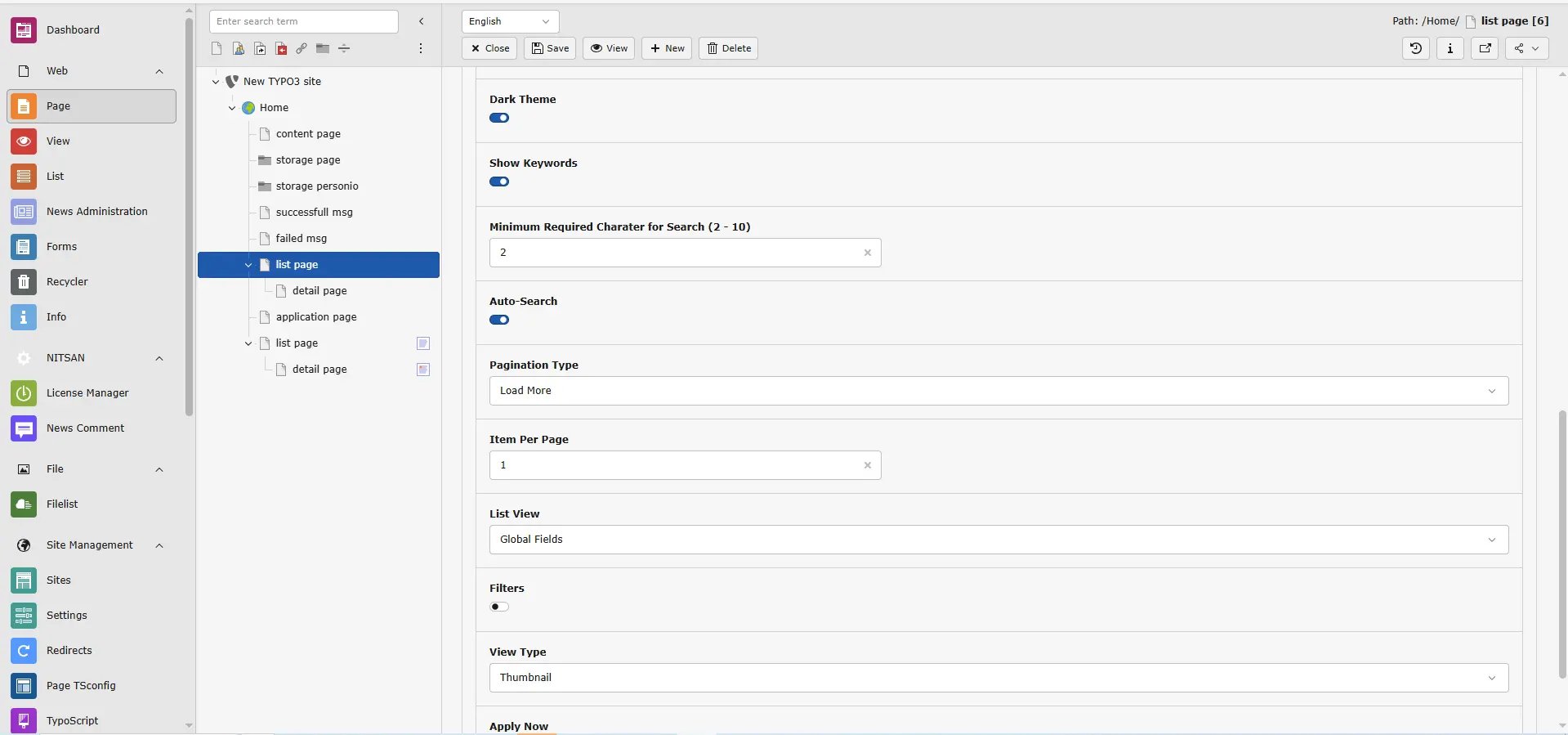 **Dark mode:** You can enable or disable dark mode for listing page
**Show Keywords:** By enabling the “Show Keywords” option, you can display all assigned keywords on the frontend
**Auto-Search:** Enable this option to display an auto-search hint in the search bar and automatically trigger the search while typing.
**Minimum Required Character for Search (2 - 10):** Specify how many characters a user must type before the search is triggered. **This setting works only when Auto-Search is enabled** and must be between 2 and 10.
**Pagination:** You can select Type of Pagination
**Item per Page:** You can set Item per page
**List View:** You can select List view type from dropdown
**Dark mode:** You can enable or disable dark mode for listing page
**Show Keywords:** By enabling the “Show Keywords” option, you can display all assigned keywords on the frontend
**Auto-Search:** Enable this option to display an auto-search hint in the search bar and automatically trigger the search while typing.
**Minimum Required Character for Search (2 - 10):** Specify how many characters a user must type before the search is triggered. **This setting works only when Auto-Search is enabled** and must be between 2 and 10.
**Pagination:** You can select Type of Pagination
**Item per Page:** You can set Item per page
**List View:** You can select List view type from dropdown
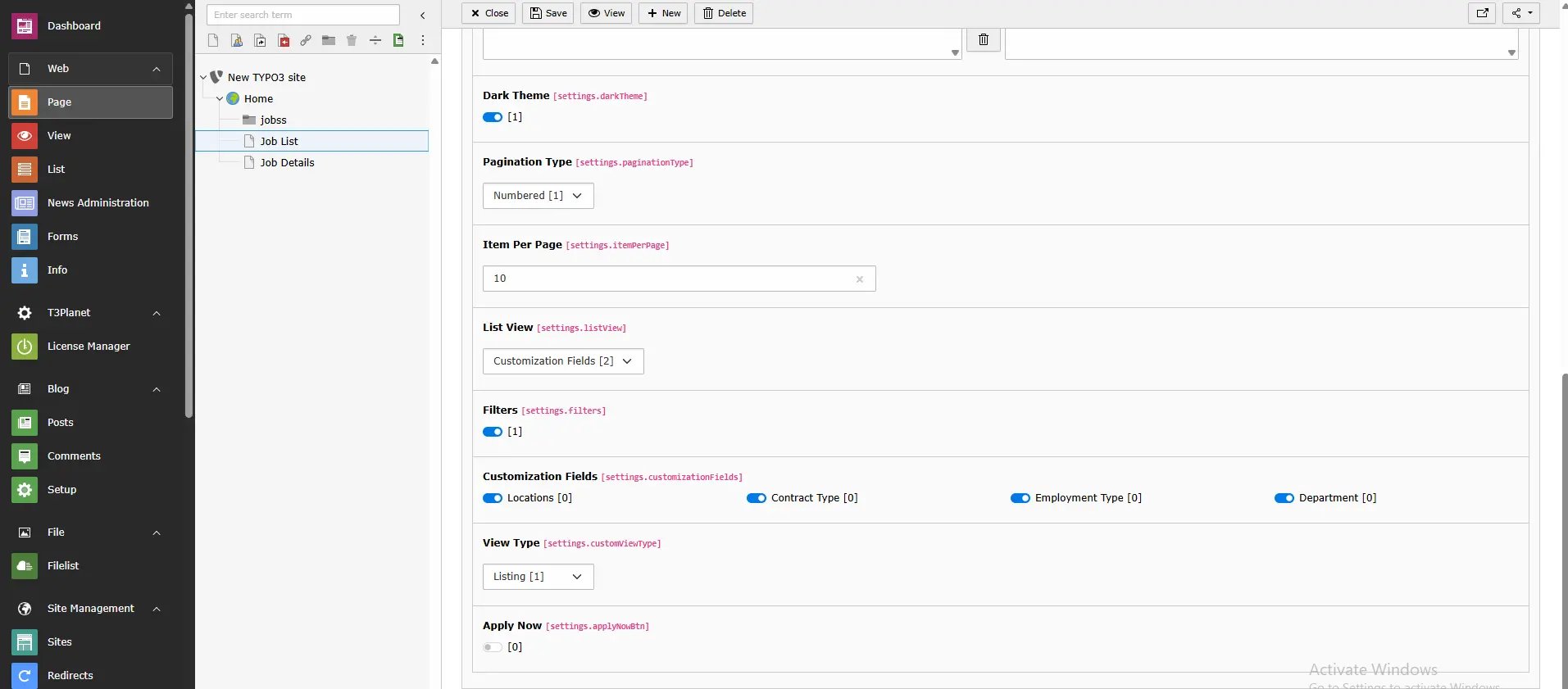 **List View>Customization fields:** You can enable of diable Fields for visibility on FE!
**Filter**
You can enable filters for job applications:
* **Job Department Filter** Allows users to select and filter by specific job departments.
When the scheduler runs to fetch new jobs and departments:
* If a previously selected department is **not available** in the new API data, it will be **automatically unselected**.
* If new departments are found (compared to the previous data), they will **not be automatically selected**. You must manually add them from the plugin settings.
**List View>Customization fields:** You can enable of diable Fields for visibility on FE!
**Filter**
You can enable filters for job applications:
* **Job Department Filter** Allows users to select and filter by specific job departments.
When the scheduler runs to fetch new jobs and departments:
* If a previously selected department is **not available** in the new API data, it will be **automatically unselected**.
* If new departments are found (compared to the previous data), they will **not be automatically selected**. You must manually add them from the plugin settings.
 * **Job Location Filter** Supports filtering by both *Office* and *Additional Office* locations.

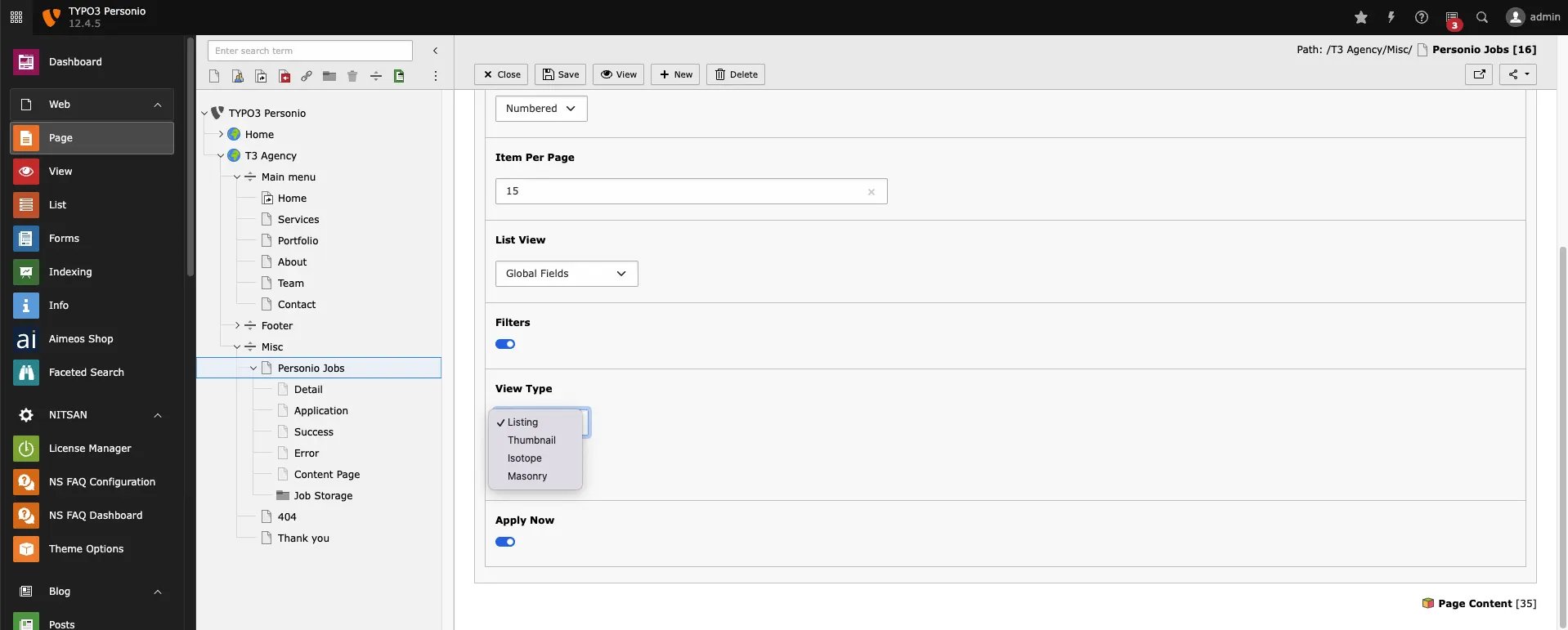 **View type:** YOu can select listing view type from Dropdown to render in Filter
**List View:** By this you can show list in Frontend
**Thumbnail:** By this You can show Applications aa thumbnails
**Isotop:** By this you can Show applications in isotop view
**Masonry:** By this you can show application in masonry view
**Apply now:** By this option you can show apply now button on listing page
## 2.Personio Job Detail Plugin
**Step 1.** Click on “Plugin” menu
**Step 2.** Create New Content Element > Insert Plugin > Personio Job Details
**View type:** YOu can select listing view type from Dropdown to render in Filter
**List View:** By this you can show list in Frontend
**Thumbnail:** By this You can show Applications aa thumbnails
**Isotop:** By this you can Show applications in isotop view
**Masonry:** By this you can show application in masonry view
**Apply now:** By this option you can show apply now button on listing page
## 2.Personio Job Detail Plugin
**Step 1.** Click on “Plugin” menu
**Step 2.** Create New Content Element > Insert Plugin > Personio Job Details
 **Dark Theme:** You can enable/Disable dark mode
**Show Keywords:** By enabling the “Show Keywords” option, you can display all assigned keywords on the frontend
**List Page:** Configure List page id
**Application page:** Configure application Page Id
**Dark Theme:** You can enable/Disable dark mode
**Show Keywords:** By enabling the “Show Keywords” option, you can display all assigned keywords on the frontend
**List Page:** Configure List page id
**Application page:** Configure application Page Id
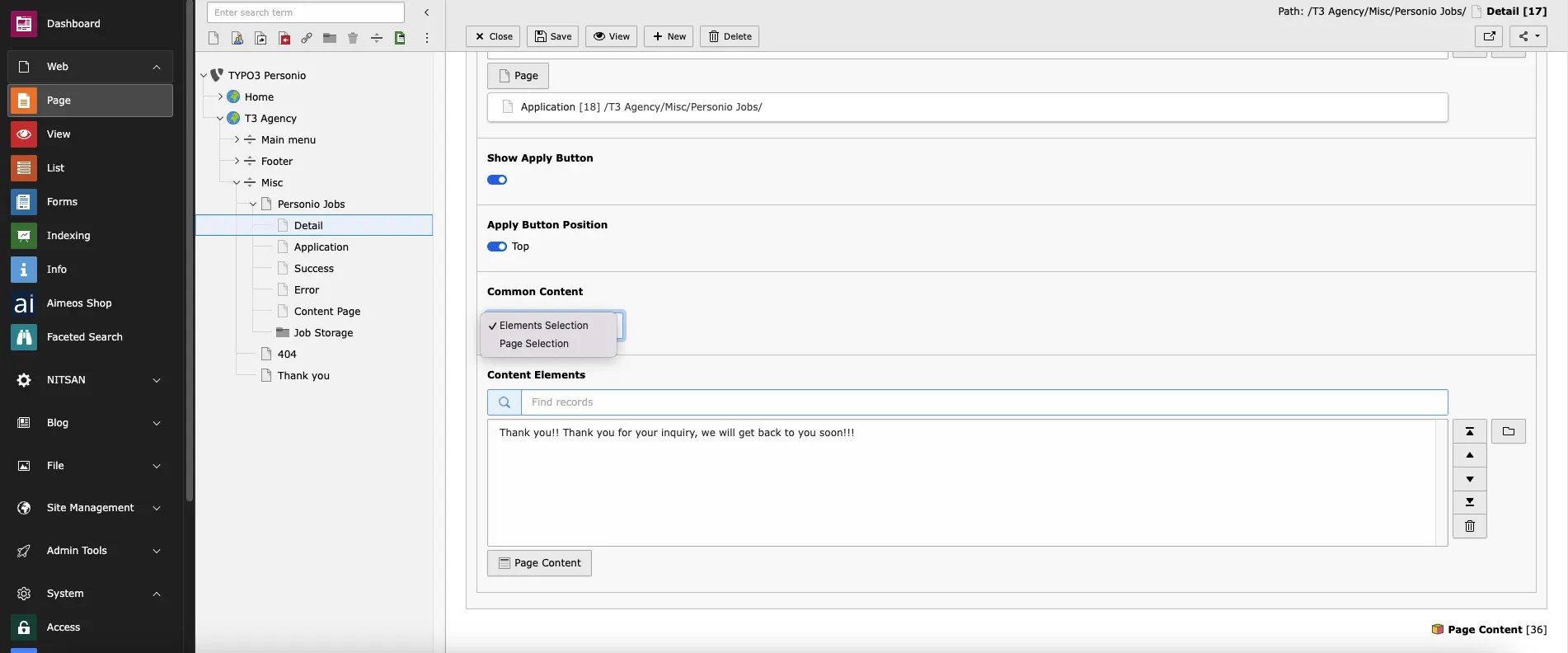 **Show Apply button:** By this option you can enable or disable apply now botton in detail page
**Apply Button Position:** By this option you can set Position on top in detail page by enabling it
**Common content:** You Can select Content elements/Pages for showing in Detail page
## 3.Personio Jobs Application Plugin
**Step 1.** Click on “Plugin” menu
**Step 2.** Create New Content Element > Insert Plugin > Personio Job Details
## 3.1 General
**Show Apply button:** By this option you can enable or disable apply now botton in detail page
**Apply Button Position:** By this option you can set Position on top in detail page by enabling it
**Common content:** You Can select Content elements/Pages for showing in Detail page
## 3.Personio Jobs Application Plugin
**Step 1.** Click on “Plugin” menu
**Step 2.** Create New Content Element > Insert Plugin > Personio Job Details
## 3.1 General
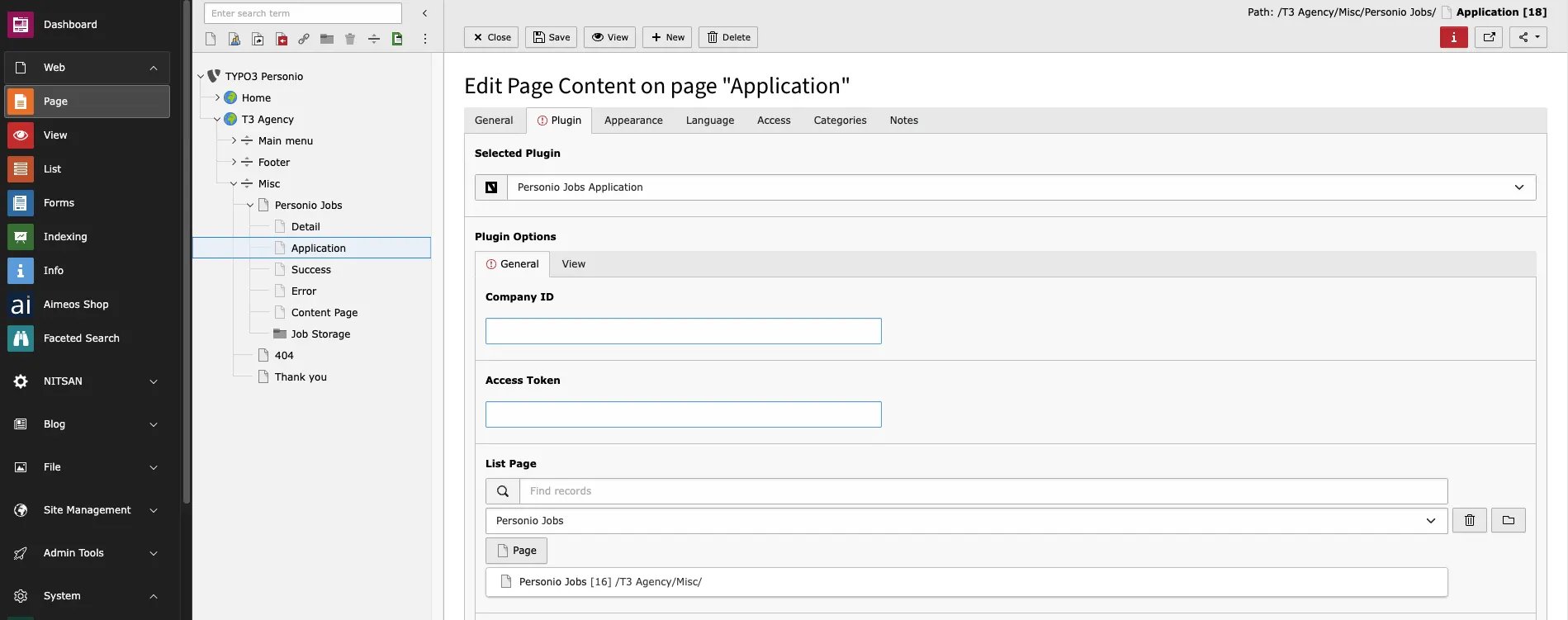 You can configure Comapny id and Access token from your personio account,learn more from [https://developer.personio.de/docs/getting-started-with-the-personio-api](https://developer.personio.de/docs/getting-started-with-the-personio-api)
**Company id:** Add Company id
**Access token:** Add access token
**List page:** Configure list page id
You can configure Comapny id and Access token from your personio account,learn more from [https://developer.personio.de/docs/getting-started-with-the-personio-api](https://developer.personio.de/docs/getting-started-with-the-personio-api)
**Company id:** Add Company id
**Access token:** Add access token
**List page:** Configure list page id
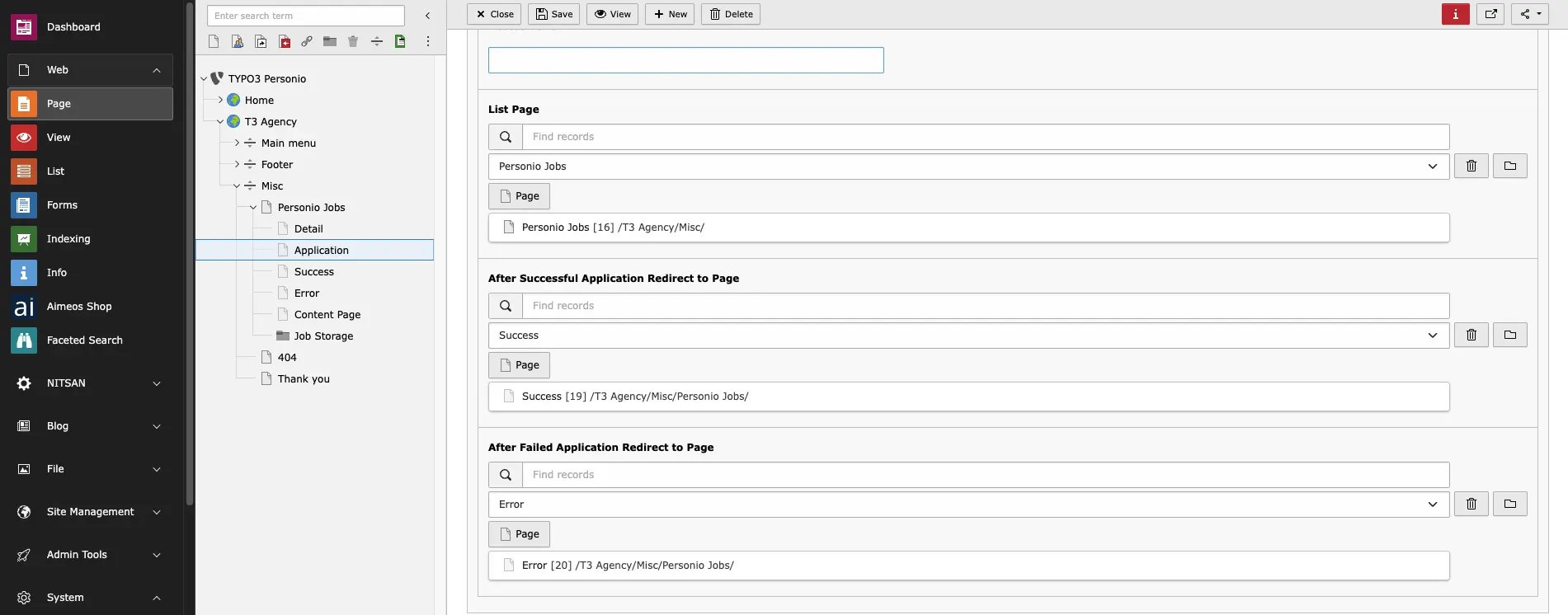 **After Successful Application Redirect to Page:** After Successful submition of Application redirected to this configured page
**After Failed Application Redirect to Page:** If Application submission failed it will redirect to this page
## 3.2 View
**After Successful Application Redirect to Page:** After Successful submition of Application redirected to this configured page
**After Failed Application Redirect to Page:** If Application submission failed it will redirect to this page
## 3.2 View
 **Dark theme:** You can enable or disble dark theme for application form page
**Show header:** You can Enable/disable header visibility in Frontend
**Show Keywords:** By enabling the “Show Keywords” option, you can display all assigned keywords on the frontend.
**Application Message:** You can add message for application page
**Dark theme:** You can enable or disble dark theme for application form page
**Show header:** You can Enable/disable header visibility in Frontend
**Show Keywords:** By enabling the “Show Keywords” option, you can display all assigned keywords on the frontend.
**Application Message:** You can add message for application page
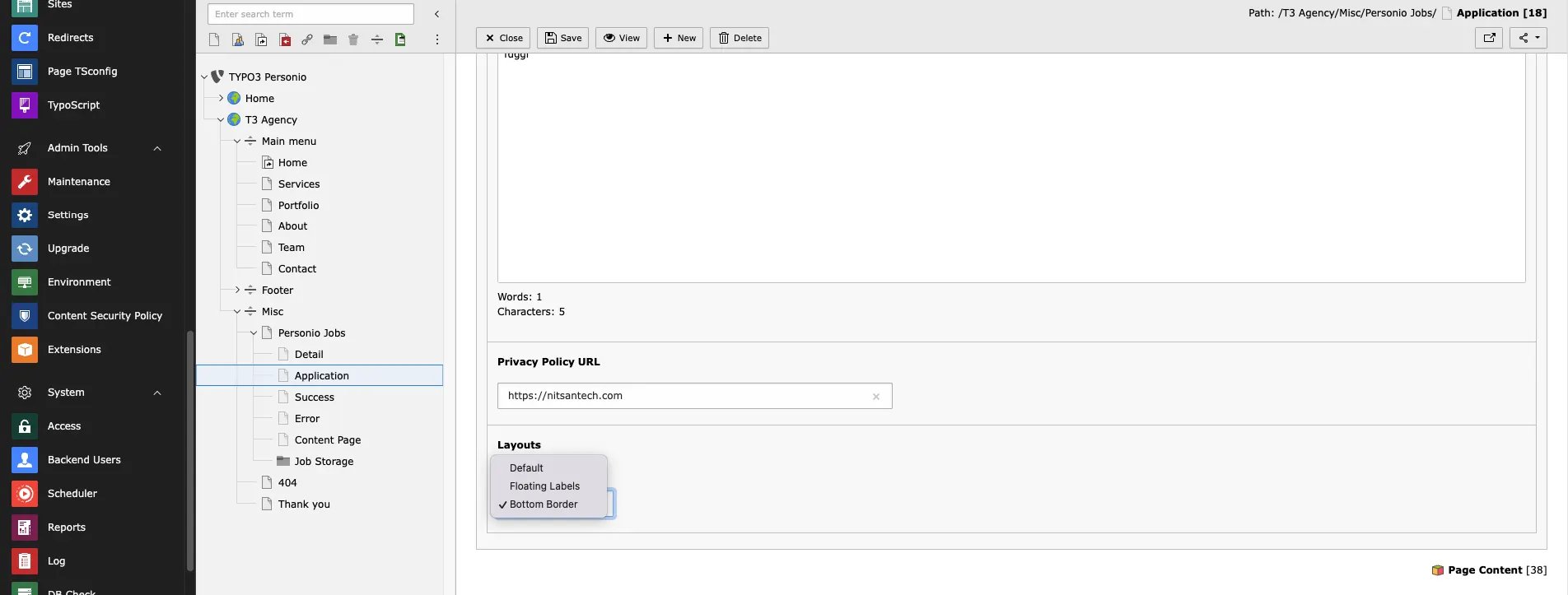 **Privacy policy URL:** Add Privacy policy URL for application form
**Layout:** You can select Layout of form from Dropdown
Thats..it you can now check your job listing on Your website!
**Privacy policy URL:** Add Privacy policy URL for application form
**Layout:** You can select Layout of form from Dropdown
Thats..it you can now check your job listing on Your website!