> ## Documentation Index
> Fetch the complete documentation index at: https://docs.t3planet.de/en/latest/llms.txt
> Use this file to discover all available pages before exploring further.
# AI Alt Text
> **AI Alt Text** helps you generate, review, and approve alternative text for images in the TYPO3 file system.
**AI Alt Text** helps you generate, review, and approve alternative text for
images in the TYPO3 file system.
You can generate AI alt text in **two ways**:
1. **AI Alt Text module** — **AI Accessibility → AI Alt Text**.
Review missing alt text by folder, generate drafts for selected files or a
whole folder, then approve them in one place.
2. **File List (Media)** — open an image and generate alt text **one by one
image**, or use **Mass AI File Meta** for a folder (including multilingual
options and Scheduler processing).
Both paths write into TYPO3 file metadata. Use the module for coverage and
review; use File List when you are already editing specific files.
## AI Alt Text module
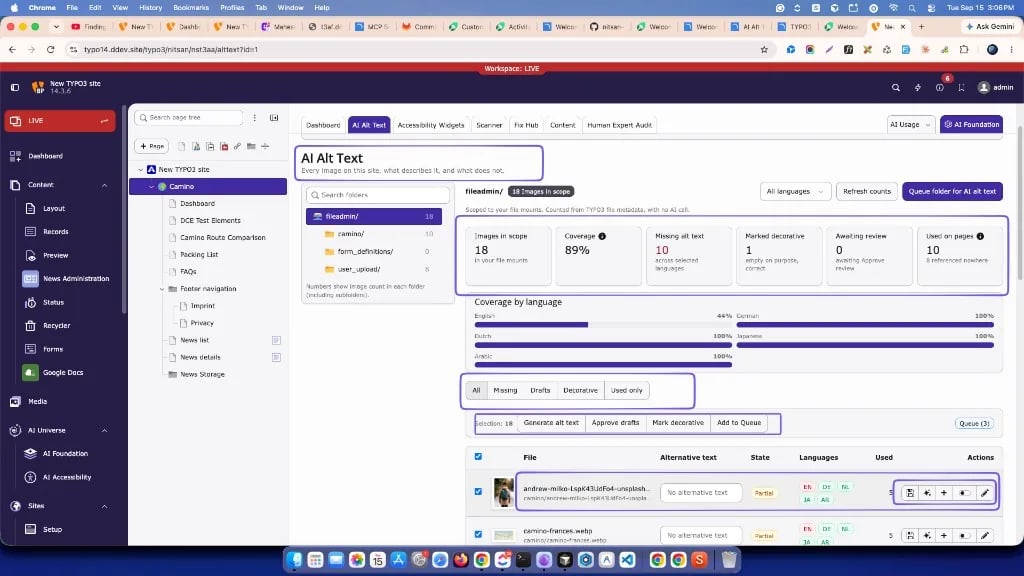 ## Steps — AI Alt Text module
1. Configure an AI provider in **AI Foundation → AI Providers**.
2. Open **AI Accessibility → AI Alt Text**.
3. Select a `fileadmin` folder in the left tree.
4. Check tiles such as **Missing alt text** and **Awaiting review**.
5. Filter to **Missing** or **Used only** if you want to prioritise.
6. Select images, then click **Generate alt text** (or use **Generate** on one
row for a single image).
7. Review each draft, edit if needed, then **Approve** or **Save**.
8. Mark true decoration images as **decorative** (empty alt on purpose).
9. For large folders, use **Add to Queue** / **Queue folder for AI alt text**,
then process the queue with Scheduler / `nst3aa:bulk:metadata`.
## What Decorative means
**Decorative** means the image is not meaningful content. T3AA stores
**empty alternative text on purpose** so assistive technology can skip it.
* **Marked decorative** — intentionally empty (correct for pure decoration)
* **Missing** — a meaningful image that still needs alternative text
Do not mark informative photos, meaningful icons, or charts as decorative.
## Module overview
## Folder and language
* **Folder tree** — counts and the table follow the selected folder
* **Language** — All languages or one language
* **Refresh counts** — reloads metadata only (does not call AI)
* **Queue folder for AI alt text** — queues the folder for bulk generation
## Status tiles
| Tile | Meaning |
| ----------------- | ------------------------------------------------ |
| Images in scope | Images in the selected folder / mounts |
| Coverage | Share already described, drafted, or decorative |
| Missing alt text | Meaningful images still without alternative text |
| Marked decorative | Empty alt on purpose |
| Awaiting review | AI drafts waiting for **Approve** |
| Used on pages | How many images are referenced in content |
## Filters and bulk actions
Filters: **All**, **Missing**, **Drafts**, **Decorative**, **Used only**.
Bulk bar (after selecting rows): **Generate alt text**, **Approve drafts**,
**Mark decorative**, **Add to Queue**.
Row actions include Save, Generate (one image), Queue, Decorative toggle, and
Edit (TYPO3 file record).
## Steps — File List (one by one image)
1. Open **File List** and select a folder.
2. Edit an image’s metadata.
3. Use **Generate AI Alt Metadata**, choose the generator (**TextAlt.ai** or
**Vision API**), then **Generate**.
4. Review and **Save**.
## Steps — AI Alt Text module
1. Configure an AI provider in **AI Foundation → AI Providers**.
2. Open **AI Accessibility → AI Alt Text**.
3. Select a `fileadmin` folder in the left tree.
4. Check tiles such as **Missing alt text** and **Awaiting review**.
5. Filter to **Missing** or **Used only** if you want to prioritise.
6. Select images, then click **Generate alt text** (or use **Generate** on one
row for a single image).
7. Review each draft, edit if needed, then **Approve** or **Save**.
8. Mark true decoration images as **decorative** (empty alt on purpose).
9. For large folders, use **Add to Queue** / **Queue folder for AI alt text**,
then process the queue with Scheduler / `nst3aa:bulk:metadata`.
## What Decorative means
**Decorative** means the image is not meaningful content. T3AA stores
**empty alternative text on purpose** so assistive technology can skip it.
* **Marked decorative** — intentionally empty (correct for pure decoration)
* **Missing** — a meaningful image that still needs alternative text
Do not mark informative photos, meaningful icons, or charts as decorative.
## Module overview
## Folder and language
* **Folder tree** — counts and the table follow the selected folder
* **Language** — All languages or one language
* **Refresh counts** — reloads metadata only (does not call AI)
* **Queue folder for AI alt text** — queues the folder for bulk generation
## Status tiles
| Tile | Meaning |
| ----------------- | ------------------------------------------------ |
| Images in scope | Images in the selected folder / mounts |
| Coverage | Share already described, drafted, or decorative |
| Missing alt text | Meaningful images still without alternative text |
| Marked decorative | Empty alt on purpose |
| Awaiting review | AI drafts waiting for **Approve** |
| Used on pages | How many images are referenced in content |
## Filters and bulk actions
Filters: **All**, **Missing**, **Drafts**, **Decorative**, **Used only**.
Bulk bar (after selecting rows): **Generate alt text**, **Approve drafts**,
**Mark decorative**, **Add to Queue**.
Row actions include Save, Generate (one image), Queue, Decorative toggle, and
Edit (TYPO3 file record).
## Steps — File List (one by one image)
1. Open **File List** and select a folder.
2. Edit an image’s metadata.
3. Use **Generate AI Alt Metadata**, choose the generator (**TextAlt.ai** or
**Vision API**), then **Generate**.
4. Review and **Save**.
## Bulk metadata (Scheduler)
1. In File List, select the folder.
2. Use **Mass AI File Meta**.
3. Choose missing-only or override existing metadata.
4. Select language options when offered.
5. Process with Scheduler or `nst3aa:bulk:metadata`.
6. Review and approve drafts in AI Alt Text / File List.
## Important notes
* Drafts are not finished until someone approves or edits them.
* Opening the inventory reads metadata only; generation needs AI Foundation
provider configuration and feature access.
* A valid T3AA license is required for generation.
## Additional demos