> ## Documentation Index
> Fetch the complete documentation index at: https://docs.t3planet.de/en/latest/llms.txt
> Use this file to discover all available pages before exploring further.
# Dashboard
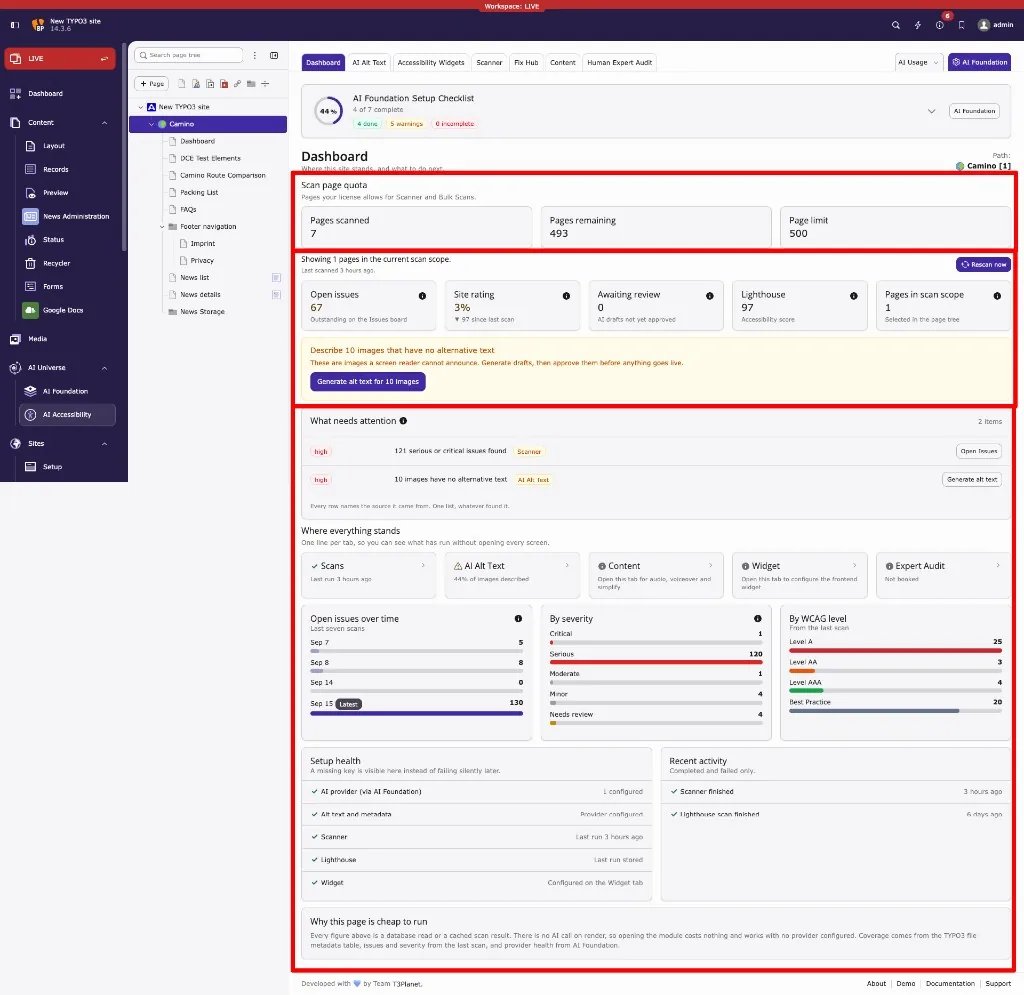
> The **Dashboard** is the first tab in **AI Accessibility** (`EXT:ns_t3aa`). It summarises accessibility status for the **page selected in the page tree**.
The **Dashboard** is the first tab in **AI Accessibility** (`EXT:ns_t3aa`).
It summarises accessibility status for the **page selected in the page tree**.
Opening the Dashboard does **not** call AI. Numbers come from stored scan
results and TYPO3 file metadata.
## Dashboard overview
 ## How to open it
1. Open **AI Accessibility**.
2. Select a site root or page in the page tree.
3. Stay on the **Dashboard** tab.
Everything on this screen reports for the **selected page path**.
If **AI Accessibility** is missing from the module menu, check that
`EXT:ns_t3aa` and `EXT:ns_t3af` are installed, the T3AA license is active
for this domain, and caches are flushed.
## Scan page quota
At the top of the Dashboard (and on the Scanner / Bulk Scans screens) you see
**Scan page quota**:
* **Pages scanned** — pages already counted against your license
* **Pages remaining** — pages you can still scan
* **Page limit** — total pages allowed by the current license (or
**Unlimited**)
## How it works when you run a scan
1. You select a page and a **depth** (this page only, 1–3 levels, or infinite).
2. You click **Run Accessibility Check** (or process queued Bulk Scans).
3. T3AA builds the list of pages in that scope.
4. **Each page that is scanned counts as one page** against the license quota.
5. When remaining pages reach **0**, further licensed scans are blocked until
the license allows more pages (the UI shows a page-scan limit message).
So “per click” means: one click can scan **many** pages (depending on depth),
and **every page in that run** reduces **Pages remaining**. Check quota before
large depth scans.
## Scope and Rescan
* Shows how many pages the last scan covered, and when it ran.
* If nothing was scanned yet, you get a short empty-state hint.
* **Rescan now** opens the **Scanner** tab so you can run another check.
## Overview tiles
| Tile | Meaning |
| ------------------- | ----------------------------------------------------- |
| Open issues | Outstanding items on the Fix Hub board |
| Site rating | Percentage summary from the last Scanner run |
| Awaiting review | AI alt text drafts not yet approved |
| Lighthouse | Latest Lighthouse accessibility score for one URL |
| Pages in scan scope | Pages included in the last scan for the selected path |
## Recommended next step
The coloured callout is the Dashboard’s priority action for the current scope
(for example: run the first scan, work open issues, or generate alt text). The
button jumps to the matching workflow.
## What needs attention
A priority list of actionable items, for example:
* Serious / critical Scanner findings → **Open Issues**
* Images without alternative text → **Generate alt text**
* AI drafts waiting for approval → **Review**
Work top down. Items are ordered by impact.
## Where everything stands
Status cards for major areas (Scanner, AI Alt Text, Content, Widget, Expert
Audit). Click a card to open that tab.
## Charts and setup
* **Open issues over time** — finding counts across recent scans
* **By severity** / **By WCAG level** — breakdown from the last scan (not a
legal conformance claim)
* **Setup health** — configuration checklist (AI provider, Scanner, Lighthouse
key, Widget, and similar)
* **Recent activity** — completed or failed Scanner / Lighthouse runs
When setup is incomplete, an **AI Foundation Setup Checklist** may appear above
the content. Finish incomplete items before expecting **AI generation** features
to run.
## Important notes
* A valid T3AA license is required for the backend domain.
* Select a page in the page tree; empty selection means there is no scope.
* **AI generation** features (alt text, simplify text, audio, voiceover) need a
working provider in **AI Foundation → AI Providers**, plus the matching
options under **AI Foundation → AI Features**.
* A high Lighthouse score is a health indicator, not a WCAG conformance proof.
* Dashboard render itself does not call AI.
## How to open it
1. Open **AI Accessibility**.
2. Select a site root or page in the page tree.
3. Stay on the **Dashboard** tab.
Everything on this screen reports for the **selected page path**.
If **AI Accessibility** is missing from the module menu, check that
`EXT:ns_t3aa` and `EXT:ns_t3af` are installed, the T3AA license is active
for this domain, and caches are flushed.
## Scan page quota
At the top of the Dashboard (and on the Scanner / Bulk Scans screens) you see
**Scan page quota**:
* **Pages scanned** — pages already counted against your license
* **Pages remaining** — pages you can still scan
* **Page limit** — total pages allowed by the current license (or
**Unlimited**)
## How it works when you run a scan
1. You select a page and a **depth** (this page only, 1–3 levels, or infinite).
2. You click **Run Accessibility Check** (or process queued Bulk Scans).
3. T3AA builds the list of pages in that scope.
4. **Each page that is scanned counts as one page** against the license quota.
5. When remaining pages reach **0**, further licensed scans are blocked until
the license allows more pages (the UI shows a page-scan limit message).
So “per click” means: one click can scan **many** pages (depending on depth),
and **every page in that run** reduces **Pages remaining**. Check quota before
large depth scans.
## Scope and Rescan
* Shows how many pages the last scan covered, and when it ran.
* If nothing was scanned yet, you get a short empty-state hint.
* **Rescan now** opens the **Scanner** tab so you can run another check.
## Overview tiles
| Tile | Meaning |
| ------------------- | ----------------------------------------------------- |
| Open issues | Outstanding items on the Fix Hub board |
| Site rating | Percentage summary from the last Scanner run |
| Awaiting review | AI alt text drafts not yet approved |
| Lighthouse | Latest Lighthouse accessibility score for one URL |
| Pages in scan scope | Pages included in the last scan for the selected path |
## Recommended next step
The coloured callout is the Dashboard’s priority action for the current scope
(for example: run the first scan, work open issues, or generate alt text). The
button jumps to the matching workflow.
## What needs attention
A priority list of actionable items, for example:
* Serious / critical Scanner findings → **Open Issues**
* Images without alternative text → **Generate alt text**
* AI drafts waiting for approval → **Review**
Work top down. Items are ordered by impact.
## Where everything stands
Status cards for major areas (Scanner, AI Alt Text, Content, Widget, Expert
Audit). Click a card to open that tab.
## Charts and setup
* **Open issues over time** — finding counts across recent scans
* **By severity** / **By WCAG level** — breakdown from the last scan (not a
legal conformance claim)
* **Setup health** — configuration checklist (AI provider, Scanner, Lighthouse
key, Widget, and similar)
* **Recent activity** — completed or failed Scanner / Lighthouse runs
When setup is incomplete, an **AI Foundation Setup Checklist** may appear above
the content. Finish incomplete items before expecting **AI generation** features
to run.
## Important notes
* A valid T3AA license is required for the backend domain.
* Select a page in the page tree; empty selection means there is no scope.
* **AI generation** features (alt text, simplify text, audio, voiceover) need a
working provider in **AI Foundation → AI Providers**, plus the matching
options under **AI Foundation → AI Features**.
* A high Lighthouse score is a health indicator, not a WCAG conformance proof.
* Dashboard render itself does not call AI.