> ## Documentation Index
> Fetch the complete documentation index at: https://docs.t3planet.de/en/latest/llms.txt
> Use this file to discover all available pages before exploring further.
# Data Source
> Add and manage the sources of content that will be used for AI search and the AI chatbot e.g. website pages, PDFs, Q&A.
## Purpose
Add and manage the sources of content that will be used for AI search and the AI chatbot (e.g. website pages, PDFs, Q\&A).
## Adding a data source
1. Click **+ Add Source**.
2. Choose the **type of source**, for example:
* **Sitemap XML** – Your sitemap URL(s) (e.g. `https://example.com/sitemap.xml`).
* **PDF Documents** – Folder path where PDFs are stored (and optionally upload PDFs).
* **TYPO3 Pages** – Content from specific TYPO3 pages.
* **Web Pages** – A website URL; optionally limit to a path (e.g. `https://example.com/blog/*`).
* **Q\&A Pairs** – Manual question-and-answer content.
* **Indexed Search / Ke Search / Solr** – If the corresponding extensions are installed and indexed content is available.
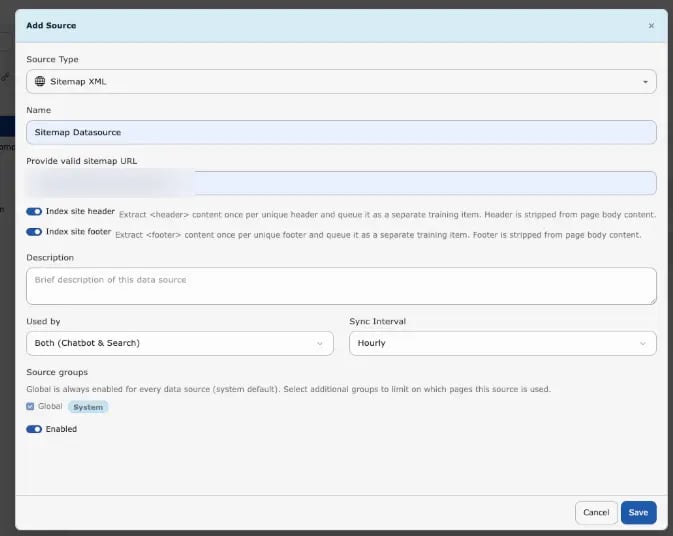
3. Fill in the requested details (URLs, folder path, page selection, etc.) and give the source a **Name** (e.g. `Main Website`) and optional **Description**.
4. Set **Sync interval**: how often content should be refreshed (e.g. **Hourly**, **Daily**, **Weekly**). **Custom** means no automatic schedule (manual sync only).
5. Set **Used by** (formerly **Type**) to control whether this source is available for **AI Search**, **AI Chatbot**, or **Both**.
6. Set **Enabled** to on if the source should be active.
7. Click **Save**.
After saving, T3AC will:
* Create or update the data source.
* Sync content into the training queue (new or changed items).
* **Automatically create** the **T3AF Training** Scheduler task for this site (if it does not exist yet) and **run it at the frequency you set** (e.g. Hourly, Daily, Weekly). You do not need to create the scheduler task manually—it is created when the source is saved and will execute according to the chosen sync interval.
## Editing or deleting a source
Use the actions next to each data source to **edit** (type, URLs, interval, usage) or **delete** it.
## Source Groups | Page-Level Source Configuration
Source Groups allow administrators and editors to organize data sources and control which content is available to AI Search and the AI Chatbot on a page-by-page basis.
This gives you precise control over retrieval because only the selected Source Groups are considered for that page.
Source Groups are used only during content retrieval.
They do **not** affect AI training, vector indexing, Scheduler execution, embedding generation, or data synchronization.
The filtering is applied by the **VectorService** during retrieval.
### Backend Configuration
#### Manage Source Groups
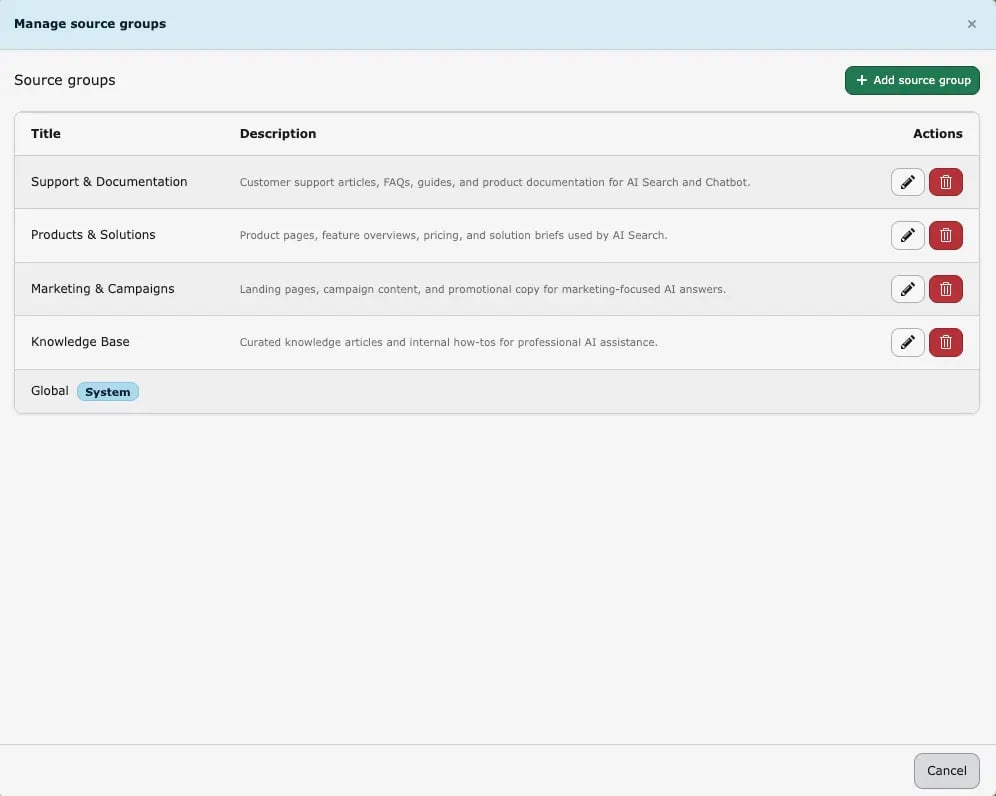
Go to **Data Sources -> Source Groups** to manage Source Groups.
Administrators can:
* create Source Groups
* edit Source Groups
* delete Source Groups
Create, edit, or delete Source Groups. The **Global** group is a system default and cannot be changed.
The **Global** Source Group is a system group and cannot be edited or deleted.
#### Assign Source Groups to Data Sources
When creating or editing a data source, users can:
* select one or more Source Groups
* rely on the **Global** Source Group, which is assigned automatically
* configure the **Used by** field (formerly **Type**) to control where the source is available
Available **Used by** options:
* **AI Search**
* **AI Chatbot**
* **Both AI Search and AI Chatbot**
This setting controls where the data source can be used after retrieval starts.
#### Page-Level Configuration (T3AS / T3AC)
1. Open the desired TYPO3 page.
2. Open **Page Properties**.
3. Go to the **AI Search** tab.
4. Find the **Source groups** field.
5. Select the Source Groups that should be available on that page.
Choose Source Groups under **Page Properties → AI Search** so AI Search and AI Chatbot use only those sources on that page.
Only data sources assigned to the selected Source Groups are used on that page and their child/recursive pages.
This filtering applies to both **AI Search** and **AI Chatbot**, and different pages can use different Source Groups.
#### Practical Example
A company has separate documentation for **Products**, **HR**, and **Internal Policies**.
Three Source Groups are created:
* **Products**
* **HR**
* **Internal**
On product pages, only the **Products** Source Group is selected, so AI Search and AI Chatbot return product-related information.
On HR pages, only the **HR** Source Group is selected, so HR content is used while product information is excluded.
Source Groups only affect content retrieval. Existing training data, embeddings, vector indexing, and scheduled synchronization continue to operate normally.
If no custom Source Groups are selected, the **Global** Source Group remains available according to the configured behavior.
### Header / Footer for Sitemap and Web-Page Source Types
These options help you keep repeated layout content out of the main page body while still making shared site information available to chatbot and search retrieval.
Enable **Index site header** and **Index site footer** when adding or editing a Sitemap XML or Web Pages data source.
**Index Site Header**
Use **Index Site Header** when the site header contains useful shared information that should be indexed only once.
Purpose:
* extract the website `` content one time for each unique header
* store that content as a separate training item
* remove the same header content from the page body before indexing
Benefits:
* reduces duplicate information across many pages
* keeps repeated navigation or shared header text from being indexed over and over
* preserves useful shared site information for retrieval
When to enable:
* when the header contains meaningful text that supports AI answers
* when many pages share the same header content
Recommended use cases:
* websites with shared product navigation or service overviews in the header
* websites where the header contains reusable company or category information
**Index Site Footer**
Use **Index Site Footer** when the site footer contains shared information that should be indexed only once.
Purpose:
* extract the website `
 Create, edit, or delete Source Groups. The **Global** group is a system default and cannot be changed.
 Choose Source Groups under **Page Properties → AI Search** so AI Search and AI Chatbot use only those sources on that page.
Only data sources assigned to the selected Source Groups are used on that page and their child/recursive pages.
This filtering applies to both **AI Search** and **AI Chatbot**, and different pages can use different Source Groups.
#### Practical Example
A company has separate documentation for **Products**, **HR**, and **Internal Policies**.
Three Source Groups are created:
* **Products**
* **HR**
* **Internal**
On product pages, only the **Products** Source Group is selected, so AI Search and AI Chatbot return product-related information.
On HR pages, only the **HR** Source Group is selected, so HR content is used while product information is excluded.
Choose Source Groups under **Page Properties → AI Search** so AI Search and AI Chatbot use only those sources on that page.
Only data sources assigned to the selected Source Groups are used on that page and their child/recursive pages.
This filtering applies to both **AI Search** and **AI Chatbot**, and different pages can use different Source Groups.
#### Practical Example
A company has separate documentation for **Products**, **HR**, and **Internal Policies**.
Three Source Groups are created:
* **Products**
* **HR**
* **Internal**
On product pages, only the **Products** Source Group is selected, so AI Search and AI Chatbot return product-related information.
On HR pages, only the **HR** Source Group is selected, so HR content is used while product information is excluded.
 Enable **Index site header** and **Index site footer** when adding or editing a Sitemap XML or Web Pages data source.
**Index Site Header**
Use **Index Site Header** when the site header contains useful shared information that should be indexed only once.
Purpose:
* extract the website `
Enable **Index site header** and **Index site footer** when adding or editing a Sitemap XML or Web Pages data source.
**Index Site Header**
Use **Index Site Header** when the site header contains useful shared information that should be indexed only once.
Purpose:
* extract the website `