> ## Documentation Index
> Fetch the complete documentation index at: https://docs.t3planet.de/en/latest/llms.txt
> Use this file to discover all available pages before exploring further.
# T3AI Media
> Make AIgenerated images, audio, and videos quickly and easily. Use trusted tools like DALLE, MidJourney, Stability AI, Unsplash, Openverse, and Pixabay to create your media.
Make AI-generated images, audio, and videos quickly and easily. Use trusted tools like DALL-E, MidJourney, Stability AI, Unsplash, Openverse, and Pixabay to create your media.
## DALL-E AI Images
Your T3AI’s image generation capabilities are now even stronger with DALL-E integration. Create high-quality AI-generated images with just one click!
**Note: Before Starting AI image generation, you need to select folders from Your folder tree.**
**Step 1** : Navigate to Your T3AI Module and select the Media tab.
**Step 2** : Open the “ Dall-E AI images“ module.
**Step 3** : Enter the AI image prompt describing the image you want to create.
* Choose the image style, like realistic or sketch.
* Select the image size that fits your needs.
* Enter the number of image results you want to generate.
* Click the “Generate AI Image” button.
**Step 4** : Select the image you want to save. Additionally, you can sort the images in either row or list format.
**Step 5** : Click the “Save Image” button, and your AI-generated image will be saved in the appropriate folder.
## MidJourney AI Images
Create any image you can imagine in seconds! With T3AI’s powerful integration with Midjourney AI, you can create high-quality images from simple text prompts for free. Just type a description of the image you want, and you’ll get amazing results.
**Note: Before Starting AI image generation, you need to select folders from Your folder tree.**
**Step 1** : Navigate to Your T3AI Module and select the Media tab.
**Step 2** : Open the **“MidJourney“** module.
**Step 3** : Enter the AI image prompt describing the image you want to create.
* Click the **“Generate AI Image”** button.
**Step 4** : Select the image you want to save. Additionally, you can sort the images in either row or list format.
**Step 5** : Click the “Save Image” button, and your AI-generated image will be saved in the appropriate folder.
## Stability AI Images
Create cutting-edge AI images and videos with advanced AI technology. Stability AI media can do it with one click!
**Step 1** : Navigate to Your T3AI Module and select the Media tab.
**Step 2** : Open the **“Stability“** module.
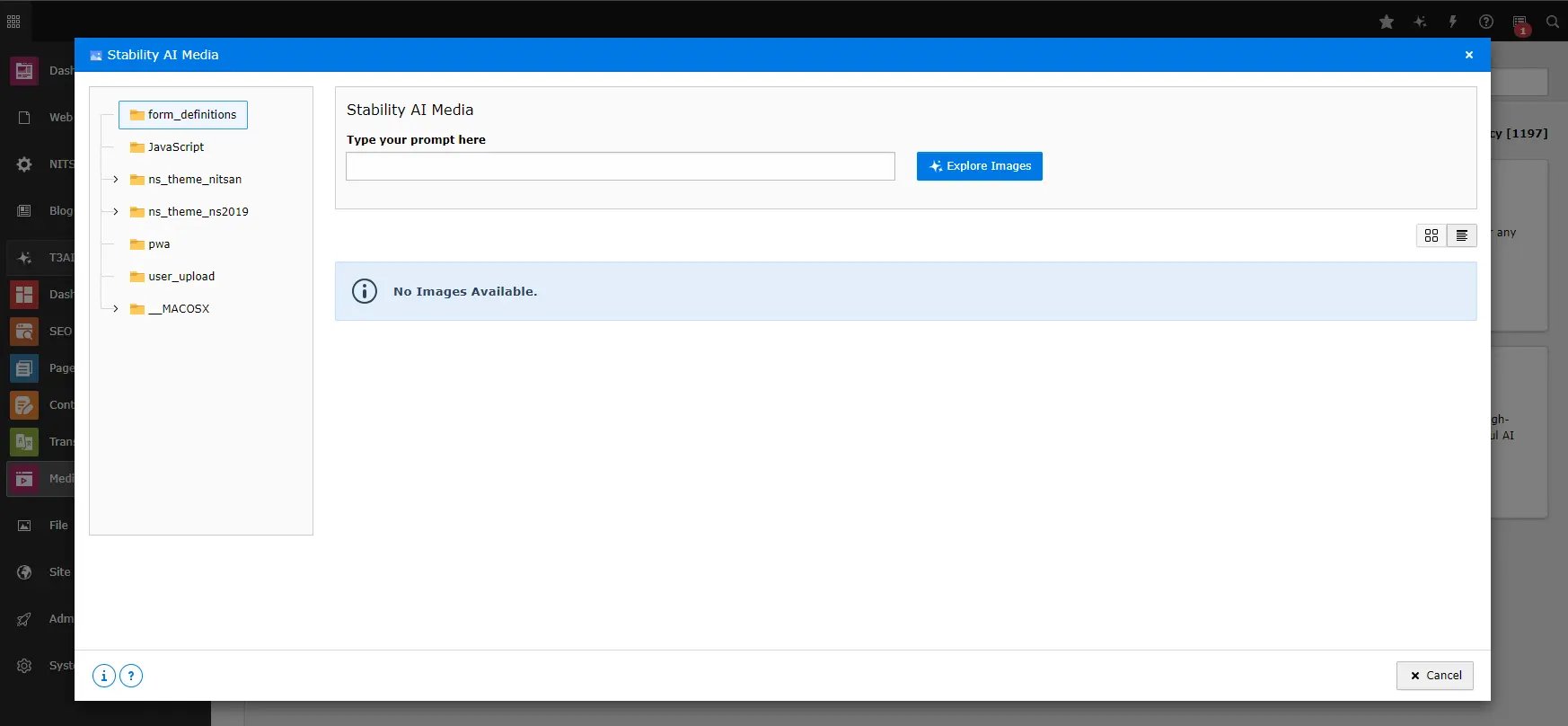 **Step 3** : Enter the AI image prompt describing the image you want to create.
> Click the **“Generate AI Image”** button.
**Step 4** : Select the image you want to save. Additionally, you can sort the images in either row or list format.
**Step 5** : Click the “Save Image” button, and your AI-generated image will be saved in the appropriate folder.
## Unsplash AI
**Step 3** : Enter the AI image prompt describing the image you want to create.
> Click the **“Generate AI Image”** button.
**Step 4** : Select the image you want to save. Additionally, you can sort the images in either row or list format.
**Step 5** : Click the “Save Image” button, and your AI-generated image will be saved in the appropriate folder.
## Unsplash AI
Looking for a collection of stock images? Explore a diverse selection of AI-generated images, perfect for any project or theme. Easily integrated into your work, these images are ready to enhance your creativity.
**Step 1** : Navigate to Your T3AI Module and select the Media tab.
**Step 2** : Open the **“Unsplash“** module.
**Step 3** : Enter the AI image prompt describing the image you want to create.
* Click the **“Generate AI Image”** button.
**Step 4** : Select the image you want to save. Additionally, you can sort the images in either row or list format.
**Step 5** : Click the **“Save Image”** button, and your AI-generated image will be saved in the appropriate folder.
## Openverse AI
Discover a vast collection of freely licensed media. Easily search for and use images, audio, and videos from Openverse for all your creative projects. Whether you’re working on a website, presentation, or any other project, Openverse provides high-quality resources that are easy to integrate and use.
**Step 1** : Navigate to Your T3AI Module and select the Media tab.
**Step 2** : Open the [\*\*](#id1)“Openverse“\* module.
**Step 3** : Enter the AI image prompt describing the image you want to create.
* Add Proper Image size & Number of images you want to create.
* Click the **“Generate AI Image”** button.
**Step 4** : Select the image you want to save. Additionally, you can sort the images in either row or list format.
**Step 5** : Click the **“Save Image”** button, and your AI-generated image will be saved in the appropriate folder.
## Pixabay
Choose from a wide variety of images and videos to fit any project with Pixabay integration. Whether you’re designing a website, creating a presentation, or working on a marketing campaign, Pixabay offers a rich collection of high-quality media that’s easy to access and use in your projects.
**Step 1** : Navigate to Your T3AI Module and select the Media tab.
**Step 2** : Open the **“Pixabay“** module
**Step 3** : Enter the AI image prompt describing the image you want to create.
* Add Proper Image size & Number of images you want to create.
* Select the Number of images you want to create.
**Step 4** : Select the image you want to save. Additionally, you can sort the images in either row or list format.
**Step 5** : Click the **“Save Image”** button, and your AI-generated image will be saved in the appropriate folder.
## Pexels
Generate and use high-quality, free stock photos from Pexels to easily enhance your content. Whether you’re working on a blog, social media post, or any other project, Pexels provides a wide selection of beautiful images that can be seamlessly integrated to make your content stand out.
**Step 1** : Navigate to Your T3AI Module and select the Media tab.
**Step 2** : Open the **“Pexels“** module.
**Step 3** : Enter the AI image prompt describing the image you want to create.
* Add Proper Image size & Number of images you want to create.
* Select the Number of images you want to create.
**Step 4** : Select the image you want to save. Additionally, you can sort the images in either row or list format.
**Step 5** : Click the **“Save Image”** button, and your AI-generated image will be saved in the appropriate folder.
## Interactive demos