> ## Documentation Index
> Fetch the complete documentation index at: https://docs.t3planet.de/en/latest/llms.txt
> Use this file to discover all available pages before exploring further.
# AI Localization
Easily translate multiple TYPO3 XLIFF files at once—no more repetitive copy-pasting.
## Initial Steps
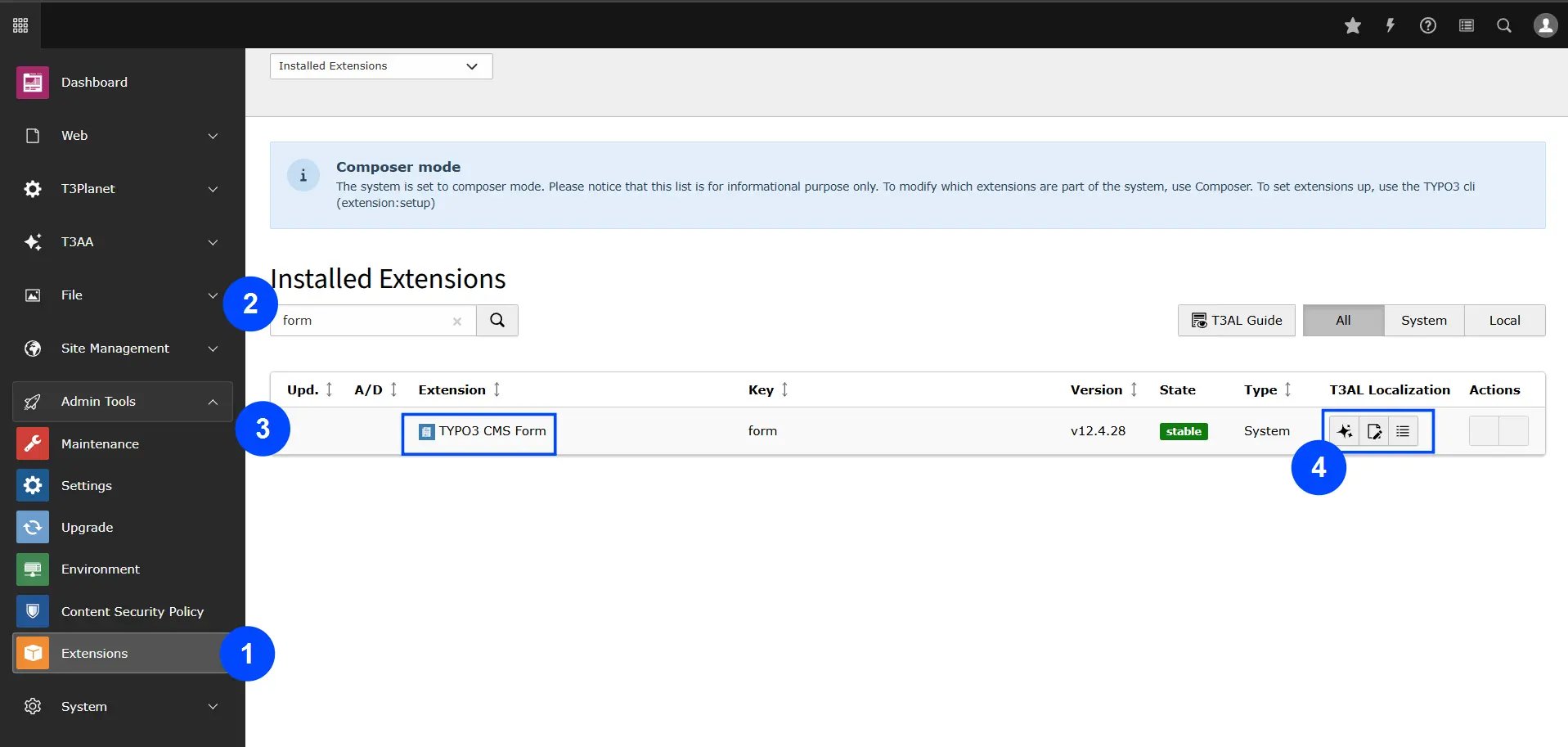
**Step 1:** Go to the "Extension Manager" in your TYPO3 backend.
**Step 2:** From the dropdown menu, choose "Get the extension."
**Step 3:** Find and add your TYPO3 extension from the list.
**Step 4:** Once added, you'll see an AI icon—click it to start translating your XLIFF files with just one click.
 ## Translation Steps
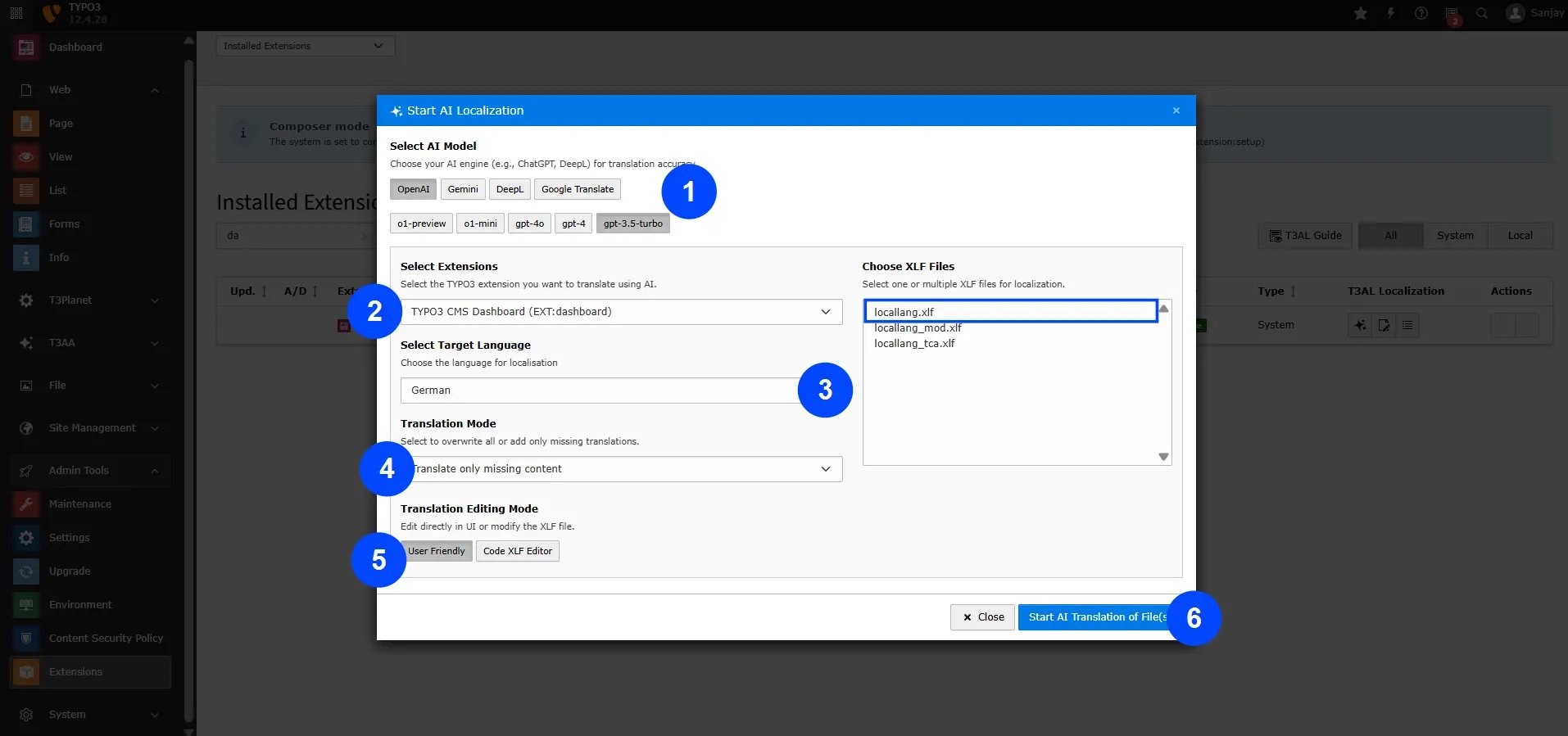
Now you’ll see a pop-up box on your TYPO3 backend screen. Let’s translate your XLIFF file:
* **Step 1:** Choose the AI model for best results (e.g., OpenAI > GPT-4.0).
* **Step 2:** Select the TYPO3 extension whose XLIFF files you want to translate.
* **Step 3:** Pick the language you want to translate into (for example, German).
* **Step 4:** Choose the translation mode:
\- Translate the whole file (even if it already has translations), or
\- Translate only missing parts.
* **Step 5:** Select how you want to edit translations:
\- Directly in the code editor, or
\- With a user-friendly interface.
* **Step 6:** Choose the XLIFF file from your extension.
* **Step 7:** Click on "AI Start Localization" to begin the translation.
## Translation Steps
Now you’ll see a pop-up box on your TYPO3 backend screen. Let’s translate your XLIFF file:
* **Step 1:** Choose the AI model for best results (e.g., OpenAI > GPT-4.0).
* **Step 2:** Select the TYPO3 extension whose XLIFF files you want to translate.
* **Step 3:** Pick the language you want to translate into (for example, German).
* **Step 4:** Choose the translation mode:
\- Translate the whole file (even if it already has translations), or
\- Translate only missing parts.
* **Step 5:** Select how you want to edit translations:
\- Directly in the code editor, or
\- With a user-friendly interface.
* **Step 6:** Choose the XLIFF file from your extension.
* **Step 7:** Click on "AI Start Localization" to begin the translation.
 ## Final Results
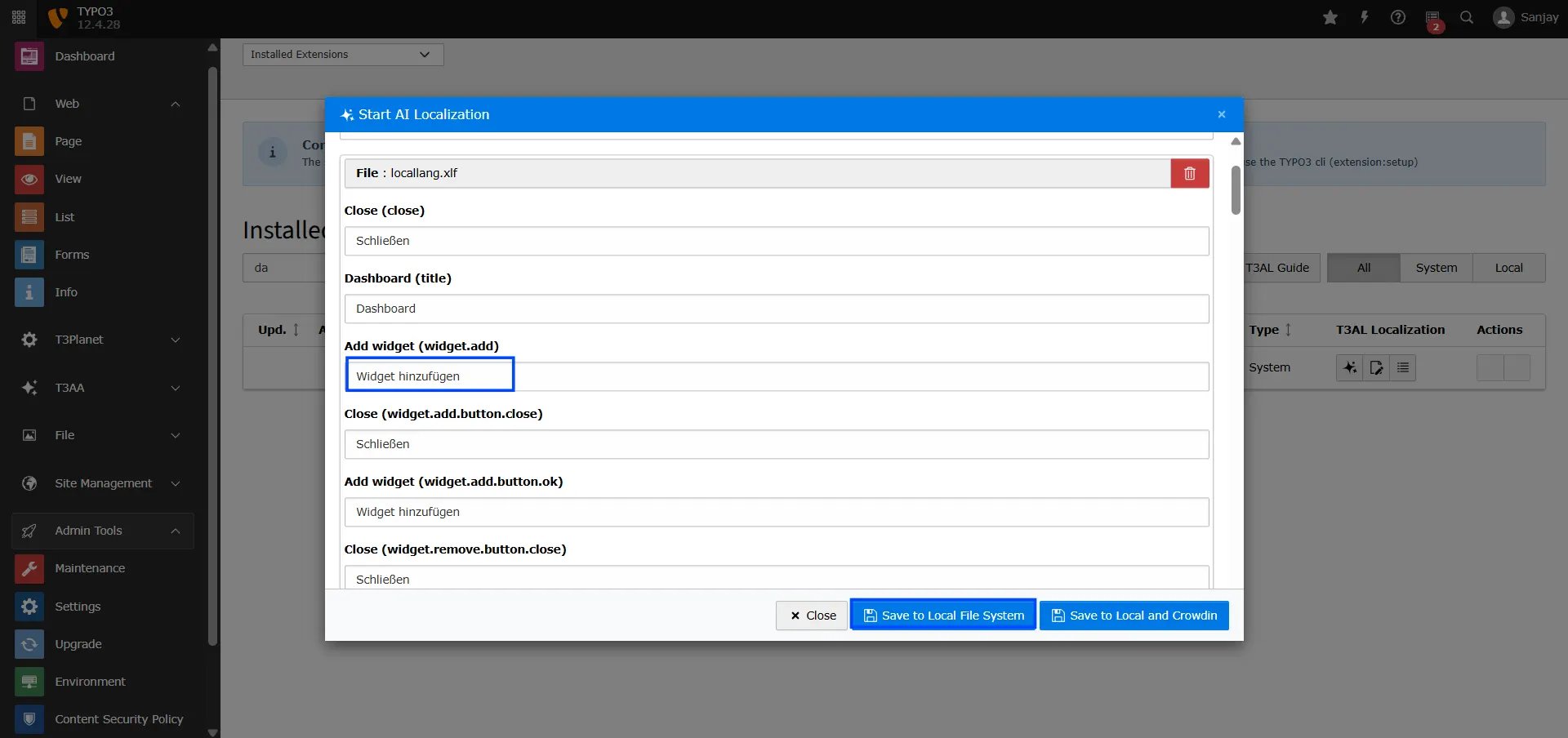
Here you’ll see the fully translated content of your XLIFF file.
## Final Results
Here you’ll see the fully translated content of your XLIFF file.
 ## Next Step: Choose Where to Save Your File
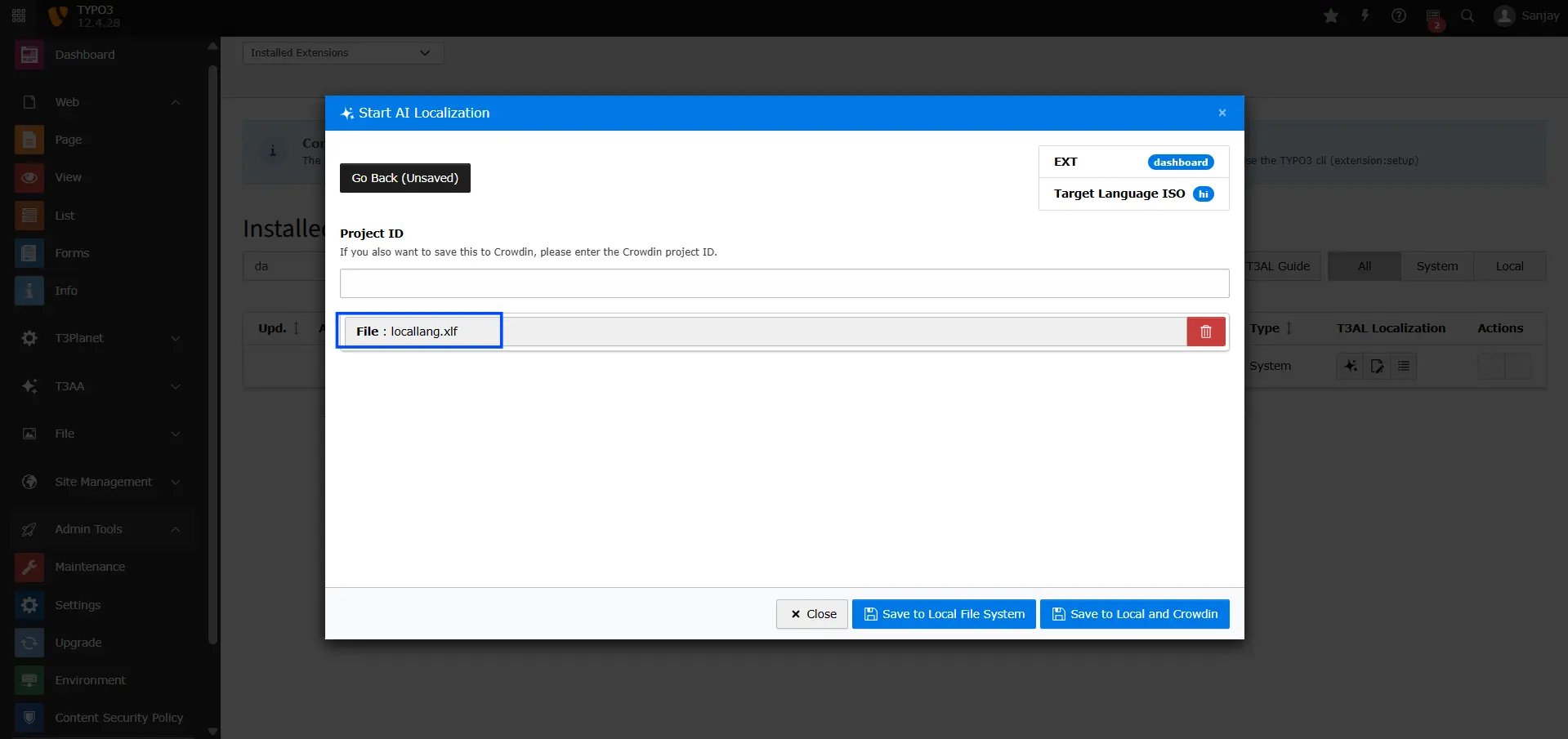
* **Save to Local File System** – This will save the translated content to your TYPO3 server.
* **Save to Local and Crowdin** – This saves the content both in TYPO3 and directly to your Crowdin project.
That’s it! Close the pop-up box—your localization is all set!
## Next Step: Choose Where to Save Your File
* **Save to Local File System** – This will save the translated content to your TYPO3 server.
* **Save to Local and Crowdin** – This saves the content both in TYPO3 and directly to your Crowdin project.
That’s it! Close the pop-up box—your localization is all set!