> ## Documentation Index
> Fetch the complete documentation index at: https://docs.t3planet.de/en/latest/llms.txt
> Use this file to discover all available pages before exploring further.
# How to know the Latest Version?
# How to know the Latest Version?
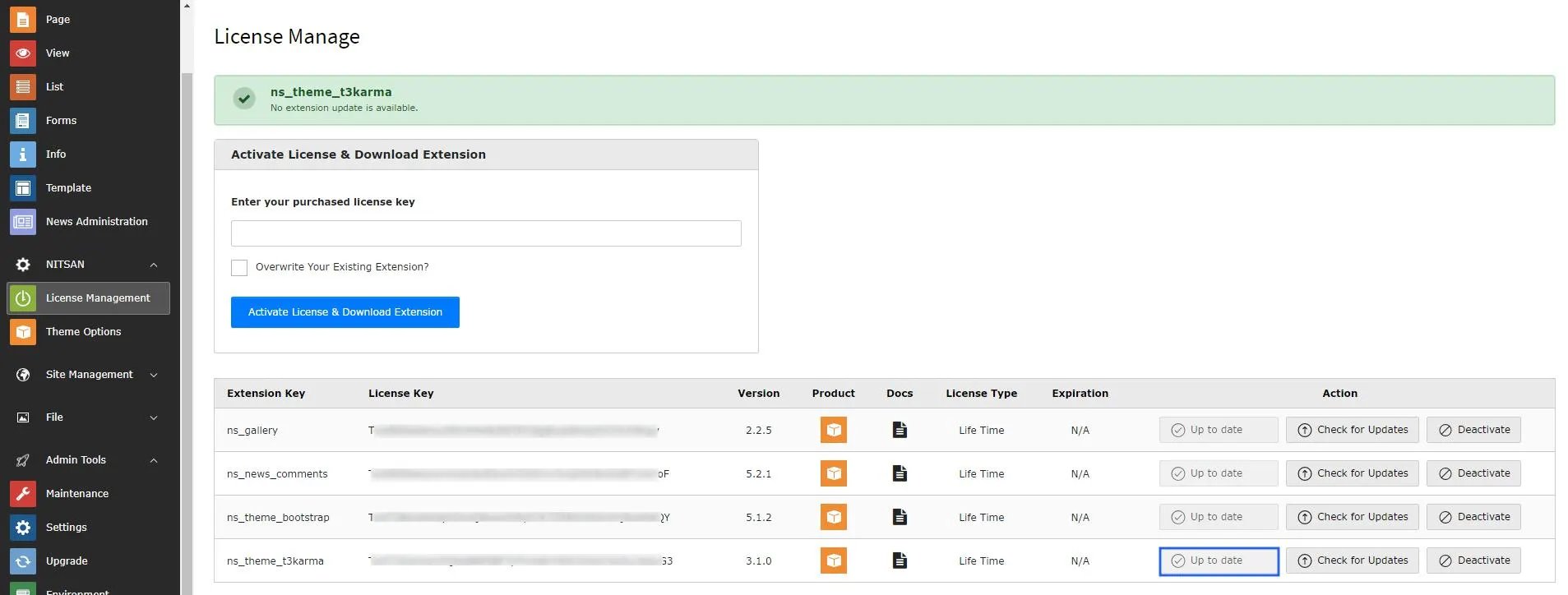
Whenever a new version is released by T3Planet for your TYPO3 product, you can directly check it in the License BE module.
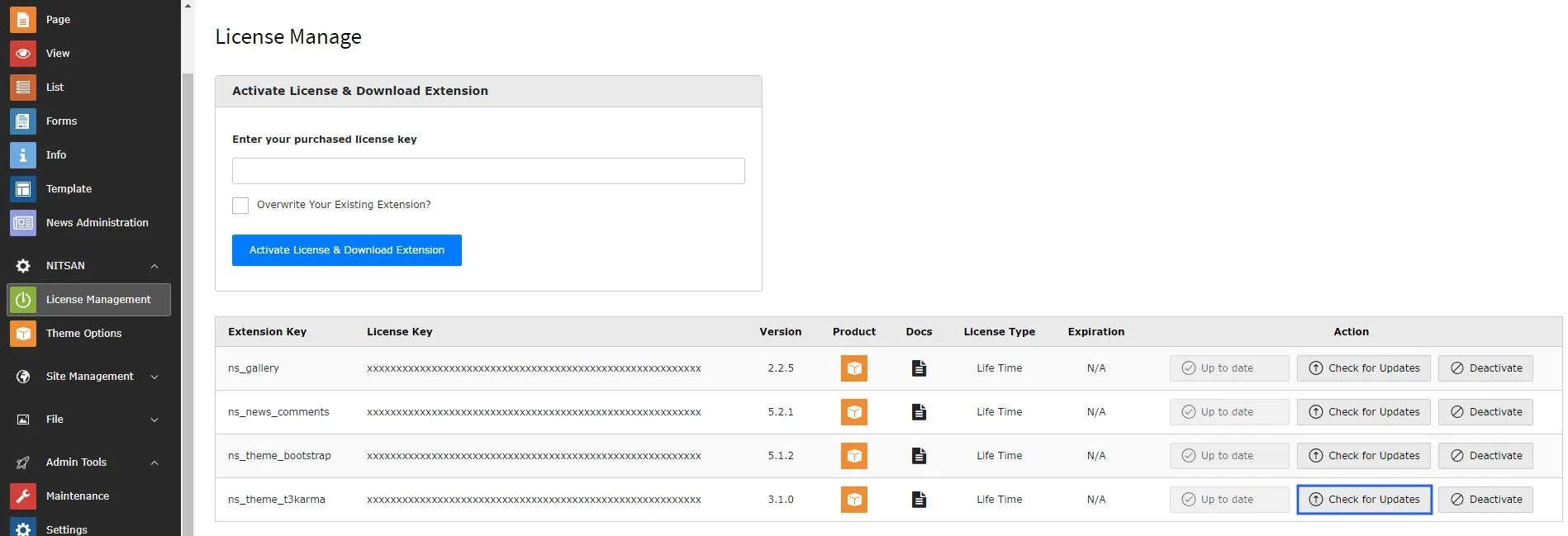
Click on “Get Updates” first. If a new version is available, you will then see an “Update to x.x.x” button to install the latest version
Otherwise, you can check whether a new update is available for your purchased TYPO3 product using the steps below.
## Demo
## Screenshots
Go to Admin Tools > T3Planet License.
Find your purchased product in the list and check whether the `New Version Available` message is shown.
Click on `Get Updates` button.
If a newer version is available, the `Update to x.x.x` button will become enabled.
Click `Update to x.x.x` (when enabled) and wait for the update process to finish.
1. Before updating your TYPO3 product, make sure EXT:ns\_license is up to date: [https://extensions.typo3.org/extension/ns\_license](https://extensions.typo3.org/extension/ns_license)
2. We highly recommend taking a backup (code & database) of your whole TYPO3 instance. During the update, if any problem occurs you can roll back your TYPO3 instance. Please take a backup now before update :)
After the update completes, you may need to run additional system update and cache flush steps (depending on your TYPO3 setup) in the guides below.
## Update for Non-Composer TYPO3 Instance
Go here [License Update Version guide](/en/latest/en/latest/License/UpdateVersion/NonComposer/Index)
## Update for Composer-based TYPO3 Instance
Go here [License Update Version guide](/en/latest/en/latest/License/UpdateVersion/Composer/Index)