> ## Documentation Index
> Fetch the complete documentation index at: https://docs.t3planet.de/en/latest/llms.txt
> Use this file to discover all available pages before exploring further.
# Non-Composer Update Guide
> Non-Composer Update Guide — T3Planet documentation.
# Non-Composer Update Guide
## Minor Version Update
What's minor version update? It means, if you want to update product with security update or minor bug fixing; Example 1.1.0 to 1.2.0
### Step 1. Update New Version
* Go to NITSAN > T3Planet License
* Click on "Check for Updates" button
* If new version available then click on "Update to X.X.X" button of your particular product.
### Step 2. System Update & Flush Cache
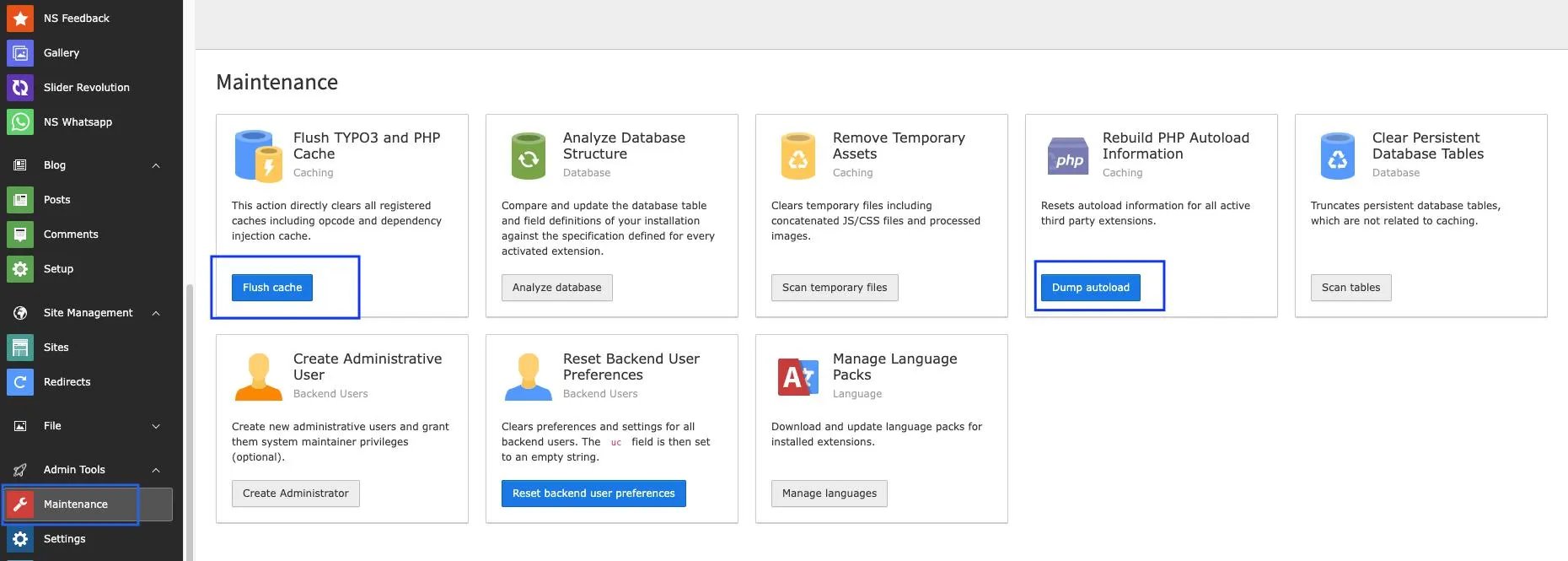
* Go to Admin Tools > Maintenance > Anaylze Database (if any)
* Go to Admin Tools > Maintenance > Dump Autoload
* Go to Admin Tools > Maintenance > Flush Cache
 ## Major Version Updates
What's major version update? It means, if you want to update product with major branch version; Example 1.1.0 to 2.0.0
### Step 1. Temporary De-Activate Extension
Go to Admin Tools > Extensions > De-Activate the extension.
### Step 2. Update New Version
* Go to Admin Tools > T3Planet License
* Click on "Check for Updates" button
* If new version available then click on "Update to X.X.X" button of your particular product.
### Step 3. Update Dependent TYPO3 Extensions
Go to Extensions Manager and Update all third party dependent TYPO3 extensions to your purcahsed TYPO3 extension.
### Step 4. Activate Extension
Go to Admin Tools > Extensions > Activate the extension.
### Step 5. System Update & Flush Cache
* Go to Admin Tools > Maintenance > Anaylze Database (if any)
* Go to Admin Tools > Maintenance > Dump Autoload
* Go to Admin Tools > Maintenance > Flush Cache
## Major Version Updates
What's major version update? It means, if you want to update product with major branch version; Example 1.1.0 to 2.0.0
### Step 1. Temporary De-Activate Extension
Go to Admin Tools > Extensions > De-Activate the extension.
### Step 2. Update New Version
* Go to Admin Tools > T3Planet License
* Click on "Check for Updates" button
* If new version available then click on "Update to X.X.X" button of your particular product.
### Step 3. Update Dependent TYPO3 Extensions
Go to Extensions Manager and Update all third party dependent TYPO3 extensions to your purcahsed TYPO3 extension.
### Step 4. Activate Extension
Go to Admin Tools > Extensions > Activate the extension.
### Step 5. System Update & Flush Cache
* Go to Admin Tools > Maintenance > Anaylze Database (if any)
* Go to Admin Tools > Maintenance > Dump Autoload
* Go to Admin Tools > Maintenance > Flush Cache