2.1 General Settings
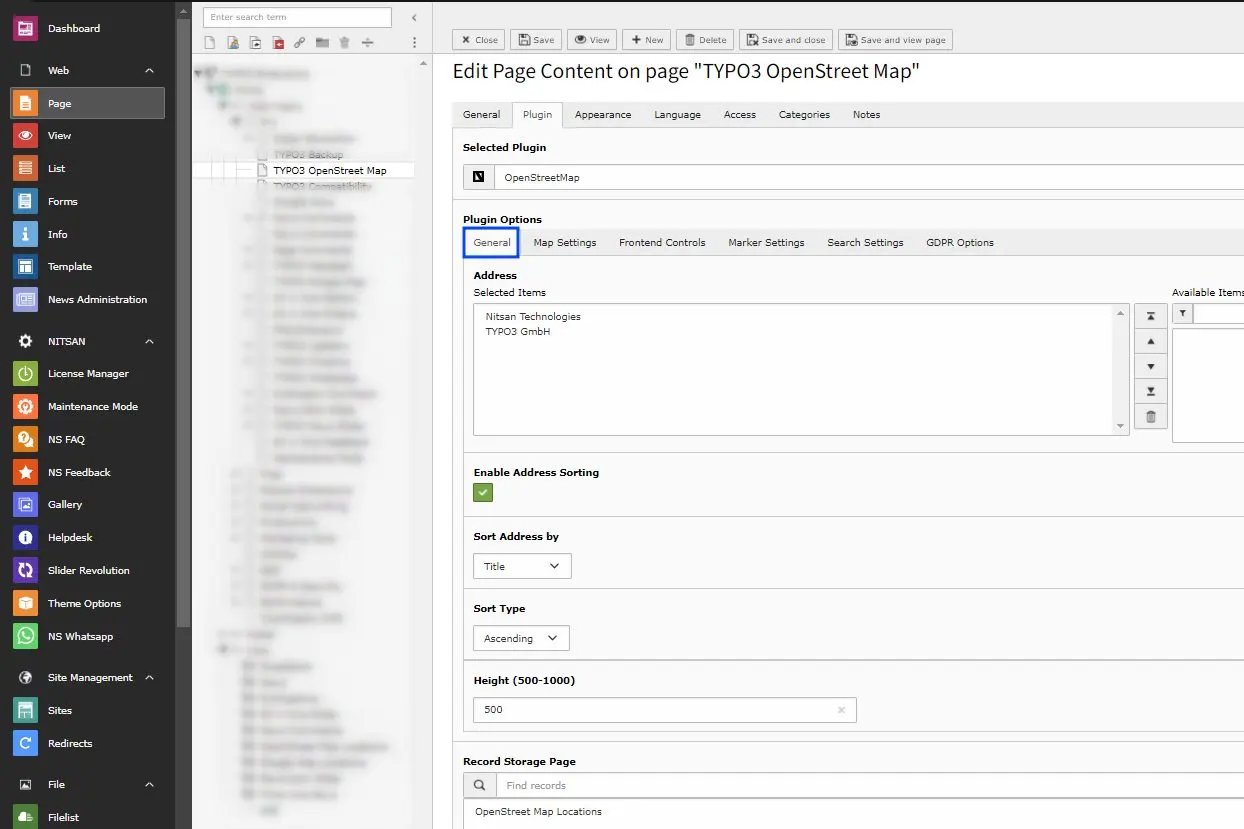
- Address -> Select the locations you want to display on the Map with Location marker.
- Height -> Set the height of Map
- Record Storage Page -> Select the storage folder to display the Map Location from that folder.
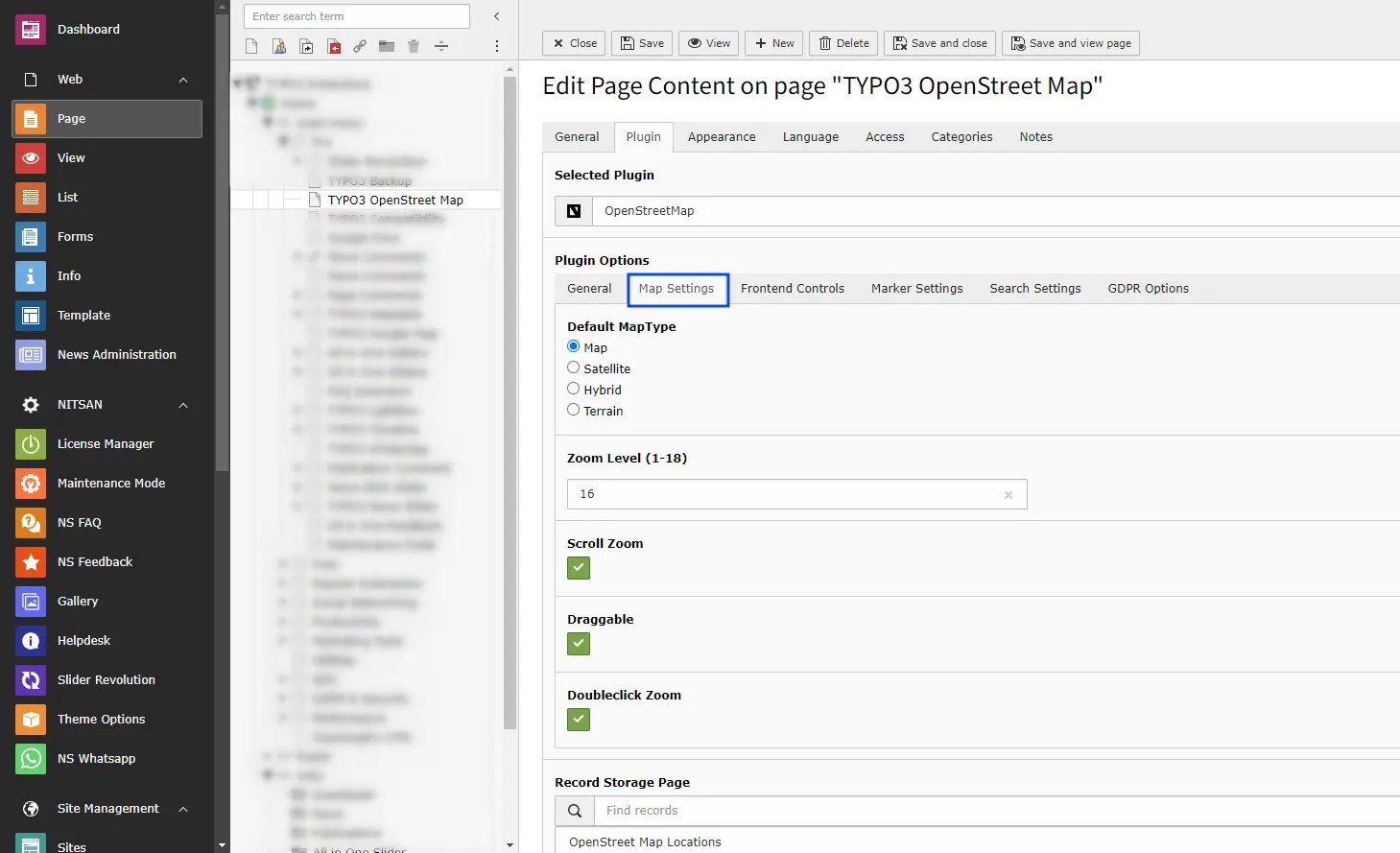
2.2 Map Settings
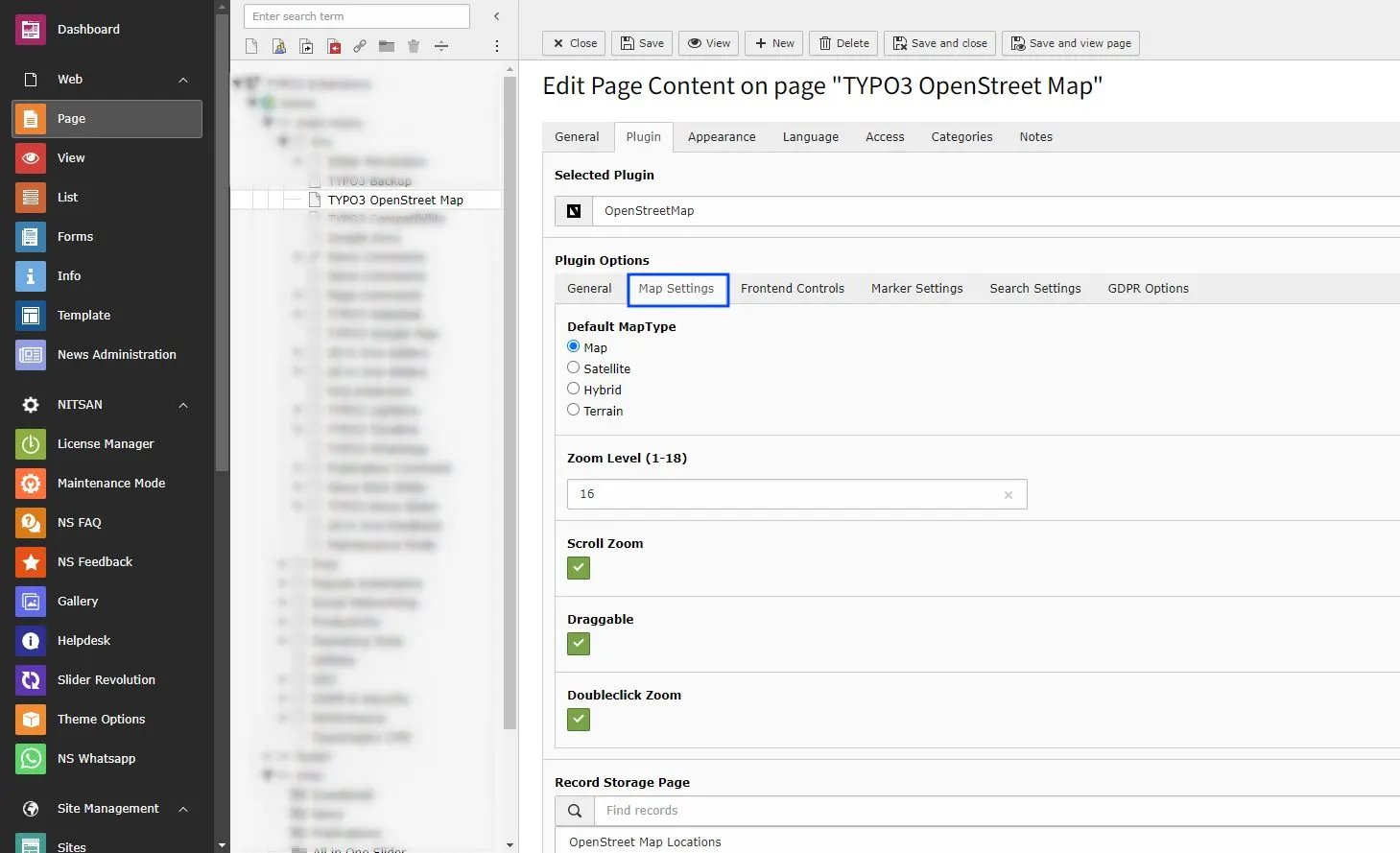
- Map Type -> Select the Map type you want to display from Map, Satellite, Hybrid and Terrain
- Zoom Level -> Select the default zoom level of map when map is displayed. You can select from range from 1 to 18 with 1 being completely Zoomed Out and 18 being completely Zoomed In.
- Scroll Zoom -> Check this to enable Zoom In and Zoom Out using Mouse scroll.
- Draggable -> Check this to allow users to drag map using mouse.
- Doubleclick Zoom -> Check this to enable Zoom In when user double-click on map.
2.3 Frontend Control Settings
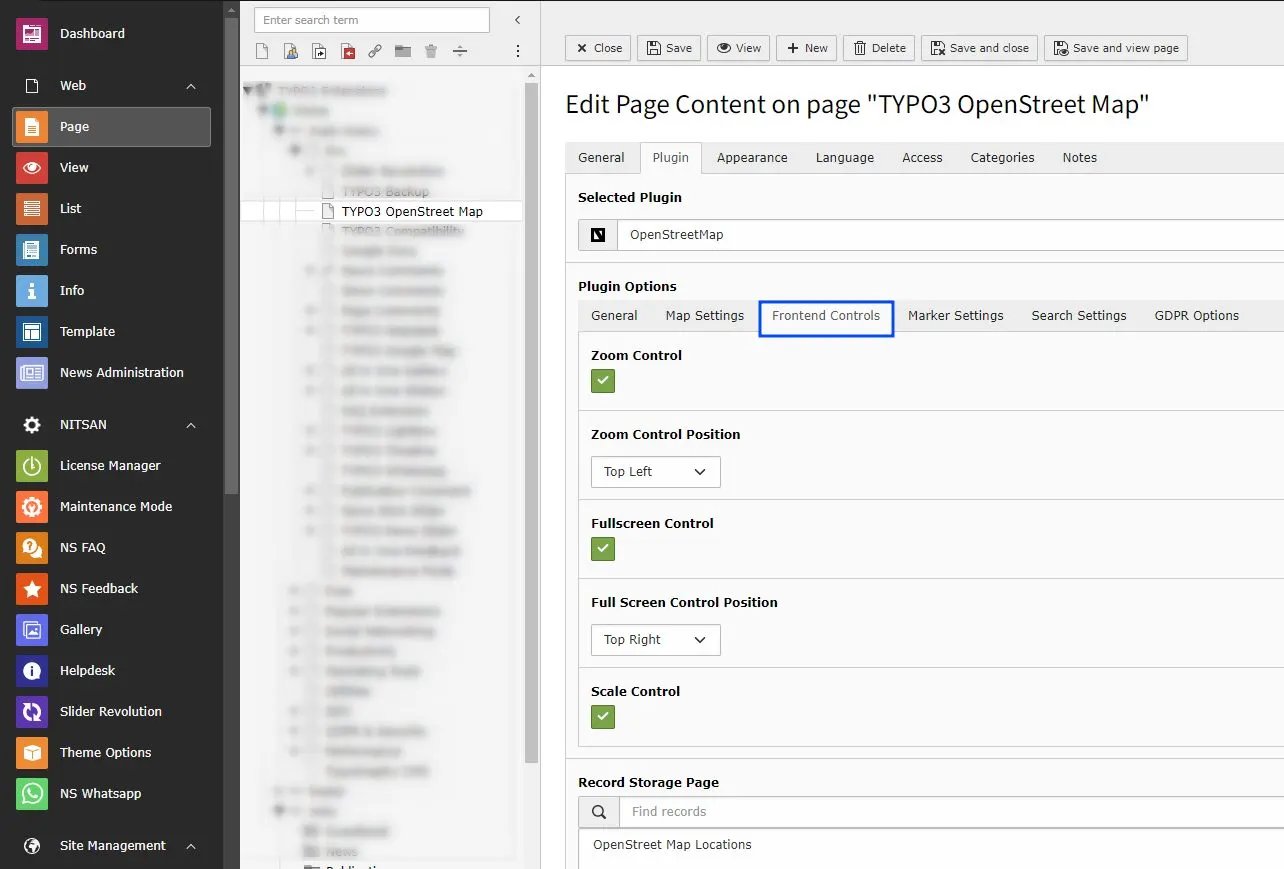
- Zoom Control -> Check this to display Zoom buttons on map. You can also set position of it on chart as well.
- Zoom Control Position -> Select position of the Zoom Controls from Top Left, Bottom right etc.
- Fullscreen Control -> Check this to display Full screen button on Map. You can also set position of it on chart as well.
- Full Screen Control Position -> Select position of the Full Screen Controls from Top Left, Bottom right etc.
- Scale Control -> Check this to display scale bar at the bottom right of Map.
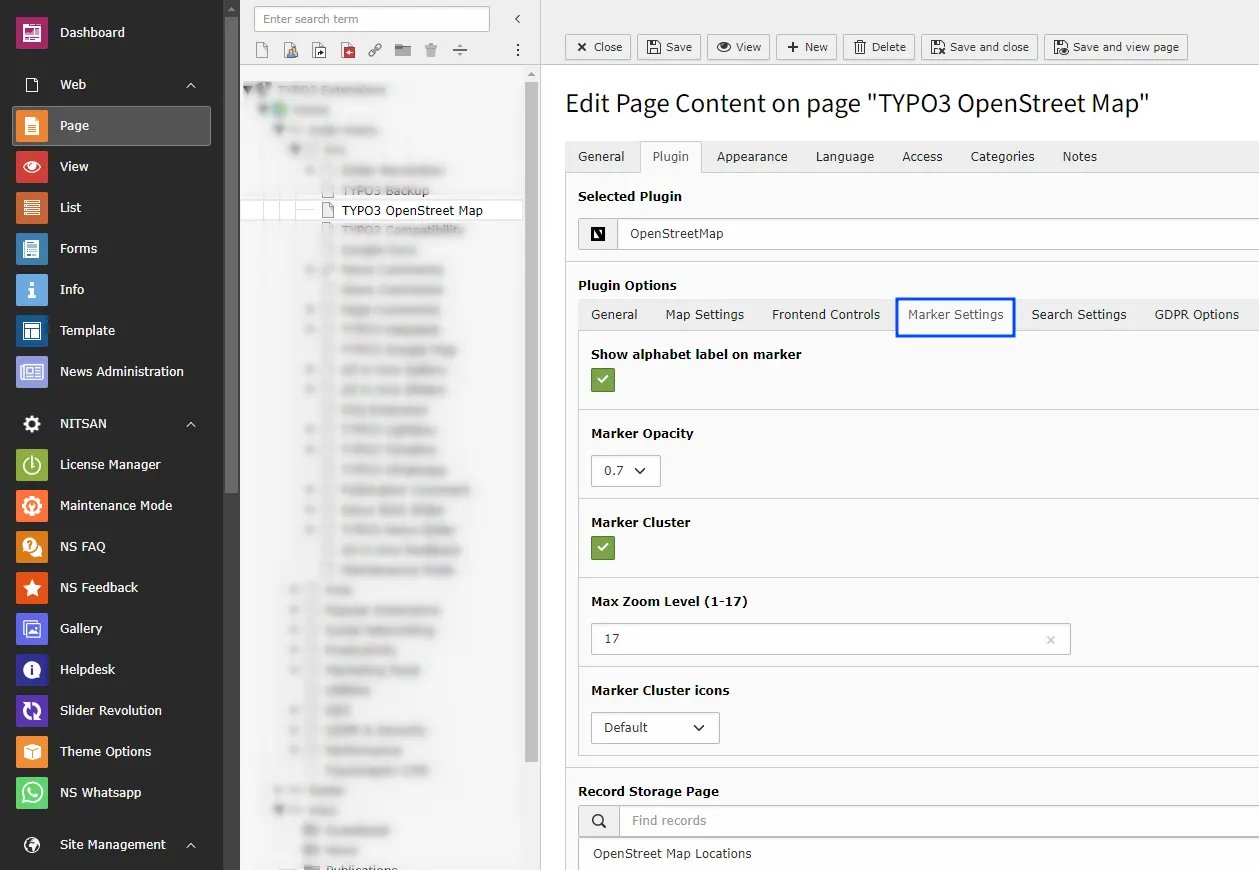
2.4 Marker Settings
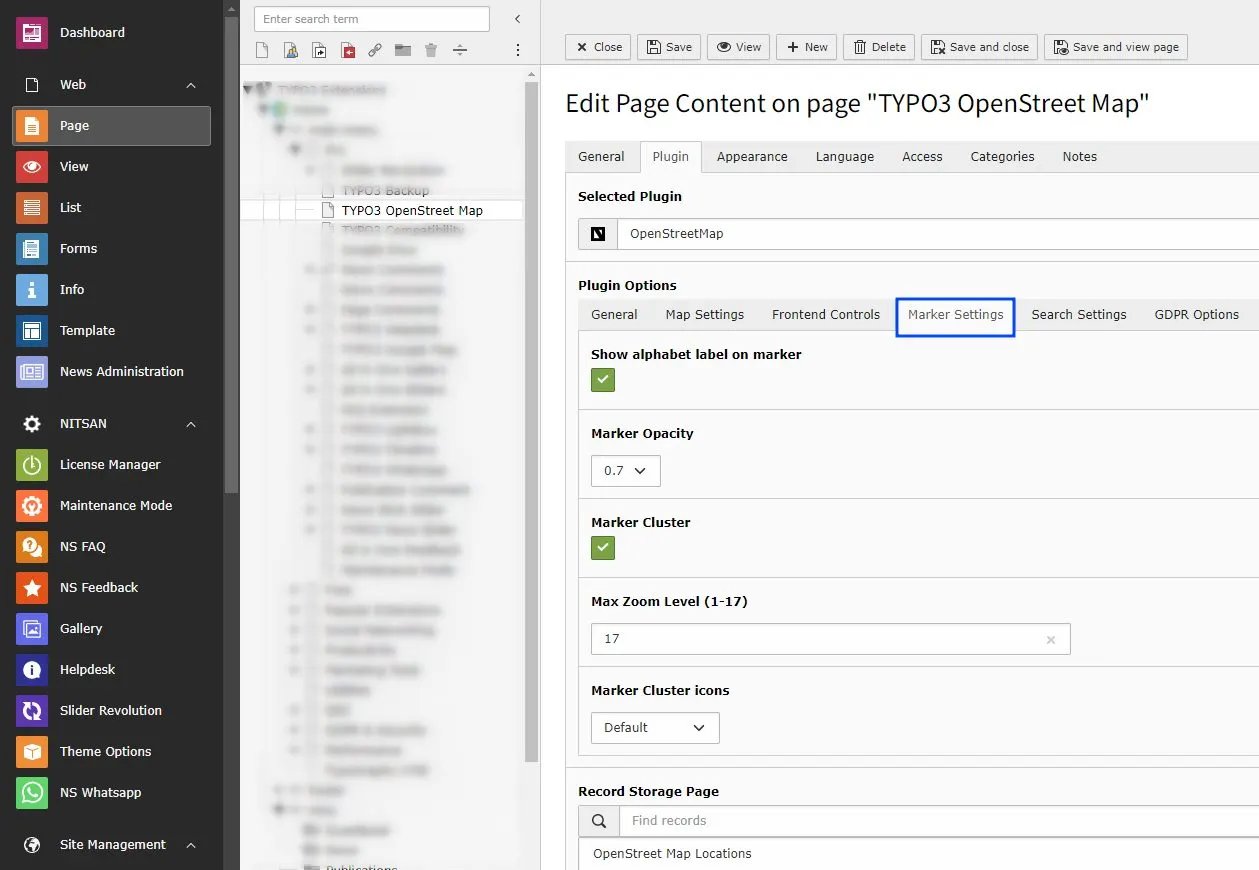
- Show alphabet label on marker -> Check this to display alphabet labels on Location markers. It will start from A-Z.
- Marker Opacity -> Set Marker Opacity. Select from 0.1 to 1.0 .
- Marker Cluster -> Check this to enable Marker Cluster.
- Max Zoom Level -> Define the Zoom level, It will zoom in fathest level before the regular markers.
- Marker Cluster icons -> Choose marker cluster icon from Default, People, Conversation, Heart, & Pin.
2.4 Search Settings
- Search Type -> Select type of search you want to display on your site, select none to display only map & saved locations otherwise choose “Record Based Search OR Radius Search” accordingly.
- Search In Fields When the First Search Box is enabled, you can choose which fields are used to search for an address or location on the map. Select the relevant fields such as Title, Info, or Content that contain address or location details. The map will display results only from the selected fields, making it easier to quickly find the correct address on the map.
- Radius Search -> This feature will allow end user to search for places on OpenStreet Map by providing their preference of City and Point of Interest.
- Record Based Search -> This feature will allow end user to search for location on OpenStreet Map, which are stored on the database & according to the selection of backend storage folder.
- Enable Direction and Distance Feature -> Check this to allow users to fetch routes b/w the places. It’ll also provide the directions for the selected route at the bottom of the Map.
- Auto Complete Location -> Check this to enable the auto suggestion on the address field appear above the map.
- Allow Current Location to Fill Address -> Check this to enable the access for Allow/Deny the user location.
2.4 GDPR Settings
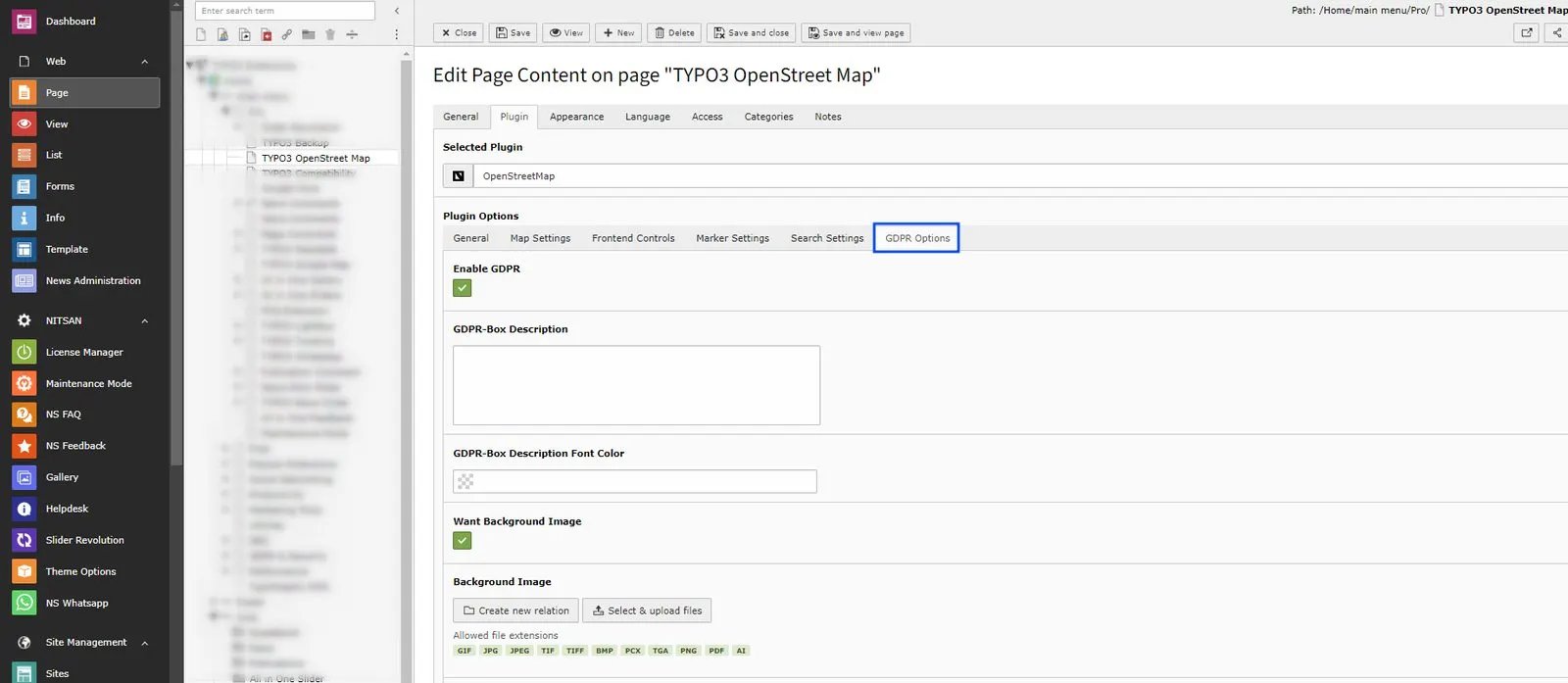
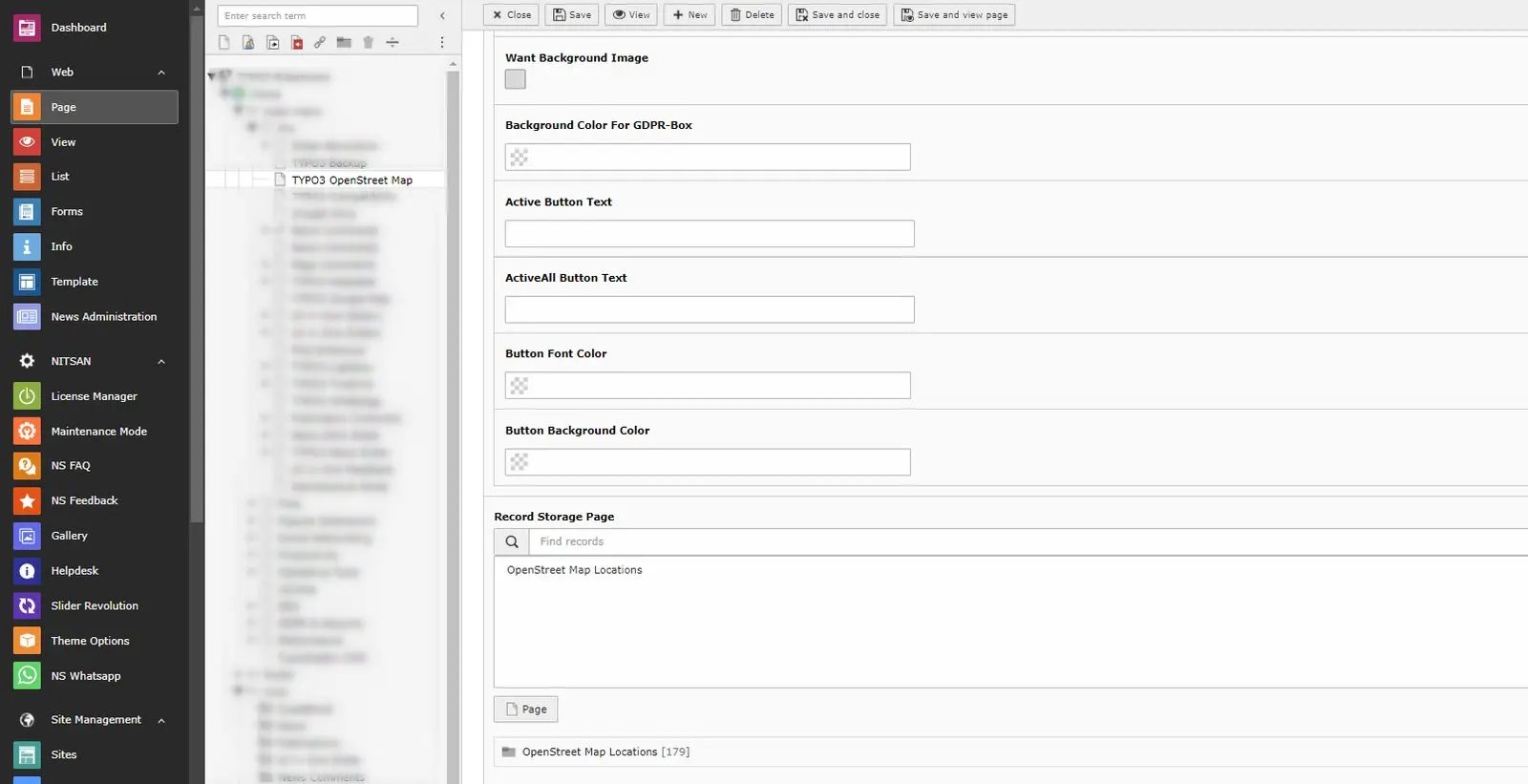
- GDPR Box -> Make sure your website collects all required user consent. OpenStreetMap allows you to display consent notices.
Figures