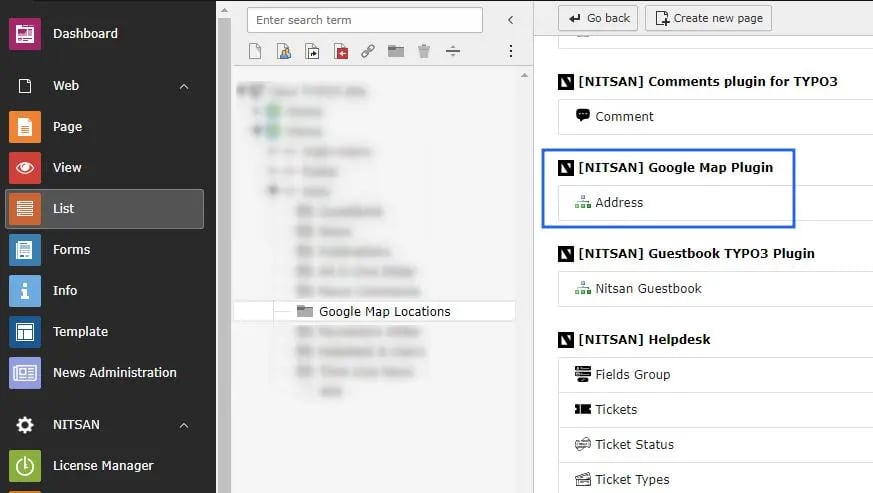
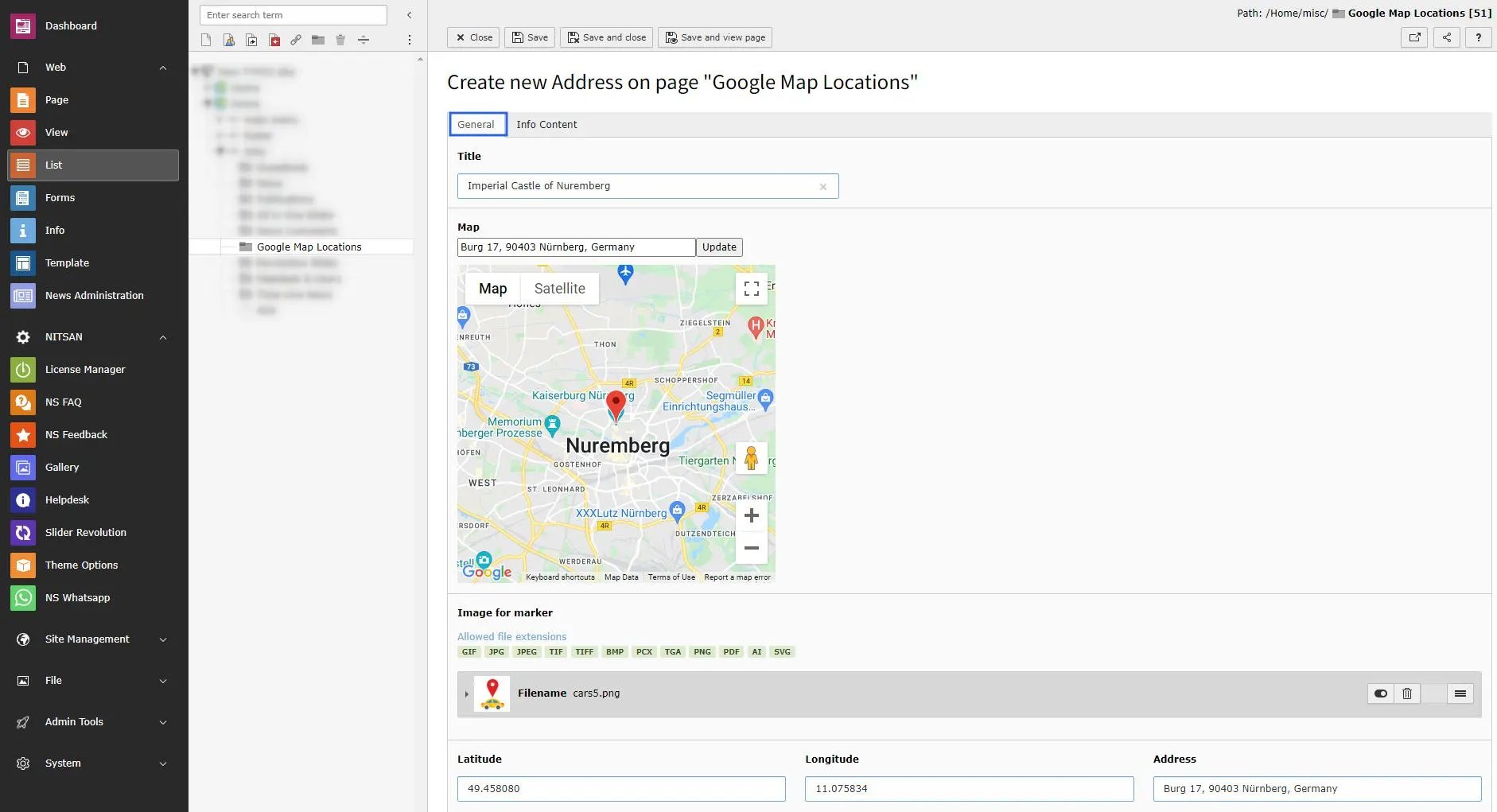
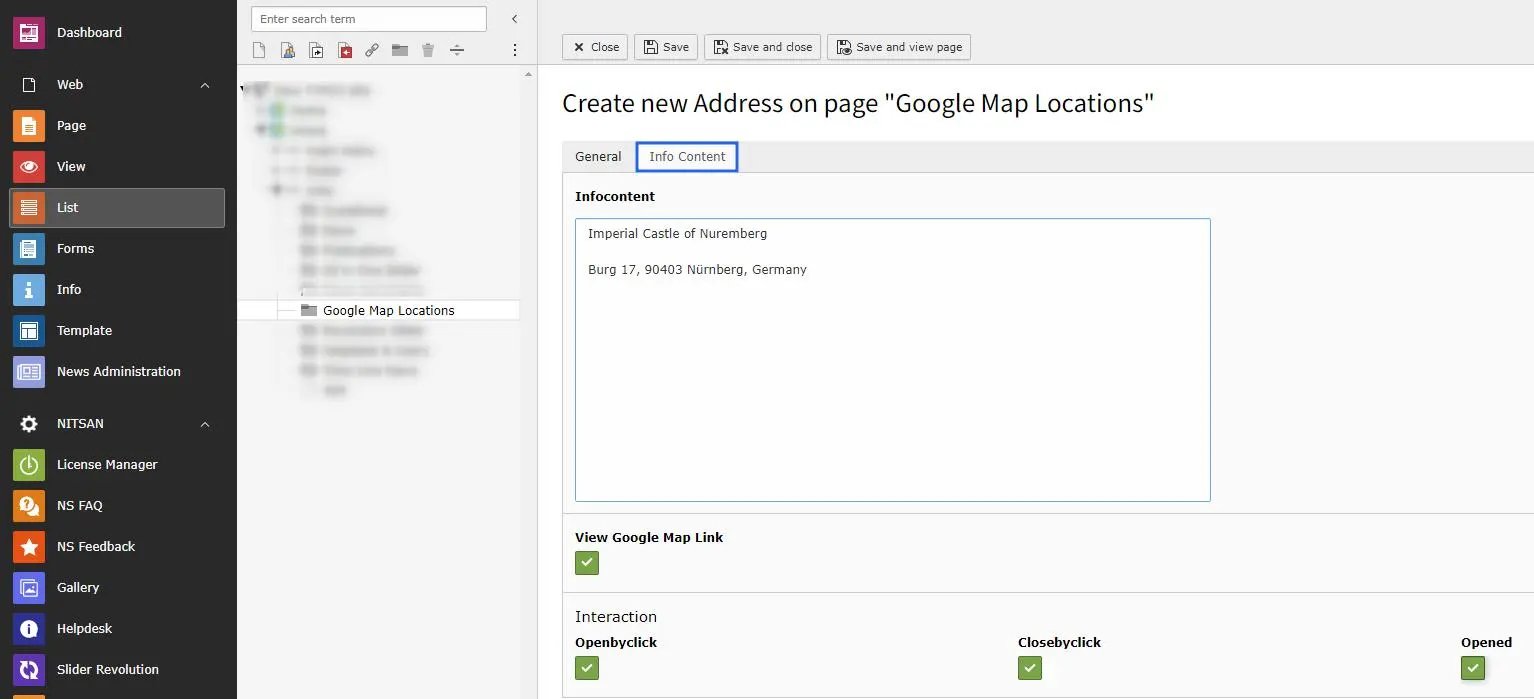
Now, you need to create Locations to display on Map.You can do it by performing following steps:Step 1: Create a Storage Folder for Map Locations.Step 2: Create Map Location in above storage folder.Now you can fill all the details of location.Title : Set title of the location.Map: Set Location Name and click on update button. If found, location will be highlighted on map below it.Image for Marker: You can set marker image for this location.Lat/Long & Address: Latitude, Longitude and Address textboxes will be auto-generated with location selected above.Infocontent: Set the address you want to display with Location title in pluginView Goole Map Link: Check this if you want to display Google Map link along with Location details.Interaction: Set how location popup will behave in Plugin.This way, create all the locations you want to display on Map.
Was this page helpful?
{"docsConfig":{"theme":"mint","$schema":"https://mintlify.com/docs.json","name":"T3Planet Docs","description":"Official T3Planet documentation for TYPO3 extensions, templates, AI solutions, licensing, and installation guides.","colors":{"primary":"#0052FF","light":"#EFF6FF","dark":"#0041CC"},"logo":{"light":"https://mintcdn.com/t3planet/_5AmfV1AYtlhh6FL/en/latest/_static/t3planet-light.svg?fit=max\u0026auto=format\u0026n=_5AmfV1AYtlhh6FL\u0026q=85\u0026s=5526fa9e4a68e37882673e289c1be871","dark":"https://mintcdn.com/t3planet/_5AmfV1AYtlhh6FL/en/latest/_static/t3planet-white-logo.svg?fit=max\u0026auto=format\u0026n=_5AmfV1AYtlhh6FL\u0026q=85\u0026s=9d02566436d43e835bb7fd220cc7e607","href":"/en/latest"},"favicon":"https://mintcdn.com/t3planet/_5AmfV1AYtlhh6FL/en/latest/_static/favicon.png?fit=max\u0026auto=format\u0026n=_5AmfV1AYtlhh6FL\u0026q=85\u0026s=b3e8ce589b00ebe9445149f8f6563f7e","appearance":{"default":"system","strict":false},"navbar":{"links":[{"href":"/en/latest/AIFoundationExtensions/Index","label":"AI Extensions"},{"href":"/en/latest/AllTemplates/Index","label":"Templates"},{"href":"/en/latest/AllExtensions/Index","label":"Extensions"},{"href":"https://t3planet.de/support","label":"Support"}],"primary":{"type":"button","label":"Get Started","href":"/en/latest/License/Index"}},"footer":{"socials":{"website":"https://t3planet.de/en","x":"https://x.com/t3planetde","linkedin":"https://www.linkedin.com/company/t3planet","youtube":"https://www.youtube.com/@t3planet"},"links":[{"header":"Documentation","items":[{"label":"License \u0026 Get Started","href":"/en/latest/License/Index"},{"label":"AI Extensions","href":"/en/latest/AIFoundationExtensions/Index"},{"label":"Templates \u0026 Themes","href":"/en/latest/AllTemplates/Index"},{"label":"TYPO3 Extensions","href":"/en/latest/AllExtensions/Index"}]},{"header":"Products","items":[{"label":"AI Foundation","href":"/en/latest/ExtNsT3AF/Introduction/Index"},{"label":"AI Assistant","href":"/en/latest/ExtNsT3AI/Introduction/Index"},{"label":"AI Chatbot","href":"/en/latest/ExtNsT3AC/Introduction/Index"},{"label":"AI Search","href":"/en/latest/ExtNsT3AS/Introduction/Index"}]},{"header":"Resources","items":[{"label":"Support","href":"https://t3planet.de/support"},{"label":"FAQ","href":"https://t3planet.de/en/faq"},{"label":"Blog","href":"https://t3planet.de/en/blog"},{"label":"Contact","href":"https://t3planet.de/en/contact"}]}]},"seo":{"metatags":{"og:site_name":"T3Planet Documentation","og:type":"website","og:image":"/_static/t3planet-docs-og.png","twitter:card":"summary_large_image","twitter:site":"@t3planetde","twitter:image":"/_static/t3planet-docs-og.png","canonical":"https://docs.t3planet.de"},"indexing":"all"},"icons":{"library":"lucide"},"styling":{"eyebrows":"breadcrumbs","codeblocks":{"theme":{"light":"github-light","dark":"github-dark"}},"latex":false},"banner":{"content":"Free for TYPO3 teams: the [Upgrade Playbook](https://t3planet.de/en/typo3-upgrade-playbook?slot=docs\u0026utm_source=docs\u0026utm_medium=banner\u0026utm_campaign=gd-guides), the [EU AI Act Playbook](https://t3planet.de/en/typo3-ai-act-playbook?slot=docs\u0026utm_source=docs\u0026utm_medium=banner\u0026utm_campaign=gd-guides) and the [Accessibility Playbook](https://t3planet.de/en/typo3-accessibility-playbook?slot=docs\u0026utm_source=docs\u0026utm_medium=banner\u0026utm_campaign=gd-guides), each with an Excel worksheet.","dismissible":true},"errors":{"404":{"redirect":false,"title":"Page not found","description":"This page does not exist in T3Planet Docs. [Go to homepage](/)."}},"metadata":{"timestamp":false},"navigation":{"pages":[]}},"deployment":{"deploymentMetadataValue":{"subdomain":"t3planet","hasAudioNarration":false,"actualSubdomain":"t3planet","customDomains":["docs.t3planet.de"],"gitSource":{"type":"github","owner":"nitsan-technologies","repo":"t3planet-docs","deployBranch":"master","contentDirectory":"","isPrivate":false,"mountPath":"","label":""},"chroma":{"liveDeploymentHistoryId":"6ae4b457c2f3f7389023c52e","collectionId":"5f18152e-6a16-443b-8ed9-c414e198ce35","schemaVersion":"v3","latestBuiltDeploymentHistoryId":"6ae4b457c2f3f7389023c52e"},"feedback":{"contextualFeedback":{"allowEmail":false,"textInputOnly":true},"thumbs":true},"entitlements":{"AI_CHAT":{"status":"DISABLED"}},"buildId":"6ae4b4c8ab76b29675b256f4","clientVersion":"0.0.4043","searchFilterCounts":[{"language":"default","tag":"TYPO3 Extensions","count":362},{"language":"default","tag":"AI Extensions","count":230},{"language":"default","tag":"Templates \u0026 Themes","count":105},{"language":"default","tag":"AI Foundation","count":53},{"language":"default","tag":"AI Assistant","count":47},{"language":"default","tag":"Configuration","count":35},{"language":"default","tag":"AI Search","count":35},{"language":"default","tag":"AI Accessibility","count":32},{"language":"default","tag":"AI Chatbot","count":30},{"language":"default","tag":"Slider Revolution","count":20}]},"assistantConfig":{"enableAskAiButton":false,"enableStarterQuestions":false,"enableContextualStarterQuestions":false,"enableAskAiSearchBar":true},"basePath":"/en/latest","hasChatPermissions":false,"hasWebMcpPermissions":false,"toggles":[{"name":"kill-isr","enabled":true,"variant":{"name":"disabled","enabled":false,"feature_enabled":true},"impressionData":false},{"name":"agent-mintlify-slack","enabled":true,"variant":{"name":"disabled","enabled":false,"feature_enabled":true},"impressionData":false},{"name":"agent-integrations-settings","enabled":true,"variant":{"name":"disabled","enabled":false,"feature_enabled":true},"impressionData":false},{"name":"automations-pr-grouping","enabled":true,"variant":{"name":"disabled","enabled":false,"feature_enabled":true},"impressionData":false},{"name":"custom-prefix","enabled":true,"variant":{"name":"disabled","enabled":false,"feature_enabled":true},"impressionData":false},{"name":"analytics-v7","enabled":true,"variant":{"name":"disabled","enabled":false,"feature_enabled":true},"impressionData":false},{"name":"user-flows-analytics","enabled":true,"variant":{"name":"disabled","enabled":false,"feature_enabled":true},"impressionData":false},{"name":"no-publish-flow","enabled":true,"variant":{"name":"disabled","enabled":false,"feature_enabled":true},"impressionData":false},{"name":"workos-onboarding","enabled":true,"variant":{"name":"disabled","enabled":false,"feature_enabled":true},"impressionData":false},{"name":"llms-txt-v2","enabled":true,"variant":{"name":"disabled","enabled":false,"feature_enabled":true},"impressionData":false},{"name":"snapshot-serving-live","enabled":true,"variant":{"name":"disabled","enabled":false,"feature_enabled":true},"impressionData":false},{"name":"stripTemperatureMiddleware","enabled":true,"variant":{"name":"disabled","enabled":false,"feature_enabled":true},"impressionData":false},{"name":"support-platform-pylon-zendesk","enabled":true,"variant":{"name":"disabled","enabled":false,"feature_enabled":true},"impressionData":false},{"name":"snapshot-serving","enabled":true,"variant":{"name":"disabled","enabled":false,"feature_enabled":true},"impressionData":false},{"name":"instant-rollback","enabled":true,"variant":{"name":"disabled","enabled":false,"feature_enabled":true},"impressionData":false},{"name":"granular-notifications-server","enabled":true,"variant":{"name":"disabled","enabled":false,"feature_enabled":true},"impressionData":false},{"name":"granular-notifications","enabled":true,"variant":{"name":"disabled","enabled":false,"feature_enabled":true},"impressionData":false},{"name":"automations-fable","enabled":true,"variant":{"name":"disabled","enabled":false,"feature_enabled":true},"impressionData":false},{"name":"fixed-ai-action-pricing","enabled":true,"variant":{"name":"disabled","enabled":false,"feature_enabled":true},"impressionData":false},{"name":"automation-resolve-merge-conflict","enabled":true,"variant":{"name":"disabled","enabled":false,"feature_enabled":true},"impressionData":false},{"name":"scoped-publishing","enabled":true,"variant":{"name":"disabled","enabled":false,"feature_enabled":true},"impressionData":false},{"name":"mintql","enabled":true,"variant":{"name":"disabled","enabled":false,"feature_enabled":true},"impressionData":false},{"name":"page-level-analytics","enabled":true,"variant":{"name":"disabled","enabled":false,"feature_enabled":true},"impressionData":false},{"name":"editor-version-history-v2","enabled":true,"variant":{"name":"disabled","enabled":false,"feature_enabled":true},"impressionData":false},{"name":"billing-page-v2","enabled":true,"variant":{"name":"disabled","enabled":false,"feature_enabled":true},"impressionData":false},{"name":"full-page-search","enabled":true,"variant":{"name":"disabled","enabled":false,"feature_enabled":true},"impressionData":false},{"name":"workspace-projects","enabled":true,"variant":{"name":"disabled","enabled":false,"feature_enabled":true},"impressionData":false},{"name":"assistant-v5","enabled":true,"variant":{"name":"disabled","enabled":false,"feature_enabled":true},"impressionData":false},{"name":"byok-sep-25","enabled":true,"variant":{"name":"disabled","enabled":false,"feature_enabled":true},"impressionData":false},{"name":"fork-pr-previews","enabled":true,"variant":{"name":"disabled","enabled":false,"feature_enabled":true},"impressionData":false},{"name":"revalidation-jwt","enabled":true,"variant":{"name":"disabled","enabled":false,"feature_enabled":true},"impressionData":false},{"name":"vite-origin","enabled":true,"variant":{"name":"disabled","enabled":false,"feature_enabled":true},"impressionData":false},{"name":"billing-updated-9-15","enabled":true,"variant":{"name":"disabled","enabled":false,"feature_enabled":true},"impressionData":false},{"name":"workos-sso-scim","enabled":true,"variant":{"name":"disabled","enabled":false,"feature_enabled":true},"impressionData":false},{"name":"hobby-abuse-scan","enabled":true,"variant":{"name":"disabled","enabled":false,"feature_enabled":true},"impressionData":false},{"name":"dashboard-inbox","enabled":true,"variant":{"name":"disabled","enabled":false,"feature_enabled":true},"impressionData":false},{"name":"workos-signup","enabled":true,"variant":{"name":"disabled","enabled":false,"feature_enabled":true},"impressionData":false},{"name":"turbopuffer-dual-write","enabled":true,"variant":{"name":"disabled","enabled":false,"feature_enabled":true},"impressionData":false},{"name":"workos-enabled","enabled":true,"variant":{"name":"disabled","enabled":false,"feature_enabled":true},"impressionData":false},{"name":"approve-review-flow","enabled":true,"variant":{"name":"disabled","enabled":false,"feature_enabled":true},"impressionData":false}],"googleFontsInlined":false},"customCss":[{"filePath":"en/latest/_static/custom_layout.css","content":".rst-content a,.rst-content a:active,.rst-content a:hover,.rst-content a:link,.rst-content a:visited,.wy-menu a,.wy-menu a:active,.wy-menu a:hover,.wy-menu a:link,.wy-menu a:visited{color:#333}.rst-content h1,.rst-content h2,.rst-content h3,.rst-content h4,.rst-content h5,.rst-content h6{color:#333!important}.wy-nav-side{background:#f5f8fb}.wy-menu-vertical li.toctree-l1.current a{background:#e8f0fe}html{scroll-padding-top:88px}.t3-landing-section-title[id],[id].t3-landing-section-title,h1[id],h2[id],h3[id],h4[id],h5[id],h6[id]{scroll-margin-top:88px}"},{"filePath":"en/latest/custom.css","href":"/_mintlify/custom/t3planet/a9b154be8dfb05ea/en/latest/custom.css"}],"page":{"pagePath":"en/latest/ExtNsGoogleMap/Configuration/AddMapLocations/Index","slug":"/en/latest/ExtNsGoogleMap/Configuration/AddMapLocations/Index","pageMetadata":{"title":"Add Google Map Locations","keywords":["TYPO3","T3Planet","ns_GoogleMap","Add Google Map Locations","AddMapLocations"],"sidebarTitle":"Add Google Map Locations","description":null,"href":"/en/latest/ExtNsGoogleMap/Configuration/AddMapLocations/Index"},"pageType":"default","mdx":{"mdxSource":{"compiledSource":"\"use strict\";const{Fragment:_Fragment,jsx:_jsx,jsxs:_jsxs}=arguments[0];const{useMDXComponents:_provideComponents}=arguments[0];function _createMdxContent(props){const _components={p:`p`,strong:`strong`,..._provideComponents(),...props.components},{OptimizedImage}=_components;if(!OptimizedImage)_missingMdxReference(`OptimizedImage`,true);return _jsxs(_Fragment,{children:[_jsx(_components.p,{children:`Now, you need to create Locations to display on Map.`}),`\n`,_jsx(_components.p,{children:`You can do it by performing following steps:`}),`\n`,_jsx(_components.p,{children:`Step 1: Create a Storage Folder for Map Locations.`}),`\n`,_jsx(_components.p,{children:`Step 2: Create Map Location in above storage folder.`}),`\n`,_jsx(OptimizedImage,{src:`https://mintcdn.com/t3planet/GXXzydJfnPy79fTE/en/latest/ExtNsGoogleMap/Configuration/AddMapLocations/images/add_location.webp?fit=max\u0026auto=format\u0026n=GXXzydJfnPy79fTE\u0026q=85\u0026s=ffcd6907405d170ae98133674535947a`,alt:`Add Google Locations record`,\"data-og-width\":`873`,width:`873`,\"data-og-height\":`493`,height:`493`,\"data-path\":`en/latest/ExtNsGoogleMap/Configuration/AddMapLocations/images/add_location.webp`,\"data-optimize\":`true`,\"data-opv\":`3`,srcset:`https://mintcdn.com/t3planet/GXXzydJfnPy79fTE/en/latest/ExtNsGoogleMap/Configuration/AddMapLocations/images/add_location.webp?w=280\u0026fit=max\u0026auto=format\u0026n=GXXzydJfnPy79fTE\u0026q=85\u0026s=ee745958ddf29fdf41d86db8eb094a6a 280w, https://mintcdn.com/t3planet/GXXzydJfnPy79fTE/en/latest/ExtNsGoogleMap/Configuration/AddMapLocations/images/add_location.webp?w=560\u0026fit=max\u0026auto=format\u0026n=GXXzydJfnPy79fTE\u0026q=85\u0026s=458d63298c01744112494482f64ecefb 560w, https://mintcdn.com/t3planet/GXXzydJfnPy79fTE/en/latest/ExtNsGoogleMap/Configuration/AddMapLocations/images/add_location.webp?w=840\u0026fit=max\u0026auto=format\u0026n=GXXzydJfnPy79fTE\u0026q=85\u0026s=68f08904b5ea35481a8a269d56833bc8 840w, https://mintcdn.com/t3planet/GXXzydJfnPy79fTE/en/latest/ExtNsGoogleMap/Configuration/AddMapLocations/images/add_location.webp?w=1100\u0026fit=max\u0026auto=format\u0026n=GXXzydJfnPy79fTE\u0026q=85\u0026s=837e284b5e5d3c58ac141119e82fbcb9 1100w, https://mintcdn.com/t3planet/GXXzydJfnPy79fTE/en/latest/ExtNsGoogleMap/Configuration/AddMapLocations/images/add_location.webp?w=1650\u0026fit=max\u0026auto=format\u0026n=GXXzydJfnPy79fTE\u0026q=85\u0026s=907ca51e55eaa80214ef2ece8821112c 1650w, https://mintcdn.com/t3planet/GXXzydJfnPy79fTE/en/latest/ExtNsGoogleMap/Configuration/AddMapLocations/images/add_location.webp?w=2500\u0026fit=max\u0026auto=format\u0026n=GXXzydJfnPy79fTE\u0026q=85\u0026s=5ddae767d96849c134a0c6e5a714696a 2500w`}),`\n`,_jsx(_components.p,{children:`Now you can fill all the details of location.`}),`\n`,_jsx(OptimizedImage,{src:`https://mintcdn.com/t3planet/GXXzydJfnPy79fTE/en/latest/ExtNsGoogleMap/Configuration/AddMapLocations/images/add_location_general.webp?fit=max\u0026auto=format\u0026n=GXXzydJfnPy79fTE\u0026q=85\u0026s=e8ae339f48854700e2d216e7a4e8db6e`,alt:`Add Google Locations (General tab)`,\"data-og-width\":`1882`,width:`1882`,\"data-og-height\":`1021`,height:`1021`,\"data-path\":`en/latest/ExtNsGoogleMap/Configuration/AddMapLocations/images/add_location_general.webp`,\"data-optimize\":`true`,\"data-opv\":`3`,srcset:`https://mintcdn.com/t3planet/GXXzydJfnPy79fTE/en/latest/ExtNsGoogleMap/Configuration/AddMapLocations/images/add_location_general.webp?w=280\u0026fit=max\u0026auto=format\u0026n=GXXzydJfnPy79fTE\u0026q=85\u0026s=2ccfa3888f4f12697777d5cc1e742ad3 280w, https://mintcdn.com/t3planet/GXXzydJfnPy79fTE/en/latest/ExtNsGoogleMap/Configuration/AddMapLocations/images/add_location_general.webp?w=560\u0026fit=max\u0026auto=format\u0026n=GXXzydJfnPy79fTE\u0026q=85\u0026s=38bc5dfa16a8a23232bdb7b1ef5ad957 560w, https://mintcdn.com/t3planet/GXXzydJfnPy79fTE/en/latest/ExtNsGoogleMap/Configuration/AddMapLocations/images/add_location_general.webp?w=840\u0026fit=max\u0026auto=format\u0026n=GXXzydJfnPy79fTE\u0026q=85\u0026s=e1a37327aa6ad051573be48c303260bf 840w, https://mintcdn.com/t3planet/GXXzydJfnPy79fTE/en/latest/ExtNsGoogleMap/Configuration/AddMapLocations/images/add_location_general.webp?w=1100\u0026fit=max\u0026auto=format\u0026n=GXXzydJfnPy79fTE\u0026q=85\u0026s=e74100541e193be04b6994e8087fbcda 1100w, https://mintcdn.com/t3planet/GXXzydJfnPy79fTE/en/latest/ExtNsGoogleMap/Configuration/AddMapLocations/images/add_location_general.webp?w=1650\u0026fit=max\u0026auto=format\u0026n=GXXzydJfnPy79fTE\u0026q=85\u0026s=870165ce384506cf4a27e33e71afe55f 1650w, https://mintcdn.com/t3planet/GXXzydJfnPy79fTE/en/latest/ExtNsGoogleMap/Configuration/AddMapLocations/images/add_location_general.webp?w=2500\u0026fit=max\u0026auto=format\u0026n=GXXzydJfnPy79fTE\u0026q=85\u0026s=d5e34919f1a2ac60cab0a41c6387fe31 2500w`}),`\n`,_jsxs(_components.p,{children:[_jsx(_components.strong,{children:`Title`}),` : Set title of the location.`]}),`\n`,_jsxs(_components.p,{children:[_jsx(_components.strong,{children:`Map`}),`: Set Location Name and click on update button. If found, location will be highlighted on map below it.`]}),`\n`,_jsxs(_components.p,{children:[_jsx(_components.strong,{children:`Image for Marker`}),`: You can set marker image for this location.`]}),`\n`,_jsxs(_components.p,{children:[_jsx(_components.strong,{children:`Lat/Long \u0026 Address`}),`: Latitude, Longitude and Address textboxes will be auto-generated with location selected above.`]}),`\n`,_jsx(OptimizedImage,{src:`https://mintcdn.com/t3planet/GXXzydJfnPy79fTE/en/latest/ExtNsGoogleMap/Configuration/AddMapLocations/images/add_location_infocontent.webp?fit=max\u0026auto=format\u0026n=GXXzydJfnPy79fTE\u0026q=85\u0026s=f02239d0457f513ab215b5350ed943ba`,alt:`Add Google Locations (Info Content tab)`,\"data-og-width\":`1534`,width:`1534`,\"data-og-height\":`699`,height:`699`,\"data-path\":`en/latest/ExtNsGoogleMap/Configuration/AddMapLocations/images/add_location_infocontent.webp`,\"data-optimize\":`true`,\"data-opv\":`3`,srcset:`https://mintcdn.com/t3planet/GXXzydJfnPy79fTE/en/latest/ExtNsGoogleMap/Configuration/AddMapLocations/images/add_location_infocontent.webp?w=280\u0026fit=max\u0026auto=format\u0026n=GXXzydJfnPy79fTE\u0026q=85\u0026s=06f9ad4a6638961e76b5c4199f737ad5 280w, https://mintcdn.com/t3planet/GXXzydJfnPy79fTE/en/latest/ExtNsGoogleMap/Configuration/AddMapLocations/images/add_location_infocontent.webp?w=560\u0026fit=max\u0026auto=format\u0026n=GXXzydJfnPy79fTE\u0026q=85\u0026s=0ae9b72e626faa3c3e1ea15cbbdbe7e3 560w, https://mintcdn.com/t3planet/GXXzydJfnPy79fTE/en/latest/ExtNsGoogleMap/Configuration/AddMapLocations/images/add_location_infocontent.webp?w=840\u0026fit=max\u0026auto=format\u0026n=GXXzydJfnPy79fTE\u0026q=85\u0026s=100a162a209d935bd1872a03c64ab577 840w, https://mintcdn.com/t3planet/GXXzydJfnPy79fTE/en/latest/ExtNsGoogleMap/Configuration/AddMapLocations/images/add_location_infocontent.webp?w=1100\u0026fit=max\u0026auto=format\u0026n=GXXzydJfnPy79fTE\u0026q=85\u0026s=37078c03454ac4dc2ebfc3648363d8dc 1100w, https://mintcdn.com/t3planet/GXXzydJfnPy79fTE/en/latest/ExtNsGoogleMap/Configuration/AddMapLocations/images/add_location_infocontent.webp?w=1650\u0026fit=max\u0026auto=format\u0026n=GXXzydJfnPy79fTE\u0026q=85\u0026s=29c36d829dad7062e6fe40e2320506c4 1650w, https://mintcdn.com/t3planet/GXXzydJfnPy79fTE/en/latest/ExtNsGoogleMap/Configuration/AddMapLocations/images/add_location_infocontent.webp?w=2500\u0026fit=max\u0026auto=format\u0026n=GXXzydJfnPy79fTE\u0026q=85\u0026s=b9b07e82f1c227093829f4828e78333c 2500w`}),`\n`,_jsxs(_components.p,{children:[_jsx(_components.strong,{children:`Infocontent`}),`: Set the address you want to display with Location title in plugin`]}),`\n`,_jsxs(_components.p,{children:[_jsx(_components.strong,{children:`View Goole Map Link`}),`: Check this if you want to display Google Map link along with Location details.`]}),`\n`,_jsxs(_components.p,{children:[_jsx(_components.strong,{children:`Interaction`}),`: Set how location popup will behave in Plugin.`]}),`\n`,_jsx(_components.p,{children:`This way, create all the locations you want to display on Map.`})]})}function MDXContent(props={}){const{wrapper:MDXLayout}={..._provideComponents(),...props.components};return MDXLayout?_jsx(MDXLayout,{...props,children:_jsx(_createMdxContent,{...props})}):_createMdxContent(props)}return{default:MDXContent};function _missingMdxReference(id,component){throw new Error(`Expected `+(component?`component`:`object`)+\" `\"+id+\"` to be defined: you likely forgot to import, pass, or provide it.\")}","frontmatter":{},"scope":{"codeStyling":{"theme":{"light":"github-light","dark":"github-dark"}},"config":{},"pageMetadata":{"title":"Add Google Map Locations","keywords":["TYPO3","T3Planet","ns_GoogleMap","Add Google Map Locations","AddMapLocations"],"sidebarTitle":"Add Google Map Locations","description":null,"href":"/en/latest/ExtNsGoogleMap/Configuration/AddMapLocations/Index"}}},"mdxSourceWithNoJs":null},"mdxExtracts":{"tableOfContents":[],"codeExamples":{}},"jsLinks":["/_mintlify/custom/t3planet/aeafb78762bcc7e5/en/latest/_static/t3-docs.min.js","/_mintlify/custom/t3planet/d7685d8f67e4a779/en/latest/_static/t3-stats-inline.js","/_mintlify/custom/t3planet/d56c95dffc05cb7f/en/latest/_static/strip-heading-zw.js"],"subdomain":"t3planet","siteName":"T3Planet Docs","title":"Add Google Map Locations - T3Planet Docs","navMaps":{"firstHrefInVersion":{},"firstHrefInLanguage":{}},"lastModified":"2026-10-30T15:16:44.039Z","originalFileLocation":"en/latest/ExtNsGoogleMap/Configuration/AddMapLocations/Index.md"},"headHtml":"\u003cscript data-mint-head>(function(){var d=document.documentElement,p=null;if(!p){try{p=localStorage.getItem(\"isDarkMode\")}catch(e){}if(p==='true')p='dark';else if(p==='false')p='light';if(p!=='light'\u0026\u0026p!=='dark'\u0026\u0026p!=='system')p=\"system\"}var r=p==='system'?(matchMedia(\"(prefers-color-scheme: dark)\").matches?'dark':'light'):p;d.classList.remove(r==='dark'?'light':'dark');d.classList.add(r);d.setAttribute(\"data-theme-preference\",p)})();\u003c/script>\u003cmeta data-mint-head name=\"application-name\" content=\"T3Planet Docs\">\u003cmeta data-mint-head name=\"generator\" content=\"Mintlify\">\u003clink data-mint-head rel=\"icon\" type=\"image/png\" sizes=\"192x192\" href=\"/mintlify-assets/_mintlify/favicons/t3planet/vNv2yu6mYyp0StCZ/_generated/favicon/android-chrome-192x192.png\" media=\"(prefers-color-scheme: light)\">\u003clink data-mint-head rel=\"apple-touch-icon\" type=\"image/png\" sizes=\"180x180\" href=\"/mintlify-assets/_mintlify/favicons/t3planet/vNv2yu6mYyp0StCZ/_generated/favicon/apple-touch-icon.png\">\u003clink data-mint-head rel=\"icon\" type=\"image/png\" sizes=\"16x16\" href=\"/mintlify-assets/_mintlify/favicons/t3planet/vNv2yu6mYyp0StCZ/_generated/favicon/favicon-16x16.png\" media=\"(prefers-color-scheme: light)\">\u003clink data-mint-head rel=\"icon\" type=\"image/png\" sizes=\"32x32\" href=\"/mintlify-assets/_mintlify/favicons/t3planet/vNv2yu6mYyp0StCZ/_generated/favicon/favicon-32x32.png\" media=\"(prefers-color-scheme: light)\">\u003clink data-mint-head rel=\"shortcut icon\" type=\"image/x-icon\" href=\"/mintlify-assets/_mintlify/favicons/t3planet/vNv2yu6mYyp0StCZ/_generated/favicon/favicon.ico\" media=\"(prefers-color-scheme: light)\">\u003clink data-mint-head rel=\"icon\" type=\"image/png\" sizes=\"192x192\" href=\"/mintlify-assets/_mintlify/favicons/t3planet/vNv2yu6mYyp0StCZ/_generated/favicon-dark/android-chrome-192x192.png\" media=\"(prefers-color-scheme: dark)\">\u003clink data-mint-head rel=\"icon\" type=\"image/png\" sizes=\"16x16\" href=\"/mintlify-assets/_mintlify/favicons/t3planet/vNv2yu6mYyp0StCZ/_generated/favicon-dark/favicon-16x16.png\" media=\"(prefers-color-scheme: dark)\">\u003clink data-mint-head rel=\"icon\" type=\"image/png\" sizes=\"32x32\" href=\"/mintlify-assets/_mintlify/favicons/t3planet/vNv2yu6mYyp0StCZ/_generated/favicon-dark/favicon-32x32.png\" media=\"(prefers-color-scheme: dark)\">\u003clink data-mint-head rel=\"shortcut icon\" type=\"image/x-icon\" href=\"/mintlify-assets/_mintlify/favicons/t3planet/vNv2yu6mYyp0StCZ/_generated/favicon-dark/favicon.ico\" media=\"(prefers-color-scheme: dark)\">\u003cmeta data-mint-head property=\"og:title\" content=\"Add Google Map Locations - T3Planet Docs\">\u003cmeta data-mint-head property=\"og:site_name\" content=\"T3Planet Documentation\">\u003cmeta data-mint-head property=\"og:url\" content=\"https://docs.t3planet.de/en/latest/ExtNsGoogleMap/Configuration/AddMapLocations/Index\">\u003cmeta data-mint-head property=\"og:type\" content=\"website\">\u003cmeta data-mint-head property=\"og:image\" content=\"https://t3planet.mintlify.app/_static/t3planet-docs-og.png\">\u003cmeta data-mint-head property=\"og:image:width\" content=\"1200\">\u003cmeta data-mint-head property=\"og:image:height\" content=\"630\">\u003cmeta data-mint-head name=\"twitter:card\" content=\"summary_large_image\">\u003cmeta data-mint-head name=\"twitter:title\" content=\"Add Google Map Locations - T3Planet Docs\">\u003cmeta data-mint-head name=\"twitter:image\" content=\"https://t3planet.mintlify.app/_static/t3planet-docs-og.png\">\u003cmeta data-mint-head name=\"twitter:image:width\" content=\"1200\">\u003cmeta data-mint-head name=\"twitter:image:height\" content=\"630\">\u003cmeta data-mint-head name=\"msapplication-config\" content=\"/mintlify-assets/_mintlify/favicons/t3planet/vNv2yu6mYyp0StCZ/_generated/favicon/browserconfig.xml\">\u003cmeta data-mint-head name=\"apple-mobile-web-app-title\" content=\"T3Planet Docs\">\u003cmeta data-mint-head name=\"msapplication-TileColor\" content=\"#0052FF\">\u003clink data-mint-head rel=\"canonical\" href=\"https://docs.t3planet.de/en/latest/ExtNsGoogleMap/Configuration/AddMapLocations/Index\">\u003clink data-mint-head rel=\"alternate\" type=\"application/xml\" href=\"/sitemap.xml\">\u003clink data-mint-head rel=\"alternate\" type=\"text/markdown\" href=\"/en/latest/ExtNsGoogleMap/Configuration/AddMapLocations/Index.md\">\u003cscript data-mint-head type=\"application/ld+json\">{\"@context\":\"https://schema.org\",\"@graph\":[{\"@type\":\"Organization\",\"@id\":\"https://docs.t3planet.de/#organization\",\"name\":\"T3Planet Docs\",\"url\":\"https://docs.t3planet.de\",\"logo\":{\"@type\":\"ImageObject\",\"url\":\"https://mintcdn.com/t3planet/_5AmfV1AYtlhh6FL/en/latest/_static/t3planet-light.svg?fit=max\u0026auto=format\u0026n=_5AmfV1AYtlhh6FL\u0026q=85\u0026s=5526fa9e4a68e37882673e289c1be871\"}},{\"@type\":\"WebSite\",\"@id\":\"https://docs.t3planet.de#website\",\"name\":\"T3Planet Docs\",\"url\":\"https://docs.t3planet.de\",\"publisher\":{\"@id\":\"https://docs.t3planet.de/#organization\"}},{\"@type\":\"WebPage\",\"@id\":\"https://docs.t3planet.de/en/latest/ExtNsGoogleMap/Configuration/AddMapLocations/Index#webpage\",\"url\":\"https://docs.t3planet.de/en/latest/ExtNsGoogleMap/Configuration/AddMapLocations/Index\",\"name\":\"Add Google Map Locations\",\"dateModified\":\"2026-10-30T15:16:44.039Z\",\"isPartOf\":{\"@id\":\"https://docs.t3planet.de#website\"},\"breadcrumb\":{\"@id\":\"https://docs.t3planet.de/en/latest/ExtNsGoogleMap/Configuration/AddMapLocations/Index#breadcrumb\"}},{\"@type\":\"BreadcrumbList\",\"@id\":\"https://docs.t3planet.de/en/latest/ExtNsGoogleMap/Configuration/AddMapLocations/Index#breadcrumb\",\"itemListElement\":[{\"@type\":\"ListItem\",\"position\":1,\"name\":\"TYPO3 Extensions\",\"item\":\"https://docs.t3planet.de/en/latest/ExtRTECKEditorPack/Introduction/Index\"},{\"@type\":\"ListItem\",\"position\":2,\"name\":\"Google Map\",\"item\":\"https://docs.t3planet.de/en/latest/ExtNsGoogleMap/Index\"},{\"@type\":\"ListItem\",\"position\":3,\"name\":\"Add Google Map Locations\",\"item\":\"https://docs.t3planet.de/en/latest/ExtNsGoogleMap/Configuration/AddMapLocations/Index\"}]},{\"@type\":[\"Article\",\"TechArticle\"],\"@id\":\"https://docs.t3planet.de/en/latest/ExtNsGoogleMap/Configuration/AddMapLocations/Index#article\",\"headline\":\"Add Google Map Locations\",\"name\":\"Add Google Map Locations\",\"url\":\"https://docs.t3planet.de/en/latest/ExtNsGoogleMap/Configuration/AddMapLocations/Index\",\"mainEntityOfPage\":{\"@id\":\"https://docs.t3planet.de/en/latest/ExtNsGoogleMap/Configuration/AddMapLocations/Index#webpage\"},\"image\":\"https://docs.t3planet.de/_static/t3planet-docs-og.png\",\"dateModified\":\"2026-10-30T15:16:44.039Z\",\"keywords\":\"TYPO3, T3Planet, ns_GoogleMap, Add Google Map Locations, AddMapLocations\",\"publisher\":{\"@id\":\"https://docs.t3planet.de/#organization\"},\"isPartOf\":{\"@id\":\"https://docs.t3planet.de#website\"}}]}\u003c/script>\u003cscript data-mint-head type=\"application/ld+json\">{\"@context\":\"https://schema.org\",\"@type\":\"WebSite\",\"name\":\"T3Planet Docs\",\"creator\":{\"@type\":\"Organization\",\"name\":\"Mintlify\",\"url\":\"https://mintlify.com\"}}\u003c/script>","siteName":"T3Planet Docs","nav":{"global":null,"groups":[{"group":"Home","icon":"house","expanded":false,"pages":[{"title":"Welcome to T3Planet Docs","sidebarTitle":"Home","href":"/en/latest/index"},{"title":"AI Extensions","sidebarTitle":"AI Extensions","href":"/en/latest/AIFoundationExtensions/Index"},{"title":"TYPO3 Templates \u0026 Themes","sidebarTitle":"TYPO3 Templates \u0026 Themes","href":"/en/latest/AllTemplates/Index"},{"title":"All TYPO3 Extensions","sidebarTitle":"TYPO3 Extensions","href":"/en/latest/AllExtensions/Index"}]},{"group":"Get Started","icon":"rocket","expanded":false,"pages":[{"group":"License \u0026 Installation","root":{"title":"License, Installation \u0026 Updates","sidebarTitle":"License \u0026 Installation","href":"/en/latest/License/Index"},"expanded":false,"pages":[{"title":"Introduction","sidebarTitle":"Introduction","href":"/en/latest/License/Introduction/Index"},{"title":"Generating a License Key","sidebarTitle":"Generating a License Key","href":"/en/latest/License/GenerateLicenseKey/Index"},{"title":"All Licenses in T3Planet Shop","sidebarTitle":"All Licenses","href":"/en/latest/License/AllLicenses/Index"},{"title":"Using License Key in T3Planet Shop","sidebarTitle":"Using License Key","href":"/en/latest/License/LicenseManager/Index"},{"title":"Extending Trial License","sidebarTitle":"Extending Trial License","href":"/en/latest/License/ExtendTrial/Index"},{"title":"Renewing or Purchasing a License","sidebarTitle":"Renew or Purchase","href":"/en/latest/License/RenewPurchase/Index"},{"title":"License Activation","sidebarTitle":"License Activation","href":"/en/latest/License/LicenseActivation/Index"},{"title":"Register and Manage Domains in License","sidebarTitle":"Manage Domains","href":"/en/latest/License/RegisterAndManageDomains/Index"},{"title":"Our Other Products and Services","sidebarTitle":"Other Products","href":"/en/latest/License/OtherProducts/Index"},{"title":"License De-Activation","sidebarTitle":"License De-Activation","href":"/en/latest/License/LicenseDeActivation/Index"},{"title":"Update Version","sidebarTitle":"Update Version","href":"/en/latest/License/UpdateVersion/Index"},{"title":"How to know the Latest Version?","sidebarTitle":"Latest Version","href":"/en/latest/License/UpdateVersion/CheckNewVersion/Index"},{"title":"Non-Composer Update Guide","sidebarTitle":"Non-Composer Update Guide","href":"/en/latest/License/UpdateVersion/NonComposer/Index"},{"title":"Composer Update Guide","sidebarTitle":"Composer Update Guide","href":"/en/latest/License/UpdateVersion/Composer/Index"},{"title":"Migration","sidebarTitle":"Migration","href":"/en/latest/License/Migration/Index"},{"title":"Migration to License System","sidebarTitle":"Migration to License System","href":"/en/latest/License/Migration/License/Index"},{"title":"Migration To New Composer","sidebarTitle":"Migration To New Composer","href":"/en/latest/License/Migration/Composer/Index"},{"title":"Using Site Sets in TYPO3","sidebarTitle":"Using Site Sets in TYPO3","href":"/en/latest/License/SiteSets/Index"},{"title":"Help \u0026 Support","sidebarTitle":"Help \u0026 Support","href":"/en/latest/License/HelpSupport/Index"}]}]},{"group":"AI Extensions","icon":"sparkles","expanded":false,"pages":[{"group":"AI Foundation","root":{"title":"AI Foundation","sidebarTitle":"AI Foundation","href":"/en/latest/ExtNsT3AF/Index"},"expanded":false,"pages":[{"title":"Introduction","sidebarTitle":"Introduction","href":"/en/latest/ExtNsT3AF/Introduction/Index"},{"title":"Installation","sidebarTitle":"Installation","href":"/en/latest/ExtNsT3AF/Installation/Index"},{"group":"Configuration","root":{"title":"Configuration","sidebarTitle":"Configuration","href":"/en/latest/ExtNsT3AF/Configuration/Index"},"expanded":false,"pages":[{"title":"Dashboard","sidebarTitle":"Dashboard","href":"/en/latest/ExtNsT3AF/Configuration/Dashboard/Index"},{"title":"AI Providers","sidebarTitle":"AI Providers","href":"/en/latest/ExtNsT3AF/Configuration/AIProviders/Index"},{"title":"AI Context","sidebarTitle":"AI Context","href":"/en/latest/ExtNsT3AF/Configuration/AIContext/Index"},{"title":"AI Prompts","sidebarTitle":"AI Prompts","href":"/en/latest/ExtNsT3AF/Configuration/AIPrompts/Index"},{"title":"AI Features","sidebarTitle":"AI Features","href":"/en/latest/ExtNsT3AF/Configuration/AIFeatures/Index"},{"title":"AI Label","sidebarTitle":"AI Label","href":"/en/latest/ExtNsT3AF/Configuration/AILabel/Index"},{"title":"AI Usage \u0026 Logs","sidebarTitle":"AI Usage \u0026 Logs","href":"/en/latest/ExtNsT3AF/Configuration/AIUsageAndLogs/Index"},{"title":"AI Permissions","sidebarTitle":"AI Permissions","href":"/en/latest/ExtNsT3AF/Configuration/AIPermissions/Index"}]},{"group":"AI Credits","root":{"title":"T3Planet Credits","sidebarTitle":"T3Planet Credits","href":"/en/latest/ExtNsT3AF/T3Planet-Credit-System/Index"},"expanded":false,"pages":[{"title":"Overview","sidebarTitle":"Overview","href":"/en/latest/ExtNsT3AF/T3Planet-Credit-System/Overview/Index"},{"title":"Configuration","sidebarTitle":"Configuration","href":"/en/latest/ExtNsT3AF/T3Planet-Credit-System/Configuration/Index"},{"title":"Buy credits","sidebarTitle":"Buy credits","href":"/en/latest/ExtNsT3AF/T3Planet-Credit-System/BuyCredits/Index"},{"title":"Use a claim code","sidebarTitle":"Use a claim code","href":"/en/latest/ExtNsT3AF/T3Planet-Credit-System/ClaimCode/Index"},{"title":"Dashboard \u0026 AI Usage","sidebarTitle":"Dashboard \u0026 AI Usage","href":"/en/latest/ExtNsT3AF/T3Planet-Credit-System/AIUsage/Index"},{"title":"MCP Integration","sidebarTitle":"MCP Integration","href":"/en/latest/ExtNsT3AF/T3Planet-Credit-System/MCPIntegration/Index"},{"title":"Troubleshooting","sidebarTitle":"Troubleshooting","href":"/en/latest/ExtNsT3AF/T3Planet-Credit-System/Troubleshooting/Index"},{"title":"Dashboard","sidebarTitle":"Dashboard","href":"/en/latest/ExtNsT3AF/T3Planet-Credit-System/Dashboard/Index"}]},{"title":"Data Processing Agreement (DPA) \u0026 General Data Protection Regulation (GDPR)","sidebarTitle":"DPA \u0026 GDPR","href":"/en/latest/ExtNsT3AF/DPAandGDPR/Index"},{"group":"Integrations","root":{"title":"Integrations","sidebarTitle":"Integrations","href":"/en/latest/ExtNsT3AF/Integrations/Index"},"expanded":false,"pages":[{"title":"MCP Server","sidebarTitle":"MCP Server","href":"/en/latest/ExtNsT3AF/Integrations/MCPServer/Index"},{"title":"MCP Tools","sidebarTitle":"MCP Tools","href":"/en/latest/ExtNsT3AF/Integrations/MCPTools/Index"},{"title":"MCP Server — Testing guide","sidebarTitle":"MCP Server — Testing guide","href":"/en/latest/ExtNsT3AF/Integrations/MCPTesting/Index"}]},{"group":"Ask AI Agent","root":{"title":"Ask AI Agent","sidebarTitle":"Ask AI Agent","href":"/en/latest/ExtNsT3AF/AskAiAgent/Index"},"expanded":false,"pages":[{"title":"Where the AI agent opens","sidebarTitle":"Where it opens","href":"/en/latest/ExtNsT3AF/AskAiAgent/WhereOpens/Index"},{"title":"At a glance","sidebarTitle":"At a glance","href":"/en/latest/ExtNsT3AF/AskAiAgent/AtAGlance/Index"},{"title":"How it works","sidebarTitle":"How it works","href":"/en/latest/ExtNsT3AF/AskAiAgent/HowItWorks/Index"},{"title":"Before you start","sidebarTitle":"Before you start","href":"/en/latest/ExtNsT3AF/AskAiAgent/BeforeYouStart/Index"},{"title":"Use the AI agent step by step","sidebarTitle":"Step by step","href":"/en/latest/ExtNsT3AF/AskAiAgent/StepByStep/Index"},{"title":"Example requests","sidebarTitle":"Example requests","href":"/en/latest/ExtNsT3AF/AskAiAgent/ExampleRequests/Index"},{"title":"Keyboard shortcuts","sidebarTitle":"Keyboard shortcuts","href":"/en/latest/ExtNsT3AF/AskAiAgent/KeyboardShortcuts/Index"},{"title":"Conversations","sidebarTitle":"Conversations","href":"/en/latest/ExtNsT3AF/AskAiAgent/Conversations/Index"},{"group":"AI Agent module tabs","root":{"title":"AI Agent module tabs","sidebarTitle":"AI Agent module tabs","href":"/en/latest/ExtNsT3AF/AskAiAgent/AiAgentModule/Index"},"expanded":false,"pages":[{"title":"Overview","sidebarTitle":"Overview","href":"/en/latest/ExtNsT3AF/AskAiAgent/AiAgentModule/Overview/Index"},{"title":"Severity policy","sidebarTitle":"Severity policy","href":"/en/latest/ExtNsT3AF/AskAiAgent/AiAgentModule/SeverityPolicy/Index"},{"title":"Governance","sidebarTitle":"Governance","href":"/en/latest/ExtNsT3AF/AskAiAgent/AiAgentModule/Governance/Index"},{"title":"Audit","sidebarTitle":"Audit","href":"/en/latest/ExtNsT3AF/AskAiAgent/AiAgentModule/Audit/Index"},{"title":"Demand signals","sidebarTitle":"Demand signals","href":"/en/latest/ExtNsT3AF/AskAiAgent/AiAgentModule/DemandSignals/Index"}]},{"title":"AI agent settings","sidebarTitle":"AI agent settings","href":"/en/latest/ExtNsT3AF/AskAiAgent/FeatureSettings/Index"},{"title":"Troubleshooting","sidebarTitle":"Troubleshooting","href":"/en/latest/ExtNsT3AF/AskAiAgent/Troubleshooting/Index"}]},{"group":"User Guide","root":{"title":"User Guide","sidebarTitle":"User Guide","href":"/en/latest/ExtNsT3AF/UserGuide/Index"},"expanded":false,"pages":[{"title":"Roles and Daily Use","sidebarTitle":"Roles and Daily Use","href":"/en/latest/ExtNsT3AF/UserGuide/RolesAndDailyUse/Index"}]},{"group":"Developer Guide","root":{"title":"Developer Guide","sidebarTitle":"Developer Guide","href":"/en/latest/ExtNsT3AF/DeveloperGuide/Index"},"expanded":false,"pages":[{"title":"Architecture","sidebarTitle":"Architecture","href":"/en/latest/ExtNsT3AF/DeveloperGuide/Architecture/Index"},{"title":"Extension Integration","sidebarTitle":"Extension Integration","href":"/en/latest/ExtNsT3AF/DeveloperGuide/ExtensionIntegration/Index"},{"title":"Custom AI Providers","sidebarTitle":"Custom AI Providers","href":"/en/latest/ExtNsT3AF/DeveloperGuide/CustomProviders/Index"},{"title":"Custom Prompt Catalogs","sidebarTitle":"Custom Prompt Catalogs","href":"/en/latest/ExtNsT3AF/DeveloperGuide/CustomPromptCatalogs/Index"},{"title":"Custom Feature Cards","sidebarTitle":"Custom Feature Cards","href":"/en/latest/ExtNsT3AF/DeveloperGuide/CustomFeatureCards/Index"},{"title":"Feature Provider Overrides","sidebarTitle":"Feature Provider Overrides","href":"/en/latest/ExtNsT3AF/DeveloperGuide/FeatureProviderOverrides/Index"},{"title":"Custom MCP Tools","sidebarTitle":"Custom MCP Tools","href":"/en/latest/ExtNsT3AF/DeveloperGuide/CustomMcpTools/Index"},{"title":"Custom Access Catalogs","sidebarTitle":"Custom Access Catalogs","href":"/en/latest/ExtNsT3AF/DeveloperGuide/CustomAccessCatalogs/Index"}]},{"group":"Troubleshooting","root":{"title":"Troubleshooting","sidebarTitle":"Troubleshooting","href":"/en/latest/ExtNsT3AF/Troubleshooting/Index"},"expanded":false,"pages":[{"title":"Known Problems","sidebarTitle":"Known Problems","href":"/en/latest/ExtNsT3AF/Troubleshooting/KnownProblems/Index"},{"title":"FAQ","sidebarTitle":"FAQ","href":"/en/latest/ExtNsT3AF/Troubleshooting/FAQ/Index"}]},{"group":"Release Notes","root":{"title":"Release Notes","sidebarTitle":"Release Notes","href":"/en/latest/ExtNsT3AF/ReleaseNotes/Index"},"expanded":false,"pages":[{"title":"2.0.1 - 12 October 2026","sidebarTitle":"2.0.1","href":"/en/latest/ExtNsT3AF/ReleaseNotes/2.0.1/Index"},{"title":"2.0.0 - 9 October 2026","sidebarTitle":"2.0.0","href":"/en/latest/ExtNsT3AF/ReleaseNotes/2.0.0/Index"},{"title":"1.0.0 - 20 March 2026","sidebarTitle":"1.0.0","href":"/en/latest/ExtNsT3AF/ReleaseNotes/1.0.0/Index"}]},{"title":"Helpful Links","sidebarTitle":"Helpful Links","href":"/en/latest/ExtNsT3AF/HelpfulLinks/Index"},{"title":"Support","sidebarTitle":"Support","href":"/en/latest/ExtNsT3AF/Support/Index"}]},{"group":"AI Assistant","root":{"title":"AI Assistant","sidebarTitle":"AI Assistant","href":"/en/latest/ExtNsT3AI/Index"},"expanded":false,"pages":[{"title":"Introduction","sidebarTitle":"Introduction","href":"/en/latest/ExtNsT3AI/Introduction/Index"},{"title":"Screenshots","sidebarTitle":"Screenshots","href":"/en/latest/ExtNsT3AI/Screenshots/Index"},{"title":"Video Tutorials","sidebarTitle":"Video Tutorials","href":"/en/latest/ExtNsT3AI/VideoTutorials/Index"},{"title":"System Requirements","sidebarTitle":"System Requirements","href":"/en/latest/ExtNsT3AI/SystemRequirements/Index"},{"title":"Installation","sidebarTitle":"Installation","href":"/en/latest/ExtNsT3AI/Installation/Index"},{"title":"Reinstall After Upgrading to Extension v14.x.x","sidebarTitle":"Reinstall After Upgrading to Extension v14.x.x","href":"/en/latest/ExtNsT3AI/ReInstallEverything/Index"},{"group":"Configuration","root":{"title":"Configuration","sidebarTitle":"Configuration","href":"/en/latest/ExtNsT3AI/Configuration/Index"},"expanded":false,"pages":[{"title":"AI provider \u0026 API keys","sidebarTitle":"AI provider \u0026 API keys","href":"/en/latest/ExtNsT3AI/Configuration/AIProviders/Index"},{"title":"AI Features cards","sidebarTitle":"AI Features cards","href":"/en/latest/ExtNsT3AI/Configuration/AIFeatures/Index"},{"title":"Permissions","sidebarTitle":"Permissions","href":"/en/latest/ExtNsT3AI/Configuration/Permissions/Index"},{"title":"AI Usage \u0026 AI Logs","sidebarTitle":"AI Usage \u0026 AI Logs","href":"/en/latest/ExtNsT3AI/Configuration/AIUsageAndLogs/Index"},{"title":"Scheduler \u0026 CLI","sidebarTitle":"Scheduler \u0026 CLI","href":"/en/latest/ExtNsT3AI/Configuration/SchedulerAndCLI/Index"},{"title":"Ask AI agent \u0026 MCP","sidebarTitle":"Ask AI agent \u0026 MCP","href":"/en/latest/ExtNsT3AI/Configuration/AgentAndMCP/Index"},{"title":"Where your old settings moved","sidebarTitle":"Where your old settings moved","href":"/en/latest/ExtNsT3AI/Configuration/WhereToFindIt/Index"}]},{"title":"Pages","sidebarTitle":"Pages","href":"/en/latest/ExtNsT3AI/Pages/Index"},{"group":"Translation","root":{"title":"Translation","sidebarTitle":"Translation","href":"/en/latest/ExtNsT3AI/Translation/Index"},"expanded":false,"pages":[{"title":"One-Click Page Translations","sidebarTitle":"One-Click Page Translations","href":"/en/latest/ExtNsT3AI/Translation/OneClickPageTranslations/Index"},{"title":"Mass Translation","sidebarTitle":"Mass Translation","href":"/en/latest/ExtNsT3AI/Translation/MassTranslation/Index"},{"title":"Recursive Mass Translate","sidebarTitle":"Recursive Mass Translate","href":"/en/latest/ExtNsT3AI/Translation/RecursiveMassTranslate/Index"},{"title":"Re-Translate Pages","sidebarTitle":"Re-Translate Pages","href":"/en/latest/ExtNsT3AI/Translation/ReTranslatePages/Index"},{"title":"Auto Re-Translate Page","sidebarTitle":"Auto Re-Translate Page","href":"/en/latest/ExtNsT3AI/Translation/AutoReTranslatePage/Index"},{"title":"Translate Content Elements","sidebarTitle":"Translate Content Elements","href":"/en/latest/ExtNsT3AI/Translation/TranslateContentElements/Index"},{"title":"News Translation","sidebarTitle":"News Translation","href":"/en/latest/ExtNsT3AI/Translation/NewsTranslation/Index"},{"title":"Records Translation","sidebarTitle":"Records Translation","href":"/en/latest/ExtNsT3AI/Translation/RecordsTranslation/Index"},{"title":"Extend Records Translation","sidebarTitle":"Extend Records Translation","href":"/en/latest/ExtNsT3AI/Translation/ExtendRecordsTranslation/Index"},{"title":"Language Glossary","sidebarTitle":"Language Glossary","href":"/en/latest/ExtNsT3AI/Translation/LanguageGlossary/Index"},{"title":"DeepL Official Glossary","sidebarTitle":"DeepL Official Glossary","href":"/en/latest/ExtNsT3AI/Translation/DeepLOfficialGlossary/Index"},{"title":"Activate Translated Content","sidebarTitle":"Activate Translated Content","href":"/en/latest/ExtNsT3AI/Translation/ActivateTranslatedContent/Index"},{"title":"Notes","sidebarTitle":"Notes","href":"/en/latest/ExtNsT3AI/Translation/Notes/Index"}]},{"title":"SEO","sidebarTitle":"SEO","href":"/en/latest/ExtNsT3AI/SEO/Index"},{"title":"Mass SEO","sidebarTitle":"Mass SEO","href":"/en/latest/ExtNsT3AI/MassSEO/Index"},{"title":"Content","sidebarTitle":"Content","href":"/en/latest/ExtNsT3AI/Content/Index"},{"title":"T3AI Media","sidebarTitle":"T3AI Media","href":"/en/latest/ExtNsT3AI/Media/Index"},{"title":"Prompts","sidebarTitle":"Prompts","href":"/en/latest/ExtNsT3AI/Prompts/Index"},{"group":"Ask AI agent","root":{"title":"Ask AI agent","sidebarTitle":"Ask AI agent","href":"/en/latest/ExtNsT3AI/AskAiAgent/Index"},"expanded":false,"pages":[{"title":"Where the AI agent opens","sidebarTitle":"Where the AI agent opens","href":"/en/latest/ExtNsT3AI/AskAiAgent/WhereOpens/Index"},{"title":"How it works","sidebarTitle":"How it works","href":"/en/latest/ExtNsT3AI/AskAiAgent/HowItWorks/Index"},{"title":"Your first T3AI request","sidebarTitle":"Your first T3AI request","href":"/en/latest/ExtNsT3AI/AskAiAgent/StepByStep/Index"},{"title":"T3AI tools","sidebarTitle":"T3AI tools","href":"/en/latest/ExtNsT3AI/AskAiAgent/Tools/Index"},{"title":"Example requests","sidebarTitle":"Example requests","href":"/en/latest/ExtNsT3AI/AskAiAgent/ExampleRequests/Index"},{"title":"Troubleshooting","sidebarTitle":"Troubleshooting","href":"/en/latest/ExtNsT3AI/AskAiAgent/Troubleshooting/Index"}]},{"title":"More T3AI tools","sidebarTitle":"More T3AI tools","href":"/en/latest/ExtNsT3AI/AISettings/Index"},{"title":"DPA \u0026 GDPR","sidebarTitle":"DPA \u0026 GDPR","href":"/en/latest/ExtNsT3AI/DPAandGDPR/Index"},{"title":"Update \u0026 Upgrade","sidebarTitle":"Update \u0026 Upgrade","href":"/en/latest/ExtNsT3AI/UpgradeGuide/Index"},{"title":"FAQ","sidebarTitle":"FAQ","href":"/en/latest/ExtNsT3AI/FAQ/Index"},{"title":"Known Problems","sidebarTitle":"Known Problems","href":"/en/latest/ExtNsT3AI/KnownProblems/Index"},{"title":"Appendix","sidebarTitle":"Appendix","href":"/en/latest/ExtNsT3AI/Appendix/Index"},{"title":"Support","sidebarTitle":"Support","href":"/en/latest/ExtNsT3AI/Support"},{"title":"Get This Extension","sidebarTitle":"Get This Extension","href":"/en/latest/ExtNsT3AI/BuyNow"},{"title":"Releases","sidebarTitle":"Releases","href":"/en/latest/ExtNsT3AI/Releases/Index"}]},{"group":"AI Chatbot","root":{"title":"AI Chatbot","sidebarTitle":"AI Chatbot","href":"/en/latest/ExtNsT3AC/Index"},"expanded":false,"pages":[{"title":"T3AC - TYPO3 AI Chatbot Extension","sidebarTitle":"T3AC - TYPO3 AI Chatbot Extension","href":"/en/latest/ExtNsT3AC/Introduction/Index"},{"title":"Screenshots","sidebarTitle":"Screenshots","href":"/en/latest/ExtNsT3AC/Screenshots/Index"},{"title":"Installation","sidebarTitle":"Installation","href":"/en/latest/ExtNsT3AC/Installation/Index"},{"title":"Reinstall After Upgrading to Extension v14.x.x","sidebarTitle":"Reinstall After Upgrading to Extension v14.x.x","href":"/en/latest/ExtNsT3AC/ReInstallEverything/Index"},{"title":"AI Agent","sidebarTitle":"AI Agent","href":"/en/latest/ExtNsT3AC/AIAgent/Index"},{"group":"Configuration","root":{"title":"Configuration","sidebarTitle":"Configuration","href":"/en/latest/ExtNsT3AC/Configuration/Index"},"expanded":false,"pages":[{"title":"AI Features \u0026 AI provider","sidebarTitle":"AI Features \u0026 provider","href":"/en/latest/ExtNsT3AC/Configuration/AIFeatures/Index"},{"title":"Hide the chatbot on a page","sidebarTitle":"Hide on a page","href":"/en/latest/ExtNsT3AC/Configuration/DisableChatbotOnPage/Index"},{"title":"External Embed","sidebarTitle":"External Embed","href":"/en/latest/ExtNsT3AC/Configuration/ExternalEmbed/Index"},{"title":"Permissions","sidebarTitle":"Permissions","href":"/en/latest/ExtNsT3AC/Configuration/Permissions/Index"},{"title":"Providers \u0026 MCP Tools","sidebarTitle":"Providers \u0026 MCP Tools","href":"/en/latest/ExtNsT3AC/Configuration/MCPTools/Index"},{"title":"Upgrading? Where your old settings moved","sidebarTitle":"Moved settings (upgrade)","href":"/en/latest/ExtNsT3AC/Configuration/WhereToFindIt/Index"},{"title":"For developers","sidebarTitle":"For developers","href":"/en/latest/ExtNsT3AC/Configuration/ForDevelopers/Index"}]},{"group":"Features","root":{"title":"Feature Guide","sidebarTitle":"Feature Guide","href":"/en/latest/ExtNsT3AC/FeatureGuide/Index"},"expanded":false,"pages":[{"title":"Dashboard","sidebarTitle":"Dashboard","href":"/en/latest/ExtNsT3AC/FeatureGuide/Dashboard/Index"},{"title":"Data Source","sidebarTitle":"Data Source","href":"/en/latest/ExtNsT3AC/FeatureGuide/DataSource/Index"},{"title":"Training Center","sidebarTitle":"Training Center","href":"/en/latest/ExtNsT3AC/FeatureGuide/TrainingCenter/Index"},{"title":"Chatbot Features","sidebarTitle":"Chatbot Features","href":"/en/latest/ExtNsT3AC/FeatureGuide/Chatbot/Index"},{"title":"Usage Analytics","sidebarTitle":"Usage Analytics","href":"/en/latest/ExtNsT3AC/FeatureGuide/UsageAnalytics/Index"},{"title":"AILogs","sidebarTitle":"AILogs","href":"/en/latest/ExtNsT3AC/FeatureGuide/AILogs/Index"},{"title":"AI Statistics","sidebarTitle":"AI Statistics","href":"/en/latest/ExtNsT3AC/FeatureGuide/AIStatistics/Index"}]},{"group":"Custom LLM","root":{"title":"Custom LLM Support","sidebarTitle":"Custom LLM Support","href":"/en/latest/ExtNsT3AC/CustomLLMSupport/Index"},"expanded":false,"pages":[{"title":"T3AC — Prerequisites Custom LLM","sidebarTitle":"T3AC","href":"/en/latest/ExtNsT3AC/CustomLLMSupport/T3ACPrerequisitesAndSOWCustomLLM/Index"},{"title":"T3AC Hosting Policy for Custom LLM","sidebarTitle":"T3AC Hosting Policy for Custom LLM","href":"/en/latest/ExtNsT3AC/CustomLLMSupport/T3ACHostingPolicyforCustomLLM/Index"},{"title":"Response - Retrieval confidence threshold","sidebarTitle":"Response - Retrieval confidence threshol","href":"/en/latest/ExtNsT3AC/RetrievalConfidenceThreshold/Index"}]},{"title":"Data Processing Agreement (DPA) \u0026 General Data Protection Regulation (GDPR)","sidebarTitle":"DPA \u0026 GDPR","href":"/en/latest/ExtNsT3AC/DPAandGDPR/Index"},{"title":"Update Version","sidebarTitle":"Update Version","href":"/en/latest/ExtNsT3AC/UpdateVersion/Index"},{"title":"Update Guide","sidebarTitle":"Update Guide","href":"/en/latest/ExtNsT3AC/UpdateGuide/Index"},{"title":"Changelog","sidebarTitle":"Changelog","href":"/en/latest/ExtNsT3AC/Changelog/Index"},{"title":"Known Problems","sidebarTitle":"Known Problems","href":"/en/latest/ExtNsT3AC/KnownProblems/Index"},{"title":"AI Chatbot FAQ","sidebarTitle":"FAQ","icon":"circle-help","href":"/en/latest/ExtNsT3AC/FAQ/Index"},{"title":"Support","sidebarTitle":"Support","href":"/en/latest/ExtNsT3AC/Support"},{"title":"Get This Extension","sidebarTitle":"Get This Extension","href":"/en/latest/ExtNsT3AC/BuyNow"}]},{"group":"AI Search","root":{"title":"AI Search","sidebarTitle":"AI Search","href":"/en/latest/ExtNsT3AS/Index"},"expanded":false,"pages":[{"title":"T3AS - TYPO3 AI Search Extension","sidebarTitle":"T3AS - TYPO3 AI Search Extension","href":"/en/latest/ExtNsT3AS/Introduction/Index"},{"title":"Screenshots","sidebarTitle":"Screenshots","href":"/en/latest/ExtNsT3AS/Screenshots/Index"},{"title":"Installation","sidebarTitle":"Installation","href":"/en/latest/ExtNsT3AS/Installation/Index"},{"title":"Reinstall After Upgrading to Extension v14.x.x","sidebarTitle":"Reinstall After Upgrading to Extension v14.x.x","href":"/en/latest/ExtNsT3AS/ReInstallEverything/Index"},{"title":"AI Agent","sidebarTitle":"AI Agent","href":"/en/latest/ExtNsT3AS/AIAgent/Index"},{"group":"Configuration","root":{"title":"Configuration","sidebarTitle":"Configuration","href":"/en/latest/ExtNsT3AS/Configuration/Index"},"expanded":false,"pages":[{"title":"AI Features \u0026 AI Prompts","sidebarTitle":"AI Features \u0026 Prompts","href":"/en/latest/ExtNsT3AS/Configuration/AIFeatures/Index"},{"title":"Dashboard","sidebarTitle":"Dashboard","href":"/en/latest/ExtNsT3AS/Configuration/Dashboard/Index"},{"title":"Data Source","sidebarTitle":"Data Source","href":"/en/latest/ExtNsT3AS/Configuration/DataSource/Index"},{"title":"Training Center \u0026 Scheduler","sidebarTitle":"Training Center \u0026 Scheduler","href":"/en/latest/ExtNsT3AS/Configuration/TrainingCenter/Index"},{"title":"Search settings, Widget \u0026 Questions","sidebarTitle":"Search, Widget \u0026 Questions","href":"/en/latest/ExtNsT3AS/Configuration/Search/Index"},{"title":"External Embed","sidebarTitle":"External Embed","href":"/en/latest/ExtNsT3AS/Configuration/ExternalEmbed/Index"},{"title":"Solr, ke_search \u0026 indexed_search","sidebarTitle":"Solr \u0026 other search extensions","href":"/en/latest/ExtNsT3AS/Configuration/SearchExtensions/Index"},{"title":"Usage Analytics","sidebarTitle":"Usage Analytics","href":"/en/latest/ExtNsT3AS/Configuration/UsageAnalytics/Index"},{"title":"AI Usage \u0026 AI Logs","sidebarTitle":"AI Usage \u0026 AI Logs","href":"/en/latest/ExtNsT3AS/Configuration/AIUsageAndLogs/Index"},{"title":"Permissions","sidebarTitle":"Permissions","href":"/en/latest/ExtNsT3AS/Configuration/Permissions/Index"},{"title":"Providers \u0026 MCP Tools","sidebarTitle":"Providers \u0026 MCP Tools","href":"/en/latest/ExtNsT3AS/Configuration/MCPTools/Index"},{"title":"Upgrading? Where your old settings moved","sidebarTitle":"Moved settings (upgrade)","href":"/en/latest/ExtNsT3AS/Configuration/WhereToFindIt/Index"},{"title":"For developers","sidebarTitle":"For developers","href":"/en/latest/ExtNsT3AS/Configuration/ForDevelopers/Index"}]},{"title":"Data Processing Agreement (DPA) \u0026 General Data Protection Regulation (GDPR)","sidebarTitle":"DPA \u0026 GDPR","href":"/en/latest/ExtNsT3AS/DPAandGDPR/Index"},{"title":"Basic Authentication Support","sidebarTitle":"Basic Authentication Support","href":"/en/latest/ExtNsT3AS/BasicAuthentication/Index"},{"title":"AI Search plugin","sidebarTitle":"AI Search plugin","href":"/en/latest/ExtNsT3AS/FrontendPlugin/Index"},{"title":"Injecting AI Search result in TYPO3 Search Extensions","sidebarTitle":"Injecting AI Search result in TYPO3 Search Extensions","href":"/en/latest/ExtNsT3AS/InjectingAISearchResults/Index"},{"title":"T3AS Hosting Policy for Custom LLM","sidebarTitle":"T3AS Hosting Policy for Custom LLM","href":"/en/latest/ExtNsT3AS/T3ASHostingPolicyforCustomLLM/Index"},{"title":"Configurable Database Chunking for various types of Dataset Processing","sidebarTitle":"DatabaseChunking","href":"/en/latest/ExtNsT3AS/DatabaseChunking/Index"},{"title":"Performance Configuration Based on Database Size","sidebarTitle":"Performance Configuration Based on Database Size","href":"/en/latest/ExtNsT3AS/PerformanceConfiguration/Index"},{"title":"Update Guide","sidebarTitle":"Update Guide","href":"/en/latest/ExtNsT3AS/UpdateGuide/Index"},{"title":"Changelog","sidebarTitle":"Changelog","href":"/en/latest/ExtNsT3AS/Changelog/Index"},{"title":"Known Problems","sidebarTitle":"Known Problems","href":"/en/latest/ExtNsT3AS/KnownProblems/Index"},{"title":"Support","sidebarTitle":"Support","href":"/en/latest/ExtNsT3AS/Support"},{"title":"Get This Extension","sidebarTitle":"Get This Extension","href":"/en/latest/ExtNsT3AS/BuyNow"},{"title":"Verifying Indexed Data Content in TYPO3 AI Search","sidebarTitle":"VerifyIndexedData","href":"/en/latest/ExtNsT3AS/VerifyIndexedData/Index"},{"group":"Custom LLM","root":{"title":"Custom LLM Support","sidebarTitle":"Custom LLM Support","href":"/en/latest/ExtNsT3AS/CustomLLMSupport/Index"},"expanded":false,"pages":[{"title":"T3AS — Prerequisites Custom LLM","sidebarTitle":"T3AS","href":"/en/latest/ExtNsT3AS/CustomLLMSupport/T3ASPrerequisitesAndSOWCustomLLM/Index"},{"title":"T3AS Hosting Policy for Custom LLM","sidebarTitle":"T3AS Hosting Policy for Custom LLM","href":"/en/latest/ExtNsT3AS/CustomLLMSupport/T3ASHostingPolicyforCustomLLM/Index"},{"title":"Response - Retrieval confidence threshold","sidebarTitle":"Response - Retrieval confidence threshol","href":"/en/latest/ExtNsT3AS/RetrievalConfidenceThreshold/Index"}]},{"group":"Updates","root":{"title":"Update Version","sidebarTitle":"Update Version","href":"/en/latest/ExtNsT3AS/UpdateVersion/Index"},"expanded":false,"pages":[]},{"title":"AI Search FAQ","sidebarTitle":"FAQ","icon":"circle-help","href":"/en/latest/ExtNsT3AS/FAQ/Index"}]},{"group":"AI Accessibility","root":{"title":"AI Accessibility","sidebarTitle":"AI Accessibility","href":"/en/latest/ExtNsT3AA/Index"},"expanded":false,"pages":[{"title":"T3AA - TYPO3 AI Accessibility Assistant","sidebarTitle":"Introduction","href":"/en/latest/ExtNsT3AA/Introduction/Index"},{"title":"Screenshots","sidebarTitle":"Screenshots","href":"/en/latest/ExtNsT3AA/Screenshots/Index"},{"title":"System Requirements","sidebarTitle":"System Requirements","href":"/en/latest/ExtNsT3AA/SystemRequirements/Index"},{"title":"Installation","sidebarTitle":"Installation","href":"/en/latest/ExtNsT3AA/Installation/Index"},{"title":"Reinstall After Upgrading to Extension v14.x.x","sidebarTitle":"Reinstall v14","href":"/en/latest/ExtNsT3AA/ReInstallEverything/Index"},{"title":"Configuration","sidebarTitle":"Configuration","href":"/en/latest/ExtNsT3AA/Configuration/Index"},{"group":"Ask AI agent","root":{"title":"Ask AI agent","sidebarTitle":"Ask AI agent","href":"/en/latest/ExtNsT3AA/AskAiAgent/Index"},"expanded":false,"pages":[{"title":"Where the AI agent opens","sidebarTitle":"Where the AI agent opens","href":"/en/latest/ExtNsT3AA/AskAiAgent/WhereOpens/Index"},{"title":"How it works","sidebarTitle":"How it works","href":"/en/latest/ExtNsT3AA/AskAiAgent/HowItWorks/Index"},{"title":"Your first accessibility request","sidebarTitle":"Your first accessibility request","href":"/en/latest/ExtNsT3AA/AskAiAgent/StepByStep/Index"},{"title":"T3AA tools","sidebarTitle":"T3AA tools","href":"/en/latest/ExtNsT3AA/AskAiAgent/Tools/Index"},{"title":"Example requests","sidebarTitle":"Example requests","href":"/en/latest/ExtNsT3AA/AskAiAgent/ExampleRequests/Index"},{"title":"Troubleshooting","sidebarTitle":"Troubleshooting","href":"/en/latest/ExtNsT3AA/AskAiAgent/Troubleshooting/Index"}]},{"group":"Feature Guide","root":{"title":"Feature Guide","sidebarTitle":"Feature Guide","href":"/en/latest/ExtNsT3AA/FeatureGuide/Index"},"expanded":true,"pages":[{"title":"Dashboard","sidebarTitle":"Dashboard","href":"/en/latest/ExtNsT3AA/FeatureGuide/Dashboard/Index"},{"title":"AI Alt Text","sidebarTitle":"AI Alt Text","href":"/en/latest/ExtNsT3AA/FeatureGuide/AIAltText/Index"},{"title":"Accessibility Widgets","sidebarTitle":"Accessibility Widgets","href":"/en/latest/ExtNsT3AA/FeatureGuide/AccessibilityWidgets/Index"},{"group":"Scanner","root":{"title":"Scanner","sidebarTitle":"Scanner","href":"/en/latest/ExtNsT3AA/FeatureGuide/Scans/Index"},"expanded":false,"pages":[{"title":"Scanner","sidebarTitle":"Scanner","href":"/en/latest/ExtNsT3AA/FeatureGuide/Scans/Scanner/Index"},{"title":"Bulk Scans","sidebarTitle":"Bulk Scans","href":"/en/latest/ExtNsT3AA/FeatureGuide/Scans/BulkScans/Index"},{"title":"Lighthouse","sidebarTitle":"Lighthouse","href":"/en/latest/ExtNsT3AA/FeatureGuide/Scans/Lighthouse/Index"}]},{"title":"Fix Hub","sidebarTitle":"Fix Hub","href":"/en/latest/ExtNsT3AA/FeatureGuide/FixHub/Index"},{"title":"Content","sidebarTitle":"Content","href":"/en/latest/ExtNsT3AA/FeatureGuide/Content/Index"},{"title":"Human Expert","sidebarTitle":"Human Expert","href":"/en/latest/ExtNsT3AA/FeatureGuide/HumanExpertAudit/Index"},{"title":"AI Voiceover","sidebarTitle":"AI Voiceover","href":"/en/latest/ExtNsT3AA/FeatureGuide/AIVoiceover/Index"},{"title":"Mass Voiceover","sidebarTitle":"Mass Voiceover","href":"/en/latest/ExtNsT3AA/FeatureGuide/MassVoiceover/Index"},{"title":"AI Audio","sidebarTitle":"AI Audio","href":"/en/latest/ExtNsT3AA/FeatureGuide/AIAudio/Index"},{"title":"Accessibility Checker using T3AA","sidebarTitle":"Accessibility Checker","href":"/en/latest/ExtNsT3AA/FeatureGuide/CkeditorAccessibilityChecker/Index"},{"title":"Simplify Text with T3AA","sidebarTitle":"Simplified Text","href":"/en/latest/ExtNsT3AA/FeatureGuide/SimplifiedText/Index"}]},{"title":"Data Processing Agreement (DPA) \u0026 General Data Protection Regulation (GDPR)","sidebarTitle":"DPA \u0026 GDPR","href":"/en/latest/ExtNsT3AA/DPAandGDPR/Index"},{"title":"Update Guide","sidebarTitle":"Update Guide","href":"/en/latest/ExtNsT3AA/UpdateGuide/Index"},{"title":"Known Problems","sidebarTitle":"Known Problems","href":"/en/latest/ExtNsT3AA/KnownProblems/Index"},{"title":"Support","sidebarTitle":"Support","href":"/en/latest/ExtNsT3AA/Support"},{"title":"Get This Extension","sidebarTitle":"Get Extension","href":"/en/latest/ExtNsT3AA/BuyNow"},{"group":"Updates","root":{"title":"Update Version","sidebarTitle":"Update Version","href":"/en/latest/ExtNsT3AA/UpdateVersion/Index"},"expanded":false,"pages":[]},{"title":"AI Accessibility FAQ","sidebarTitle":"FAQ","icon":"circle-help","href":"/en/latest/ExtNsT3AA/FAQ/Index"}]},{"group":"AI Localization","root":{"title":"AI Localization","sidebarTitle":"AI Localization","href":"/en/latest/ExtNsT3AL/Index"},"expanded":false,"pages":[{"title":"Introduction","sidebarTitle":"Introduction","href":"/en/latest/ExtNsT3AL/Introduction/Index"},{"title":"Screenshots","sidebarTitle":"Screenshots","href":"/en/latest/ExtNsT3AL/Screenshots/Index"},{"title":"Video Tutorials","sidebarTitle":"Video Tutorials","href":"/en/latest/ExtNsT3AL/VideoTutorials/Index"},{"title":"System Requirements","sidebarTitle":"System Requirements","href":"/en/latest/ExtNsT3AL/SystemRequirements/Index"},{"title":"Installation","sidebarTitle":"Installation","href":"/en/latest/ExtNsT3AL/Installation/Index"},{"title":"Configuration","sidebarTitle":"Configuration","href":"/en/latest/ExtNsT3AL/Configuration/Index"},{"title":"T3AL for Everyone","sidebarTitle":"T3AL for Everyone","href":"/en/latest/ExtNsT3AL/T3ALforEveryone/Index"},{"title":"AI Localization","sidebarTitle":"AI Localization","href":"/en/latest/ExtNsT3AL/AILocalization/Index"},{"title":"Manual Localization","sidebarTitle":"Manual Localization","href":"/en/latest/ExtNsT3AL/StartManualLocalization/Index"},{"title":"AI Localization Logs","sidebarTitle":"AI Localization Logs","href":"/en/latest/ExtNsT3AL/AILocalizationLogs/Index"},{"title":"Seamless XLIFF Import \u0026 Export","sidebarTitle":"Seamless XLIFF Import \u0026 Export","href":"/en/latest/ExtNsT3AL/SeamlessXLIFFImportAndExport/Index"},{"title":"Frequently asked questions","sidebarTitle":"Frequently asked questions","href":"/en/latest/ExtNsT3AL/UpdateGuide/Index"},{"title":"Known Problems","sidebarTitle":"Known Problems","href":"/en/latest/ExtNsT3AL/KnownProblems/Index"},{"title":"T3AL Terms (Glossary)","sidebarTitle":"T3AL Terms (Glossary)","href":"/en/latest/ExtNsT3AL/T3ALTerms(Glossary)/Index"},{"title":"Support","sidebarTitle":"Support","href":"/en/latest/ExtNsT3AL/Support"},{"title":"Get This Extension","sidebarTitle":"Get This Extension","href":"/en/latest/ExtNsT3AL/BuyNow"},{"group":"Updates","root":{"title":"Update Version","sidebarTitle":"Update Version","href":"/en/latest/ExtNsT3AL/UpdateVersion/Index"},"expanded":false,"pages":[]},{"title":"AI Localization FAQ","sidebarTitle":"FAQ","icon":"circle-help","href":"/en/latest/ExtNsT3AL/FAQ/Index"}]},{"group":"AI Builder","root":{"title":"AI Builder","sidebarTitle":"AI Builder","href":"/en/latest/ExtNsT3AB/Index"},"expanded":false,"pages":[{"title":"T3AB - TYPO3 AI Builder","sidebarTitle":"T3AB","href":"/en/latest/ExtNsT3AB/Introduction/Index"},{"title":"System Requirements","sidebarTitle":"System Requirements","href":"/en/latest/ExtNsT3AB/SystemRequirements/Index"},{"title":"Installation","sidebarTitle":"Installation","href":"/en/latest/ExtNsT3AB/Installation/Index"},{"title":"Configuration","sidebarTitle":"Configuration","href":"/en/latest/ExtNsT3AB/Configuration/Index"},{"title":"How T3AB Works","sidebarTitle":"How T3AB Works","href":"/en/latest/ExtNsT3AB/HowT3ABWorks/Index"},{"title":"T3AB (AI Builder)","sidebarTitle":"T3AB (AI Builder)","href":"/en/latest/ExtNsT3AB/T3ABAIBuilder/Index"},{"title":"T3AB (Content Blocks)","sidebarTitle":"T3AB (Content Blocks)","href":"/en/latest/ExtNsT3AB/T3ABContentBlocks/Index"},{"title":"Forms","sidebarTitle":"Forms","href":"/en/latest/ExtNsT3AB/Forms/Index"},{"title":"Update Guide","sidebarTitle":"Update Guide","href":"/en/latest/ExtNsT3AB/UpdateGuide/Index"},{"title":"Support","sidebarTitle":"Support","href":"/en/latest/ExtNsT3AB/Support"},{"title":"Get This Extension","sidebarTitle":"Get This Extension","href":"/en/latest/ExtNsT3AB/BuyNow"},{"title":"TYPO3 AI Builder","sidebarTitle":"TYPO3 AI Builder","href":"/en/latest/ExtNsT3AB/AIBuilder/Index"},{"title":"AI Content Blocks","sidebarTitle":"AI Content Blocks","href":"/en/latest/ExtNsT3AB/AIContentBlock/Index"},{"title":"AI Forms","sidebarTitle":"AI Forms","href":"/en/latest/ExtNsT3AB/AIForm/Index"},{"title":"Screenshots","sidebarTitle":"Screenshots","href":"/en/latest/ExtNsT3AB/Screenshots/Index"},{"group":"Updates","root":{"title":"Update Version","sidebarTitle":"Update Version","href":"/en/latest/ExtNsT3AB/UpdateVersion/Index"},"expanded":false,"pages":[]},{"title":"AI Builder FAQ","sidebarTitle":"FAQ","icon":"circle-help","href":"/en/latest/ExtNsT3AB/FAQ/Index"}]}]},{"group":"Templates \u0026 Themes","icon":"layout-template","expanded":false,"pages":[{"group":"Karma","root":{"title":"Karma","sidebarTitle":"Karma","href":"/en/latest/EXTKarma/Index"},"expanded":false,"pages":[{"title":"Introduction","sidebarTitle":"Introduction","href":"/en/latest/EXTKarma/Introduction/Index"},{"title":"Installation","sidebarTitle":"Installation","href":"/en/latest/EXTKarma/Installation/Index"},{"title":"Theme Options","sidebarTitle":"Theme Options","href":"/en/latest/EXTKarma/GlobalSettingsConfiguration/Index"},{"title":"Templates \u0026 Layouts","sidebarTitle":"Templates \u0026 Layouts","href":"/en/latest/EXTKarma/TemplatesLayouts/Index"},{"title":"Content Block Elements","sidebarTitle":"Content Block Elements","href":"/en/latest/EXTKarma/ContentBlockElements/Index"},{"title":"Editor Guide","sidebarTitle":"Editor Guide","href":"/en/latest/EXTKarma/EditorGuide/Index"},{"title":"Localization","sidebarTitle":"Localization","href":"/en/latest/EXTKarma/Localization/Index"},{"title":"Speed and Performance","sidebarTitle":"Speed and Performance","href":"/en/latest/EXTKarma/SpeedPerformance/Index"},{"title":"SEO (Search Engine Optimization)","sidebarTitle":"SEO (Search Engine Optimi...","href":"/en/latest/EXTKarma/SEO/Index"},{"title":"Customization","sidebarTitle":"Customization","href":"/en/latest/EXTKarma/Customization/Index"},{"title":"Captcha Configuration","sidebarTitle":"Captcha Configuration","href":"/en/latest/EXTKarma/CaptchaConfiguration/Index"},{"title":"Upgrade Guide For Container","sidebarTitle":"Upgrade Guide For Container","href":"/en/latest/EXTKarma/UpgradeGuideForContainer/Index"},{"title":"Pre-Upgrade Guide — TYPO3 v13.x to v14.x","sidebarTitle":"Pre-Upgrade Guide — TYPO3...","href":"/en/latest/EXTKarma/UpgradeV13xToV14x/Index"},{"title":"Helpful Links","sidebarTitle":"Helpful Links","href":"/en/latest/EXTKarma/HelpfulLinks/Index"},{"title":"Help \u0026 Support","sidebarTitle":"Help \u0026 Support","href":"/en/latest/EXTKarma/HelpSupport/Index"},{"group":"Updates","root":{"title":"Update Version","sidebarTitle":"Update Version","href":"/en/latest/EXTKarma/UpdateVersion/Index"},"expanded":false,"pages":[]},{"title":"T3 Karma FAQ","sidebarTitle":"FAQ","icon":"circle-help","href":"/en/latest/EXTKarma/FAQ/Index"}]},{"group":"Bootstrap","root":{"title":"Bootstrap","sidebarTitle":"Bootstrap","href":"/en/latest/EXTBootstrap/Index"},"expanded":false,"pages":[{"title":"Introduction","sidebarTitle":"Introduction","href":"/en/latest/EXTBootstrap/Introduction/Index"},{"title":"Installation","sidebarTitle":"Installation","href":"/en/latest/EXTBootstrap/Installation/Index"},{"title":"Theme Options","sidebarTitle":"Theme Options","href":"/en/latest/EXTBootstrap/GlobalSettingsConfiguration/Index"},{"title":"Templates \u0026 Layouts","sidebarTitle":"Templates \u0026 Layouts","href":"/en/latest/EXTBootstrap/TemplatesLayouts/Index"},{"title":"Custom Elements","sidebarTitle":"Custom Elements","href":"/en/latest/EXTBootstrap/CustomElements/Index"},{"title":"Localization","sidebarTitle":"Localization","href":"/en/latest/EXTBootstrap/Localization/Index"},{"title":"Speed and Performance","sidebarTitle":"Speed and Performance","href":"/en/latest/EXTBootstrap/SpeedPerformance/Index"},{"title":"SEO (Search Engine Optimization)","sidebarTitle":"SEO (Search Engine Optimi...","href":"/en/latest/EXTBootstrap/SEO/Index"},{"title":"Customization","sidebarTitle":"Customization","href":"/en/latest/EXTBootstrap/Customization/Index"},{"title":"Upgrade Guide","sidebarTitle":"Upgrade Guide","href":"/en/latest/EXTBootstrap/UpgradeGuide/Index"},{"title":"Migration Guide:FlexForm to Content Block","sidebarTitle":"Migration Guide:FlexForm to Content Block","href":"/en/latest/EXTBootstrap/FlexFormtoContentBlockMigration/Index"},{"title":"Helpful Links","sidebarTitle":"Helpful Links","href":"/en/latest/EXTBootstrap/HelpfulLinks/Index"},{"title":"Help \u0026 Support","sidebarTitle":"Help \u0026 Support","href":"/en/latest/EXTBootstrap/HelpSupport/Index"},{"group":"Updates","root":{"title":"Update Version","sidebarTitle":"Update Version","href":"/en/latest/EXTBootstrap/UpdateVersion/Index"},"expanded":false,"pages":[]}]},{"group":"Shiva","root":{"title":"Shiva","sidebarTitle":"Shiva","href":"/en/latest/EXTShiva/Index"},"expanded":false,"pages":[{"title":"Introduction","sidebarTitle":"Introduction","href":"/en/latest/EXTShiva/Introduction/Index"},{"title":"Important notes before Installation","sidebarTitle":"Important notes before In...","href":"/en/latest/EXTShiva/InstallationT3ShivaTheme/Index"},{"title":"Introduction","sidebarTitle":"Introduction","href":"/en/latest/EXTShiva/InstallationT3ShivaReactjs/Index"},{"title":"Theme Options","sidebarTitle":"Theme Options","href":"/en/latest/EXTShiva/GlobalSettingsConfiguration/Index"},{"title":"Custom Elements","sidebarTitle":"Custom Elements","href":"/en/latest/EXTShiva/CustomElements/Index"},{"title":"Localization","sidebarTitle":"Localization","href":"/en/latest/EXTShiva/Localization/Index"},{"title":"Customization","sidebarTitle":"Customization","href":"/en/latest/EXTShiva/Customization/Index"},{"title":"Preview Feature","sidebarTitle":"Preview Feature","href":"/en/latest/EXTShiva/PreviewFeature/Index"},{"title":"Demo Site","sidebarTitle":"Demo Site","href":"/en/latest/EXTShiva/DemoSite/Index"},{"title":"FAQ","sidebarTitle":"FAQ","href":"/en/latest/EXTShiva/FAQ/Index"},{"title":"Help \u0026 Support","sidebarTitle":"Help \u0026 Support","href":"/en/latest/EXTShiva/HelpSupport/Index"},{"group":"Updates","root":{"title":"Update Version","sidebarTitle":"Update Version","href":"/en/latest/EXTShiva/UpdateVersion/Index"},"expanded":false,"pages":[]}]},{"group":"Guru","root":{"title":"Guru","sidebarTitle":"Guru","href":"/en/latest/EXTGuru/Index"},"expanded":false,"pages":[]},{"group":"Shri","root":{"title":"Shri","sidebarTitle":"Shri","href":"/en/latest/EXTShri/Index"},"expanded":false,"pages":[]},{"group":"Avatar","root":{"title":"Avatar","sidebarTitle":"Avatar","href":"/en/latest/EXTAvatar/Index"},"expanded":false,"pages":[{"title":"Introduction","sidebarTitle":"Introduction","href":"/en/latest/EXTAvatar/Introduction/Index"},{"title":"Installation","sidebarTitle":"Installation","href":"/en/latest/EXTAvatar/Installation/Index"},{"title":"Theme Options","sidebarTitle":"Theme Options","href":"/en/latest/EXTAvatar/GlobalSettingsConfiguration/Index"},{"title":"Templates \u0026 Layouts","sidebarTitle":"Templates \u0026 Layouts","href":"/en/latest/EXTAvatar/TemplatesLayouts/Index"},{"title":"Mask Elements","sidebarTitle":"Mask Elements","href":"/en/latest/EXTAvatar/MaskElements/Index"},{"title":"Editor Guide","sidebarTitle":"Editor Guide","href":"/en/latest/EXTAvatar/EditorGuide/Index"},{"title":"Localization","sidebarTitle":"Localization","href":"/en/latest/EXTAvatar/Localization/Index"},{"title":"Speed and Performance","sidebarTitle":"Speed and Performance","href":"/en/latest/EXTAvatar/SpeedPerformance/Index"},{"title":"SEO (Search Engine Optimization)","sidebarTitle":"SEO (Search Engine Optimi...","href":"/en/latest/EXTAvatar/SEO/Index"},{"title":"Customization","sidebarTitle":"Customization","href":"/en/latest/EXTAvatar/Customization/Index"},{"title":"Upgrade Guide","sidebarTitle":"Upgrade Guide","href":"/en/latest/EXTAvatar/UpgradeGuide/Index"},{"title":"Helpful Links","sidebarTitle":"Helpful Links","href":"/en/latest/EXTAvatar/HelpfulLinks/Index"},{"title":"Help \u0026 Support","sidebarTitle":"Help \u0026 Support","href":"/en/latest/EXTAvatar/HelpSupport/Index"},{"group":"Updates","root":{"title":"Update Version","sidebarTitle":"Update Version","href":"/en/latest/EXTAvatar/UpdateVersion/Index"},"expanded":false,"pages":[]}]},{"group":"Ayu","root":{"title":"Ayu","sidebarTitle":"Ayu","href":"/en/latest/EXTAyu/Index"},"expanded":false,"pages":[{"title":"Introduction","sidebarTitle":"Introduction","href":"/en/latest/EXTAyu/Introduction/Index"},{"title":"Important notes before Installation","sidebarTitle":"Important notes before In...","href":"/en/latest/EXTAyu/InstallationT3AyuTheme/Index"},{"title":"Introduction","sidebarTitle":"Introduction","href":"/en/latest/EXTAyu/InstallationT3AyuReactjs/Index"},{"title":"Theme Options","sidebarTitle":"Theme Options","href":"/en/latest/EXTAyu/GlobalSettingsConfiguration/Index"},{"title":"Mask Elements","sidebarTitle":"Mask Elements","href":"/en/latest/EXTAyu/CustomElements/Index"},{"title":"Localization","sidebarTitle":"Localization","href":"/en/latest/EXTAyu/Localization/Index"},{"title":"Customization","sidebarTitle":"Customization","href":"/en/latest/EXTAyu/Customization/Index"},{"title":"Preview Feature","sidebarTitle":"Preview Feature","href":"/en/latest/EXTAyu/PreviewFeature/Index"},{"title":"Demo Site","sidebarTitle":"Demo Site","href":"/en/latest/EXTAyu/DemoSite/Index"},{"title":"FAQ","sidebarTitle":"FAQ","href":"/en/latest/EXTAyu/FAQ/Index"},{"title":"Help \u0026 Support","sidebarTitle":"Help \u0026 Support","href":"/en/latest/EXTAyu/HelpSupport/Index"},{"group":"Updates","root":{"title":"Update Version","sidebarTitle":"Update Version","href":"/en/latest/EXTAyu/UpdateVersion/Index"},"expanded":false,"pages":[]}]},{"group":"React Bootstrap","root":{"title":"ReactBootstrap","sidebarTitle":"ReactBootstrap","href":"/en/latest/EXTReactBootstrap/Index"},"expanded":false,"pages":[{"title":"Introduction","sidebarTitle":"Introduction","href":"/en/latest/EXTReactBootstrap/Introduction/Index"},{"title":"Important notes before Installation","sidebarTitle":"Important notes before In...","href":"/en/latest/EXTReactBootstrap/InstallationT3ReactBootstrapTheme/Index"},{"title":"Introduction","sidebarTitle":"Introduction","href":"/en/latest/EXTReactBootstrap/InstallationT3ReactBootstrapjs/Index"},{"title":"Theme Options","sidebarTitle":"Theme Options","href":"/en/latest/EXTReactBootstrap/GlobalSettingsConfiguration/Index"},{"title":"Custom Elements","sidebarTitle":"Custom Elements","href":"/en/latest/EXTReactBootstrap/CustomElements/Index"},{"title":"Localization","sidebarTitle":"Localization","href":"/en/latest/EXTReactBootstrap/Localization/Index"},{"title":"Customization","sidebarTitle":"Customization","href":"/en/latest/EXTReactBootstrap/Customization/Index"},{"title":"Preview Feature","sidebarTitle":"Preview Feature","href":"/en/latest/EXTReactBootstrap/PreviewFeature/Index"},{"title":"FAQ","sidebarTitle":"FAQ","href":"/en/latest/EXTReactBootstrap/FAQ/Index"},{"title":"Help \u0026 Support","sidebarTitle":"Help \u0026 Support","href":"/en/latest/EXTReactBootstrap/HelpSupport/Index"},{"group":"Updates","root":{"title":"Update Version","sidebarTitle":"Update Version","href":"/en/latest/EXTReactBootstrap/UpdateVersion/Index"},"expanded":false,"pages":[]}]},{"group":"Reva","root":{"title":"Reva","sidebarTitle":"Reva","href":"/en/latest/EXTReva/Index"},"expanded":false,"pages":[{"title":"Introduction","sidebarTitle":"Introduction","href":"/en/latest/EXTReva/Introduction/Index"},{"title":"Important notes before Installation","sidebarTitle":"Important notes before In...","href":"/en/latest/EXTReva/InstallationT3RevaTheme/Index"},{"title":"Introduction","sidebarTitle":"Introduction","href":"/en/latest/EXTReva/InstallationT3RevaReactjs/Index"},{"title":"Theme Options","sidebarTitle":"Theme Options","href":"/en/latest/EXTReva/GlobalSettingsConfiguration/Index"},{"title":"Mask Elements","sidebarTitle":"Mask Elements","href":"/en/latest/EXTReva/CustomElements/Index"},{"title":"Localization","sidebarTitle":"Localization","href":"/en/latest/EXTReva/Localization/Index"},{"title":"Customization","sidebarTitle":"Customization","href":"/en/latest/EXTReva/Customization/Index"},{"title":"Preview Feature","sidebarTitle":"Preview Feature","href":"/en/latest/EXTReva/PreviewFeature/Index"},{"title":"Demo Site","sidebarTitle":"Demo Site","href":"/en/latest/EXTReva/DemoSite/Index"},{"title":"FAQ","sidebarTitle":"FAQ","href":"/en/latest/EXTReva/FAQ/Index"},{"title":"Help \u0026 Support","sidebarTitle":"Help \u0026 Support","href":"/en/latest/EXTReva/HelpSupport/Index"},{"group":"Updates","root":{"title":"Update Version","sidebarTitle":"Update Version","href":"/en/latest/EXTReva/UpdateVersion/Index"},"expanded":false,"pages":[]}]},{"group":"Shop","root":{"title":"Shop","sidebarTitle":"Shop","href":"/en/latest/EXTShop/Index"},"expanded":false,"pages":[{"title":"Introduction","sidebarTitle":"Introduction","href":"/en/latest/EXTShop/Introduction/Index"},{"title":"Installation","sidebarTitle":"Installation","href":"/en/latest/EXTShop/Installation/Index"},{"title":"Theme Options","sidebarTitle":"Theme Options","href":"/en/latest/EXTShop/ThemeConfiguration/Index"},{"title":"Shop Configuration","sidebarTitle":"Shop Configuration","href":"/en/latest/EXTShop/ShopConfiguration/Index"},{"title":"Demo Site","sidebarTitle":"Demo Site","href":"/en/latest/EXTShop/DemoSite/Index"},{"title":"Help \u0026 Support","sidebarTitle":"Help \u0026 Support","href":"/en/latest/EXTShop/HelpSupport/Index"},{"group":"Updates","root":{"title":"Update Version","sidebarTitle":"Update Version","href":"/en/latest/EXTShop/UpdateVersion/Index"},"expanded":false,"pages":[]}]},{"group":"Themes","root":{"title":"TYPO3 Templates","sidebarTitle":"TYPO3 Templates","href":"/en/latest/ExtThemes/Index"},"expanded":false,"pages":[{"title":"Introduction","sidebarTitle":"Introduction","href":"/en/latest/ExtThemes/Introduction/Index"},{"title":"Installation","sidebarTitle":"Installation","href":"/en/latest/ExtThemes/Installation/Index"},{"title":"Theme Options","sidebarTitle":"Theme Options","href":"/en/latest/ExtThemes/GlobalSettingsConfiguration/Index"},{"title":"Templates \u0026 Layouts","sidebarTitle":"Templates \u0026 Layouts","href":"/en/latest/ExtThemes/TemplatesLayouts/Index"},{"title":"Custom Elements","sidebarTitle":"Custom Elements","href":"/en/latest/ExtThemes/CustomElements/Index"},{"title":"Localization","sidebarTitle":"Localization","href":"/en/latest/ExtThemes/Localization/Index"},{"title":"Speed and Performance","sidebarTitle":"Speed and Performance","href":"/en/latest/ExtThemes/SpeedPerformance/Index"},{"title":"SEO (Search Engine Optimization)","sidebarTitle":"SEO (Search Engine Optimi...","href":"/en/latest/ExtThemes/SEO/Index"},{"title":"Customization","sidebarTitle":"Customization","href":"/en/latest/ExtThemes/Customization/Index"},{"title":"Frontend Build","sidebarTitle":"Frontend Build","href":"/en/latest/ExtThemes/FrontendBuild/Index"},{"title":"Upgrade Guide TYPO3 v10 to v12","sidebarTitle":"Upgrade Guide TYPO3 v10 to v12","href":"/en/latest/ExtThemes/UpgradeGuide/Index"},{"title":"Demo Site","sidebarTitle":"Demo Site","href":"/en/latest/ExtThemes/DemoSite/Index"},{"title":"FAQ","sidebarTitle":"FAQ","href":"/en/latest/ExtThemes/FAQ/Index"},{"title":"Help \u0026 Support","sidebarTitle":"Help \u0026 Support","href":"/en/latest/ExtThemes/HelpSupport/Index"}]}]},{"group":"TYPO3 Extensions","icon":"puzzle","expanded":false,"pages":[{"group":"CKEditor Pack","root":{"title":"CKEditor Pack","sidebarTitle":"CKEditor Pack","href":"/en/latest/ExtRTECKEditorPack/Index"},"expanded":false,"pages":[{"title":"Introduction","sidebarTitle":"Introduction","href":"/en/latest/ExtRTECKEditorPack/Introduction/Index"},{"title":"System Requirements","sidebarTitle":"System Requirements","href":"/en/latest/ExtRTECKEditorPack/SystemRequirements/Index"},{"title":"Quick Installation","sidebarTitle":"Quick Installation","href":"/en/latest/ExtRTECKEditorPack/QuickInstallation/Index"},{"title":"Premium Pack","sidebarTitle":"Premium Pack","href":"/en/latest/ExtRTECKEditorPack/PremiumPack/Index"},{"title":"Content Security Policy (CSP) Requirements","sidebarTitle":"Content Security Policy (...","href":"/en/latest/ExtRTECKEditorPack/ContentSecurityPolicy/Index"},{"title":"How Presets Work?","sidebarTitle":"How Presets Work?","href":"/en/latest/ExtRTECKEditorPack/HowPresetsWork/Index"},{"title":"Configuration Save","sidebarTitle":"Configuration Save","href":"/en/latest/ExtRTECKEditorPack/Configurationsave/Index"},{"title":"Real-Time Collaboration Requirements","sidebarTitle":"Real-Time Collaboration R...","href":"/en/latest/ExtRTECKEditorPack/RealTimeCollaborationRequirements/Index"},{"title":"CKEditor AI","sidebarTitle":"CKEditor AI","href":"/en/latest/ExtRTECKEditorPack/CKEditorAI/Index"},{"title":"Editoria11y – Live Accessibility Checker in CKEditor","sidebarTitle":"Editoria11y – Live Access...","href":"/en/latest/ExtRTECKEditorPack/AccessibilityFeatures/Index"},{"title":"Premium Features","sidebarTitle":"Premium Features","href":"/en/latest/ExtRTECKEditorPack/PremiumFeatures/Index"},{"title":"Updating","sidebarTitle":"Updating","href":"/en/latest/ExtRTECKEditorPack/Updating/Index"},{"title":"Support","sidebarTitle":"Support","href":"/en/latest/ExtRTECKEditorPack/Support"},{"title":"Get This Extension","sidebarTitle":"Get This Extension","href":"/en/latest/ExtRTECKEditorPack/GetThisExtension"}]},{"group":"News Comment","root":{"title":"News Comments","sidebarTitle":"News Comments","href":"/en/latest/ExtNsNewsComments/Index"},"expanded":false,"pages":[{"title":"Introduction","sidebarTitle":"Introduction","href":"/en/latest/ExtNsNewsComments/Introduction/Index"},{"title":"Installation","sidebarTitle":"Installation","href":"/en/latest/ExtNsNewsComments/Installation/Index"},{"title":"News Comment Backend Module","sidebarTitle":"News Comment Backend Module","href":"/en/latest/ExtNsNewsComments/NewsCommentModule/Index"},{"title":"Configuration","sidebarTitle":"Configuration","href":"/en/latest/ExtNsNewsComments/GlobalConfiguration/Index"},{"title":"Comment Plugin Settings","sidebarTitle":"Comment Plugin Settings","href":"/en/latest/ExtNsNewsComments/CommentPluginSettings/Index"},{"title":"Comment Moderation","sidebarTitle":"Comment Moderation","href":"/en/latest/ExtNsNewsComments/CommentModeration/Index"},{"title":"For Developers","sidebarTitle":"For Developers","href":"/en/latest/ExtNsNewsComments/ForDevelopers/Index"},{"title":"Help \u0026 Support","sidebarTitle":"Help \u0026 Support","href":"/en/latest/ExtNsNewsComments/Support"},{"title":"Get This Extension","sidebarTitle":"Get This Extension","href":"/en/latest/ExtNsNewsComments/BuyNow"},{"group":"Updates","root":{"title":"Update Version","sidebarTitle":"Update Version","href":"/en/latest/ExtNsNewsComments/UpdateVersion/Index"},"expanded":false,"pages":[]}]},{"group":"Slider Revolution","root":{"title":"Revolution Slider","sidebarTitle":"Revolution Slider","href":"/en/latest/ExtNsRevolutionSlider/Index"},"expanded":false,"pages":[{"title":"Introduction","sidebarTitle":"Introduction","href":"/en/latest/ExtNsRevolutionSlider/Introduction/Index"},{"title":"Installation","sidebarTitle":"Installation","href":"/en/latest/ExtNsRevolutionSlider/RevolutionSliderLatest/Installation/Index"},{"title":"Known Issues","sidebarTitle":"Known Issues","href":"/en/latest/ExtNsRevolutionSlider/KnownIssues/Index"},{"title":"Slider Revolution v2","sidebarTitle":"Slider Revolution v2","href":"/en/latest/ExtNsRevolutionSlider/RevolutionSlider2.0/Index"},{"title":"Migration from v1 to v2","sidebarTitle":"Migration from v1 to v2","href":"/en/latest/ExtNsRevolutionSlider/RevolutionSlider2.0/MigrationFrom1to2/Index"},{"title":"Installation","sidebarTitle":"Installation","href":"/en/latest/ExtNsRevolutionSlider/RevolutionSlider2.0/Installation/Index"},{"title":"Configuration","sidebarTitle":"Configuration","href":"/en/latest/ExtNsRevolutionSlider/RevolutionSlider2.0/Configuration/Index"},{"title":"Slider Revolution v1","sidebarTitle":"Slider Revolution v1","href":"/en/latest/ExtNsRevolutionSlider/RevolutionSlider1.0/Index"},{"title":"Installation","sidebarTitle":"Installation","href":"/en/latest/ExtNsRevolutionSlider/RevolutionSlider1.0/Installation/Index"},{"title":"Configuration","sidebarTitle":"Configuration","href":"/en/latest/ExtNsRevolutionSlider/RevolutionSlider1.0/Configuration/Index"},{"title":"Help \u0026 Support","sidebarTitle":"Help \u0026 Support","href":"/en/latest/ExtNsRevolutionSlider/Support"},{"title":"Get This Extension","sidebarTitle":"Get This Extension","href":"/en/latest/ExtNsRevolutionSlider/BuyNow"},{"group":"Revolution Slider 3.0","root":{"title":"Slider Revolution v3","sidebarTitle":"Slider Revolution v3","href":"/en/latest/ExtNsRevolutionSlider/RevolutionSlider3.0/Index"},"expanded":false,"pages":[{"title":"System Requirements","sidebarTitle":"System Requirements","href":"/en/latest/ExtNsRevolutionSlider/RevolutionSlider3.0/SystemRequirements/Index"},{"title":"Migration from v2 to v3","sidebarTitle":"Migration from v2 to v3","href":"/en/latest/ExtNsRevolutionSlider/RevolutionSlider3.0/MigrationFrom2to3/Index"},{"title":"Installation","sidebarTitle":"Installation","href":"/en/latest/ExtNsRevolutionSlider/RevolutionSlider3.0/Installation/Index"},{"title":"Configuration","sidebarTitle":"Configuration","href":"/en/latest/ExtNsRevolutionSlider/RevolutionSlider3.0/Configuration/Index"},{"title":"FAQ","sidebarTitle":"FAQ","href":"/en/latest/ExtNsRevolutionSlider/RevolutionSlider3.0/FAQ/Index"}]},{"group":"Revolution Slider (Latest)","root":{"title":"Slider Revolution Latest (>= v12)","sidebarTitle":"Slider Revolution Latest ...","href":"/en/latest/ExtNsRevolutionSlider/RevolutionSliderLatest/Index"},"expanded":false,"pages":[{"title":"System Requirements","sidebarTitle":"System Requirements","href":"/en/latest/ExtNsRevolutionSlider/RevolutionSliderLatest/SystemRequirements/Index"},{"title":"Migration from v3 to Latest (>= v12)","sidebarTitle":"Migration from v3 to Latest (>= v12)","href":"/en/latest/ExtNsRevolutionSlider/RevolutionSliderLatest/MigrationFrom3toLatest/Index"},{"title":"Installation","sidebarTitle":"Installation","href":"/en/latest/ExtNsRevolutionSlider/RevolutionSliderLatest/Installation/Index"},{"title":"Configuration","sidebarTitle":"Configuration","href":"/en/latest/ExtNsRevolutionSlider/RevolutionSliderLatest/Configuration/Index"}]},{"group":"Updates","root":{"title":"Update Version","sidebarTitle":"Update Version","href":"/en/latest/ExtNsRevolutionSlider/UpdateVersion/Index"},"expanded":false,"pages":[]}]},{"group":"Site Kit by Google","root":{"title":"Google Site Kit","sidebarTitle":"Google Site Kit","href":"/en/latest/ExtNsGoogleSiteKit/Index"},"expanded":false,"pages":[{"title":"Introduction","sidebarTitle":"Introduction","href":"/en/latest/ExtNsGoogleSiteKit/Introduction/Index"},{"title":"Installation","sidebarTitle":"Installation","href":"/en/latest/ExtNsGoogleSiteKit/Installation/Index"},{"title":"Guide to Free Version","sidebarTitle":"Guide to Free Version","href":"/en/latest/ExtNsGoogleSiteKit/GuidetoFreeVersion/Index"},{"title":"How to integrate Site Kit by Google in your TYPO3 Backend","sidebarTitle":"How to integrate Site Kit...","href":"/en/latest/ExtNsGoogleSiteKit/HowToIntegrateGoogleSitekit/Index"},{"title":"Getting Started","sidebarTitle":"Getting Started","href":"/en/latest/ExtNsGoogleSiteKit/GettingStarted/Index"},{"title":"Using Site Kit","sidebarTitle":"Using Site Kit","href":"/en/latest/ExtNsGoogleSiteKit/UsingSiteKit/Index"},{"title":"Troubleshooting","sidebarTitle":"Troubleshooting","href":"/en/latest/ExtNsGoogleSiteKit/Troubleshooting/Index"},{"title":"Help \u0026 Support","sidebarTitle":"Help \u0026 Support","href":"/en/latest/ExtNsGoogleSiteKit/Support"},{"title":"Download this awesome extension","sidebarTitle":"Download this awesome ext...","href":"/en/latest/ExtNsGoogleSiteKit/BuyNow"},{"group":"Updates","root":{"title":"Update Version","sidebarTitle":"Update Version","href":"/en/latest/ExtNsGoogleSiteKit/UpdateVersion/Index"},"expanded":false,"pages":[]}]},{"group":"WordPress to TYPO3 Migration","root":{"title":"Wp Migration","sidebarTitle":"Wp Migration","href":"/en/latest/ExtNsWpMigration/Index"},"expanded":false,"pages":[{"title":"Introduction","sidebarTitle":"Introduction","href":"/en/latest/ExtNsWpMigration/Introduction/Index"},{"title":"Installation","sidebarTitle":"Installation","href":"/en/latest/ExtNsWpMigration/Installation/Index"},{"title":"Configuration","sidebarTitle":"Configuration","href":"/en/latest/ExtNsWpMigration/Configuration/Index"},{"title":"Help \u0026 Support","sidebarTitle":"Help \u0026 Support","href":"/en/latest/ExtNsWpMigration/Support"},{"title":"Get This Extension","sidebarTitle":"Get This Extension","href":"/en/latest/ExtNsWpMigration/BuyNow"},{"group":"Updates","root":{"title":"Update Version","sidebarTitle":"Update Version","href":"/en/latest/ExtNsWpMigration/UpdateVersion/Index"},"expanded":false,"pages":[]}]},{"group":"Backup Plus","root":{"title":"Backup","sidebarTitle":"Backup","href":"/en/latest/ExtNsBackup/Index"},"expanded":false,"pages":[{"title":"Introduction","sidebarTitle":"Introduction","href":"/en/latest/ExtNsBackup/Introduction/Index"},{"title":"System Requirement","sidebarTitle":"System Requirement","href":"/en/latest/ExtNsBackup/SystemRequirement/Index"},{"title":"Installation","sidebarTitle":"Installation","href":"/en/latest/ExtNsBackup/Installation/Index"},{"title":"Global Settings","sidebarTitle":"Global Settings","href":"/en/latest/ExtNsBackup/GlobalSettings/Index"},{"title":"Connect Clouds/Servers","sidebarTitle":"Connect Clouds/Servers","href":"/en/latest/ExtNsBackup/ConnectClouds/Index"},{"title":"Start One-Click Backup","sidebarTitle":"Start One-Click Backup","href":"/en/latest/ExtNsBackup/StartOneClickBackup/Index"},{"title":"Schedule Backup","sidebarTitle":"Schedule Backup","href":"/en/latest/ExtNsBackup/ScheduleBackup/Index"},{"title":"Download, Logs \u0026 History","sidebarTitle":"Download, Logs \u0026 History","href":"/en/latest/ExtNsBackup/DownloadsLogsHistory/Index"},{"title":"Help \u0026 Support","sidebarTitle":"Help \u0026 Support","href":"/en/latest/ExtNsBackup/Support"},{"title":"Get This Extension","sidebarTitle":"Get This Extension","href":"/en/latest/ExtNsBackup/BuyNow"},{"group":"Updates","root":{"title":"Update Version","sidebarTitle":"Update Version","href":"/en/latest/ExtNsBackup/UpdateVersion/Index"},"expanded":false,"pages":[]}]},{"group":"TonicTypes","root":{"title":"Tonictypes","sidebarTitle":"Tonictypes","href":"/en/latest/TonicTypes/Index"},"expanded":false,"pages":[{"title":"Introduction","sidebarTitle":"Introduction","href":"/en/latest/TonicTypes/Introduction/Index"},{"title":"Installation","sidebarTitle":"Installation","href":"/en/latest/TonicTypes/Installation/Index"},{"title":"Tonictypes Pro","sidebarTitle":"Tonictypes Pro","href":"/en/latest/TonicTypes/Professional/Index"},{"group":"Getting Started","root":{"title":"Getting Started","sidebarTitle":"Getting Started","href":"/en/latest/TonicTypes/GettingStarted/Index"},"expanded":false,"pages":[{"title":"Creating a Field","sidebarTitle":"Creating a Field","href":"/en/latest/TonicTypes/GettingStarted/CreatingAField/Index"},{"title":"Creating a Datatype","sidebarTitle":"Creating a Datatype","href":"/en/latest/TonicTypes/GettingStarted/CreatingADatatype/Index"},{"title":"Creating a Template Variable","sidebarTitle":"Creating a Template Variable","href":"/en/latest/TonicTypes/GettingStarted/CreatingATemplateVariable/Index"},{"title":"Templating","sidebarTitle":"Templating","href":"/en/latest/TonicTypes/GettingStarted/Templating/Index"}]},{"group":"Frontend Plugins","root":{"title":"Frontend Plugins","sidebarTitle":"Frontend Plugins","href":"/en/latest/TonicTypes/FrontendPlugins/Index"},"expanded":false,"pages":[{"title":"Plugin configuration","sidebarTitle":"Plugin configuration","href":"/en/latest/TonicTypes/FrontendPlugins/DisplayRecordsPlugin/Index"}]},{"title":"Import / Export","sidebarTitle":"Import / Export","href":"/en/latest/TonicTypes/ExportImport/Index"},{"title":"ViewHelpers","sidebarTitle":"ViewHelpers","href":"/en/latest/TonicTypes/ViewHelpers/Index"},{"title":"Screenshots","sidebarTitle":"Screenshots","href":"/en/latest/TonicTypes/Screenshots/Index"},{"title":"FAQ","sidebarTitle":"FAQ","href":"/en/latest/TonicTypes/FAQ/Index"},{"title":"Support","sidebarTitle":"Support","href":"/en/latest/TonicTypes/Support/Index"}]},{"group":"HubSpot","root":{"title":"Hubspot","sidebarTitle":"Hubspot","href":"/en/latest/ExtNsHubspot/Index"},"expanded":false,"pages":[{"title":"Introduction","sidebarTitle":"Introduction","href":"/en/latest/ExtNsHubspot/Introduction/Index"},{"title":"Installation","sidebarTitle":"Installation","href":"/en/latest/ExtNsHubspot/Installation/Index"},{"title":"Configuration- Free version","sidebarTitle":"Configuration- Free version","href":"/en/latest/ExtNsHubspot/FreeVersionConfiguration/Index"},{"title":"Configuration- Premium Version","sidebarTitle":"Configuration- Premium Ve...","href":"/en/latest/ExtNsHubspot/PremiumVersionConfiguration/Index"},{"title":"Help \u0026 Support","sidebarTitle":"Help \u0026 Support","href":"/en/latest/ExtNsHubspot/Support"},{"title":"Get This Extension","sidebarTitle":"Get This Extension","href":"/en/latest/ExtNsHubspot/BuyNow"},{"group":"Updates","root":{"title":"Update Version","sidebarTitle":"Update Version","href":"/en/latest/ExtNsHubspot/UpdateVersion/Index"},"expanded":false,"pages":[]}]},{"group":"Event Manager","root":{"title":"Event","sidebarTitle":"Event","href":"/en/latest/ExtNsEvent/Index"},"expanded":false,"pages":[{"title":"Introduction","sidebarTitle":"Introduction","href":"/en/latest/ExtNsEvent/Introduction/Index"},{"title":"Installation","sidebarTitle":"Installation","href":"/en/latest/ExtNsEvent/Installation/Index"},{"title":"Default settings from Constants","sidebarTitle":"Default settings from Con...","href":"/en/latest/ExtNsEvent/GlobalConfiguration/Index"},{"title":"Configuration","sidebarTitle":"Configuration","href":"/en/latest/ExtNsEvent/Configuration/Index"},{"title":"Add Events","sidebarTitle":"Add Events","href":"/en/latest/ExtNsEvent/Configuration/AddEvents/Index"},{"title":"Add Event Plugins","sidebarTitle":"Add Event Plugins","href":"/en/latest/ExtNsEvent/Configuration/AddEventPlugin/Index"},{"title":"Help \u0026 Support","sidebarTitle":"Help \u0026 Support","href":"/en/latest/ExtNsEvent/Support"},{"title":"Get This Extension","sidebarTitle":"Get This Extension","href":"/en/latest/ExtNsEvent/BuyNow"},{"group":"Updates","root":{"title":"Update Version","sidebarTitle":"Update Version","href":"/en/latest/ExtNsEvent/UpdateVersion/Index"},"expanded":false,"pages":[]}]},{"group":"All in One Feedback","root":{"title":"Feedback","sidebarTitle":"Feedback","href":"/en/latest/ExtNsFeedback/Index"},"expanded":false,"pages":[{"title":"Introduction","sidebarTitle":"Introduction","href":"/en/latest/ExtNsFeedback/Introduction/Index"},{"title":"Installation","sidebarTitle":"Installation","href":"/en/latest/ExtNsFeedback/Installation/Index"},{"title":"NS Feedback Backend Modules","sidebarTitle":"NS Feedback Backend Modules","href":"/en/latest/ExtNsFeedback/NSFeedbackModules/Index"},{"title":"How to set Feedback Form for entire site?","sidebarTitle":"How to set Feedback Form ...","href":"/en/latest/ExtNsFeedback/SetFeedbackFormForEntireSite/Index"},{"title":"How to set Feedback Form on individual page?","sidebarTitle":"How to set Feedback Form ...","href":"/en/latest/ExtNsFeedback/SetFeedbackFormOnIndividualPage/Index"},{"title":"Help \u0026 Support","sidebarTitle":"Help \u0026 Support","href":"/en/latest/ExtNsFeedback/Support"},{"title":"Get This Extension","sidebarTitle":"Get This Extension","href":"/en/latest/ExtNsFeedback/BuyNow"},{"group":"Updates","root":{"title":"Update Version","sidebarTitle":"Update Version","href":"/en/latest/ExtNsFeedback/UpdateVersion/Index"},"expanded":false,"pages":[]}]},{"group":"All in One Gallery","root":{"title":"Gallery","sidebarTitle":"Gallery","href":"/en/latest/ExtNsGallery/Index"},"expanded":false,"pages":[{"title":"Introduction","sidebarTitle":"Introduction","href":"/en/latest/ExtNsGallery/Introduction/Index"},{"title":"Installation","sidebarTitle":"Installation","href":"/en/latest/ExtNsGallery/Installation/Index"},{"title":"Gallery Backend Modules","sidebarTitle":"Gallery Backend Modules","href":"/en/latest/ExtNsGallery/NSGalleryModule/Index"},{"title":"How to setup \u0026 display gallery at website?","sidebarTitle":"How to setup \u0026 display ga...","href":"/en/latest/ExtNsGallery/HowToSetupAndDisplayGallery/Index"},{"title":"Album View gallery","sidebarTitle":"Album View gallery","href":"/en/latest/ExtNsGallery/AlbumView/Index"},{"title":"Masonry gallery","sidebarTitle":"Masonry gallery","href":"/en/latest/ExtNsGallery/MasonryView/Index"},{"title":"Mosaic View gallery","sidebarTitle":"Mosaic View gallery","href":"/en/latest/ExtNsGallery/MosaicView/Index"},{"title":"Isotope gallery at website?","sidebarTitle":"Isotope gallery at website?","href":"/en/latest/ExtNsGallery/IsotopeView/Index"},{"title":"Slider View gallery","sidebarTitle":"Slider View gallery","href":"/en/latest/ExtNsGallery/SliderView/Index"},{"title":"Google Search View","sidebarTitle":"Google Search View","href":"/en/latest/ExtNsGallery/GoogleSearchView/Index"},{"title":"Zoom View","sidebarTitle":"Zoom View","href":"/en/latest/ExtNsGallery/ZoomView/Index"},{"title":"Help \u0026 Support","sidebarTitle":"Help \u0026 Support","href":"/en/latest/ExtNsGallery/Support"},{"title":"Get This Extension","sidebarTitle":"Get This Extension","href":"/en/latest/ExtNsGallery/BuyNow"},{"group":"Updates","root":{"title":"Update Version","sidebarTitle":"Update Version","href":"/en/latest/ExtNsGallery/UpdateVersion/Index"},"expanded":false,"pages":[]}]},{"group":"Helpdesk","root":{"title":"Helpdesk","sidebarTitle":"Helpdesk","href":"/en/latest/ExtNsHelpDesk/Index"},"expanded":false,"pages":[{"title":"Introduction","sidebarTitle":"Introduction","href":"/en/latest/ExtNsHelpDesk/Introduction/Index"},{"title":"Installation","sidebarTitle":"Installation","href":"/en/latest/ExtNsHelpDesk/Installation/Index"},{"title":"Global Settings","sidebarTitle":"Global Settings","href":"/en/latest/ExtNsHelpDesk/GlobalSettings/Index"},{"title":"Ticket Listing","sidebarTitle":"Ticket Listing","href":"/en/latest/ExtNsHelpDesk/Tickets/Index"},{"title":"Form Settings","sidebarTitle":"Form Settings","href":"/en/latest/ExtNsHelpDesk/FormSettings/Index"},{"title":"Customize Form","sidebarTitle":"Customize Form","href":"/en/latest/ExtNsHelpDesk/CustomizeForm/Index"},{"title":"Ticket Status","sidebarTitle":"Ticket Status","href":"/en/latest/ExtNsHelpDesk/TicketStatus/Index"},{"title":"Ticket Categories","sidebarTitle":"Ticket Categories","href":"/en/latest/ExtNsHelpDesk/CategoryStatus/Index"},{"title":"Plugin Configurations","sidebarTitle":"Plugin Configurations","href":"/en/latest/ExtNsHelpDesk/PluginConfigurations/Index"},{"title":"Help \u0026 Support","sidebarTitle":"Help \u0026 Support","href":"/en/latest/ExtNsHelpDesk/Support"},{"title":"Get This Extension","sidebarTitle":"Get This Extension","href":"/en/latest/ExtNsHelpDesk/BuyNow"},{"group":"Updates","root":{"title":"Update Version","sidebarTitle":"Update Version","href":"/en/latest/ExtNsHelpDesk/UpdateVersion/Index"},"expanded":false,"pages":[]}]},{"group":"Social Login","root":{"title":"Social Login","sidebarTitle":"Social Login","href":"/en/latest/ExtNsSocialLogin/Index"},"expanded":false,"pages":[{"title":"TYPO3 Social Login Extension","sidebarTitle":"TYPO3 Social Login Extension","href":"/en/latest/ExtNsSocialLogin/Introduction/Index"},{"title":"Screenshots and Demo","sidebarTitle":"Screenshots and Demo","href":"/en/latest/ExtNsSocialLogin/Screenshots/Index"},{"title":"System Requirements","sidebarTitle":"System Requirements","href":"/en/latest/ExtNsSocialLogin/SystemRequirements/Index"},{"title":"Installation","sidebarTitle":"Installation","href":"/en/latest/ExtNsSocialLogin/Installation/Index"},{"title":"Before Getting Started","sidebarTitle":"Before Getting Started","href":"/en/latest/ExtNsSocialLogin/BeforeGettingStarted/Index"},{"title":"Configuration","sidebarTitle":"Configuration","href":"/en/latest/ExtNsSocialLogin/Configuration/Index"},{"title":"FAQ","sidebarTitle":"FAQ","href":"/en/latest/ExtNsSocialLogin/FAQ/Index"},{"title":"Support","sidebarTitle":"Support","href":"/en/latest/ExtNsSocialLogin/Support"},{"title":"Get This Extension","sidebarTitle":"Get This Extension","href":"/en/latest/ExtNsSocialLogin/BuyNow"},{"group":"Updates","root":{"title":"Update Version","sidebarTitle":"Update Version","href":"/en/latest/ExtNsSocialLogin/UpdateVersion/Index"},"expanded":false,"pages":[]}]},{"group":"OpenStreetMap","root":{"title":"Open Streetmap","sidebarTitle":"Open Streetmap","href":"/en/latest/ExtNsOpenStreetMap/Index"},"expanded":false,"pages":[{"title":"Introduction","sidebarTitle":"Introduction","href":"/en/latest/ExtNsOpenStreetMap/Introduction/Index"},{"title":"Installation","sidebarTitle":"Installation","href":"/en/latest/ExtNsOpenStreetMap/Installation/Index"},{"title":"Configuration","sidebarTitle":"Configuration","href":"/en/latest/ExtNsOpenStreetMap/Configuration/Index"},{"title":"Add OpenStreet Map Library","sidebarTitle":"Add OpenStreet Map Library","href":"/en/latest/ExtNsOpenStreetMap/Configuration/AddMapLibrary/Index"},{"title":"Add OpenStreet Map Locations","sidebarTitle":"Add OpenStreet Map Locations","href":"/en/latest/ExtNsOpenStreetMap/Configuration/AddMapLocations/Index"},{"title":"Add OpenStreet Map Plugin","sidebarTitle":"Add OpenStreet Map Plugin","href":"/en/latest/ExtNsOpenStreetMap/Configuration/AddOpenStreetMapPlugin/Index"},{"title":"Help \u0026 Support","sidebarTitle":"Help \u0026 Support","href":"/en/latest/ExtNsOpenStreetMap/Support"},{"title":"Get This Extension","sidebarTitle":"Get This Extension","href":"/en/latest/ExtNsOpenStreetMap/BuyNow"},{"group":"Updates","root":{"title":"Update Version","sidebarTitle":"Update Version","href":"/en/latest/ExtNsOpenStreetMap/UpdateVersion/Index"},"expanded":false,"pages":[]}]},{"group":"Lightbox","root":{"title":"All Lightbox","sidebarTitle":"All Lightbox","href":"/en/latest/ExtNsAllLightbox/Index"},"expanded":false,"pages":[{"title":"Introduction","sidebarTitle":"Introduction","href":"/en/latest/ExtNsAllLightbox/Introduction/Index"},{"title":"Installation","sidebarTitle":"Installation","href":"/en/latest/ExtNsAllLightbox/Installation/Index"},{"title":"Configuration","sidebarTitle":"Configuration","href":"/en/latest/ExtNsAllLightbox/Configuration/Index"},{"title":"Help \u0026 Support","sidebarTitle":"Help \u0026 Support","href":"/en/latest/ExtNsAllLightbox/Support"},{"title":"Get This Extension","sidebarTitle":"Get This Extension","href":"/en/latest/ExtNsAllLightbox/BuyNow"},{"group":"Updates","root":{"title":"Update Version","sidebarTitle":"Update Version","href":"/en/latest/ExtNsAllLightbox/UpdateVersion/Index"},"expanded":false,"pages":[]}]},{"group":"Maintenance","root":{"title":"Maintenance","sidebarTitle":"Maintenance","href":"/en/latest/ExtNitsanMaintenance/Index"},"expanded":false,"pages":[{"title":"Introduction","sidebarTitle":"Introduction","href":"/en/latest/ExtNitsanMaintenance/Introduction/Index"},{"title":"Installation","sidebarTitle":"Installation","href":"/en/latest/ExtNitsanMaintenance/Installation/Index"},{"title":"Configuration","sidebarTitle":"Configuration","href":"/en/latest/ExtNitsanMaintenance/Configuration/Index"},{"title":"Help \u0026 Support","sidebarTitle":"Help \u0026 Support","href":"/en/latest/ExtNitsanMaintenance/Support"},{"title":"Get This Extension","sidebarTitle":"Get This Extension","href":"/en/latest/ExtNitsanMaintenance/BuyNow"},{"group":"Updates","root":{"title":"Update Version","sidebarTitle":"Update Version","href":"/en/latest/ExtNitsanMaintenance/UpdateVersion/Index"},"expanded":false,"pages":[]}]},{"group":"FAQ","root":{"title":"FAQ","sidebarTitle":"FAQ","href":"/en/latest/ExtNsFAQ/Index"},"expanded":false,"pages":[{"title":"Introduction","sidebarTitle":"Introduction","href":"/en/latest/ExtNsFAQ/Introduction/Index"},{"title":"Installation","sidebarTitle":"Installation","href":"/en/latest/ExtNsFAQ/Installation/Index"},{"title":"NS FAQ Backend Modules","sidebarTitle":"NS FAQ Backend Modules","href":"/en/latest/ExtNsFAQ/NSFaqBackendModule/Index"},{"title":"FAQ Plugins","sidebarTitle":"FAQ Plugins","href":"/en/latest/ExtNsFAQ/FAQPlugin/Index"},{"title":"FAQ Submission Form","sidebarTitle":"FAQ Submission Form","href":"/en/latest/ExtNsFAQ/SubmitFAQForm/Index"},{"title":"FAQ Moderation","sidebarTitle":"FAQ Moderation","href":"/en/latest/ExtNsFAQ/FAQModeration/Index"},{"title":"Help \u0026 Support","sidebarTitle":"Help \u0026 Support","href":"/en/latest/ExtNsFAQ/Support"},{"title":"Get This Extension","sidebarTitle":"Get This Extension","href":"/en/latest/ExtNsFAQ/BuyNow"},{"group":"Updates","root":{"title":"Update Version","sidebarTitle":"Update Version","href":"/en/latest/ExtNsFAQ/UpdateVersion/Index"},"expanded":false,"pages":[]}]},{"group":"Google Docs","root":{"title":"Googledocs","sidebarTitle":"Googledocs","href":"/en/latest/ExtNsGoogleDocs/Index"},"expanded":false,"pages":[{"title":"Introduction","sidebarTitle":"Introduction","href":"/en/latest/ExtNsGoogleDocs/Introduction/Index"},{"title":"Screenshots","sidebarTitle":"Screenshots","href":"/en/latest/ExtNsGoogleDocs/Screenshots/Index"},{"title":"Installation","sidebarTitle":"Installation","href":"/en/latest/ExtNsGoogleDocs/Installation/Index"},{"title":"Reformation","sidebarTitle":"Reformation","href":"/en/latest/ExtNsGoogleDocs/Reformation/Index"},{"title":"How to get Google Client ID, Secret Key \u0026 Refresh Token?","sidebarTitle":"How to get Google Client ...","href":"/en/latest/ExtNsGoogleDocs/GoogleDocsConfiguration/Index"},{"title":"Google Docs Backend Module","sidebarTitle":"Google Docs Backend Module","href":"/en/latest/ExtNsGoogleDocs/NSGoogleDocsModule/Index"},{"title":"How to import Google Docs to TYPO3 Page/Blog/News?","sidebarTitle":"How to import Google Docs...","href":"/en/latest/ExtNsGoogleDocs/ImportGoogleDocToPage/Index"},{"title":"How to prepare Google Docs with headers?","sidebarTitle":"How to prepare Google Doc...","href":"/en/latest/ExtNsGoogleDocs/PrepareGoogleDocWithMarkers/Index"},{"title":"Troubleshooting","sidebarTitle":"Troubleshooting","href":"/en/latest/ExtNsGoogleDocs/Troubleshooting/Index"},{"title":"Good to know","sidebarTitle":"Good to know","href":"/en/latest/ExtNsGoogleDocs/GoodToKnow/Index"},{"title":"Help \u0026 Support","sidebarTitle":"Help \u0026 Support","href":"/en/latest/ExtNsGoogleDocs/Support"},{"title":"Get This Extension","sidebarTitle":"Get This Extension","href":"/en/latest/ExtNsGoogleDocs/BuyNow"},{"group":"Updates","root":{"title":"Update Version","sidebarTitle":"Update Version","href":"/en/latest/ExtNsGoogleDocs/UpdateVersion/Index"},"expanded":false,"pages":[]}]},{"group":"News Slider","root":{"title":"News Slider","sidebarTitle":"News Slider","href":"/en/latest/ExtNsNewsSlider/Index"},"expanded":false,"pages":[{"title":"Introduction","sidebarTitle":"Introduction","href":"/en/latest/ExtNsNewsSlider/Introduction/Index"},{"title":"Installation","sidebarTitle":"Installation","href":"/en/latest/ExtNsNewsSlider/Installation/Index"},{"title":"Configuration","sidebarTitle":"Configuration","href":"/en/latest/ExtNsNewsSlider/Configuration/Index"},{"title":"News Slider Plugin","sidebarTitle":"News Slider Plugin","href":"/en/latest/ExtNsNewsSlider/Configuration/AddNewsSliderPlugin/Index"},{"title":"Royal Slider","sidebarTitle":"Royal Slider","href":"/en/latest/ExtNsNewsSlider/Configuration/RoyalSlider/Index"},{"title":"Nivo Slider","sidebarTitle":"Nivo Slider","href":"/en/latest/ExtNsNewsSlider/Configuration/NivoSlider/Index"},{"title":"Owlcarousel Slider","sidebarTitle":"Owlcarousel Slider","href":"/en/latest/ExtNsNewsSlider/Configuration/OwlcarouselSlider/Index"},{"title":"Slick Slider","sidebarTitle":"Slick Slider","href":"/en/latest/ExtNsNewsSlider/Configuration/SlickSlider/Index"},{"title":"Help \u0026 Support","sidebarTitle":"Help \u0026 Support","href":"/en/latest/ExtNsNewsSlider/Support"},{"title":"Get This Extension","sidebarTitle":"Get This Extension","href":"/en/latest/ExtNsNewsSlider/BuyNow"},{"group":"Updates","root":{"title":"Update Version","sidebarTitle":"Update Version","href":"/en/latest/ExtNsNewsSlider/UpdateVersion/Index"},"expanded":false,"pages":[]}]},{"group":"All in One Slider","root":{"title":"All Sliders","sidebarTitle":"All Sliders","href":"/en/latest/ExtNsAllSliders/Index"},"expanded":false,"pages":[{"title":"Introduction","sidebarTitle":"Introduction","href":"/en/latest/ExtNsAllSliders/Introduction/Index"},{"title":"Installation","sidebarTitle":"Installation","href":"/en/latest/ExtNsAllSliders/Installation/Index"},{"title":"Configuration","sidebarTitle":"Configuration","href":"/en/latest/ExtNsAllSliders/Configuration/Index"},{"title":"Help \u0026 Support","sidebarTitle":"Help \u0026 Support","href":"/en/latest/ExtNsAllSliders/Support"},{"title":"Get This Extension","sidebarTitle":"Get This Extension","href":"/en/latest/ExtNsAllSliders/BuyNow"},{"group":"Updates","root":{"title":"Update Version","sidebarTitle":"Update Version","href":"/en/latest/ExtNsAllSliders/UpdateVersion/Index"},"expanded":false,"pages":[]}]},{"group":"Publication Comment","root":{"title":"Publication Comment","sidebarTitle":"Publication Comment","href":"/en/latest/ExtNsPublicationComment/Index"},"expanded":false,"pages":[{"title":"Introduction","sidebarTitle":"Introduction","href":"/en/latest/ExtNsPublicationComment/Introduction/Index"},{"title":"Installation","sidebarTitle":"Installation","href":"/en/latest/ExtNsPublicationComment/Installation/Index"},{"title":"Extension Configurations","sidebarTitle":"Extension Configurations","href":"/en/latest/ExtNsPublicationComment/ExtensionConfigurations/Index"},{"title":"Help \u0026 Support","sidebarTitle":"Help \u0026 Support","href":"/en/latest/ExtNsPublicationComment/Support"},{"title":"Get This Extension","sidebarTitle":"Get This Extension","href":"/en/latest/ExtNsPublicationComment/BuyNow"},{"group":"Updates","root":{"title":"Update Version","sidebarTitle":"Update Version","href":"/en/latest/ExtNsPublicationComment/UpdateVersion/Index"},"expanded":false,"pages":[]}]},{"group":"Page Comment","root":{"title":"Comments","sidebarTitle":"Comments","href":"/en/latest/ExtNsComments/Index"},"expanded":false,"pages":[{"title":"Introduction","sidebarTitle":"Introduction","href":"/en/latest/ExtNsComments/Introduction/Index"},{"title":"Installation","sidebarTitle":"Installation","href":"/en/latest/ExtNsComments/Installation/Index"},{"title":"Configuration","sidebarTitle":"Configuration","href":"/en/latest/ExtNsComments/GlobalConfiguration/Index"},{"title":"Comment Plugin Settings","sidebarTitle":"Comment Plugin Settings","href":"/en/latest/ExtNsComments/CommentPluginSettings/Index"},{"title":"Comment Moderation","sidebarTitle":"Comment Moderation","href":"/en/latest/ExtNsComments/CommentModeration/Index"},{"title":"Comment Plugin on All Pages","sidebarTitle":"Comment Plugin on All Pages","href":"/en/latest/ExtNsComments/CommentOnAllPages"},{"title":"Help \u0026 Support","sidebarTitle":"Help \u0026 Support","href":"/en/latest/ExtNsComments/Support"},{"title":"Get This Extension","sidebarTitle":"Get This Extension","href":"/en/latest/ExtNsComments/BuyNow"},{"group":"Updates","root":{"title":"Update Version","sidebarTitle":"Update Version","href":"/en/latest/ExtNsComments/UpdateVersion/Index"},"expanded":false,"pages":[]}]},{"group":"Slick Slider","root":{"title":"News Slick","sidebarTitle":"News Slick","href":"/en/latest/ExtNsNewsSlickSlider/Index"},"expanded":false,"pages":[{"title":"Introduction","sidebarTitle":"Introduction","href":"/en/latest/ExtNsNewsSlickSlider/Introduction/Index"},{"title":"Installation","sidebarTitle":"Installation","href":"/en/latest/ExtNsNewsSlickSlider/Installation/Index"},{"title":"Configuration","sidebarTitle":"Configuration","href":"/en/latest/ExtNsNewsSlickSlider/Configuration/Index"},{"title":"Setup News Slick Slider","sidebarTitle":"Setup News Slick Slider","href":"/en/latest/ExtNsNewsSlickSlider/Configuration/SlickSliderConfiguration/Index"},{"title":"Help \u0026 Support","sidebarTitle":"Help \u0026 Support","href":"/en/latest/ExtNsNewsSlickSlider/Support"},{"title":"Get This Extension","sidebarTitle":"Get This Extension","href":"/en/latest/ExtNsNewsSlickSlider/BuyNow"},{"group":"Updates","root":{"title":"Update Version","sidebarTitle":"Update Version","href":"/en/latest/ExtNsNewsSlickSlider/UpdateVersion/Index"},"expanded":false,"pages":[]}]},{"group":"WhatsApp","root":{"title":"Whatsapp","sidebarTitle":"Whatsapp","href":"/en/latest/ExtNsWhatsapp/Index"},"expanded":false,"pages":[{"title":"Introduction","sidebarTitle":"Introduction","href":"/en/latest/ExtNsWhatsapp/Introduction/Index"},{"title":"Installation","sidebarTitle":"Installation","href":"/en/latest/ExtNsWhatsapp/Installation/Index"},{"title":"Global Settings","sidebarTitle":"Global Settings","href":"/en/latest/ExtNsWhatsapp/GlobalSettings/Index"},{"title":"Help \u0026 Support","sidebarTitle":"Help \u0026 Support","href":"/en/latest/ExtNsWhatsapp/Support"},{"title":"Get This Extension","sidebarTitle":"Get This Extension","href":"/en/latest/ExtNsWhatsapp/BuyNow"},{"group":"Updates","root":{"title":"Update Version","sidebarTitle":"Update Version","href":"/en/latest/ExtNsWhatsapp/UpdateVersion/Index"},"expanded":false,"pages":[]}]},{"group":"Timeline","root":{"title":"Timeline","sidebarTitle":"Timeline","href":"/en/latest/ExtNsTimeLine/Index"},"expanded":false,"pages":[{"title":"Introduction","sidebarTitle":"Introduction","href":"/en/latest/ExtNsTimeLine/Introduction/Index"},{"title":"Installation","sidebarTitle":"Installation","href":"/en/latest/ExtNsTimeLine/Installation/Index"},{"title":"Extension Configurations","sidebarTitle":"Extension Configurations","href":"/en/latest/ExtNsTimeLine/ExtensionConfigurations/Index"},{"title":"Help \u0026 Support","sidebarTitle":"Help \u0026 Support","href":"/en/latest/ExtNsTimeLine/Support"},{"title":"Get This Extension","sidebarTitle":"Get This Extension","href":"/en/latest/ExtNsTimeLine/BuyNow"},{"group":"Updates","root":{"title":"Update Version","sidebarTitle":"Update Version","href":"/en/latest/ExtNsTimeLine/UpdateVersion/Index"},"expanded":false,"pages":[]}]},{"group":"Compatibility Report","root":{"title":"Ext Compatibility","sidebarTitle":"Ext Compatibility","href":"/en/latest/ExtNsExtCompatibility/Index"},"expanded":false,"pages":[{"title":"Introduction","sidebarTitle":"Introduction","href":"/en/latest/ExtNsExtCompatibility/Introduction/Index"},{"title":"Installation","sidebarTitle":"Installation","href":"/en/latest/ExtNsExtCompatibility/Installation/Index"},{"title":"Configuration","sidebarTitle":"Configuration","href":"/en/latest/ExtNsExtCompatibility/Configuration/Index"},{"title":"User Manual","sidebarTitle":"User Manual","href":"/en/latest/ExtNsExtCompatibility/ActionResults/Index"},{"title":"Help \u0026 Support","sidebarTitle":"Help \u0026 Support","href":"/en/latest/ExtNsExtCompatibility/Support"},{"title":"Get this Extension","sidebarTitle":"Get this Extension","href":"/en/latest/ExtNsExtCompatibility/BuyNow"},{"group":"Updates","root":{"title":"Update Version","sidebarTitle":"Update Version","href":"/en/latest/ExtNsExtCompatibility/UpdateVersion/Index"},"expanded":false,"pages":[]}]},{"group":"Google Map","root":{"title":"Google Map","sidebarTitle":"Google Map","href":"/en/latest/ExtNsGoogleMap/Index"},"expanded":false,"pages":[{"title":"Introduction","sidebarTitle":"Introduction","href":"/en/latest/ExtNsGoogleMap/Introduction/Index"},{"title":"Installation","sidebarTitle":"Installation","href":"/en/latest/ExtNsGoogleMap/Installation/Index"},{"title":"Configuration","sidebarTitle":"Configuration","href":"/en/latest/ExtNsGoogleMap/Configuration/Index"},{"title":"Add Google Map API","sidebarTitle":"Add Google Map API","description":null,"href":"/en/latest/ExtNsGoogleMap/Configuration/AddMapAPI/Index"},{"title":"Add Google Map Locations","sidebarTitle":"Add Google Map Locations","href":"/en/latest/ExtNsGoogleMap/Configuration/AddMapLocations/Index"},{"title":"Add Google Map Plugin","sidebarTitle":"Add Google Map Plugin","description":null,"href":"/en/latest/ExtNsGoogleMap/Configuration/AddGoogleMapPlugin/Index"},{"title":"Help \u0026 Support","sidebarTitle":"Help \u0026 Support","href":"/en/latest/ExtNsGoogleMap/Support"},{"title":"Get This Extension","sidebarTitle":"Get This Extension","href":"/en/latest/ExtNsGoogleMap/BuyNow"},{"group":"Updates","root":{"title":"Update Version","sidebarTitle":"Update Version","href":"/en/latest/ExtNsGoogleMap/UpdateVersion/Index"},"expanded":false,"pages":[]}]},{"group":"CookieYes","root":{"title":"Cookieyes","sidebarTitle":"Cookieyes","href":"/en/latest/ExtNsCookieYes/Index"},"expanded":false,"pages":[{"title":"Introduction","sidebarTitle":"Introduction","href":"/en/latest/ExtNsCookieYes/Introduction/Index"},{"title":"Installation","sidebarTitle":"Installation","href":"/en/latest/ExtNsCookieYes/Installation/Index"},{"title":"Configuration","sidebarTitle":"Configuration","href":"/en/latest/ExtNsCookieYes/Configuration/Index"},{"title":"Help \u0026 Support","sidebarTitle":"Help \u0026 Support","href":"/en/latest/ExtNsCookieYes/Support"},{"title":"Get This Extension","sidebarTitle":"Get This Extension","href":"/en/latest/ExtNsCookieYes/BuyNow"},{"group":"Updates","root":{"title":"Update Version","sidebarTitle":"Update Version","href":"/en/latest/ExtNsCookieYes/UpdateVersion/Index"},"expanded":false,"pages":[]}]},{"group":"Cloudflare","root":{"title":"Cloudflare","sidebarTitle":"Cloudflare","href":"/en/latest/ExtNsCloudflare/Index"},"expanded":false,"pages":[{"title":"Introduction","sidebarTitle":"Introduction","href":"/en/latest/ExtNsCloudflare/Introduction/Index"},{"title":"Installation","sidebarTitle":"Installation","href":"/en/latest/ExtNsCloudflare/Installation/Index"},{"title":"Configuration","sidebarTitle":"Configuration","href":"/en/latest/ExtNsCloudflare/Configuration/Index"},{"title":"Help \u0026 Support","sidebarTitle":"Help \u0026 Support","href":"/en/latest/ExtNsCloudflare/Support"},{"title":"Get This Extension","sidebarTitle":"Get This Extension","href":"/en/latest/ExtNsCloudflare/BuyNow"},{"group":"Updates","root":{"title":"Update Version","sidebarTitle":"Update Version","href":"/en/latest/ExtNsCloudflare/UpdateVersion/Index"},"expanded":false,"pages":[]}]},{"group":"PWA","root":{"title":"PWA","sidebarTitle":"PWA","href":"/en/latest/ExtNsPWA/Index"},"expanded":false,"pages":[{"title":"Introduction","sidebarTitle":"Introduction","href":"/en/latest/ExtNsPWA/Introduction/Index"},{"title":"Installation","sidebarTitle":"Installation","href":"/en/latest/ExtNsPWA/Installation/Index"},{"title":"Configuration","sidebarTitle":"Configuration","href":"/en/latest/ExtNsPWA/Configuration/Index"},{"title":"Help \u0026 Support","sidebarTitle":"Help \u0026 Support","href":"/en/latest/ExtNsPWA/Support"},{"title":"Get This Extension","sidebarTitle":"Get This Extension","href":"/en/latest/ExtNsPWA/BuyNow"},{"group":"Updates","root":{"title":"Update Version","sidebarTitle":"Update Version","href":"/en/latest/ExtNsPWA/UpdateVersion/Index"},"expanded":false,"pages":[]}]},{"group":"Friendly Captcha","root":{"title":"Friendlycaptcha","sidebarTitle":"Friendlycaptcha","href":"/en/latest/ExtNsFriendlyCaptcha/Index"},"expanded":false,"pages":[{"title":"Introduction","sidebarTitle":"Introduction","href":"/en/latest/ExtNsFriendlyCaptcha/Introduction/Index"},{"title":"Installation","sidebarTitle":"Installation","href":"/en/latest/ExtNsFriendlyCaptcha/Installation/Index"},{"title":"Configuration","sidebarTitle":"Configuration","href":"/en/latest/ExtNsFriendlyCaptcha/Configuration/Index"},{"title":"Custom Integration","sidebarTitle":"Custom Integration","href":"/en/latest/ExtNsFriendlyCaptcha/CustomIntegration/Index"},{"title":"FAQ","sidebarTitle":"FAQ","href":"/en/latest/ExtNsFriendlyCaptcha/FAQ"},{"title":"Help \u0026 Support","sidebarTitle":"Help \u0026 Support","href":"/en/latest/ExtNsFriendlyCaptcha/Support"},{"title":"Get This Extension","sidebarTitle":"Get This Extension","href":"/en/latest/ExtNsFriendlyCaptcha/BuyNow"},{"group":"Updates","root":{"title":"Update Version","sidebarTitle":"Update Version","href":"/en/latest/ExtNsFriendlyCaptcha/UpdateVersion/Index"},"expanded":false,"pages":[]}]},{"group":"Personio","root":{"title":"Personio","sidebarTitle":"Personio","href":"/en/latest/ExtNsPersonio/Index"},"expanded":false,"pages":[{"title":"Introduction","sidebarTitle":"Introduction","href":"/en/latest/ExtNsPersonio/Introduction/Index"},{"title":"Installation","sidebarTitle":"Installation","href":"/en/latest/ExtNsPersonio/Installation/Index"},{"title":"Form and Document Submission API","sidebarTitle":"Form and Document Submiss...","href":"/en/latest/ExtNsPersonio/ConfigurePersonioAPIandScheduler/Index"},{"title":"Configuration For Plugins in page","sidebarTitle":"Configuration For Plugins in page","href":"/en/latest/ExtNsPersonio/ConfigurationOfPlugins/Index"},{"title":"Help \u0026 Support","sidebarTitle":"Help \u0026 Support","href":"/en/latest/ExtNsPersonio/Support"},{"title":"Get This Extension","sidebarTitle":"Get This Extension","href":"/en/latest/ExtNsPersonio/BuyNow"},{"group":"Updates","root":{"title":"Update Version","sidebarTitle":"Update Version","href":"/en/latest/ExtNsPersonio/UpdateVersion/Index"},"expanded":false,"pages":[]}]},{"group":"Zoho","root":{"title":"Zoho","sidebarTitle":"Zoho","href":"/en/latest/ExtNsZoho/Index"},"expanded":false,"pages":[{"title":"Introduction","sidebarTitle":"Introduction","href":"/en/latest/ExtNsZoho/Introduction/Index"},{"title":"Installation","sidebarTitle":"Installation","href":"/en/latest/ExtNsZoho/Installation/Index"},{"title":"Configuration","sidebarTitle":"Configuration","href":"/en/latest/ExtNsZoho/Configuration/Index"},{"title":"Help \u0026 Support","sidebarTitle":"Help \u0026 Support","href":"/en/latest/ExtNsZoho/Support"},{"title":"Get This Extension","sidebarTitle":"Get This Extension","href":"/en/latest/ExtNsZoho/BuyNow"},{"group":"Updates","root":{"title":"Update Version","sidebarTitle":"Update Version","href":"/en/latest/ExtNsZoho/UpdateVersion/Index"},"expanded":false,"pages":[]}]},{"group":"Grid to Container","root":{"title":"Gridtocontainer","sidebarTitle":"Gridtocontainer","href":"/en/latest/ExtNsGridtoContainer/Index"},"expanded":false,"pages":[{"title":"Introduction","sidebarTitle":"Introduction","href":"/en/latest/ExtNsGridtoContainer/Introduction/Index"},{"title":"Installation","sidebarTitle":"Installation","href":"/en/latest/ExtNsGridtoContainer/Installation/Index"},{"title":"Configuration","sidebarTitle":"Configuration","href":"/en/latest/ExtNsGridtoContainer/Configuration/Index"},{"title":"Help \u0026 Support","sidebarTitle":"Help \u0026 Support","href":"/en/latest/ExtNsGridtoContainer/Support"},{"title":"Get This Extension","sidebarTitle":"Get This Extension","href":"/en/latest/ExtNsGridtoContainer/BuyNow"},{"group":"Updates","root":{"title":"Update Version","sidebarTitle":"Update Version","href":"/en/latest/ExtNsGridtoContainer/UpdateVersion/Index"},"expanded":false,"pages":[]}]},{"group":"All in One Chat","root":{"title":"All Chat","sidebarTitle":"All Chat","href":"/en/latest/ExtNsAllChat/Index"},"expanded":false,"pages":[{"title":"Introduction","sidebarTitle":"Introduction","href":"/en/latest/ExtNsAllChat/Introduction/Index"},{"title":"Installation","sidebarTitle":"Installation","href":"/en/latest/ExtNsAllChat/Installation/Index"},{"title":"Configuration","sidebarTitle":"Configuration","href":"/en/latest/ExtNsAllChat/Configuration/Index"},{"title":"Help \u0026 Support","sidebarTitle":"Help \u0026 Support","href":"/en/latest/ExtNsAllChat/Support"},{"title":"Get this Extension","sidebarTitle":"Get this Extension","href":"/en/latest/ExtNsAllChat/BuyNow"},{"group":"Updates","root":{"title":"Update Version","sidebarTitle":"Update Version","href":"/en/latest/ExtNsAllChat/UpdateVersion/Index"},"expanded":false,"pages":[]}]},{"group":"ShareThis","root":{"title":"Sharethis","sidebarTitle":"Sharethis","href":"/en/latest/ExtNsSharethis/Index"},"expanded":false,"pages":[{"title":"Introduction","sidebarTitle":"Introduction","href":"/en/latest/ExtNsSharethis/Introduction/Index"},{"title":"Installation","sidebarTitle":"Installation","href":"/en/latest/ExtNsSharethis/Installation/Index"},{"title":"Configuration","sidebarTitle":"Configuration","href":"/en/latest/ExtNsSharethis/Configuration/Index"},{"title":"Help \u0026 Support","sidebarTitle":"Help \u0026 Support","href":"/en/latest/ExtNsSharethis/Support"},{"title":"Get This Extension","sidebarTitle":"Get This Extension","href":"/en/latest/ExtNsSharethis/BuyNow"},{"group":"Updates","root":{"title":"Update Version","sidebarTitle":"Update Version","href":"/en/latest/ExtNsSharethis/UpdateVersion/Index"},"expanded":false,"pages":[]}]},{"group":"Hellobar","root":{"title":"Hellobar","sidebarTitle":"Hellobar","href":"/en/latest/ExtNitsanHellobar/Index"},"expanded":false,"pages":[{"title":"Introduction","sidebarTitle":"Introduction","href":"/en/latest/ExtNitsanHellobar/Introduction/Index"},{"title":"Installation","sidebarTitle":"Installation","href":"/en/latest/ExtNitsanHellobar/Installation/Index"},{"title":"Configuration","sidebarTitle":"Configuration","href":"/en/latest/ExtNitsanHellobar/Configuration/Index"},{"title":"Help \u0026 Support","sidebarTitle":"Help \u0026 Support","href":"/en/latest/ExtNitsanHellobar/Support"},{"title":"Get this Extension","sidebarTitle":"Get this Extension","href":"/en/latest/ExtNitsanHellobar/BuyNow"},{"group":"Updates","root":{"title":"Update Version","sidebarTitle":"Update Version","href":"/en/latest/ExtNitsanHellobar/UpdateVersion/Index"},"expanded":false,"pages":[]}]},{"group":"Youtube","root":{"title":"Youtube","sidebarTitle":"Youtube","href":"/en/latest/ExtNsYoutube/Index"},"expanded":false,"pages":[{"title":"Introduction","sidebarTitle":"Introduction","href":"/en/latest/ExtNsYoutube/Introduction/Index"},{"title":"Installation","sidebarTitle":"Installation","href":"/en/latest/ExtNsYoutube/Installation/Index"},{"title":"Configuration","sidebarTitle":"Configuration","href":"/en/latest/ExtNsYoutube/Configuration/Index"},{"title":"Help \u0026 Support","sidebarTitle":"Help \u0026 Support","href":"/en/latest/ExtNsYoutube/Support"},{"title":"Get This Extension","sidebarTitle":"Get This Extension","href":"/en/latest/ExtNsYoutube/BuyNow"},{"group":"Updates","root":{"title":"Update Version","sidebarTitle":"Update Version","href":"/en/latest/ExtNsYoutube/UpdateVersion/Index"},"expanded":false,"pages":[]}]},{"group":"Disqus","root":{"title":"Disqus Comments","sidebarTitle":"Disqus Comments","href":"/en/latest/ExtNsDisqusComment/Index"},"expanded":false,"pages":[{"title":"Introduction","sidebarTitle":"Introduction","href":"/en/latest/ExtNsDisqusComment/Introduction/Index"},{"title":"Installation","sidebarTitle":"Installation","href":"/en/latest/ExtNsDisqusComment/Installation/Index"},{"title":"Configuration","sidebarTitle":"Configuration","href":"/en/latest/ExtNsDisqusComment/Configuration/Index"},{"title":"Help \u0026 Support","sidebarTitle":"Help \u0026 Support","href":"/en/latest/ExtNsDisqusComment/Support"},{"title":"Get This Extension","sidebarTitle":"Get This Extension","href":"/en/latest/ExtNsDisqusComment/BuyNow"},{"group":"Updates","root":{"title":"Update Version","sidebarTitle":"Update Version","href":"/en/latest/ExtNsDisqusComment/UpdateVersion/Index"},"expanded":false,"pages":[]}]},{"group":"Instagram","root":{"title":"Instagram","sidebarTitle":"Instagram","href":"/en/latest/ExtNsInstagram/Index"},"expanded":false,"pages":[{"title":"Introduction","sidebarTitle":"Introduction","href":"/en/latest/ExtNsInstagram/Introduction/Index"},{"title":"Installation","sidebarTitle":"Installation","href":"/en/latest/ExtNsInstagram/Installation/Index"},{"title":"Generating an Instagram access token","sidebarTitle":"Generating an Instagram a...","href":"/en/latest/ExtNsInstagram/InstagramApiToken/Index"},{"title":"Configuration","sidebarTitle":"Configuration","href":"/en/latest/ExtNsInstagram/Configuration/Index"},{"title":"Help \u0026 Support","sidebarTitle":"Help \u0026 Support","href":"/en/latest/ExtNsInstagram/Support"},{"title":"Get This Extension","sidebarTitle":"Get This Extension","href":"/en/latest/ExtNsInstagram/BuyNow"},{"group":"Updates","root":{"title":"Update Version","sidebarTitle":"Update Version","href":"/en/latest/ExtNsInstagram/UpdateVersion/Index"},"expanded":false,"pages":[]}]},{"group":"Cookiebot","root":{"title":"Cookiebot","sidebarTitle":"Cookiebot","href":"/en/latest/ExtNsCookiebot/Index"},"expanded":false,"pages":[{"title":"Introduction","sidebarTitle":"Introduction","href":"/en/latest/ExtNsCookiebot/Introduction/Index"},{"title":"Installation","sidebarTitle":"Installation","href":"/en/latest/ExtNsCookiebot/Installation/Index"},{"title":"Configuration","sidebarTitle":"Configuration","href":"/en/latest/ExtNsCookiebot/Configuration/Index"},{"title":"Help \u0026 Support","sidebarTitle":"Help \u0026 Support","href":"/en/latest/ExtNsCookiebot/Support"},{"title":"Get This Extension","sidebarTitle":"Get This Extension","href":"/en/latest/ExtNsCookiebot/BuyNow"},{"group":"Updates","root":{"title":"Update Version","sidebarTitle":"Update Version","href":"/en/latest/ExtNsCookiebot/UpdateVersion/Index"},"expanded":false,"pages":[]}]},{"group":"Guestbook","root":{"title":"Guestbook","sidebarTitle":"Guestbook","href":"/en/latest/ExtNsGuestbook/Index"},"expanded":false,"pages":[{"title":"Introduction","sidebarTitle":"Introduction","href":"/en/latest/ExtNsGuestbook/Introduction/Index"},{"title":"Installation","sidebarTitle":"Installation","href":"/en/latest/ExtNsGuestbook/Installation/Index"},{"title":"Configuration","sidebarTitle":"Configuration","href":"/en/latest/ExtNsGuestbook/Configuration/Index"},{"title":"Help \u0026 Support","sidebarTitle":"Help \u0026 Support","href":"/en/latest/ExtNsGuestbook/Support"},{"title":"Get This Extension","sidebarTitle":"Get This Extension","href":"/en/latest/ExtNsGuestbook/BuyNow"},{"group":"Updates","root":{"title":"Update Version","sidebarTitle":"Update Version","href":"/en/latest/ExtNsGuestbook/UpdateVersion/Index"},"expanded":false,"pages":[]}]},{"group":"News Search","root":{"title":"News Advance Search","sidebarTitle":"News Advance Search","href":"/en/latest/ExtNsNewsAdvancedSearch/Index"},"expanded":false,"pages":[{"title":"Introduction","sidebarTitle":"Introduction","href":"/en/latest/ExtNsNewsAdvancedSearch/Introduction/Index"},{"title":"Installation","sidebarTitle":"Installation","href":"/en/latest/ExtNsNewsAdvancedSearch/Installation/Index"},{"title":"Configuration","sidebarTitle":"Configuration","href":"/en/latest/ExtNsNewsAdvancedSearch/Configuration/Index"},{"title":"1. General News System Settings","sidebarTitle":"1. General News System Se...","href":"/en/latest/ExtNsNewsAdvancedSearch/Configuration/AddNewsFormSystemPlugin/Index"},{"title":"2. Add Search Result","sidebarTitle":"2. Add Search Result","href":"/en/latest/ExtNsNewsAdvancedSearch/Configuration/AddNewsListPlugin/Index"},{"title":"Help \u0026 Support","sidebarTitle":"Help \u0026 Support","href":"/en/latest/ExtNsNewsAdvancedSearch/Support"},{"title":"Get This Extension","sidebarTitle":"Get This Extension","href":"/en/latest/ExtNsNewsAdvancedSearch/BuyNow"},{"group":"Updates","root":{"title":"Update Version","sidebarTitle":"Update Version","href":"/en/latest/ExtNsNewsAdvancedSearch/UpdateVersion/Index"},"expanded":false,"pages":[]}]},{"group":"Twitter","root":{"title":"Twitter","sidebarTitle":"Twitter","href":"/en/latest/ExtNsTwitter/Index"},"expanded":false,"pages":[{"title":"Introduction","sidebarTitle":"Introduction","href":"/en/latest/ExtNsTwitter/Introduction/Index"},{"title":"Installation","sidebarTitle":"Installation","href":"/en/latest/ExtNsTwitter/Installation/Index"},{"title":"Configuration","sidebarTitle":"Configuration","href":"/en/latest/ExtNsTwitter/Configuration/Index"},{"title":"Help \u0026 Support","sidebarTitle":"Help \u0026 Support","href":"/en/latest/ExtNsTwitter/Support"},{"title":"Get This Extension","sidebarTitle":"Get This Extension","href":"/en/latest/ExtNsTwitter/BuyNow"},{"group":"Updates","root":{"title":"Update Version","sidebarTitle":"Update Version","href":"/en/latest/ExtNsTwitter/UpdateVersion/Index"},"expanded":false,"pages":[]}]},{"group":"Snowfall","root":{"title":"Snow","sidebarTitle":"Snow","href":"/en/latest/ExtNsSnow/Index"},"expanded":false,"pages":[{"title":"Introduction","sidebarTitle":"Introduction","href":"/en/latest/ExtNsSnow/Introduction/Index"},{"title":"Installation","sidebarTitle":"Installation","href":"/en/latest/ExtNsSnow/Installation/Index"},{"title":"Configuration","sidebarTitle":"Configuration","href":"/en/latest/ExtNsSnow/Configuration/Index"},{"title":"Help \u0026 Support","sidebarTitle":"Help \u0026 Support","href":"/en/latest/ExtNsSnow/Support"},{"title":"Get This Extension","sidebarTitle":"Get This Extension","href":"/en/latest/ExtNsSnow/BuyNow"},{"group":"Updates","root":{"title":"Update Version","sidebarTitle":"Update Version","href":"/en/latest/ExtNsSnow/UpdateVersion/Index"},"expanded":false,"pages":[]}]},{"group":"Cookies","root":{"title":"Cookies","sidebarTitle":"Cookies","href":"/en/latest/ExtNsCookiesHint/Index"},"expanded":false,"pages":[{"title":"Introduction","sidebarTitle":"Introduction","href":"/en/latest/ExtNsCookiesHint/Introduction/Index"},{"title":"Installation","sidebarTitle":"Installation","href":"/en/latest/ExtNsCookiesHint/Installation/Index"},{"title":"Configuration","sidebarTitle":"Configuration","href":"/en/latest/ExtNsCookiesHint/Configuration/Index"},{"title":"Cookie Hint Plugin Settings","sidebarTitle":"Cookie Hint Plugin Settings","href":"/en/latest/ExtNsCookiesHint/Configuration/ConfigureCookiesHintPlugin/Index"},{"title":"Help \u0026 Support","sidebarTitle":"Help \u0026 Support","href":"/en/latest/ExtNsCookiesHint/Support"},{"title":"Get This Extension","sidebarTitle":"Get This Extension","href":"/en/latest/ExtNsCookiesHint/BuyNow"},{"group":"Updates","root":{"title":"Update Version","sidebarTitle":"Update Version","href":"/en/latest/ExtNsCookiesHint/UpdateVersion/Index"},"expanded":false,"pages":[]}]},{"group":"Facebook Comment","root":{"title":"Facebook Comment","sidebarTitle":"Facebook Comment","href":"/en/latest/ExtNsFacebookComment/Index"},"expanded":false,"pages":[{"title":"Introduction","sidebarTitle":"Introduction","href":"/en/latest/ExtNsFacebookComment/Introduction/Index"},{"title":"Installation","sidebarTitle":"Installation","href":"/en/latest/ExtNsFacebookComment/Installation/Index"},{"title":"Configuration","sidebarTitle":"Configuration","href":"/en/latest/ExtNsFacebookComment/Configuration/Index"},{"title":"Help \u0026 Support","sidebarTitle":"Help \u0026 Support","href":"/en/latest/ExtNsFacebookComment/Support"},{"title":"Get This Extension","sidebarTitle":"Get This Extension","href":"/en/latest/ExtNsFacebookComment/BuyNow"},{"group":"Updates","root":{"title":"Update Version","sidebarTitle":"Update Version","href":"/en/latest/ExtNsFacebookComment/UpdateVersion/Index"},"expanded":false,"pages":[]}]},{"group":"Statcounter","root":{"title":"Statcounter","sidebarTitle":"Statcounter","href":"/en/latest/ExtNsStatcounter/Index"},"expanded":false,"pages":[{"title":"Introduction","sidebarTitle":"Introduction","href":"/en/latest/ExtNsStatcounter/Introduction/Index"},{"title":"Installation","sidebarTitle":"Installation","href":"/en/latest/ExtNsStatcounter/Installation/Index"},{"title":"Configuration","sidebarTitle":"Configuration","href":"/en/latest/ExtNsStatcounter/Configuration/Index"},{"title":"Help \u0026 Support","sidebarTitle":"Help \u0026 Support","href":"/en/latest/ExtNsStatcounter/Support"},{"title":"Get This Extension","sidebarTitle":"Get This Extension","href":"/en/latest/ExtNsStatcounter/BuyNow"},{"group":"Updates","root":{"title":"Update Version","sidebarTitle":"Update Version","href":"/en/latest/ExtNsStatcounter/UpdateVersion/Index"},"expanded":false,"pages":[]}]},{"group":"Cache Webhook","root":{"title":"Cache Webhook","sidebarTitle":"Cache Webhook","href":"/en/latest/ExtNsCacheWebhook/Index"},"expanded":false,"pages":[{"title":"Introduction","sidebarTitle":"Introduction","href":"/en/latest/ExtNsCacheWebhook/Introduction/Index"},{"title":"Installation","sidebarTitle":"Installation","href":"/en/latest/ExtNsCacheWebhook/Installation/Index"},{"title":"Configuration","sidebarTitle":"Configuration","href":"/en/latest/ExtNsCacheWebhook/Configuration/Index"},{"title":"How to Use","sidebarTitle":"How to Use","href":"/en/latest/ExtNsCacheWebhook/Usage/Index"},{"title":"Help \u0026 Support","sidebarTitle":"Help \u0026 Support","href":"/en/latest/ExtNsCacheWebhook/Support"}]},{"group":"Lazy Load","root":{"title":"Lazy Load","sidebarTitle":"Lazy Load","href":"/en/latest/ExtNsLazyload/Index"},"expanded":false,"pages":[{"title":"Introduction","sidebarTitle":"Introduction","href":"/en/latest/ExtNsLazyload/Introduction/Index"},{"title":"Installation","sidebarTitle":"Installation","href":"/en/latest/ExtNsLazyload/Installation/Index"},{"title":"Configuration","sidebarTitle":"Configuration","href":"/en/latest/ExtNsLazyload/Configuration/Index"},{"title":"Help \u0026 Support","sidebarTitle":"Help \u0026 Support","href":"/en/latest/ExtNsLazyload/Support"},{"title":"Get This Extension","sidebarTitle":"Get This Extension","href":"/en/latest/ExtNsLazyload/BuyNow"},{"group":"Updates","root":{"title":"Update Version","sidebarTitle":"Update Version","href":"/en/latest/ExtNsLazyload/UpdateVersion/Index"},"expanded":false,"pages":[]}]},{"group":"Protect Site","root":{"title":"Protect Site","sidebarTitle":"Protect Site","href":"/en/latest/ExtNsProtectSite/Index"},"expanded":false,"pages":[{"title":"Introduction","sidebarTitle":"Introduction","href":"/en/latest/ExtNsProtectSite/Introduction/Index"},{"title":"Installation","sidebarTitle":"Installation","href":"/en/latest/ExtNsProtectSite/Installation/Index"},{"title":"Configuration","sidebarTitle":"Configuration","href":"/en/latest/ExtNsProtectSite/Configuration/Index"},{"title":"Help \u0026 Support","sidebarTitle":"Help \u0026 Support","href":"/en/latest/ExtNsProtectSite/Support"},{"title":"Get This Extension","sidebarTitle":"Get This Extension","href":"/en/latest/ExtNsProtectSite/BuyNow"},{"group":"Updates","root":{"title":"Update Version","sidebarTitle":"Update Version","href":"/en/latest/ExtNsProtectSite/UpdateVersion/Index"},"expanded":false,"pages":[]}]},{"group":"Zoho CRM","root":{"title":"Zoho CRM","sidebarTitle":"Zoho CRM","href":"/en/latest/EXTNsZohoCrm/Index"},"expanded":false,"pages":[{"title":"Introduction","sidebarTitle":"Introduction","href":"/en/latest/EXTNsZohoCrm/Introduction/Index"},{"title":"Installation","sidebarTitle":"Installation","href":"/en/latest/EXTNsZohoCrm/Installation/Index"},{"title":"Configuration","sidebarTitle":"Configuration","href":"/en/latest/EXTNsZohoCrm/Configuration/Index"},{"title":"Help \u0026 Support","sidebarTitle":"Help \u0026 Support","href":"/en/latest/EXTNsZohoCrm/Support"},{"title":"Get This Extension","sidebarTitle":"Get This Extension","href":"/en/latest/EXTNsZohoCrm/BuyNow"},{"group":"Updates","root":{"title":"Update Version","sidebarTitle":"Update Version","href":"/en/latest/EXTNsZohoCrm/UpdateVersion/Index"},"expanded":false,"pages":[]}]}]}]},"basePath":"","title":"Add Google Map Locations - T3Planet Docs","buildId":"dpl_G9nrg4qeJSZtah1Ziwbc2n6WkLch","deploymentId":"dpl_G9nrg4qeJSZtah1Ziwbc2n6WkLch","dynamics":["10e4515597","a74be98ba7"],"chunks":["BannerMarkdown-CXEEkV6J.js","dist-lvhuD9Du.js","lib-DuNMoZ05.js","lib-B8HbPgcC.js","clsx-D1Z-ELXV.js","html-void-elements-mCSPHezU.js","katex-YMM-FMeD.js","marked.esm-CZWythHk.js","zoom-image-lightbox-DL4wrF0w.js","lightbox-handle-r17bVUz3.js"]}