1.Personio Job List Plugin
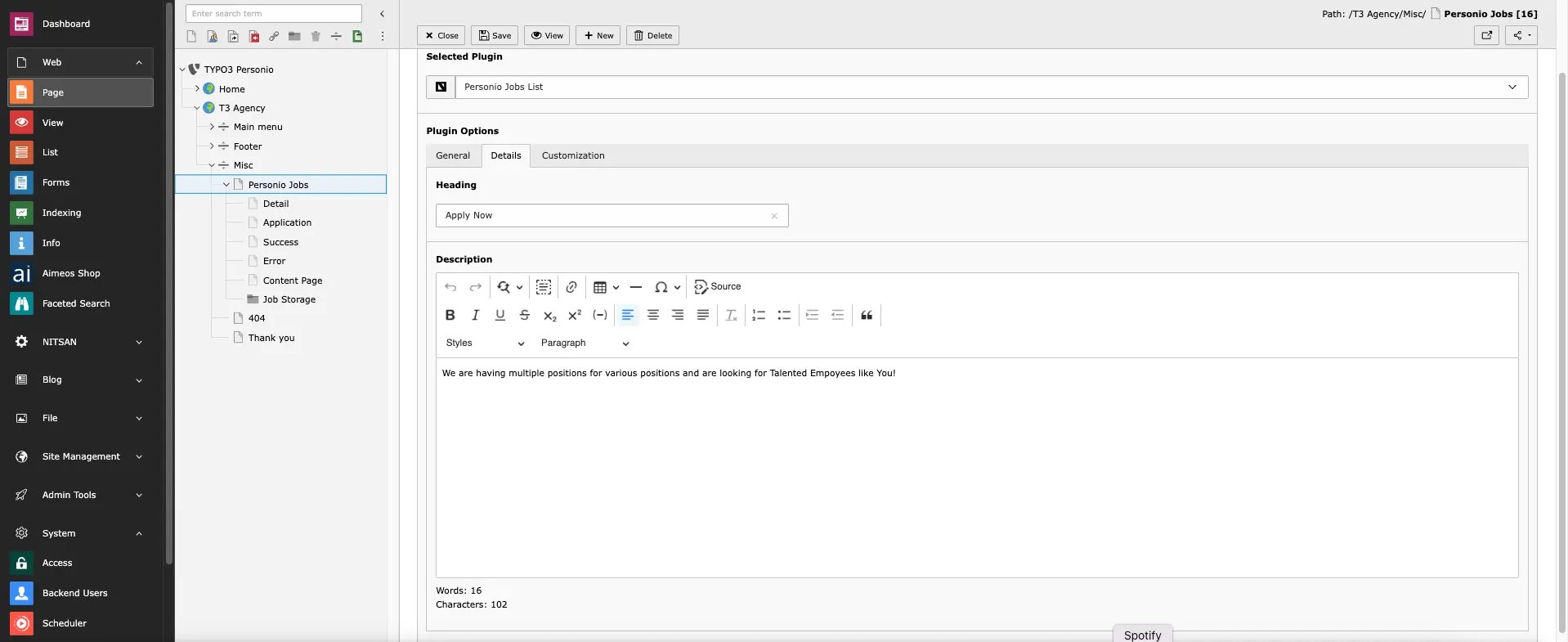
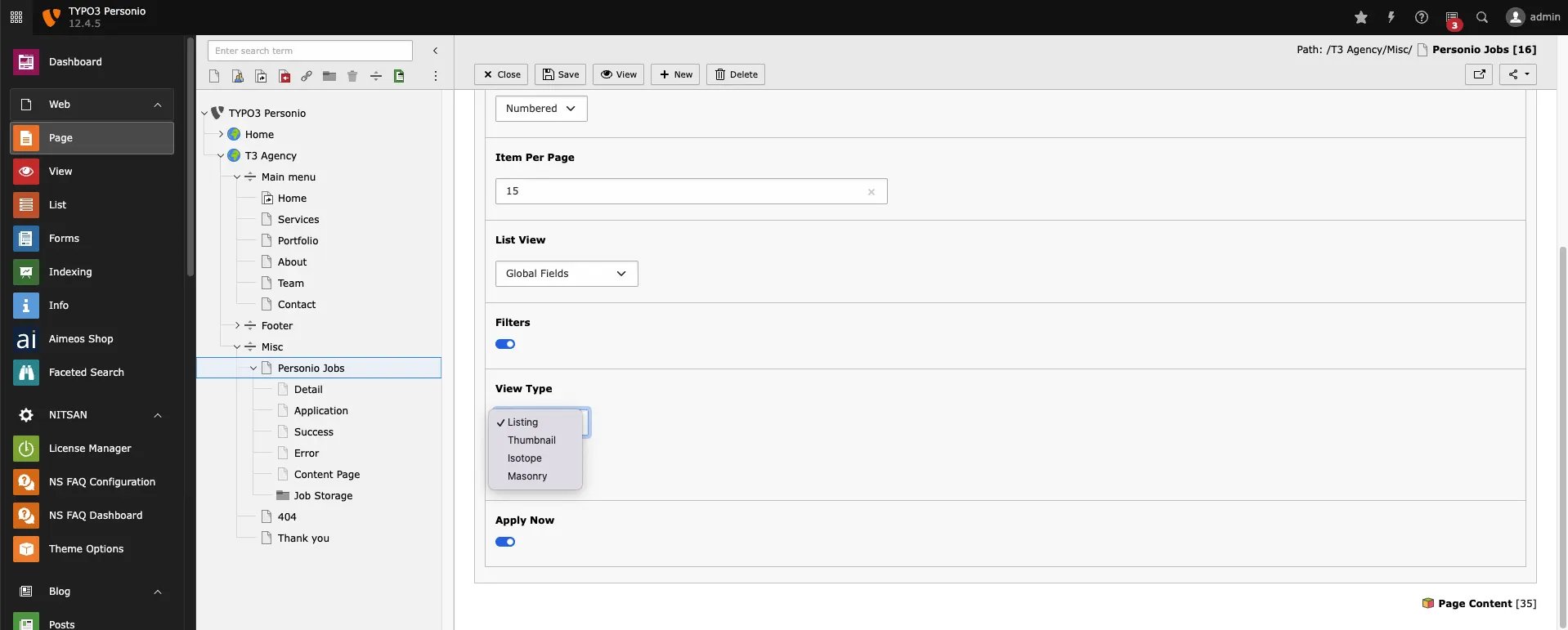
Follow below steps to configure this exension: Step 1. Click on “Plugin” menu Step 2. Create New Content Element > Insert Plugin > Personio Job List1.1 General
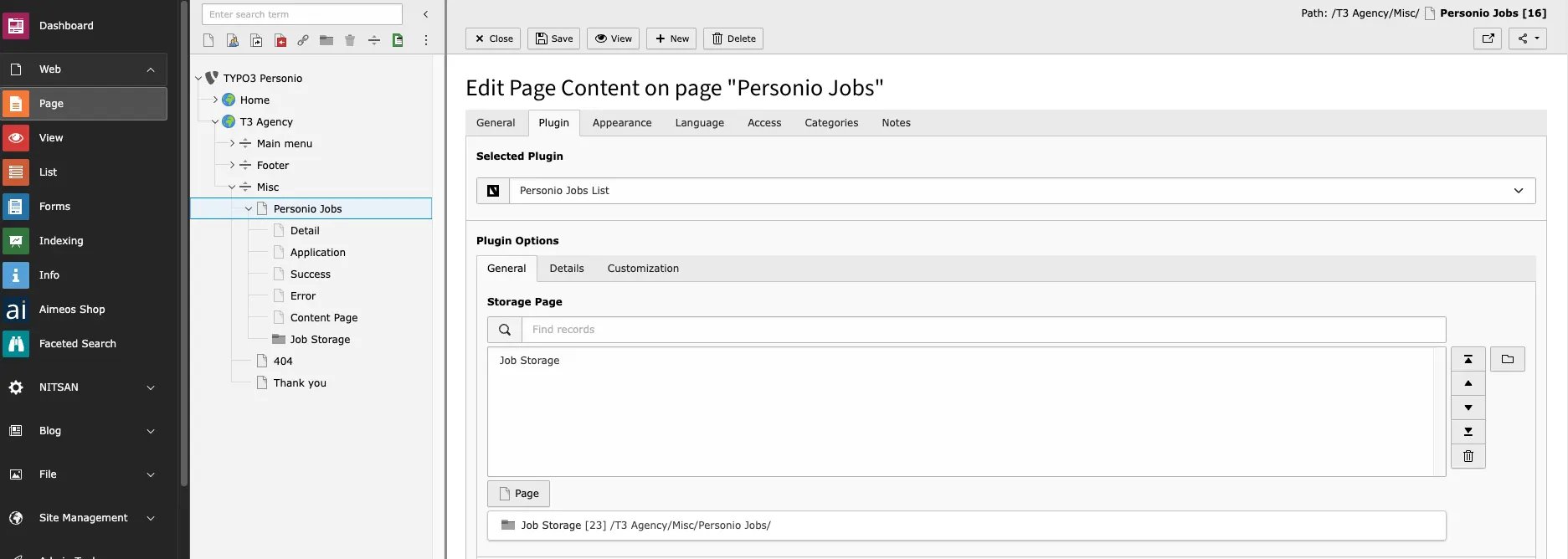
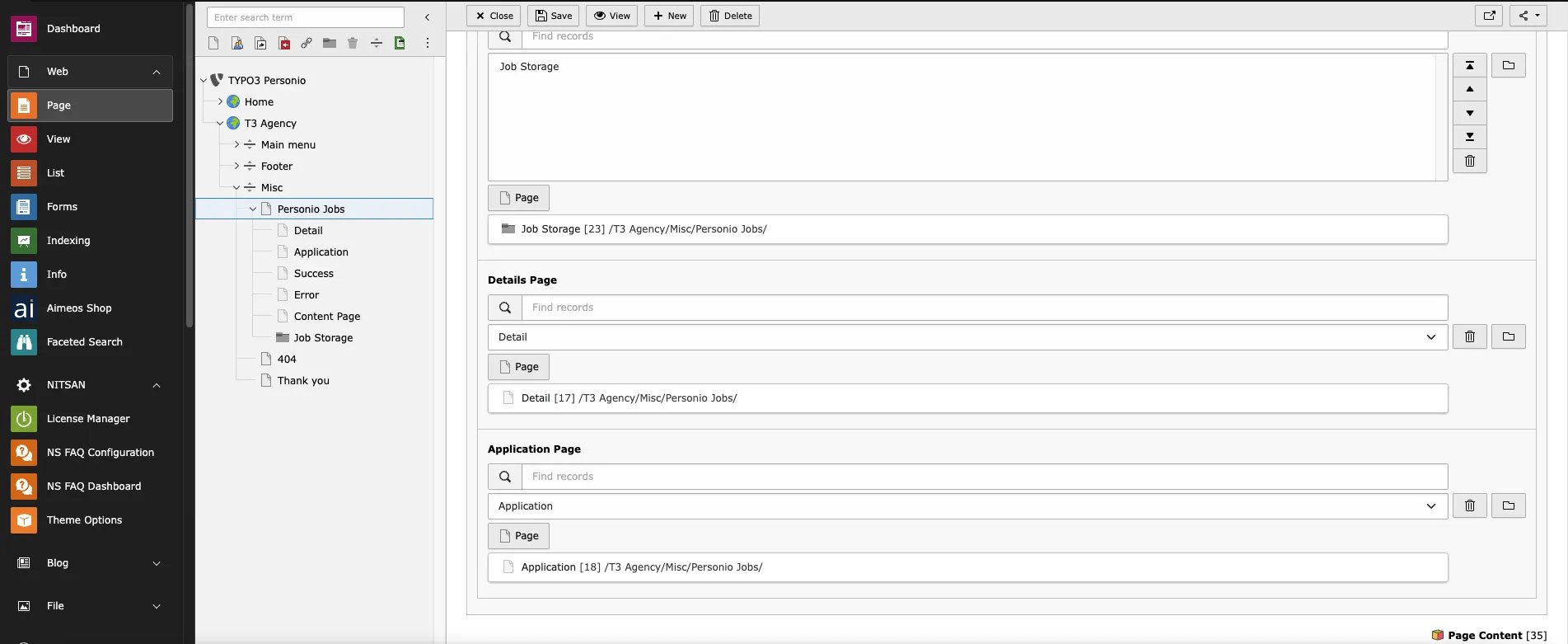
1.2 Details
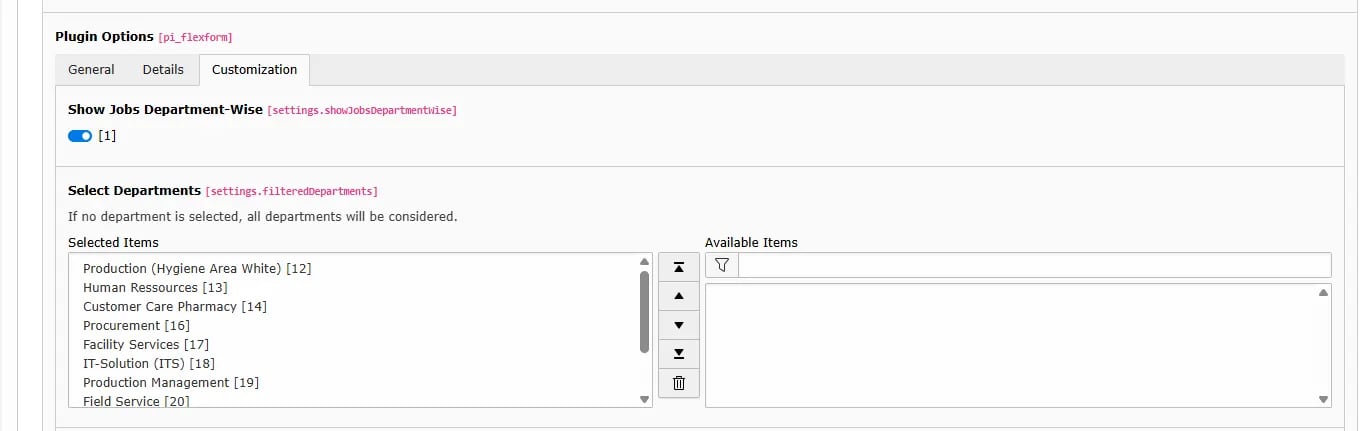
1.3 Customization
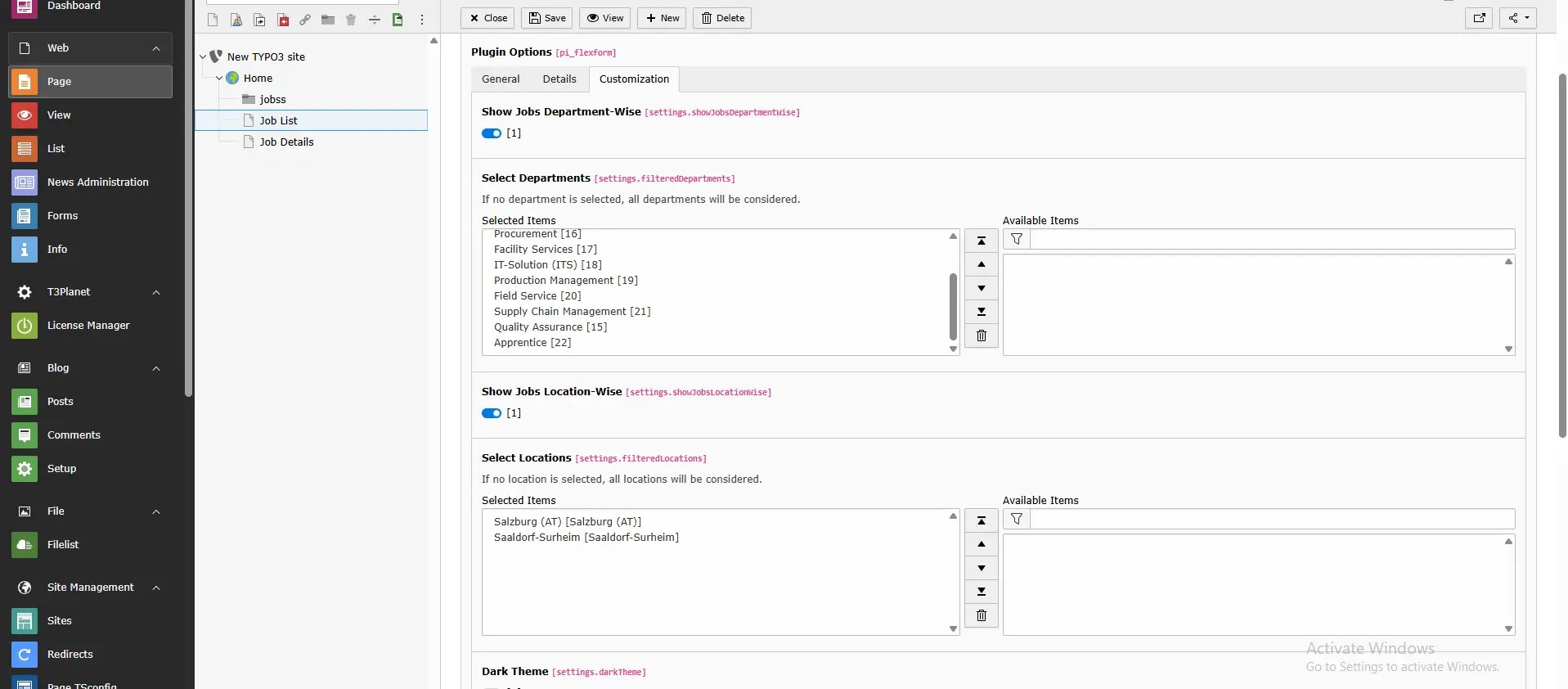
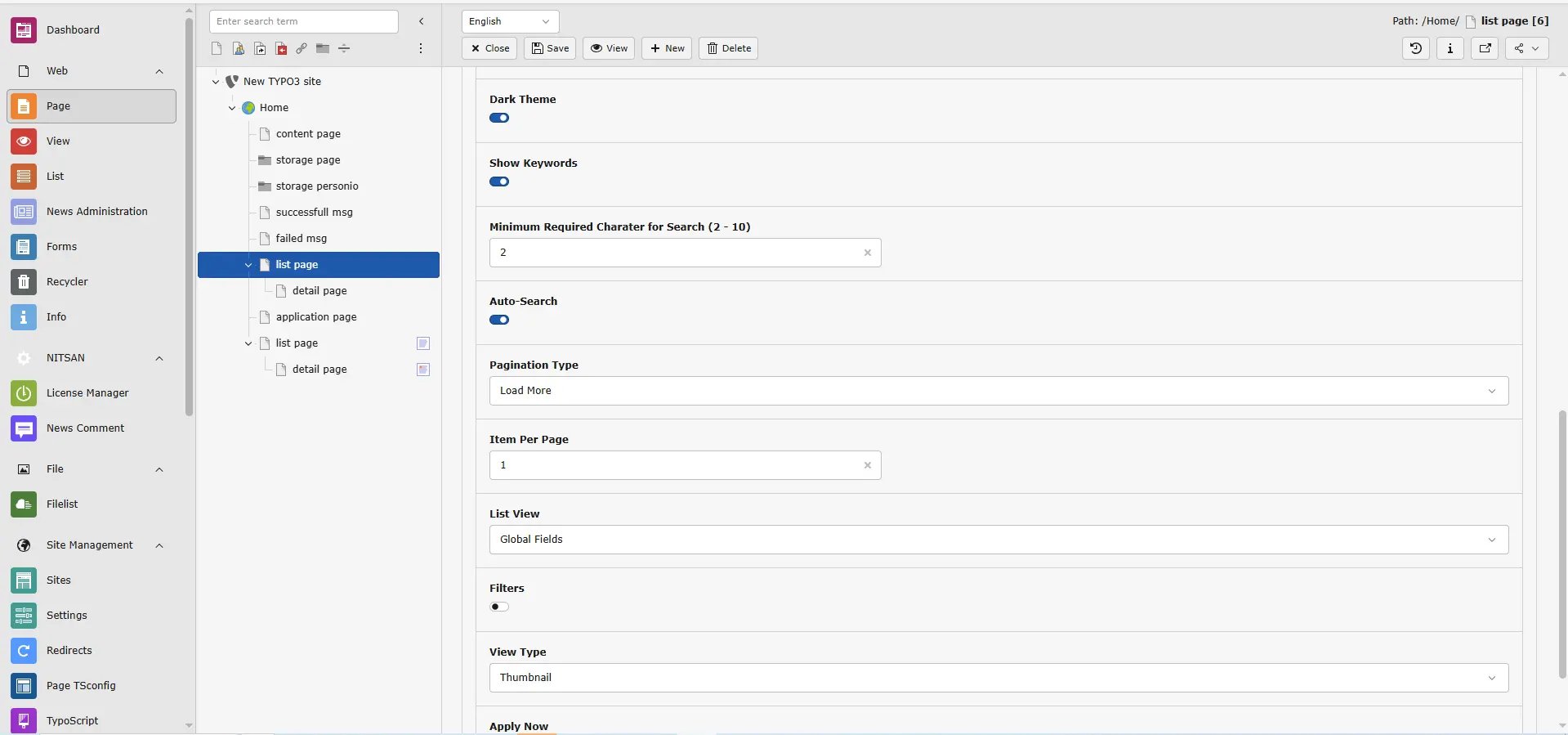
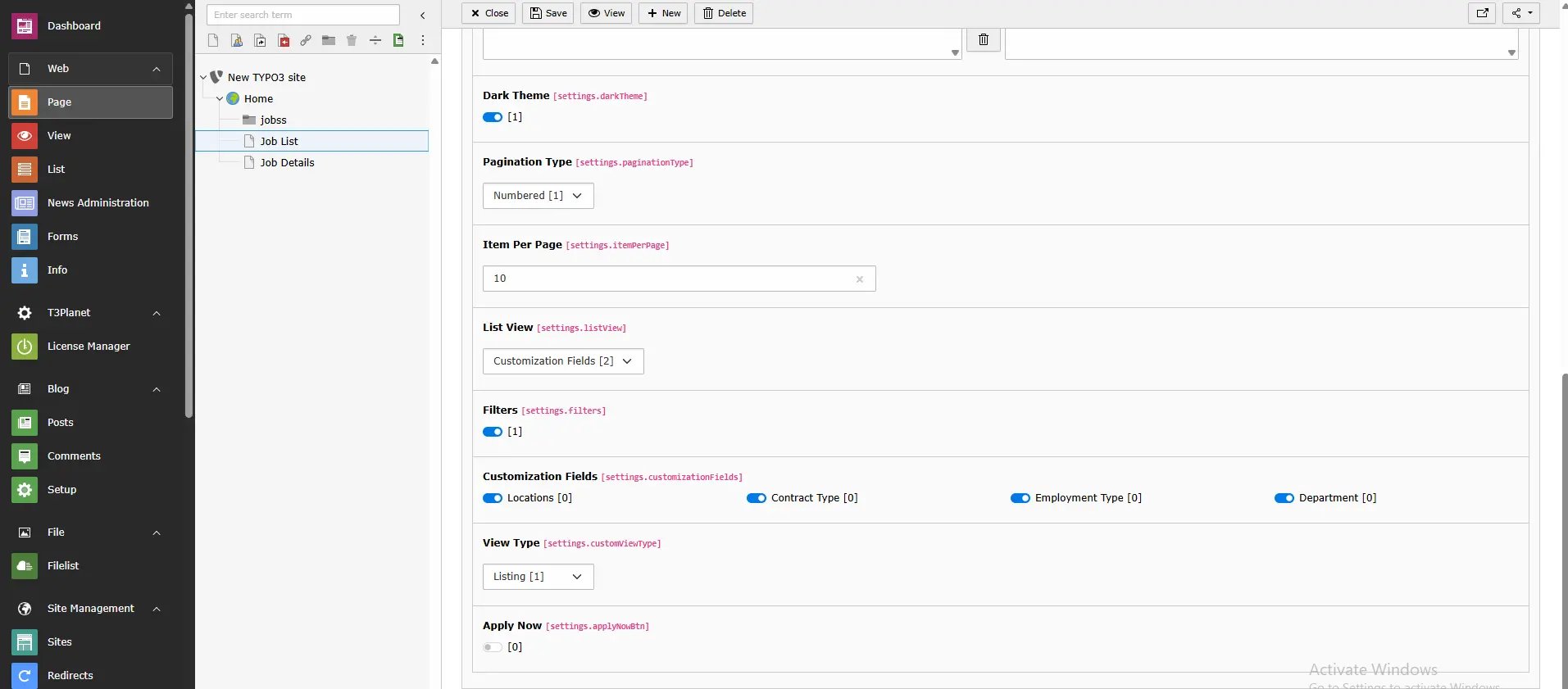
- Job Department Filter Allows users to select and filter by specific job departments.
When the scheduler runs to fetch new jobs and departments:
- If a previously selected department is not available in the new API data, it will be automatically unselected.
- If new departments are found (compared to the previous data), they will not be automatically selected. You must manually add them from the plugin settings.
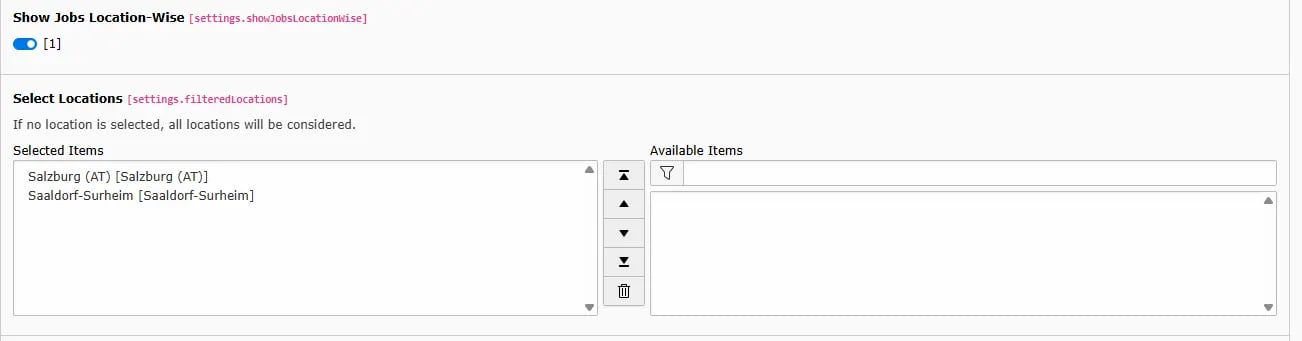
- Job Location Filter Supports filtering by both Office and Additional Office locations.
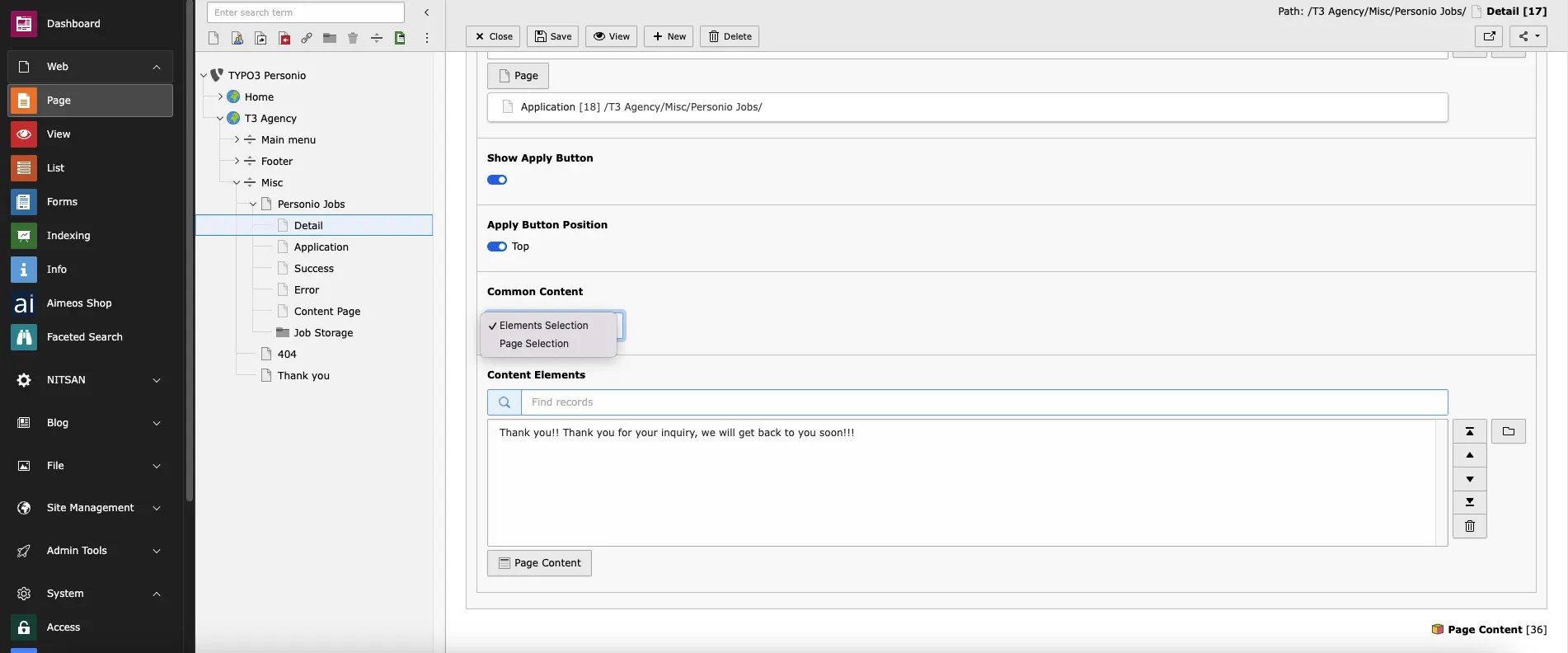
2.Personio Job Detail Plugin
Step 1. Click on “Plugin” menu Step 2. Create New Content Element > Insert Plugin > Personio Job Details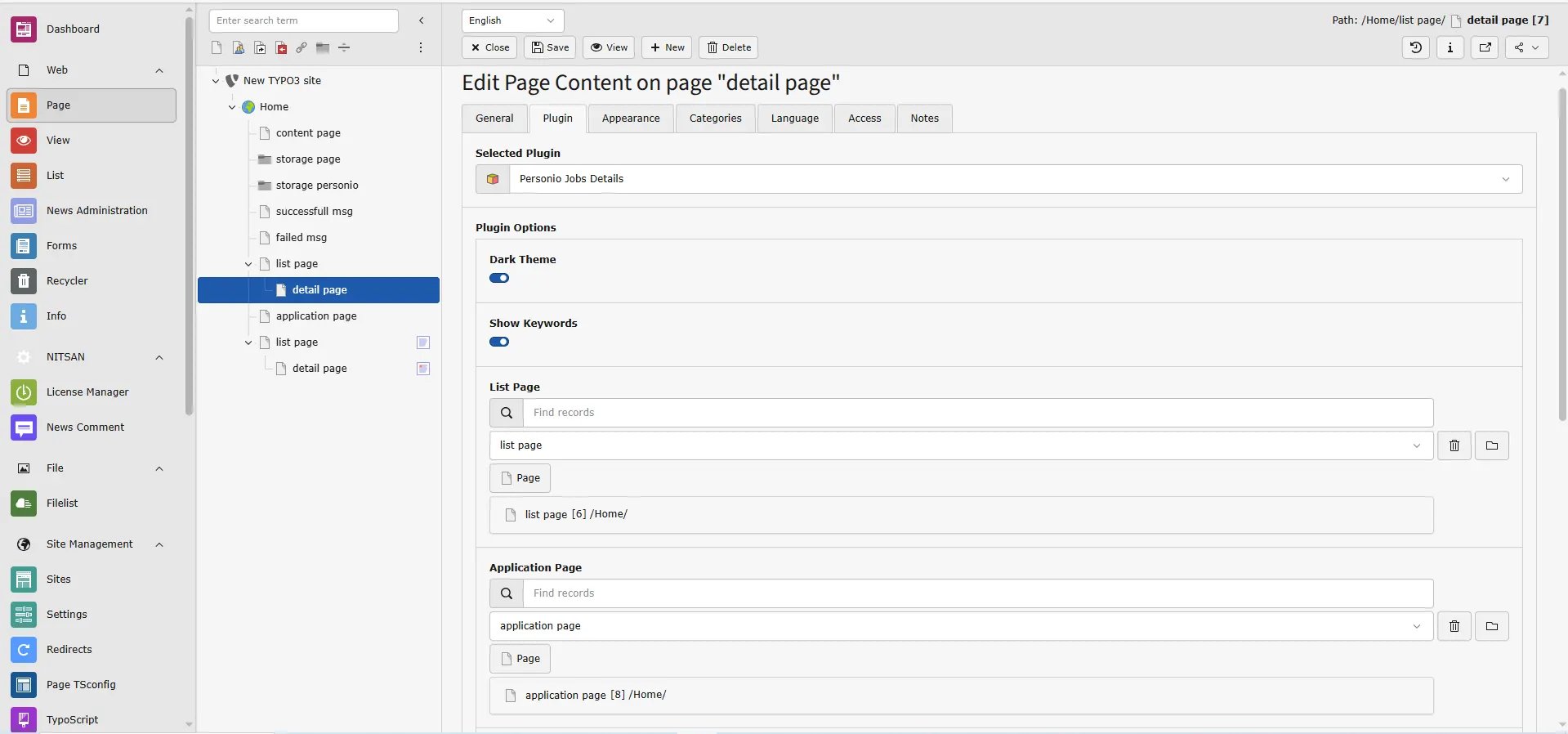
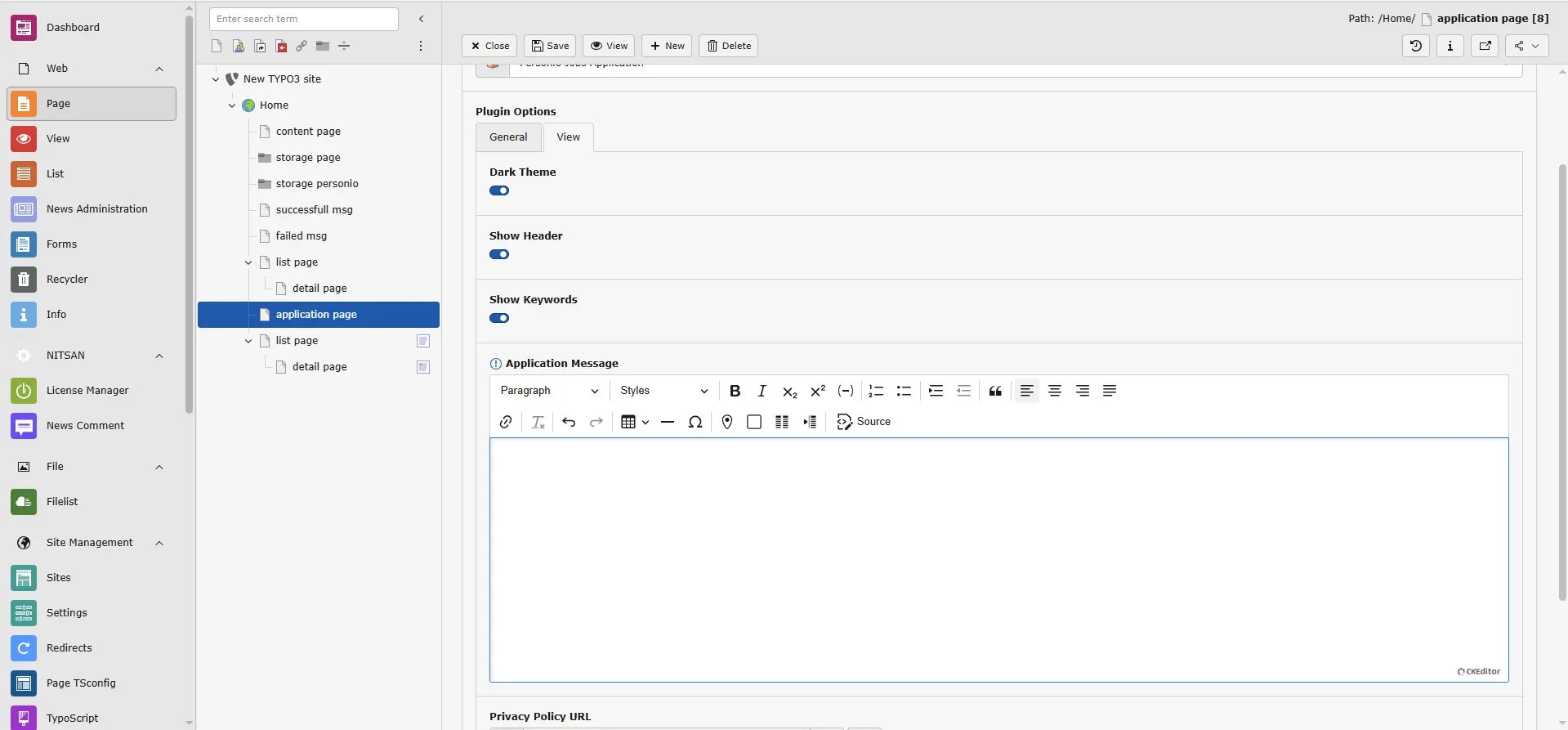
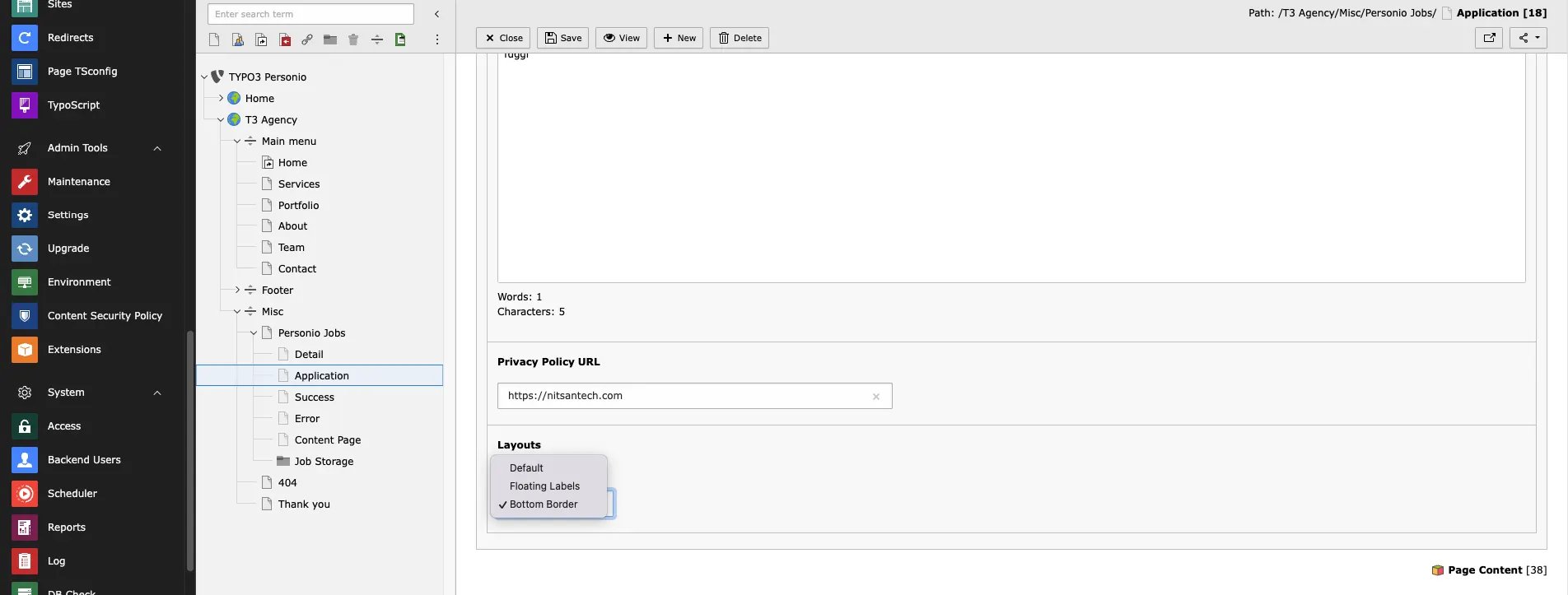
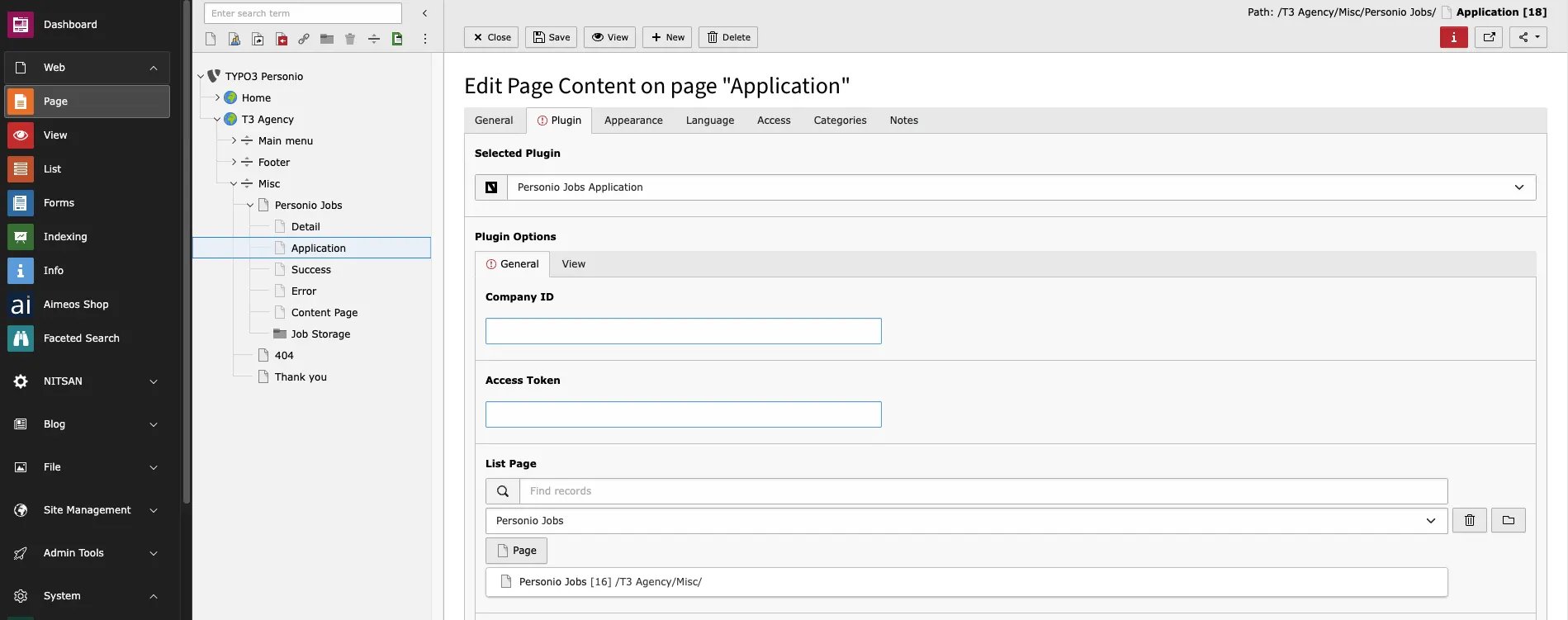
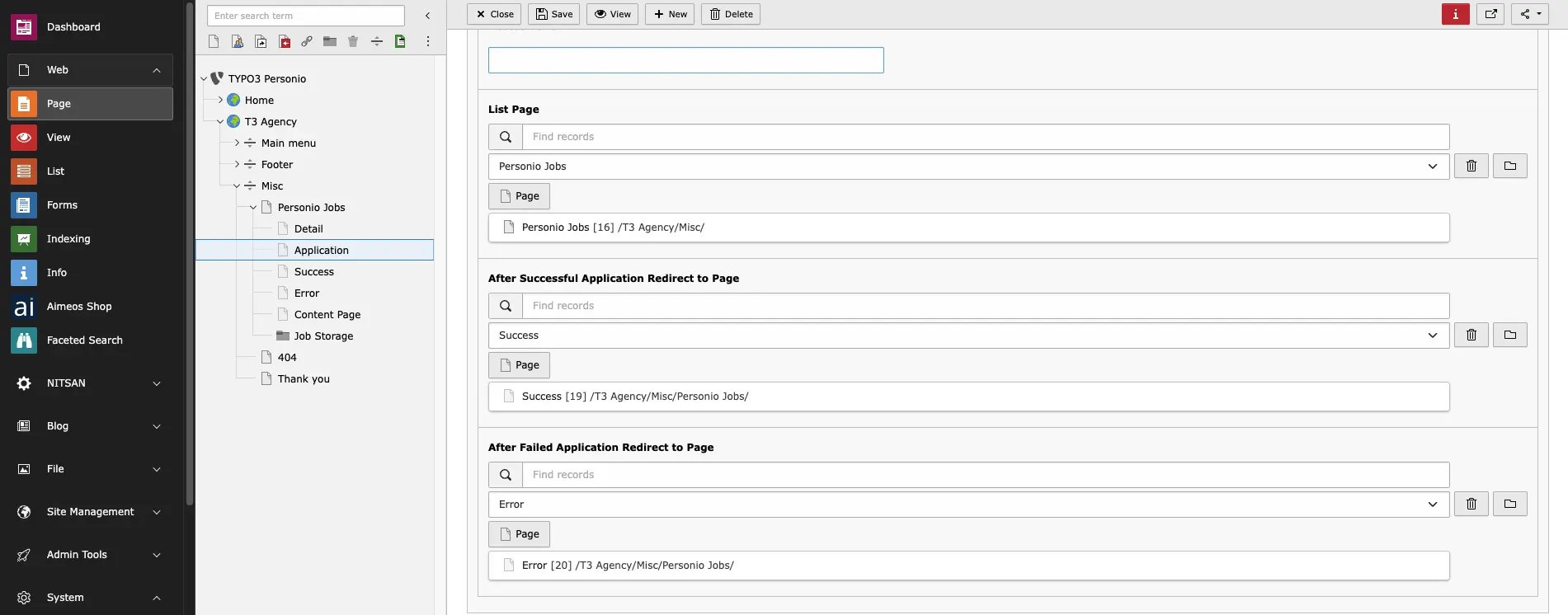
3.Personio Jobs Application Plugin
Step 1. Click on “Plugin” menu Step 2. Create New Content Element > Insert Plugin > Personio Job Details3.1 General
3.2 View