

What it is
Accessibility Widgets configures the frontend accessibility widget in T3AA (EXT:ns_t3aa).
The widget is a floating button on the website. Visitors open it and turn
accessibility tools on or off for their own browser session (font size,
contrast, reading aids, and similar options).
In the TYPO3 backend you decide:
- Whether the widget is shown
- How the button and panel look (icon, size, color, position, layout)
- Which tools and accessibility profiles are available
- Your branding and the accessibility statement shown in the widget
config.yaml. It does not change page content
in the database.
How to use it
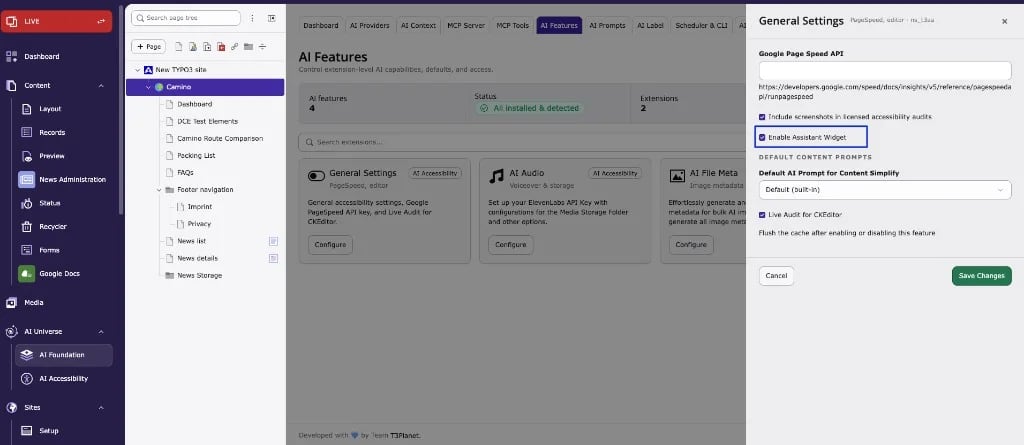
Activate the feature- Open AI Foundation → AI Features.
- Open General Settings.
- Enable Enable Assistant Widget and save.
- Open the T3AA dashboard and click Accessibility Widgets.
- Set widget options (icon, position, style, layout, profiles, settings, branding, accessibility statement).
- Enable or disable the accessibility tools you want visitors to see.
- Click Save Settings.
- Flush caches and check the frontend.
The widget needs Enable Assistant Widget (under AI Foundation →
AI Features → General Settings) and a valid license/domain for the
site. If it does not appear, check those first, then flush caches.
Widget configuration
Accessibility Widgets has these configuration tabs: Widget Icon And Size, Widget Position, Widget Style, Widget Layout, Profile Selection, Widget Settings, Widget Branding and Accessibility Statement.Widget Icon and Size
Choose the launcher size (Small, Medium, Large) and one of six icon styles (Widget Style 1–6). Default in the extension: Large + Style 1.Widget Position
Set desktop and mobile placement separately.- Standard position — left/right and top/middle/bottom (default: right bottom on desktop and mobile).
- Widget Hide on Desktop / Mobile — hide the launcher on that device type.
- Exact positioning — enable exact position, then set X/Y in pixels (desktop about 5–500 px; mobile about 5–300 px as labeled in the UI).
Widget Style
- Primary color: Solid or Gradient
- Color pickers for solid/gradient and header text color
- Appearance: Default, Dark, or System
#0101d9. Default header text: #ffffff.
Widget Layout
- Simple Layout — default, clear single panel
- Flexible Layout — responsive arrangement
- Minimal Layout — fewer controls (Motor Impaired and Blind profiles are hidden with this layout)
- 3 Column Layout — tools arranged in three columns
Profile Selection
Turn accessibility profiles on or off, then choose which profiles appear: Motor Impaired, Blind, Color Blind, Dyslexia, Low Vision, Cognitive and Learning, Seizure and Epileptic, ADHD, Elder. A profile turns on a fixed group of tools at once. Only one profile can be active at a time.Widget Settings
- Select Widget Language — default or
en,es,fr,de,it,pt - Move/Drag Widget — visitors can drag the button (not on mobile)
- Widget Large — larger text/icons/buttons inside the widget
- Widget Tooltip — hover help text on widget options
- Widget Mode — light / dark / system for the widget UI
Widget Branding
Show your own brand in the widget instead of T3Planet. Turn on White-label Settings, then fill in:
The fields can only be edited while White-label Settings is on. When it is
off, the widget shows the default panel title, the T3Planet logo and a
Feedback link in the footer. The preview on the right shows the result.
Accessibility Statement
Create an accessibility statement for your website and link it from the widget. Website name, Contact email and Last audit date are required. Statement link in the widget
The link appears in the footer of the widget panel and opens in a new tab. It
is shown only when Add Accessibility Statement to Widget is on and
both Link and Link Text are filled.
Statement content
The generated statement covers compliance status (WCAG), screen reader and
keyboard support, accessibility profiles, display adjustments, the last audit
date and your feedback contact. Check the preview on the right.
Publish the statement on your website
- Fill in the statement fields and save.
- In the preview, switch between Text and HTML, then use Copy statement or Download (HTML or Text).
- Add the statement to a page on your website, for example
/accessibility-statement. - Enter that page URL in Link and a Link Text, then save.
- Flush caches and check the link in the widget footer.
The statement is not published automatically. Visitors see it only on the page
where you add it, and through the widget link once Link and Link Text
are set.
Accessibility tools
Each tool is a card in Accessibility Widgets. If enabled and saved, it appears in the frontend widget. If disabled, visitors do not see it.Reading and text
- Screen Reader — reads page content aloud (speed/pitch can be limited in config)
- Readable Font — switches to clearer fonts
- Font Size — increases or decreases text size
- Letter Space — changes space between letters
- Word Space — changes space between words
- Line Height — changes space between lines
- Text Align — left / center / right
- Text Magnify — magnifies text
- Highlight Header — highlights headings
- Highlight Links — highlights links
- Reading Mask — focuses on one reading band
- Reading Guide — follow-along reading line
- Read Mode — simpler reading layout
Vision and color
- Contrast — overall contrast
- Color Contrast — text vs background contrast
- Saturation — color intensity
- Invert Filter — inverts colors
- Grayscale — removes color
- Color Deficiency — color correction modes
- Dark/Light — light or dark page mode
- Blue Filter — warmer screen tone
- Blue Filter by Sun Position — blue filter by sun position
- Blue Filter by Time — blue filter by time of day
- Cursor — larger or colored cursor
- Blur — softens parts of the view
- Zoom — zoom in/out
- Hide Images — hides images
Motion, sound, and structure
- Pause Animations — stops motion effects
- Mute — mutes audio
- Voice Navigation — voice commands (browser support required)
- Page Structure — shows page structure for orientation
How profiles behave
When a visitor selects a profile, the widget enables this tool set:
Selecting another profile replaces the previous one. Visitors can also use
individual tools without a profile.