

Before you start
You need:- The AI Accessibility module (T3AA) in your TYPO3 backend.
- A backend user that is allowed to change the Mass Voiceover queue. Without this permission, Add pages to queue, the settings (gear) button, Delete, and all bulk buttons (Re-queue failed, Clear completed, Re-queue selected, Delete selected) are hidden. Pages the user cannot edit are skipped when they are added to the queue.
- A speech (text-to-speech) provider in AI Foundation → AI Providers, with a valid API key. The supported speech providers are OpenAI, OpenAI-compatible, ElevenLabs (with your own ElevenLabs key) and T3Planet Credits. Mistral cannot be used for speech. Note: ElevenLabs cannot be used when your site runs in T3Planet Credits mode.
- The TYPO3 Scheduler module, so the task can run. The task can also be started from the command line (see below).
The voiceover is not shown on the website automatically. Add the
AI Accessibility-Voiceover content element to the page to play it.
See AI Voiceover.
Open Mass Voiceover
- Open AI Accessibility in the left backend menu.
- Select a page in the page tree.
- Open the Content tab.
- On the Mass Voiceover card, click Manage Mass Voiceover.
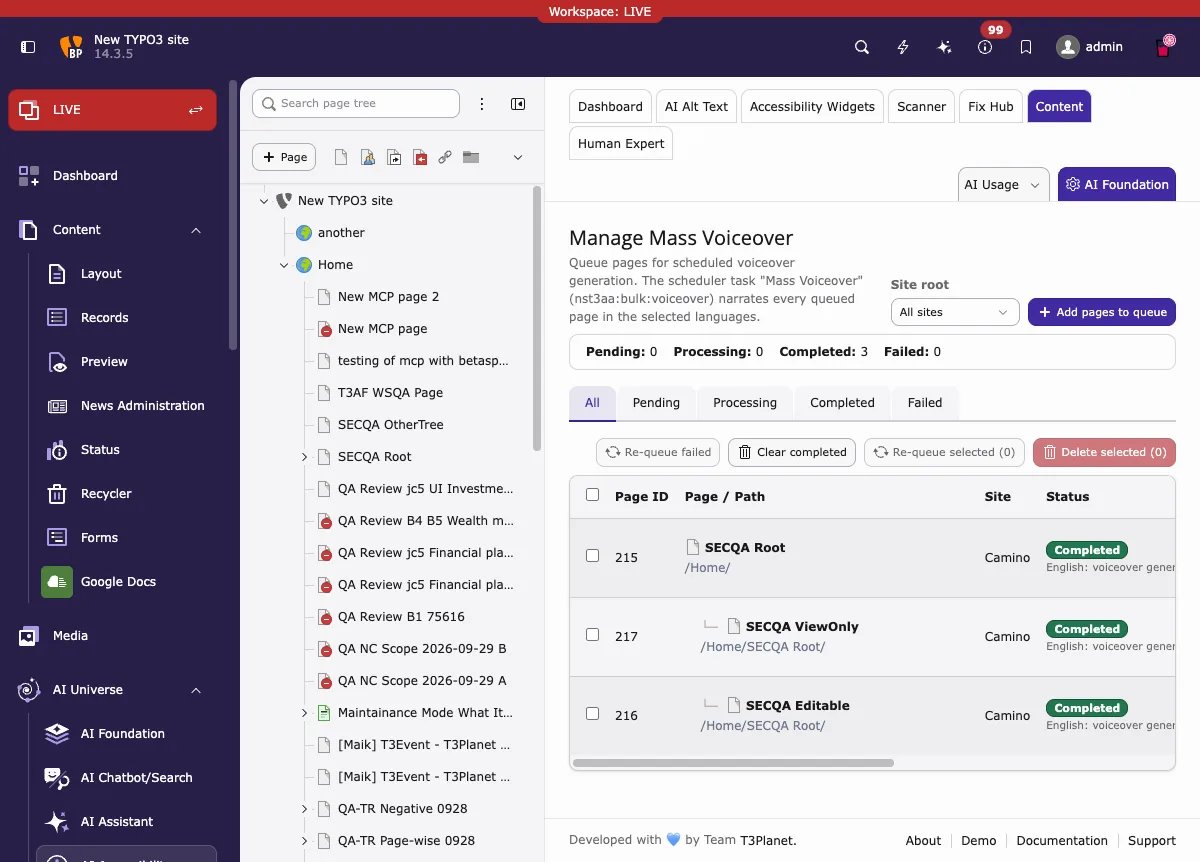
The Manage Mass Voiceover screen
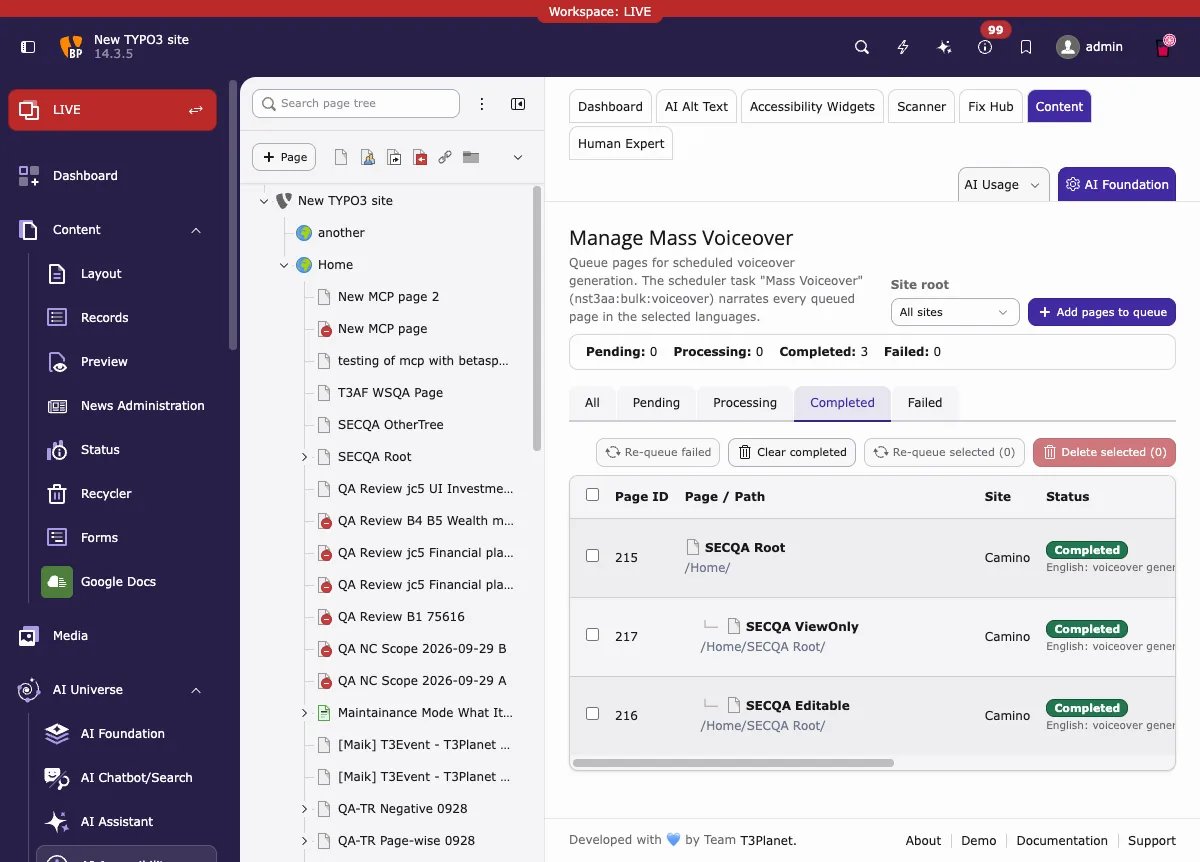
From top to bottom, you see:- Site root — a filter. Choose All sites to see the queue entries of all sites, or choose one site root to see only its pages.
- Add pages to queue — opens the wizard that adds pages to the queue (see next section).
- The status summary — how many entries are Pending, Processing, Completed and Failed.
- The status tabs — All, Pending, Processing, Completed and Failed. Click a tab to see only entries with that status.
- Re-queue failed — sets failed entries back to Pending, so the next run tries them again. If you selected rows with the checkboxes, only the selected rows are re-queued; otherwise all failed entries of the site chosen in the Site root filter are re-queued.
- Clear completed — removes the completed entries of the site chosen in the Site root filter from the list. The voiceover files on the pages are kept.
- Re-queue selected (n) and Delete selected (n) — work on the rows you selected with the checkboxes. They are inactive until you select at least one row. Delete selected removes the queue entries. Existing voiceovers on the pages are kept.
- The queue table with one row per page:
- Page ID and Page / Path — the page and where it is in the tree. Subpages are shown indented under their parent page.
- Site — the site the page belongs to.
- Status — a badge (for example Completed or Failed) and a short message per language, for example “English: voiceover generated” or “German: ignored, page not available in this language”.
- Mode — Generate when Regenerate was not chosen for this entry, or Regenerate when it was. The Mode only shows this choice; it does not check whether the page already has a voiceover.
- Languages — the languages selected for this entry, shown as flags.
- Voice — the provider, model and voice used for this entry.
- Last processed — when the entry was last worked on.
- Action — the settings (gear) button to change the entry, and Delete to remove the entry from the queue. The gear button is only shown when you have the modify permission, and not for Completed or Processing entries.
- Pagination at the bottom, when the queue has many entries.
Add pages to the queue
- Click Add pages to queue.
-
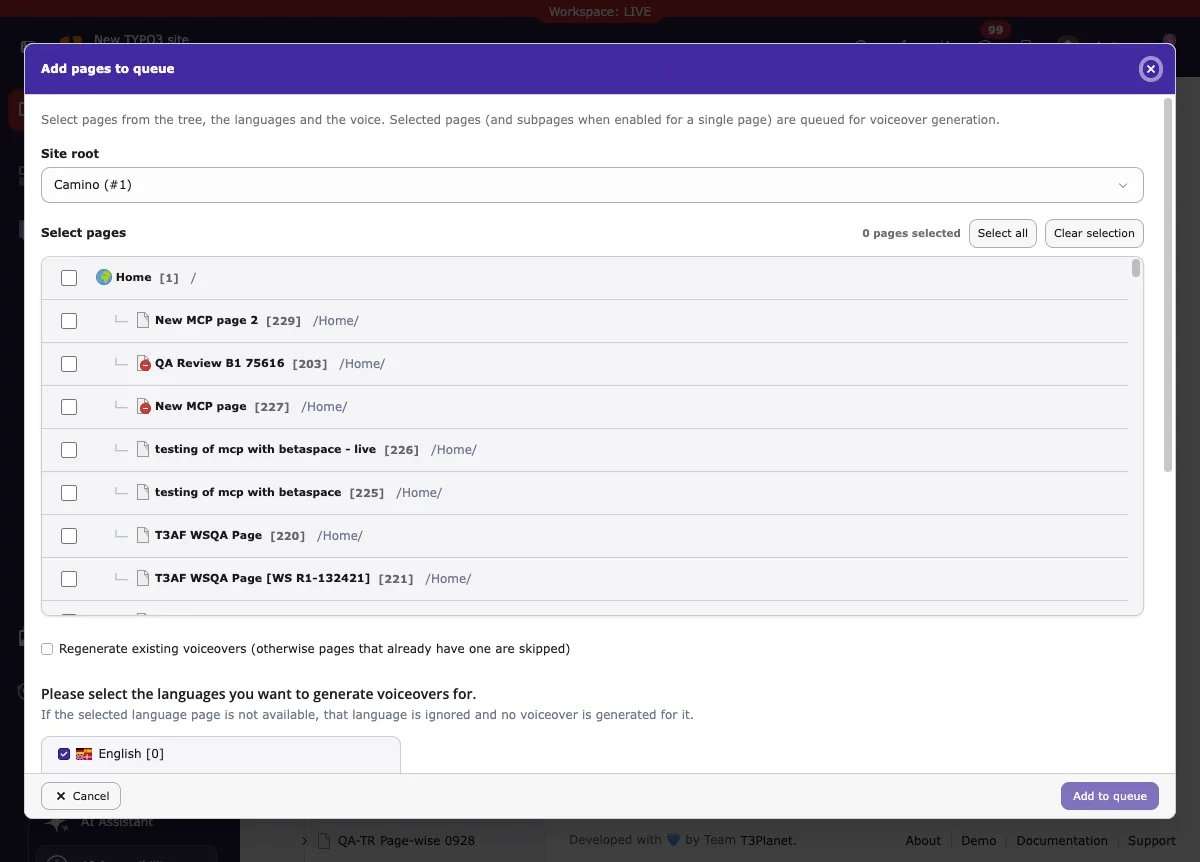
If the site is not already known, choose it in Site root. The page
tree loads straight away — when the site is known, or as soon as you
pick one.
-
In Select pages, tick the pages you want. Nothing is pre-ticked —
the counter above the tree starts at 0 and shows how many pages are
selected. Folders, shortcuts and similar page types that cannot be
voiced over are greyed out. Hidden pages are included in the tree.
Select all ticks all pages in the tree and Clear selection
removes all ticks. When you select exactly one page, the option
Include all subpages is shown. Tick it to queue that page together
with all its subpages; only pages that can be voiced over are added.
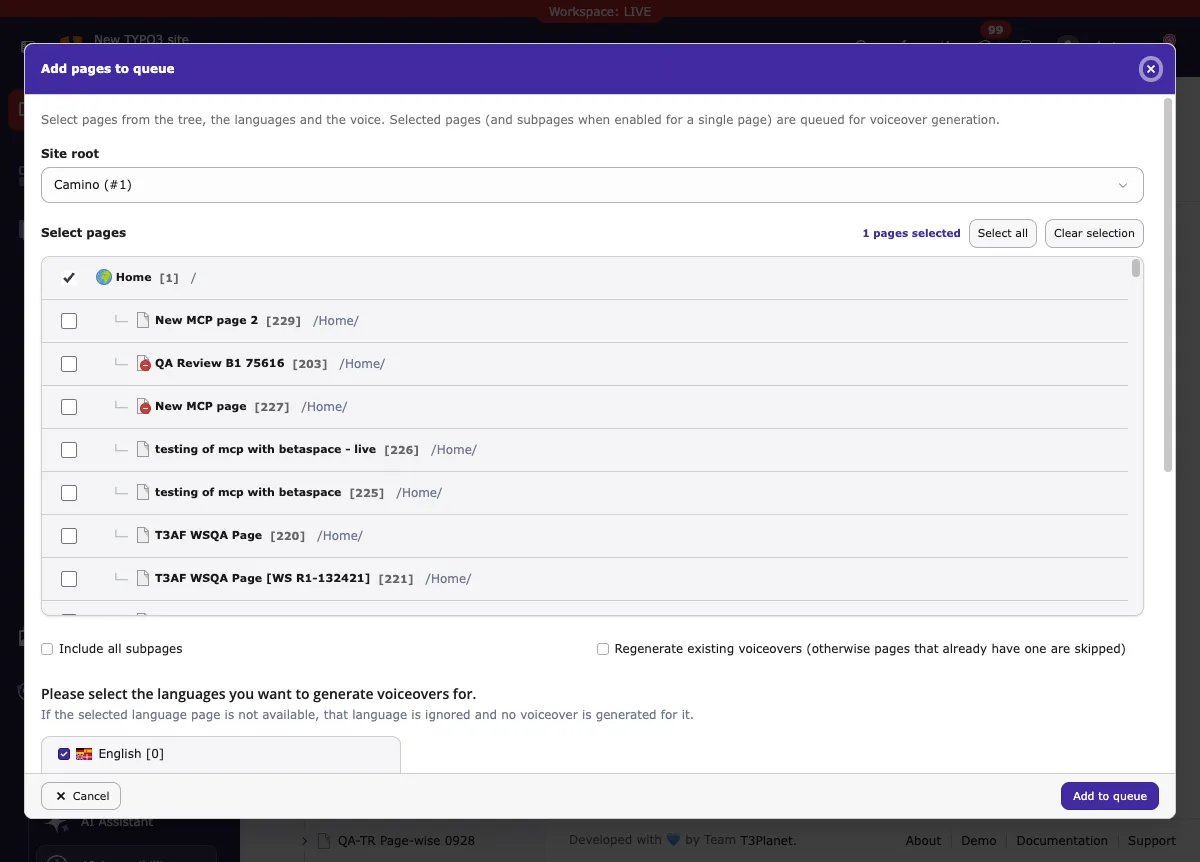
- Set the options under the tree (they are explained in the next section): Regenerate existing voiceovers, the languages, and the Voice settings.
- Click Add to queue. The wizard closes and the new entries appear in the list with the status Pending.
Settings: regenerate, languages and voice
The same settings are used in the Add pages to queue wizard and in the settings window of a queue entry. To change an existing entry, click its settings (gear) button, change the values, and click Save and re-queue. Saving sets the entry back to Pending, so the next run uses your new settings. Completed entries have no gear button: use Re-queue selected to set such an entry back to Pending first, then click the gear button before the next run starts. Re-queuing a Completed entry turns on Regenerate for that entry, so the next run creates a new voiceover even though the page already has one. The skip rule below does not apply to such entries.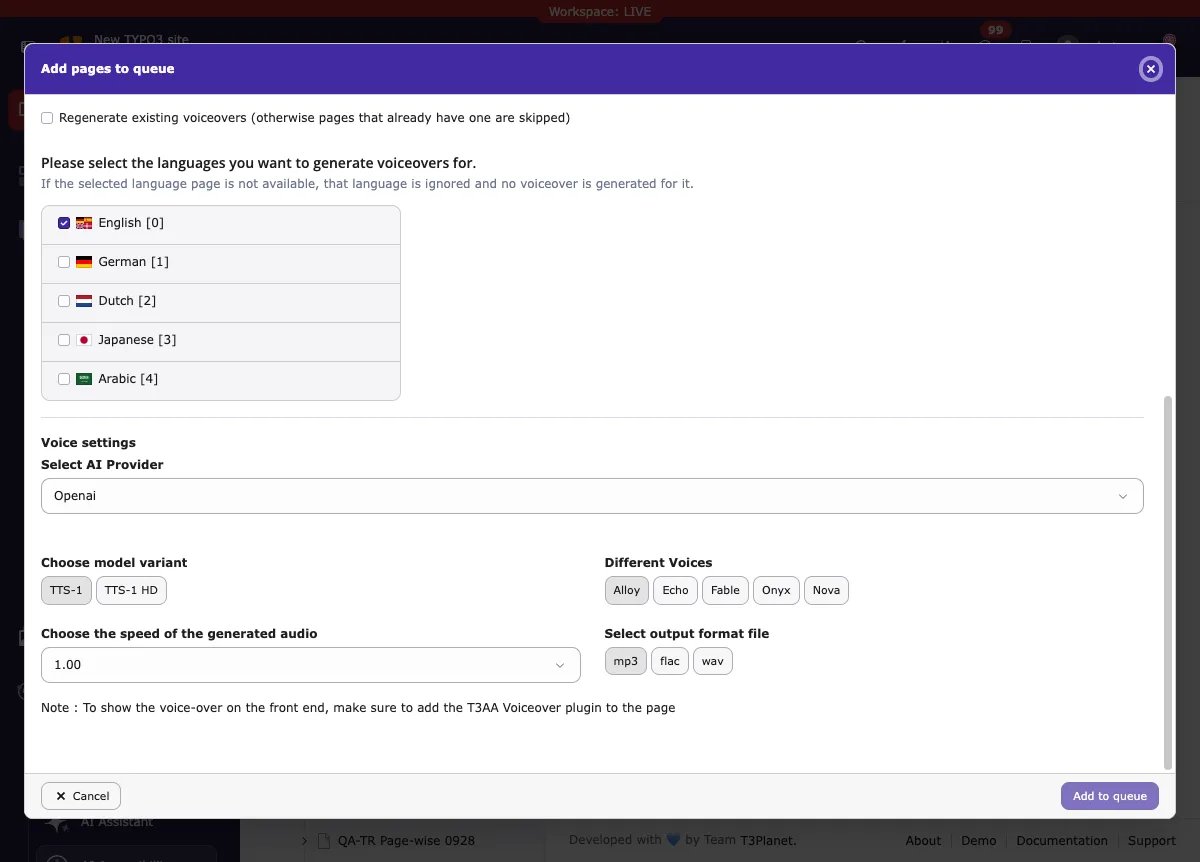
- Regenerate existing voiceovers — if a page already has a voiceover and this option is off, that page is skipped in the next run. Turn it on when the text of the page changed and you want a new voiceover.
- Languages — tick the languages you want to generate. The wizard text says: “Please select the languages you want to generate voiceovers for. If the selected language page is not available, that language is ignored and no voiceover is generated for it.” So a missing translation does not stop the run; that language is simply skipped.
- Voice settings:
- Select AI Provider — the speech provider from AI Foundation: OpenAI, OpenAI-compatible, ElevenLabs or T3Planet Credits. The next fields depend on the provider.
- Choose model variant — for example TTS-1 or TTS-1 HD for OpenAI, or an ElevenLabs model such as Eleven Multilingual v2.
- Different Voices — the voice, for example Alloy, Echo, Fable, Onyx or Nova for OpenAI, or one of the ElevenLabs voices.
- Choose the speed of the generated audio — from 0.25 (slow) to 4.00 (fast). The normal value is 1.00.
- Select output format file — mp3, flac or wav.
Run the Scheduler task
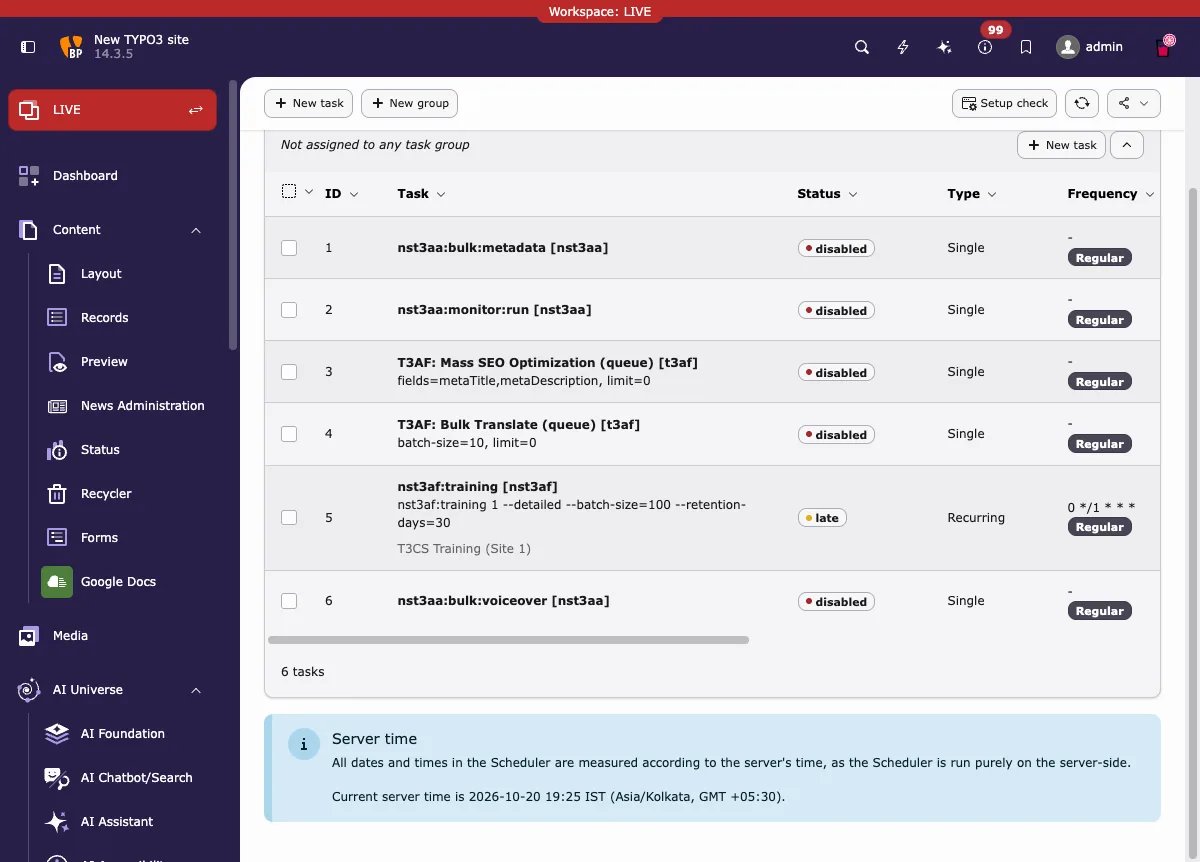
Queue entries are not processed at once. They wait with the status Pending until the Scheduler task runs.Set up the task in the Scheduler
- Open Scheduler in the left backend menu (System).
-
If the task nst3aa:bulk:voiceover is already in the list, you can
edit it. Otherwise click New task and choose the console command
nst3aa:bulk:voiceover (“Generate queued page voiceovers (mass
voiceover queue)”).
-
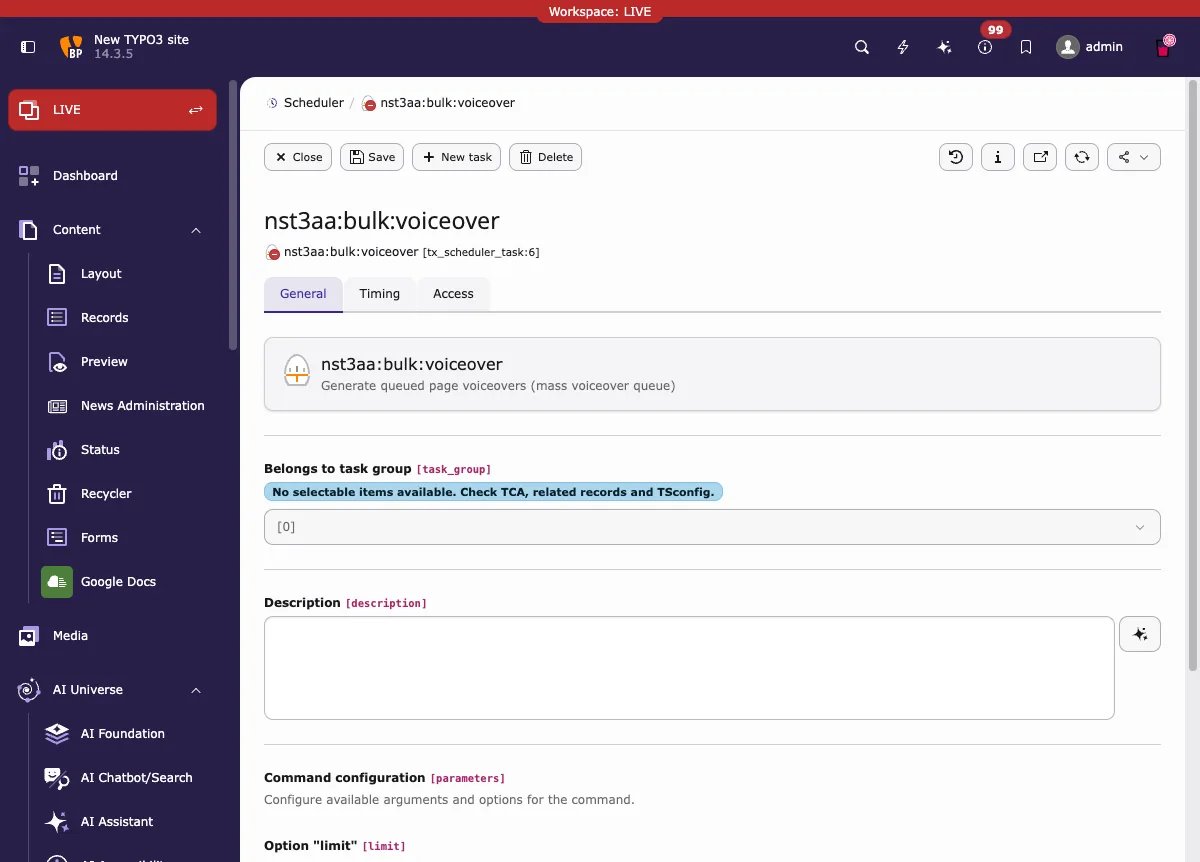
In the task form you can set:
- Command configuration → Option “limit” — the maximum number of queue entries per run. The standard value is 20. Use 0 to process all pending entries in one run.
- Schedule — Single for one run, or Recurring to run again and again. For a recurring task, set Frequency (in seconds, or as a cron command), Start at and, if needed, Run periodically until.
- Allow Parallel Execution — keep this off. The task locks itself, so two runs cannot work on the queue at the same time.
- Enabled — the task only runs when it is enabled.
- Save the task.
Or run it from the command line
--limit=0, all pending entries are processed. The command shows one
line per page with the result per language, and a summary at the end.
What happens during a run
For every Pending entry, the task reads the page text in each selected language and creates one audio file per language. The file is saved to the page (Page Properties → AI Accessibility tab → Voiceovers field).- Pages without a translation in a selected language are skipped for that language (“ignored, page not available in this language”).
- Pages that already have a voiceover are skipped, unless Regenerate existing voiceovers was set for the entry, or the entry was re-queued from Completed (which turns on Regenerate for that entry).
- If any selected language fails, the whole entry is marked Failed. Languages that worked keep their voiceover files.
- If the speech provider saved on an entry was removed or disabled, the default speech provider is used for that entry.
- If a page waits for a Mass Translation, the entry stays in the queue and is processed in a later run.
Check the result
- Go back to Manage Mass Voiceover.
- Look at the status summary and open the Completed or Failed tab.
- Read the message in the Status column of each row. It tells you the
result per language, for example:
- “English: voiceover generated”
- “German: ignored, page not available in this language”
- Open the page in the Page module, or open its page properties.
- Open the AI Accessibility tab and check the Voiceovers field. The generated audio file is stored there.
- If the page has the AI Accessibility-Voiceover content element, open the page on the website and play the audio.
Example
An editor maintains a website with information pages in English and German. Many pages need a voiceover, and new pages are added often.- The editor opens Manage Mass Voiceover and clicks Add pages to queue.
- In the wizard, the editor chooses the site, ticks the pages, and selects the languages English and German.
- The editor selects the speech provider and a voice, and clicks Add to queue. All entries are now Pending.
- The Scheduler task nst3aa:bulk:voiceover runs (for example every night, or once with Execute now).
- After the run, the editor opens the Completed tab. Pages with an English and a German version now have both voiceovers. A page without a German version shows “German: ignored, page not available in this language” and is still Completed.
Troubleshooting
The entry is Failed and the message says “Could not fetch content from page with ID (%s).”
The page has no readable text (for example, it has no content elements), so no voiceover can be created.- Add content to the page, or remove the entry from the queue with Delete.
- Then use Re-queue failed and run the task again.
The Scheduler shows “Task failed to execute successfully.”
The Scheduler task reports this when any page in the run failed (for example with an API 429 error). This is expected and not a crash: the other pages of the run are still processed. Open the Failed tab to see which entries failed, fix the cause, and re-queue them.The message says “API key is not available, Please Add API key in settings.”
No speech provider is enabled. Enable a speech provider (OpenAI, OpenAI-compatible, ElevenLabs or T3Planet Credits) in AI Foundation → AI Providers, then re-queue the entry and run the task again.The message shows a provider error, for example “HTTP 429 … You have no credits remaining.”
The speech provider has no credits left, or the API key is not valid.- Check the provider and its credits in AI Foundation → AI Providers.
- Fix the key or add credits, then use Re-queue failed and run the task again.
A language shows “ignored, page not available in this language.”
The page has no translation in that language. This is not an error. The language is skipped, and the entry can still be Completed. Create the translation first if you need a voiceover in that language.Nothing happens; all entries stay Pending.
- Check in the Scheduler that the nst3aa:bulk:voiceover task exists, is Enabled, and has a valid schedule.
- Or run the task once with Execute now, or from the command line, and check the Last Execution time in the Scheduler list.
The status message in the list is cut off.
The Status column shows a short form of long messages. Move the mouse over the message to read the full text in the tooltip.Limitations and good practices
- One run processes at most the number of entries set in limit (standard: 20). With a long queue, use a recurring task or a higher limit.
- Only one run works on the queue at a time. The task locks itself while it runs.
- An entry that stays in Processing for more than one hour (for example after a server problem) is set back to Pending by the next run.
- The voiceover is created from the readable text of the page. Pages with very long text need more provider credits and more time.
- Queue only the pages you need. Every generated language uses provider credits.
- Use Regenerate existing voiceovers only when the page text changed. Otherwise, pages with a voiceover are skipped and cost nothing.