

RTE AI Copilot
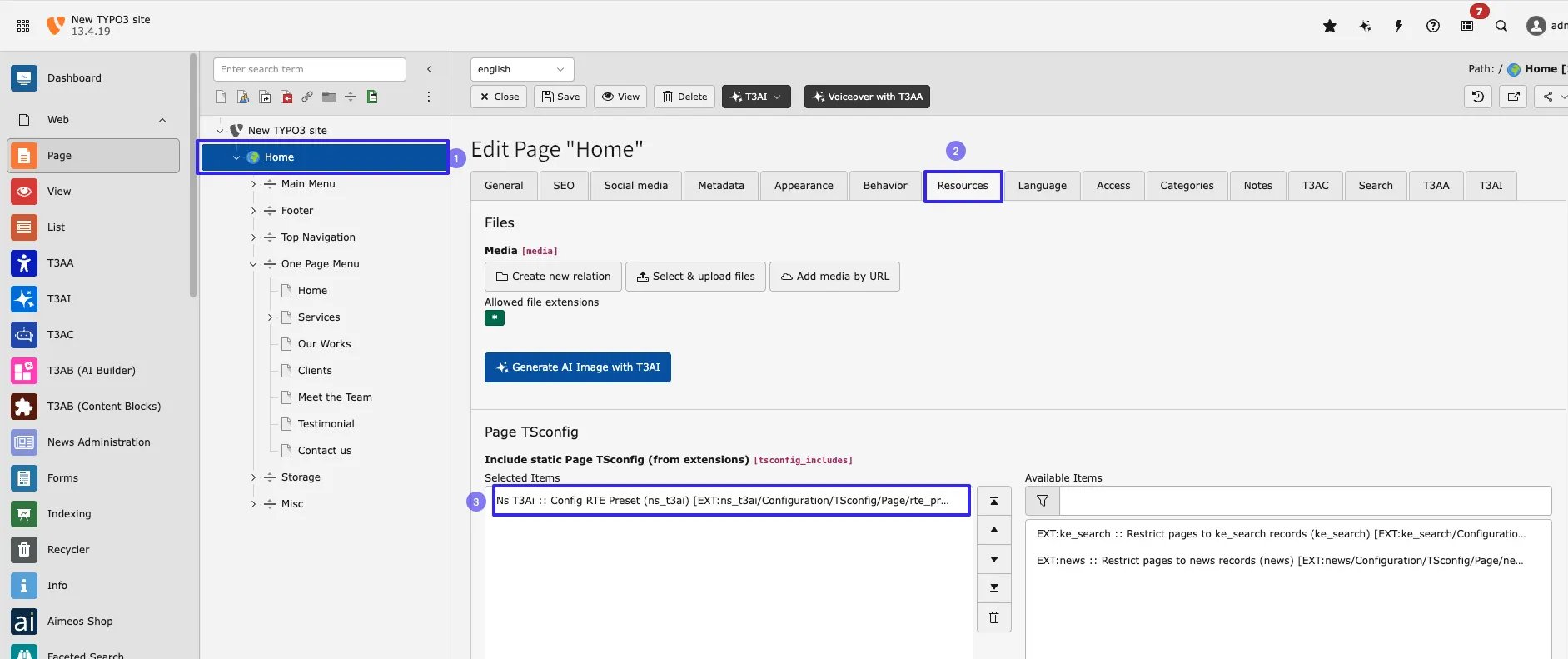
This feature adds an AI copilot to the TYPO3 Rich Text Editor (RTE), making it easier for users to add and update content. The copilot offers helpful suggestions and simplifies editing and formatting, improving the overall user experience. Follow below Step to Use this feature,- Step 1 - goto page module and Select the page
- Step 2 - click on edit Page property
- Step 3 - go to Tab Resources
- Step 4 - include Ns T3Ai :: Config RTE Preset (ns_t3ai) in Include static Page TSconfig and Save the configuration
T3AI Prompts
This feature helps optimize your inserted content using prompts.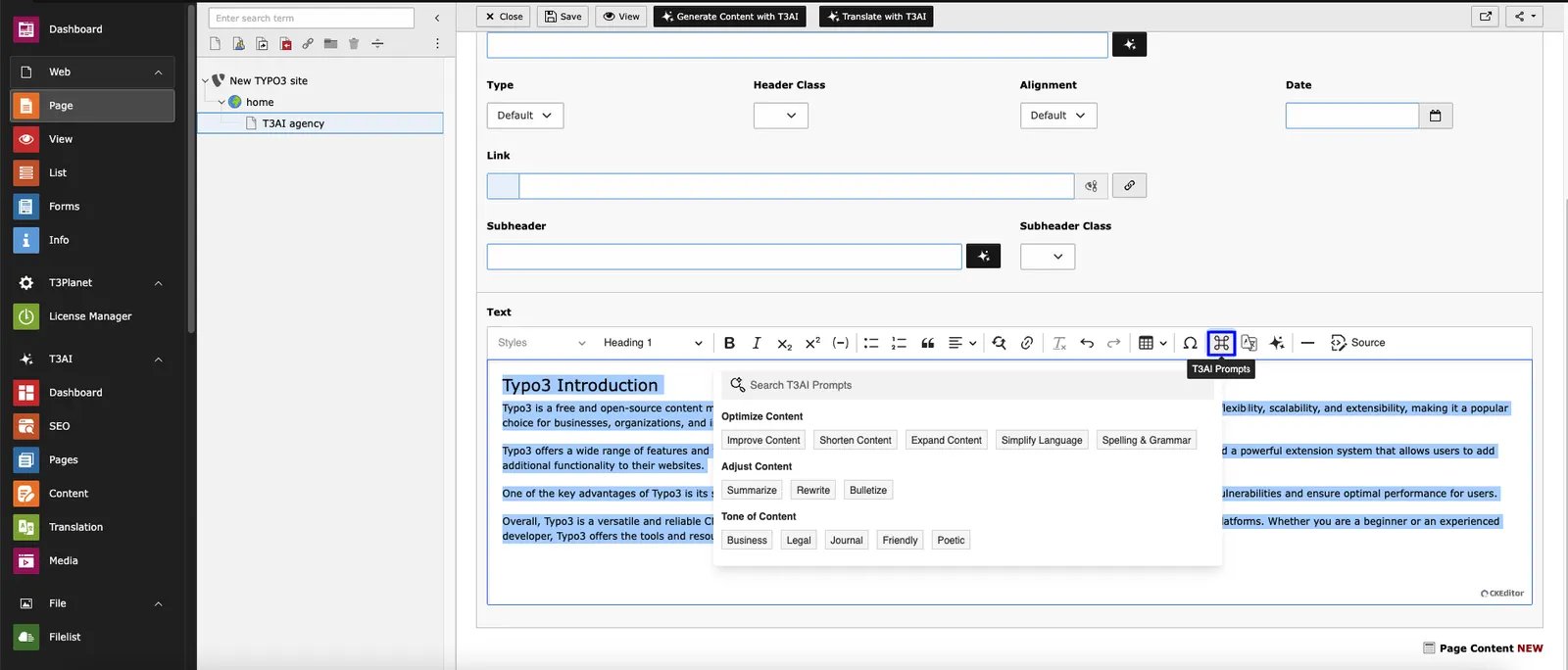
T3AI Transalator
This feature allows you to translate selected content into your chosen language.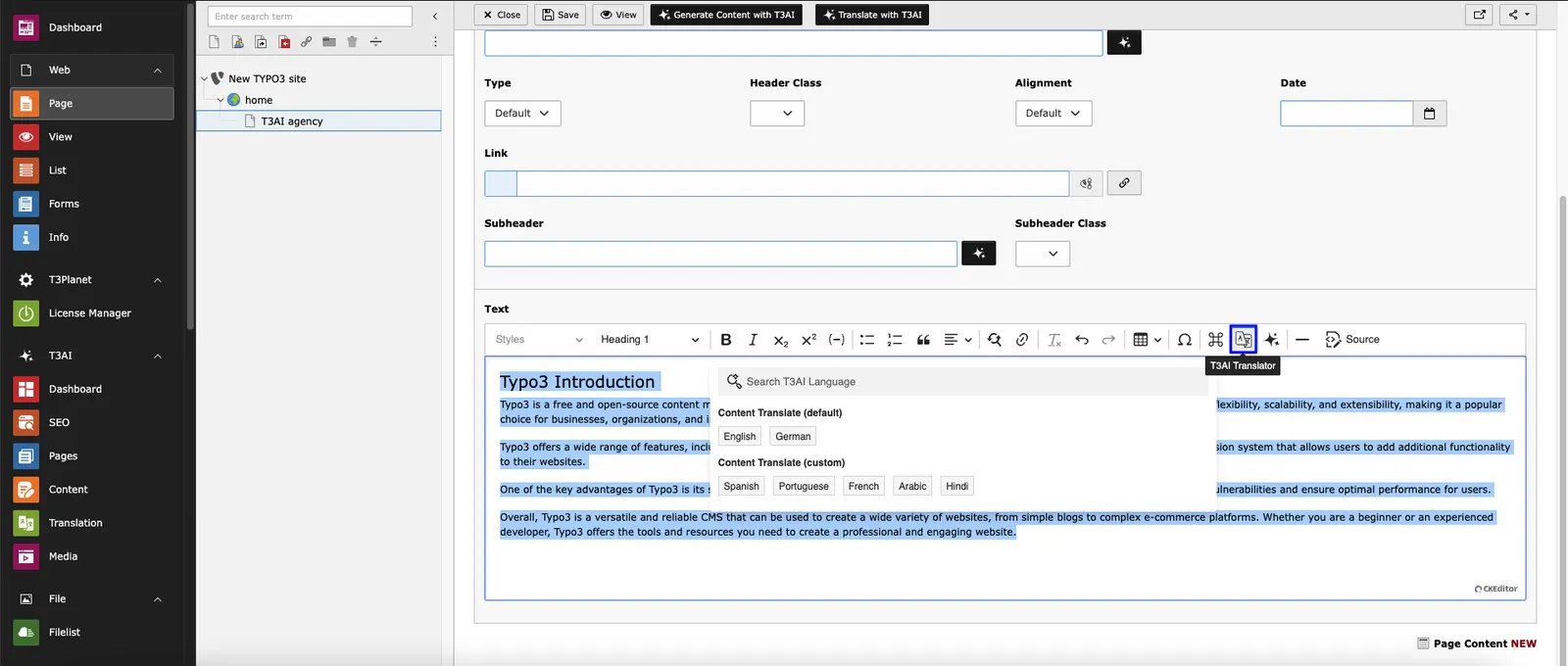
T3AI Prompts
This feature helps optimize your inserted content using prompts.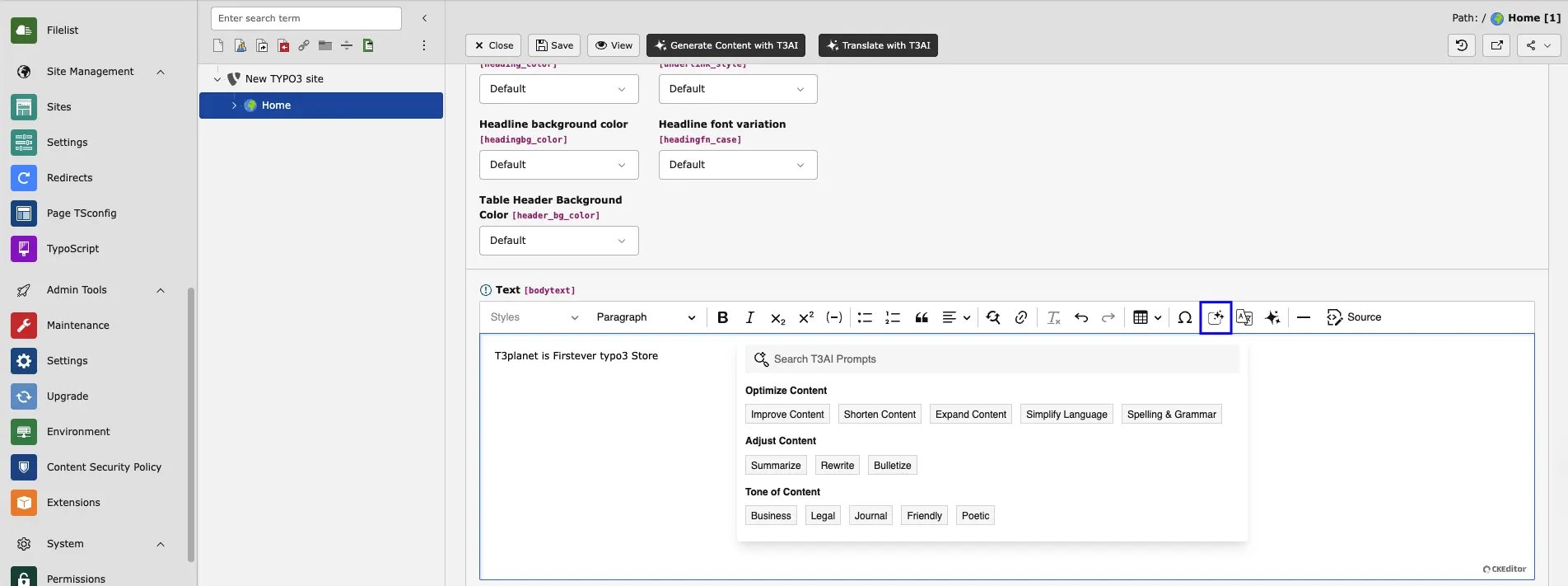
T3AI Transalator
This feature allows you to translate selected content into your chosen language.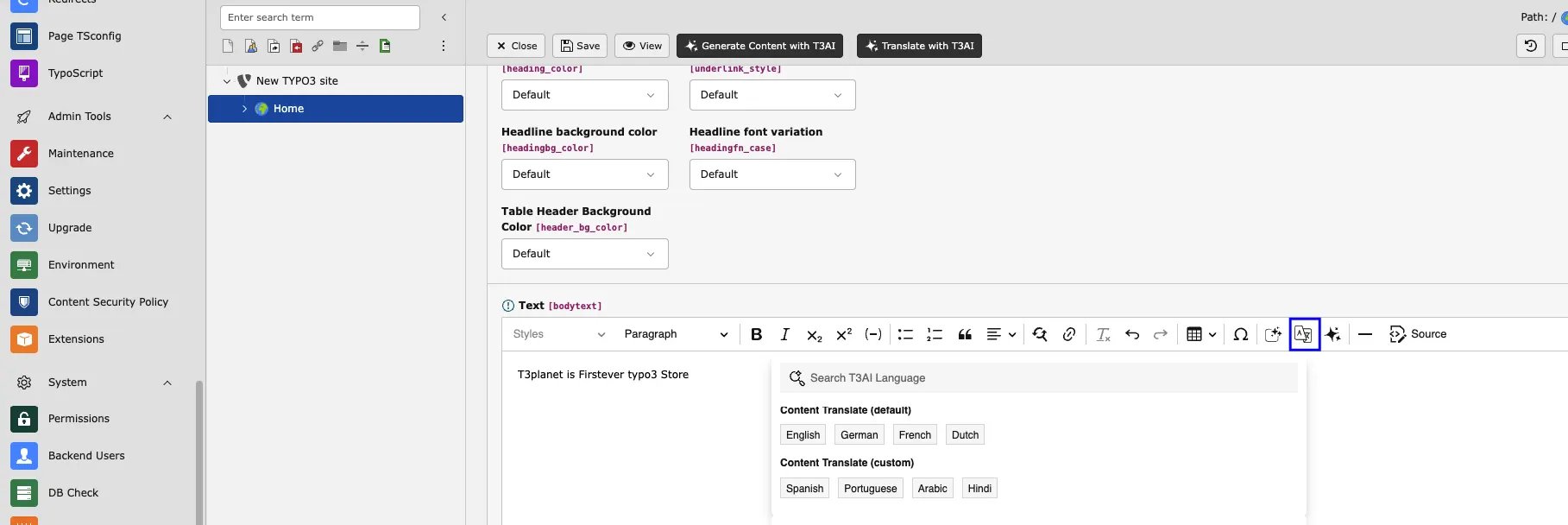
Content Rewriter
Stop spending hours rewriting content by hand. T3AI Content Writer lets you generate fresh and unique content quickly and easily. Whether you need blog posts, news articles, or website content, T3AI Content Writer has you covered. Generate tailored content in seconds. Note: Please select the Storage folder from the page tree. We recommend using GPT-4.0 for better results. Step 1: Navigate to the ‘T3AI’ Module, click ‘Content,’ tab and then choose” Content Rewriter”. Step 2: Open the ‘Content Rewriter’’ tab.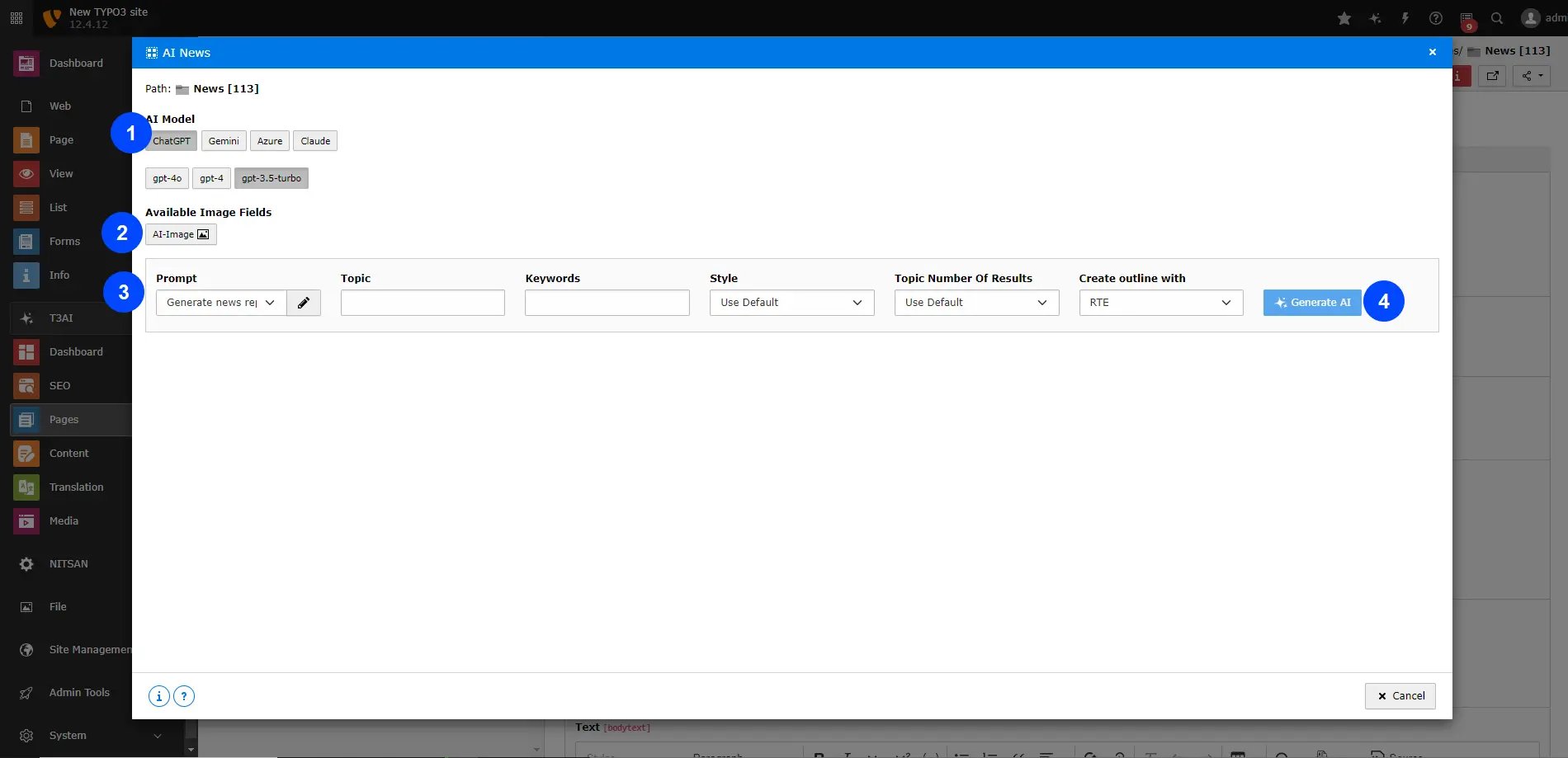
- Choose the AI model and its version.
- Select a prompt and customize it if needed.
- Add your “Select Record Page,” “Topic,” “Writing Style,” “Word Count,” “Additional Instructions,” and “Auto Link.”
- Click the “Generate AI” button.
- Blog: Refresh your blog content quickly with just a few clicks.
- News: Update your news articles instantly with our easy-to-use tool
- Select the content outline
- Click the “Generate Content” button to create the news content.
- Click the “Save News Records” button.
- Edit the news headline, URL, t easer, and RTE text.
- Edit the keywords and meta description.
- If you need more content ideas, click on “Get AI Suggestions.”
- Once you’re done, click “Close Page.” Your news will be saved to your storage!
- 1.Click on your respective storage folder.
- 2.Click and view the generated news.
News Content Rewriter
No more manual rewriting! T3AI Content Writer helps you create fresh content quickly and easily. Use our AI tool to generate original articles in seconds. Our online AI tool helps you generate original articles in just a few seconds. Note: Please select the Storage folder from the page tree. We recommend using GPT-4.0 for better results. Step 1: Navigate to the ‘T3AI’ Module, click ‘Content,’ tab and then choose” News Content Rewriter”. Step 2: Open the ‘Content Rewriter’’ tab.- Choose the AI model and its version.
- Select a prompt and customize it if needed.
- Add your “Select Record Page,” “Topic,” “Writing Style,” “Word Count,” “Additional Instructions,” and “Auto Link.”
- Choose “Generate News Records” from the Storage Folder.
- Click the “Generate AI” button.
- Blog: Refresh your blog content quickly with just a few clicks.
- News: Update your news articles instantly with our easy-to-use tool
- Click the “Save” button.
- Your news is now rewritten!
- Go to the List module
- Select your storage folder.
- Edit & View your News by Select “ News records”.
Blog Content Rewriter
Generate fresh and unique content in seconds with our T3AI rewriting tool.Create original articles and contents with the assistance of our online AI content rewriting tool in just a few seconds. Note: Please select the Storage folder from the page tree. We recommend using GPT-4.0 for better results. Step 1: Navigate to the ‘T3AI’ Module, click ‘Content,’ tab and then choose” Blog Content Rewriter”. Step 2: Open the ‘Blog Content Rewriter’ tab.- Select the AI model and its version.
- Choose the rewriter type: Internal, External, or Text.
- Enter the blog topic and select the record type.
- Choose your preferred writing style.
- Set the word count and add any additional instructions, including Auto Link and Text.
- Click the ‘Generate AI’ button
- T3AI lets you select different element types.
- Edit the content of each element as needed.
- You can also delete and regenerate content if needed.
- Click the ‘Save’ button when you’re done.
- Go to the List module
- Select your storage folder.
- Edit & View your News by Select “ Blog records”.
Content Elements (Create)
Create AI-powered content elements effortlessly. With advanced AI, you can easily generate TYPO3 core elements, along with custom content elements and blocks that match your design. This feature allows you to quickly build and customize content, saving you time and making your work more efficient. Step 1: Go to the Page module and select the page where you want to create an element. Step 2: Add content elements by selecting ‘Create Element with T3AI’ from the top bar. Step 3: Create the element using T3AI.- Enter your content element prompt and choose the text fields (headers, sub-headers, text).
- Add an AI image prompt, choose the AI image settings, and select the AI image models.
- Click the ‘Generate AI’ button.
Content Elements (Edit)
Guidance
Didn’t get the information you wanted? T3AI lets you edit and regenerate elements in seconds, saving you time and effort. Easily edit AI-generated TYPO3 core components, as well as custom content elements and blocks you’ve created. Note - Follow the steps outlined above under - Step 1: Go to the Page module and select the page where you want to create an element.Content Translate
With this T3AI feature, you can easily translate your page content elements with just one click! It simplifies the translation process, saving you time and effort. No more manual copying and pasting—just select the content, choose your language, and let T3AI handle the rest- Step 1 - Go to your T3AI module and select the ‘Page’ module.
- Choose the page from your page tree and navigate to it.
- Step 2 - Edit Your Content Element and Select Transalte with the T3AI button.
- Step 3 - Select your AI model and language. Click on the ‘Translate Record’ button. Your content element will be translated
Content Fields
The Content Field feature allows you to generate AI-powered content for all fields using a single prompt. This helps streamline content creation by automatically filling multiple fields with relevant, high-quality text. How it works:- Enter a prompt describing the content you want.
- The AI generates content for all configured fields simultaneously.
- Select the Content and click Save.