Chat Assistance

Make your TYPO3 site smarter with T3AI Chat Assistance. This feature allows you to engage in natural conversations with the improved ChatGPT Assistant right in the TYPO3 backend. Get quick answers, content insights, and support for your daily tasks effortlessly. Note: AI may generate inaccurate information about people, places, or facts Step 1 : Navigate to T3AI Module and select the Prompt tab. Step 2 : Open the ‘Chat Assistance’ module.
  • Select your preferred AI model.
  • Enter your prompt. I.e What is TYPO3?
  • Click the ‘Go’ button.

Chat Helpful Prompts

No more manual prompt writing or searching. T3AI saves you time and effort with access to hundreds of pre-added AI prompts, tested by expert prompt engineers across various models. Simply select your preferred prompt, customize it, and execute it effortlessly. Note - T3AI allows you to customize and create your prompts directly from your backend. Step 1 : Navigate to T3AI Module and select the ‘Prompt’ tab. Open the ‘Chat Helpful Prompts’ module Step 2 : Choose a prompt from the provided list. Step 3 : Select a prompt and add the relevant information.
  • Choose the AI model type.
  • Enter your query, like ‘TYPO3 Developer Agency.’
  • Click ‘Next’ to get your result.
Step 4 : Customize your prompt from the provided list and add any additional details. For example, you can edit a long-tail keyword prompt. You might have a pre-added prompt like ‘List down all the long-tail queries related to [keyword].’ You can edit it to say, ‘List down all the long-tail queries related to [keyword] with [Intent] and [Numbers]. After Prompt Edit & Save - Additionally, you can select and filter prompts using advanced search filters.

Manage Chat Helpful Prompts Manage

Keep your AI prompts organized with the Helpful Prompts Manager. Simplify your tasks and work more efficiently. Step 1: Navigate to T3AI Module and select the ‘Prompt’ tab, then go to the ‘Prompt’ tab and click on Manage Chat Helpful Prompts. Step 2: Choose a prompt from the provided list.
  • You can also search by ‘Prompt Title,’ ‘Prompt Text,’ or ‘Type of Prompts.’
  • Select any prompt type from the prompt manager.
  • Edit and save the prompt to fit your needs.
  • You can also create a new prompt by clicking on the ‘Create New Prompt’ button.
Step 3: Edit Prompt from Prompt Manager. Step 4: Generate or Create a New prompt. Result for Prompt
Manage all your work in one place without switching between multiple tabs. T3AI Sidebar AI can handle everything with just a few clicks. Simply click on the ‘Sidebar’ icon or open the sidebar module. Simplify your workflow with features like summarization, creation, and text rewriting. Step 1: Open T3AI Sidebar AI and select the prompt type.
  • Choose your preferred AI model from the Sidebar AI.
  • Edit and save your prompt.
  • Add your content in the text box.
  • Click the ‘Generate AI’ button
Types of prompts T3AI supports.
  • Summarize: Quickly create a concise summary of your text.
  • Fix Grammar: Correct grammar mistakes in your content.
  • Bulletize: Turn your text into easy-to-read bullet points.
  • Elaborate: Expand your ideas with more detail and clarity.
  • Rewrite: Rephrase your text to improve its wording.
  • Custom: Create and customize your own unique prompts.
Step 2: Copy your AI response from Sidebar AI and simply paste it into your TYPO3 page.
Customize your Sidebar AI prompts if you can’t find what you’re looking for. The Sidebar AI Prompt Manager lets you create, edit, and add your own prompts. Step 1: Open the Sidebar AI Prompts Manager.
  • Search for the prompt by title.
  • Select the prompt you want to customize and click ‘Edit Prompt.’
Step 2: Customize your AI prompt and rewrite it as needed. Step 3: Need to create a custom prompt? Add your own AI prompts.
  • Click on the ‘Create New Prompt’ button.
  • Add a prompt title and enter your prompt in the text box.

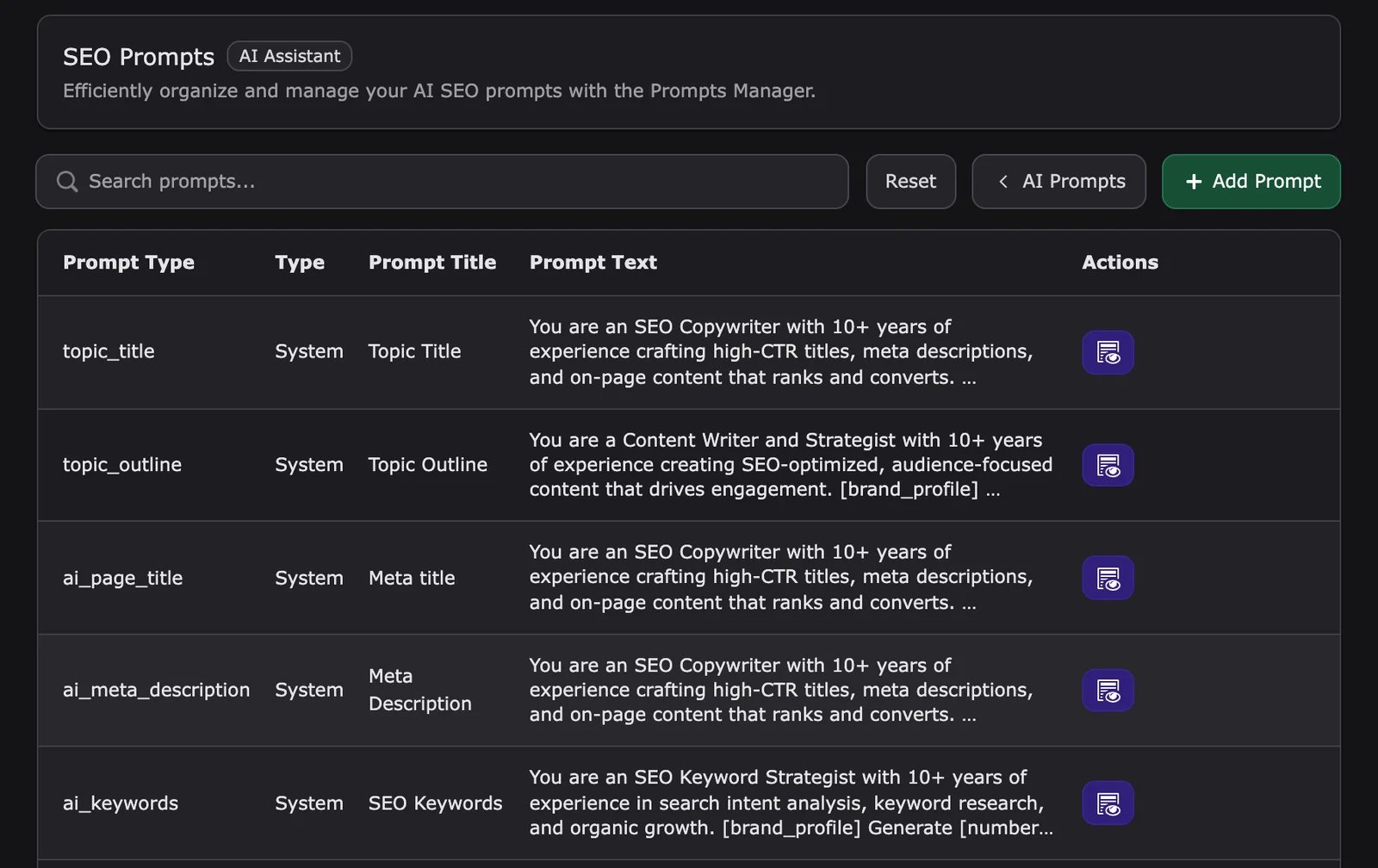
SEO Prompts

Keep your AI SEO prompts organized and easily accessible with our Prompts Manager. Manage all your ideas efficiently in one convenient location. Step 1 : Open the Sidebar SEO Prompts Manager.
  • Search for the prompt by title, text, prompt type, and scope of value.
  • Select the prompt you want to customize and click ‘Edit Prompt’.
Step 2 : Customise your AI prompt and rewrite it as needed.
  • You can choose the type of prompt and select the scope, like Title or Topic Outline.
  • Edit the prompt title and text.
  • Use the default option to set it as the primary prompt for your module.
Step 3 : Run your prompt on the specific page to check its performance.

Pages Prompts

Make organising and managing AI Page prompts easy with the Prompts Manager. Keep all your creative ideas in one convenient and accessible place. Step 1 : Navigate to T3AI Module, then go to the ‘Prompt’ tab and click on Manage Pages Prompts.
  • Open the ‘Page Prompt’ module.
Step 2 : Search for the prompt by title, text, or type.
  • Select the prompt you want to edit.
  • Click the ‘Edit Prompt’ button.
Step 3 : Customize your Prompts and save the prompt at Prompt Manager.
  • You can choose the type of prompt and select the scope, like Title or Topic Outline.
  • Edit the prompt title and text.
  • Use the default option to set it as the primary prompt for your module

Content Prompts

Manage your AI content efficiently by organising AI content prompts with the Prompts Manager. Keep all your creative ideas in one place, always accessible and ready to use. Step 1 : Navigate to T3AI Module and select the Prompt tab.
  • Open the ‘Content Prompts’ module.
Step 2 : Search for the prompt by title, text, or type.
  • Select the prompt you want to edit.
  • Click the ‘Edit Prompt’ button.
Step 3 : Customise your Prompts and save the prompt at Prompt Manager.
  • You can choose the type of prompt and select the scope, like Title or Topic Outline.
  • Edit the prompt title and text.
  • Use the default option to set it as the primary prompt for your module.
Step 4 : Make Your Own Content AI Prompts.
  • Choose the type of prompt and its scope.
  • Enter a title for your prompt and write your custom prompt.
For Example - Write a prompt like: ‘Generate [X] word content for my blog post. The writing style should be [Style], with an outline of the blog and in simple English.’
  • After writing your prompt, paste it into the Prompt Text box and click the ‘Save’ button to create your prompt.
  • Next, go to the Prompt Manager, select your prompt, run it for a test, and see the results.

Translation Prompts

Manage all your daily translation tasks in one place. With the T3AI Translation Prompt Manager, you can easily organise and handle all your AI translation prompts. Keep your ideas in one convenient spot, ready to use whenever you need them. Step 1 : Navigate to T3AI Module and select the Prompt tab,Open the ‘Translation Prompts’ module. Step 2 : Search for the prompt by title, text, or type.
  • Select the prompt you want to edit.
  • Click the ‘Edit Prompt’ button.
Step 3 : Customise your Prompts and save the prompt at Prompt Manager.
  • You can choose the type of prompt and select the scope, like Title or Topic Outline.
  • Edit the prompt title and text.
  • Use the default option to set it as the primary prompt for your module.
Step 4 : Make Your Own Translation AI Prompts.
  • Click on Create New AI Prompt.
  • Choose the type of prompt and its scope.
  • Enter a title for your prompt and write your custom prompt.
For Example - Write a prompt like: Translate this content [content] for my blog post. Generate text based solely on the provided prompt without incorporating any additional sense or terms beyond what is explicitly stated.
  • After writing your prompt, paste it into the Prompt Text box and click the ‘Save’ button to create your prompt.
  • Next, go to the Prompt Manager, select your prompt, run it for a test, and see the results.

Media Prompts

Effortlessly organise and manage AI Media prompts with the Prompts Manager. Keep all your creative ideas together in one easily accessible and ready-to-use location. Step 1 : Navigate to T3AI Module and select the Prompt tab.
  • Open the ‘Media Prompts’ module.
Step 2 : Navigate to media prompts and open Media prompts. Step 3 : Customise your Prompts and save the prompt at Prompt Manager.
  • You can choose the type of prompt and select the scope, like AI Images .
  • Edit the prompt title and text.
  • Use the default option to set it as the primary prompt for your module.
Step 4 : Make Your Own Media Prompts AI Prompts.
  • Click on Create New AI Prompt.
  • Choose the type of prompt and its scope.
  • Enter a title for your prompt and write your custom prompt.

Interactive demos


Additional content from live docs

T3AI Prompts

T3AI Prompts help you control how AI-generated content is written across page creation, content generation, SEO, translation, and media workflows. Use them when you want more consistent output, project-specific instructions, or reusable prompt rules for your editors.

Overview

Prompts are the instructions T3AI sends to the selected AI provider. By adjusting prompts, you can influence tone, structure, wording style, and how much detail the generated result should contain.

When to customize prompts

  • When your team wants a consistent writing style
  • When generated content should follow brand or editorial rules
  • When SEO, translation, or page generation needs more specific instructions
  • When default output is too short, too long, or not focused enough

Typical workflow

  1. Open the Prompt area in the T3AI module.
  2. Review the available prompt setup for the workflow you want to improve.
  3. Adjust the prompt text or related options.
  4. Run a small test in the related T3AI module.
  5. Save the prompt once the result matches your project needs.

Best practices

  • Start with small prompt changes and test one workflow at a time.
  • Keep instructions simple and specific.
  • Reuse prompts for repeated editorial tasks.
  • Review the shared prompt options in AI Foundation AI Prompts when you want to manage prompt behavior from the parent extension.

Overview

Prompts are the instructions T3AI sends to the selected AI provider. By adjusting prompts, you can influence tone, structure, wording style, and how much detail the generated result should contain.

When to customize prompts

  • When your team wants a consistent writing style
  • When generated content should follow brand or editorial rules
  • When SEO, translation, or page generation needs more specific instructions
  • When default output is too short, too long, or not focused enough

Typical workflow

  1. Open the Prompt area in the T3AI module.
  2. Review the available prompt setup for the workflow you want to improve.
  3. Adjust the prompt text or related options.
  4. Run a small test in the related T3AI module.
  5. Save the prompt once the result matches your project needs.

Best practices

  • Start with small prompt changes and test one workflow at a time.
  • Keep instructions simple and specific.
  • Reuse prompts for repeated editorial tasks.
  • Review the shared prompt options in AI Foundation AI Prompts when you want to manage prompt behavior from the parent extension.