

For the tools that live in the editor or the content element form, the card button in the Content tab opens a short demo, not the tool itself.
RTE AI Copilot
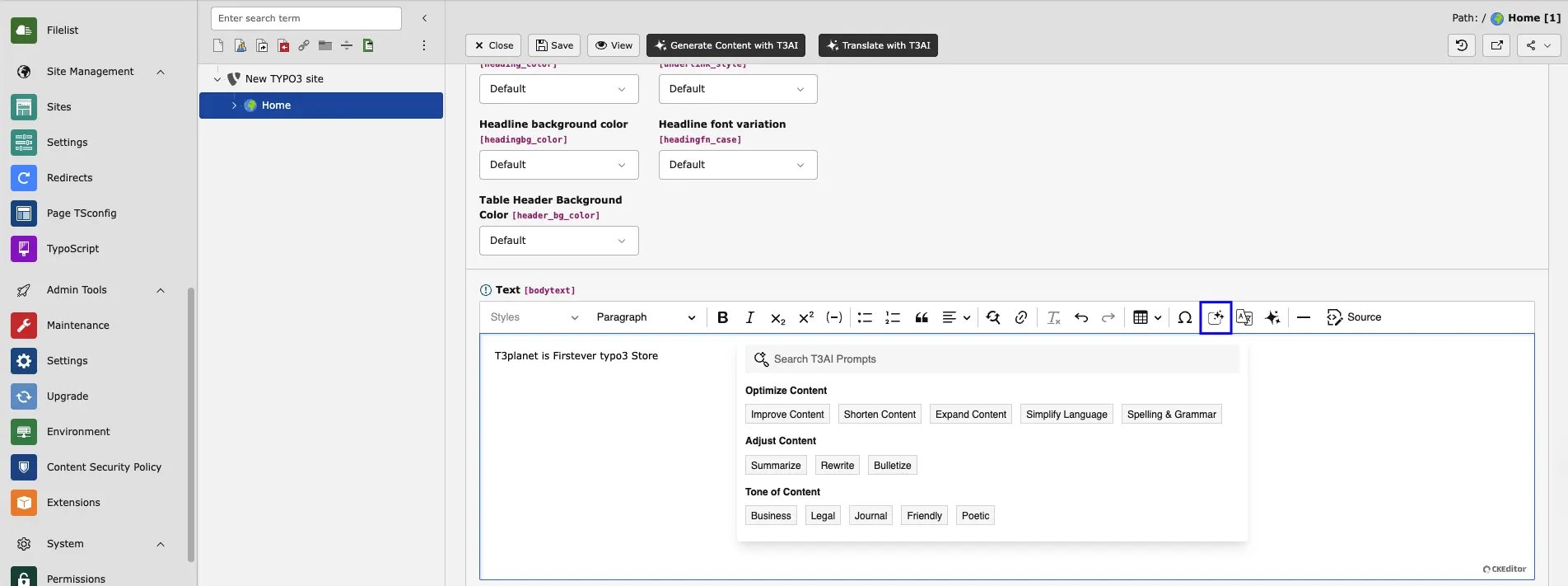
T3AI adds three buttons to the CKEditor toolbar: T3AI Prompts, T3AI Translator, and the AI Assistant Copilot.Enable the T3AI RTE preset
- Edit the root page properties and open the Resources tab.
- Under Include static Page TSconfig, add Ns T3Ai :: Config RTE Preset (ns_t3ai) and save.
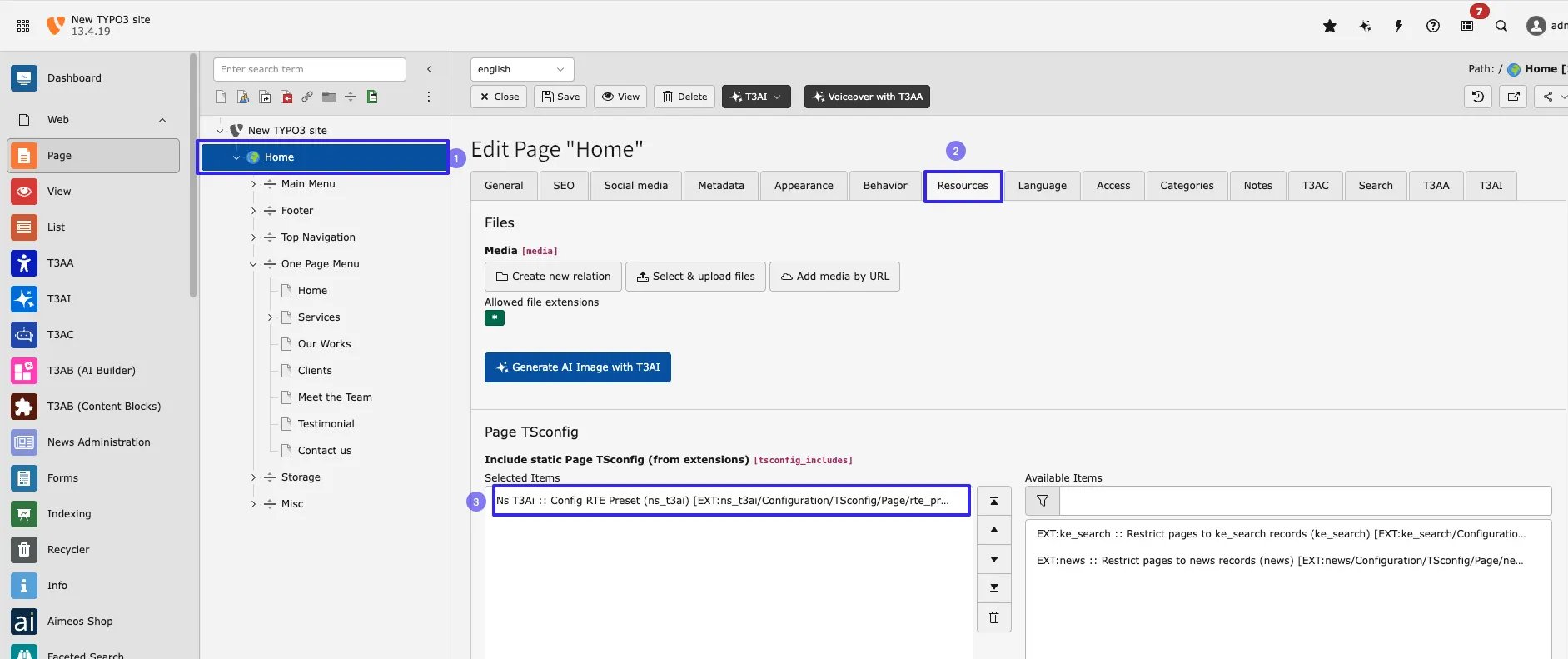
RTE.default.preset = nst3ai. If you use your own RTE preset, copy the T3AI importModules and the toolbar items t3aicommands, t3aitranslator, and t3aiassistance from EXT:ns_t3ai/Configuration/RTE/Plugin.yaml into it.
T3AI Prompts
Select text in the editor, click T3AI Prompts, and choose an action:- Optimize Content: Improve Content, Shorten Content, Expand Content, Simplify Language, Spelling & Grammar
- Adjust Content: Summarize, Rewrite, Bulletize
- Tone of Content: Business, Legal, Journal, Friendly, Poetic
T3AI Translator
Select text, click T3AI Translator, and choose the target language. The list shows default and custom languages.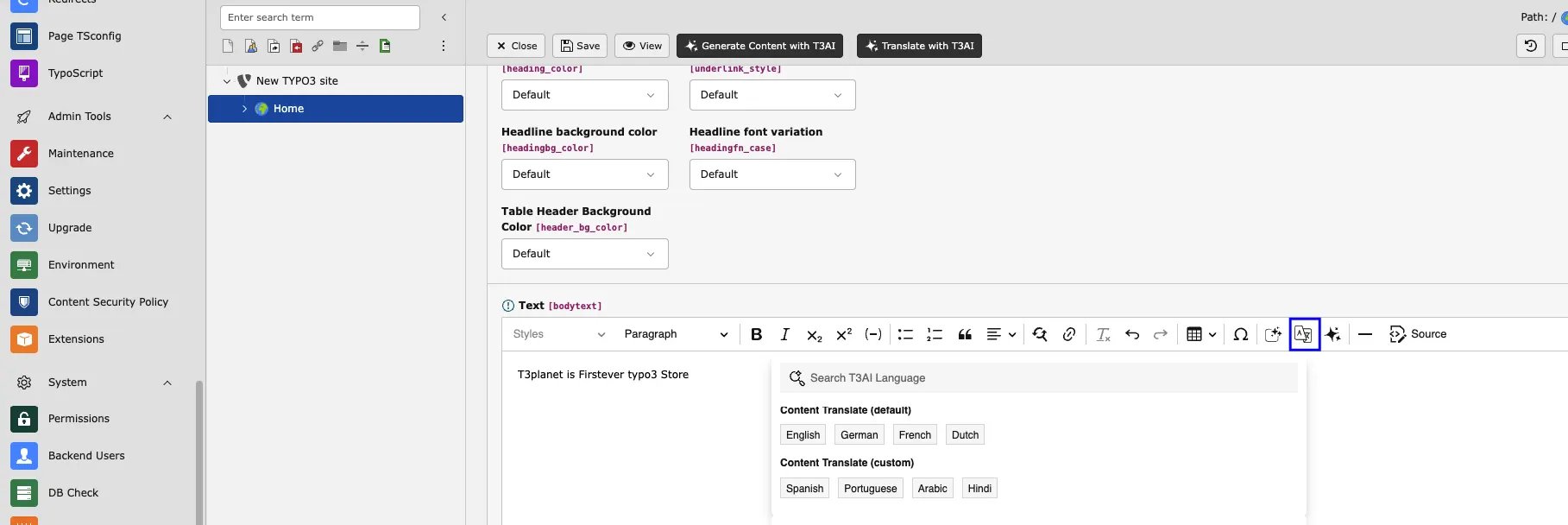
AI Assistant Copilot
Click the sparkle icon to open the AI Assistant Copilot. Describe what you need, set Writing Style, Writing Tone, Temperature (higher is more creative), and Number of results, then insert the text you like.Content Rewriter
Rewrites existing content in a new style. Card Content Rewriter, button Build AI Rewriter.- Select the page or storage folder in the page tree and click Build AI Rewriter.
- Select the AI Provider.
- Under Rewriter AI, choose the source:
- Internal: a TYPO3 record. Choose the Selected Page with Navigate to a Page, or a News Record.
- External: one or more web addresses under URLS. T3AI fetches the content from there.
- Text: paste the text.
- Choose the Record Type (Pages, News, Blog) and enter the Topic.
- Choose the Writing Style: Casual, Approachable, Easy Readability, or Others for your own style.
- Set the Word Count. Optionally add an Additional Instruction, Background Context, and Autolink with Autolink Text to link a phrase.
- Click Generate AI, then choose the outline and the element types and edit the texts.
- Click Save.
News Content Rewriter
Same window as Content Rewriter, opened from the News Content Rewriter card. Select the news storage folder first. With Internal, choose the News Record to rewrite. Result: A news record in the storage folder. Edit it in the List module or News Administration.Blog Content Rewriter
Same window as Content Rewriter, opened from the Blog Content Rewriter card, with Blog as record type. Select the blog page or folder first. Result: A blog post with the rewritten content elements.Content Elements (Create)
Fills a new content element with AI text and images. Works for TYPO3 core elements and custom elements.- In the Page module, create a content element and choose its type.
- In the form header, click Generate Content with T3AI.
- Enter what the element should say and choose which text fields to fill.
- Optionally add an AI image: enter the Prompt for Image Generation, choose Style and Size, and click Generate Images.
- Check the Element Content, then click Save.
Content Elements (Edit)
Guidance
Regenerates an existing content element.- Edit the content element.
- In the form header, click Re-Generate Content with T3AI.
- Change the prompt or click Re-generate, review the text, and click Save.
Content Translate
Translates one content element.- Edit the content element in the default language.
- In the form header, click Translate with T3AI.
- Select the AI Provider and the target language, then click Translate Record.
Content Fields
Fills single fields with AI. Text fields such as header and subheader have a T3AI button next to them.- Click T3AI next to the field.
- Enter a prompt describing the content.
- Choose one of the suggestions and click Save.
Settings, access and logs
Related: Prompts · SEO · Configuration