Overview
Use this area to confirm which T3AI features are available in your project and whether the shared AI Foundation setup is ready. For provider selection, model setup, and shared AI rules, also review AI Foundation Configuration, AI Foundation Providers, and AI Foundation AI Features.Key capabilities
- Review enabled T3AI feature groups
- Confirm the project is connected to the right provider and model setup
- Check whether editors can use the expected modules before rollout
Basic workflow
T3AI feature settings are managed in AI Foundation — not under Admin Tools > Settings > Configure Extensions.- Go to the TYPO3 backend.
- Open AI Foundation → AI Features.
- Open the T3AI (
ns_t3ai) feature card. - Review the available feature settings and defaults.
- Confirm the required feature options are enabled.
- Click Save, then test the related T3AI modules.
Feature settings
The T3AI feature card groups its settings as follows.API keys for AI providers — including OpenAI, Gemini, Claude, DeepL, MidJourney, and Stability AI — are configured once in AI Foundation → AI Providers, not in T3AI.
AI Logs
AI Logs help you monitor requests made by T3AI modules. Use this section to review successful and failed AI requests, identify which module initiated a request, and troubleshoot issues during development, testing, or production use. To review AI Logs:- Open the T3AI module in the TYPO3 backend.
- Select AI Logs.
- Use the available filters, such as AI Provider, Model, or Module, to narrow down the results.
- Review individual log entries to inspect request details, responses, and possible errors.
- Reset the filters at any time to display the complete log history.
Statistics
Access all your AI model analytics in one place with predefined AI model statistics.System Log Solution
Get AI suggestions for errors in the TYPO3 system log.- In the T3AI feature card, enable Enable System Log Solution and save.
- Open the System module and go to Log.
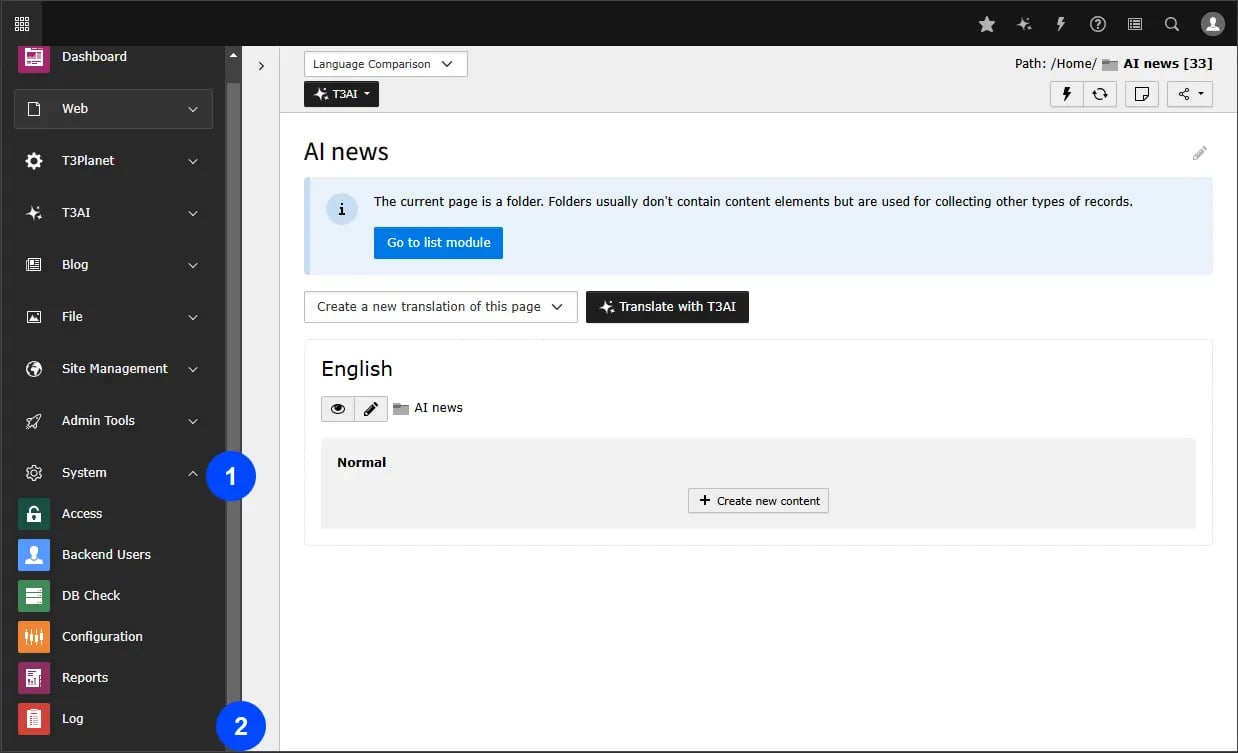
- Open a log entry and click AI suggestion.
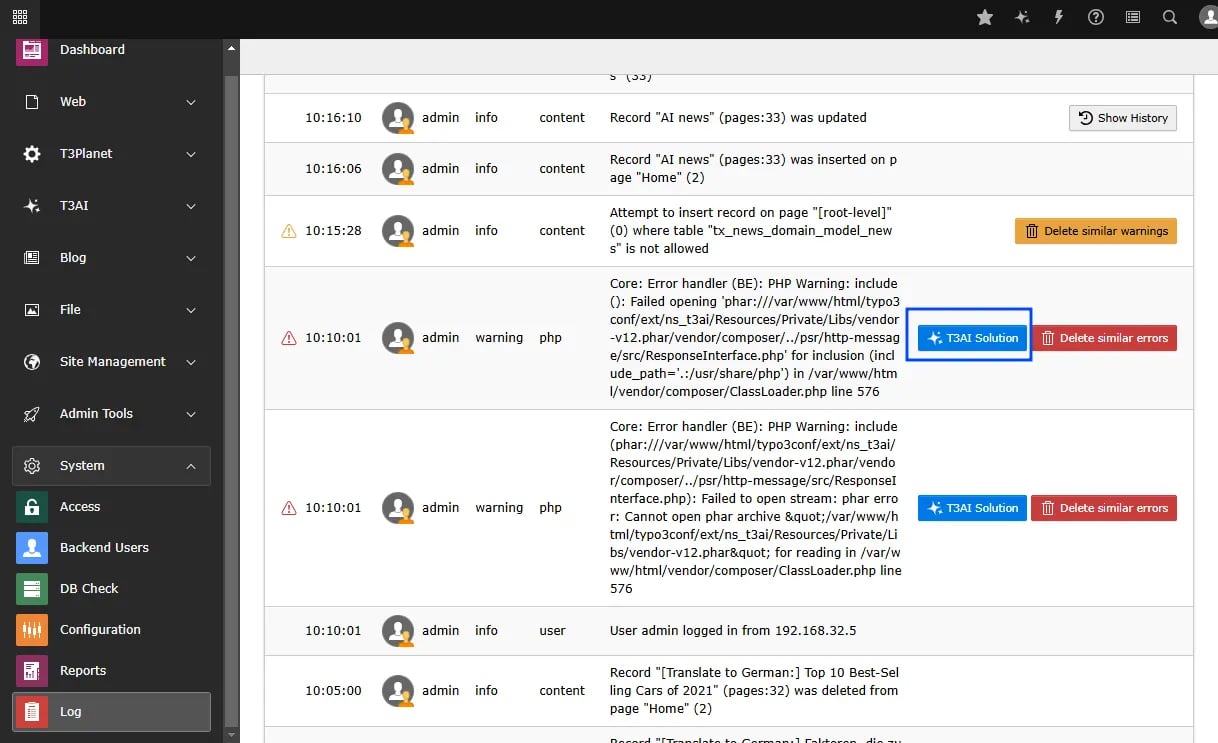
- Click the button to have the AI suggest solutions for the system log error.
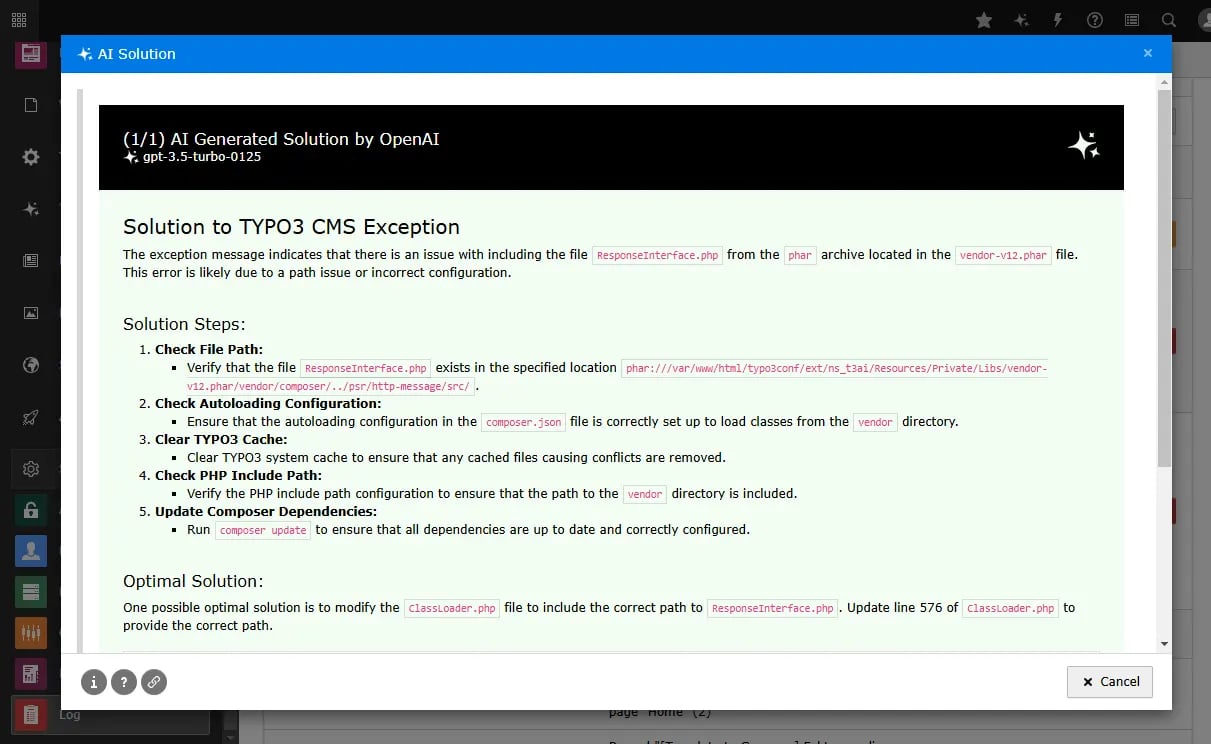
T3AI Co-Pilot
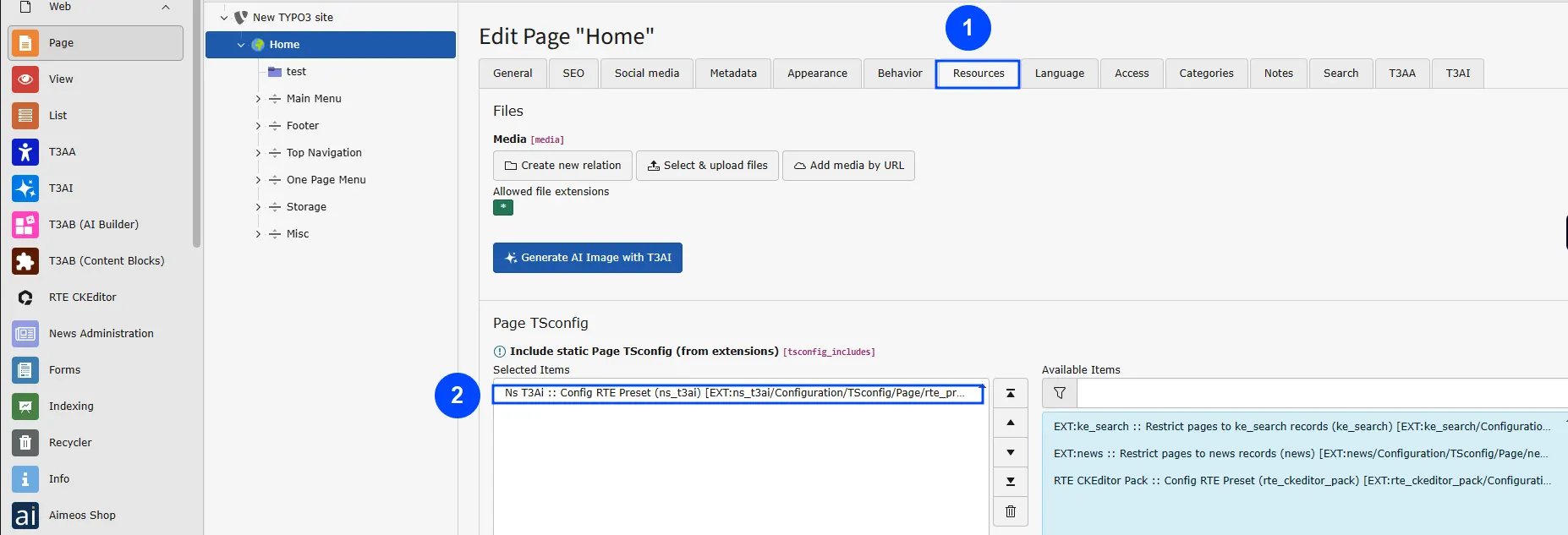
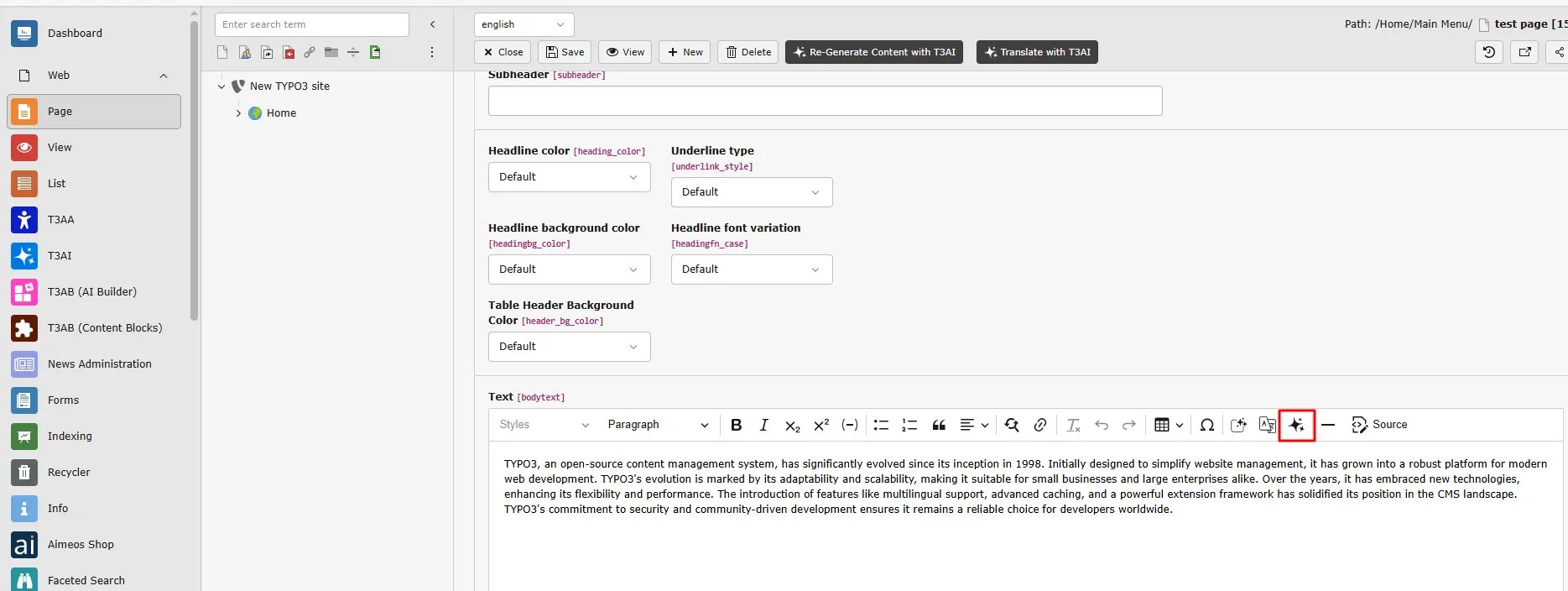
The T3AI Co-Pilot is your easy-to-use AI assistant in TYPO3. It helps you write, improve, translate, and optimize content quickly - all directly in the backend with just a few clicks. Step 1: Click on Edit Page property Step 2: Go to tab “Resources” Step 3: Include NS t3ai :: Config RTE Preset (ns_t3ai) in Include static Page TSconfig (from extensions) and Save this.
Block AI Scraping
Protect your website’s content from AI crawlers with ready-maderobots.txt rules.
- Enable Block AI Scraping/Crawling in the T3AI settings.
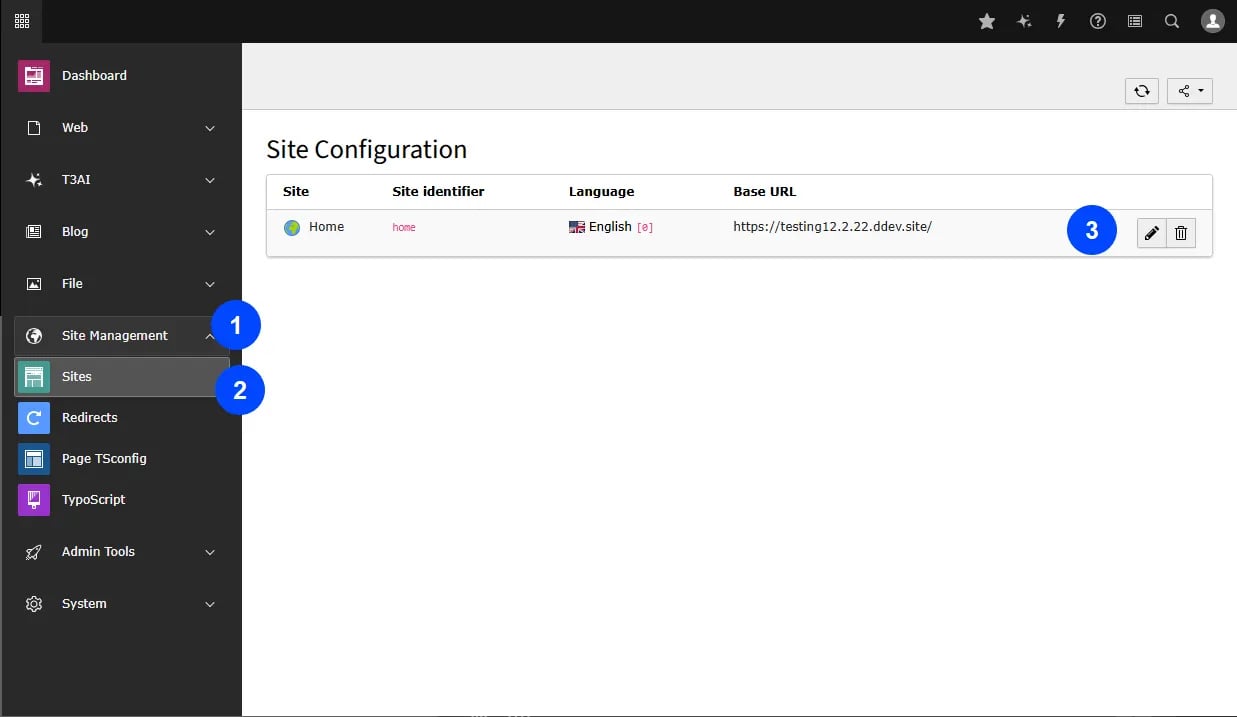
- Open the Sites module, edit your site configuration, and go to Static Routes.
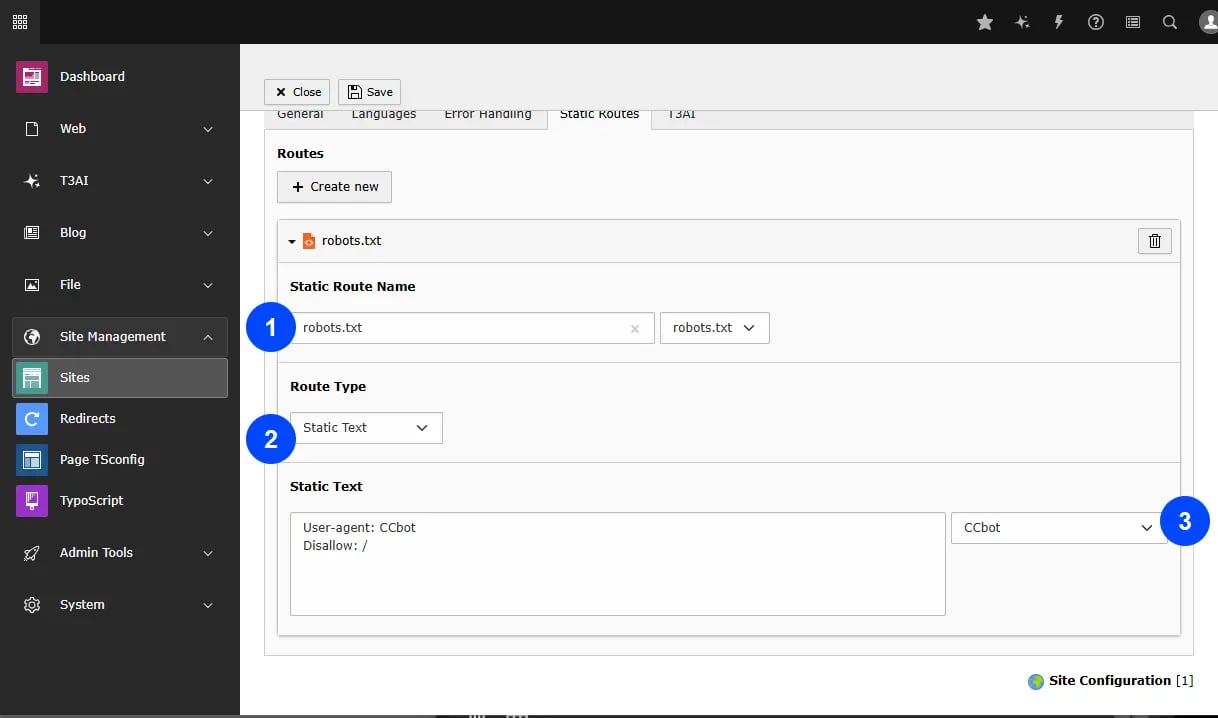
- Add a static route of type Static Text for
robots.txt. - Pick the bots to block from the value picker: GPTBot, Claude-Web, anthropic-ai, CCBot, FacebookBot, Google-Extended, PiplBot, or all of them.
- Save the site configuration.
User Permissions
You can grant editors or users access to specific features of T3AI using the custom permission settings. For AI Foundation module access and per-group credit limits, see AI Permissions.
- Step 1: Navigate to the Backend Users module in the TYPO3 backend.
- Step 2: Select the Backend User Group.
- Step 3: Edit the user group.

- Step 4: Go to tab Access Rights.

