Installation
Important Notes Before Installation
You should install the TYPO3 template at the new blank TYPO3 Instance! If you are trying to install the template in your existing used TYPO3 Instance, your current data may lose.For Premium Templates
To activate license and install this premium TYPO3 product, Please refer this documentation License documentationFor Free Templates
Installation with Composer
You can find composer command at our particular TYPO3 template product page https://t3planet.de/typo3-templatesFor TYPO3 <= 10, Please de-activate and activate again the template extension from Extensions Manager.
Installation without Composer
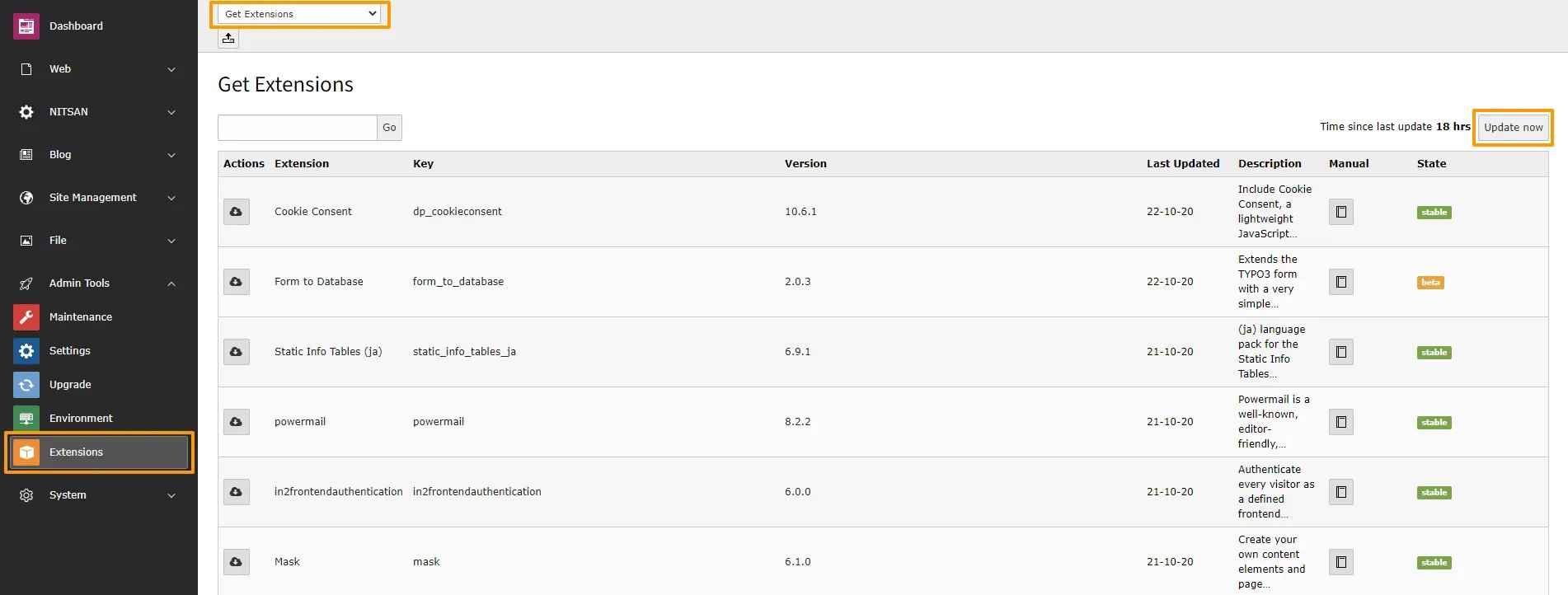
T3Planet’s TYPO3 Templates is easy to install and configure as just like other TYPO3 extension. Step 1: Go to Extension Manager Step 2: Select “Get extensions” from the drop-down at top. Update the Extension Repository by clicking on “Update Now” button at top-right.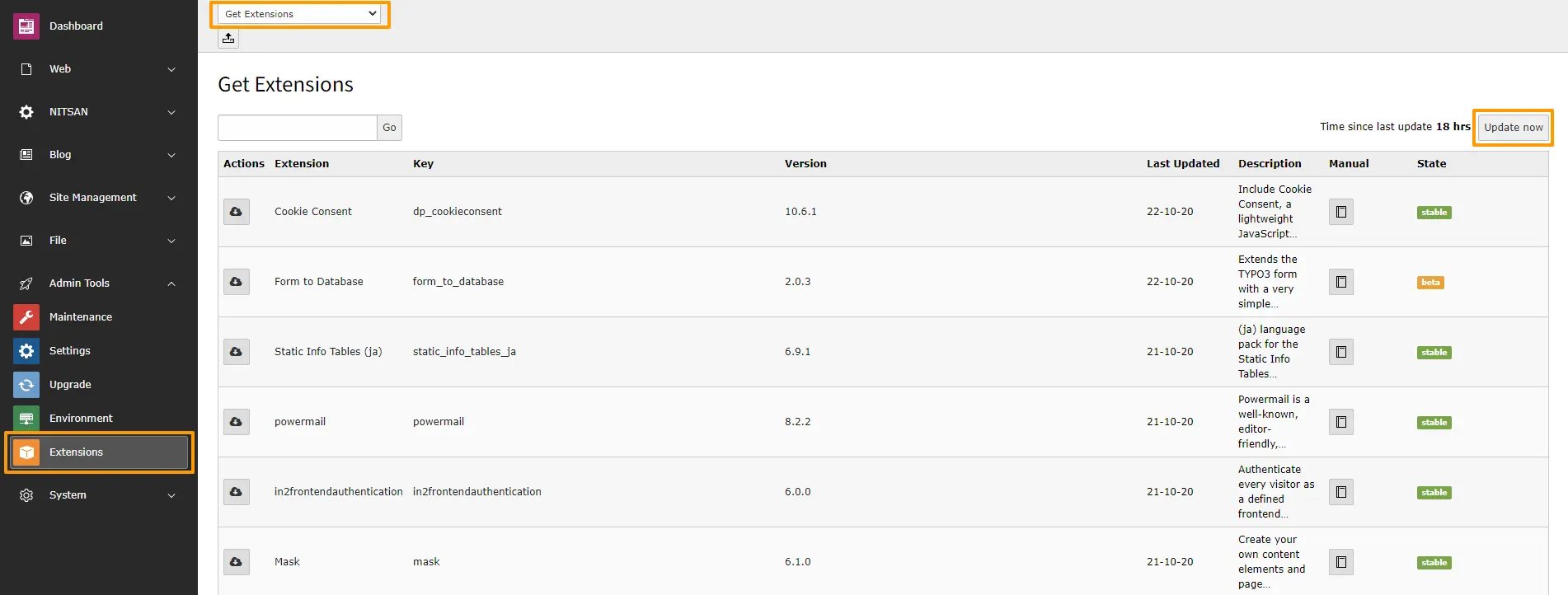
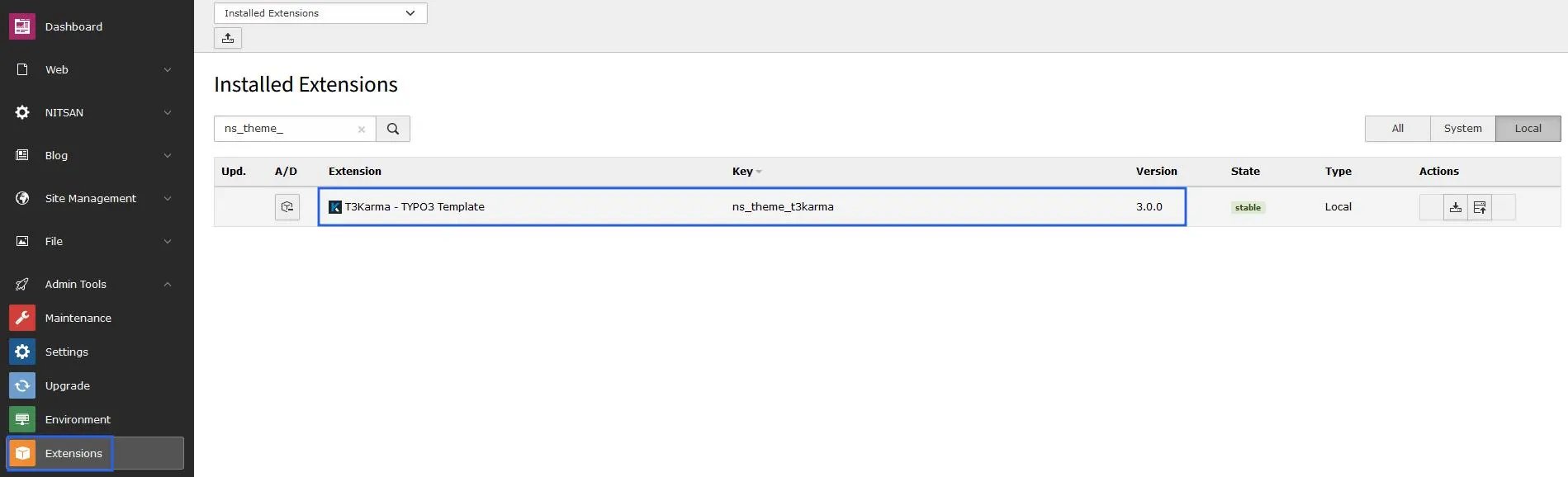
Important Configuration
Site Management
Go to Site Management > Sites > Edit Record > You need to configure “Entry Point” by entering your website URL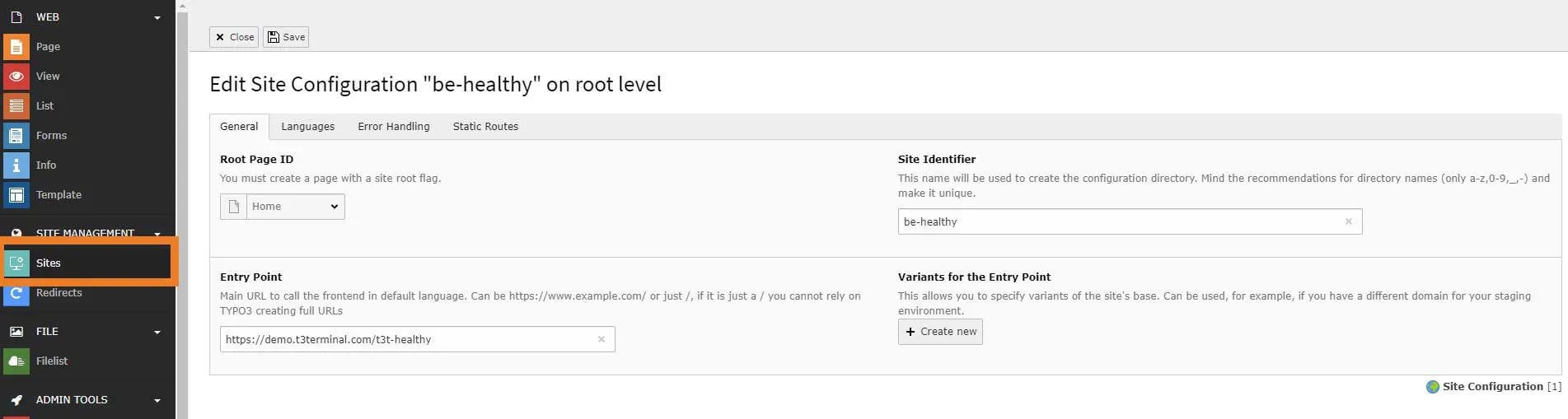
If you have composer based TYPO3 installation, then make create folder /config/ folder at your root, and copy/paste /public/typo3conf/ext/ns_basetheme/sites folder - to get default Site management configuration.
Page Tree
Once you install your TYPO3 Template extension, it will automatically generate “Page tree” in your TYPO3 backend with all the pages and content.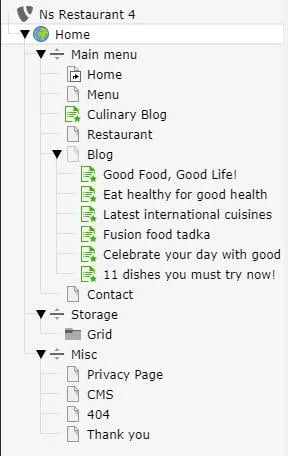
SEO Setup for TYPO3 9 and TYPO3 10
Once you have completed Site Management, you can setup SEO for the site. For this, you have to add XML Sitemap in Include Static in Template record. You can perform this as shown in below screenshot.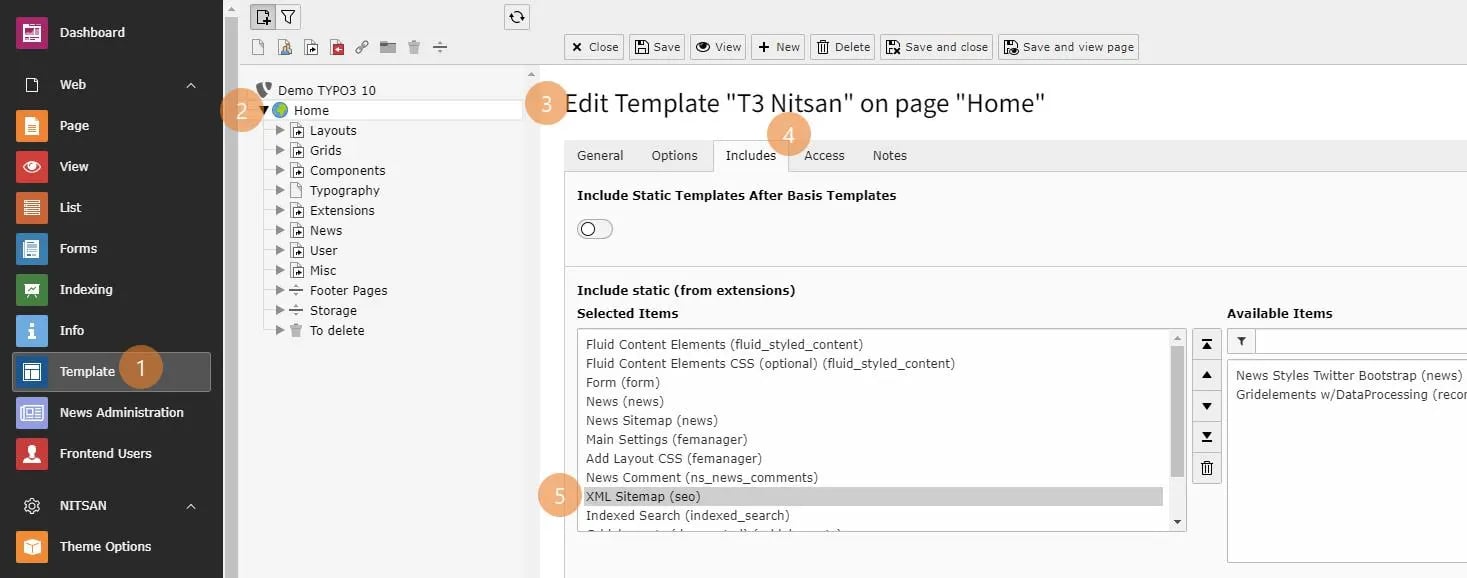
Figures