

ns_license), then start a free trial, purchase a license, or add an existing key from the TYPO3 backend.
For trial and purchase from the backend, see Generating a License Key.
Where to find the module: in TYPO3 v14 open System → T3Planet Shop. In TYPO3 v12 and v13 it is under Admin Tools → T3Planet Shop. T3Planet Shop is the module previously called License Manager.
Install via Extension Manager
Get T3Planet Shop (ns_license) from the TYPO3 Extension Repository (TER): https://extensions.typo3.org/extension/ns_license
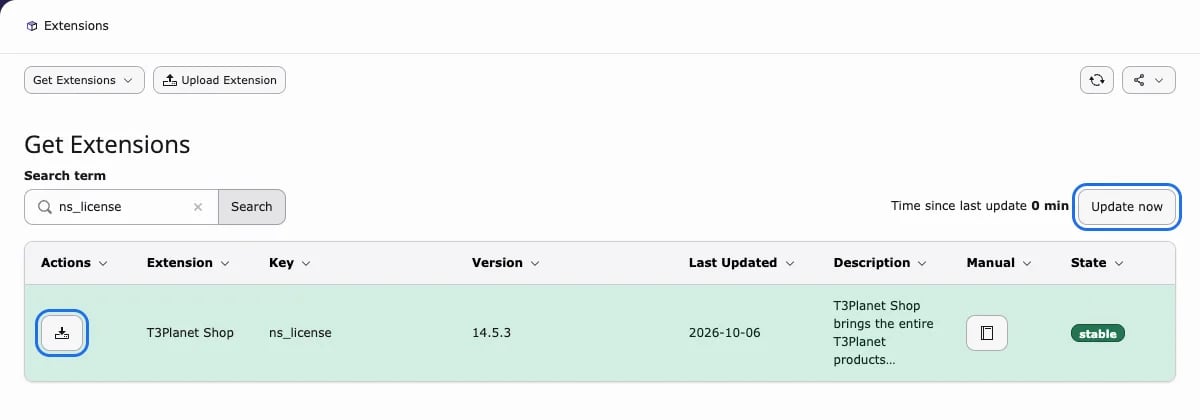
Step 1. Open the Extensions module (System → Extensions in TYPO3 v14, Admin Tools → Extensions in v12 and v13) and select Get Extensions from the drop-down at the top. Click Update now to refresh the extension list from TER.
Step 2. Search for ns_license (T3Planet Shop), then click the download icon to download and install it.
Create and Get your License Key (Interactive Demo)
You can also create a license key from the website, then activate it in T3Planet Shop. For the backend flow, see Generating a License Key. Step 1. ClickGet Started on the demo page.
Step 2. Open the Products menu to explore available solutions.
Step 3. Select the News Comment extension.
Step 4. Click Start Free Trial to start the trial.
Step 5. Scroll down and click Start Free Trial once more.
Step 6. Review and accept the Privacy Policy and Terms to proceed.
- Fill
Name *,Email *, andTelephone (Optional). - Tick the agreement checkbox.
Continue.
Step 8. Enter your 3 environment domains:
Local Domain *Staging DomainProduction Domain
Send verification code.
Step 10. Enter the Verification code and click Confirm & get my license key.
- If you cannot find it, check your spam/junk folder (and use
Resend codewhen available).
License Key field.
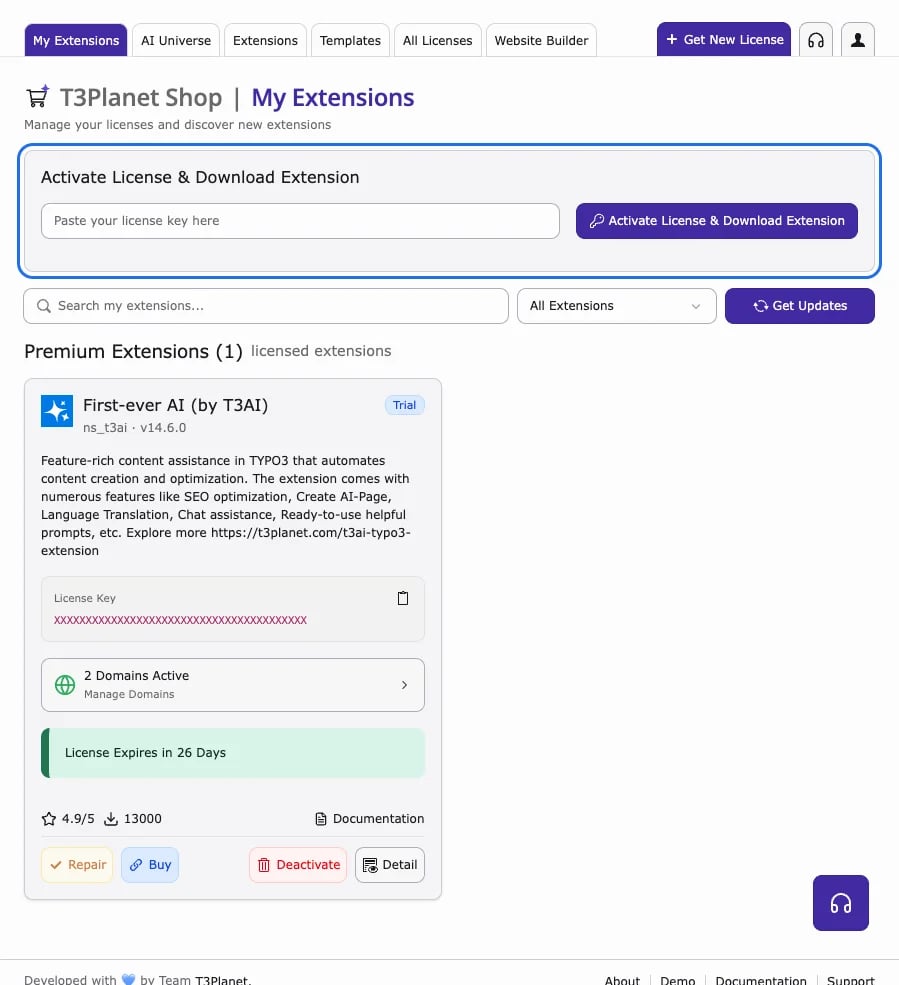
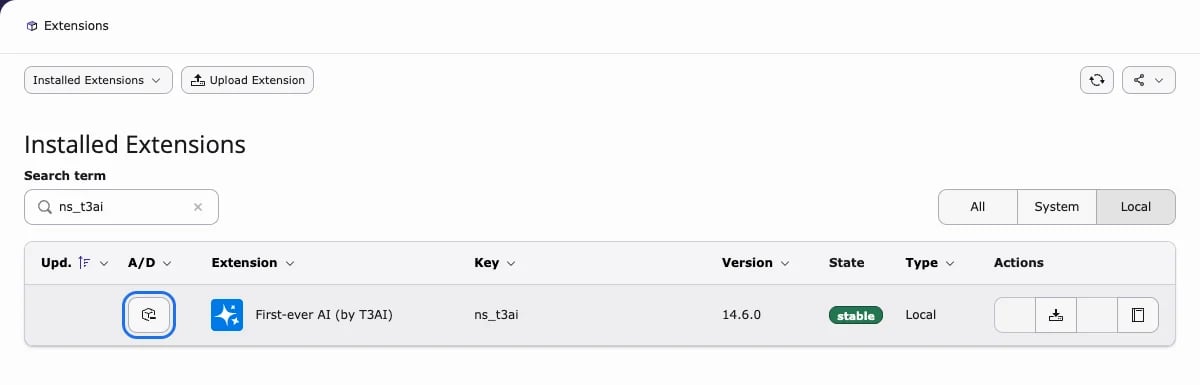
Step 13. Click Activate License & Download Extension and then activate the purchased extension in the Extensions module.
Install via Composer
Step 1. Install EXT:ns_license (T3Planet Shop)We have already sent the license key & composer credentials (like username, license key) via Email. If you need any help, then write to our support team https://t3planet.de/support
If you don’t know the exact
<PACKAGE-NAME>, check the composer.json file in the repository. The package name can be found in the first line as shown below:Multiple Extensions Installation via Composer
If you want to install multiple premium TYPO3 extensions in your single TYPO3 instance, you can use our multiple dedicated Composer servers which support up to 99 extensions. Follow the steps below:Adding More Extensions (Up to 99)
To add more extensions, you can repeat the same steps with the following changes:- Update the repository name to: repositories.t3planet(n) — where n ranges from 1 to 99
- Update the repository URL to: https://composer(n).t3planet.cloud — where
nranges from 1 to 99 - Update the credentials composer config http-basic.composer(n).t3planet.cloud
<USERNAME><LICENSE-KEY>— where n ranges from 1 to 99