

How to know the Latest Version?
Whenever T3Planet releases a new version of your TYPO3 product, you can check it directly in the T3Planet Shop module. Click on “Get Updates” first. If a new version is available, you will then see an “Update to x.x.x” button to install the latest version Otherwise, you can check whether a new update is available for your purchased TYPO3 product using the steps below.Demo
Screenshots
T3Planet also sends an email when a new version of your product is released: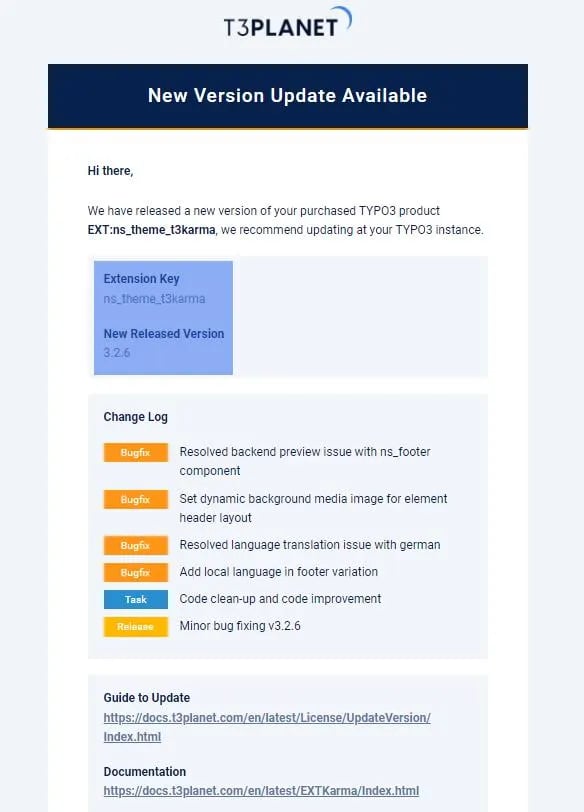
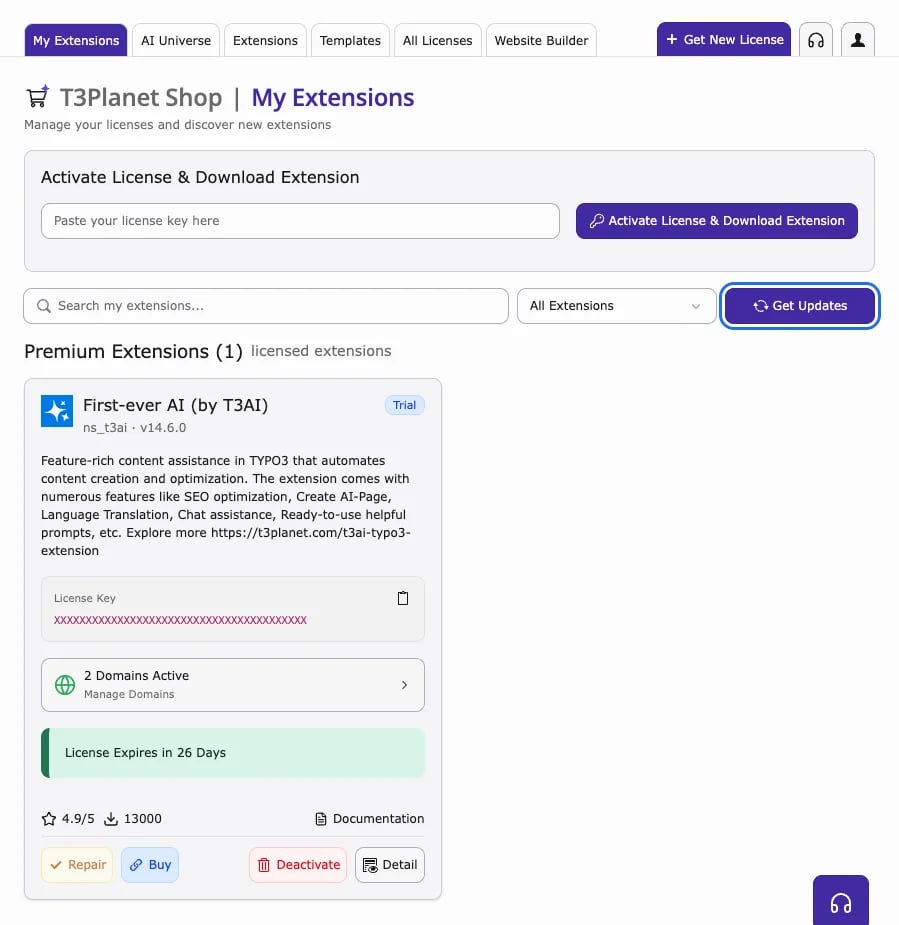
1
Step 1
Open System → T3Planet Shop (TYPO3 v12 and v13: Admin Tools → T3Planet Shop).
2
Step 2
Find your purchased product in the list and check whether the
New Version Available message is shown.3
Step 3
Click on
Get Updates button.If a newer version is available, the Update to x.x.x button will become enabled.4
Step 4
Click
Update to x.x.x (when enabled) and wait for the update process to finish.