

Prerequisites for ke_search and indexed_search
When configuring T3AS with ke_search or indexed_search, make sure the following conditions are met:- All website data indexed — ensure the complete website content is indexed by the respective search extension before enabling T3AS.
- Scheduler execution — run the required T3AS training scheduler task to keep the data fresh. See Scheduler on Configuration.
Setup overview
Setup has two parts:- Set Search Class in T3AS → Search → Settings so T3AS can read the visitor query from the third-party search field (see 5. Search tab).
- Add the Fluid injection snippet to that extension’s search template (preferably in a site package override, not by editing the extension in
vendor//typo3conf/extdirectly).
Enter only the class name in Search Class (for example
tx-solr-q), without a leading .. The value must match the CSS class on the live search input for your setup. If your theme renames the input class, use that class instead.Fluid injection snippet
Add this line where the AI overview should render (usually near the search form or above the classic result list):ke_search
- Set Search Class to
ke_search_sword. - In your override of
SearchForm.html, add the injection snippet.
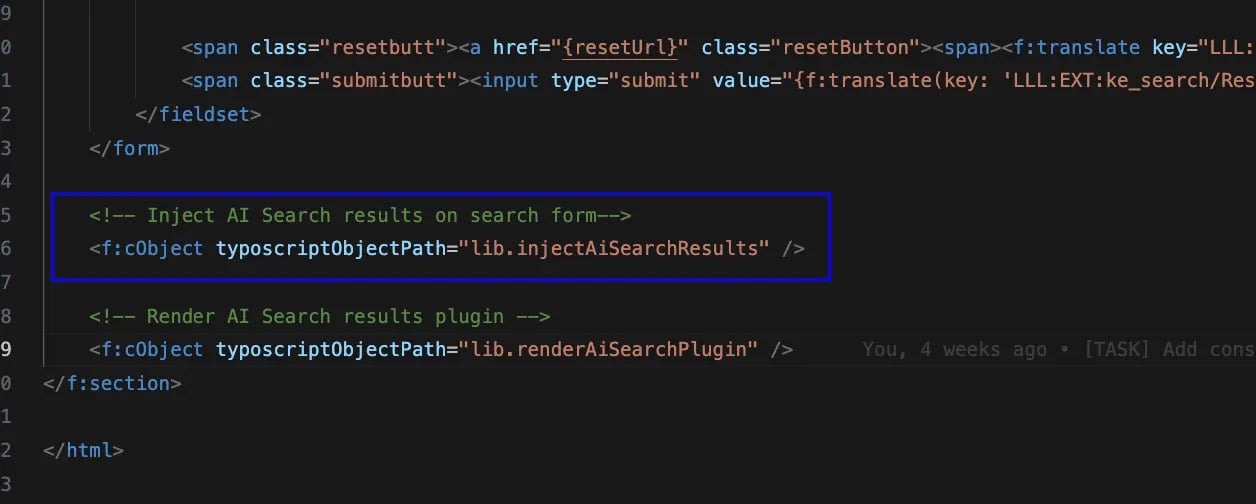
indexed_search
- Set Search Class to
tx-indexedsearch-searchbox-sword. - In your override of
EXT:indexed_search/Resources/Private/Templates/Search/Search.fluid.html, add the injection snippet (typically after the search form and before the result loop).
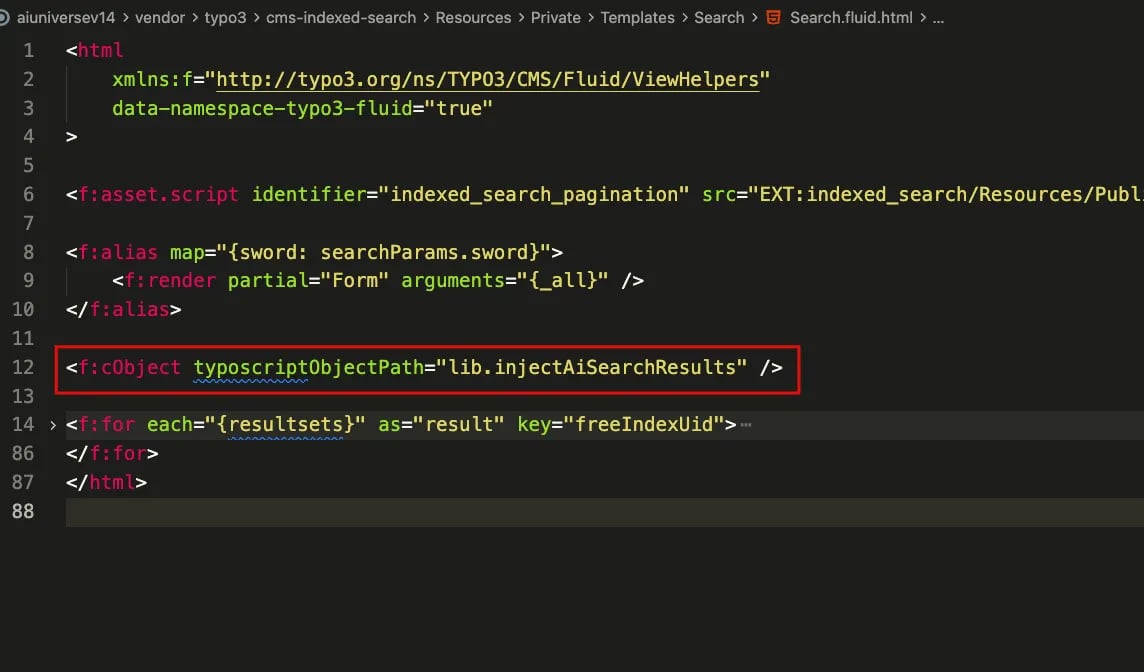
<f:cObject typoscriptObjectPath="lib.injectAiSearchResults" /> after the form render.
Solr
- Set Search Class to
tx-solr-q. - In your override of
EXT:solr/Resources/Private/Templates/Search/Results.html, add the injection snippet (typically after the search form partial).
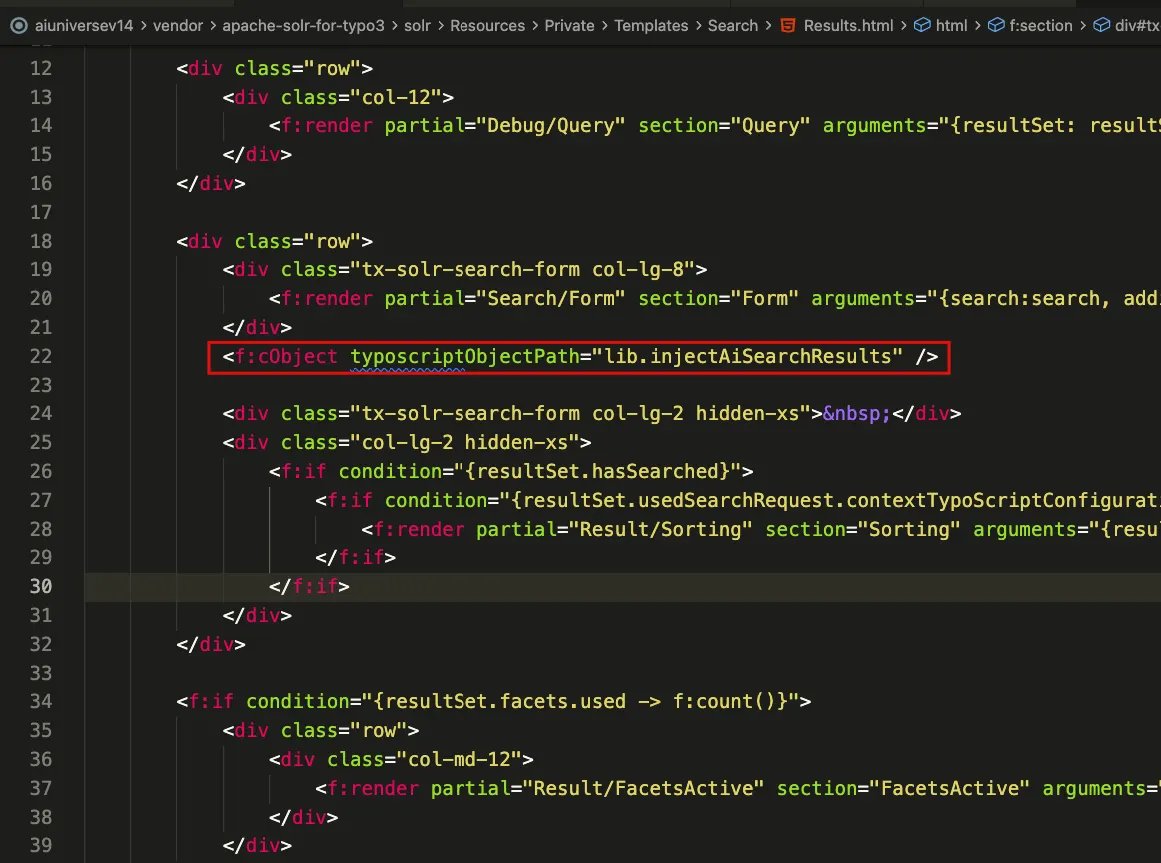
Results.html — add <f:cObject typoscriptObjectPath="lib.injectAiSearchResults" /> after the search form.
After saving the Search Class and template override, flush TYPO3 caches and test a search on the frontend. The AI overview should appear with the existing search results when a matching query is submitted.
Enable AI Search plugin using TypoScript
To render the standalone AI Search plugin via TypoScript (not the third-party form injection above), add the following Fluid view helper where the plugin should appear. SetsearchPid to the page ID that contains the T3AS Search plugin (for example 4):