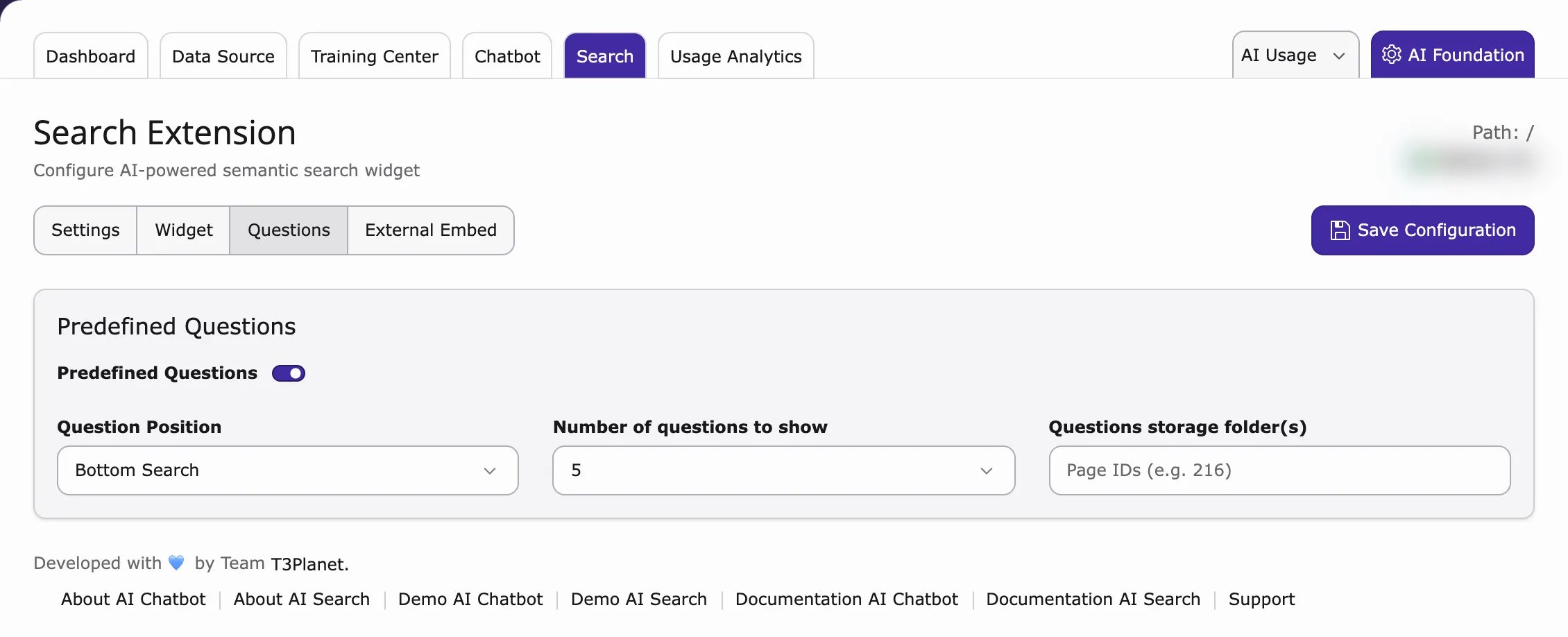
- Go to AI Universe → AI Chatbot/Search → Search.
- Work through the tabs Settings, Widget, Questions and External Embed.
- Click Save Configuration.
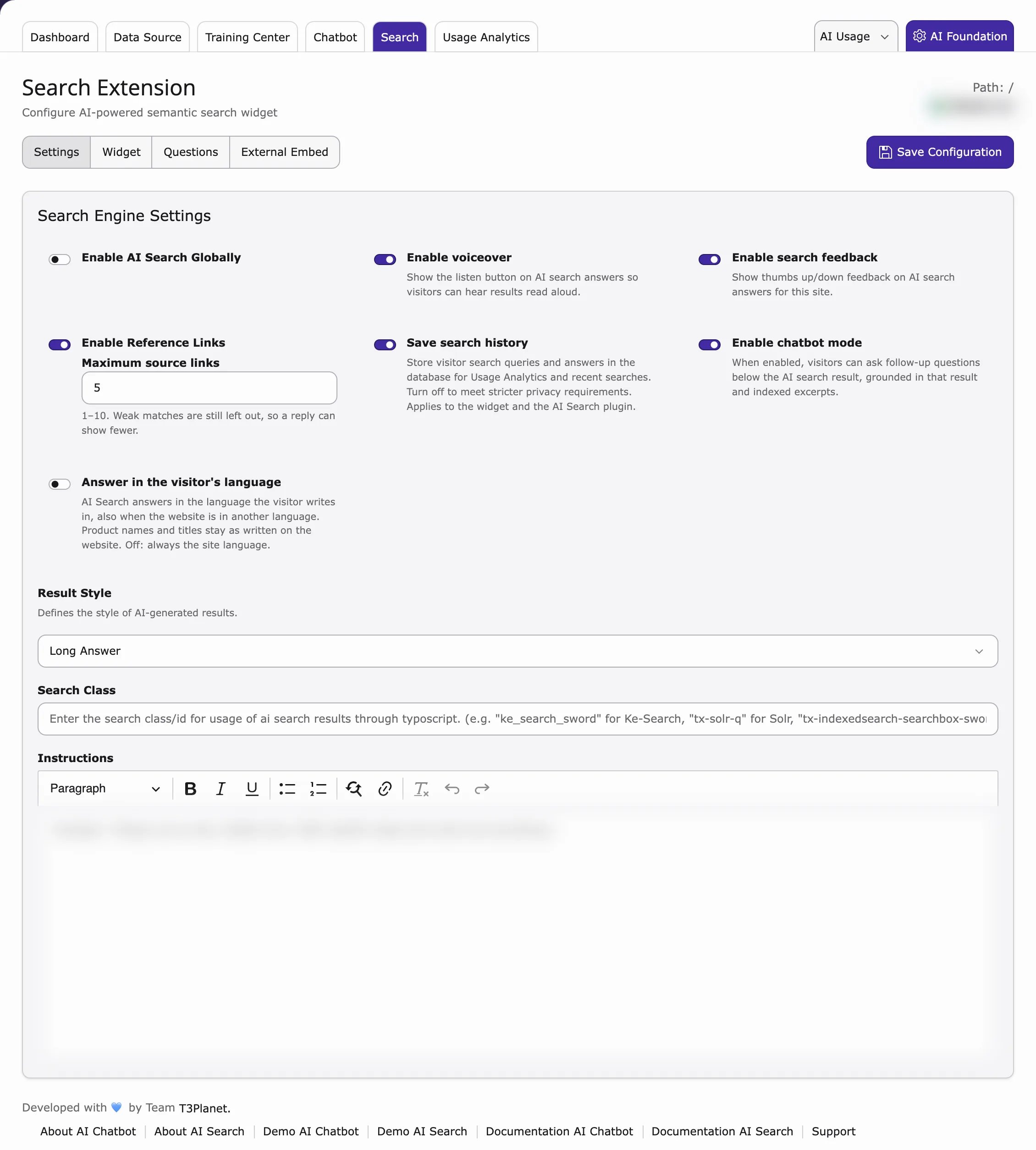
- Enable AI Search Globally – switches AI Search on for your website.
- Enable Voiceover – visitors can listen to the answer.
- Save search history – keeps what visitors searched, so you can see it in Usage Analytics and visitors see recent searches. Applies to the widget and the AI Search plugin. Switch off for stricter privacy.
- Enable Reference Links – shows links to the pages or files the answer comes from.
- Maximum source links – how many links an answer may show (1–10). Weak matches are left out, so an answer can show fewer.
- Enable Search Feedback – visitors can rate answers with thumbs up or down.
- Enable Chatbot Mode – visitors can ask follow-up questions below the AI answer. Follow-ups are based on that answer and the indexed content.
- Answer in the visitor’s language – AI Search answers in the language the visitor writes in, also when the website is in another language. Product names and titles stay as written on the website. Switch off to always answer in the site language.
- Result Style – Summarize (short summary), Short Answer (a few sentences) or Long Answer (detailed).
- Search Class – only needed if you show AI answers in another search extension (see AI answers in other search extensions).
- Instructions – tell the AI how to write, for example “Answer in a friendly tone”.
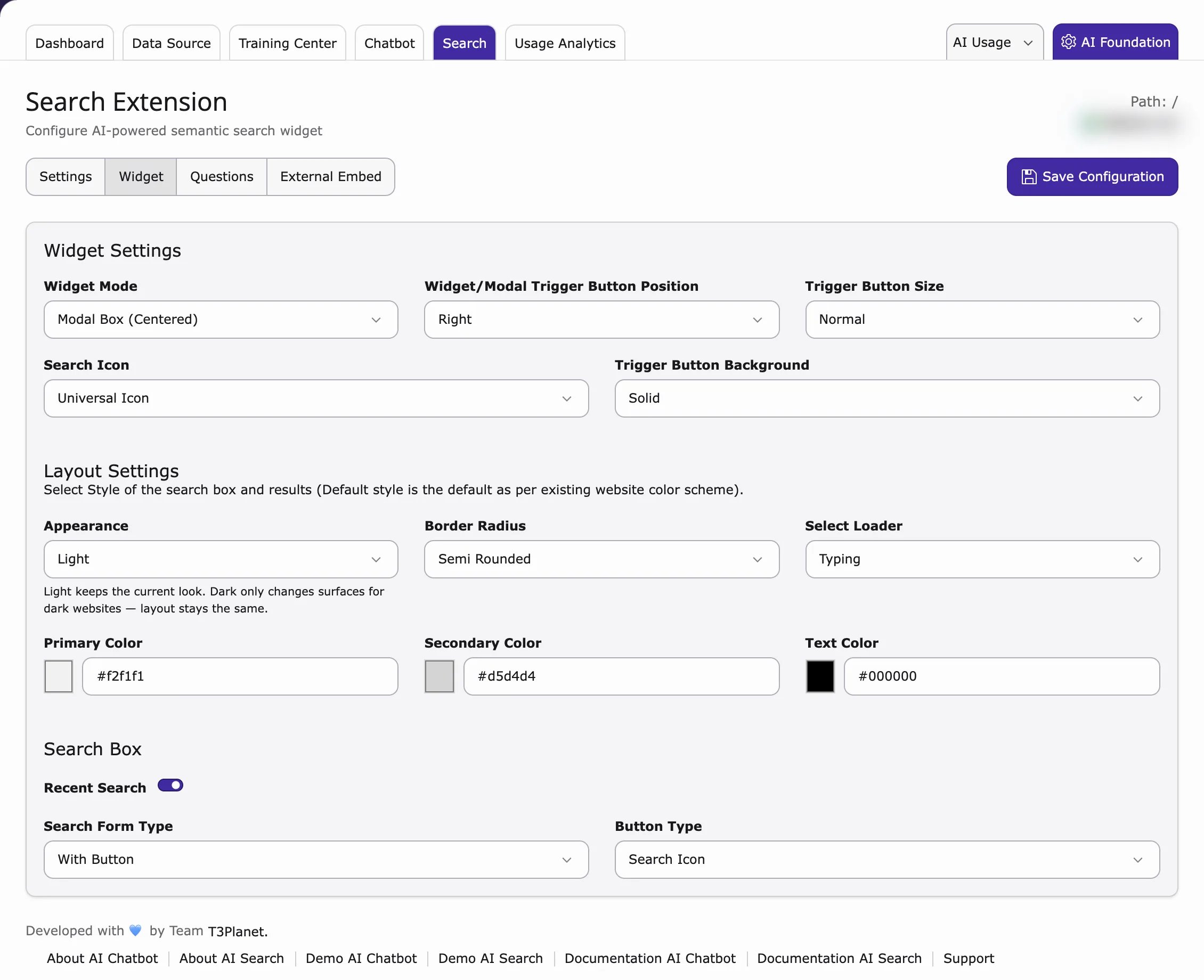
- Widget Mode – Modal Box (Centered) (a box in the middle of the screen) or Sidebar (a panel at the side).
- Widget/Modal Trigger Button Position – where the round search button sits: Left, Right or Custom Position (see Change the widget position).
- Trigger Button Size, Search Icon and Trigger Button Background – size, icon and colour style of the button.
- Appearance – Light or Dark (for dark websites).
- Border Radius, Select Loader, Primary Color, Secondary Color, Text Color – corners, loading animation and colours.
- Recent Search, Search Form Type, Button Type – options for the search box itself.
Change the widget position
By default, the round search button sits at the bottom right of the screen. You can move it, separately for desktop and mobile.- Go to AI Universe → AI Chatbot/Search → Search and open Widget.
- In Widget/Modal Trigger Button Position, choose Left or Right (bottom corner).
- For another place, choose Custom Position. In the Custom Position (desktop / mobile) box, click a place under Desktop and under Mobile: Left Top, Left Middle, Left Bottom, Right Top, Right Middle or Right Bottom.
- Click Save Configuration, then reload your website to see the button in its new place.
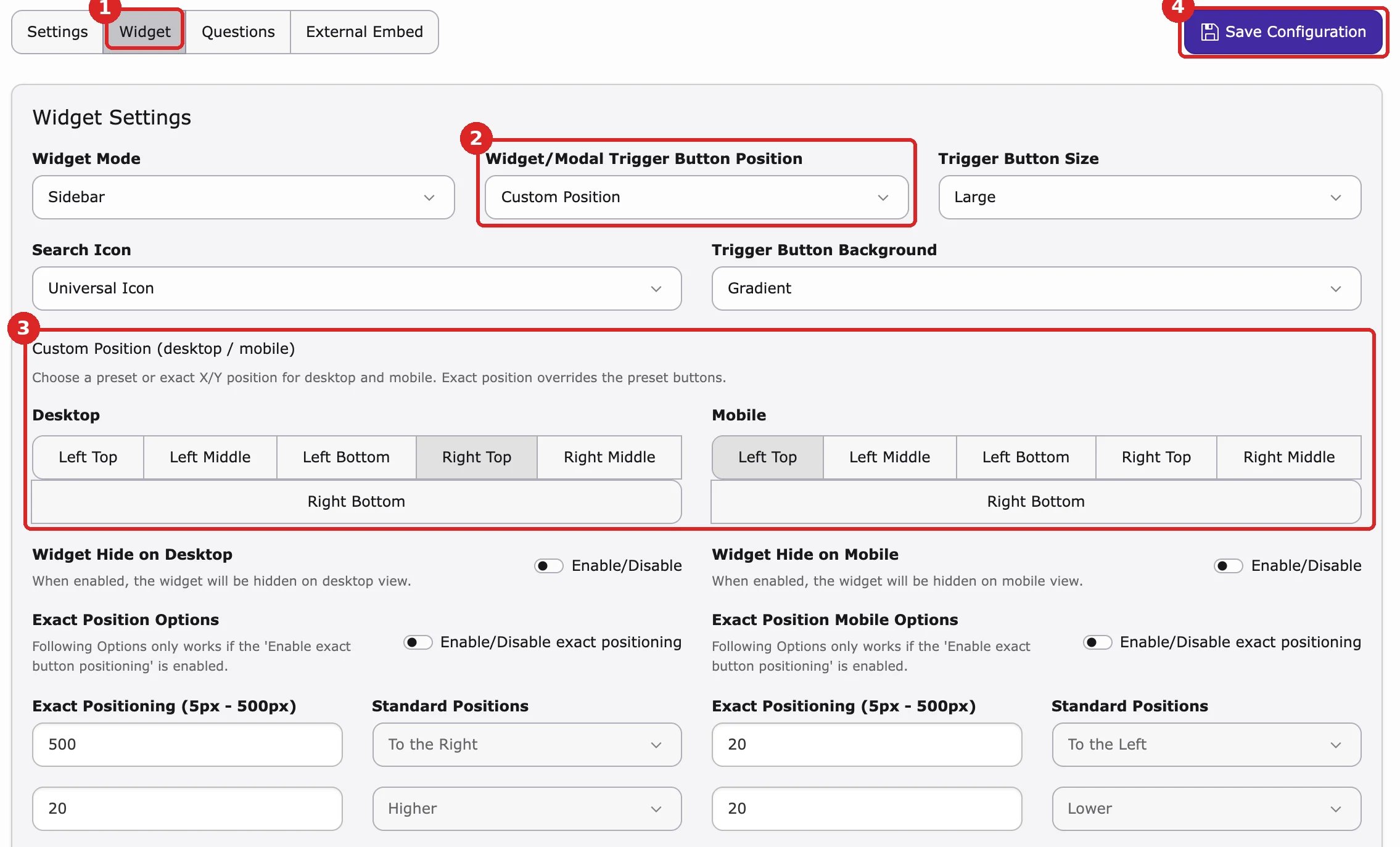
- Widget Hide on Desktop / Widget Hide on Mobile – hide the search button on that kind of device.
- Exact Position Options – turn on Enable/Disable exact positioning and enter the distance in pixels (5 to 500). With Standard Positions you choose To the Left or To the Right and Lower or Higher. The exact position replaces the place you clicked. For phones, use Exact Position Mobile Options.
- Turn on Predefined Questions.
- Choose the Question Position: Bottom Search or Top Search.
- Enter the Number of questions to show, for example
5. - Under Questions storage folder(s), enter the page ID of the folder that holds your question records.