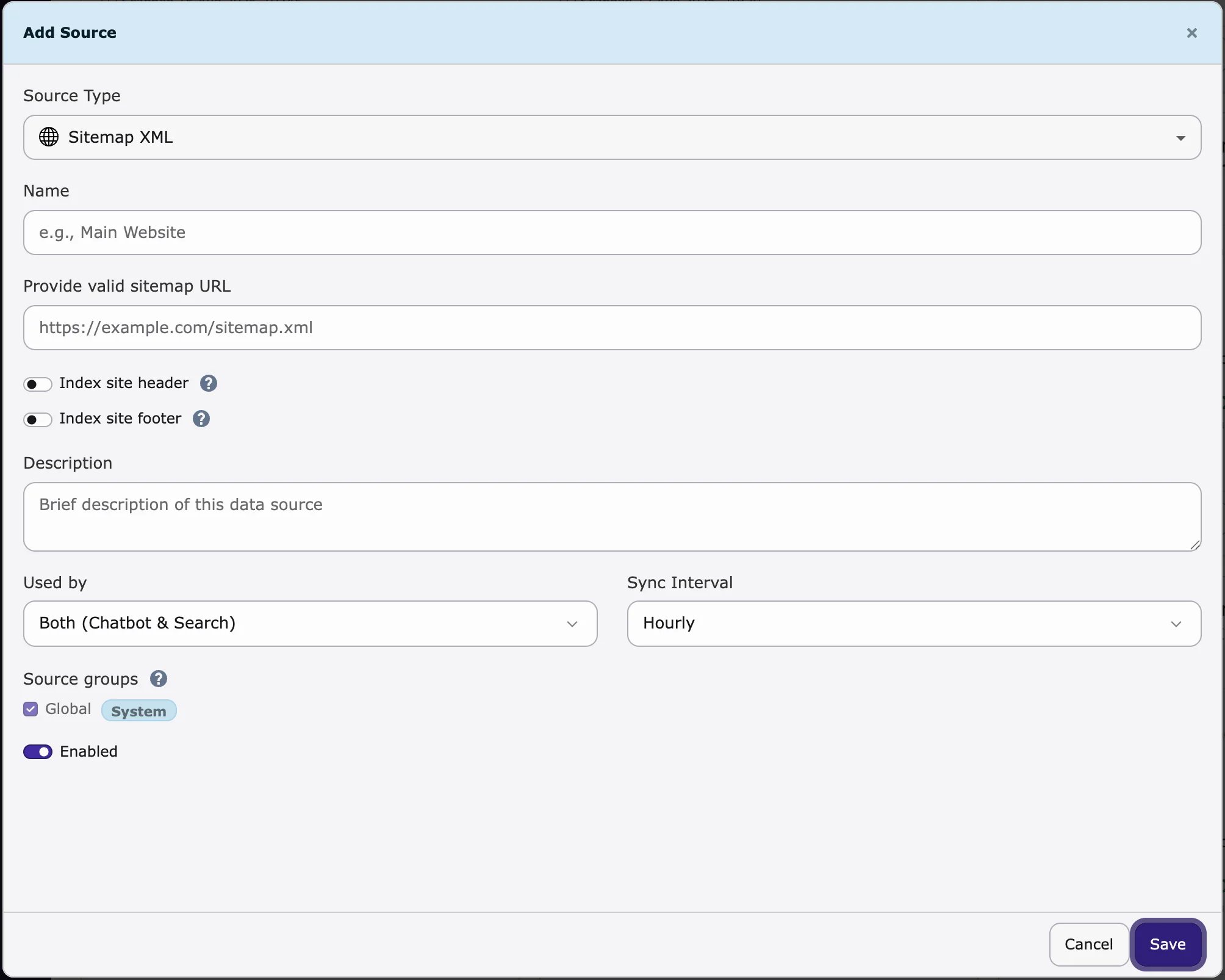
- Go to AI Universe → AI Chatbot/Search → Data Source.
- Click + Add Source.
- Choose a Source Type (see the list below).
- Fill in the fields for this type.
- Enter a Name, for example
Main Website. - Under Used by, choose Both (Chatbot & Search), Chatbot or Search.
- Choose how often the content is read again under Sync Interval: Hourly, Daily or Weekly.
- Turn on Enabled.
- Click Save.
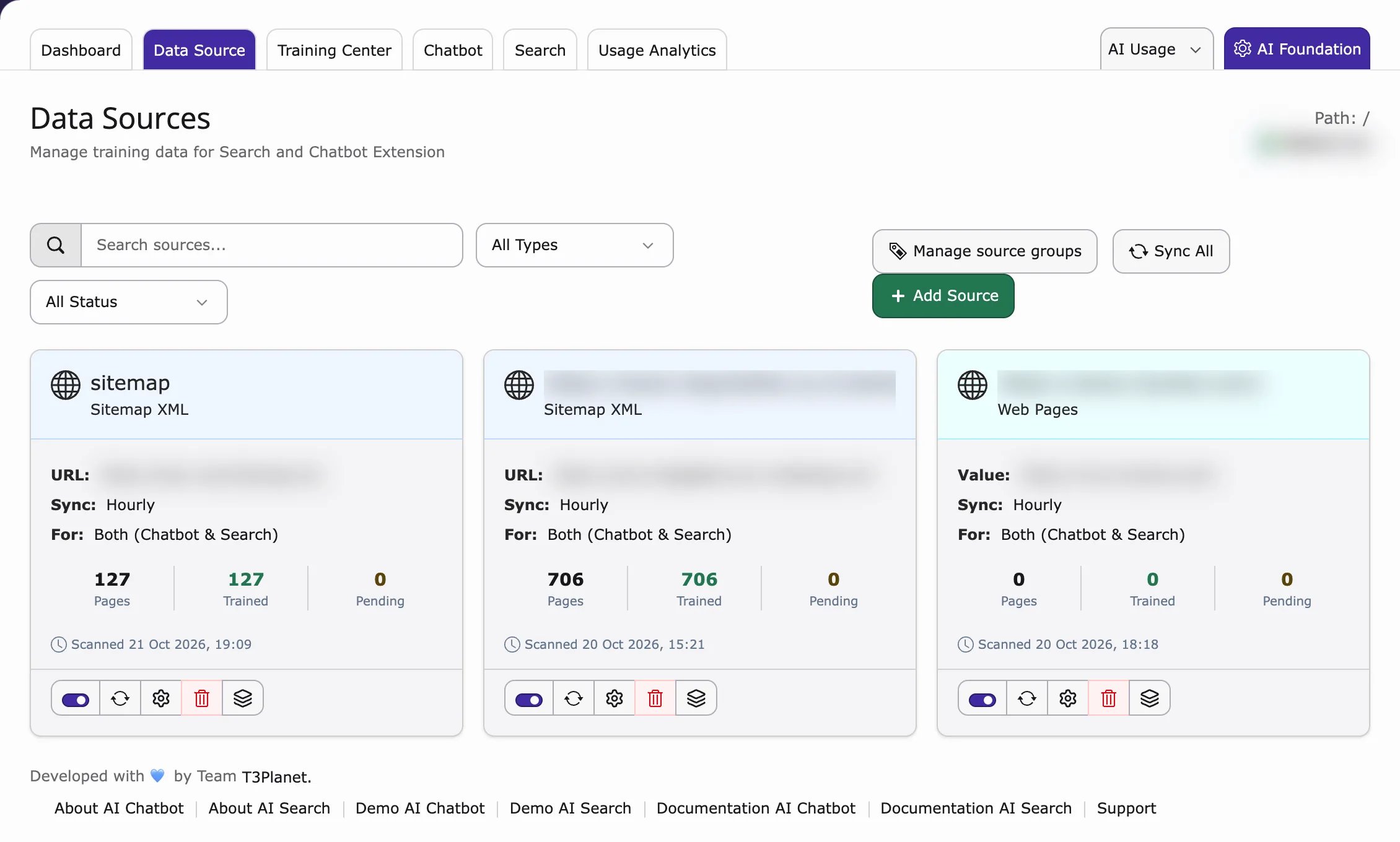
- TYPO3 Pages – pages of this website. Enter the page IDs, choose how many sub-page levels to include (Recursive) and keep Index mode on Frontend (rendered page HTML) (the page as visitors see it).
- Sitemap XML – all pages listed in your sitemap, for example
https://example.com/sitemap.xml. - Web Pages – a website address. Add
/*at the end to include only one part, for examplehttps://example.com/blog/*. Turn on Single URL to read only this one page. - PDF Documents – pick a folder with Browse, or upload a file with Upload PDF (up to 25 MB).
- Q&A Pairs – type a Question and an Answer. Click Add Q&A pair for more.
- Text – paste any text you want the AI to know.
- Indexed Search, ke_search and Solr – only shown when that extension is installed.
Each website has one training task. It runs at the Sync Interval of the data source you saved last.
- Click Sync Now to read one source again, or Sync All for all sources.
- The new content is used after the next training run (see Scheduler).
Source groups
A source group is a label you give to data sources, for example “Products” or “HR”. On each page you can choose which groups the AI may use. This way, product pages only answer with product content. Create a source group- Go to Data Source.
- Open Source Groups.
- Add, edit or delete a group.
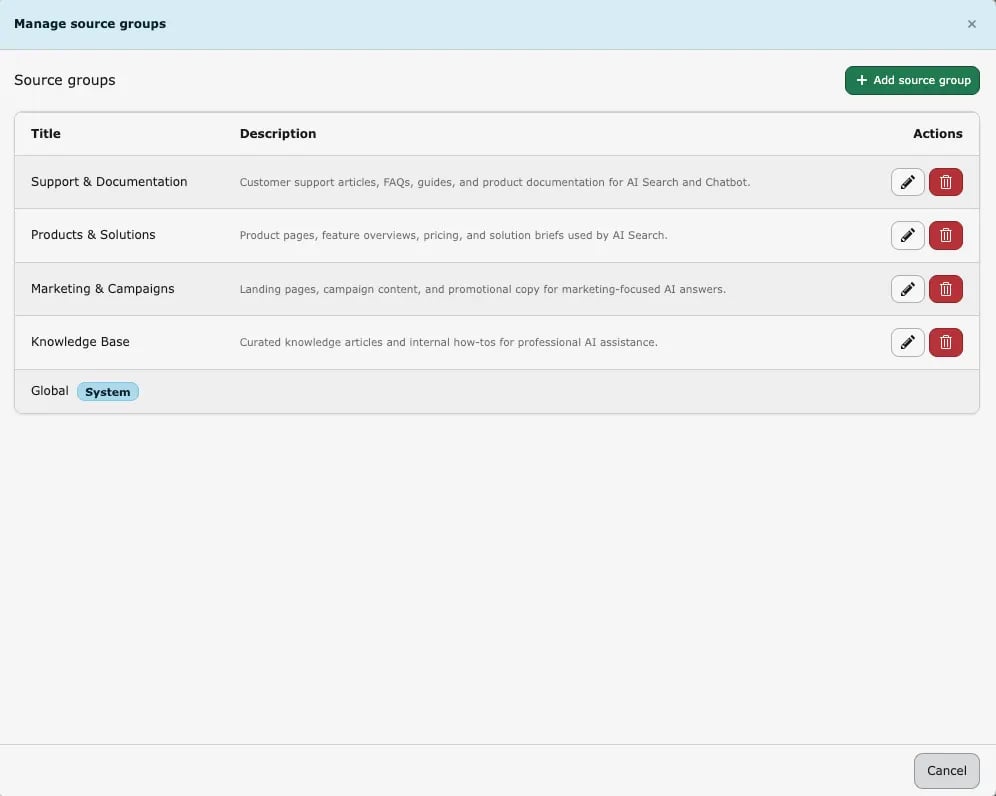
The group Global always exists and cannot be changed or deleted.
- Edit the data source.
- Choose the groups under Source groups.
- Click Save.
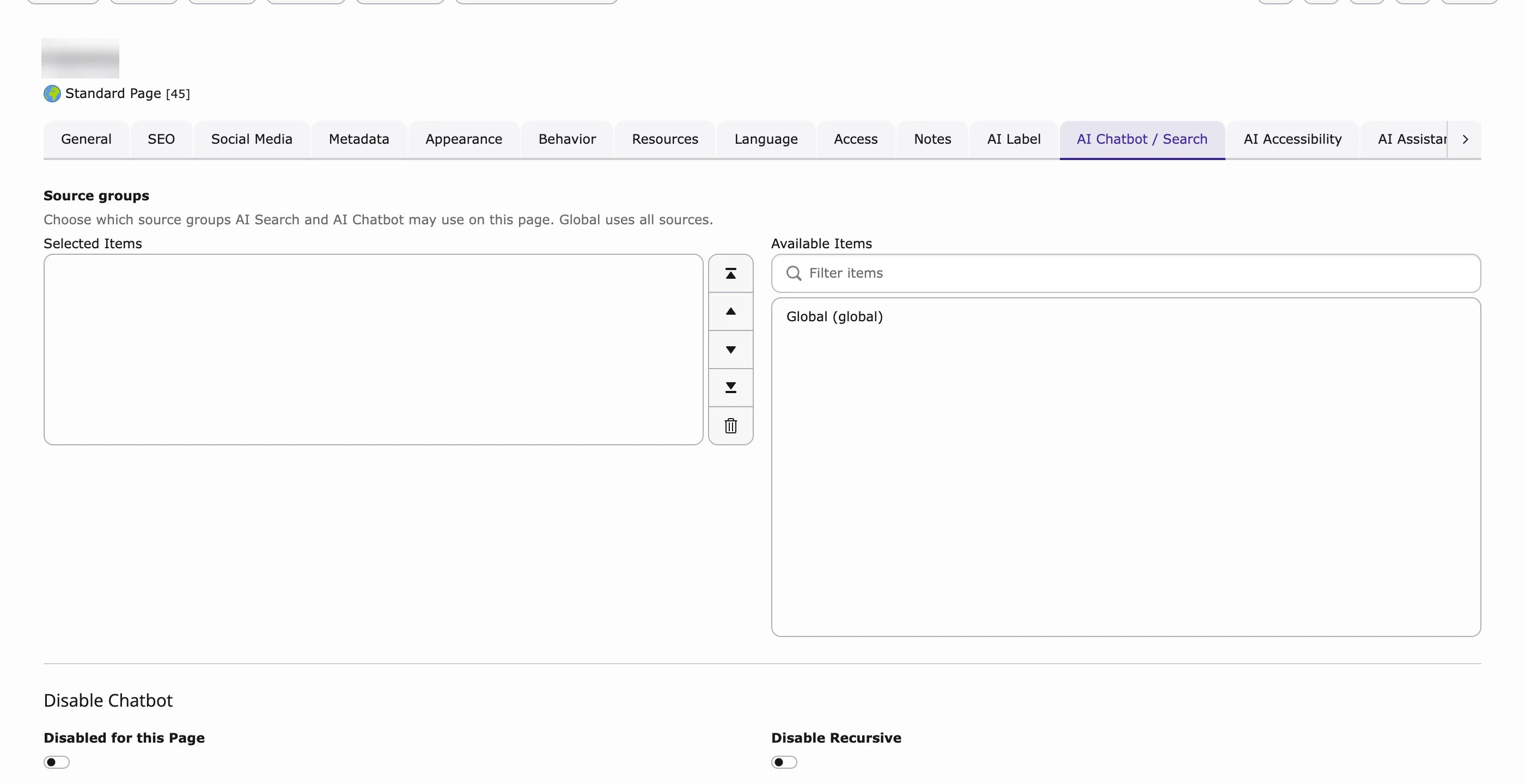
- Open the page in the page module.
- Click Edit page properties.
- Open the tab AI Chatbot / Search (called AI Search if only AI Search is installed).
- Choose the groups under Source groups. Global means all sources.
- Click Save.
Header and footer of your website
For Sitemap XML and Web Pages sources you can turn on Index Site Header and Index Site Footer. Then the text in your website header and footer (for example your address or main menu) is learned only once, not again on every page.