

Purpose
A data source is content the chatbot (and AI Search) may learn from: your TYPO3 pages, a sitemap, PDFs, questions and answers, or plain text. The chatbot only answers from the content you add here. You find it in AI Universe → AI Chatbot/Search → Data Source.Adding a data source
- Click + Add Source.
- Choose the Source Type:
- Sitemap XML – the address of your sitemap, for example
https://example.com/sitemap.xml. - PDF Documents – a folder with PDF files. Click Browse to pick it, or Upload PDF (max. 25 MB).
- TYPO3 Pages – page IDs, separated by commas. Also choose Recursive (how many sub-page levels: Infinite levels, Provided pages only, or 1 to 4 levels) and Index mode (see the tip below).
- Web Pages – a website address. Add
/*at the end to include only one part, for examplehttps://example.com/blog/*. Turn on Single URL to read only this one page. - Q&A Pairs – type a Question and an Answer. Click Add Q&A pair for more.
- Text – paste any text the AI should know.
- Indexed Search, ke_search and Solr – only shown if that extension is installed.
- Sitemap XML – the address of your sitemap, for example
- Enter a Name (for example
Main Website) and, if you like, a Description. - Choose Used by: Both (Chatbot & Search), Chatbot or Search.
- Choose how often the content is read again (Sync Interval): Hourly, Daily, Weekly or Custom cron expression (your own schedule, for example
0 0 * * 0= every Sunday at midnight). - Choose the Source groups. Global is always included.
- Turn on Enabled.
- Click Save.
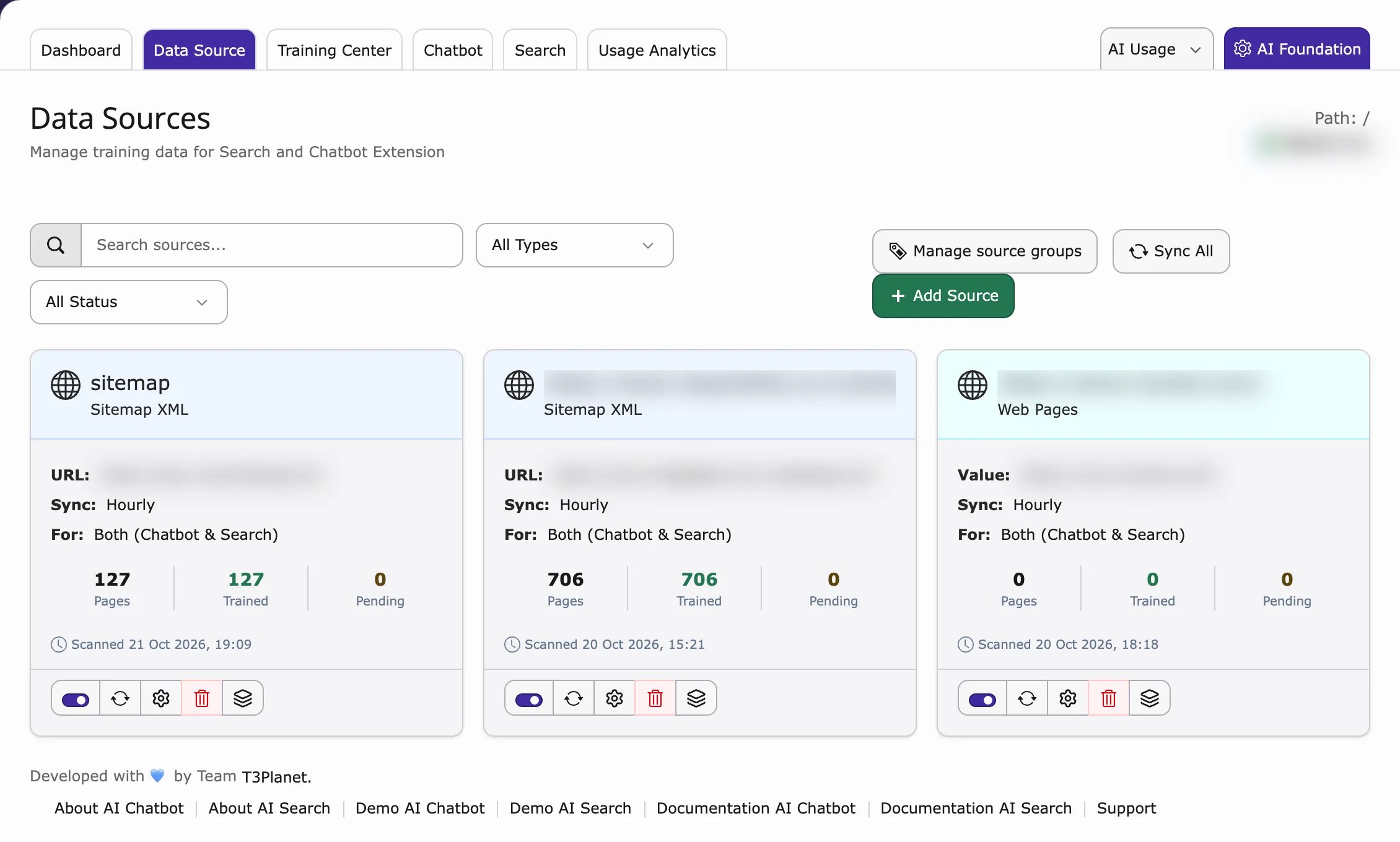
There is only one training task per site. Its schedule comes from the data source you saved last. If your sources use different intervals, save the one with the interval you want last.
Editing or deleting a source
Use the buttons next to each data source to edit or delete it.Deleting a data source also removes its training queue and embedded data for that source.
Source Groups | Page-Level Source Configuration
Source groups let you choose which content the chatbot and AI Search may use on which page. Example: on product pages, only product content is used; on HR pages, only HR content.Backend Configuration
Manage Source Groups
- Go to Data Source → Source Groups.
- Create, edit or delete groups.
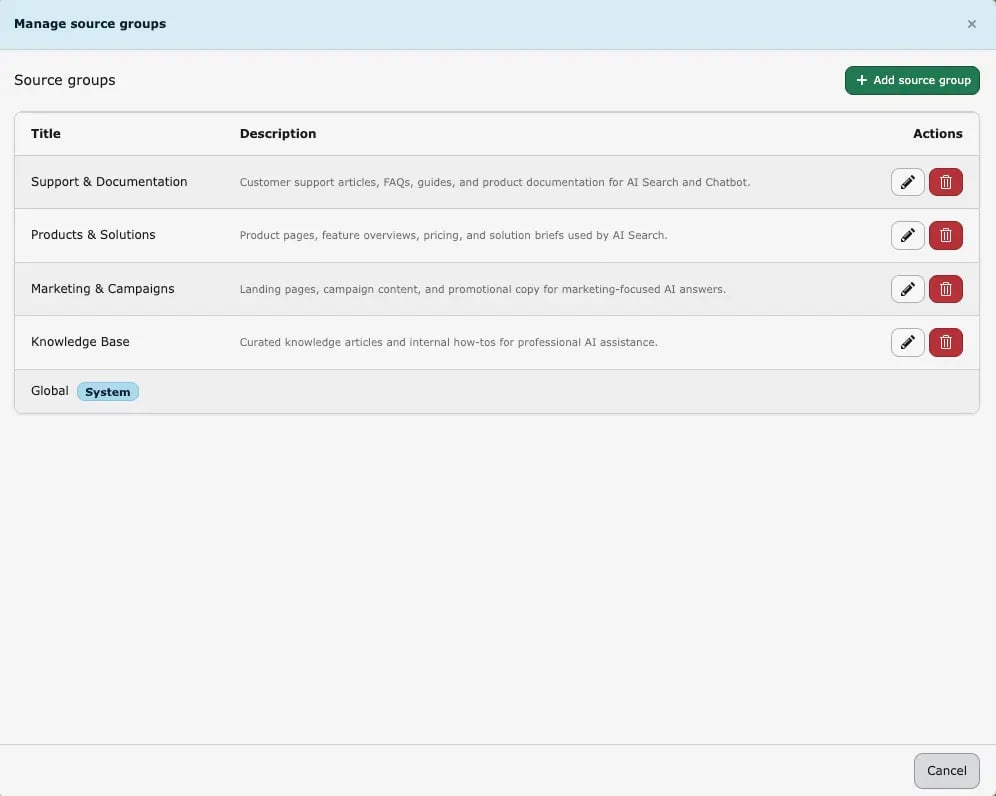
The Global Source Group is a system group and cannot be edited or deleted.
Assign Source Groups to Data Sources
When you add or edit a data source, choose one or more Source groups. Global is always added. Used by (Both (Chatbot & Search), Chatbot or Search) decides which tool may use the source.Page-Level Configuration (T3AS / T3AC)
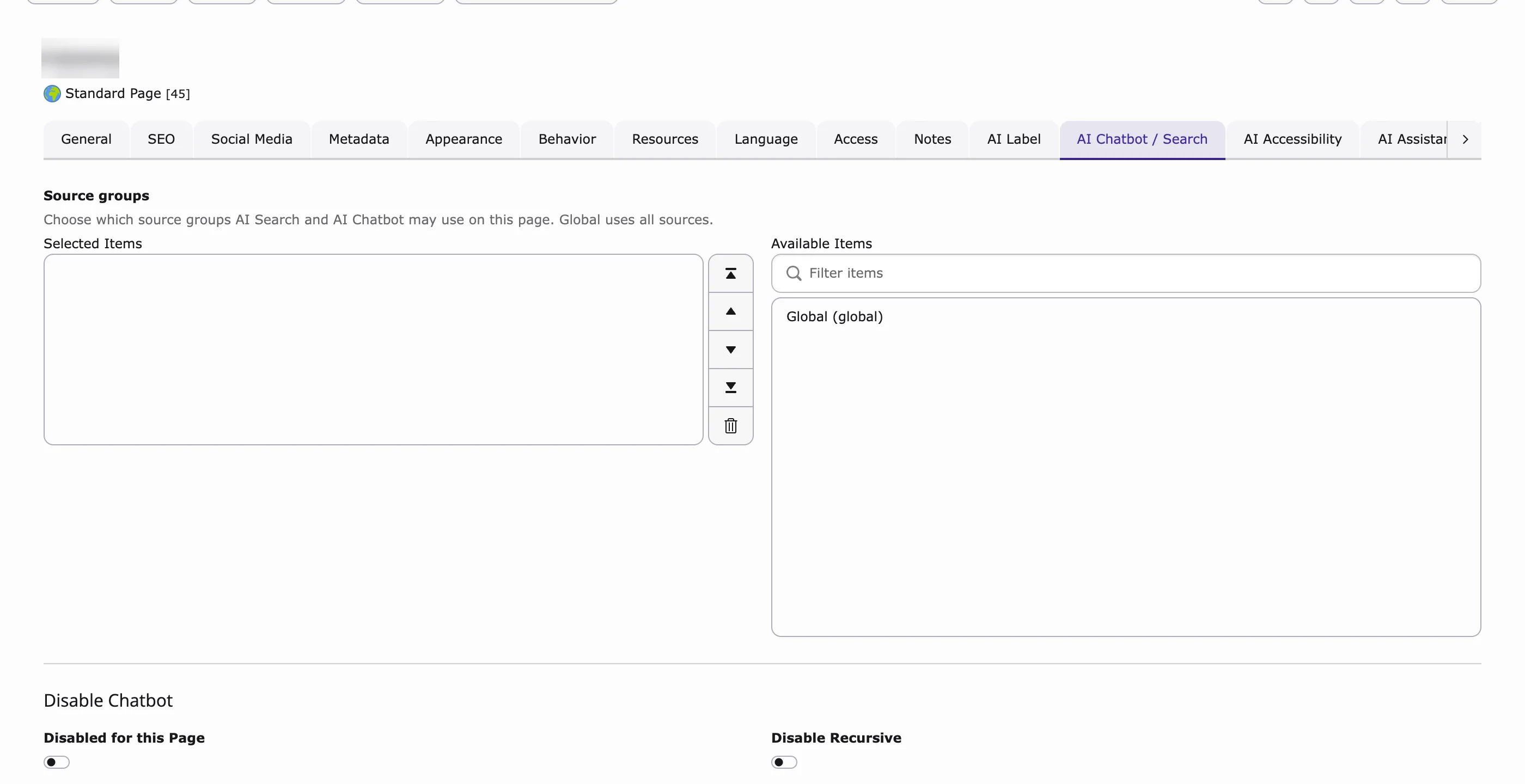
- Open the page in the page module (Web → Page, on TYPO3 v14 Content → Layout).
- Click Edit page properties.
- Open the tab AI Chatbot / Search (or AI Chatbot if only AI Chatbot is installed).
- In Source groups, choose the groups this page may use. Global uses all sources.
- Click Save.
Practical Example
A company has three groups: Products, HR and Internal. Product pages use only Products, so answers are about products. HR pages use only HR.Source groups only filter which content is used for answers. They don’t change training or the background task.
Header / Footer for Sitemap and Web-Page Source Types
Most websites repeat the same header and footer on every page. With these switches, that text is learned only once instead of on every page.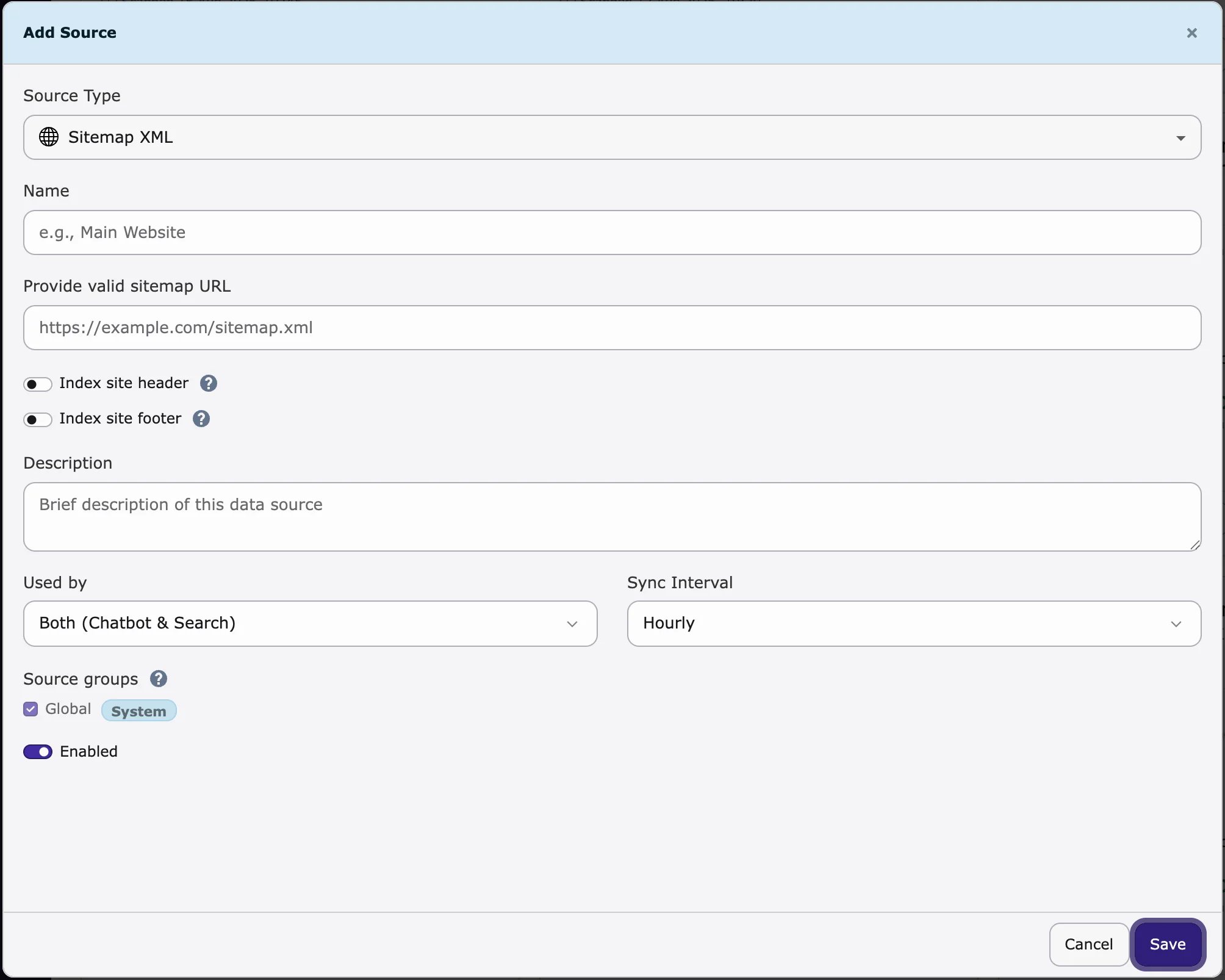
- Index site header – learn the page header once (useful if it contains helpful text, for example your services).
- Index site footer – learn the page footer once (useful for contact details, company info or policy links).
Sync
Sync Now (one source) and Sync All (all sources) mark the content to be read again. The actual reading and learning happens when the background task runs (see below).Scheduler
The Scheduler is TYPO3’s tool for background tasks. Each website has one task called T3CS Training (Site N) (N = the ID of the website’s start page). It is created for you when you save your first data source. When it runs, it:- Reads the sources marked for sync again.
- Trains all items with status Pending – the AI learns the content.
- Cleans up old Failed items after the number of days in Retention Days. Learned (Completed) items are kept.
Settings used by training
Most websites can keep the defaults. You find them in AI Universe → AI Foundation → AI Features, on the Training and Rate Limiting cards (badge AI Chatbot/Search). The Training card is shared: the same values apply to AI Chatbot and AI Search.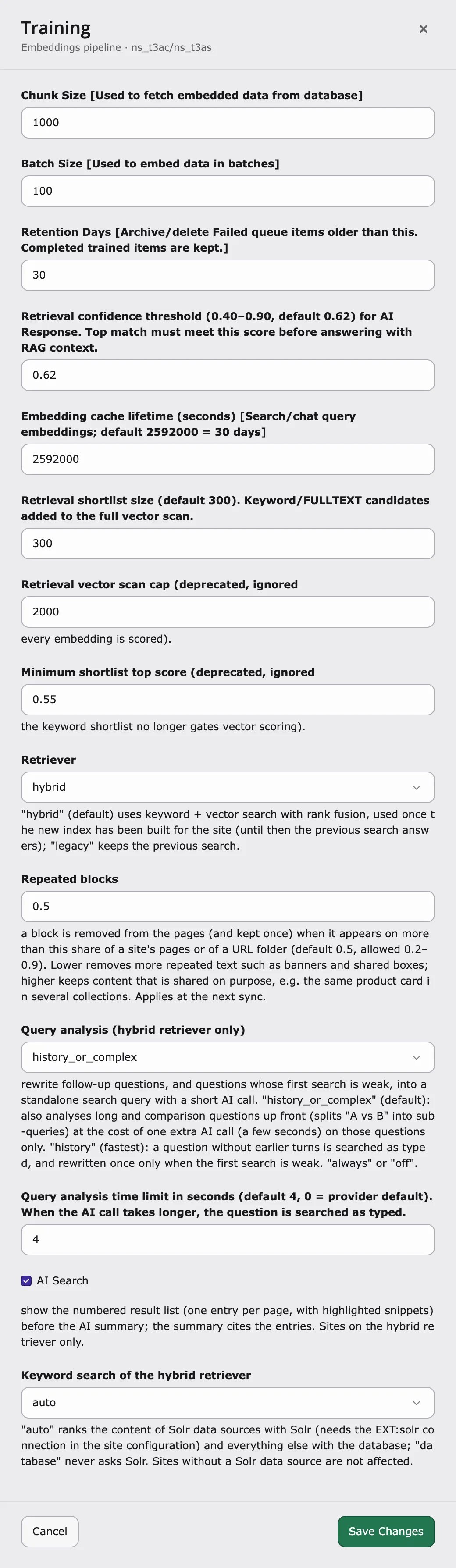
Training options explained
Chunk Size – default:1000
How many records are read from the database at a time while the content is prepared for training. When to change: lower it if the training stops because the server runs out of memory; raise it on strong servers to train large sites faster.
Batch Size – default: 100
How many items are sent to the AI provider in one request when the embeddings are created. Also used by the --batch-size option of the training command. When to change: lower it if your AI provider reports rate limits or time-outs; raise it to train faster when your provider allows larger requests.
Retention Days – default: 30
After how many days old Failed queue items are archived (CSV in var/log/t3cs) or deleted by the cleanup step. Completed (trained) items are always kept. When to change: raise it if you want to look into failed items for longer; lower it to keep the queue table small.
Embedding cache lifetime (seconds) – default: 2592000 (30 days)
How long the embeddings of visitor questions in search and chat are cached. A question that was asked before is answered without a new embedding call, which is faster and saves AI credits. When to change: lower it if you often switch the embedding provider or model; shorter values mean more AI calls.
Repeated blocks – default: 0.5 (allowed 0.2–0.9)
Removes text that repeats on many pages, such as promo banners, “shop the video” boxes, call-to-action boxes or legal notes. Such a block is kept once instead of on every page, so it does not push real content out of answers. A block counts as repeated when it appears on more than this share of the pages – across the whole site or within one URL folder (for example all /products/ pages). Empty or invalid values use 0.5.
- Lower (for example
0.3) – removes more repeated text. - Higher (for example
0.7) – keeps content that is shared on purpose, for example the same product card in several collections.
4 seconds
Follow-up questions (for example “and how much is it?”) are turned into a standalone search query with a short AI call. This setting is how long that call may take. If it takes longer, the question is searched as typed, so a slow AI service cannot block the answer. 0 uses the time limit of the AI provider. When to change: raise it if your AI provider is often slow and follow-up answers miss; lower it if answers must start faster.
AI Search (result list) – default: on
AI Search shows a numbered result list – one entry per page, with highlighted snippets – before the AI summary. The summary refers to these entries. Switch it off to show only the AI summary. It does not affect the chatbot.
All training settings and their defaults
All training settings and their defaults
For developers: run training on the command line
For developers: run training on the command line
You can start the training yourself on the command line instead of waiting for the Scheduler, for example to test it or to train everything again. The commands come from the shared AI Chatbot/Search core and work the same for AI Chatbot and AI Search.Run them with Run the Scheduler task – Compound words – See all options with
vendor/bin/typo3 (Composer), php typo3/sysext/core/bin/typo3 (non-Composer) or ddev typo3 (DDEV).Training – nst3af:training [rootPageId]Syncs the data sources of a site, trains all Pending items (creates the embeddings) and cleans up old Failed items. rootPageId is the ID of the site root page. The aliases t3cs:training and aiuniverse:training run the same command.scheduler:run --task=<taskUid> -fRuns the site’s T3CS Training (Site N) task directly, with the options saved on the task. The task UID is shown in the Scheduler module.t3cs:keyword:compoundsAdds the parts of compound words (for example “Sonnen” and “schutz” from “Sonnenschutz”) to the keyword index of already trained content, so the keyword search also finds the single words. No AI calls, no new embeddings. Run it after a training on sites with compound words, for example German.vendor/bin/typo3 nst3af:training --help.History cleanup
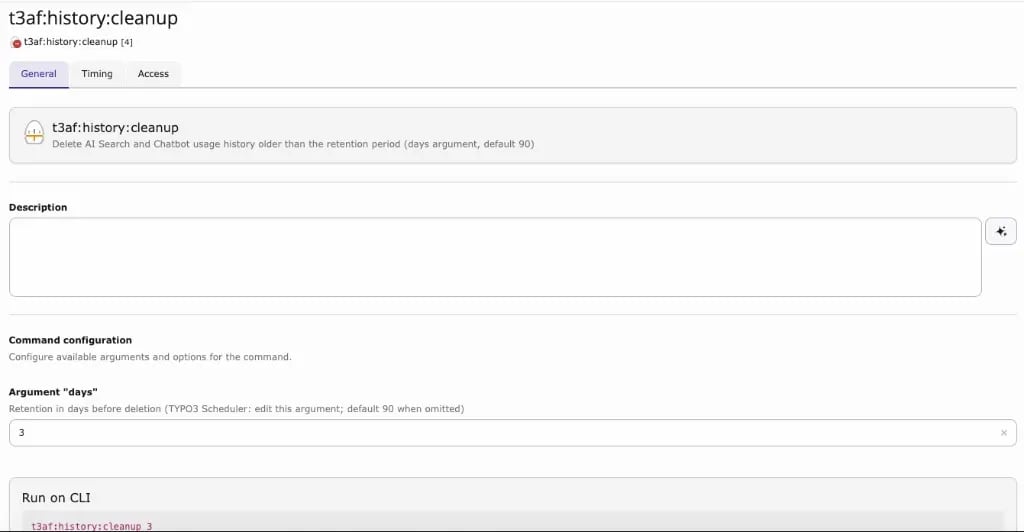
Delete old visitor conversations and searches automatically, for example everything older than 90 days. This helps you follow your privacy rules. It is separate from the training cleanup above.- Go to the Scheduler module (System → Scheduler on TYPO3 v12 and v13, Administration → Scheduler on TYPO3 v14).
- Create a new task.
- Choose Execute console commands.
- Choose
t3af:history:cleanup. - Set days (how old entries must be before they are deleted; default 90).
- Set how often it runs on the Timing tab.
- Save the task.
For developers: run history cleanup on the command line
For developers: run history cleanup on the command line
You can delete old usage history on the command line, for example in your own cron job.
t3af:history:cleanup– deletes visitor conversations, searches and request traces older than 90 days. The aliast3cs:history:cleanupruns the same command.t3af:history:cleanup 3– deletes history older than 3 days (use any number of days).
Related
- Training Center – see and re-queue trained items
- Dashboard – training status and Run All
- Scheduler & CLI in AI Foundation – all AI Scheduler tasks
- AI Search data sources – the same data sources, used by AI Search