

Upgrading from an older version (before v14)? Follow Reinstall After Upgrading instead.
From version 14.5.0, AI Chatbot supports only TYPO3 v14 and v13. Running TYPO3 v12? Stay on AI Chatbot 14.4.0. It keeps receiving bugfixes and security updates. On TYPO3 v14, Admin Tools is called System. See TYPO3 v13 and v14.
Before you start
You need:- An administrator login for the TYPO3 backend.
- Your AI Chatbot license key from T3Planet.
- An account with an AI service (for example OpenAI) and its API key (a password for the AI service). No account? You can use T3Planet Credits instead.
Step 1 — Install the License Manager
The License Manager (ns_license) unlocks T3Planet Premium extensions. Install its latest version first.
Step 2 — Activate the License
- Go to Admin Tools → T3Planet Shop (on TYPO3 v14: System → T3Planet Shop). Only system maintainers see this module.
- Enter your AI Chatbot license key.
- Click to activate the license.
- Wait until AI Chatbot is downloaded and installed.
- Check that AI Foundation was installed too. If not, see Step 3.
Install with Composer (for developers)
Install with Composer (for developers)
If your project is managed with Composer:
- Add
nitsan/ns-t3acandnitsan/ns-t3csto theonlylist of the T3Planet repository incomposer.json:
- Run:
- Check that
nitsan/ns-t3af(AI Foundation) is installed. If not, runcomposer require nitsan/ns-t3af.
Step 3 — Install AI Foundation
Skip this step if AI Foundation was already installed in Step 2.- Go to Admin Tools → Extensions (on TYPO3 v14: System → Extensions).
- Choose Get Extensions.
- Search for AI Foundation (
ns_t3af). - Click install.
- Clear all caches.
Step 4 — Run Database Analyzer
TYPO3 needs to create new database tables for AI Chatbot.- Go to Admin Tools → Maintenance (on TYPO3 v14: System → Maintenance).
- Click Analyze Database Structure.
- Apply all suggested changes.
Step 5 — Load the required TypoScript
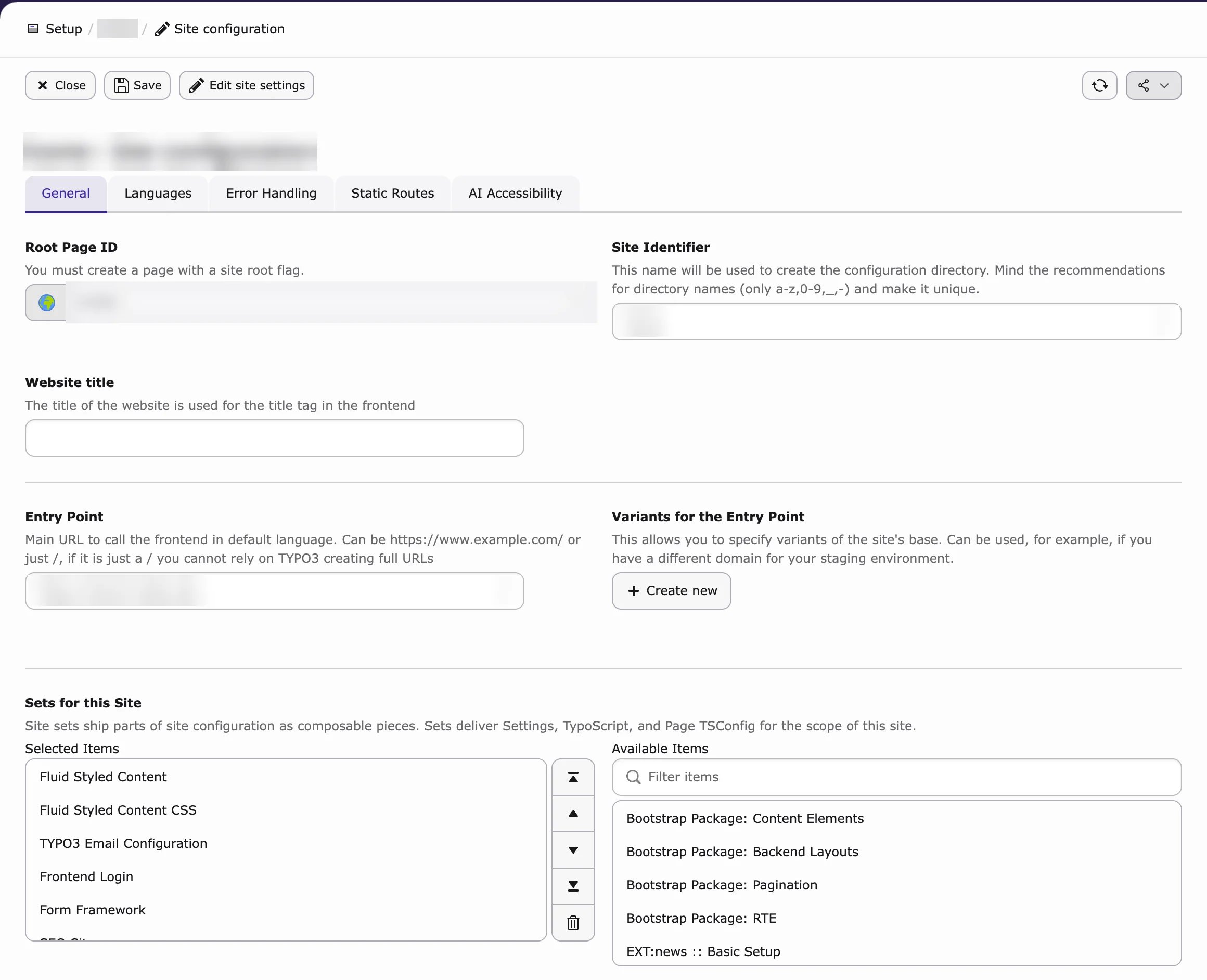
Now switch on AI Chatbot for your website. Choose one of the two ways. Option A – Site set (TYPO3 v13 and v14, recommended) A site set is a package of settings you switch on for your website.- Go to Site Management → Sites (on TYPO3 v14: Sites → Setup).
- Click Edit (pencil icon) on your website.
- On the General tab, find Sets for this Site.
- Add AI Chatbot - TYPO3 Extension. The base set AI Chatbot/Search - TYPO3 Extension is added automatically.
- Click Save.
- Clear all caches.
- Go to Site Management → TypoScript (on TYPO3 v14: Sites → TypoScript).
- Select the start page of your website.
- Edit the TypoScript record and open the Includes tab.
- Under Include static (from extensions), add AI Chatbot/Search - TYPO3 Extension.
- Add AI Chatbot.
- Save and clear all caches.
AI Chatbot no longer has its own tab in the site configuration. Switching the chatbot on, page visibility, CSS and allowed websites are now in AI Universe → AI Chatbot/Search → Chatbot. See Upgrading? Where your old settings moved
Step 6 — Configure the AI Provider
Connect AI Chatbot to your AI service.- Go to AI Universe → AI Foundation → AI Providers.
- Click New Provider.
- Choose your AI service under Adapter type.
- Enter your API key and choose the models.
- Turn on Provider enabled and Set as Default Provider.
- Click Save.
- Test the connection (see Testing a connection).
Step 7 — Verify the Installation
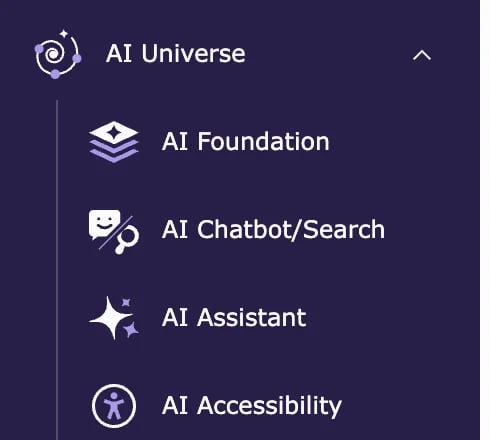
Check that:- AI Universe → AI Chatbot/Search opens without errors.
- The license is active.
- The AI provider test was successful.
AI Chatbot is a Premium extension and needs a T3Planet license. AI Foundation is free. More about licenses: License.