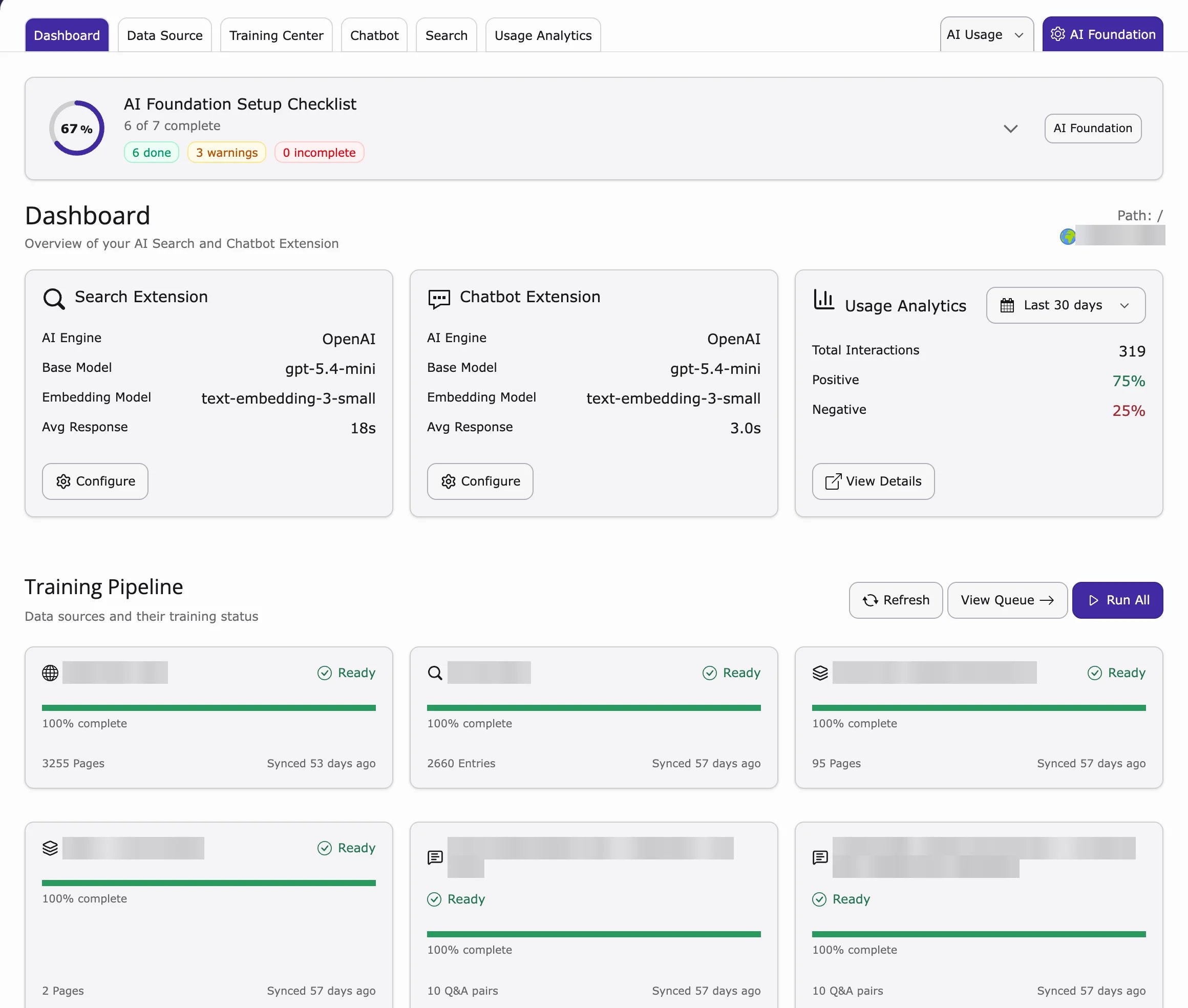
Dashboard

Extension
  • View, activate, deactivate, and manage all created chatbots.
  • Create new chatbot instances.

Configuration

While creating or editing a chatbot, you can configure:
  • Title (e.g., AI Chatbot)
  • Short Description
  • Bubble Message (example: “Hey there, How can I help you?”)
  • Welcome Message (example: “Hi, how can I help you?”)
  • Chatbot Language
  • Chatbot Instructions

Customization

Customize the appearance and behavior of the chatbot:
  • Upload Logo
  • Upload Avatar
  • Avatar Size
  • Chatbot Color
  • Show/Hide Logo
  • Show/Hide Date & Time
  • Transparent Trigger Option
  • Chatbot Position (e.g., bottom-right)
  • Widget Bottom Space (In Pixel Min: 15px, Max: 200px)

Training

T3AC offers multiple methods to train your chatbot for better and specific responses: Meaning of Status Labels:
  • Untrained means the Chatbot has not been trained on the data yet.
  • Trained means the Chatbot has already been trained and has learned from the data.
Typo3 Sitemap: This feature allows the chatbot to automatically fetch URLs from your TYPO3 website’s sitemap, scan the pages, and extract content for AI training — helping you keep the chatbot’s knowledge base up to date and well-trained. Website Training:
  • Website Mode: Enter a website URL to fetch and train from all available pages.
  • Single URL Mode: Enter a single webpage URL to train specifically.
PDF Training:
  • Upload a PDF file and allow the chatbot to learn from its content.
Text Training:
  • Manually add a custom Title and corresponding Text for specific training.
Q&A Training:
  • Add Question & Answer pairs to create a focused FAQ-based training set.
After feeding the data, simply select and click Train GPT.

Embed

If you’d like to use this chatbot on another domain, follow these simple steps: Extension
  • Go to tab Embed
  • Click the Copy button to copy the embed code.
  • Paste the code inside the <body> tag of your website.
  • Allow the specific domain in the .htaccess file of the website where the chatbot is created to enable proper access.

Chat Logs

  • Access all conversations recorded by the chatbot.
  • Monitor interactions, review conversations, and improve chatbot training based on real user inputs.

Multilanguage

Configure your chatbot to support multiple languages directly from the Configuration tab by selecting the default language from the dropdown menu. Only the languages that have already been added to your domain will be available for selection.

Scheduler

Use the Scheduler under the Website section of the Training tab to automate training tasks on large website datasets—ideal for frequent content updates or large-scale web crawling.

Sitemap Crwaling

  • To run the scheduler via CLI, use the command (1 is the ID of the scheduler):
  • This scheduler allows you to crawl the content of all URLs defined in the sitemap.
  • When executed via the CLI, it displays the crawl progress.
  • After execution, a summary of successfully processed and failed URLs is shown.
Crawl Command

Chatbot visibility

Sites Feature Show Chatbot on Specific Pages
  • Enter the Page IDs where the chatbot should be visible (e.g., 10, 22, 35).
Hide Chatbot on Specific Pages
  • Enter the Page IDs where the chatbot should be hidden, even if it is enabled globally (e.g., 45, 60, 72).

Basic Authentication Support

If you want to crawl URLs protected by htaccess, simply enable the Basic Authentication checkbox and enter the htaccess username and password. Basic Authentication

Configurable Database Chunking for various types of Dataset Processing

Overview
  • This feature provides configurable database chunking to efficiently process large datasets while maintaining optimal performance and stability. Instead of loading all records in a single query, data is fetched and processed in smaller chunks, reducing memory usage and preventing execution timeouts.
  • The chunk size is configurable via the extension settings, allowing administrators to adjust it according to server capacity and dataset size.
Default Configuration
  • By default, database chunking is enabled with a chunk size of 1000 records.
  • If required, this value can be modified in the extension settings to better suit the execution environment.
Chunk Size