

- Save the chatbot on the Configuration tab first. Until then, External Embed shows: “Save the chatbot (Configuration tab) to generate the embed code with your site URL and chatbot identifier.”
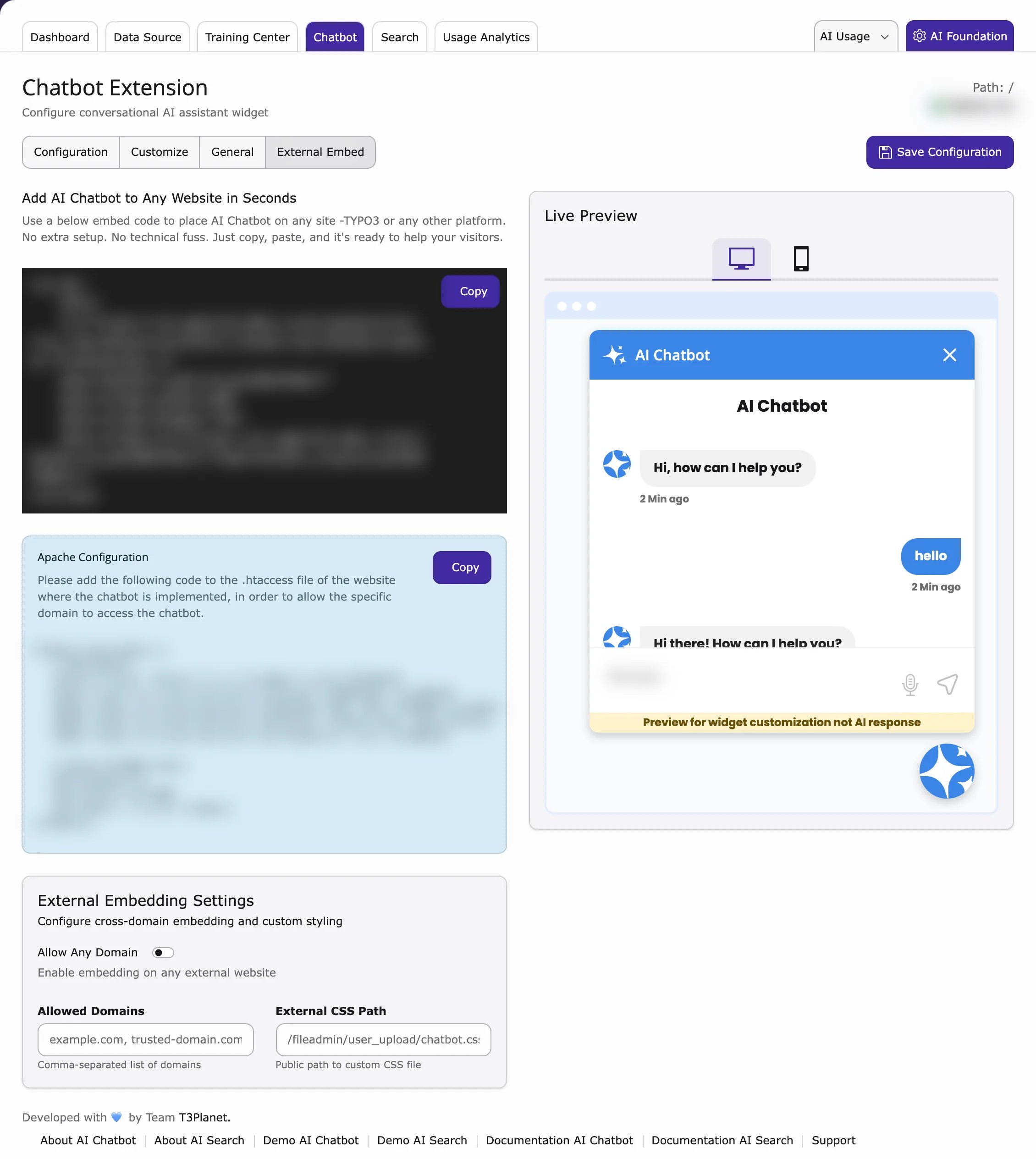
- Go to Chatbot → External Embed.
- Under Add AI Chatbot to Any Website in Seconds, click Copy.
- Give the code to the person who manages the other website. They paste it just before the closing
</body>tag. - Under External Embedding Settings, choose which websites may use the chatbot:
- Allow Any Domain – every website.
- Allowed Domains – only the websites you list, separated by commas, for example
shop.example.com, www.partner.com. - External CSS Path – optional: your own design file, for example
/fileadmin/user_upload/chatbot.css.
- Click Save Configuration.
- Ask your developer to allow the other website on your server (see below).
For developers: allow the other website on the server (Apache)
For developers: allow the other website on the server (Apache)
Browsers block content from another domain unless the server allows it (CORS – cross-origin resource sharing).
- Copy the code under Apache Configuration on the External Embed tab.
- Paste it into the
.htaccessfile of the TYPO3 website where the chatbot runs. - Save the file and test the chatbot on the other website.