

Two ways to hide the chatbot
- One page (and, if you want, its subpages): use the switch in the page properties. This page explains how.
- Several pages at once: list the page IDs in the chatbot settings, under AI Universe → AI Chatbot/Search → Chatbot → General → Page Visibility → Hide Chatbot on Specific Pages. See Page Visibility.
Steps
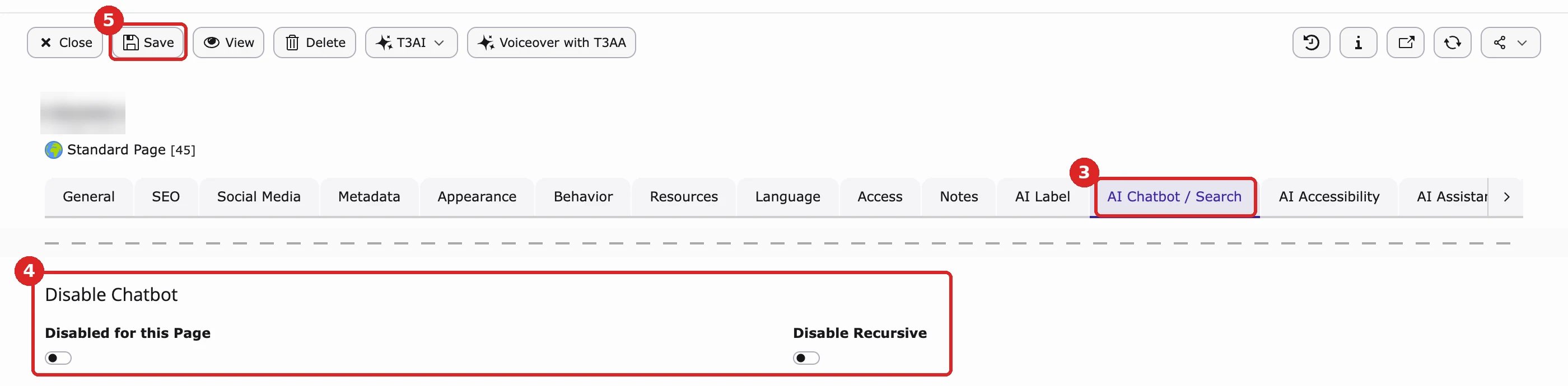
- In the page tree, open the page in the Page module (on TYPO3 v14: Content → Layout).
- Click Edit page properties.
- Open the tab AI Chatbot / Search. If only AI Chatbot is installed, the tab is called AI Chatbot.
- Under Disable Chatbot, turn on Disabled for this Page. To hide it on all subpages as well, also turn on Disable Recursive.
- Click Save.
Good to know
- Subpages: Disabled for this Page hides the chatbot on this page only. Disable Recursive hides it on this page and on every page below it in the page tree.
- This switch always wins. The chatbot stays hidden even if the page is listed under Show Chatbot on Specific Pages in the chatbot settings. To show it again, turn the switch off and save.
- How to check: open the page on your website in a private browser window. The chat button should be gone. If you still see it, clear the cache (or ask your administrator) and reload the page.
For developers
For developers
The two switches are normal fields of the page record, so you can also set them in an import or a script. AI Chatbot checks them on every page request.
- Fields:
disable_chatbot_this_pageanddisable_chatbot_recursive_page. - Disable Recursive also covers all subpages.
- The page switch always wins over the page lists on the General tab.
- A page that is already cached can still show the chatbot until you clear its cache.