

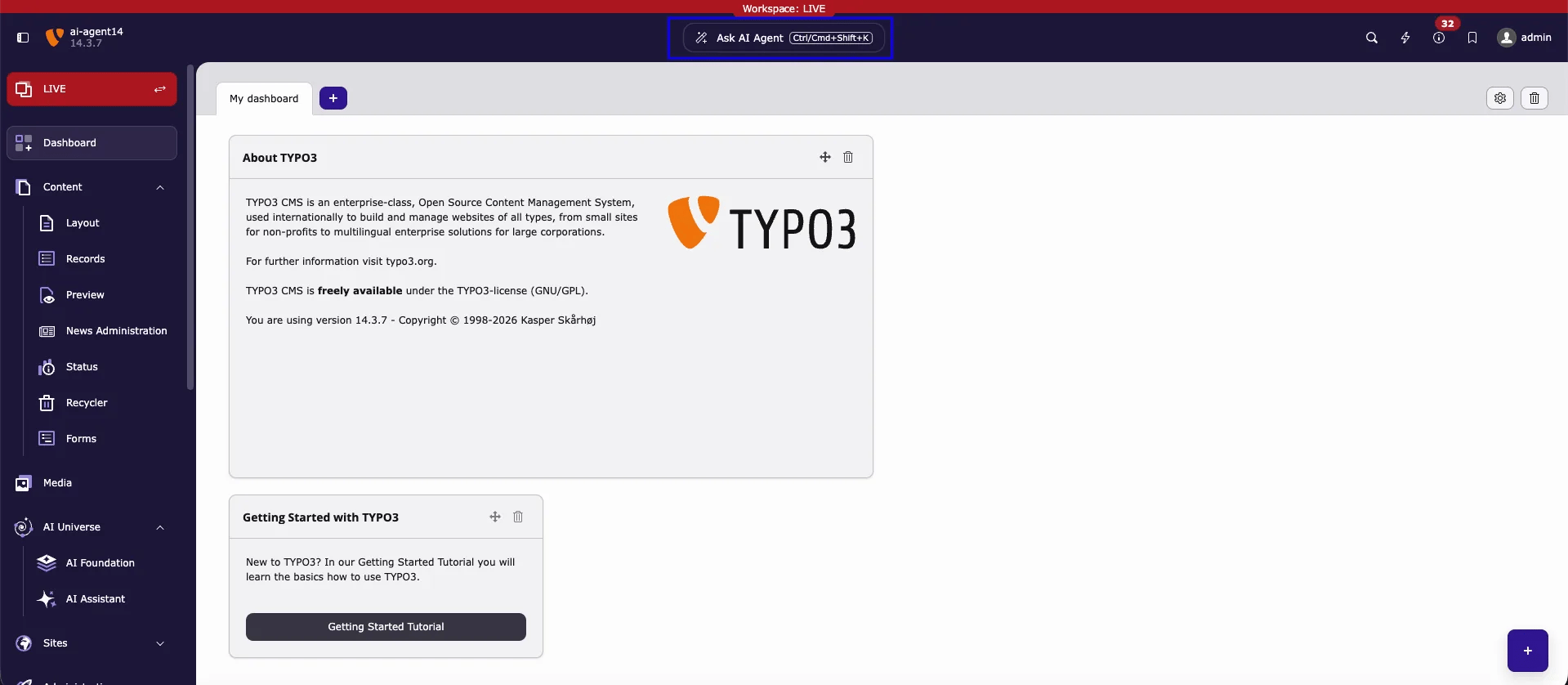
Get started in three steps
1
Select the page first
Open Content > Layout (or another page module) and click the page you want to work on in the page tree. The AI agent uses this page as its context.
2
Click Ask AI Agent
Click Ask AI Agent in the top bar, or press Ctrl/Cmd+Shift+K. The AI agent window opens and shows the selected page in its context line.
3
Ask, review, apply
Type what you need, for example “Summarize the content of this page”, and press Enter. When the AI agent proposes a change, read the change card and click Apply to save it, or cancel it.
- Nothing is saved until you click Apply.
- An applied change is saved in the selected workspace: in Live it is public immediately; in a draft workspace it stays in that workspace until it is published.
- The AI agent has your backend permissions — never more.
All topics
Read the pages in this order:Related
- MCP Server — connect external AI clients such as Cursor or Claude Desktop to TYPO3.
- AI Providers — configure providers and models with tool calling.