

When you need one
- You bought credits, in the TYPO3 backend or on t3planet.de, and want the site to use them.
- You are recovering an account after a site rebuild, a server move or a changed server IP.
- TYPO3 reports that this server IP already belongs to a paying account and asks for a claim code.
Where the code comes from
- After every purchase, T3Planet emails the code to the address you used. This is the same if you bought in the TYPO3 backend (AI Credit Bundles) or on t3planet.de/ki-credits.
- Lost or expired? Request a new one in TYPO3 (see Lost the code or it expired).
Enter the code
1
Open the dialog
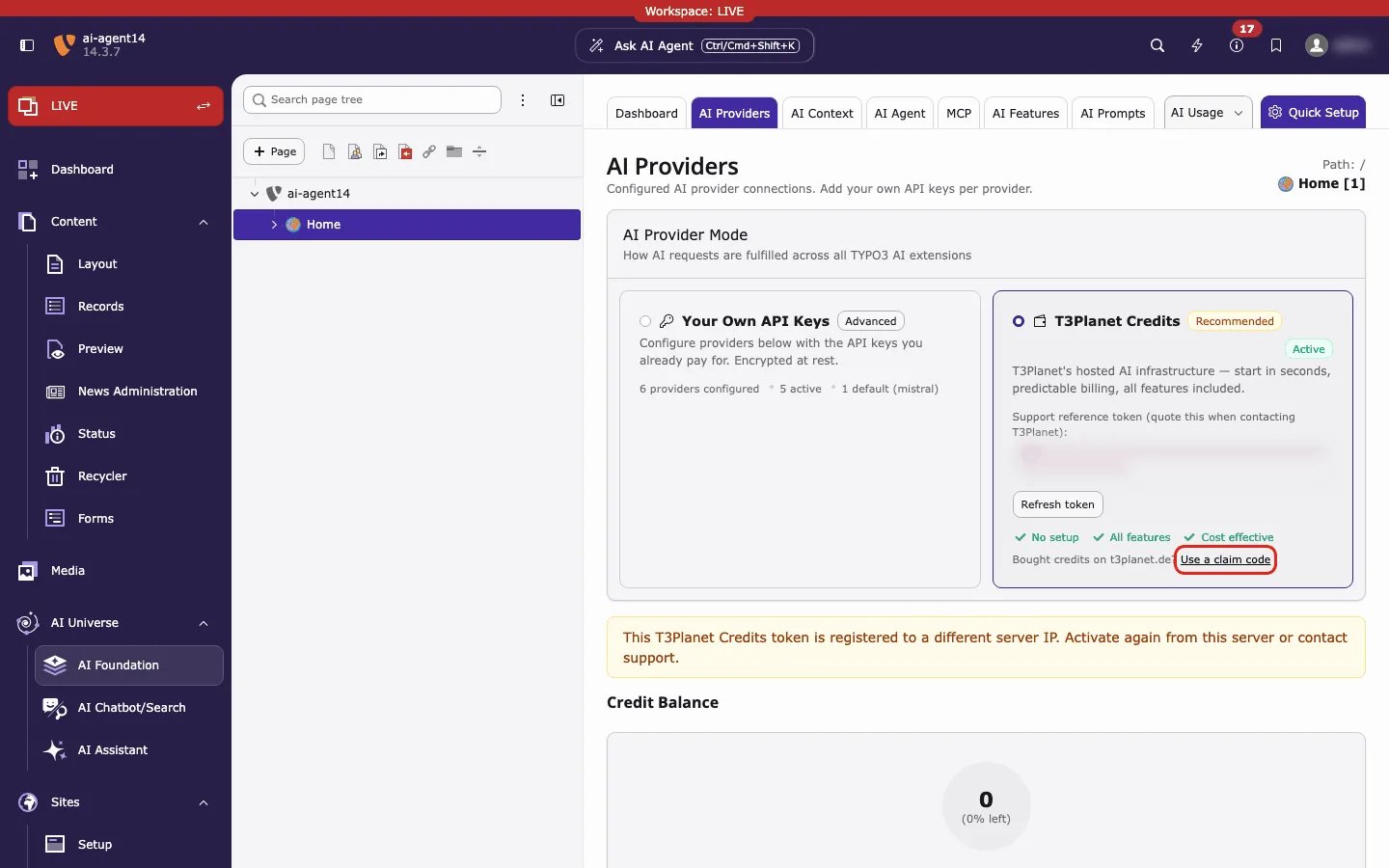
Open AI Foundation → AI Providers. On the T3Planet Credits card, click Use a claim code (see the red box above).
2
Paste the code
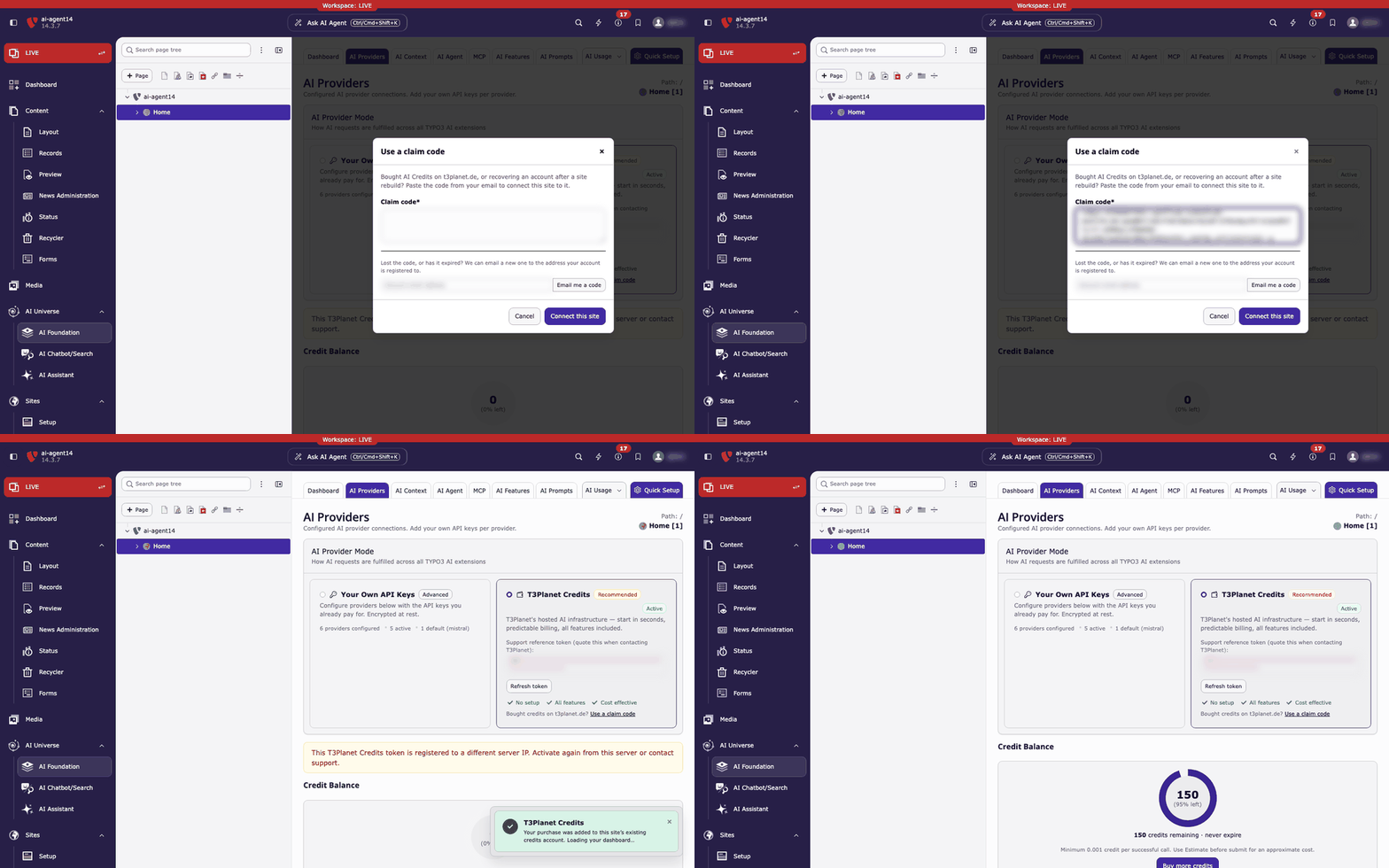
Paste it into Claim code. Spaces and line breaks are removed for you.
3
Connect
Click Connect this site.
4
Wait for the reload
A green message appears in the bottom right corner. Then the page reloads.
What happens next
- TYPO3 sends the code to T3Planet. The code is not stored in TYPO3.
- TYPO3 saves the access token it gets back in encrypted form and switches Credits on. You do not need to click Activate.
- After the reload, the T3Planet Credits card shows the green Active badge. Credit Balance shows your credits. See Dashboard & AI Usage.
- Your purchase was added to this site’s existing credits account. Loading your dashboard… The site already had a credits account, for example from the free trial. Your purchase is added to it. The balance can still say Current: Free Trial.
- Credits account connected. Loading your dashboard… The site had no credits account yet.
Lost the code or it expired
In the same dialog, use Email me a code.- Enter the email address of your T3Planet credits account.
- Click Email me a code.
- Paste the new code from the email.