

Before you start
- AI Foundation is installed and active.
- Your server can connect to the T3Planet service (ask your hosting provider if unsure).
Two ways to connect
- Start free — follow Activate Credits below. You get free trial credits. Each public server IP can start one trial.
- You already bought credits — skip Activate and use a claim code.
Activate Credits
- Go to AI Universe → AI Foundation → AI Providers.
- Choose T3Planet Credits.
- Confirm if asked.
- Click Activate if it is shown.
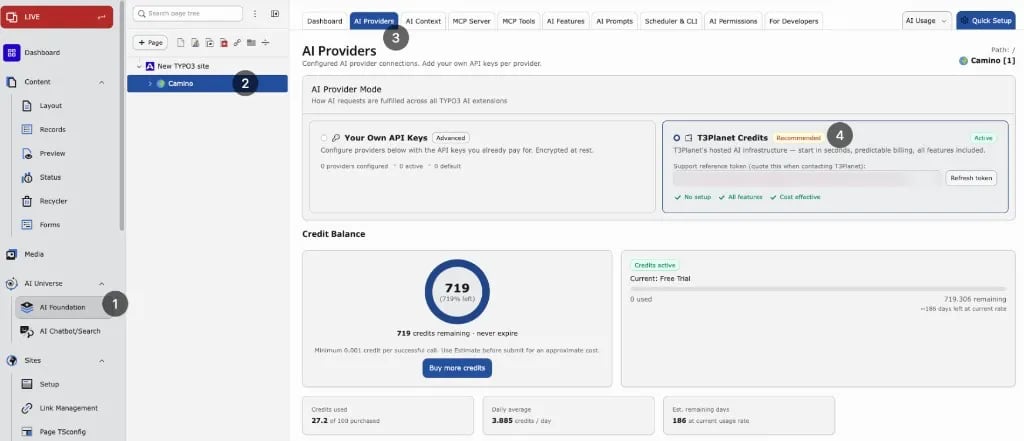
- Wait for the success message. The page reloads.
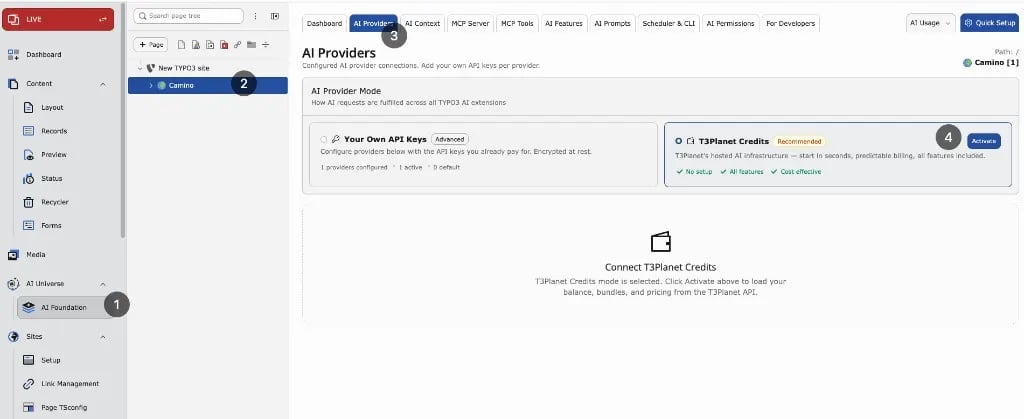
Activate failed? Check that your server can reach the T3Planet service, then try again. If TYPO3 says the server IP already belongs to a paying account, use a claim code instead. See Troubleshooting → Activation failed.
After activation
- AI requests go through T3Planet and use your credit balance.
- They are listed in AI Usage as
t3planet_credits. - The Credits panels appear. Your own provider list is hidden.
- You see the balance on the Dashboard and in the Credits panel.
- Switch back to Your Own API Keys at any time – your saved providers come back.
Group limits
Limit how much each editor group may use.- Go to AI Universe → AI Foundation → AI Permissions.
- Select the backend user group.
- In the Limits step, set:
- Monthly credit limit – the most credits the group may use per month.
- Daily request limit – the most AI requests the group may send per day.
- Apply.