

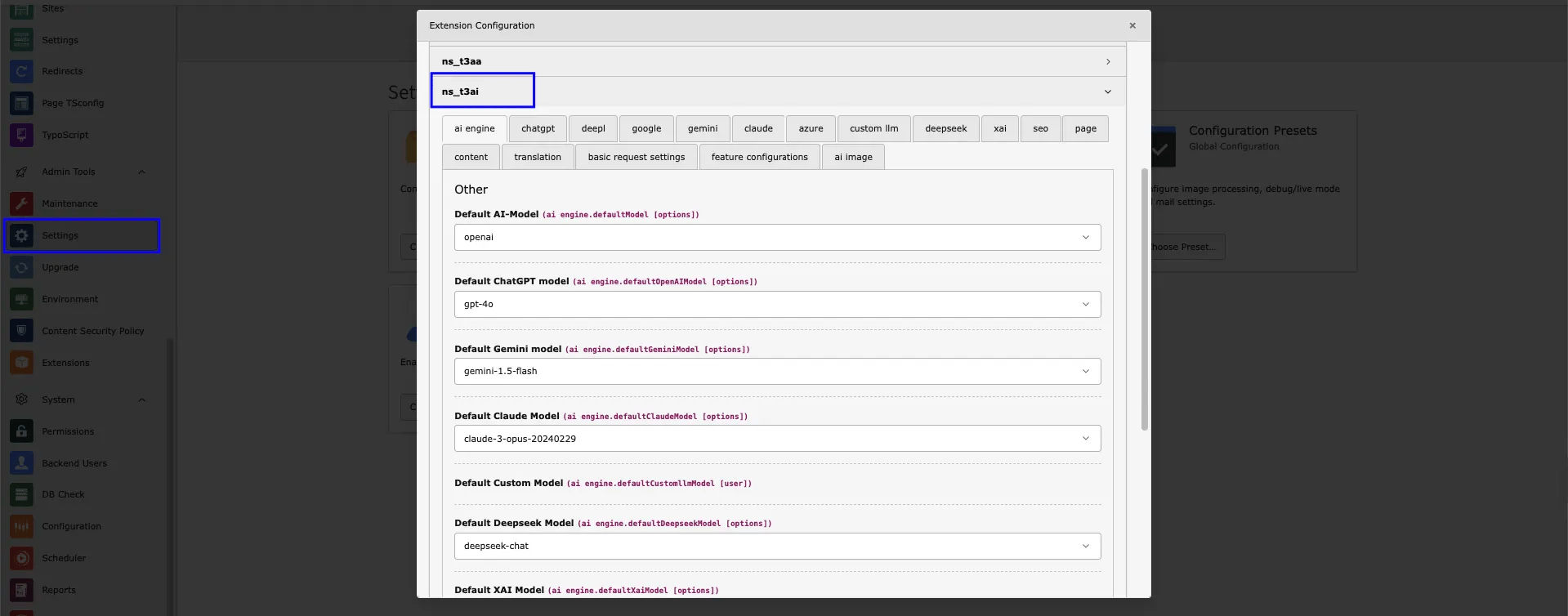
- Navigate to the “Extension Settings” tab.
- Verify your settings.
- Click on “NS_AI Setting.”
- Choose the the desired AI model and features.
- Click on “Save Settings.”
AI Logs
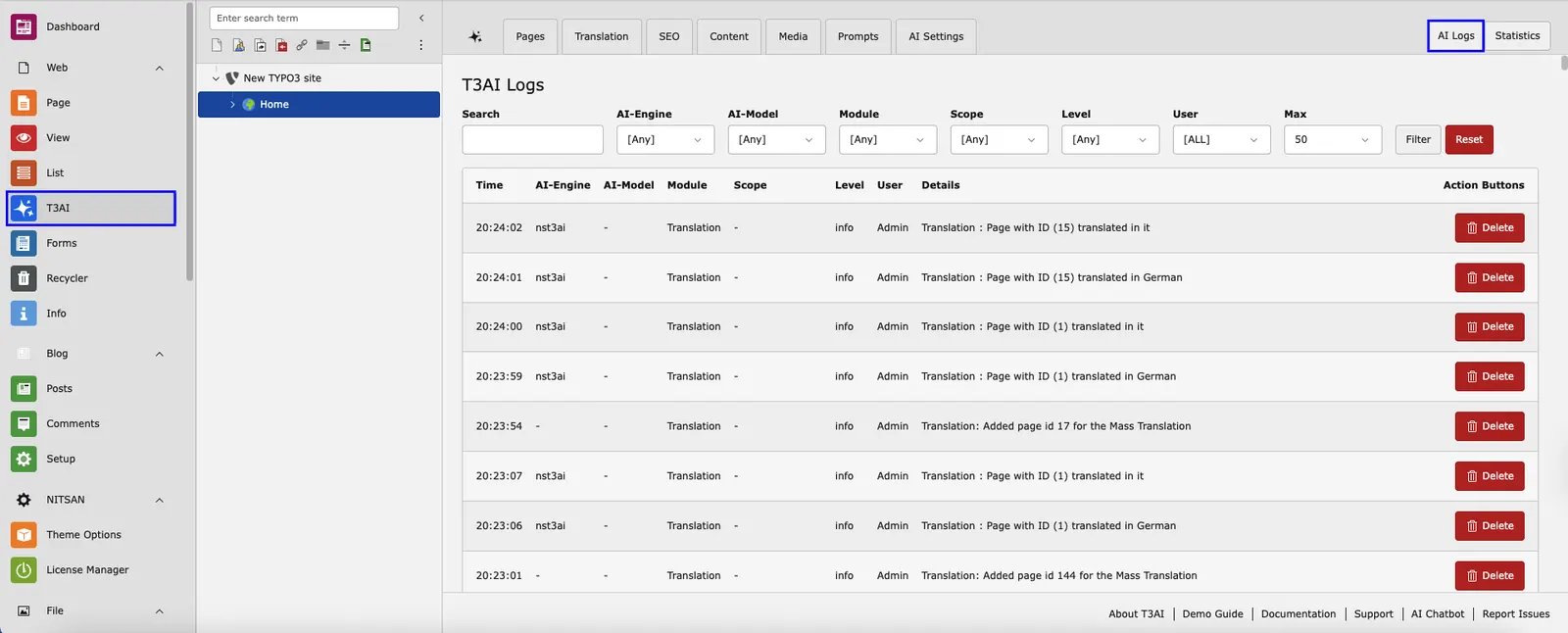
Track all AI system activities and monitor how your backend users interact with the AI models,follow below steps to check AI log.- Step 1 - Log in to your TYPO3 backend and navigate to the T3AI Module.
- Step 2 - Select the ‘AI Log’ Button showing in Corner of the T3AI Module.
- Step 3 - Simply search for the page and select all the required fields from the dropdown menu. AI Engine - It displays the types of AI engine logs you want to view. AI Models - Select AI Engine Model types. For i.e GPT 4.0 Module - This Indicates T3AI module Logs. For SEO, Translation. After Selecting Your Required field Click on Filter and your AI model Logs are generated.
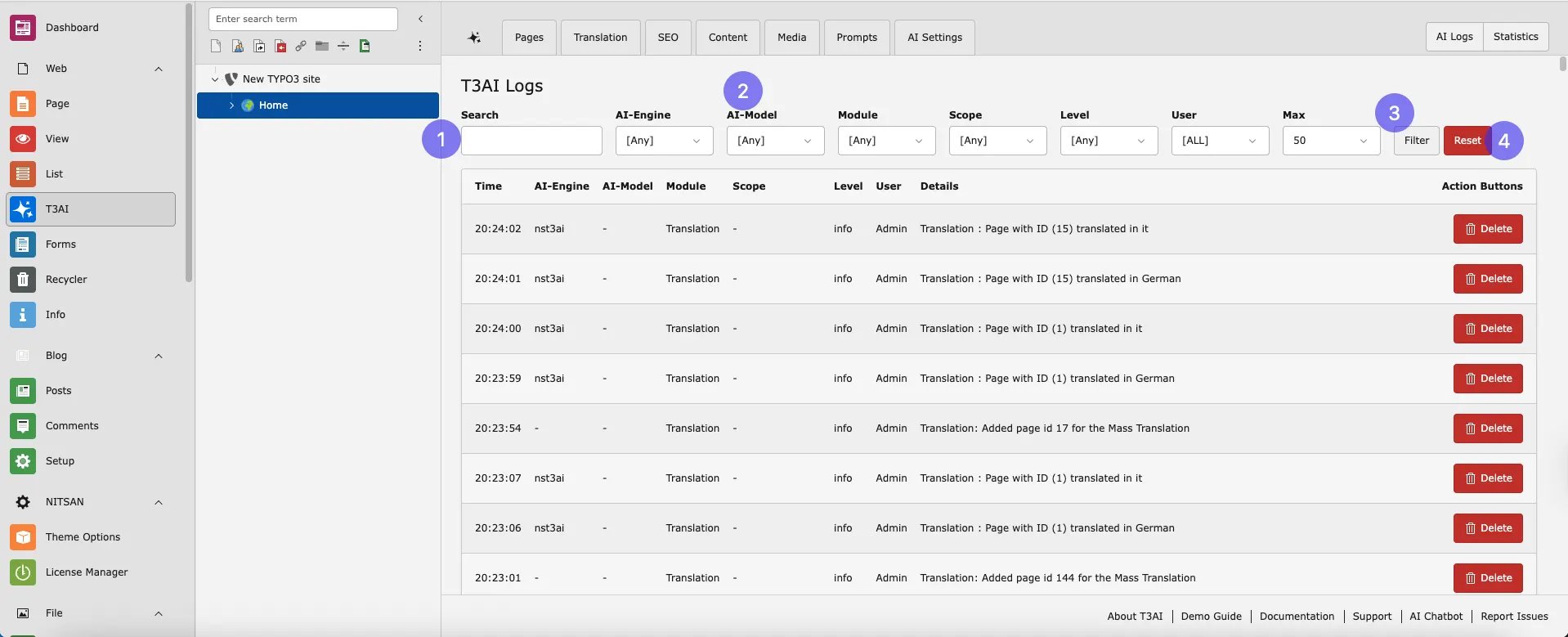
- Step 4 - You can reset your AI model logs by clicking on the ‘Reset’ button.
Statastics
Access all your AI model analytics in one place with predefined AI model statistics.Persona
Get started with T3AI quickly and easily using our Persona ! Follow simple steps to set up T3AI on your TYPO3 site, so you can start enjoying AI-powered features in no time. The wizard guides you through the process, making installation smooth! This features help you during installtion of T3AI TYPO3 AI Extension.Feature Toggles
Activate or deactivate features in Global Settings and use only what you need.System AI Log
Track all AI system activities and monitor how your backend users interact with the AI models.- Go to T3AI Module, now navigate to AISetting tab.
- Open Feature Toggle Modue
- Navigate to feature toggle tab and find “ Enable System Log Solution “ options.
- Check the option and save changes
- Step 2 - Now move to System module and navigate to log tab.
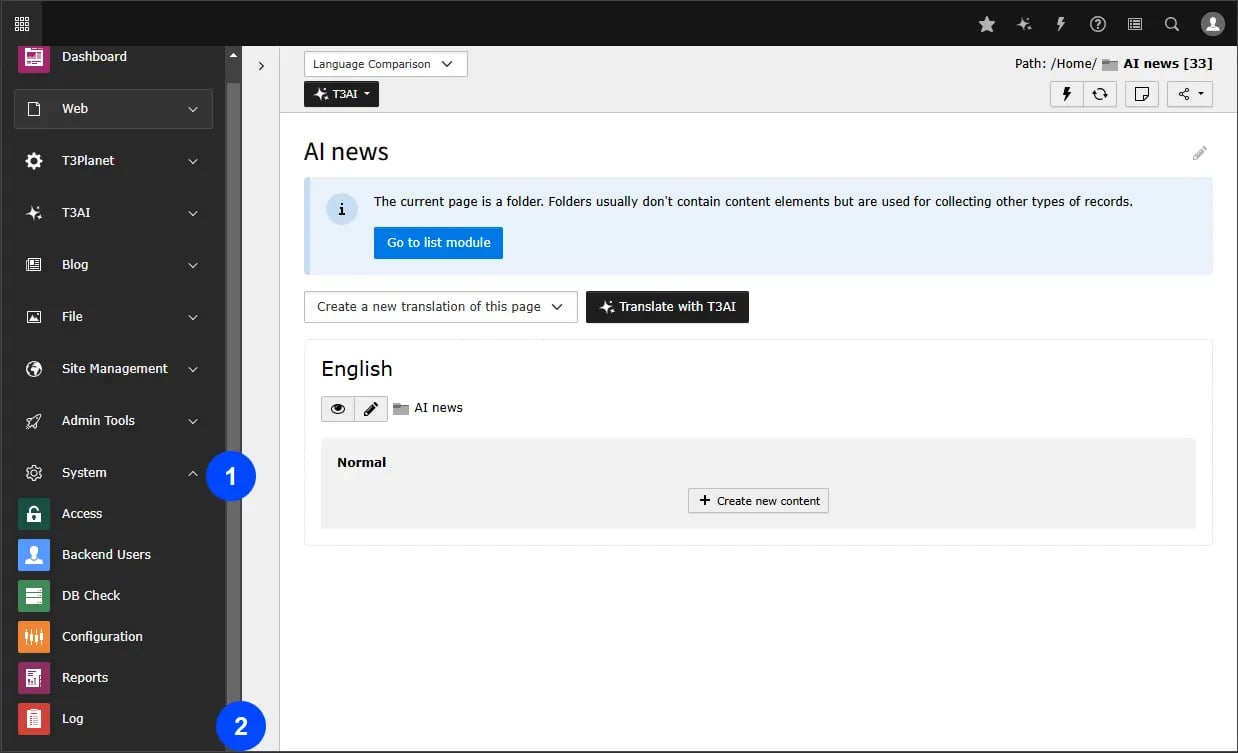
- Step 3 - Go to your System log and click on AI suggestion.
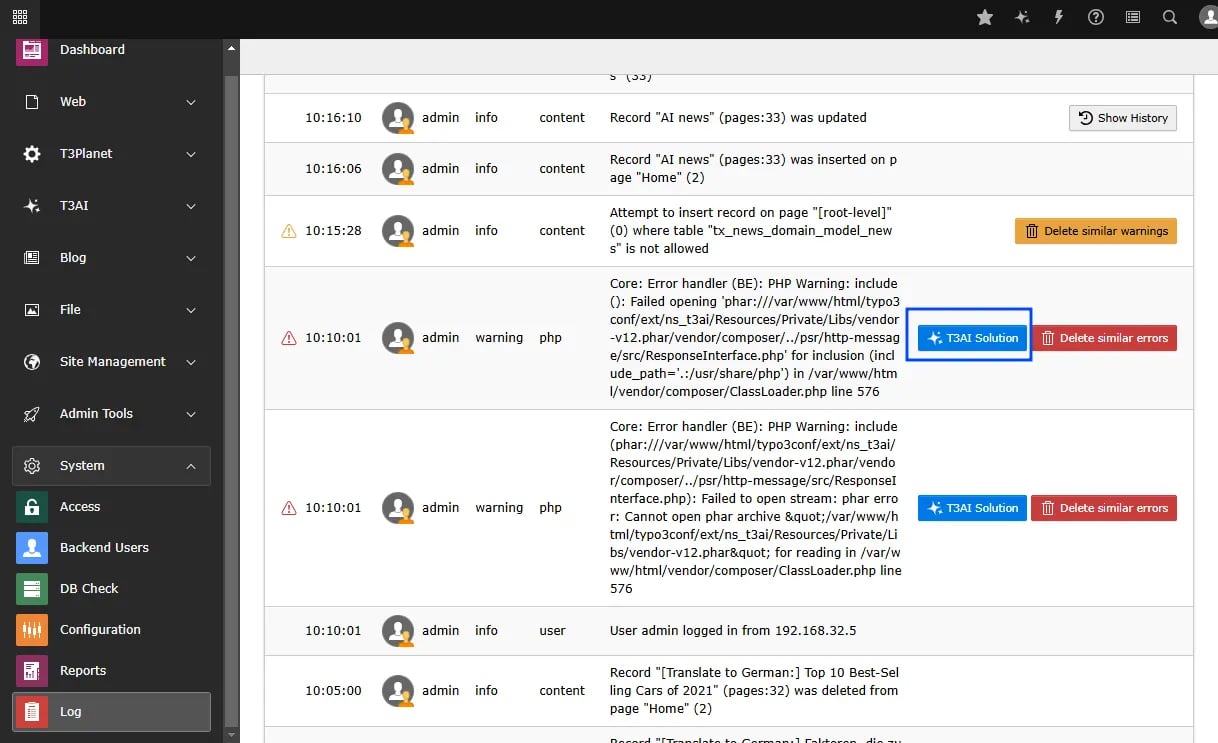
- Step 4 - Click the button to have the AI suggest solutions for your system log errors.
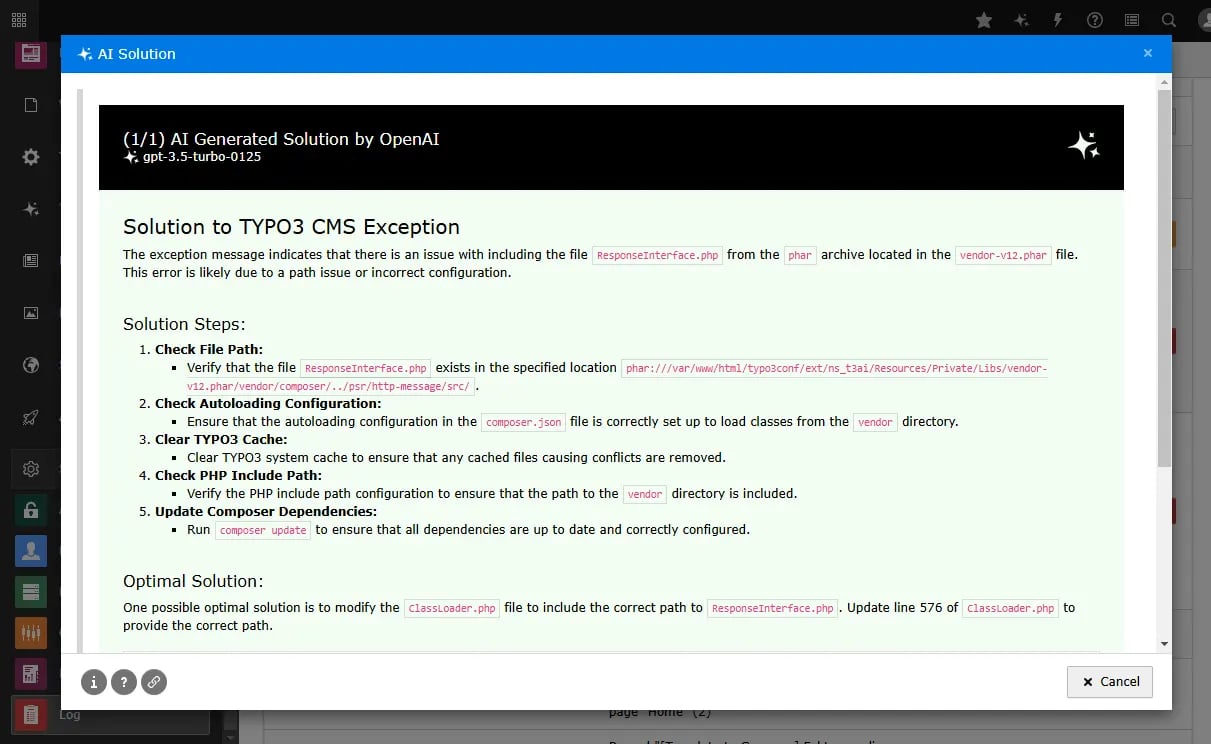
Setting AI SEO
Configure global AI SEO settings: metadata, OG data, schema, scores, and more.Pages
Configure the AI Page module globally with standard page attributes, news extensions, and blog setup.Content
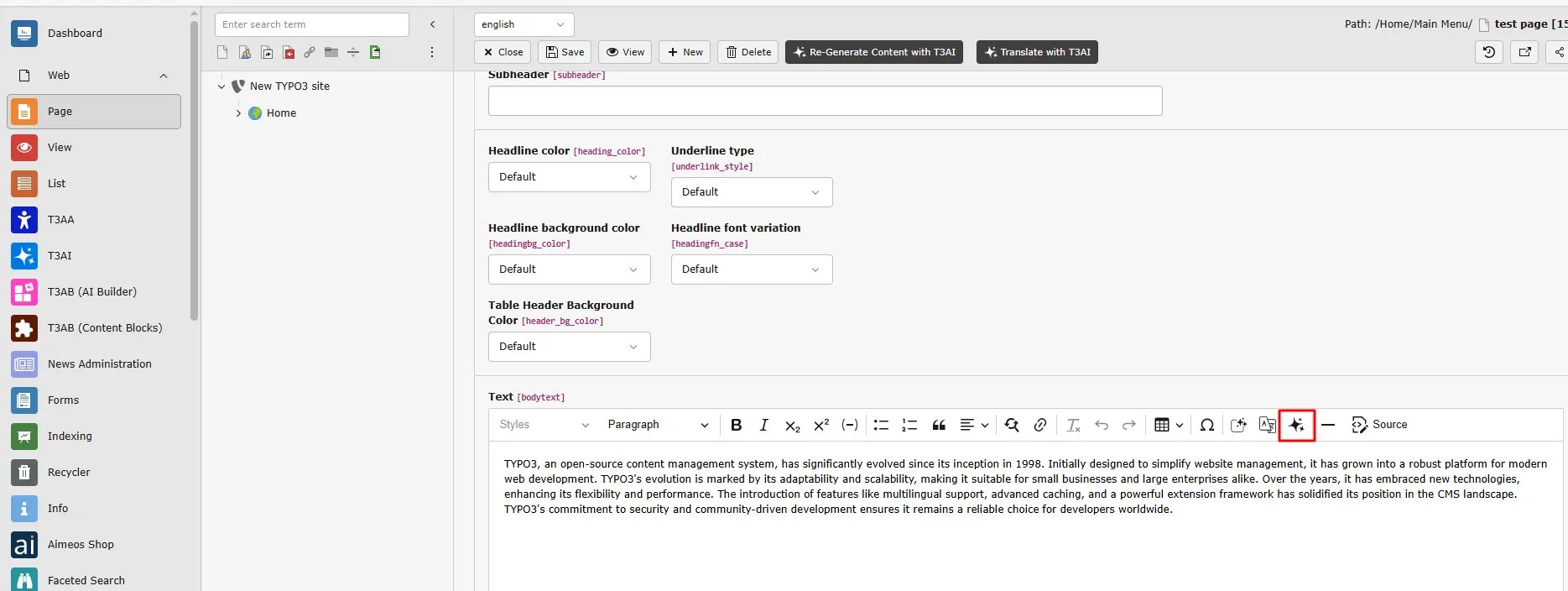
Customize AI Content settings for Rewriter, Elements, Translation, RTE Assistant, and more.T3AI Co-Pilot
The T3AI Co-Pilot is your easy-to-use AI assistant in TYPO3. It helps you write, improve, translate, and optimize content quickly - all directly in the backend with just a few clicks. Step 1: Click on Edit Page property Step 2: Go to tab “Resources” Step 3: Include NS t3ai :: Config RTE Preset (ns_t3ai) in Include static Page TSconfig (from extensions) and Save this.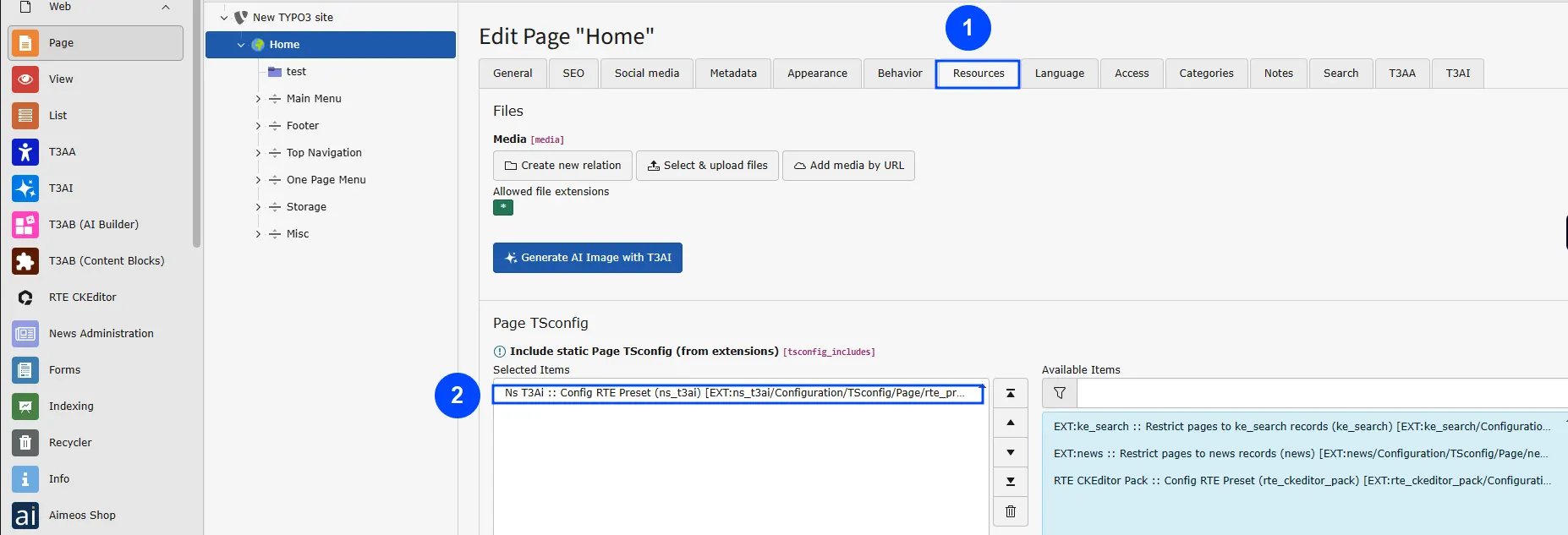
Translation
Configure AI Translation with glossaries, pages, metadata, TCA, XLF, and more.Custom LLM
Manage LLM settings, enable features, and adjust preferences in one place.OpenAI ChatGPT
Set up OpenAI ChatGPT API with key, model, tokens, temperature, and more.Gemini
Configure access to Gemini’s API, including API key, model selection, and more.DeepL
Configure access to DeepL’s API, including API key, API URL, and more.Google Translate
Set up your connection to Google Translator’s API, including the API URL and other parameters.Claude
Configure access to Claude’s API, including API key, model selection, and additional options.DALL-E
Configure access to DALL-E’s API, including API key, endpoint, model selection, and more.Stability
Configure access to Stability’s API, including API key, endpoint, model selection, and other options.MidJourney
Set up access to MidJourney’s API, including API key, endpoint, model selection, and more.Unsplash
Set up Unsplash API access by configuring the access key and other settings.Openverse
Configure Openverse API access, including Client ID, Client Secret, and other key parameters.Pixabay
Configure Pixabay API access by setting the API key, access key, and additional options.Pexels
Set up Pexels API access by configuring the access key and other customizable options.For Integrators
Are you a TYPO3 integrator looking to boost the functionality of the T3AI TYPO3 Extension? Enhance your TYPO3 integration skills with T3AI resources tailored for TYPO3 Integrators. Discover how T3AI can elevate your TYPO3 integration capabilities.TYPO3 AI Chatbot
Are you seeking help with TYPO3 code as a developer or integrator? Try our custom-made TYPO3 AI Chatbot for assistance. Explore T3AI - TYPO3 AI Chatbot https://chatgpt.com/g/g-MDKrvyZk5-t3aiReport an Issue
Suggest Features
If you find any issues or want to add any custom feature contact us at ContactRestrict Prompts
As an integrator, If you want to restrict the prompts managers add/edit/delete data (like SEO prompts, Page prompts, etc) to editors. You can simply exclude all prompts management while configuring your editor’s users or user groups.. Using your integrator-level access, You can easily manage prompts with this “Manage Prompts” guidance - View Prompts If you find any issues or want to add any custom feature contact us at ContactBlock AI Scrapping
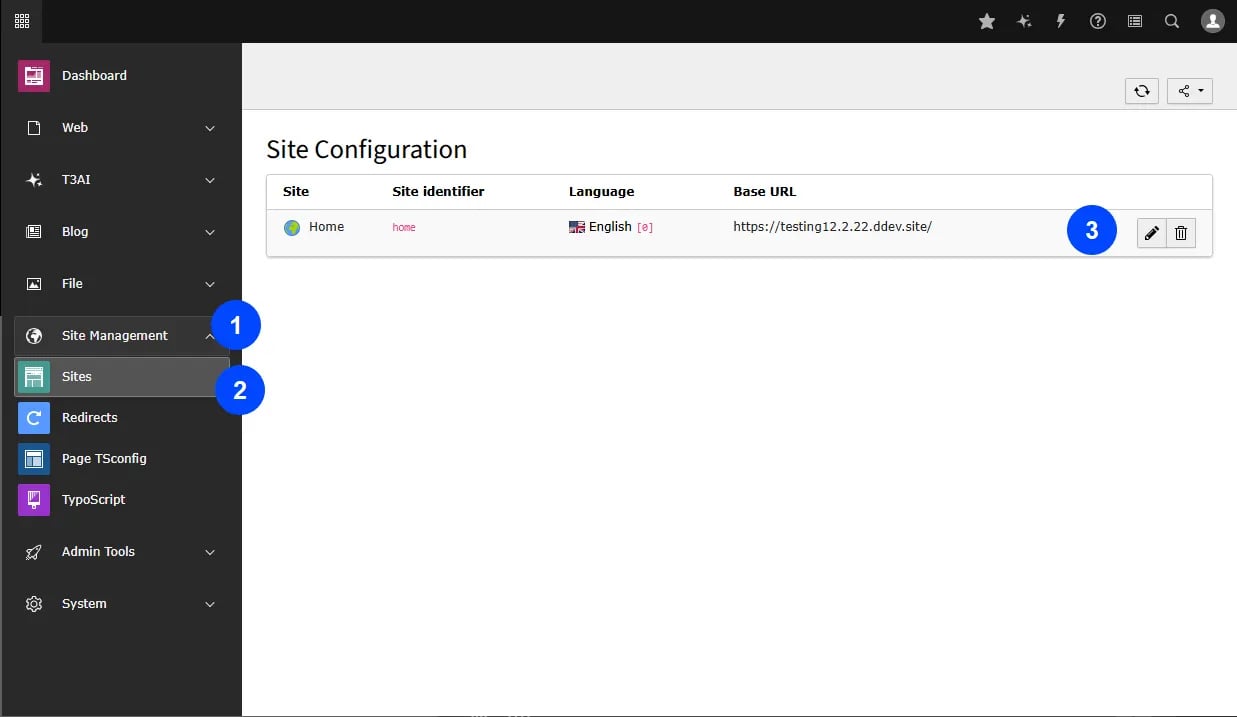
Protect your website’s content from unwanted AI bots with our Block AI Scraping feature. Keep your content safe and secure with just one click!- Step 1 - Go to site management module in your TYPO3 Backend.
Select Site tab from list Navigate to tab and Edit your site configurations. Go to static routes in Site configurations.
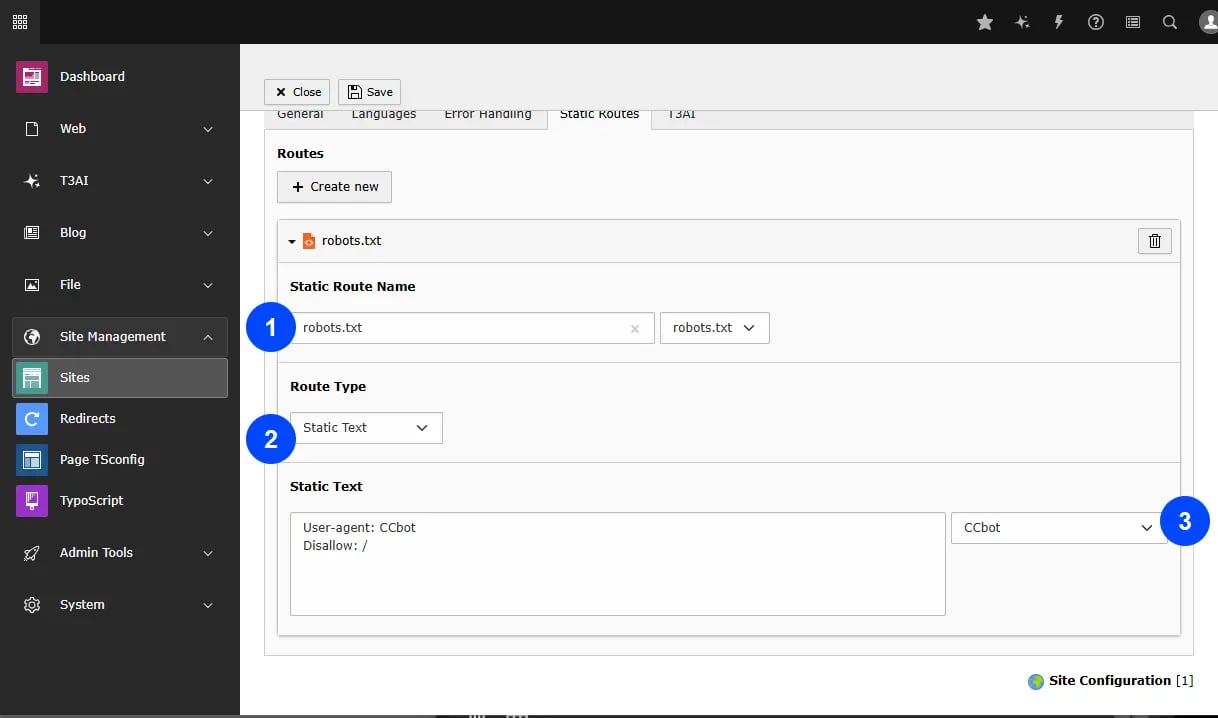
Select type of files & Route Type i.e robots .txt Select type of bot to prevent from AI Content scraping.
Auto-translate-prefix
Tagging for automatically translated pages is now supported with a new control option, allowing users to manage and apply tags easily, improving the organization of translated content on the website.User Permissions
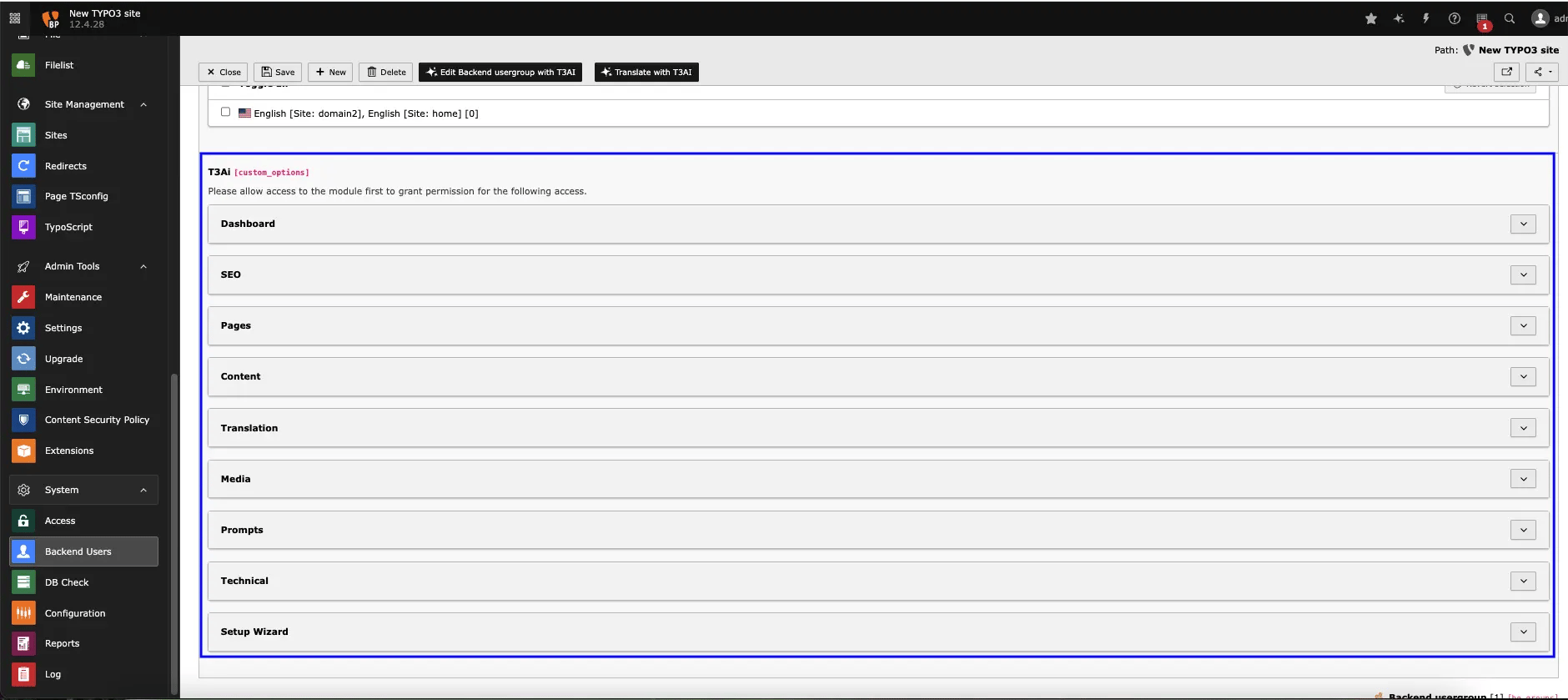
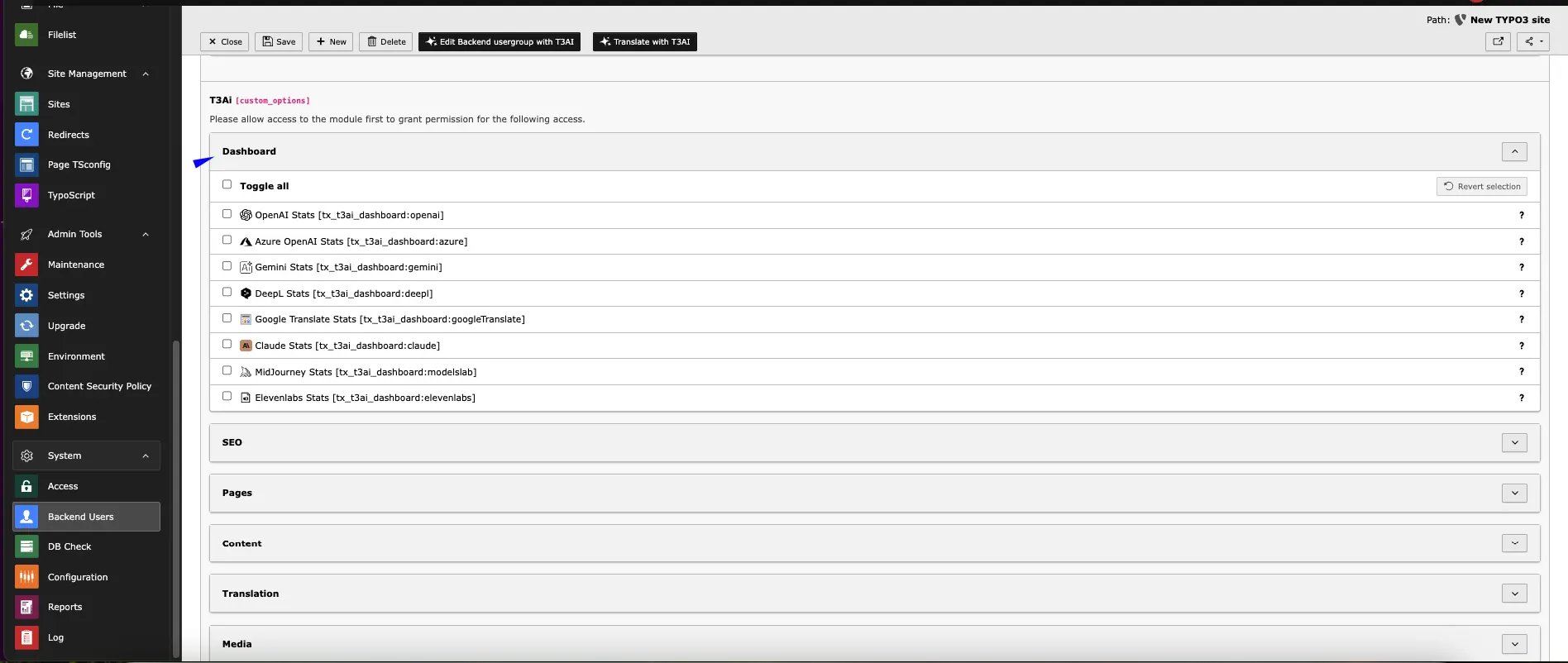
You can grant editors or users access to specific features of T3ai using our custom permission settings.follow below steps to configure it.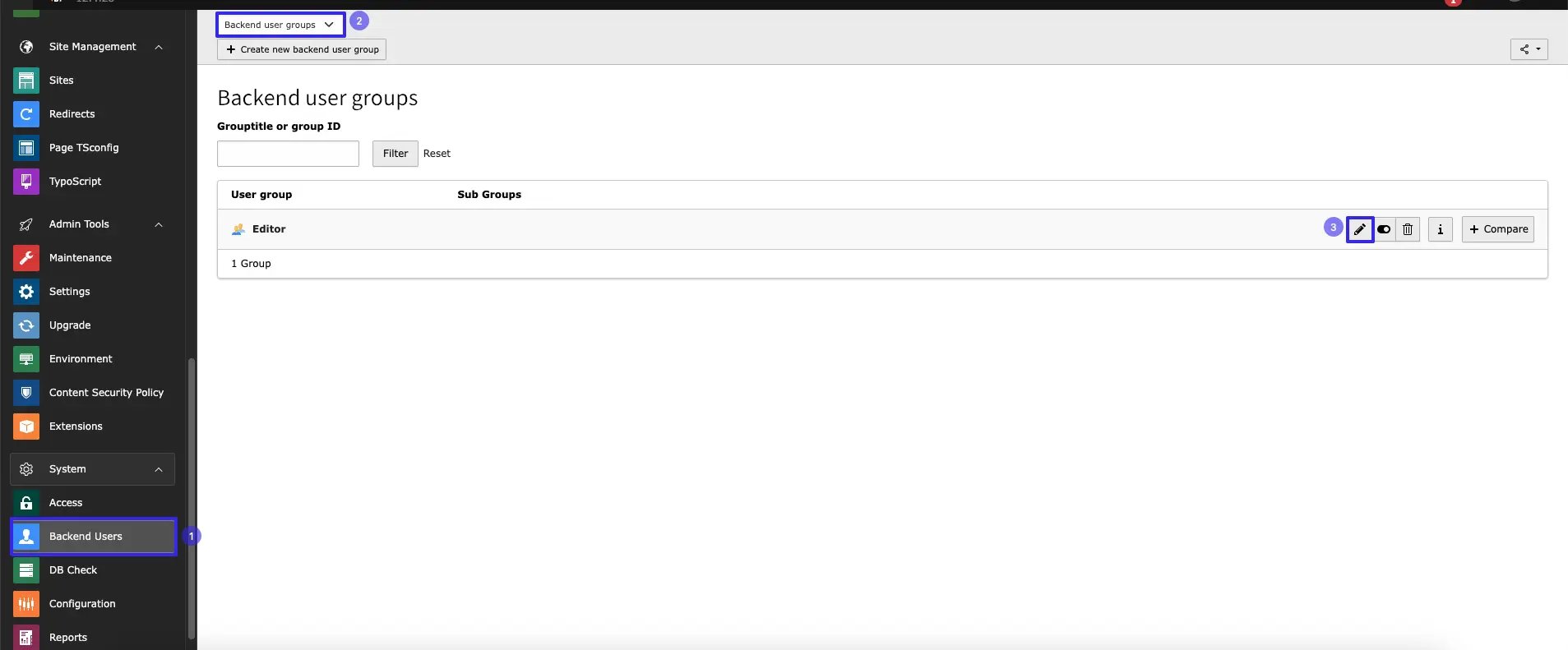
- Step 1: Navigate to the Backend Users module in the TYPO3 backend.
- Step 2 Select the Backend User Group
- Step 3 Edit the User group
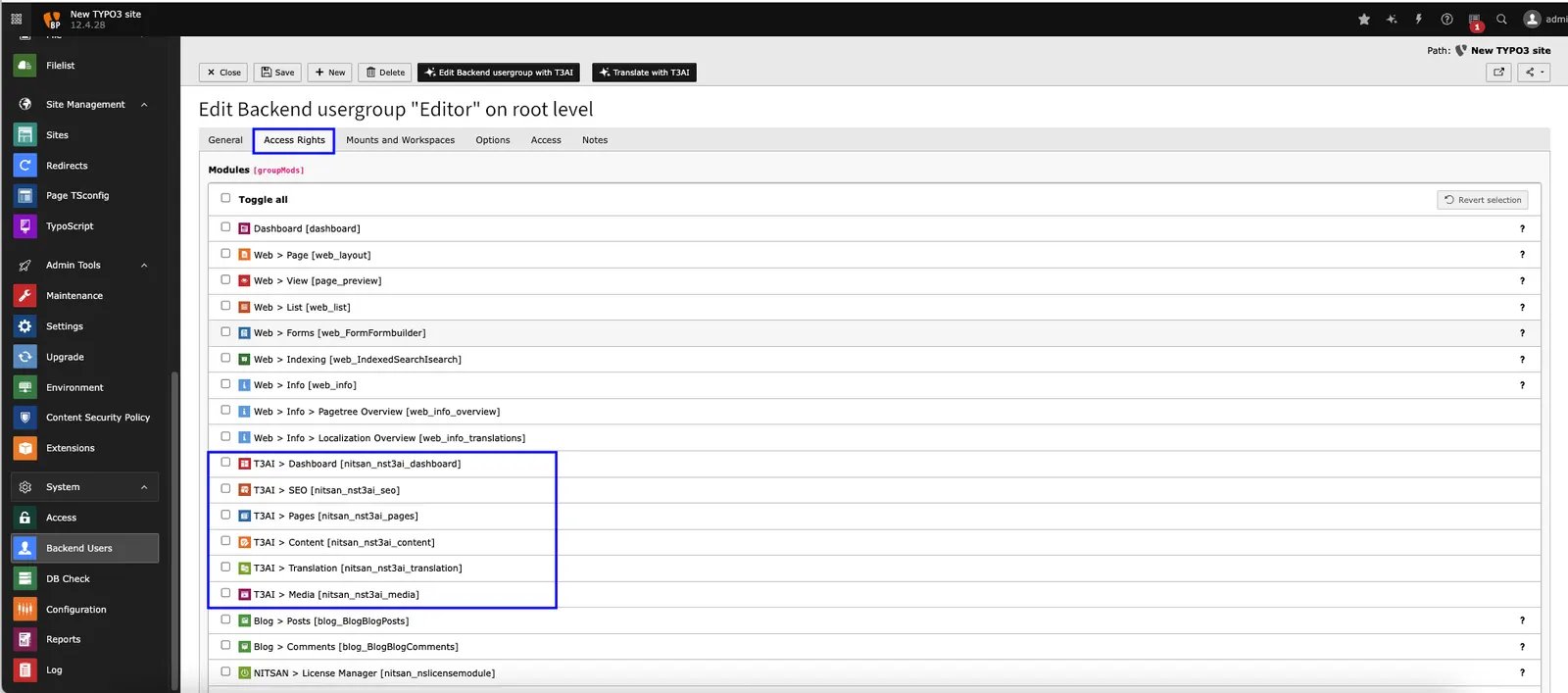
- Step 4 Go to tab Access Rights
Interactive demos
Overview
Use this area to confirm which T3AI features are available in your project and whether the shared AI Foundation setup is ready. For provider selection, model setup, and shared AI rules, also review AI Foundation Configuration, AI Foundation Providers, and AI Foundation AI Features.Key capabilities
- Review enabled T3AI feature groups
- Confirm the project is connected to the right provider and model setup
- Check whether editors can use the expected modules before rollout
Basic workflow
T3AI feature settings are managed in AI Foundation — not under Admin Tools > Settings > Configure Extensions.- Go to the TYPO3 backend.
- Open AI Foundation → AI Features.
- Open the T3AI (
ns_t3ai) feature card. - Review the available feature settings and defaults.
- Confirm the required feature options are enabled.
- Click Save, then test the related T3AI modules.