

EXT:ns_t3as) on a TYPO3 project for the first time.
T3AS needs AI Foundation (EXT:ns_t3af). AI Foundation connects your AI providers (API keys, models, prompts, and shared AI services). Without it, T3AS cannot run.
These extensions do not change how your website looks on the frontend by themselves. They work in the backend and power AI Search. Keep both T3AS and AI Foundation enabled.
Quick overview for new customers
You will install and activate these pieces:- License Manager (
EXT:ns_license) — unlocks your Premium download - T3AS (
EXT:ns_t3as) — the AI Search extension (and related packages such as T3CS where required) - AI Foundation (
EXT:ns_t3af) — shared AI engine used by T3AS (free on TER) - Database updates — so TYPO3 creates the required tables
- TypoScript includes — load the required static TypoScript
- AI provider setup — so T3AS can send AI requests
- Final check — confirm modules load and the license is active
- Manage data sources such as sitemaps, PDFs, TYPO3 pages, web pages, Q&A pairs, and optional index sources such as Ke Search or Solr.
- Run a training pipeline that syncs content, creates embeddings, and keeps AI search up to date.
- Configure and monitor AI Search.
- View usage analytics for search activity.
If you are upgrading from an older version (2.2.0 or earlier) to the latest release,
follow Reinstall After Upgrading instead of this installation guide.
Before you start
Make sure you have:- Backend access as an administrator
- Your T3AS license key from T3Planet
- Decided whether your project uses Composer or the TYPO3 Extension Manager
- An AI provider account/API key ready (for example OpenAI) for Step 6
Step 1 — Install the License Manager
Install the latest version ofEXT:ns_license before continuing.
The License Manager controls access to T3Planet Premium packages and is required to download and activate T3AS.
Step 2 — Activate the License
Pick the path that matches your project.Non-Composer Installation
Use this workflow when your project installs T3Planet extensions from the TYPO3 backend:- Open Admin tools → T3planet License Manager.
- Enter your T3AS license key.
- Activate the license.
- Confirm that the latest T3AS package is downloaded.
- Confirm that AI Foundation (
EXT:ns_t3af) is installed automatically or available after activation.
Composer Installation
Use this workflow when your TYPO3 project is managed with Composer:- Check the T3Planet Composer repository configuration.
- Update the
onlyparameter so the project can download T3AS and T3CS:
- Install the T3AS package:
- Verify that the installation completed successfully.
- Confirm that AI Foundation (
nitsan/ns-t3af/EXT:ns_t3af) is installed. If it is missing, install it using Step 3 — Install AI Foundation.
Step 3 — Install AI Foundation
AI Foundation (EXT:ns_t3af) is required before T3AS can be used.
It provides the shared AI provider configuration, models, API access, logs, and service layer used by T3AS.
If AI Foundation was already installed in Step 2, you can skip to Step 4.
AI Foundation is the shared AI infrastructure for T3Planet AI Universe extensions.
Complete the parent setup first, then continue with the remaining T3AS steps below.
AI Foundation is available from the TYPO3 Extension Repository (TER).
Download / TER page: https://extensions.typo3.org/extension/ns_t3af
AI Foundation has two provider modes
In AI Foundation → AI Providers, choose how T3AS gets AI access: Your Own API Keys Use this mode when you want to connect your own AI vendor accounts. You store and manage your API keys (for example OpenAI, Anthropic, Gemini) in AI Foundation and run AI features through those providers. T3Planet Credits T3Planet Credits is T3Planet’s managed AI access for AI Foundation. It lets your TYPO3 site use AI features without storing or managing your own vendor API keys. Link for T3Planet Credits: T3Planet Credits DocumentationOption 1 — Extension Manager (TER)
- Open Admin Tools → Extensions.
- Select Get Extensions.
- Search for
ns_t3afor AI Foundation. - Install and activate the extension.
- Flush all TYPO3 caches.
Option 2 — Composer
If AI Foundation is not already present after installing T3AS, install it with:Premium Version
T3AS is a Premium extension and requires a valid T3Planet license for download and activation. For license activation and access to premium features, see: https://docs.t3planet.de/en/latest/License/Index.htmlAI Foundation (
EXT:ns_t3af) is free and available from the TYPO3 Extension Repository (TER).
Premium licensing applies to T3AS — not to AI Foundation.Step 4 — Run Database Analyzer
After installing the extension, apply all pending database changes:- Open Admin Tools.
- Go to Maintenance.
- Open Analyze Database Structure.
- Apply all pending database schema updates.
Step 5 — Configure/Load required TypoScripts
T3AS and T3CS ship static TypoScript that must be included on your site.- Switch to the root page of your site.
- Open the TypoScript module and select Edit TypoScript Record / Info/Modify.
- Click Edit the whole template record and open the Includes tab.
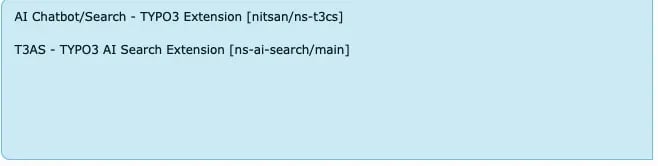
- Under Include static (from extensions) / site sets, add:
AI Chatbot/Search - TYPO3 Extension [nitsan/ns-t3cs]T3AS - TYPO3 AI Search Extension [ns-ai-search/main]
- Save the template and flush TYPO3 caches.
Step 6 — Configure the AI Provider
After installation:- Open AI Foundation in the TYPO3 backend.
- Configure your preferred AI provider.
- Save the provider and model configuration.
- Verify the AI connection with a test request.
Step 7 — Verify the Installation
Before handing the system to editors, verify that:EXT:ns_t3asis installed and active.EXT:ns_t3afis installed and active.- The T3AS license is active.
- Database Analyzer changes are applied.
- The AI provider is configured in AI Foundation.
- TYPO3 caches are cleared.
- T3AS backend modules load without errors.