

Three ways to start an import
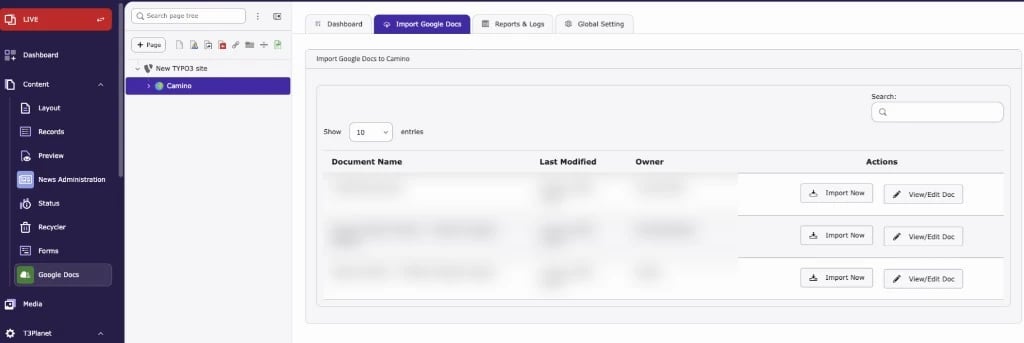
- Google Docs module: select a page in the page tree, open the Import Google Docs tab and click Import Now next to a Doc.
- Page or List module: open a page and click the Import Google Docs button in the toolbar (DocHeader).
- Page tree context menu: right-click a page and choose Import Google Docs. This creates a new subpage named after the Doc and imports the content into it.
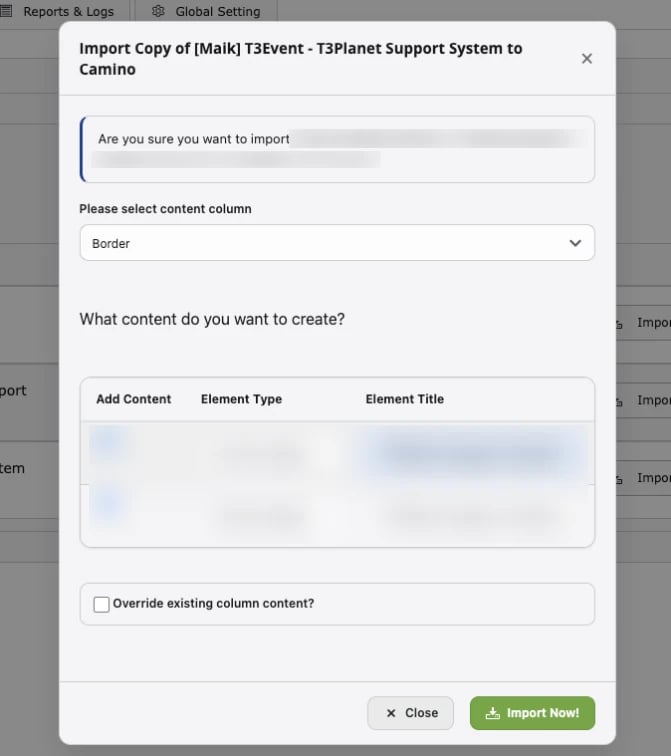
The import dialog
- Choose the Doc (when you started from the toolbar button or context menu). Use the search to find it.
- Wait for the sections to load. The Import button stays disabled until the Doc has been read.
-
Review the sections. Each Heading 1 / Heading 2 section is one row:
- Choose the content column of the page. Only columns that accept the selected element types are offered. A page with a single column shows “Content”.
- Override existing column content? Tick to replace the column’s content (see the warning below). Leave it unticked to add the new elements after the existing ones.
- Click Import.
Element types
The Image Setting values from Global Settings (alignment, enlarge on click, number of columns) are applied to Text & Image and Image Only elements. The Publish Status applies to every created record.
Import into blog posts (EXT:blog)
Select a blog post page and import like a normal page.Import into news (EXT:news)
- Select the news storage folder in the page tree.
- Start the import and confirm Import News.
- One news record is created per Doc: the title is the Doc name, the body text is the Doc content with its images, and the record is visible or hidden according to Publish Status.
Override existing column content: warning
Images
- Images from the Doc are copied to
fileadmin/ns_googledocs/. - Importing the same Doc again creates new copies of its images.
- Images that cannot be downloaded are skipped, and the import continues.
Extension configuration
- TYPO3 14: System › Settings › Extension Configuration › ns_googledocs
- TYPO3 12 and 13: Admin Tools › Settings › Extension Configuration › ns_googledocs