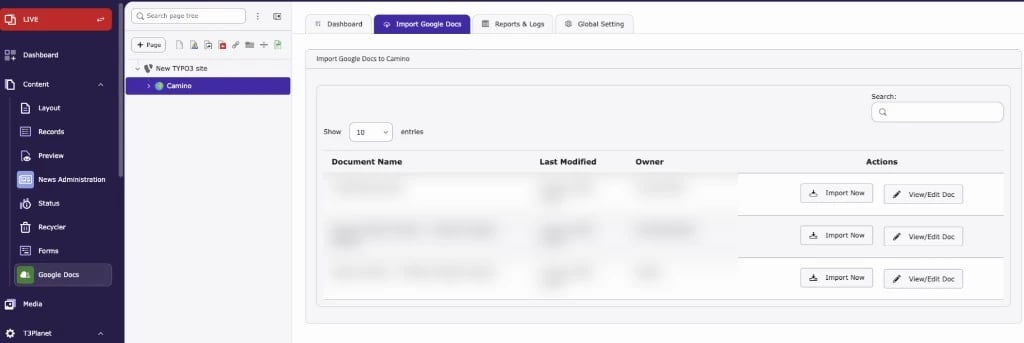
Lists the Docs from your connected Google account. Click Import Now to import a Doc into the selected page, or View/Edit Doc to open it in Google Docs.
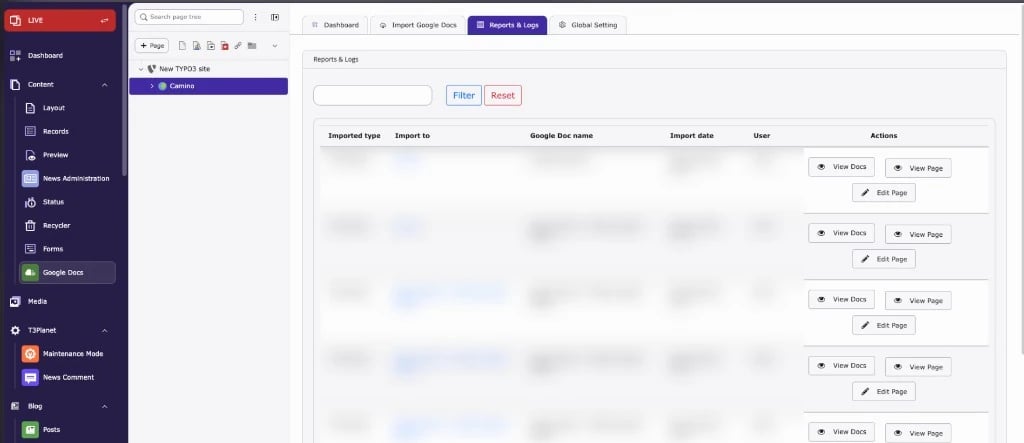
Lists all past imports with type, target, Doc name, date and user. The screenshot shows page imports with View Docs, View Page and Edit Page. Blog imports show Edit Blog instead of Edit Page. News imports show View Docs and Edit News only.
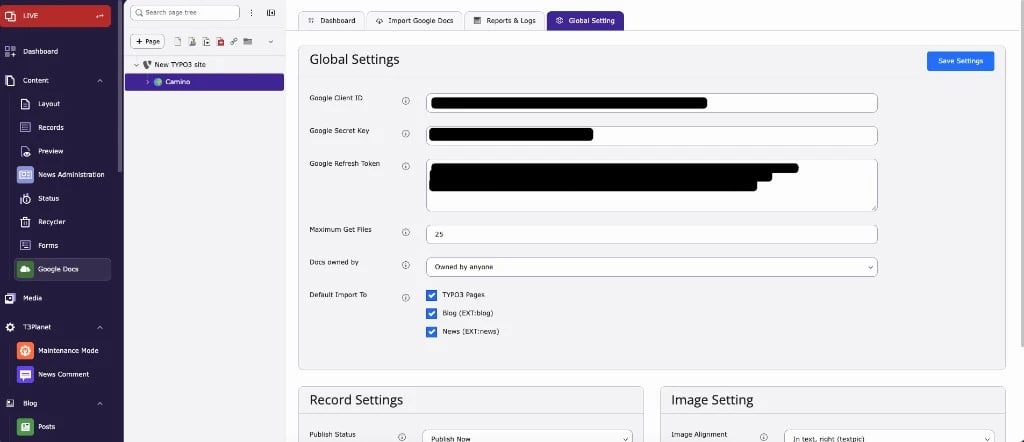
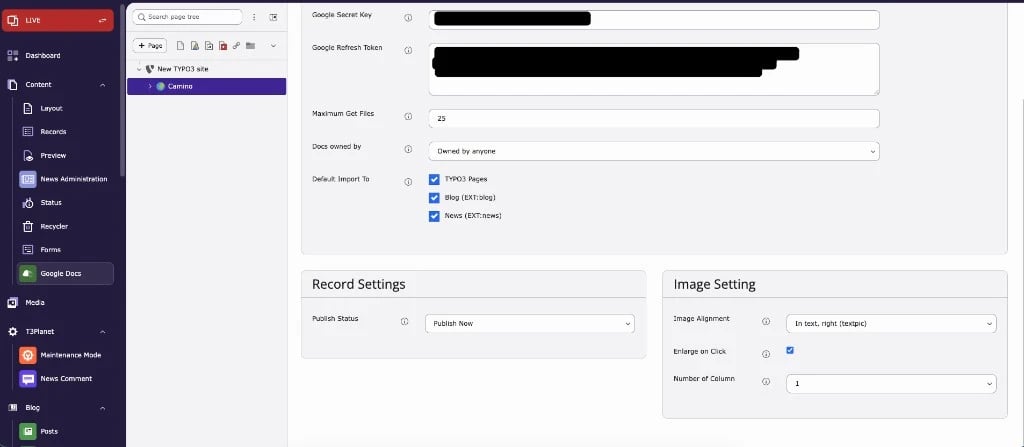
Connect your Google account, set how many Docs to load, which Docs to show and where imports can go.Record Settings set the publish status of imported records. Image Setting controls image alignment, enlarge on click and the number of columns. See Global Settings.