

How the import reads your Doc
Version 14 reads the headings of your Doc. You do not need to add any special text.Example
This Doc has a Heading 1 and a Heading 2. The import creates two content elements, one per heading, with the paragraph below each heading as its text.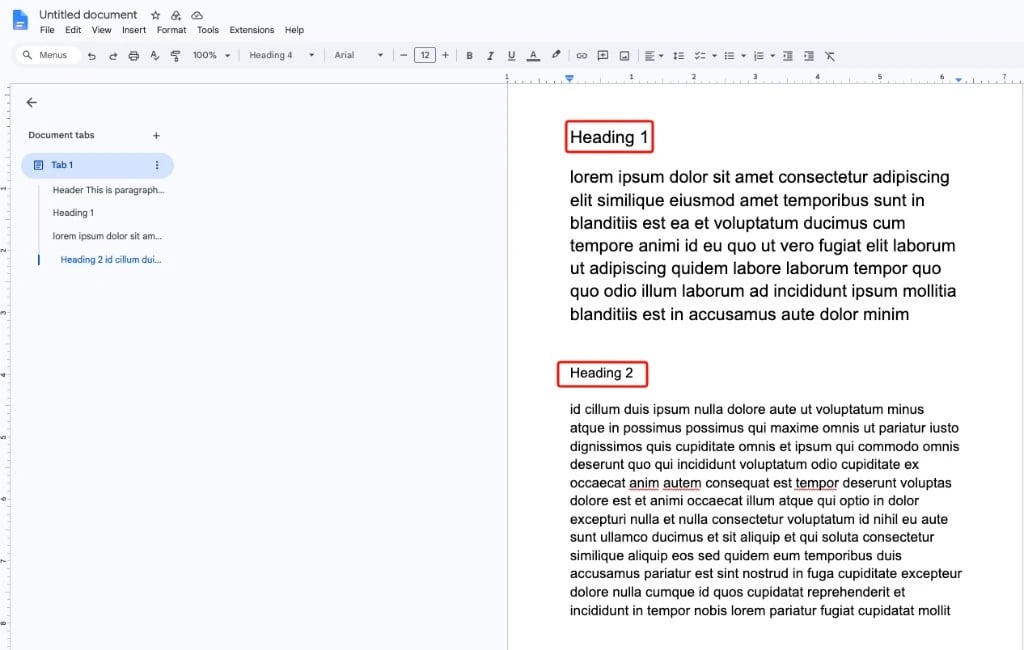
Choose the element type in the import dialog
The heading only decides where a new element starts. It does not decide the element type. You choose the type for each section in the import dialog:
In the dialog you can also change the element title, or untick a section to skip it. The preselected type comes from the extension configuration (default: Text & Image). For all steps, see The import dialog.
Formatting and images
The import keeps bold, italic and underline, text alignment, text and highlight colours, links, bulleted and numbered lists, and tables. Empty paragraphs are removed. Images from the Doc are copied tofileadmin/ns_googledocs/ and attached to the matching content element. For details, see Images.
What’s new in version 14
- Headers instead of markers. Each Heading 1 or Heading 2 starts a new content element. See How the import reads your Doc.
- More ways to import. Start an import from the Page module, the List module or the page tree context menu. See Three ways to start an import.
- Default settings. Set default record and image settings once in Global Settings.
- “Docs owned by” filter. Choose which Docs appear in the import list: Owned by anyone, Owned by me or Not owned by me.
- New TYPO3 and PHP versions. Supports TYPO3 12.4, 13.4 and 14, with PHP 8.1 or newer.
- Official Google API client. The extension now uses the official Google API client library.
Upgrading from an older version
Docs that you prepared for an older version may still contain marker lines. Prepare them for version 14 like this:- Remove the marker lines (for example
###TEXT###) from the Doc. Version 14 does not need them. - Give each section a Heading 1 or Heading 2.
- Import the Doc and choose the element type for each section in the import dialog.