

Step 1: Open the AI agent on your page
- Select the page in the page tree, for example in Content > Layout.
- Click Ask AI Agent in the top bar, or press
Ctrl/Cmd+Shift+K. - On first use, read the AI notice and confirm it.
- Check the context line below the title. It must show the page you want to work on.
- Choose an AI provider in the footer if needed (for example OpenAI).
Step 2: Start with a request that only reads
Type a request that does not change anything: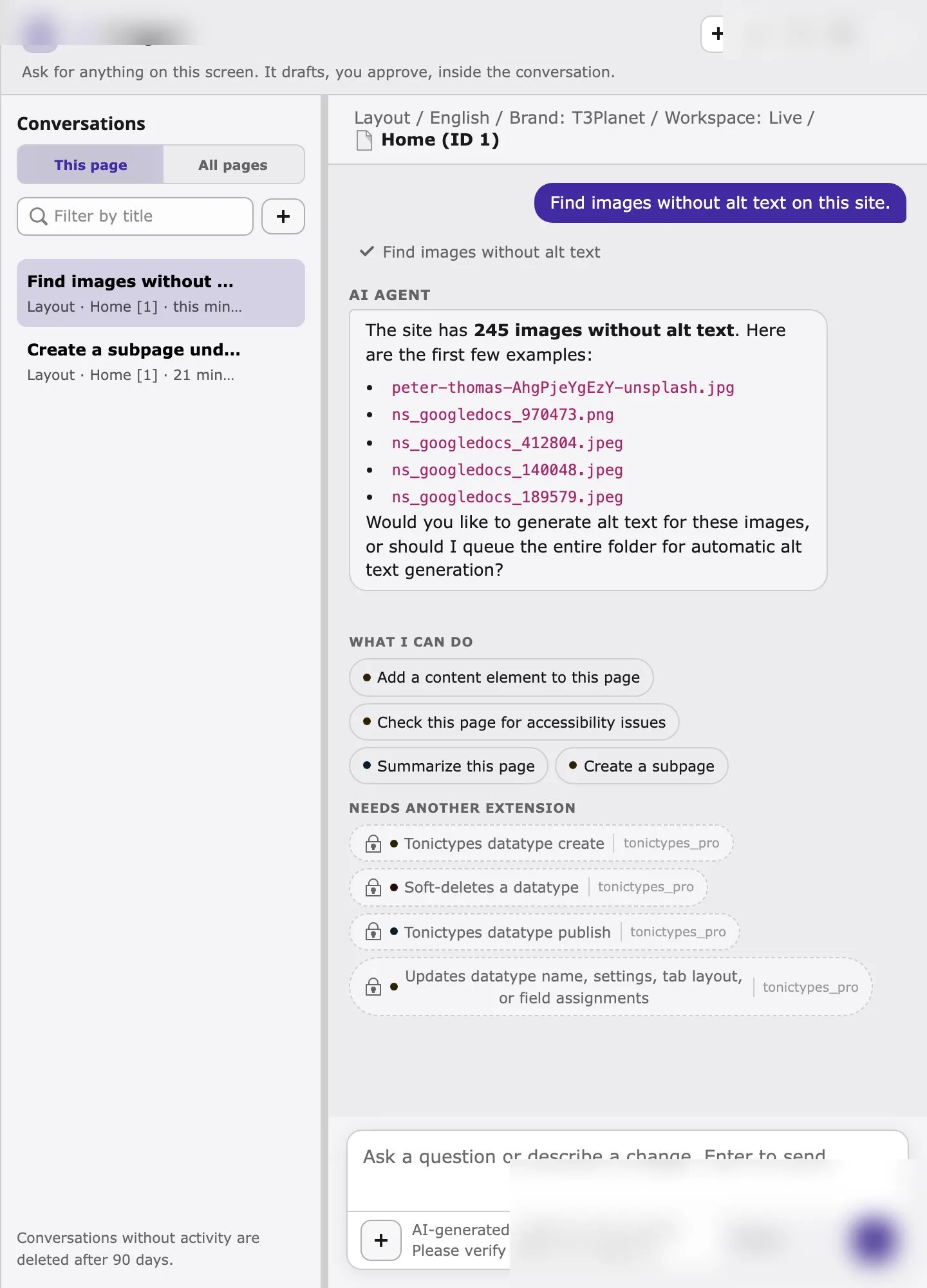
The list can still include many fileadmin assets (for example PWA icons). Prefer a follow-up such as “Only list images in fileadmin/user_upload” or use storage UID
1 with a smaller limit when you work through MCP. See Troubleshooting.Step 3: Preview a change, then cancel
Mark this "/user_upload/hero.webp" image as decorative.
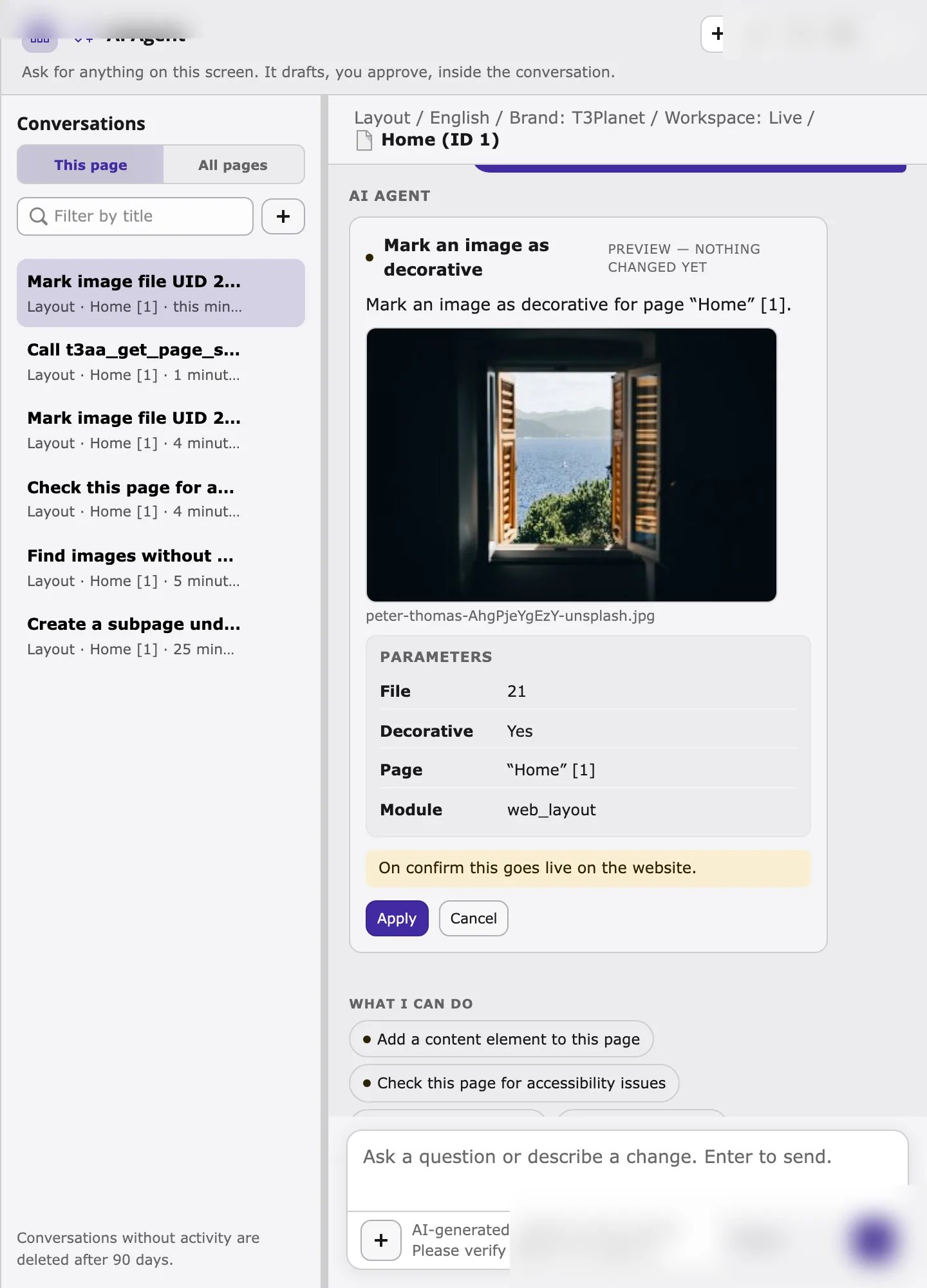
- The card is marked Preview — nothing changed yet.
- Check the Parameters: file UID or file path, language, decorative flag, and page.
- Read the hint at the bottom. In Live, it may say On confirm this goes live on the website.
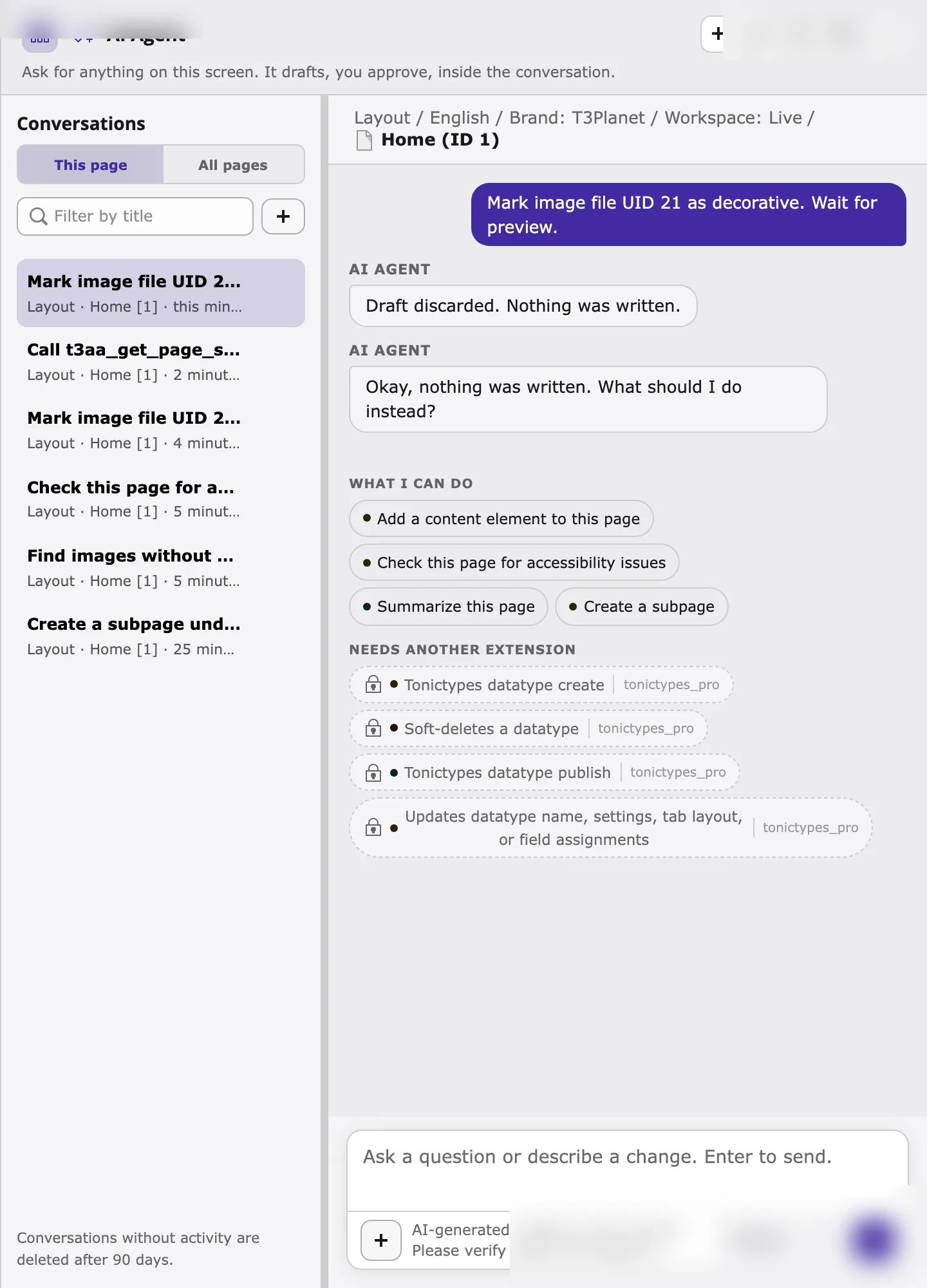
- Click Cancel (or Discard) to write nothing. After cancel, the agent confirms that nothing was written.
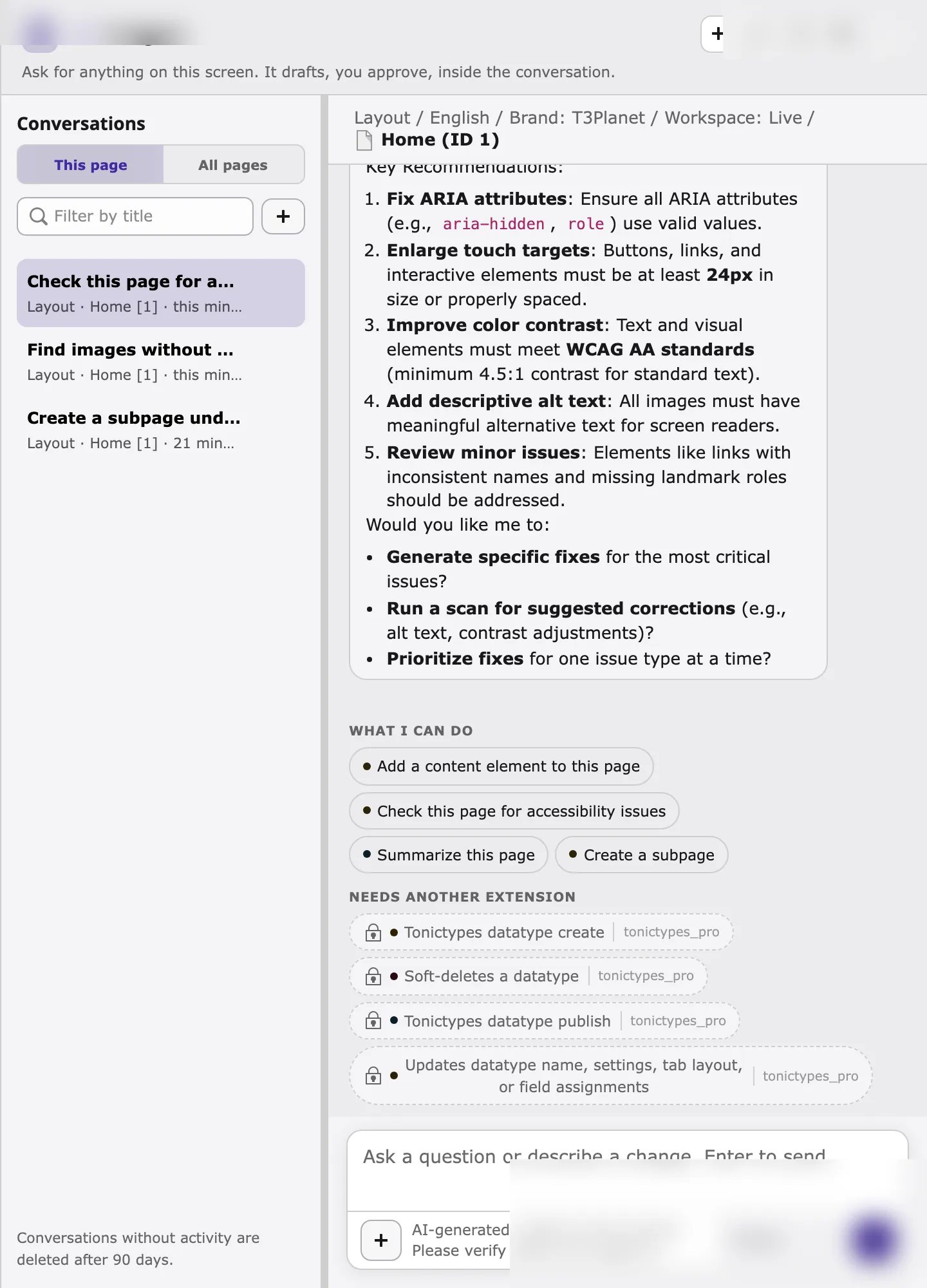
Step 4: Optional — ask about accessibility issues
Next steps
- Browse all T3AA actions in T3AA tools.
- Copy requests from Example requests.
- For module workflows (queues, Fix Hub, bulk scans), see the Feature Guide.
- If something does not work, see Troubleshooting.