

Purpose
AI Label helps you mark content that was written or changed by AI, as the EU AI Act (Article 50) requires. Your team records which pages, texts and images were made with AI, a person confirms it, and visitors see a small “AI generated” label. Path: AI Universe → AI Foundation → AI LabelWho uses it
- Editors – check pages, content elements and images touched by AI, confirm them and name a responsible person where needed.
- Administrators – set up how labels look and which rules apply.
- Compliance / legal – export evidence reports.
Quick start: show an AI label on your website
- Your developer loads the AI label TypoScript once (see Frontend labels).
- Go to AI Universe → AI Foundation → AI Label.
- Open the Media or Texts tab.
- Click the edit icon on a record.
- Set AI involvement to AI generated or AI modified.
- For texts only: set Matter of public interest to Yes.
- Check What a visitor will see.
- Click Confirm.
- Open the page on your website and check the label.
Module layout
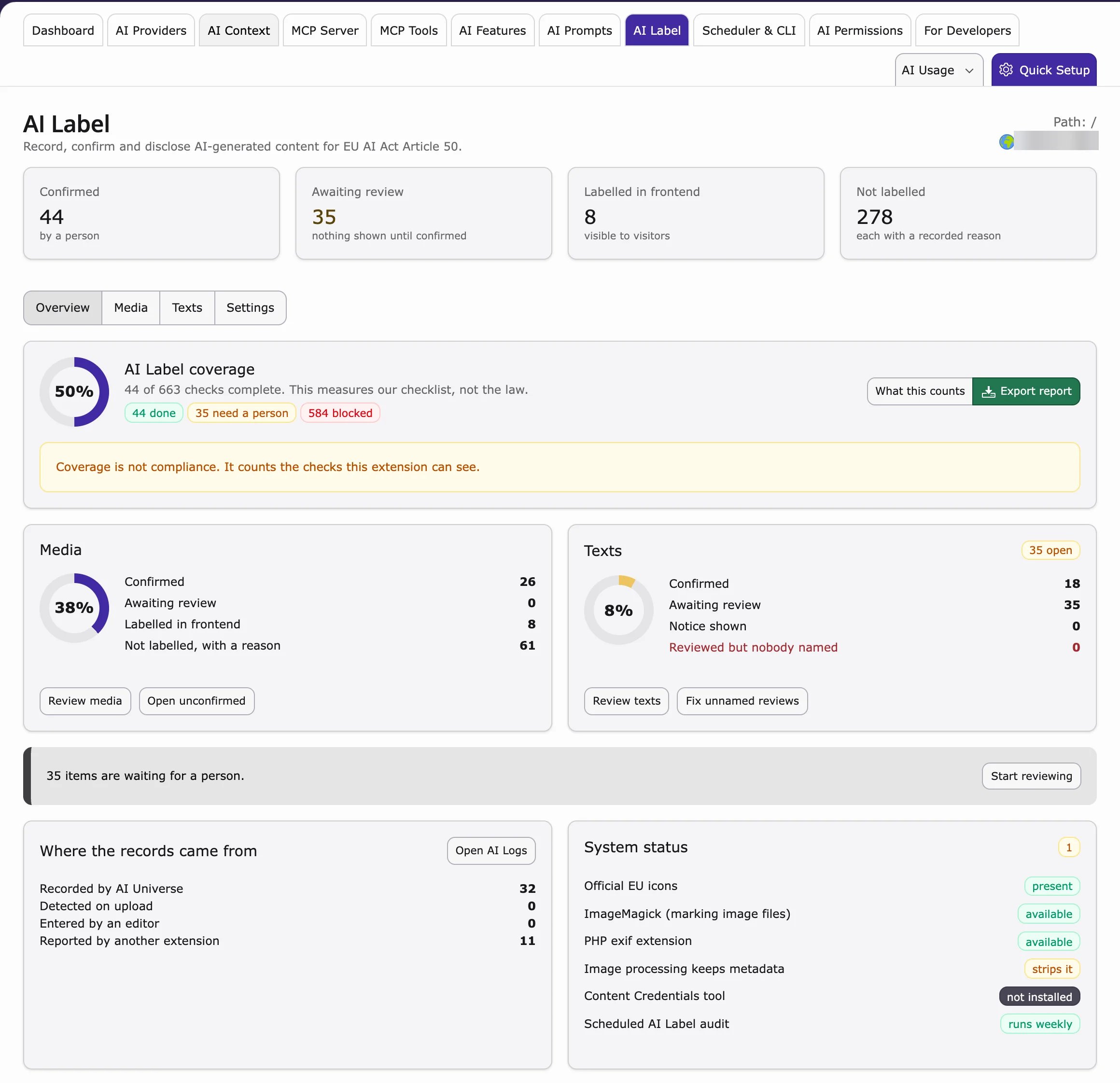
Overview tab
- Scoreboard – four numbers: Confirmed, Awaiting review, Labelled in frontend, Not labelled.
- AI Label coverage – a checklist score. Export a CSV report from here.
- Media / Texts cards – progress and quick links.
- Where records came from – AI Universe, upload detection, editor or other extensions.
- System status – EU icon pack, image tools and the scheduled audit task.
Media tab
Your files (images and other media), with a folder tree on the left and filters at the top. For each file you can:- Edit (open icon) – edit the AI Label fields and preview the visitor label.
- Confirm – confirm it in your name (for this version only).
- Clear – remove the confirmation (you can undo for 10 minutes).
Texts tab
The same for pages, content elements and any extra tables added in Settings.Settings tab
How labels look and which rules apply. Most websites can keep the defaults.Frontend label appearance
Frontend label appearance
Machine-readable marking and rules
Machine-readable marking and rules
Automatic confirmation
Automatic confirmation
Per-folder media defaults are configured via EXTCONF
ailabelFolderDefaults (not on the Settings form).tx_nst3af_extension_setting (extension key ns_t3af). Defaults live in Configuration/ExtensionSettings/fields.typoscript.
Record drawer fields
- AI involvement — not reviewed, no AI, AI generated, AI modified, origin unknown, suggestion
- Created on (read-only) — content creation date vs legal cutoff
- Matter of public interest — text records only; editor decision (gate, not a master switch — see Activate visitor labels)
- Reviewed by a named person — required when human review applies
- Labelling — automatic / always / do not label
- Reason for not labelling — exemption vocabulary (compliance-controlled)
- Detected on upload (read-only) — detection hints for media
- What a visitor will see — live preview of label decision
Bulk actions
Select several rows with the checkboxes, then choose:- Confirm
- No AI involved
- Do not label
- Set public interest
- Assign responsible person
- Clear confirmation
- Undo last bulk action (10-minute window)
Evidence export
Download a CSV report for internal audits, from the action bar or the coverage card on Overview.- CSV — evidence-relevant records only (recording source set, involvement other than
not_reviewed, or confirmed), with reason codes and confirmation metadata — not a dump of everypages/tt_content/sys_file_metadatarow - Scope by module tab — Media exports
sys_file_metadataonly; Texts exportstt_content+pages; Overview and Settings export all three
rule_default, editorial_control, unreviewed).
How records get AI metadata
- Automatically – when an AI extension creates or changes content, it is recorded.
- On upload – files that already carry an AI mark are suggested (a person still confirms).
- By hand – editors set the fields in the drawer or in the AI Label tab of a page, content element or file.
For developers: how extensions record AI use
For developers: how extensions record AI use
Your extension can mark a record as AI-generated, so the AI label appears automatically.
- When you save a page, content element, file or your own record that was created with AI, call
AiLabelBindHelper. - Editors can also set the label by hand in the AI Label tab.
- Examples: Extension integration.
Activate visitor labels (text vs media)
There is no single switch that turns on all labels. Each record needs the right fields, and the frontend TypoScript must be loaded (see Frontend labels).Setting Matter of public interest to Yes alone does not show a label. It is only needed for texts, and texts still need the other steps.
Prerequisite (both domains)
- Include frontend TypoScript (Site Set
nitsan/ns-t3af-labeland@import, or classic static template “AI Foundation labels”). - Flush caches after changing TypoScript or Site Sets.
- Open the record in the AI Label drawer and check What a visitor will see before expecting anything on the live page.
Media (files / sys_file_metadata)
Public interest does not apply.
- Set AI involvement to AI generated or AI modified (or Always under Labelling).
- Click Confirm (unconfirmed media never shows a visitor label).
- Optional — Settings: Mark the image file (badge after CE vs overlay on the image), stamp size/position.
- Origin unknown only labels when Settings Label unknown origin is Yes.
Text (pages / content elements)
- Set AI involvement to AI generated or AI modified (not “not reviewed” / “no AI”).
- Set Matter of public interest to Yes (required gate; No = no visitor label).
- Human review:
- Leave Reviewed by a named person unchecked → label can show after confirm, or
- Check it and enter a responsible person → label is suppressed (editorial control), or
- Check it without a name → incomplete; treat as needing a name (see Texts tab highlight).
- Click Confirm so the disclosure is intentional for that version.
- Verify What a visitor will see in the drawer, then check the frontend.
Quick checklist
Frontend labels
When a record is confirmed and the rules pass, visitors see:- Icon only — EU AI label icon (bundled SVG set)
- Show in site language — short text only (for example “AI generated”, “AI modified”), no icon
- Size and (for image overlays) position from Settings — see tables above
For developers: load and render the labels
For developers: load and render the labels
The labels only show on the website when the AI Foundation TypoScript is loaded.
- Site sets (TYPO3 v13.4 and newer): add
nitsan/ns-t3af-labelto thedependenciesof your site set and@importthe fileEXT:ns_t3af/Configuration/TypoScript/setup.typoscript. - Classic templates: include the static template AI Foundation labels.
- Your own templates: use
<ail:label record="{data}" />or<ail:label file="{image}" />.