

Purpose
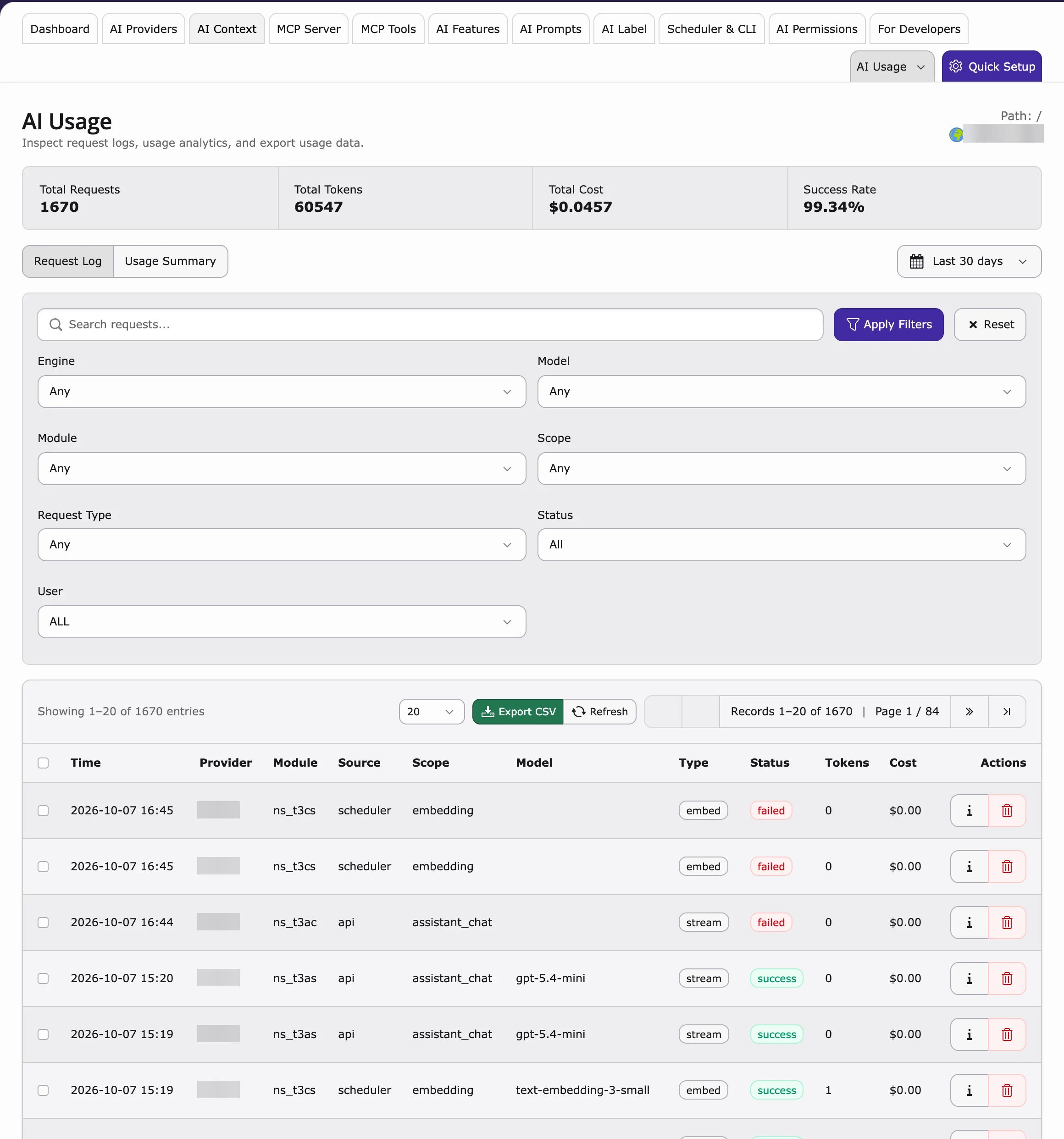
See every AI request on your website: how many there were, what they cost and whether they worked. Use it to control your budget and to find errors.AI Usage
AI Usage shows how much AI was used. Path: T3AF > AI Usage- Request count – how many AI requests in the chosen period.
- Tokens – how much text was sent and received (AI services bill by tokens).
- By extension – which AI extension used the AI (AI Assistant, AI Chatbot and others).
- By feature – for example
seo.meta_description. - Time range – day, week or month.
AI Logs
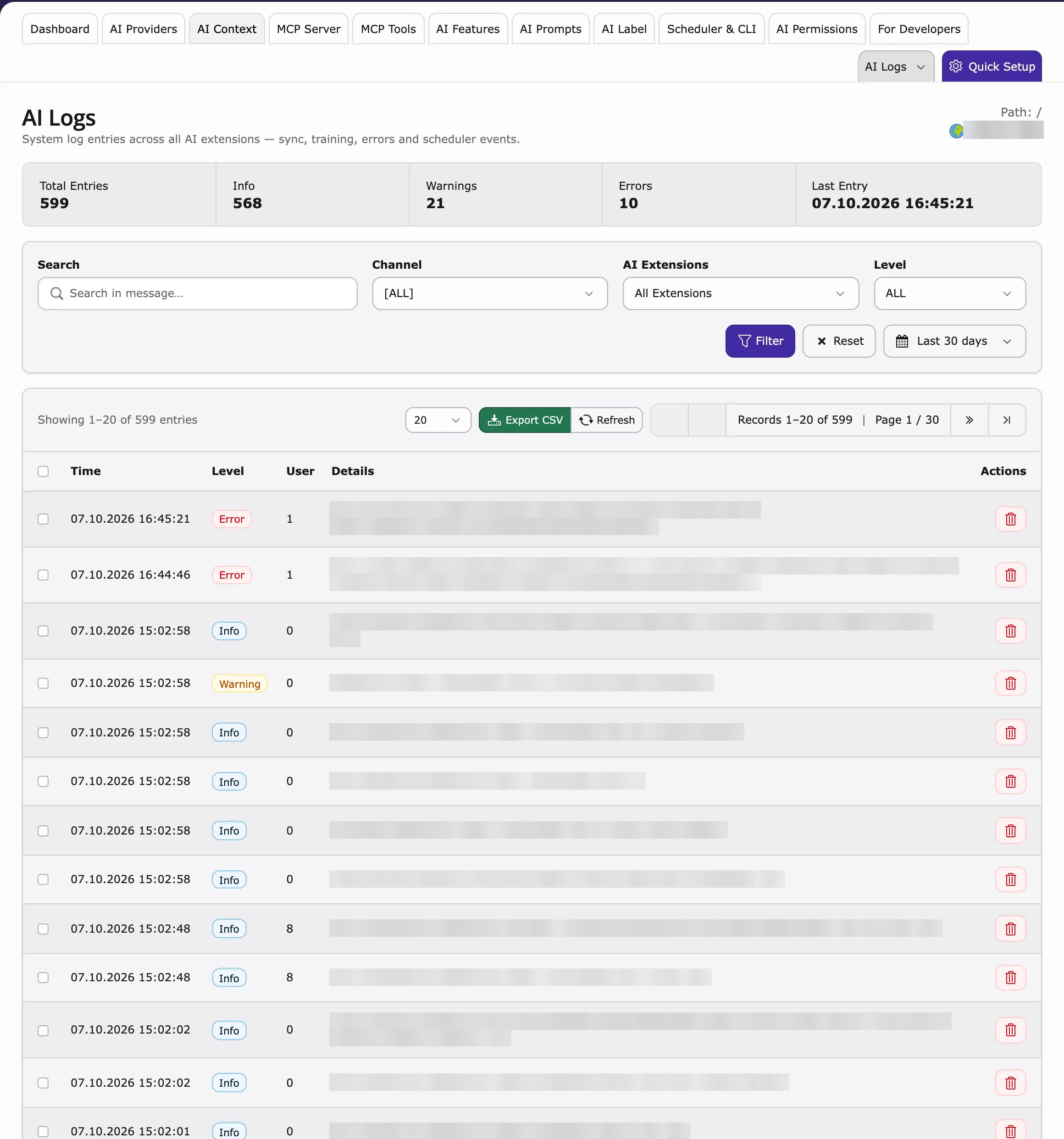
AI Logs shows each single request. Path: T3AF > AI Logs- Time, user, extension and feature
- Provider, model and tokens
- Success or failure
Scheduler & CLI
Background tasks and commands of AI Foundation. See Scheduler & CLI. Path: T3AF > Scheduler & CLI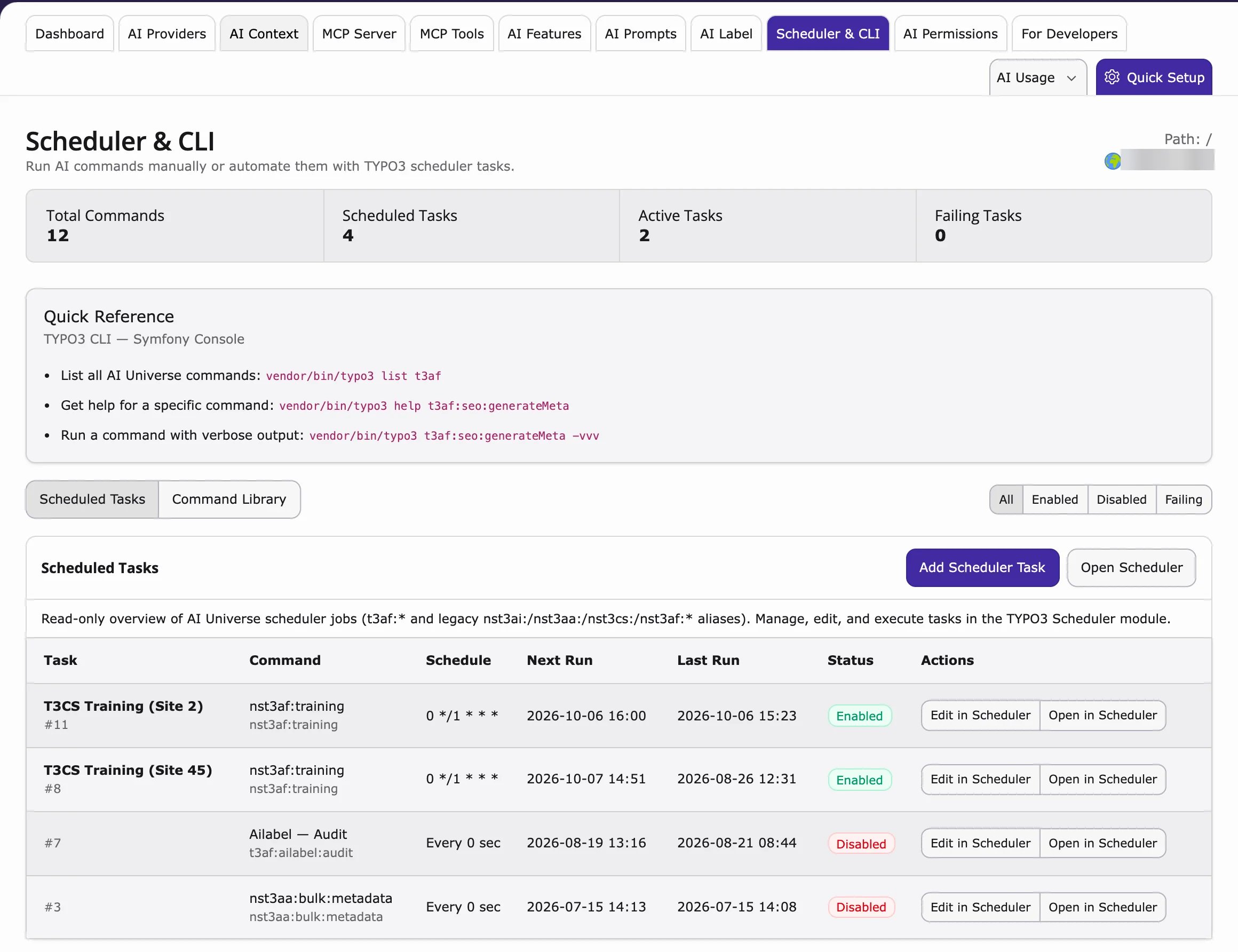
For developers: clear the caches
For developers: clear the caches
If a change does not show up, clear the TYPO3 caches on the command line (or with Flush all caches in the backend).
OpenAI org statistics (optional)
Setopenai_admin_api_key in Extension Configuration for organization-level usage charts. This is not the chat API key. See Configuration.
Privacy
How much is logged depends on the provider’s Logging privacy setting and on the limits in AI Permissions. Check these before you store full prompts and answers.Weekly admin habit
- Go to AI Universe → AI Foundation → AI Usage and compare with last week.
- Go to AI Logs and look for repeated errors (same user, same feature).
- Errors don’t go away? Send the log details to Support.
When logs show high usage
- Check AI Features — bulk tasks may need a cheaper model
- Review group limits in AI Permissions
- Ask editors if a script or loop triggered many requests
When logs show failures
- Run Test connection in AI Providers
- Check vendor status and rate limits
- See Known Problems and FAQ
Related
- AI Search: AI Usage and AI Logs – open this page from the AI Usage menu in AI Chatbot/Search
- AI Chatbot Usage Analytics and AI Search Usage Analytics – what visitors asked