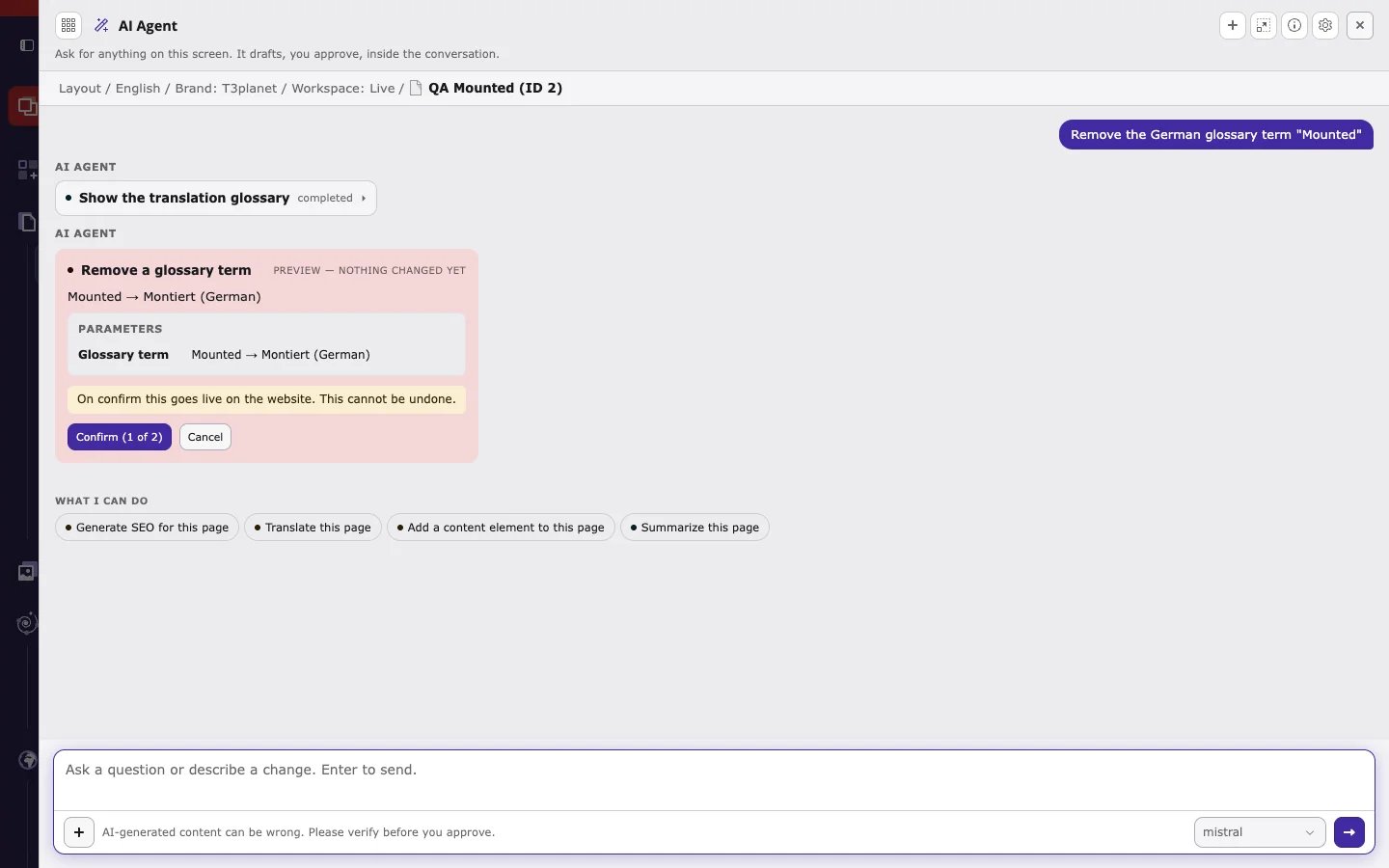
Step by step: open the AI agent on a page, start with a read-only T3AI request, generate and apply SEO fields, translate a page, and confirm or cancel a delete safely.
This walkthrough uses one page and four requests, from safe to more powerful. Use a test page, or a draft workspace, for your first try.
The agent runs the T3AI step Show the translation queue (marked completed) and answers with the queued pages, their status, and the number of attempts. Nothing is written. This is the safest way to see how the agent works.
Generate meta description and Open Graph title for this page
The card is marked Preview — nothing changed yet and shows how many AI calls the preview used, for example This preview used 1 AI call(s). Regenerating will use credits again.
For each field, compare Current with the Suggestion.
Keep the Suggestion, or choose Custom and type your own value.
Click Apply selected to save the chosen values, or Discard to write nothing.
{"docsConfig":{"theme":"mint","$schema":"https://mintlify.com/docs.json","name":"T3Planet Docs","description":"Official T3Planet documentation for TYPO3 extensions, templates, AI solutions, licensing, and installation guides.","colors":{"primary":"#0052FF","light":"#EFF6FF","dark":"#0041CC"},"logo":{"light":"https://mintcdn.com/t3planet/_5AmfV1AYtlhh6FL/en/latest/_static/t3planet-light.svg?fit=max\u0026auto=format\u0026n=_5AmfV1AYtlhh6FL\u0026q=85\u0026s=5526fa9e4a68e37882673e289c1be871","dark":"https://mintcdn.com/t3planet/_5AmfV1AYtlhh6FL/en/latest/_static/t3planet-white-logo.svg?fit=max\u0026auto=format\u0026n=_5AmfV1AYtlhh6FL\u0026q=85\u0026s=9d02566436d43e835bb7fd220cc7e607","href":"/en/latest"},"favicon":"https://mintcdn.com/t3planet/_5AmfV1AYtlhh6FL/en/latest/_static/favicon.png?fit=max\u0026auto=format\u0026n=_5AmfV1AYtlhh6FL\u0026q=85\u0026s=b3e8ce589b00ebe9445149f8f6563f7e","appearance":{"default":"system","strict":false},"navbar":{"links":[{"href":"/en/latest/AIFoundationExtensions/Index","label":"AI Extensions"},{"href":"/en/latest/AllTemplates/Index","label":"Templates"},{"href":"/en/latest/AllExtensions/Index","label":"Extensions"},{"href":"https://t3planet.de/support","label":"Support"}],"primary":{"type":"button","label":"Get Started","href":"/en/latest/License/Index"}},"footer":{"socials":{"website":"https://t3planet.de/en","x":"https://x.com/t3planetde","linkedin":"https://www.linkedin.com/company/t3planet","youtube":"https://www.youtube.com/@t3planet"},"links":[{"header":"Documentation","items":[{"label":"License \u0026 Get Started","href":"/en/latest/License/Index"},{"label":"AI Extensions","href":"/en/latest/AIFoundationExtensions/Index"},{"label":"Templates \u0026 Themes","href":"/en/latest/AllTemplates/Index"},{"label":"TYPO3 Extensions","href":"/en/latest/AllExtensions/Index"}]},{"header":"Products","items":[{"label":"AI Foundation","href":"/en/latest/ExtNsT3AF/Introduction/Index"},{"label":"AI Assistant","href":"/en/latest/ExtNsT3AI/Introduction/Index"},{"label":"AI Chatbot","href":"/en/latest/ExtNsT3AC/Introduction/Index"},{"label":"AI Search","href":"/en/latest/ExtNsT3AS/Introduction/Index"}]},{"header":"Resources","items":[{"label":"Support","href":"https://t3planet.de/support"},{"label":"FAQ","href":"https://t3planet.de/en/faq"},{"label":"Blog","href":"https://t3planet.de/en/blog"},{"label":"Contact","href":"https://t3planet.de/en/contact"}]}]},"seo":{"metatags":{"og:site_name":"T3Planet Documentation","og:type":"website","og:image":"/_static/t3planet-docs-og.png","twitter:card":"summary_large_image","twitter:site":"@t3planetde","twitter:image":"/_static/t3planet-docs-og.png","canonical":"https://docs.t3planet.de"},"indexing":"all"},"icons":{"library":"lucide"},"styling":{"eyebrows":"breadcrumbs","codeblocks":{"theme":{"light":"github-light","dark":"github-dark"}},"latex":false},"banner":{"content":"Free for TYPO3 teams: the [Upgrade Playbook](https://t3planet.de/en/typo3-upgrade-playbook?slot=docs\u0026utm_source=docs\u0026utm_medium=banner\u0026utm_campaign=gd-guides), the [EU AI Act Playbook](https://t3planet.de/en/typo3-ai-act-playbook?slot=docs\u0026utm_source=docs\u0026utm_medium=banner\u0026utm_campaign=gd-guides) and the [Accessibility Playbook](https://t3planet.de/en/typo3-accessibility-playbook?slot=docs\u0026utm_source=docs\u0026utm_medium=banner\u0026utm_campaign=gd-guides), each with an Excel worksheet.","dismissible":true},"errors":{"404":{"redirect":false,"title":"Page not found","description":"This page does not exist in T3Planet Docs. [Go to homepage](/)."}},"metadata":{"timestamp":false},"navigation":{"pages":[]}},"deployment":{"deploymentMetadataValue":{"subdomain":"t3planet","hasAudioNarration":false,"actualSubdomain":"t3planet","customDomains":["docs.t3planet.de"],"gitSource":{"type":"github","owner":"nitsan-technologies","repo":"t3planet-docs","deployBranch":"master","contentDirectory":"","isPrivate":false,"mountPath":"","label":""},"chroma":{"liveDeploymentHistoryId":"6ae4b457c2f3f7389023c52e","collectionId":"5f18152e-6a16-443b-8ed9-c414e198ce35","schemaVersion":"v3","latestBuiltDeploymentHistoryId":"6ae4b457c2f3f7389023c52e"},"feedback":{"contextualFeedback":{"allowEmail":false,"textInputOnly":true},"thumbs":true},"entitlements":{"AI_CHAT":{"status":"DISABLED"}},"buildId":"6ae4b4c8ab76b29675b256f4","clientVersion":"0.0.4043","searchFilterCounts":[{"language":"default","tag":"TYPO3 Extensions","count":362},{"language":"default","tag":"AI Extensions","count":230},{"language":"default","tag":"Templates \u0026 Themes","count":105},{"language":"default","tag":"AI Foundation","count":53},{"language":"default","tag":"AI Assistant","count":47},{"language":"default","tag":"Configuration","count":35},{"language":"default","tag":"AI Search","count":35},{"language":"default","tag":"AI Accessibility","count":32},{"language":"default","tag":"AI Chatbot","count":30},{"language":"default","tag":"Slider Revolution","count":20}]},"assistantConfig":{"enableAskAiButton":false,"enableStarterQuestions":false,"enableContextualStarterQuestions":false,"enableAskAiSearchBar":true},"basePath":"/en/latest","hasChatPermissions":false,"hasWebMcpPermissions":false,"toggles":[{"name":"kill-isr","enabled":true,"variant":{"name":"disabled","enabled":false,"feature_enabled":true},"impressionData":false},{"name":"agent-mintlify-slack","enabled":true,"variant":{"name":"disabled","enabled":false,"feature_enabled":true},"impressionData":false},{"name":"agent-integrations-settings","enabled":true,"variant":{"name":"disabled","enabled":false,"feature_enabled":true},"impressionData":false},{"name":"automations-pr-grouping","enabled":true,"variant":{"name":"disabled","enabled":false,"feature_enabled":true},"impressionData":false},{"name":"custom-prefix","enabled":true,"variant":{"name":"disabled","enabled":false,"feature_enabled":true},"impressionData":false},{"name":"analytics-v7","enabled":true,"variant":{"name":"disabled","enabled":false,"feature_enabled":true},"impressionData":false},{"name":"user-flows-analytics","enabled":true,"variant":{"name":"disabled","enabled":false,"feature_enabled":true},"impressionData":false},{"name":"no-publish-flow","enabled":true,"variant":{"name":"disabled","enabled":false,"feature_enabled":true},"impressionData":false},{"name":"workos-onboarding","enabled":true,"variant":{"name":"disabled","enabled":false,"feature_enabled":true},"impressionData":false},{"name":"llms-txt-v2","enabled":true,"variant":{"name":"disabled","enabled":false,"feature_enabled":true},"impressionData":false},{"name":"snapshot-serving-live","enabled":true,"variant":{"name":"disabled","enabled":false,"feature_enabled":true},"impressionData":false},{"name":"stripTemperatureMiddleware","enabled":true,"variant":{"name":"disabled","enabled":false,"feature_enabled":true},"impressionData":false},{"name":"support-platform-pylon-zendesk","enabled":true,"variant":{"name":"disabled","enabled":false,"feature_enabled":true},"impressionData":false},{"name":"snapshot-serving","enabled":true,"variant":{"name":"disabled","enabled":false,"feature_enabled":true},"impressionData":false},{"name":"instant-rollback","enabled":true,"variant":{"name":"disabled","enabled":false,"feature_enabled":true},"impressionData":false},{"name":"granular-notifications-server","enabled":true,"variant":{"name":"disabled","enabled":false,"feature_enabled":true},"impressionData":false},{"name":"granular-notifications","enabled":true,"variant":{"name":"disabled","enabled":false,"feature_enabled":true},"impressionData":false},{"name":"automations-fable","enabled":true,"variant":{"name":"disabled","enabled":false,"feature_enabled":true},"impressionData":false},{"name":"fixed-ai-action-pricing","enabled":true,"variant":{"name":"disabled","enabled":false,"feature_enabled":true},"impressionData":false},{"name":"automation-resolve-merge-conflict","enabled":true,"variant":{"name":"disabled","enabled":false,"feature_enabled":true},"impressionData":false},{"name":"scoped-publishing","enabled":true,"variant":{"name":"disabled","enabled":false,"feature_enabled":true},"impressionData":false},{"name":"mintql","enabled":true,"variant":{"name":"disabled","enabled":false,"feature_enabled":true},"impressionData":false},{"name":"page-level-analytics","enabled":true,"variant":{"name":"disabled","enabled":false,"feature_enabled":true},"impressionData":false},{"name":"editor-version-history-v2","enabled":true,"variant":{"name":"disabled","enabled":false,"feature_enabled":true},"impressionData":false},{"name":"billing-page-v2","enabled":true,"variant":{"name":"disabled","enabled":false,"feature_enabled":true},"impressionData":false},{"name":"full-page-search","enabled":true,"variant":{"name":"disabled","enabled":false,"feature_enabled":true},"impressionData":false},{"name":"workspace-projects","enabled":true,"variant":{"name":"disabled","enabled":false,"feature_enabled":true},"impressionData":false},{"name":"assistant-v5","enabled":true,"variant":{"name":"disabled","enabled":false,"feature_enabled":true},"impressionData":false},{"name":"byok-sep-25","enabled":true,"variant":{"name":"disabled","enabled":false,"feature_enabled":true},"impressionData":false},{"name":"fork-pr-previews","enabled":true,"variant":{"name":"disabled","enabled":false,"feature_enabled":true},"impressionData":false},{"name":"revalidation-jwt","enabled":true,"variant":{"name":"disabled","enabled":false,"feature_enabled":true},"impressionData":false},{"name":"vite-origin","enabled":true,"variant":{"name":"disabled","enabled":false,"feature_enabled":true},"impressionData":false},{"name":"billing-updated-9-15","enabled":true,"variant":{"name":"disabled","enabled":false,"feature_enabled":true},"impressionData":false},{"name":"workos-sso-scim","enabled":true,"variant":{"name":"disabled","enabled":false,"feature_enabled":true},"impressionData":false},{"name":"hobby-abuse-scan","enabled":true,"variant":{"name":"disabled","enabled":false,"feature_enabled":true},"impressionData":false},{"name":"dashboard-inbox","enabled":true,"variant":{"name":"disabled","enabled":false,"feature_enabled":true},"impressionData":false},{"name":"workos-signup","enabled":true,"variant":{"name":"disabled","enabled":false,"feature_enabled":true},"impressionData":false},{"name":"turbopuffer-dual-write","enabled":true,"variant":{"name":"disabled","enabled":false,"feature_enabled":true},"impressionData":false},{"name":"workos-enabled","enabled":true,"variant":{"name":"disabled","enabled":false,"feature_enabled":true},"impressionData":false},{"name":"approve-review-flow","enabled":true,"variant":{"name":"disabled","enabled":false,"feature_enabled":true},"impressionData":false}],"googleFontsInlined":false},"customCss":[{"filePath":"en/latest/_static/custom_layout.css","content":".rst-content a,.rst-content a:active,.rst-content a:hover,.rst-content a:link,.rst-content a:visited,.wy-menu a,.wy-menu a:active,.wy-menu a:hover,.wy-menu a:link,.wy-menu a:visited{color:#333}.rst-content h1,.rst-content h2,.rst-content h3,.rst-content h4,.rst-content h5,.rst-content h6{color:#333!important}.wy-nav-side{background:#f5f8fb}.wy-menu-vertical li.toctree-l1.current a{background:#e8f0fe}html{scroll-padding-top:88px}.t3-landing-section-title[id],[id].t3-landing-section-title,h1[id],h2[id],h3[id],h4[id],h5[id],h6[id]{scroll-margin-top:88px}"},{"filePath":"en/latest/custom.css","href":"/_mintlify/custom/t3planet/a9b154be8dfb05ea/en/latest/custom.css"}],"page":{"pagePath":"en/latest/ExtNsT3AI/AskAiAgent/StepByStep/Index","slug":"/en/latest/ExtNsT3AI/AskAiAgent/StepByStep/Index","pageMetadata":{"title":"Your first T3AI request","description":"Step by step: open the AI agent on a page, start with a read-only T3AI request, generate and apply SEO fields, translate a page, and confirm or cancel a delete safely.","keywords":["TYPO3","T3Planet","T3AI","AI agent"],"sidebarTitle":"Your first T3AI request","href":"/en/latest/ExtNsT3AI/AskAiAgent/StepByStep/Index"},"description":{"compiledSource":"\"use strict\";\nconst {jsx: _jsx} = arguments[0];\nconst {useMDXComponents: _provideComponents} = arguments[0];\nfunction _createMdxContent(props) {\n const _components = {\n p: \"p\",\n ..._provideComponents(),\n ...props.components\n };\n return _jsx(_components.p, {\n children: \"Step by step: open the AI agent on a page, start with a read-only T3AI request, generate and apply SEO fields, translate a page, and confirm or cancel a delete safely.\"\n });\n}\nfunction MDXContent(props = {}) {\n const {wrapper: MDXLayout} = {\n ..._provideComponents(),\n ...props.components\n };\n return MDXLayout ? _jsx(MDXLayout, {\n ...props,\n children: _jsx(_createMdxContent, {\n ...props\n })\n }) : _createMdxContent(props);\n}\nreturn {\n default: MDXContent\n};\n","frontmatter":{},"scope":{}},"pageType":"default","mdx":{"mdxSource":{"compiledSource":"\"use strict\";const{Fragment:_Fragment,jsx:_jsx,jsxs:_jsxs}=arguments[0];const{useMDXComponents:_provideComponents}=arguments[0];function _createMdxContent(props){const _components={a:`a`,code:`code`,em:`em`,li:`li`,ol:`ol`,p:`p`,pre:`pre`,span:`span`,strong:`strong`,ul:`ul`,..._provideComponents(),...props.components},{CodeBlock,Heading,OptimizedImage,Tip}=_components;if(!CodeBlock)_missingMdxReference(`CodeBlock`,true);if(!Heading)_missingMdxReference(`Heading`,true);if(!OptimizedImage)_missingMdxReference(`OptimizedImage`,true);if(!Tip)_missingMdxReference(`Tip`,true);return _jsxs(_Fragment,{children:[_jsx(_components.p,{children:`This walkthrough uses one page and four requests, from safe to more powerful. Use a test page, or a draft workspace, for your first try.`}),`\n`,_jsx(Heading,{level:`2`,id:`step-1-open-the-ai-agent-on-your-page`,children:`Step 1: Open the AI agent on your page`}),`\n`,_jsxs(_components.ol,{children:[`\n`,_jsxs(_components.li,{children:[`Select the page in the page tree, for example in `,_jsx(_components.strong,{children:`Content > Layout`}),`.`]}),`\n`,_jsxs(_components.li,{children:[`Click `,_jsx(_components.strong,{children:`Ask AI Agent`}),` in the top bar, or press `,_jsx(_components.code,{children:`Ctrl/Cmd+Shift+K`}),`.`]}),`\n`,_jsx(_components.li,{children:`On first use, read the AI notice and confirm it.`}),`\n`,_jsx(_components.li,{children:`Check the context line below the title. It must show the page you want to work on.`}),`\n`]}),`\n`,_jsx(Tip,{children:_jsx(_components.p,{children:`If the context line shows the wrong page, close the agent, select the right page, and open it again.`})}),`\n`,_jsx(Heading,{level:`2`,id:`step-2-start-with-a-request-that-only-reads`,children:`Step 2: Start with a request that only reads`}),`\n`,_jsx(_components.p,{children:`Type a request that does not change anything:`}),`\n`,_jsx(CodeBlock,{filename:``,numberOfLines:`2`,language:`text`,children:_jsx(_components.pre,{className:`shiki shiki-themes github-light github-dark`,style:{backgroundColor:`#fff`,\"--shiki-dark-bg\":`#24292e`,color:`#24292e`,\"--shiki-dark\":`#e1e4e8`},language:`text`,children:_jsxs(_components.code,{language:`text`,numberOfLines:`2`,children:[_jsx(_components.span,{className:`line`,children:_jsx(_components.span,{children:`Show the Mass Translation queue`})}),`\n`,_jsx(_components.span,{className:`line`,children:_jsx(_components.span,{})})]})})}),`\n`,_jsxs(_components.p,{children:[`The agent runs the T3AI step `,_jsx(_components.strong,{children:`Show the translation queue`}),` (marked `,_jsx(_components.strong,{children:`completed`}),`) and answers with the queued pages, their status, and the number of attempts. Nothing is written. This is the safest way to see how the agent works.`]}),`\n`,_jsx(Heading,{level:`2`,id:`step-3-generate-seo-and-apply-it`,children:`Step 3: Generate SEO and apply it`}),`\n`,_jsx(CodeBlock,{filename:``,numberOfLines:`2`,language:`text`,children:_jsx(_components.pre,{className:`shiki shiki-themes github-light github-dark`,style:{backgroundColor:`#fff`,\"--shiki-dark-bg\":`#24292e`,color:`#24292e`,\"--shiki-dark\":`#e1e4e8`},language:`text`,children:_jsxs(_components.code,{language:`text`,numberOfLines:`2`,children:[_jsx(_components.span,{className:`line`,children:_jsx(_components.span,{children:`Generate meta description and Open Graph title for this page`})}),`\n`,_jsx(_components.span,{className:`line`,children:_jsx(_components.span,{})})]})})}),`\n`,_jsx(OptimizedImage,{src:`https://mintcdn.com/t3planet/O7ph795gSp6qACKc/en/latest/ExtNsT3AI/AskAiAgent/images/t3ai-agent-seo-suggestions.webp?fit=max\u0026auto=format\u0026n=O7ph795gSp6qACKc\u0026q=85\u0026s=47be0593d4578c3ae01ac5a9f44f6d4c`,alt:`SEO suggestion card with current value, AI suggestion, and Custom field per SEO field, and the buttons Apply selected, Apply safe fields, and Discard`,\"data-og-width\":`1440`,width:`1440`,\"data-og-height\":`900`,height:`900`,\"data-path\":`en/latest/ExtNsT3AI/AskAiAgent/images/t3ai-agent-seo-suggestions.webp`,\"data-optimize\":`true`,\"data-opv\":`3`,srcset:`https://mintcdn.com/t3planet/O7ph795gSp6qACKc/en/latest/ExtNsT3AI/AskAiAgent/images/t3ai-agent-seo-suggestions.webp?w=280\u0026fit=max\u0026auto=format\u0026n=O7ph795gSp6qACKc\u0026q=85\u0026s=4ab1103e3aecbba61be21200fd92750a 280w, https://mintcdn.com/t3planet/O7ph795gSp6qACKc/en/latest/ExtNsT3AI/AskAiAgent/images/t3ai-agent-seo-suggestions.webp?w=560\u0026fit=max\u0026auto=format\u0026n=O7ph795gSp6qACKc\u0026q=85\u0026s=affbec55141d8ad95c19a154870f9b47 560w, https://mintcdn.com/t3planet/O7ph795gSp6qACKc/en/latest/ExtNsT3AI/AskAiAgent/images/t3ai-agent-seo-suggestions.webp?w=840\u0026fit=max\u0026auto=format\u0026n=O7ph795gSp6qACKc\u0026q=85\u0026s=ab375ac4ec064fdc9206c9b064e9ebea 840w, https://mintcdn.com/t3planet/O7ph795gSp6qACKc/en/latest/ExtNsT3AI/AskAiAgent/images/t3ai-agent-seo-suggestions.webp?w=1100\u0026fit=max\u0026auto=format\u0026n=O7ph795gSp6qACKc\u0026q=85\u0026s=629c2ef99dcb6d63b231706ebd8d6cc6 1100w, https://mintcdn.com/t3planet/O7ph795gSp6qACKc/en/latest/ExtNsT3AI/AskAiAgent/images/t3ai-agent-seo-suggestions.webp?w=1650\u0026fit=max\u0026auto=format\u0026n=O7ph795gSp6qACKc\u0026q=85\u0026s=6d296d35fdb3c4bcb2da6e6dfccf1566 1650w, https://mintcdn.com/t3planet/O7ph795gSp6qACKc/en/latest/ExtNsT3AI/AskAiAgent/images/t3ai-agent-seo-suggestions.webp?w=2500\u0026fit=max\u0026auto=format\u0026n=O7ph795gSp6qACKc\u0026q=85\u0026s=2886a20f47cb9749c954894d141eecb4 2500w`}),`\n`,_jsxs(_components.ol,{children:[`\n`,_jsxs(_components.li,{children:[`The card is marked `,_jsx(_components.strong,{children:`Preview — nothing changed yet`}),` and shows how many AI calls the preview used, for example `,_jsx(_components.em,{children:`This preview used 1 AI call(s). Regenerating will use credits again.`})]}),`\n`,_jsxs(_components.li,{children:[`For each field, compare `,_jsx(_components.strong,{children:`Current`}),` with the `,_jsx(_components.strong,{children:`Suggestion`}),`.`]}),`\n`,_jsxs(_components.li,{children:[`Keep the `,_jsx(_components.strong,{children:`Suggestion`}),`, or choose `,_jsx(_components.strong,{children:`Custom`}),` and type your own value.`]}),`\n`,_jsxs(_components.li,{children:[`Click `,_jsx(_components.strong,{children:`Apply selected`}),` to save the chosen values, or `,_jsx(_components.strong,{children:`Discard`}),` to write nothing.`]}),`\n`]}),`\n`,_jsx(Heading,{level:`2`,id:`step-4-translate-the-page`,children:`Step 4: Translate the page`}),`\n`,_jsx(CodeBlock,{filename:``,numberOfLines:`2`,language:`text`,children:_jsx(_components.pre,{className:`shiki shiki-themes github-light github-dark`,style:{backgroundColor:`#fff`,\"--shiki-dark-bg\":`#24292e`,color:`#24292e`,\"--shiki-dark\":`#e1e4e8`},language:`text`,children:_jsxs(_components.code,{language:`text`,numberOfLines:`2`,children:[_jsx(_components.span,{className:`line`,children:_jsx(_components.span,{children:`Translate this page into German`})}),`\n`,_jsx(_components.span,{className:`line`,children:_jsx(_components.span,{})})]})})}),`\n`,_jsx(OptimizedImage,{src:`https://mintcdn.com/t3planet/O7ph795gSp6qACKc/en/latest/ExtNsT3AI/AskAiAgent/images/t3ai-agent-translate-preview.webp?fit=max\u0026auto=format\u0026n=O7ph795gSp6qACKc\u0026q=85\u0026s=d5295911bf422bdbe23c3bb0475b48f6`,alt:`Translate the whole page preview with page, languages, and content elements parameters, the live hint, and Apply or Cancel`,\"data-og-width\":`1440`,width:`1440`,\"data-og-height\":`900`,height:`900`,\"data-path\":`en/latest/ExtNsT3AI/AskAiAgent/images/t3ai-agent-translate-preview.webp`,\"data-optimize\":`true`,\"data-opv\":`3`,srcset:`https://mintcdn.com/t3planet/O7ph795gSp6qACKc/en/latest/ExtNsT3AI/AskAiAgent/images/t3ai-agent-translate-preview.webp?w=280\u0026fit=max\u0026auto=format\u0026n=O7ph795gSp6qACKc\u0026q=85\u0026s=24eeef84304daf4959823c4047af2869 280w, https://mintcdn.com/t3planet/O7ph795gSp6qACKc/en/latest/ExtNsT3AI/AskAiAgent/images/t3ai-agent-translate-preview.webp?w=560\u0026fit=max\u0026auto=format\u0026n=O7ph795gSp6qACKc\u0026q=85\u0026s=4b094fa3abf815f21b8295323658ade6 560w, https://mintcdn.com/t3planet/O7ph795gSp6qACKc/en/latest/ExtNsT3AI/AskAiAgent/images/t3ai-agent-translate-preview.webp?w=840\u0026fit=max\u0026auto=format\u0026n=O7ph795gSp6qACKc\u0026q=85\u0026s=d537e525a22ff8ec5ac043197ab8e8b9 840w, https://mintcdn.com/t3planet/O7ph795gSp6qACKc/en/latest/ExtNsT3AI/AskAiAgent/images/t3ai-agent-translate-preview.webp?w=1100\u0026fit=max\u0026auto=format\u0026n=O7ph795gSp6qACKc\u0026q=85\u0026s=367e88a5a6f3f13a5db70df3fec95b9c 1100w, https://mintcdn.com/t3planet/O7ph795gSp6qACKc/en/latest/ExtNsT3AI/AskAiAgent/images/t3ai-agent-translate-preview.webp?w=1650\u0026fit=max\u0026auto=format\u0026n=O7ph795gSp6qACKc\u0026q=85\u0026s=ad75d4b2d6e497872483bdb4b1c967f7 1650w, https://mintcdn.com/t3planet/O7ph795gSp6qACKc/en/latest/ExtNsT3AI/AskAiAgent/images/t3ai-agent-translate-preview.webp?w=2500\u0026fit=max\u0026auto=format\u0026n=O7ph795gSp6qACKc\u0026q=85\u0026s=4a6ff90683276047044a8e0db046e919 2500w`}),`\n`,_jsxs(_components.ol,{children:[`\n`,_jsxs(_components.li,{children:[`The agent first runs `,_jsx(_components.strong,{children:`List site languages`}),`, then prepares `,_jsx(_components.strong,{children:`Translate the whole page`}),`.`]}),`\n`,_jsxs(_components.li,{children:[`Check the `,_jsx(_components.strong,{children:`Parameters`}),`: the page, the target languages, and whether content elements are included.`]}),`\n`,_jsxs(_components.li,{children:[`Read the hint at the bottom. In `,_jsx(_components.strong,{children:`Live`}),`, it says `,_jsx(_components.em,{children:`On confirm this goes live on the website.`})]}),`\n`,_jsxs(_components.li,{children:[`Click `,_jsx(_components.strong,{children:`Apply`}),` to translate, or `,_jsx(_components.strong,{children:`Cancel`}),` to discard. After `,_jsx(_components.strong,{children:`Cancel`}),`, the agent confirms `,_jsx(_components.em,{children:`Nothing was written`}),` and may ask what to do instead.`]}),`\n`]}),`\n`,_jsxs(_components.p,{children:[`After `,_jsx(_components.strong,{children:`Apply`}),`, the card shows `,_jsx(_components.strong,{children:`Changes applied`}),` with `,_jsx(_components.strong,{children:`Open page`}),`, `,_jsx(_components.strong,{children:`Edit`}),`, `,_jsx(_components.strong,{children:`View on website`}),`, and `,_jsx(_components.strong,{children:`Undo`}),`.`]}),`\n`,_jsx(Heading,{level:`2`,id:`step-5-deleting-needs-two-clicks`,children:`Step 5: Deleting needs two clicks`}),`\n`,_jsx(CodeBlock,{filename:``,numberOfLines:`2`,language:`text`,children:_jsx(_components.pre,{className:`shiki shiki-themes github-light github-dark`,style:{backgroundColor:`#fff`,\"--shiki-dark-bg\":`#24292e`,color:`#24292e`,\"--shiki-dark\":`#e1e4e8`},language:`text`,children:_jsxs(_components.code,{language:`text`,numberOfLines:`2`,children:[_jsx(_components.span,{className:`line`,children:_jsx(_components.span,{children:`Remove the German glossary term \"Mounted\"`})}),`\n`,_jsx(_components.span,{className:`line`,children:_jsx(_components.span,{})})]})})}),`\n`,_jsx(OptimizedImage,{src:`https://mintcdn.com/t3planet/O7ph795gSp6qACKc/en/latest/ExtNsT3AI/AskAiAgent/images/t3ai-agent-delete-confirm.webp?fit=max\u0026auto=format\u0026n=O7ph795gSp6qACKc\u0026q=85\u0026s=125199a0d553709cc40620b23ff708af`,alt:`Red delete preview for Remove a glossary term with Confirm (1 of 2) and Cancel`,\"data-og-width\":`1440`,width:`1440`,\"data-og-height\":`900`,height:`900`,\"data-path\":`en/latest/ExtNsT3AI/AskAiAgent/images/t3ai-agent-delete-confirm.webp`,\"data-optimize\":`true`,\"data-opv\":`3`,srcset:`https://mintcdn.com/t3planet/O7ph795gSp6qACKc/en/latest/ExtNsT3AI/AskAiAgent/images/t3ai-agent-delete-confirm.webp?w=280\u0026fit=max\u0026auto=format\u0026n=O7ph795gSp6qACKc\u0026q=85\u0026s=afd92e5933d3615ad0cf5d8dfe413266 280w, https://mintcdn.com/t3planet/O7ph795gSp6qACKc/en/latest/ExtNsT3AI/AskAiAgent/images/t3ai-agent-delete-confirm.webp?w=560\u0026fit=max\u0026auto=format\u0026n=O7ph795gSp6qACKc\u0026q=85\u0026s=2b829089c5a1e6918339c2cb827f4cbc 560w, https://mintcdn.com/t3planet/O7ph795gSp6qACKc/en/latest/ExtNsT3AI/AskAiAgent/images/t3ai-agent-delete-confirm.webp?w=840\u0026fit=max\u0026auto=format\u0026n=O7ph795gSp6qACKc\u0026q=85\u0026s=94343a2e1eb001c25701e9b6e9573fbe 840w, https://mintcdn.com/t3planet/O7ph795gSp6qACKc/en/latest/ExtNsT3AI/AskAiAgent/images/t3ai-agent-delete-confirm.webp?w=1100\u0026fit=max\u0026auto=format\u0026n=O7ph795gSp6qACKc\u0026q=85\u0026s=56391a03542aff3305f09efb913b2e7a 1100w, https://mintcdn.com/t3planet/O7ph795gSp6qACKc/en/latest/ExtNsT3AI/AskAiAgent/images/t3ai-agent-delete-confirm.webp?w=1650\u0026fit=max\u0026auto=format\u0026n=O7ph795gSp6qACKc\u0026q=85\u0026s=843f286b3b08643abf138af83fe23e66 1650w, https://mintcdn.com/t3planet/O7ph795gSp6qACKc/en/latest/ExtNsT3AI/AskAiAgent/images/t3ai-agent-delete-confirm.webp?w=2500\u0026fit=max\u0026auto=format\u0026n=O7ph795gSp6qACKc\u0026q=85\u0026s=53b5752d3934953712347ee13c0d7d42 2500w`}),`\n`,_jsxs(_components.ul,{children:[`\n`,_jsxs(_components.li,{children:[`The card is red and says `,_jsx(_components.em,{children:`This cannot be undone.`})]}),`\n`,_jsxs(_components.li,{children:[_jsx(_components.strong,{children:`Confirm (1 of 2)`}),` only arms the action. The second click, `,_jsx(_components.strong,{children:`Apply (2 of 2)`}),`, runs it.`]}),`\n`,_jsxs(_components.li,{children:[_jsx(_components.strong,{children:`Undo`}),` restores changed values, but it cannot bring back deleted items.`]}),`\n`]}),`\n`,_jsx(Heading,{level:`2`,id:`next-steps`,children:`Next steps`}),`\n`,_jsxs(_components.ul,{children:[`\n`,_jsxs(_components.li,{children:[`Browse all T3AI actions in `,_jsx(_components.a,{href:`/en/latest/ExtNsT3AI/AskAiAgent/Tools/Index`,children:`T3AI tools`}),`.`]}),`\n`,_jsxs(_components.li,{children:[`Copy requests from `,_jsx(_components.a,{href:`/en/latest/ExtNsT3AI/AskAiAgent/ExampleRequests/Index`,children:`Example requests`}),`.`]}),`\n`,_jsxs(_components.li,{children:[`If something does not work, see `,_jsx(_components.a,{href:`/en/latest/ExtNsT3AI/AskAiAgent/Troubleshooting/Index`,children:`Troubleshooting`}),`.`]}),`\n`]})]})}function MDXContent(props={}){const{wrapper:MDXLayout}={..._provideComponents(),...props.components};return MDXLayout?_jsx(MDXLayout,{...props,children:_jsx(_createMdxContent,{...props})}):_createMdxContent(props)}return{default:MDXContent};function _missingMdxReference(id,component){throw new Error(`Expected `+(component?`component`:`object`)+\" `\"+id+\"` to be defined: you likely forgot to import, pass, or provide it.\")}","frontmatter":{},"scope":{"codeStyling":{"theme":{"light":"github-light","dark":"github-dark"}},"config":{},"pageMetadata":{"title":"Your first T3AI request","description":"Step by step: open the AI agent on a page, start with a read-only T3AI request, generate and apply SEO fields, translate a page, and confirm or cancel a delete safely.","keywords":["TYPO3","T3Planet","T3AI","AI agent"],"sidebarTitle":"Your first T3AI request","href":"/en/latest/ExtNsT3AI/AskAiAgent/StepByStep/Index"}}},"mdxSourceWithNoJs":null},"mdxExtracts":{"tableOfContents":[{"title":"Step 1: Open the AI agent on your page","slug":"step-1-open-the-ai-agent-on-your-page","depth":2,"children":[]},{"title":"Step 2: Start with a request that only reads","slug":"step-2-start-with-a-request-that-only-reads","depth":2,"children":[]},{"title":"Step 3: Generate SEO and apply it","slug":"step-3-generate-seo-and-apply-it","depth":2,"children":[]},{"title":"Step 4: Translate the page","slug":"step-4-translate-the-page","depth":2,"children":[]},{"title":"Step 5: Deleting needs two clicks","slug":"step-5-deleting-needs-two-clicks","depth":2,"children":[]},{"title":"Next steps","slug":"next-steps","depth":2,"children":[]}],"codeExamples":{}},"jsLinks":["/_mintlify/custom/t3planet/aeafb78762bcc7e5/en/latest/_static/t3-docs.min.js","/_mintlify/custom/t3planet/d7685d8f67e4a779/en/latest/_static/t3-stats-inline.js","/_mintlify/custom/t3planet/d56c95dffc05cb7f/en/latest/_static/strip-heading-zw.js"],"subdomain":"t3planet","siteName":"T3Planet Docs","title":"Your first T3AI request - T3Planet Docs","navMaps":{"firstHrefInVersion":{},"firstHrefInLanguage":{}},"lastModified":"2026-10-13T14:14:57.825Z","originalFileLocation":"en/latest/ExtNsT3AI/AskAiAgent/StepByStep/Index.md"},"headHtml":"\u003cscript data-mint-head>(function(){var d=document.documentElement,p=null;if(!p){try{p=localStorage.getItem(\"isDarkMode\")}catch(e){}if(p==='true')p='dark';else if(p==='false')p='light';if(p!=='light'\u0026\u0026p!=='dark'\u0026\u0026p!=='system')p=\"system\"}var r=p==='system'?(matchMedia(\"(prefers-color-scheme: dark)\").matches?'dark':'light'):p;d.classList.remove(r==='dark'?'light':'dark');d.classList.add(r);d.setAttribute(\"data-theme-preference\",p)})();\u003c/script>\u003cmeta data-mint-head name=\"description\" content=\"Step by step: open the AI agent on a page, start with a read-only T3AI request, generate and apply SEO fields, translate a page, and confirm or cancel a delete safely.\">\u003cmeta data-mint-head name=\"application-name\" content=\"T3Planet Docs\">\u003cmeta data-mint-head name=\"generator\" content=\"Mintlify\">\u003clink data-mint-head rel=\"icon\" type=\"image/png\" sizes=\"192x192\" href=\"/mintlify-assets/_mintlify/favicons/t3planet/vNv2yu6mYyp0StCZ/_generated/favicon/android-chrome-192x192.png\" media=\"(prefers-color-scheme: light)\">\u003clink data-mint-head rel=\"apple-touch-icon\" type=\"image/png\" sizes=\"180x180\" href=\"/mintlify-assets/_mintlify/favicons/t3planet/vNv2yu6mYyp0StCZ/_generated/favicon/apple-touch-icon.png\">\u003clink data-mint-head rel=\"icon\" type=\"image/png\" sizes=\"16x16\" href=\"/mintlify-assets/_mintlify/favicons/t3planet/vNv2yu6mYyp0StCZ/_generated/favicon/favicon-16x16.png\" media=\"(prefers-color-scheme: light)\">\u003clink data-mint-head rel=\"icon\" type=\"image/png\" sizes=\"32x32\" href=\"/mintlify-assets/_mintlify/favicons/t3planet/vNv2yu6mYyp0StCZ/_generated/favicon/favicon-32x32.png\" media=\"(prefers-color-scheme: light)\">\u003clink data-mint-head rel=\"shortcut icon\" type=\"image/x-icon\" href=\"/mintlify-assets/_mintlify/favicons/t3planet/vNv2yu6mYyp0StCZ/_generated/favicon/favicon.ico\" media=\"(prefers-color-scheme: light)\">\u003clink data-mint-head rel=\"icon\" type=\"image/png\" sizes=\"192x192\" href=\"/mintlify-assets/_mintlify/favicons/t3planet/vNv2yu6mYyp0StCZ/_generated/favicon-dark/android-chrome-192x192.png\" media=\"(prefers-color-scheme: dark)\">\u003clink data-mint-head rel=\"icon\" type=\"image/png\" sizes=\"16x16\" href=\"/mintlify-assets/_mintlify/favicons/t3planet/vNv2yu6mYyp0StCZ/_generated/favicon-dark/favicon-16x16.png\" media=\"(prefers-color-scheme: dark)\">\u003clink data-mint-head rel=\"icon\" type=\"image/png\" sizes=\"32x32\" href=\"/mintlify-assets/_mintlify/favicons/t3planet/vNv2yu6mYyp0StCZ/_generated/favicon-dark/favicon-32x32.png\" media=\"(prefers-color-scheme: dark)\">\u003clink data-mint-head rel=\"shortcut icon\" type=\"image/x-icon\" href=\"/mintlify-assets/_mintlify/favicons/t3planet/vNv2yu6mYyp0StCZ/_generated/favicon-dark/favicon.ico\" media=\"(prefers-color-scheme: dark)\">\u003cmeta data-mint-head property=\"og:title\" content=\"Your first T3AI request - T3Planet Docs\">\u003cmeta data-mint-head property=\"og:description\" content=\"Step by step: open the AI agent on a page, start with a read-only T3AI request, generate and apply SEO fields, translate a page, and confirm or cancel a delete safely.\">\u003cmeta data-mint-head property=\"og:site_name\" content=\"T3Planet Documentation\">\u003cmeta data-mint-head property=\"og:url\" content=\"https://docs.t3planet.de/en/latest/ExtNsT3AI/AskAiAgent/StepByStep/Index\">\u003cmeta data-mint-head property=\"og:type\" content=\"website\">\u003cmeta data-mint-head property=\"og:image\" content=\"https://t3planet.mintlify.app/_static/t3planet-docs-og.png\">\u003cmeta data-mint-head property=\"og:image:width\" content=\"1200\">\u003cmeta data-mint-head property=\"og:image:height\" content=\"630\">\u003cmeta data-mint-head name=\"twitter:card\" content=\"summary_large_image\">\u003cmeta data-mint-head name=\"twitter:title\" content=\"Your first T3AI request - T3Planet Docs\">\u003cmeta data-mint-head name=\"twitter:description\" content=\"Step by step: open the AI agent on a page, start with a read-only T3AI request, generate and apply SEO fields, translate a page, and confirm or cancel a delete safely.\">\u003cmeta data-mint-head name=\"twitter:image\" content=\"https://t3planet.mintlify.app/_static/t3planet-docs-og.png\">\u003cmeta data-mint-head name=\"twitter:image:width\" content=\"1200\">\u003cmeta data-mint-head name=\"twitter:image:height\" content=\"630\">\u003cmeta data-mint-head name=\"msapplication-config\" content=\"/mintlify-assets/_mintlify/favicons/t3planet/vNv2yu6mYyp0StCZ/_generated/favicon/browserconfig.xml\">\u003cmeta data-mint-head name=\"apple-mobile-web-app-title\" content=\"T3Planet Docs\">\u003cmeta data-mint-head name=\"msapplication-TileColor\" content=\"#0052FF\">\u003clink data-mint-head rel=\"canonical\" href=\"https://docs.t3planet.de/en/latest/ExtNsT3AI/AskAiAgent/StepByStep/Index\">\u003clink data-mint-head rel=\"alternate\" type=\"application/xml\" href=\"/sitemap.xml\">\u003clink data-mint-head rel=\"alternate\" type=\"text/markdown\" href=\"/en/latest/ExtNsT3AI/AskAiAgent/StepByStep/Index.md\">\u003cscript data-mint-head type=\"application/ld+json\">{\"@context\":\"https://schema.org\",\"@graph\":[{\"@type\":\"Organization\",\"@id\":\"https://docs.t3planet.de/#organization\",\"name\":\"T3Planet Docs\",\"url\":\"https://docs.t3planet.de\",\"logo\":{\"@type\":\"ImageObject\",\"url\":\"https://mintcdn.com/t3planet/_5AmfV1AYtlhh6FL/en/latest/_static/t3planet-light.svg?fit=max\u0026auto=format\u0026n=_5AmfV1AYtlhh6FL\u0026q=85\u0026s=5526fa9e4a68e37882673e289c1be871\"}},{\"@type\":\"WebSite\",\"@id\":\"https://docs.t3planet.de#website\",\"name\":\"T3Planet Docs\",\"url\":\"https://docs.t3planet.de\",\"publisher\":{\"@id\":\"https://docs.t3planet.de/#organization\"}},{\"@type\":\"WebPage\",\"@id\":\"https://docs.t3planet.de/en/latest/ExtNsT3AI/AskAiAgent/StepByStep/Index#webpage\",\"url\":\"https://docs.t3planet.de/en/latest/ExtNsT3AI/AskAiAgent/StepByStep/Index\",\"name\":\"Your first T3AI request\",\"description\":\"Step by step: open the AI agent on a page, start with a read-only T3AI request, generate and apply SEO fields, translate a page, and confirm or cancel a delete safely.\",\"dateModified\":\"2026-10-13T14:14:57.825Z\",\"isPartOf\":{\"@id\":\"https://docs.t3planet.de#website\"},\"breadcrumb\":{\"@id\":\"https://docs.t3planet.de/en/latest/ExtNsT3AI/AskAiAgent/StepByStep/Index#breadcrumb\"}},{\"@type\":\"BreadcrumbList\",\"@id\":\"https://docs.t3planet.de/en/latest/ExtNsT3AI/AskAiAgent/StepByStep/Index#breadcrumb\",\"itemListElement\":[{\"@type\":\"ListItem\",\"position\":1,\"name\":\"AI Extensions\",\"item\":\"https://docs.t3planet.de/en/latest/ExtNsT3AF/Introduction/Index\"},{\"@type\":\"ListItem\",\"position\":2,\"name\":\"AI Assistant\",\"item\":\"https://docs.t3planet.de/en/latest/ExtNsT3AI/Index\"},{\"@type\":\"ListItem\",\"position\":3,\"name\":\"Ask AI agent\",\"item\":\"https://docs.t3planet.de/en/latest/ExtNsT3AI/AskAiAgent/Index\"},{\"@type\":\"ListItem\",\"position\":4,\"name\":\"Your first T3AI request\",\"item\":\"https://docs.t3planet.de/en/latest/ExtNsT3AI/AskAiAgent/StepByStep/Index\"}]},{\"@type\":[\"Article\",\"TechArticle\"],\"@id\":\"https://docs.t3planet.de/en/latest/ExtNsT3AI/AskAiAgent/StepByStep/Index#article\",\"headline\":\"Your first T3AI request\",\"name\":\"Your first T3AI request\",\"description\":\"Step by step: open the AI agent on a page, start with a read-only T3AI request, generate and apply SEO fields, translate a page, and confirm or cancel a delete safely.\",\"url\":\"https://docs.t3planet.de/en/latest/ExtNsT3AI/AskAiAgent/StepByStep/Index\",\"mainEntityOfPage\":{\"@id\":\"https://docs.t3planet.de/en/latest/ExtNsT3AI/AskAiAgent/StepByStep/Index#webpage\"},\"image\":\"https://docs.t3planet.de/_static/t3planet-docs-og.png\",\"dateModified\":\"2026-10-13T14:14:57.825Z\",\"keywords\":\"TYPO3, T3Planet, T3AI, AI agent\",\"publisher\":{\"@id\":\"https://docs.t3planet.de/#organization\"},\"isPartOf\":{\"@id\":\"https://docs.t3planet.de#website\"}}]}\u003c/script>\u003cscript data-mint-head type=\"application/ld+json\">{\"@context\":\"https://schema.org\",\"@type\":\"WebSite\",\"name\":\"T3Planet Docs\",\"creator\":{\"@type\":\"Organization\",\"name\":\"Mintlify\",\"url\":\"https://mintlify.com\"}}\u003c/script>","siteName":"T3Planet Docs","nav":{"global":null,"groups":[{"group":"Home","icon":"house","expanded":false,"pages":[{"title":"Welcome to T3Planet Docs","sidebarTitle":"Home","href":"/en/latest/index"},{"title":"AI Extensions","sidebarTitle":"AI Extensions","href":"/en/latest/AIFoundationExtensions/Index"},{"title":"TYPO3 Templates \u0026 Themes","sidebarTitle":"TYPO3 Templates \u0026 Themes","href":"/en/latest/AllTemplates/Index"},{"title":"All TYPO3 Extensions","sidebarTitle":"TYPO3 Extensions","href":"/en/latest/AllExtensions/Index"}]},{"group":"Get Started","icon":"rocket","expanded":false,"pages":[{"group":"License \u0026 Installation","root":{"title":"License, Installation \u0026 Updates","sidebarTitle":"License \u0026 Installation","href":"/en/latest/License/Index"},"expanded":false,"pages":[{"title":"Introduction","sidebarTitle":"Introduction","href":"/en/latest/License/Introduction/Index"},{"title":"Generating a License Key","sidebarTitle":"Generating a License Key","href":"/en/latest/License/GenerateLicenseKey/Index"},{"title":"All Licenses in T3Planet Shop","sidebarTitle":"All Licenses","href":"/en/latest/License/AllLicenses/Index"},{"title":"Using License Key in T3Planet Shop","sidebarTitle":"Using License Key","href":"/en/latest/License/LicenseManager/Index"},{"title":"Extending Trial License","sidebarTitle":"Extending Trial License","href":"/en/latest/License/ExtendTrial/Index"},{"title":"Renewing or Purchasing a License","sidebarTitle":"Renew or Purchase","href":"/en/latest/License/RenewPurchase/Index"},{"title":"License Activation","sidebarTitle":"License Activation","href":"/en/latest/License/LicenseActivation/Index"},{"title":"Register and Manage Domains in License","sidebarTitle":"Manage Domains","href":"/en/latest/License/RegisterAndManageDomains/Index"},{"title":"Our Other Products and Services","sidebarTitle":"Other Products","href":"/en/latest/License/OtherProducts/Index"},{"title":"License De-Activation","sidebarTitle":"License De-Activation","href":"/en/latest/License/LicenseDeActivation/Index"},{"title":"Update Version","sidebarTitle":"Update Version","href":"/en/latest/License/UpdateVersion/Index"},{"title":"How to know the Latest Version?","sidebarTitle":"Latest Version","href":"/en/latest/License/UpdateVersion/CheckNewVersion/Index"},{"title":"Non-Composer Update Guide","sidebarTitle":"Non-Composer Update Guide","href":"/en/latest/License/UpdateVersion/NonComposer/Index"},{"title":"Composer Update Guide","sidebarTitle":"Composer Update Guide","href":"/en/latest/License/UpdateVersion/Composer/Index"},{"title":"Migration","sidebarTitle":"Migration","href":"/en/latest/License/Migration/Index"},{"title":"Migration to License System","sidebarTitle":"Migration to License System","href":"/en/latest/License/Migration/License/Index"},{"title":"Migration To New Composer","sidebarTitle":"Migration To New Composer","href":"/en/latest/License/Migration/Composer/Index"},{"title":"Using Site Sets in TYPO3","sidebarTitle":"Using Site Sets in TYPO3","href":"/en/latest/License/SiteSets/Index"},{"title":"Help \u0026 Support","sidebarTitle":"Help \u0026 Support","href":"/en/latest/License/HelpSupport/Index"}]}]},{"group":"AI Extensions","icon":"sparkles","expanded":false,"pages":[{"group":"AI Foundation","root":{"title":"AI Foundation","sidebarTitle":"AI Foundation","href":"/en/latest/ExtNsT3AF/Index"},"expanded":false,"pages":[{"title":"Introduction","sidebarTitle":"Introduction","href":"/en/latest/ExtNsT3AF/Introduction/Index"},{"title":"Installation","sidebarTitle":"Installation","href":"/en/latest/ExtNsT3AF/Installation/Index"},{"group":"Configuration","root":{"title":"Configuration","sidebarTitle":"Configuration","href":"/en/latest/ExtNsT3AF/Configuration/Index"},"expanded":false,"pages":[{"title":"Dashboard","sidebarTitle":"Dashboard","href":"/en/latest/ExtNsT3AF/Configuration/Dashboard/Index"},{"title":"AI Providers","sidebarTitle":"AI Providers","href":"/en/latest/ExtNsT3AF/Configuration/AIProviders/Index"},{"title":"AI Context","sidebarTitle":"AI Context","href":"/en/latest/ExtNsT3AF/Configuration/AIContext/Index"},{"title":"AI Prompts","sidebarTitle":"AI Prompts","href":"/en/latest/ExtNsT3AF/Configuration/AIPrompts/Index"},{"title":"AI Features","sidebarTitle":"AI Features","href":"/en/latest/ExtNsT3AF/Configuration/AIFeatures/Index"},{"title":"AI Label","sidebarTitle":"AI Label","href":"/en/latest/ExtNsT3AF/Configuration/AILabel/Index"},{"title":"AI Usage \u0026 Logs","sidebarTitle":"AI Usage \u0026 Logs","href":"/en/latest/ExtNsT3AF/Configuration/AIUsageAndLogs/Index"},{"title":"AI Permissions","sidebarTitle":"AI Permissions","href":"/en/latest/ExtNsT3AF/Configuration/AIPermissions/Index"}]},{"group":"AI Credits","root":{"title":"T3Planet Credits","sidebarTitle":"T3Planet Credits","href":"/en/latest/ExtNsT3AF/T3Planet-Credit-System/Index"},"expanded":false,"pages":[{"title":"Overview","sidebarTitle":"Overview","href":"/en/latest/ExtNsT3AF/T3Planet-Credit-System/Overview/Index"},{"title":"Configuration","sidebarTitle":"Configuration","href":"/en/latest/ExtNsT3AF/T3Planet-Credit-System/Configuration/Index"},{"title":"Buy credits","sidebarTitle":"Buy credits","href":"/en/latest/ExtNsT3AF/T3Planet-Credit-System/BuyCredits/Index"},{"title":"Use a claim code","sidebarTitle":"Use a claim code","href":"/en/latest/ExtNsT3AF/T3Planet-Credit-System/ClaimCode/Index"},{"title":"Dashboard \u0026 AI Usage","sidebarTitle":"Dashboard \u0026 AI Usage","href":"/en/latest/ExtNsT3AF/T3Planet-Credit-System/AIUsage/Index"},{"title":"MCP Integration","sidebarTitle":"MCP Integration","href":"/en/latest/ExtNsT3AF/T3Planet-Credit-System/MCPIntegration/Index"},{"title":"Troubleshooting","sidebarTitle":"Troubleshooting","href":"/en/latest/ExtNsT3AF/T3Planet-Credit-System/Troubleshooting/Index"},{"title":"Dashboard","sidebarTitle":"Dashboard","href":"/en/latest/ExtNsT3AF/T3Planet-Credit-System/Dashboard/Index"}]},{"title":"Data Processing Agreement (DPA) \u0026 General Data Protection Regulation (GDPR)","sidebarTitle":"DPA \u0026 GDPR","href":"/en/latest/ExtNsT3AF/DPAandGDPR/Index"},{"group":"Integrations","root":{"title":"Integrations","sidebarTitle":"Integrations","href":"/en/latest/ExtNsT3AF/Integrations/Index"},"expanded":false,"pages":[{"title":"MCP Server","sidebarTitle":"MCP Server","href":"/en/latest/ExtNsT3AF/Integrations/MCPServer/Index"},{"title":"MCP Tools","sidebarTitle":"MCP Tools","href":"/en/latest/ExtNsT3AF/Integrations/MCPTools/Index"},{"title":"MCP Server — Testing guide","sidebarTitle":"MCP Server — Testing guide","href":"/en/latest/ExtNsT3AF/Integrations/MCPTesting/Index"}]},{"group":"Ask AI Agent","root":{"title":"Ask AI Agent","sidebarTitle":"Ask AI Agent","href":"/en/latest/ExtNsT3AF/AskAiAgent/Index"},"expanded":false,"pages":[{"title":"Where the AI agent opens","sidebarTitle":"Where it opens","href":"/en/latest/ExtNsT3AF/AskAiAgent/WhereOpens/Index"},{"title":"At a glance","sidebarTitle":"At a glance","href":"/en/latest/ExtNsT3AF/AskAiAgent/AtAGlance/Index"},{"title":"How it works","sidebarTitle":"How it works","href":"/en/latest/ExtNsT3AF/AskAiAgent/HowItWorks/Index"},{"title":"Before you start","sidebarTitle":"Before you start","href":"/en/latest/ExtNsT3AF/AskAiAgent/BeforeYouStart/Index"},{"title":"Use the AI agent step by step","sidebarTitle":"Step by step","href":"/en/latest/ExtNsT3AF/AskAiAgent/StepByStep/Index"},{"title":"Example requests","sidebarTitle":"Example requests","href":"/en/latest/ExtNsT3AF/AskAiAgent/ExampleRequests/Index"},{"title":"Keyboard shortcuts","sidebarTitle":"Keyboard shortcuts","href":"/en/latest/ExtNsT3AF/AskAiAgent/KeyboardShortcuts/Index"},{"title":"Conversations","sidebarTitle":"Conversations","href":"/en/latest/ExtNsT3AF/AskAiAgent/Conversations/Index"},{"group":"AI Agent module tabs","root":{"title":"AI Agent module tabs","sidebarTitle":"AI Agent module tabs","href":"/en/latest/ExtNsT3AF/AskAiAgent/AiAgentModule/Index"},"expanded":false,"pages":[{"title":"Overview","sidebarTitle":"Overview","href":"/en/latest/ExtNsT3AF/AskAiAgent/AiAgentModule/Overview/Index"},{"title":"Severity policy","sidebarTitle":"Severity policy","href":"/en/latest/ExtNsT3AF/AskAiAgent/AiAgentModule/SeverityPolicy/Index"},{"title":"Governance","sidebarTitle":"Governance","href":"/en/latest/ExtNsT3AF/AskAiAgent/AiAgentModule/Governance/Index"},{"title":"Audit","sidebarTitle":"Audit","href":"/en/latest/ExtNsT3AF/AskAiAgent/AiAgentModule/Audit/Index"},{"title":"Demand signals","sidebarTitle":"Demand signals","href":"/en/latest/ExtNsT3AF/AskAiAgent/AiAgentModule/DemandSignals/Index"}]},{"title":"AI agent settings","sidebarTitle":"AI agent settings","href":"/en/latest/ExtNsT3AF/AskAiAgent/FeatureSettings/Index"},{"title":"Troubleshooting","sidebarTitle":"Troubleshooting","href":"/en/latest/ExtNsT3AF/AskAiAgent/Troubleshooting/Index"}]},{"group":"User Guide","root":{"title":"User Guide","sidebarTitle":"User Guide","href":"/en/latest/ExtNsT3AF/UserGuide/Index"},"expanded":false,"pages":[{"title":"Roles and Daily Use","sidebarTitle":"Roles and Daily Use","href":"/en/latest/ExtNsT3AF/UserGuide/RolesAndDailyUse/Index"}]},{"group":"Developer Guide","root":{"title":"Developer Guide","sidebarTitle":"Developer Guide","href":"/en/latest/ExtNsT3AF/DeveloperGuide/Index"},"expanded":false,"pages":[{"title":"Architecture","sidebarTitle":"Architecture","href":"/en/latest/ExtNsT3AF/DeveloperGuide/Architecture/Index"},{"title":"Extension Integration","sidebarTitle":"Extension Integration","href":"/en/latest/ExtNsT3AF/DeveloperGuide/ExtensionIntegration/Index"},{"title":"Custom AI Providers","sidebarTitle":"Custom AI Providers","href":"/en/latest/ExtNsT3AF/DeveloperGuide/CustomProviders/Index"},{"title":"Custom Prompt Catalogs","sidebarTitle":"Custom Prompt Catalogs","href":"/en/latest/ExtNsT3AF/DeveloperGuide/CustomPromptCatalogs/Index"},{"title":"Custom Feature Cards","sidebarTitle":"Custom Feature Cards","href":"/en/latest/ExtNsT3AF/DeveloperGuide/CustomFeatureCards/Index"},{"title":"Feature Provider Overrides","sidebarTitle":"Feature Provider Overrides","href":"/en/latest/ExtNsT3AF/DeveloperGuide/FeatureProviderOverrides/Index"},{"title":"Custom MCP Tools","sidebarTitle":"Custom MCP Tools","href":"/en/latest/ExtNsT3AF/DeveloperGuide/CustomMcpTools/Index"},{"title":"Custom Access Catalogs","sidebarTitle":"Custom Access Catalogs","href":"/en/latest/ExtNsT3AF/DeveloperGuide/CustomAccessCatalogs/Index"}]},{"group":"Troubleshooting","root":{"title":"Troubleshooting","sidebarTitle":"Troubleshooting","href":"/en/latest/ExtNsT3AF/Troubleshooting/Index"},"expanded":false,"pages":[{"title":"Known Problems","sidebarTitle":"Known Problems","href":"/en/latest/ExtNsT3AF/Troubleshooting/KnownProblems/Index"},{"title":"FAQ","sidebarTitle":"FAQ","href":"/en/latest/ExtNsT3AF/Troubleshooting/FAQ/Index"}]},{"group":"Release Notes","root":{"title":"Release Notes","sidebarTitle":"Release Notes","href":"/en/latest/ExtNsT3AF/ReleaseNotes/Index"},"expanded":false,"pages":[{"title":"2.0.1 - 12 October 2026","sidebarTitle":"2.0.1","href":"/en/latest/ExtNsT3AF/ReleaseNotes/2.0.1/Index"},{"title":"2.0.0 - 9 October 2026","sidebarTitle":"2.0.0","href":"/en/latest/ExtNsT3AF/ReleaseNotes/2.0.0/Index"},{"title":"1.0.0 - 20 March 2026","sidebarTitle":"1.0.0","href":"/en/latest/ExtNsT3AF/ReleaseNotes/1.0.0/Index"}]},{"title":"Helpful Links","sidebarTitle":"Helpful Links","href":"/en/latest/ExtNsT3AF/HelpfulLinks/Index"},{"title":"Support","sidebarTitle":"Support","href":"/en/latest/ExtNsT3AF/Support/Index"}]},{"group":"AI Assistant","root":{"title":"AI Assistant","sidebarTitle":"AI Assistant","href":"/en/latest/ExtNsT3AI/Index"},"expanded":false,"pages":[{"title":"Introduction","sidebarTitle":"Introduction","href":"/en/latest/ExtNsT3AI/Introduction/Index"},{"title":"Screenshots","sidebarTitle":"Screenshots","href":"/en/latest/ExtNsT3AI/Screenshots/Index"},{"title":"Video Tutorials","sidebarTitle":"Video Tutorials","href":"/en/latest/ExtNsT3AI/VideoTutorials/Index"},{"title":"System Requirements","sidebarTitle":"System Requirements","href":"/en/latest/ExtNsT3AI/SystemRequirements/Index"},{"title":"Installation","sidebarTitle":"Installation","href":"/en/latest/ExtNsT3AI/Installation/Index"},{"title":"Reinstall After Upgrading to Extension v14.x.x","sidebarTitle":"Reinstall After Upgrading to Extension v14.x.x","href":"/en/latest/ExtNsT3AI/ReInstallEverything/Index"},{"group":"Configuration","root":{"title":"Configuration","sidebarTitle":"Configuration","href":"/en/latest/ExtNsT3AI/Configuration/Index"},"expanded":false,"pages":[{"title":"AI provider \u0026 API keys","sidebarTitle":"AI provider \u0026 API keys","href":"/en/latest/ExtNsT3AI/Configuration/AIProviders/Index"},{"title":"AI Features cards","sidebarTitle":"AI Features cards","href":"/en/latest/ExtNsT3AI/Configuration/AIFeatures/Index"},{"title":"Permissions","sidebarTitle":"Permissions","href":"/en/latest/ExtNsT3AI/Configuration/Permissions/Index"},{"title":"AI Usage \u0026 AI Logs","sidebarTitle":"AI Usage \u0026 AI Logs","href":"/en/latest/ExtNsT3AI/Configuration/AIUsageAndLogs/Index"},{"title":"Scheduler \u0026 CLI","sidebarTitle":"Scheduler \u0026 CLI","href":"/en/latest/ExtNsT3AI/Configuration/SchedulerAndCLI/Index"},{"title":"Ask AI agent \u0026 MCP","sidebarTitle":"Ask AI agent \u0026 MCP","href":"/en/latest/ExtNsT3AI/Configuration/AgentAndMCP/Index"},{"title":"Where your old settings moved","sidebarTitle":"Where your old settings moved","href":"/en/latest/ExtNsT3AI/Configuration/WhereToFindIt/Index"}]},{"title":"Pages","sidebarTitle":"Pages","href":"/en/latest/ExtNsT3AI/Pages/Index"},{"group":"Translation","root":{"title":"Translation","sidebarTitle":"Translation","href":"/en/latest/ExtNsT3AI/Translation/Index"},"expanded":false,"pages":[{"title":"One-Click Page Translations","sidebarTitle":"One-Click Page Translations","href":"/en/latest/ExtNsT3AI/Translation/OneClickPageTranslations/Index"},{"title":"Mass Translation","sidebarTitle":"Mass Translation","href":"/en/latest/ExtNsT3AI/Translation/MassTranslation/Index"},{"title":"Recursive Mass Translate","sidebarTitle":"Recursive Mass Translate","href":"/en/latest/ExtNsT3AI/Translation/RecursiveMassTranslate/Index"},{"title":"Re-Translate Pages","sidebarTitle":"Re-Translate Pages","href":"/en/latest/ExtNsT3AI/Translation/ReTranslatePages/Index"},{"title":"Auto Re-Translate Page","sidebarTitle":"Auto Re-Translate Page","href":"/en/latest/ExtNsT3AI/Translation/AutoReTranslatePage/Index"},{"title":"Translate Content Elements","sidebarTitle":"Translate Content Elements","href":"/en/latest/ExtNsT3AI/Translation/TranslateContentElements/Index"},{"title":"News Translation","sidebarTitle":"News Translation","href":"/en/latest/ExtNsT3AI/Translation/NewsTranslation/Index"},{"title":"Records Translation","sidebarTitle":"Records Translation","href":"/en/latest/ExtNsT3AI/Translation/RecordsTranslation/Index"},{"title":"Extend Records Translation","sidebarTitle":"Extend Records Translation","href":"/en/latest/ExtNsT3AI/Translation/ExtendRecordsTranslation/Index"},{"title":"Language Glossary","sidebarTitle":"Language Glossary","href":"/en/latest/ExtNsT3AI/Translation/LanguageGlossary/Index"},{"title":"DeepL Official Glossary","sidebarTitle":"DeepL Official Glossary","href":"/en/latest/ExtNsT3AI/Translation/DeepLOfficialGlossary/Index"},{"title":"Activate Translated Content","sidebarTitle":"Activate Translated Content","href":"/en/latest/ExtNsT3AI/Translation/ActivateTranslatedContent/Index"},{"title":"Notes","sidebarTitle":"Notes","href":"/en/latest/ExtNsT3AI/Translation/Notes/Index"}]},{"title":"SEO","sidebarTitle":"SEO","href":"/en/latest/ExtNsT3AI/SEO/Index"},{"title":"Mass SEO","sidebarTitle":"Mass SEO","href":"/en/latest/ExtNsT3AI/MassSEO/Index"},{"title":"Content","sidebarTitle":"Content","href":"/en/latest/ExtNsT3AI/Content/Index"},{"title":"T3AI Media","sidebarTitle":"T3AI Media","href":"/en/latest/ExtNsT3AI/Media/Index"},{"title":"Prompts","sidebarTitle":"Prompts","href":"/en/latest/ExtNsT3AI/Prompts/Index"},{"group":"Ask AI agent","root":{"title":"Ask AI agent","sidebarTitle":"Ask AI agent","href":"/en/latest/ExtNsT3AI/AskAiAgent/Index"},"expanded":false,"pages":[{"title":"Where the AI agent opens","sidebarTitle":"Where the AI agent opens","href":"/en/latest/ExtNsT3AI/AskAiAgent/WhereOpens/Index"},{"title":"How it works","description":"How the AI agent runs a T3AI request: page context, the four steps of every request, the three kinds of actions (only reads, asks before changing, asks before deleting), workspaces, data protection, and the requirements before you start.","sidebarTitle":"How it works","href":"/en/latest/ExtNsT3AI/AskAiAgent/HowItWorks/Index"},{"title":"Your first T3AI request","sidebarTitle":"Your first T3AI request","href":"/en/latest/ExtNsT3AI/AskAiAgent/StepByStep/Index"},{"title":"T3AI tools","description":"Reference of the 33 T3AI tools in the AI agent and MCP server: the name shown in the agent, the tool name, what it does, whether it reads, changes, or deletes, and the matching T3AI feature page.","sidebarTitle":"T3AI tools","href":"/en/latest/ExtNsT3AI/AskAiAgent/Tools/Index"},{"title":"Example requests","sidebarTitle":"Example requests","href":"/en/latest/ExtNsT3AI/AskAiAgent/ExampleRequests/Index"},{"title":"Troubleshooting","sidebarTitle":"Troubleshooting","href":"/en/latest/ExtNsT3AI/AskAiAgent/Troubleshooting/Index"}]},{"title":"More T3AI tools","sidebarTitle":"More T3AI tools","href":"/en/latest/ExtNsT3AI/AISettings/Index"},{"title":"DPA \u0026 GDPR","sidebarTitle":"DPA \u0026 GDPR","href":"/en/latest/ExtNsT3AI/DPAandGDPR/Index"},{"title":"Update \u0026 Upgrade","sidebarTitle":"Update \u0026 Upgrade","href":"/en/latest/ExtNsT3AI/UpgradeGuide/Index"},{"title":"FAQ","sidebarTitle":"FAQ","href":"/en/latest/ExtNsT3AI/FAQ/Index"},{"title":"Known Problems","sidebarTitle":"Known Problems","href":"/en/latest/ExtNsT3AI/KnownProblems/Index"},{"title":"Appendix","sidebarTitle":"Appendix","href":"/en/latest/ExtNsT3AI/Appendix/Index"},{"title":"Support","sidebarTitle":"Support","href":"/en/latest/ExtNsT3AI/Support"},{"title":"Get This Extension","sidebarTitle":"Get This Extension","href":"/en/latest/ExtNsT3AI/BuyNow"},{"title":"Releases","sidebarTitle":"Releases","href":"/en/latest/ExtNsT3AI/Releases/Index"}]},{"group":"AI Chatbot","root":{"title":"AI Chatbot","sidebarTitle":"AI Chatbot","href":"/en/latest/ExtNsT3AC/Index"},"expanded":false,"pages":[{"title":"T3AC - TYPO3 AI Chatbot Extension","sidebarTitle":"T3AC - TYPO3 AI Chatbot Extension","href":"/en/latest/ExtNsT3AC/Introduction/Index"},{"title":"Screenshots","sidebarTitle":"Screenshots","href":"/en/latest/ExtNsT3AC/Screenshots/Index"},{"title":"Installation","sidebarTitle":"Installation","href":"/en/latest/ExtNsT3AC/Installation/Index"},{"title":"Reinstall After Upgrading to Extension v14.x.x","sidebarTitle":"Reinstall After Upgrading to Extension v14.x.x","href":"/en/latest/ExtNsT3AC/ReInstallEverything/Index"},{"title":"AI Agent","sidebarTitle":"AI Agent","href":"/en/latest/ExtNsT3AC/AIAgent/Index"},{"group":"Configuration","root":{"title":"Configuration","sidebarTitle":"Configuration","href":"/en/latest/ExtNsT3AC/Configuration/Index"},"expanded":false,"pages":[{"title":"AI Features \u0026 AI provider","sidebarTitle":"AI Features \u0026 provider","href":"/en/latest/ExtNsT3AC/Configuration/AIFeatures/Index"},{"title":"Hide the chatbot on a page","sidebarTitle":"Hide on a page","href":"/en/latest/ExtNsT3AC/Configuration/DisableChatbotOnPage/Index"},{"title":"External Embed","sidebarTitle":"External Embed","href":"/en/latest/ExtNsT3AC/Configuration/ExternalEmbed/Index"},{"title":"Permissions","sidebarTitle":"Permissions","href":"/en/latest/ExtNsT3AC/Configuration/Permissions/Index"},{"title":"Providers \u0026 MCP Tools","sidebarTitle":"Providers \u0026 MCP Tools","href":"/en/latest/ExtNsT3AC/Configuration/MCPTools/Index"},{"title":"Upgrading? Where your old settings moved","sidebarTitle":"Moved settings (upgrade)","href":"/en/latest/ExtNsT3AC/Configuration/WhereToFindIt/Index"},{"title":"For developers","sidebarTitle":"For developers","href":"/en/latest/ExtNsT3AC/Configuration/ForDevelopers/Index"}]},{"group":"Features","root":{"title":"Feature Guide","sidebarTitle":"Feature Guide","href":"/en/latest/ExtNsT3AC/FeatureGuide/Index"},"expanded":false,"pages":[{"title":"Dashboard","sidebarTitle":"Dashboard","href":"/en/latest/ExtNsT3AC/FeatureGuide/Dashboard/Index"},{"title":"Data Source","sidebarTitle":"Data Source","href":"/en/latest/ExtNsT3AC/FeatureGuide/DataSource/Index"},{"title":"Training Center","sidebarTitle":"Training Center","href":"/en/latest/ExtNsT3AC/FeatureGuide/TrainingCenter/Index"},{"title":"Chatbot Features","sidebarTitle":"Chatbot Features","href":"/en/latest/ExtNsT3AC/FeatureGuide/Chatbot/Index"},{"title":"Usage Analytics","sidebarTitle":"Usage Analytics","href":"/en/latest/ExtNsT3AC/FeatureGuide/UsageAnalytics/Index"},{"title":"AILogs","sidebarTitle":"AILogs","href":"/en/latest/ExtNsT3AC/FeatureGuide/AILogs/Index"},{"title":"AI Statistics","sidebarTitle":"AI Statistics","href":"/en/latest/ExtNsT3AC/FeatureGuide/AIStatistics/Index"}]},{"group":"Custom LLM","root":{"title":"Custom LLM Support","sidebarTitle":"Custom LLM Support","href":"/en/latest/ExtNsT3AC/CustomLLMSupport/Index"},"expanded":false,"pages":[{"title":"T3AC — Prerequisites Custom LLM","sidebarTitle":"T3AC","href":"/en/latest/ExtNsT3AC/CustomLLMSupport/T3ACPrerequisitesAndSOWCustomLLM/Index"},{"title":"T3AC Hosting Policy for Custom LLM","sidebarTitle":"T3AC Hosting Policy for Custom LLM","href":"/en/latest/ExtNsT3AC/CustomLLMSupport/T3ACHostingPolicyforCustomLLM/Index"},{"title":"Response - Retrieval confidence threshold","sidebarTitle":"Response - Retrieval confidence threshol","href":"/en/latest/ExtNsT3AC/RetrievalConfidenceThreshold/Index"}]},{"title":"Data Processing Agreement (DPA) \u0026 General Data Protection Regulation (GDPR)","sidebarTitle":"DPA \u0026 GDPR","href":"/en/latest/ExtNsT3AC/DPAandGDPR/Index"},{"title":"Update Version","sidebarTitle":"Update Version","href":"/en/latest/ExtNsT3AC/UpdateVersion/Index"},{"title":"Update Guide","sidebarTitle":"Update Guide","href":"/en/latest/ExtNsT3AC/UpdateGuide/Index"},{"title":"Changelog","sidebarTitle":"Changelog","href":"/en/latest/ExtNsT3AC/Changelog/Index"},{"title":"Known Problems","sidebarTitle":"Known Problems","href":"/en/latest/ExtNsT3AC/KnownProblems/Index"},{"title":"AI Chatbot FAQ","sidebarTitle":"FAQ","icon":"circle-help","href":"/en/latest/ExtNsT3AC/FAQ/Index"},{"title":"Support","sidebarTitle":"Support","href":"/en/latest/ExtNsT3AC/Support"},{"title":"Get This Extension","sidebarTitle":"Get This Extension","href":"/en/latest/ExtNsT3AC/BuyNow"}]},{"group":"AI Search","root":{"title":"AI Search","sidebarTitle":"AI Search","href":"/en/latest/ExtNsT3AS/Index"},"expanded":false,"pages":[{"title":"T3AS - TYPO3 AI Search Extension","sidebarTitle":"T3AS - TYPO3 AI Search Extension","href":"/en/latest/ExtNsT3AS/Introduction/Index"},{"title":"Screenshots","sidebarTitle":"Screenshots","href":"/en/latest/ExtNsT3AS/Screenshots/Index"},{"title":"Installation","sidebarTitle":"Installation","href":"/en/latest/ExtNsT3AS/Installation/Index"},{"title":"Reinstall After Upgrading to Extension v14.x.x","sidebarTitle":"Reinstall After Upgrading to Extension v14.x.x","href":"/en/latest/ExtNsT3AS/ReInstallEverything/Index"},{"title":"AI Agent","sidebarTitle":"AI Agent","href":"/en/latest/ExtNsT3AS/AIAgent/Index"},{"group":"Configuration","root":{"title":"Configuration","sidebarTitle":"Configuration","href":"/en/latest/ExtNsT3AS/Configuration/Index"},"expanded":false,"pages":[{"title":"AI Features \u0026 AI Prompts","sidebarTitle":"AI Features \u0026 Prompts","href":"/en/latest/ExtNsT3AS/Configuration/AIFeatures/Index"},{"title":"Dashboard","sidebarTitle":"Dashboard","href":"/en/latest/ExtNsT3AS/Configuration/Dashboard/Index"},{"title":"Data Source","sidebarTitle":"Data Source","href":"/en/latest/ExtNsT3AS/Configuration/DataSource/Index"},{"title":"Training Center \u0026 Scheduler","sidebarTitle":"Training Center \u0026 Scheduler","href":"/en/latest/ExtNsT3AS/Configuration/TrainingCenter/Index"},{"title":"Search settings, Widget \u0026 Questions","sidebarTitle":"Search, Widget \u0026 Questions","href":"/en/latest/ExtNsT3AS/Configuration/Search/Index"},{"title":"External Embed","sidebarTitle":"External Embed","href":"/en/latest/ExtNsT3AS/Configuration/ExternalEmbed/Index"},{"title":"Solr, ke_search \u0026 indexed_search","sidebarTitle":"Solr \u0026 other search extensions","href":"/en/latest/ExtNsT3AS/Configuration/SearchExtensions/Index"},{"title":"Usage Analytics","sidebarTitle":"Usage Analytics","href":"/en/latest/ExtNsT3AS/Configuration/UsageAnalytics/Index"},{"title":"AI Usage \u0026 AI Logs","sidebarTitle":"AI Usage \u0026 AI Logs","href":"/en/latest/ExtNsT3AS/Configuration/AIUsageAndLogs/Index"},{"title":"Permissions","sidebarTitle":"Permissions","href":"/en/latest/ExtNsT3AS/Configuration/Permissions/Index"},{"title":"Providers \u0026 MCP Tools","sidebarTitle":"Providers \u0026 MCP Tools","href":"/en/latest/ExtNsT3AS/Configuration/MCPTools/Index"},{"title":"Upgrading? Where your old settings moved","sidebarTitle":"Moved settings (upgrade)","href":"/en/latest/ExtNsT3AS/Configuration/WhereToFindIt/Index"},{"title":"For developers","sidebarTitle":"For developers","href":"/en/latest/ExtNsT3AS/Configuration/ForDevelopers/Index"}]},{"title":"Data Processing Agreement (DPA) \u0026 General Data Protection Regulation (GDPR)","sidebarTitle":"DPA \u0026 GDPR","href":"/en/latest/ExtNsT3AS/DPAandGDPR/Index"},{"title":"Basic Authentication Support","sidebarTitle":"Basic Authentication Support","href":"/en/latest/ExtNsT3AS/BasicAuthentication/Index"},{"title":"AI Search plugin","sidebarTitle":"AI Search plugin","href":"/en/latest/ExtNsT3AS/FrontendPlugin/Index"},{"title":"Injecting AI Search result in TYPO3 Search Extensions","sidebarTitle":"Injecting AI Search result in TYPO3 Search Extensions","href":"/en/latest/ExtNsT3AS/InjectingAISearchResults/Index"},{"title":"T3AS Hosting Policy for Custom LLM","sidebarTitle":"T3AS Hosting Policy for Custom LLM","href":"/en/latest/ExtNsT3AS/T3ASHostingPolicyforCustomLLM/Index"},{"title":"Configurable Database Chunking for various types of Dataset Processing","sidebarTitle":"DatabaseChunking","href":"/en/latest/ExtNsT3AS/DatabaseChunking/Index"},{"title":"Performance Configuration Based on Database Size","sidebarTitle":"Performance Configuration Based on Database Size","href":"/en/latest/ExtNsT3AS/PerformanceConfiguration/Index"},{"title":"Update Guide","sidebarTitle":"Update Guide","href":"/en/latest/ExtNsT3AS/UpdateGuide/Index"},{"title":"Changelog","sidebarTitle":"Changelog","href":"/en/latest/ExtNsT3AS/Changelog/Index"},{"title":"Known Problems","sidebarTitle":"Known Problems","href":"/en/latest/ExtNsT3AS/KnownProblems/Index"},{"title":"Support","sidebarTitle":"Support","href":"/en/latest/ExtNsT3AS/Support"},{"title":"Get This Extension","sidebarTitle":"Get This Extension","href":"/en/latest/ExtNsT3AS/BuyNow"},{"title":"Verifying Indexed Data Content in TYPO3 AI Search","sidebarTitle":"VerifyIndexedData","href":"/en/latest/ExtNsT3AS/VerifyIndexedData/Index"},{"group":"Custom LLM","root":{"title":"Custom LLM Support","sidebarTitle":"Custom LLM Support","href":"/en/latest/ExtNsT3AS/CustomLLMSupport/Index"},"expanded":false,"pages":[{"title":"T3AS — Prerequisites Custom LLM","sidebarTitle":"T3AS","href":"/en/latest/ExtNsT3AS/CustomLLMSupport/T3ASPrerequisitesAndSOWCustomLLM/Index"},{"title":"T3AS Hosting Policy for Custom LLM","sidebarTitle":"T3AS Hosting Policy for Custom LLM","href":"/en/latest/ExtNsT3AS/CustomLLMSupport/T3ASHostingPolicyforCustomLLM/Index"},{"title":"Response - Retrieval confidence threshold","sidebarTitle":"Response - Retrieval confidence threshol","href":"/en/latest/ExtNsT3AS/RetrievalConfidenceThreshold/Index"}]},{"group":"Updates","root":{"title":"Update Version","sidebarTitle":"Update Version","href":"/en/latest/ExtNsT3AS/UpdateVersion/Index"},"expanded":false,"pages":[]},{"title":"AI Search FAQ","sidebarTitle":"FAQ","icon":"circle-help","href":"/en/latest/ExtNsT3AS/FAQ/Index"}]},{"group":"AI Accessibility","root":{"title":"AI Accessibility","sidebarTitle":"AI Accessibility","href":"/en/latest/ExtNsT3AA/Index"},"expanded":false,"pages":[{"title":"T3AA - TYPO3 AI Accessibility Assistant","sidebarTitle":"Introduction","href":"/en/latest/ExtNsT3AA/Introduction/Index"},{"title":"Screenshots","sidebarTitle":"Screenshots","href":"/en/latest/ExtNsT3AA/Screenshots/Index"},{"title":"System Requirements","sidebarTitle":"System Requirements","href":"/en/latest/ExtNsT3AA/SystemRequirements/Index"},{"title":"Installation","sidebarTitle":"Installation","href":"/en/latest/ExtNsT3AA/Installation/Index"},{"title":"Reinstall After Upgrading to Extension v14.x.x","sidebarTitle":"Reinstall v14","href":"/en/latest/ExtNsT3AA/ReInstallEverything/Index"},{"title":"Configuration","sidebarTitle":"Configuration","href":"/en/latest/ExtNsT3AA/Configuration/Index"},{"group":"Ask AI agent","root":{"title":"Ask AI agent","sidebarTitle":"Ask AI agent","href":"/en/latest/ExtNsT3AA/AskAiAgent/Index"},"expanded":false,"pages":[{"title":"Where the AI agent opens","sidebarTitle":"Where the AI agent opens","href":"/en/latest/ExtNsT3AA/AskAiAgent/WhereOpens/Index"},{"title":"How it works","sidebarTitle":"How it works","href":"/en/latest/ExtNsT3AA/AskAiAgent/HowItWorks/Index"},{"title":"Your first accessibility request","sidebarTitle":"Your first accessibility request","href":"/en/latest/ExtNsT3AA/AskAiAgent/StepByStep/Index"},{"title":"T3AA tools","sidebarTitle":"T3AA tools","href":"/en/latest/ExtNsT3AA/AskAiAgent/Tools/Index"},{"title":"Example requests","sidebarTitle":"Example requests","href":"/en/latest/ExtNsT3AA/AskAiAgent/ExampleRequests/Index"},{"title":"Troubleshooting","sidebarTitle":"Troubleshooting","href":"/en/latest/ExtNsT3AA/AskAiAgent/Troubleshooting/Index"}]},{"group":"Feature Guide","root":{"title":"Feature Guide","sidebarTitle":"Feature Guide","href":"/en/latest/ExtNsT3AA/FeatureGuide/Index"},"expanded":true,"pages":[{"title":"Dashboard","sidebarTitle":"Dashboard","href":"/en/latest/ExtNsT3AA/FeatureGuide/Dashboard/Index"},{"title":"AI Alt Text","sidebarTitle":"AI Alt Text","href":"/en/latest/ExtNsT3AA/FeatureGuide/AIAltText/Index"},{"title":"Accessibility Widgets","sidebarTitle":"Accessibility Widgets","href":"/en/latest/ExtNsT3AA/FeatureGuide/AccessibilityWidgets/Index"},{"group":"Scanner","root":{"title":"Scanner","sidebarTitle":"Scanner","href":"/en/latest/ExtNsT3AA/FeatureGuide/Scans/Index"},"expanded":false,"pages":[{"title":"Scanner","sidebarTitle":"Scanner","href":"/en/latest/ExtNsT3AA/FeatureGuide/Scans/Scanner/Index"},{"title":"Bulk Scans","sidebarTitle":"Bulk Scans","href":"/en/latest/ExtNsT3AA/FeatureGuide/Scans/BulkScans/Index"},{"title":"Lighthouse","sidebarTitle":"Lighthouse","href":"/en/latest/ExtNsT3AA/FeatureGuide/Scans/Lighthouse/Index"}]},{"title":"Fix Hub","sidebarTitle":"Fix Hub","href":"/en/latest/ExtNsT3AA/FeatureGuide/FixHub/Index"},{"title":"Content","sidebarTitle":"Content","href":"/en/latest/ExtNsT3AA/FeatureGuide/Content/Index"},{"title":"Human Expert","sidebarTitle":"Human Expert","href":"/en/latest/ExtNsT3AA/FeatureGuide/HumanExpertAudit/Index"},{"title":"AI Voiceover","sidebarTitle":"AI Voiceover","href":"/en/latest/ExtNsT3AA/FeatureGuide/AIVoiceover/Index"},{"title":"Mass Voiceover","sidebarTitle":"Mass Voiceover","href":"/en/latest/ExtNsT3AA/FeatureGuide/MassVoiceover/Index"},{"title":"AI Audio","sidebarTitle":"AI Audio","href":"/en/latest/ExtNsT3AA/FeatureGuide/AIAudio/Index"},{"title":"Accessibility Checker using T3AA","sidebarTitle":"Accessibility Checker","href":"/en/latest/ExtNsT3AA/FeatureGuide/CkeditorAccessibilityChecker/Index"},{"title":"Simplify Text with T3AA","sidebarTitle":"Simplified Text","href":"/en/latest/ExtNsT3AA/FeatureGuide/SimplifiedText/Index"}]},{"title":"Data Processing Agreement (DPA) \u0026 General Data Protection Regulation (GDPR)","sidebarTitle":"DPA \u0026 GDPR","href":"/en/latest/ExtNsT3AA/DPAandGDPR/Index"},{"title":"Update Guide","sidebarTitle":"Update Guide","href":"/en/latest/ExtNsT3AA/UpdateGuide/Index"},{"title":"Known Problems","sidebarTitle":"Known Problems","href":"/en/latest/ExtNsT3AA/KnownProblems/Index"},{"title":"Support","sidebarTitle":"Support","href":"/en/latest/ExtNsT3AA/Support"},{"title":"Get This Extension","sidebarTitle":"Get Extension","href":"/en/latest/ExtNsT3AA/BuyNow"},{"group":"Updates","root":{"title":"Update Version","sidebarTitle":"Update Version","href":"/en/latest/ExtNsT3AA/UpdateVersion/Index"},"expanded":false,"pages":[]},{"title":"AI Accessibility FAQ","sidebarTitle":"FAQ","icon":"circle-help","href":"/en/latest/ExtNsT3AA/FAQ/Index"}]},{"group":"AI Localization","root":{"title":"AI Localization","sidebarTitle":"AI Localization","href":"/en/latest/ExtNsT3AL/Index"},"expanded":false,"pages":[{"title":"Introduction","sidebarTitle":"Introduction","href":"/en/latest/ExtNsT3AL/Introduction/Index"},{"title":"Screenshots","sidebarTitle":"Screenshots","href":"/en/latest/ExtNsT3AL/Screenshots/Index"},{"title":"Video Tutorials","sidebarTitle":"Video Tutorials","href":"/en/latest/ExtNsT3AL/VideoTutorials/Index"},{"title":"System Requirements","sidebarTitle":"System Requirements","href":"/en/latest/ExtNsT3AL/SystemRequirements/Index"},{"title":"Installation","sidebarTitle":"Installation","href":"/en/latest/ExtNsT3AL/Installation/Index"},{"title":"Configuration","sidebarTitle":"Configuration","href":"/en/latest/ExtNsT3AL/Configuration/Index"},{"title":"T3AL for Everyone","sidebarTitle":"T3AL for Everyone","href":"/en/latest/ExtNsT3AL/T3ALforEveryone/Index"},{"title":"AI Localization","sidebarTitle":"AI Localization","href":"/en/latest/ExtNsT3AL/AILocalization/Index"},{"title":"Manual Localization","sidebarTitle":"Manual Localization","href":"/en/latest/ExtNsT3AL/StartManualLocalization/Index"},{"title":"AI Localization Logs","sidebarTitle":"AI Localization Logs","href":"/en/latest/ExtNsT3AL/AILocalizationLogs/Index"},{"title":"Seamless XLIFF Import \u0026 Export","sidebarTitle":"Seamless XLIFF Import \u0026 Export","href":"/en/latest/ExtNsT3AL/SeamlessXLIFFImportAndExport/Index"},{"title":"Frequently asked questions","sidebarTitle":"Frequently asked questions","href":"/en/latest/ExtNsT3AL/UpdateGuide/Index"},{"title":"Known Problems","sidebarTitle":"Known Problems","href":"/en/latest/ExtNsT3AL/KnownProblems/Index"},{"title":"T3AL Terms (Glossary)","sidebarTitle":"T3AL Terms (Glossary)","href":"/en/latest/ExtNsT3AL/T3ALTerms(Glossary)/Index"},{"title":"Support","sidebarTitle":"Support","href":"/en/latest/ExtNsT3AL/Support"},{"title":"Get This Extension","sidebarTitle":"Get This Extension","href":"/en/latest/ExtNsT3AL/BuyNow"},{"group":"Updates","root":{"title":"Update Version","sidebarTitle":"Update Version","href":"/en/latest/ExtNsT3AL/UpdateVersion/Index"},"expanded":false,"pages":[]},{"title":"AI Localization FAQ","sidebarTitle":"FAQ","icon":"circle-help","href":"/en/latest/ExtNsT3AL/FAQ/Index"}]},{"group":"AI Builder","root":{"title":"AI Builder","sidebarTitle":"AI Builder","href":"/en/latest/ExtNsT3AB/Index"},"expanded":false,"pages":[{"title":"T3AB - TYPO3 AI Builder","sidebarTitle":"T3AB","href":"/en/latest/ExtNsT3AB/Introduction/Index"},{"title":"System Requirements","sidebarTitle":"System Requirements","href":"/en/latest/ExtNsT3AB/SystemRequirements/Index"},{"title":"Installation","sidebarTitle":"Installation","href":"/en/latest/ExtNsT3AB/Installation/Index"},{"title":"Configuration","sidebarTitle":"Configuration","href":"/en/latest/ExtNsT3AB/Configuration/Index"},{"title":"How T3AB Works","sidebarTitle":"How T3AB Works","href":"/en/latest/ExtNsT3AB/HowT3ABWorks/Index"},{"title":"T3AB (AI Builder)","sidebarTitle":"T3AB (AI Builder)","href":"/en/latest/ExtNsT3AB/T3ABAIBuilder/Index"},{"title":"T3AB (Content Blocks)","sidebarTitle":"T3AB (Content Blocks)","href":"/en/latest/ExtNsT3AB/T3ABContentBlocks/Index"},{"title":"Forms","sidebarTitle":"Forms","href":"/en/latest/ExtNsT3AB/Forms/Index"},{"title":"Update Guide","sidebarTitle":"Update Guide","href":"/en/latest/ExtNsT3AB/UpdateGuide/Index"},{"title":"Support","sidebarTitle":"Support","href":"/en/latest/ExtNsT3AB/Support"},{"title":"Get This Extension","sidebarTitle":"Get This Extension","href":"/en/latest/ExtNsT3AB/BuyNow"},{"title":"TYPO3 AI Builder","sidebarTitle":"TYPO3 AI Builder","href":"/en/latest/ExtNsT3AB/AIBuilder/Index"},{"title":"AI Content Blocks","sidebarTitle":"AI Content Blocks","href":"/en/latest/ExtNsT3AB/AIContentBlock/Index"},{"title":"AI Forms","sidebarTitle":"AI Forms","href":"/en/latest/ExtNsT3AB/AIForm/Index"},{"title":"Screenshots","sidebarTitle":"Screenshots","href":"/en/latest/ExtNsT3AB/Screenshots/Index"},{"group":"Updates","root":{"title":"Update Version","sidebarTitle":"Update Version","href":"/en/latest/ExtNsT3AB/UpdateVersion/Index"},"expanded":false,"pages":[]},{"title":"AI Builder FAQ","sidebarTitle":"FAQ","icon":"circle-help","href":"/en/latest/ExtNsT3AB/FAQ/Index"}]}]},{"group":"Templates \u0026 Themes","icon":"layout-template","expanded":false,"pages":[{"group":"Karma","root":{"title":"Karma","sidebarTitle":"Karma","href":"/en/latest/EXTKarma/Index"},"expanded":false,"pages":[{"title":"Introduction","sidebarTitle":"Introduction","href":"/en/latest/EXTKarma/Introduction/Index"},{"title":"Installation","sidebarTitle":"Installation","href":"/en/latest/EXTKarma/Installation/Index"},{"title":"Theme Options","sidebarTitle":"Theme Options","href":"/en/latest/EXTKarma/GlobalSettingsConfiguration/Index"},{"title":"Templates \u0026 Layouts","sidebarTitle":"Templates \u0026 Layouts","href":"/en/latest/EXTKarma/TemplatesLayouts/Index"},{"title":"Content Block Elements","sidebarTitle":"Content Block Elements","href":"/en/latest/EXTKarma/ContentBlockElements/Index"},{"title":"Editor Guide","sidebarTitle":"Editor Guide","href":"/en/latest/EXTKarma/EditorGuide/Index"},{"title":"Localization","sidebarTitle":"Localization","href":"/en/latest/EXTKarma/Localization/Index"},{"title":"Speed and Performance","sidebarTitle":"Speed and Performance","href":"/en/latest/EXTKarma/SpeedPerformance/Index"},{"title":"SEO (Search Engine Optimization)","sidebarTitle":"SEO (Search Engine Optimi...","href":"/en/latest/EXTKarma/SEO/Index"},{"title":"Customization","sidebarTitle":"Customization","href":"/en/latest/EXTKarma/Customization/Index"},{"title":"Captcha Configuration","sidebarTitle":"Captcha Configuration","href":"/en/latest/EXTKarma/CaptchaConfiguration/Index"},{"title":"Upgrade Guide For Container","sidebarTitle":"Upgrade Guide For Container","href":"/en/latest/EXTKarma/UpgradeGuideForContainer/Index"},{"title":"Pre-Upgrade Guide — TYPO3 v13.x to v14.x","sidebarTitle":"Pre-Upgrade Guide — TYPO3...","href":"/en/latest/EXTKarma/UpgradeV13xToV14x/Index"},{"title":"Helpful Links","sidebarTitle":"Helpful Links","href":"/en/latest/EXTKarma/HelpfulLinks/Index"},{"title":"Help \u0026 Support","sidebarTitle":"Help \u0026 Support","href":"/en/latest/EXTKarma/HelpSupport/Index"},{"group":"Updates","root":{"title":"Update Version","sidebarTitle":"Update Version","href":"/en/latest/EXTKarma/UpdateVersion/Index"},"expanded":false,"pages":[]},{"title":"T3 Karma FAQ","sidebarTitle":"FAQ","icon":"circle-help","href":"/en/latest/EXTKarma/FAQ/Index"}]},{"group":"Bootstrap","root":{"title":"Bootstrap","sidebarTitle":"Bootstrap","href":"/en/latest/EXTBootstrap/Index"},"expanded":false,"pages":[{"title":"Introduction","sidebarTitle":"Introduction","href":"/en/latest/EXTBootstrap/Introduction/Index"},{"title":"Installation","sidebarTitle":"Installation","href":"/en/latest/EXTBootstrap/Installation/Index"},{"title":"Theme Options","sidebarTitle":"Theme Options","href":"/en/latest/EXTBootstrap/GlobalSettingsConfiguration/Index"},{"title":"Templates \u0026 Layouts","sidebarTitle":"Templates \u0026 Layouts","href":"/en/latest/EXTBootstrap/TemplatesLayouts/Index"},{"title":"Custom Elements","sidebarTitle":"Custom Elements","href":"/en/latest/EXTBootstrap/CustomElements/Index"},{"title":"Localization","sidebarTitle":"Localization","href":"/en/latest/EXTBootstrap/Localization/Index"},{"title":"Speed and Performance","sidebarTitle":"Speed and Performance","href":"/en/latest/EXTBootstrap/SpeedPerformance/Index"},{"title":"SEO (Search Engine Optimization)","sidebarTitle":"SEO (Search Engine Optimi...","href":"/en/latest/EXTBootstrap/SEO/Index"},{"title":"Customization","sidebarTitle":"Customization","href":"/en/latest/EXTBootstrap/Customization/Index"},{"title":"Upgrade Guide","sidebarTitle":"Upgrade Guide","href":"/en/latest/EXTBootstrap/UpgradeGuide/Index"},{"title":"Migration Guide:FlexForm to Content Block","sidebarTitle":"Migration Guide:FlexForm to Content Block","href":"/en/latest/EXTBootstrap/FlexFormtoContentBlockMigration/Index"},{"title":"Helpful Links","sidebarTitle":"Helpful Links","href":"/en/latest/EXTBootstrap/HelpfulLinks/Index"},{"title":"Help \u0026 Support","sidebarTitle":"Help \u0026 Support","href":"/en/latest/EXTBootstrap/HelpSupport/Index"},{"group":"Updates","root":{"title":"Update Version","sidebarTitle":"Update Version","href":"/en/latest/EXTBootstrap/UpdateVersion/Index"},"expanded":false,"pages":[]}]},{"group":"Shiva","root":{"title":"Shiva","sidebarTitle":"Shiva","href":"/en/latest/EXTShiva/Index"},"expanded":false,"pages":[{"title":"Introduction","sidebarTitle":"Introduction","href":"/en/latest/EXTShiva/Introduction/Index"},{"title":"Important notes before Installation","sidebarTitle":"Important notes before In...","href":"/en/latest/EXTShiva/InstallationT3ShivaTheme/Index"},{"title":"Introduction","sidebarTitle":"Introduction","href":"/en/latest/EXTShiva/InstallationT3ShivaReactjs/Index"},{"title":"Theme Options","sidebarTitle":"Theme Options","href":"/en/latest/EXTShiva/GlobalSettingsConfiguration/Index"},{"title":"Custom Elements","sidebarTitle":"Custom Elements","href":"/en/latest/EXTShiva/CustomElements/Index"},{"title":"Localization","sidebarTitle":"Localization","href":"/en/latest/EXTShiva/Localization/Index"},{"title":"Customization","sidebarTitle":"Customization","href":"/en/latest/EXTShiva/Customization/Index"},{"title":"Preview Feature","sidebarTitle":"Preview Feature","href":"/en/latest/EXTShiva/PreviewFeature/Index"},{"title":"Demo Site","sidebarTitle":"Demo Site","href":"/en/latest/EXTShiva/DemoSite/Index"},{"title":"FAQ","sidebarTitle":"FAQ","href":"/en/latest/EXTShiva/FAQ/Index"},{"title":"Help \u0026 Support","sidebarTitle":"Help \u0026 Support","href":"/en/latest/EXTShiva/HelpSupport/Index"},{"group":"Updates","root":{"title":"Update Version","sidebarTitle":"Update Version","href":"/en/latest/EXTShiva/UpdateVersion/Index"},"expanded":false,"pages":[]}]},{"group":"Guru","root":{"title":"Guru","sidebarTitle":"Guru","href":"/en/latest/EXTGuru/Index"},"expanded":false,"pages":[]},{"group":"Shri","root":{"title":"Shri","sidebarTitle":"Shri","href":"/en/latest/EXTShri/Index"},"expanded":false,"pages":[]},{"group":"Avatar","root":{"title":"Avatar","sidebarTitle":"Avatar","href":"/en/latest/EXTAvatar/Index"},"expanded":false,"pages":[{"title":"Introduction","sidebarTitle":"Introduction","href":"/en/latest/EXTAvatar/Introduction/Index"},{"title":"Installation","sidebarTitle":"Installation","href":"/en/latest/EXTAvatar/Installation/Index"},{"title":"Theme Options","sidebarTitle":"Theme Options","href":"/en/latest/EXTAvatar/GlobalSettingsConfiguration/Index"},{"title":"Templates \u0026 Layouts","sidebarTitle":"Templates \u0026 Layouts","href":"/en/latest/EXTAvatar/TemplatesLayouts/Index"},{"title":"Mask Elements","sidebarTitle":"Mask Elements","href":"/en/latest/EXTAvatar/MaskElements/Index"},{"title":"Editor Guide","sidebarTitle":"Editor Guide","href":"/en/latest/EXTAvatar/EditorGuide/Index"},{"title":"Localization","sidebarTitle":"Localization","href":"/en/latest/EXTAvatar/Localization/Index"},{"title":"Speed and Performance","sidebarTitle":"Speed and Performance","href":"/en/latest/EXTAvatar/SpeedPerformance/Index"},{"title":"SEO (Search Engine Optimization)","sidebarTitle":"SEO (Search Engine Optimi...","href":"/en/latest/EXTAvatar/SEO/Index"},{"title":"Customization","sidebarTitle":"Customization","href":"/en/latest/EXTAvatar/Customization/Index"},{"title":"Upgrade Guide","sidebarTitle":"Upgrade Guide","href":"/en/latest/EXTAvatar/UpgradeGuide/Index"},{"title":"Helpful Links","sidebarTitle":"Helpful Links","href":"/en/latest/EXTAvatar/HelpfulLinks/Index"},{"title":"Help \u0026 Support","sidebarTitle":"Help \u0026 Support","href":"/en/latest/EXTAvatar/HelpSupport/Index"},{"group":"Updates","root":{"title":"Update Version","sidebarTitle":"Update Version","href":"/en/latest/EXTAvatar/UpdateVersion/Index"},"expanded":false,"pages":[]}]},{"group":"Ayu","root":{"title":"Ayu","sidebarTitle":"Ayu","href":"/en/latest/EXTAyu/Index"},"expanded":false,"pages":[{"title":"Introduction","sidebarTitle":"Introduction","href":"/en/latest/EXTAyu/Introduction/Index"},{"title":"Important notes before Installation","sidebarTitle":"Important notes before In...","href":"/en/latest/EXTAyu/InstallationT3AyuTheme/Index"},{"title":"Introduction","sidebarTitle":"Introduction","href":"/en/latest/EXTAyu/InstallationT3AyuReactjs/Index"},{"title":"Theme Options","sidebarTitle":"Theme Options","href":"/en/latest/EXTAyu/GlobalSettingsConfiguration/Index"},{"title":"Mask Elements","sidebarTitle":"Mask Elements","href":"/en/latest/EXTAyu/CustomElements/Index"},{"title":"Localization","sidebarTitle":"Localization","href":"/en/latest/EXTAyu/Localization/Index"},{"title":"Customization","sidebarTitle":"Customization","href":"/en/latest/EXTAyu/Customization/Index"},{"title":"Preview Feature","sidebarTitle":"Preview Feature","href":"/en/latest/EXTAyu/PreviewFeature/Index"},{"title":"Demo Site","sidebarTitle":"Demo Site","href":"/en/latest/EXTAyu/DemoSite/Index"},{"title":"FAQ","sidebarTitle":"FAQ","href":"/en/latest/EXTAyu/FAQ/Index"},{"title":"Help \u0026 Support","sidebarTitle":"Help \u0026 Support","href":"/en/latest/EXTAyu/HelpSupport/Index"},{"group":"Updates","root":{"title":"Update Version","sidebarTitle":"Update Version","href":"/en/latest/EXTAyu/UpdateVersion/Index"},"expanded":false,"pages":[]}]},{"group":"React Bootstrap","root":{"title":"ReactBootstrap","sidebarTitle":"ReactBootstrap","href":"/en/latest/EXTReactBootstrap/Index"},"expanded":false,"pages":[{"title":"Introduction","sidebarTitle":"Introduction","href":"/en/latest/EXTReactBootstrap/Introduction/Index"},{"title":"Important notes before Installation","sidebarTitle":"Important notes before In...","href":"/en/latest/EXTReactBootstrap/InstallationT3ReactBootstrapTheme/Index"},{"title":"Introduction","sidebarTitle":"Introduction","href":"/en/latest/EXTReactBootstrap/InstallationT3ReactBootstrapjs/Index"},{"title":"Theme Options","sidebarTitle":"Theme Options","href":"/en/latest/EXTReactBootstrap/GlobalSettingsConfiguration/Index"},{"title":"Custom Elements","sidebarTitle":"Custom Elements","href":"/en/latest/EXTReactBootstrap/CustomElements/Index"},{"title":"Localization","sidebarTitle":"Localization","href":"/en/latest/EXTReactBootstrap/Localization/Index"},{"title":"Customization","sidebarTitle":"Customization","href":"/en/latest/EXTReactBootstrap/Customization/Index"},{"title":"Preview Feature","sidebarTitle":"Preview Feature","href":"/en/latest/EXTReactBootstrap/PreviewFeature/Index"},{"title":"FAQ","sidebarTitle":"FAQ","href":"/en/latest/EXTReactBootstrap/FAQ/Index"},{"title":"Help \u0026 Support","sidebarTitle":"Help \u0026 Support","href":"/en/latest/EXTReactBootstrap/HelpSupport/Index"},{"group":"Updates","root":{"title":"Update Version","sidebarTitle":"Update Version","href":"/en/latest/EXTReactBootstrap/UpdateVersion/Index"},"expanded":false,"pages":[]}]},{"group":"Reva","root":{"title":"Reva","sidebarTitle":"Reva","href":"/en/latest/EXTReva/Index"},"expanded":false,"pages":[{"title":"Introduction","sidebarTitle":"Introduction","href":"/en/latest/EXTReva/Introduction/Index"},{"title":"Important notes before Installation","sidebarTitle":"Important notes before In...","href":"/en/latest/EXTReva/InstallationT3RevaTheme/Index"},{"title":"Introduction","sidebarTitle":"Introduction","href":"/en/latest/EXTReva/InstallationT3RevaReactjs/Index"},{"title":"Theme Options","sidebarTitle":"Theme Options","href":"/en/latest/EXTReva/GlobalSettingsConfiguration/Index"},{"title":"Mask Elements","sidebarTitle":"Mask Elements","href":"/en/latest/EXTReva/CustomElements/Index"},{"title":"Localization","sidebarTitle":"Localization","href":"/en/latest/EXTReva/Localization/Index"},{"title":"Customization","sidebarTitle":"Customization","href":"/en/latest/EXTReva/Customization/Index"},{"title":"Preview Feature","sidebarTitle":"Preview Feature","href":"/en/latest/EXTReva/PreviewFeature/Index"},{"title":"Demo Site","sidebarTitle":"Demo Site","href":"/en/latest/EXTReva/DemoSite/Index"},{"title":"FAQ","sidebarTitle":"FAQ","href":"/en/latest/EXTReva/FAQ/Index"},{"title":"Help \u0026 Support","sidebarTitle":"Help \u0026 Support","href":"/en/latest/EXTReva/HelpSupport/Index"},{"group":"Updates","root":{"title":"Update Version","sidebarTitle":"Update Version","href":"/en/latest/EXTReva/UpdateVersion/Index"},"expanded":false,"pages":[]}]},{"group":"Shop","root":{"title":"Shop","sidebarTitle":"Shop","href":"/en/latest/EXTShop/Index"},"expanded":false,"pages":[{"title":"Introduction","sidebarTitle":"Introduction","href":"/en/latest/EXTShop/Introduction/Index"},{"title":"Installation","sidebarTitle":"Installation","href":"/en/latest/EXTShop/Installation/Index"},{"title":"Theme Options","sidebarTitle":"Theme Options","href":"/en/latest/EXTShop/ThemeConfiguration/Index"},{"title":"Shop Configuration","sidebarTitle":"Shop Configuration","href":"/en/latest/EXTShop/ShopConfiguration/Index"},{"title":"Demo Site","sidebarTitle":"Demo Site","href":"/en/latest/EXTShop/DemoSite/Index"},{"title":"Help \u0026 Support","sidebarTitle":"Help \u0026 Support","href":"/en/latest/EXTShop/HelpSupport/Index"},{"group":"Updates","root":{"title":"Update Version","sidebarTitle":"Update Version","href":"/en/latest/EXTShop/UpdateVersion/Index"},"expanded":false,"pages":[]}]},{"group":"Themes","root":{"title":"TYPO3 Templates","sidebarTitle":"TYPO3 Templates","href":"/en/latest/ExtThemes/Index"},"expanded":false,"pages":[{"title":"Introduction","sidebarTitle":"Introduction","href":"/en/latest/ExtThemes/Introduction/Index"},{"title":"Installation","sidebarTitle":"Installation","href":"/en/latest/ExtThemes/Installation/Index"},{"title":"Theme Options","sidebarTitle":"Theme Options","href":"/en/latest/ExtThemes/GlobalSettingsConfiguration/Index"},{"title":"Templates \u0026 Layouts","sidebarTitle":"Templates \u0026 Layouts","href":"/en/latest/ExtThemes/TemplatesLayouts/Index"},{"title":"Custom Elements","sidebarTitle":"Custom Elements","href":"/en/latest/ExtThemes/CustomElements/Index"},{"title":"Localization","sidebarTitle":"Localization","href":"/en/latest/ExtThemes/Localization/Index"},{"title":"Speed and Performance","sidebarTitle":"Speed and Performance","href":"/en/latest/ExtThemes/SpeedPerformance/Index"},{"title":"SEO (Search Engine Optimization)","sidebarTitle":"SEO (Search Engine Optimi...","href":"/en/latest/ExtThemes/SEO/Index"},{"title":"Customization","sidebarTitle":"Customization","href":"/en/latest/ExtThemes/Customization/Index"},{"title":"Frontend Build","sidebarTitle":"Frontend Build","href":"/en/latest/ExtThemes/FrontendBuild/Index"},{"title":"Upgrade Guide TYPO3 v10 to v12","sidebarTitle":"Upgrade Guide TYPO3 v10 to v12","href":"/en/latest/ExtThemes/UpgradeGuide/Index"},{"title":"Demo Site","sidebarTitle":"Demo Site","href":"/en/latest/ExtThemes/DemoSite/Index"},{"title":"FAQ","sidebarTitle":"FAQ","href":"/en/latest/ExtThemes/FAQ/Index"},{"title":"Help \u0026 Support","sidebarTitle":"Help \u0026 Support","href":"/en/latest/ExtThemes/HelpSupport/Index"}]}]},{"group":"TYPO3 Extensions","icon":"puzzle","expanded":false,"pages":[{"group":"CKEditor Pack","root":{"title":"CKEditor Pack","sidebarTitle":"CKEditor Pack","href":"/en/latest/ExtRTECKEditorPack/Index"},"expanded":false,"pages":[{"title":"Introduction","sidebarTitle":"Introduction","href":"/en/latest/ExtRTECKEditorPack/Introduction/Index"},{"title":"System Requirements","sidebarTitle":"System Requirements","href":"/en/latest/ExtRTECKEditorPack/SystemRequirements/Index"},{"title":"Quick Installation","sidebarTitle":"Quick Installation","href":"/en/latest/ExtRTECKEditorPack/QuickInstallation/Index"},{"title":"Premium Pack","sidebarTitle":"Premium Pack","href":"/en/latest/ExtRTECKEditorPack/PremiumPack/Index"},{"title":"Content Security Policy (CSP) Requirements","sidebarTitle":"Content Security Policy (...","href":"/en/latest/ExtRTECKEditorPack/ContentSecurityPolicy/Index"},{"title":"How Presets Work?","sidebarTitle":"How Presets Work?","href":"/en/latest/ExtRTECKEditorPack/HowPresetsWork/Index"},{"title":"Configuration Save","sidebarTitle":"Configuration Save","href":"/en/latest/ExtRTECKEditorPack/Configurationsave/Index"},{"title":"Real-Time Collaboration Requirements","sidebarTitle":"Real-Time Collaboration R...","href":"/en/latest/ExtRTECKEditorPack/RealTimeCollaborationRequirements/Index"},{"title":"CKEditor AI","sidebarTitle":"CKEditor AI","href":"/en/latest/ExtRTECKEditorPack/CKEditorAI/Index"},{"title":"Editoria11y – Live Accessibility Checker in CKEditor","sidebarTitle":"Editoria11y – Live Access...","href":"/en/latest/ExtRTECKEditorPack/AccessibilityFeatures/Index"},{"title":"Premium Features","sidebarTitle":"Premium Features","href":"/en/latest/ExtRTECKEditorPack/PremiumFeatures/Index"},{"title":"Updating","sidebarTitle":"Updating","href":"/en/latest/ExtRTECKEditorPack/Updating/Index"},{"title":"Support","sidebarTitle":"Support","href":"/en/latest/ExtRTECKEditorPack/Support"},{"title":"Get This Extension","sidebarTitle":"Get This Extension","href":"/en/latest/ExtRTECKEditorPack/GetThisExtension"}]},{"group":"News Comment","root":{"title":"News Comments","sidebarTitle":"News Comments","href":"/en/latest/ExtNsNewsComments/Index"},"expanded":false,"pages":[{"title":"Introduction","sidebarTitle":"Introduction","href":"/en/latest/ExtNsNewsComments/Introduction/Index"},{"title":"Installation","sidebarTitle":"Installation","href":"/en/latest/ExtNsNewsComments/Installation/Index"},{"title":"News Comment Backend Module","sidebarTitle":"News Comment Backend Module","href":"/en/latest/ExtNsNewsComments/NewsCommentModule/Index"},{"title":"Configuration","sidebarTitle":"Configuration","href":"/en/latest/ExtNsNewsComments/GlobalConfiguration/Index"},{"title":"Comment Plugin Settings","sidebarTitle":"Comment Plugin Settings","href":"/en/latest/ExtNsNewsComments/CommentPluginSettings/Index"},{"title":"Comment Moderation","sidebarTitle":"Comment Moderation","href":"/en/latest/ExtNsNewsComments/CommentModeration/Index"},{"title":"For Developers","sidebarTitle":"For Developers","href":"/en/latest/ExtNsNewsComments/ForDevelopers/Index"},{"title":"Help \u0026 Support","sidebarTitle":"Help \u0026 Support","href":"/en/latest/ExtNsNewsComments/Support"},{"title":"Get This Extension","sidebarTitle":"Get This Extension","href":"/en/latest/ExtNsNewsComments/BuyNow"},{"group":"Updates","root":{"title":"Update Version","sidebarTitle":"Update Version","href":"/en/latest/ExtNsNewsComments/UpdateVersion/Index"},"expanded":false,"pages":[]}]},{"group":"Slider Revolution","root":{"title":"Revolution Slider","sidebarTitle":"Revolution Slider","href":"/en/latest/ExtNsRevolutionSlider/Index"},"expanded":false,"pages":[{"title":"Introduction","sidebarTitle":"Introduction","href":"/en/latest/ExtNsRevolutionSlider/Introduction/Index"},{"title":"Installation","sidebarTitle":"Installation","href":"/en/latest/ExtNsRevolutionSlider/RevolutionSliderLatest/Installation/Index"},{"title":"Known Issues","sidebarTitle":"Known Issues","href":"/en/latest/ExtNsRevolutionSlider/KnownIssues/Index"},{"title":"Slider Revolution v2","sidebarTitle":"Slider Revolution v2","href":"/en/latest/ExtNsRevolutionSlider/RevolutionSlider2.0/Index"},{"title":"Migration from v1 to v2","sidebarTitle":"Migration from v1 to v2","href":"/en/latest/ExtNsRevolutionSlider/RevolutionSlider2.0/MigrationFrom1to2/Index"},{"title":"Installation","sidebarTitle":"Installation","href":"/en/latest/ExtNsRevolutionSlider/RevolutionSlider2.0/Installation/Index"},{"title":"Configuration","sidebarTitle":"Configuration","href":"/en/latest/ExtNsRevolutionSlider/RevolutionSlider2.0/Configuration/Index"},{"title":"Slider Revolution v1","sidebarTitle":"Slider Revolution v1","href":"/en/latest/ExtNsRevolutionSlider/RevolutionSlider1.0/Index"},{"title":"Installation","sidebarTitle":"Installation","href":"/en/latest/ExtNsRevolutionSlider/RevolutionSlider1.0/Installation/Index"},{"title":"Configuration","sidebarTitle":"Configuration","href":"/en/latest/ExtNsRevolutionSlider/RevolutionSlider1.0/Configuration/Index"},{"title":"Help \u0026 Support","sidebarTitle":"Help \u0026 Support","href":"/en/latest/ExtNsRevolutionSlider/Support"},{"title":"Get This Extension","sidebarTitle":"Get This Extension","href":"/en/latest/ExtNsRevolutionSlider/BuyNow"},{"group":"Revolution Slider 3.0","root":{"title":"Slider Revolution v3","sidebarTitle":"Slider Revolution v3","href":"/en/latest/ExtNsRevolutionSlider/RevolutionSlider3.0/Index"},"expanded":false,"pages":[{"title":"System Requirements","sidebarTitle":"System Requirements","href":"/en/latest/ExtNsRevolutionSlider/RevolutionSlider3.0/SystemRequirements/Index"},{"title":"Migration from v2 to v3","sidebarTitle":"Migration from v2 to v3","href":"/en/latest/ExtNsRevolutionSlider/RevolutionSlider3.0/MigrationFrom2to3/Index"},{"title":"Installation","sidebarTitle":"Installation","href":"/en/latest/ExtNsRevolutionSlider/RevolutionSlider3.0/Installation/Index"},{"title":"Configuration","sidebarTitle":"Configuration","href":"/en/latest/ExtNsRevolutionSlider/RevolutionSlider3.0/Configuration/Index"},{"title":"FAQ","sidebarTitle":"FAQ","href":"/en/latest/ExtNsRevolutionSlider/RevolutionSlider3.0/FAQ/Index"}]},{"group":"Revolution Slider (Latest)","root":{"title":"Slider Revolution Latest (>= v12)","sidebarTitle":"Slider Revolution Latest ...","href":"/en/latest/ExtNsRevolutionSlider/RevolutionSliderLatest/Index"},"expanded":false,"pages":[{"title":"System Requirements","sidebarTitle":"System Requirements","href":"/en/latest/ExtNsRevolutionSlider/RevolutionSliderLatest/SystemRequirements/Index"},{"title":"Migration from v3 to Latest (>= v12)","sidebarTitle":"Migration from v3 to Latest (>= v12)","href":"/en/latest/ExtNsRevolutionSlider/RevolutionSliderLatest/MigrationFrom3toLatest/Index"},{"title":"Installation","sidebarTitle":"Installation","href":"/en/latest/ExtNsRevolutionSlider/RevolutionSliderLatest/Installation/Index"},{"title":"Configuration","sidebarTitle":"Configuration","href":"/en/latest/ExtNsRevolutionSlider/RevolutionSliderLatest/Configuration/Index"}]},{"group":"Updates","root":{"title":"Update Version","sidebarTitle":"Update Version","href":"/en/latest/ExtNsRevolutionSlider/UpdateVersion/Index"},"expanded":false,"pages":[]}]},{"group":"Site Kit by Google","root":{"title":"Google Site Kit","sidebarTitle":"Google Site Kit","href":"/en/latest/ExtNsGoogleSiteKit/Index"},"expanded":false,"pages":[{"title":"Introduction","sidebarTitle":"Introduction","href":"/en/latest/ExtNsGoogleSiteKit/Introduction/Index"},{"title":"Installation","sidebarTitle":"Installation","href":"/en/latest/ExtNsGoogleSiteKit/Installation/Index"},{"title":"Guide to Free Version","sidebarTitle":"Guide to Free Version","href":"/en/latest/ExtNsGoogleSiteKit/GuidetoFreeVersion/Index"},{"title":"How to integrate Site Kit by Google in your TYPO3 Backend","sidebarTitle":"How to integrate Site Kit...","href":"/en/latest/ExtNsGoogleSiteKit/HowToIntegrateGoogleSitekit/Index"},{"title":"Getting Started","sidebarTitle":"Getting Started","href":"/en/latest/ExtNsGoogleSiteKit/GettingStarted/Index"},{"title":"Using Site Kit","sidebarTitle":"Using Site Kit","href":"/en/latest/ExtNsGoogleSiteKit/UsingSiteKit/Index"},{"title":"Troubleshooting","sidebarTitle":"Troubleshooting","href":"/en/latest/ExtNsGoogleSiteKit/Troubleshooting/Index"},{"title":"Help \u0026 Support","sidebarTitle":"Help \u0026 Support","href":"/en/latest/ExtNsGoogleSiteKit/Support"},{"title":"Download this awesome extension","sidebarTitle":"Download this awesome ext...","href":"/en/latest/ExtNsGoogleSiteKit/BuyNow"},{"group":"Updates","root":{"title":"Update Version","sidebarTitle":"Update Version","href":"/en/latest/ExtNsGoogleSiteKit/UpdateVersion/Index"},"expanded":false,"pages":[]}]},{"group":"WordPress to TYPO3 Migration","root":{"title":"Wp Migration","sidebarTitle":"Wp Migration","href":"/en/latest/ExtNsWpMigration/Index"},"expanded":false,"pages":[{"title":"Introduction","sidebarTitle":"Introduction","href":"/en/latest/ExtNsWpMigration/Introduction/Index"},{"title":"Installation","sidebarTitle":"Installation","href":"/en/latest/ExtNsWpMigration/Installation/Index"},{"title":"Configuration","sidebarTitle":"Configuration","href":"/en/latest/ExtNsWpMigration/Configuration/Index"},{"title":"Help \u0026 Support","sidebarTitle":"Help \u0026 Support","href":"/en/latest/ExtNsWpMigration/Support"},{"title":"Get This Extension","sidebarTitle":"Get This Extension","href":"/en/latest/ExtNsWpMigration/BuyNow"},{"group":"Updates","root":{"title":"Update Version","sidebarTitle":"Update Version","href":"/en/latest/ExtNsWpMigration/UpdateVersion/Index"},"expanded":false,"pages":[]}]},{"group":"Backup Plus","root":{"title":"Backup","sidebarTitle":"Backup","href":"/en/latest/ExtNsBackup/Index"},"expanded":false,"pages":[{"title":"Introduction","sidebarTitle":"Introduction","href":"/en/latest/ExtNsBackup/Introduction/Index"},{"title":"System Requirement","sidebarTitle":"System Requirement","href":"/en/latest/ExtNsBackup/SystemRequirement/Index"},{"title":"Installation","sidebarTitle":"Installation","href":"/en/latest/ExtNsBackup/Installation/Index"},{"title":"Global Settings","sidebarTitle":"Global Settings","href":"/en/latest/ExtNsBackup/GlobalSettings/Index"},{"title":"Connect Clouds/Servers","sidebarTitle":"Connect Clouds/Servers","href":"/en/latest/ExtNsBackup/ConnectClouds/Index"},{"title":"Start One-Click Backup","sidebarTitle":"Start One-Click Backup","href":"/en/latest/ExtNsBackup/StartOneClickBackup/Index"},{"title":"Schedule Backup","sidebarTitle":"Schedule Backup","href":"/en/latest/ExtNsBackup/ScheduleBackup/Index"},{"title":"Download, Logs \u0026 History","sidebarTitle":"Download, Logs \u0026 History","href":"/en/latest/ExtNsBackup/DownloadsLogsHistory/Index"},{"title":"Help \u0026 Support","sidebarTitle":"Help \u0026 Support","href":"/en/latest/ExtNsBackup/Support"},{"title":"Get This Extension","sidebarTitle":"Get This Extension","href":"/en/latest/ExtNsBackup/BuyNow"},{"group":"Updates","root":{"title":"Update Version","sidebarTitle":"Update Version","href":"/en/latest/ExtNsBackup/UpdateVersion/Index"},"expanded":false,"pages":[]}]},{"group":"TonicTypes","root":{"title":"Tonictypes","sidebarTitle":"Tonictypes","href":"/en/latest/TonicTypes/Index"},"expanded":false,"pages":[{"title":"Introduction","sidebarTitle":"Introduction","href":"/en/latest/TonicTypes/Introduction/Index"},{"title":"Installation","sidebarTitle":"Installation","href":"/en/latest/TonicTypes/Installation/Index"},{"title":"Tonictypes Pro","sidebarTitle":"Tonictypes Pro","href":"/en/latest/TonicTypes/Professional/Index"},{"group":"Getting Started","root":{"title":"Getting Started","sidebarTitle":"Getting Started","href":"/en/latest/TonicTypes/GettingStarted/Index"},"expanded":false,"pages":[{"title":"Creating a Field","sidebarTitle":"Creating a Field","href":"/en/latest/TonicTypes/GettingStarted/CreatingAField/Index"},{"title":"Creating a Datatype","sidebarTitle":"Creating a Datatype","href":"/en/latest/TonicTypes/GettingStarted/CreatingADatatype/Index"},{"title":"Creating a Template Variable","sidebarTitle":"Creating a Template Variable","href":"/en/latest/TonicTypes/GettingStarted/CreatingATemplateVariable/Index"},{"title":"Templating","sidebarTitle":"Templating","href":"/en/latest/TonicTypes/GettingStarted/Templating/Index"}]},{"group":"Frontend Plugins","root":{"title":"Frontend Plugins","sidebarTitle":"Frontend Plugins","href":"/en/latest/TonicTypes/FrontendPlugins/Index"},"expanded":false,"pages":[{"title":"Plugin configuration","sidebarTitle":"Plugin configuration","href":"/en/latest/TonicTypes/FrontendPlugins/DisplayRecordsPlugin/Index"}]},{"title":"Import / Export","sidebarTitle":"Import / Export","href":"/en/latest/TonicTypes/ExportImport/Index"},{"title":"ViewHelpers","sidebarTitle":"ViewHelpers","href":"/en/latest/TonicTypes/ViewHelpers/Index"},{"title":"Screenshots","sidebarTitle":"Screenshots","href":"/en/latest/TonicTypes/Screenshots/Index"},{"title":"FAQ","sidebarTitle":"FAQ","href":"/en/latest/TonicTypes/FAQ/Index"},{"title":"Support","sidebarTitle":"Support","href":"/en/latest/TonicTypes/Support/Index"}]},{"group":"HubSpot","root":{"title":"Hubspot","sidebarTitle":"Hubspot","href":"/en/latest/ExtNsHubspot/Index"},"expanded":false,"pages":[{"title":"Introduction","sidebarTitle":"Introduction","href":"/en/latest/ExtNsHubspot/Introduction/Index"},{"title":"Installation","sidebarTitle":"Installation","href":"/en/latest/ExtNsHubspot/Installation/Index"},{"title":"Configuration- Free version","sidebarTitle":"Configuration- Free version","href":"/en/latest/ExtNsHubspot/FreeVersionConfiguration/Index"},{"title":"Configuration- Premium Version","sidebarTitle":"Configuration- Premium Ve...","href":"/en/latest/ExtNsHubspot/PremiumVersionConfiguration/Index"},{"title":"Help \u0026 Support","sidebarTitle":"Help \u0026 Support","href":"/en/latest/ExtNsHubspot/Support"},{"title":"Get This Extension","sidebarTitle":"Get This Extension","href":"/en/latest/ExtNsHubspot/BuyNow"},{"group":"Updates","root":{"title":"Update Version","sidebarTitle":"Update Version","href":"/en/latest/ExtNsHubspot/UpdateVersion/Index"},"expanded":false,"pages":[]}]},{"group":"Event Manager","root":{"title":"Event","sidebarTitle":"Event","href":"/en/latest/ExtNsEvent/Index"},"expanded":false,"pages":[{"title":"Introduction","sidebarTitle":"Introduction","href":"/en/latest/ExtNsEvent/Introduction/Index"},{"title":"Installation","sidebarTitle":"Installation","href":"/en/latest/ExtNsEvent/Installation/Index"},{"title":"Default settings from Constants","sidebarTitle":"Default settings from Con...","href":"/en/latest/ExtNsEvent/GlobalConfiguration/Index"},{"title":"Configuration","sidebarTitle":"Configuration","href":"/en/latest/ExtNsEvent/Configuration/Index"},{"title":"Add Events","sidebarTitle":"Add Events","href":"/en/latest/ExtNsEvent/Configuration/AddEvents/Index"},{"title":"Add Event Plugins","sidebarTitle":"Add Event Plugins","href":"/en/latest/ExtNsEvent/Configuration/AddEventPlugin/Index"},{"title":"Help \u0026 Support","sidebarTitle":"Help \u0026 Support","href":"/en/latest/ExtNsEvent/Support"},{"title":"Get This Extension","sidebarTitle":"Get This Extension","href":"/en/latest/ExtNsEvent/BuyNow"},{"group":"Updates","root":{"title":"Update Version","sidebarTitle":"Update Version","href":"/en/latest/ExtNsEvent/UpdateVersion/Index"},"expanded":false,"pages":[]}]},{"group":"All in One Feedback","root":{"title":"Feedback","sidebarTitle":"Feedback","href":"/en/latest/ExtNsFeedback/Index"},"expanded":false,"pages":[{"title":"Introduction","sidebarTitle":"Introduction","href":"/en/latest/ExtNsFeedback/Introduction/Index"},{"title":"Installation","sidebarTitle":"Installation","href":"/en/latest/ExtNsFeedback/Installation/Index"},{"title":"NS Feedback Backend Modules","sidebarTitle":"NS Feedback Backend Modules","href":"/en/latest/ExtNsFeedback/NSFeedbackModules/Index"},{"title":"How to set Feedback Form for entire site?","sidebarTitle":"How to set Feedback Form ...","href":"/en/latest/ExtNsFeedback/SetFeedbackFormForEntireSite/Index"},{"title":"How to set Feedback Form on individual page?","sidebarTitle":"How to set Feedback Form ...","href":"/en/latest/ExtNsFeedback/SetFeedbackFormOnIndividualPage/Index"},{"title":"Help \u0026 Support","sidebarTitle":"Help \u0026 Support","href":"/en/latest/ExtNsFeedback/Support"},{"title":"Get This Extension","sidebarTitle":"Get This Extension","href":"/en/latest/ExtNsFeedback/BuyNow"},{"group":"Updates","root":{"title":"Update Version","sidebarTitle":"Update Version","href":"/en/latest/ExtNsFeedback/UpdateVersion/Index"},"expanded":false,"pages":[]}]},{"group":"All in One Gallery","root":{"title":"Gallery","sidebarTitle":"Gallery","href":"/en/latest/ExtNsGallery/Index"},"expanded":false,"pages":[{"title":"Introduction","sidebarTitle":"Introduction","href":"/en/latest/ExtNsGallery/Introduction/Index"},{"title":"Installation","sidebarTitle":"Installation","href":"/en/latest/ExtNsGallery/Installation/Index"},{"title":"Gallery Backend Modules","sidebarTitle":"Gallery Backend Modules","href":"/en/latest/ExtNsGallery/NSGalleryModule/Index"},{"title":"How to setup \u0026 display gallery at website?","sidebarTitle":"How to setup \u0026 display ga...","href":"/en/latest/ExtNsGallery/HowToSetupAndDisplayGallery/Index"},{"title":"Album View gallery","sidebarTitle":"Album View gallery","href":"/en/latest/ExtNsGallery/AlbumView/Index"},{"title":"Masonry gallery","sidebarTitle":"Masonry gallery","href":"/en/latest/ExtNsGallery/MasonryView/Index"},{"title":"Mosaic View gallery","sidebarTitle":"Mosaic View gallery","href":"/en/latest/ExtNsGallery/MosaicView/Index"},{"title":"Isotope gallery at website?","sidebarTitle":"Isotope gallery at website?","href":"/en/latest/ExtNsGallery/IsotopeView/Index"},{"title":"Slider View gallery","sidebarTitle":"Slider View gallery","href":"/en/latest/ExtNsGallery/SliderView/Index"},{"title":"Google Search View","sidebarTitle":"Google Search View","href":"/en/latest/ExtNsGallery/GoogleSearchView/Index"},{"title":"Zoom View","sidebarTitle":"Zoom View","href":"/en/latest/ExtNsGallery/ZoomView/Index"},{"title":"Help \u0026 Support","sidebarTitle":"Help \u0026 Support","href":"/en/latest/ExtNsGallery/Support"},{"title":"Get This Extension","sidebarTitle":"Get This Extension","href":"/en/latest/ExtNsGallery/BuyNow"},{"group":"Updates","root":{"title":"Update Version","sidebarTitle":"Update Version","href":"/en/latest/ExtNsGallery/UpdateVersion/Index"},"expanded":false,"pages":[]}]},{"group":"Helpdesk","root":{"title":"Helpdesk","sidebarTitle":"Helpdesk","href":"/en/latest/ExtNsHelpDesk/Index"},"expanded":false,"pages":[{"title":"Introduction","sidebarTitle":"Introduction","href":"/en/latest/ExtNsHelpDesk/Introduction/Index"},{"title":"Installation","sidebarTitle":"Installation","href":"/en/latest/ExtNsHelpDesk/Installation/Index"},{"title":"Global Settings","sidebarTitle":"Global Settings","href":"/en/latest/ExtNsHelpDesk/GlobalSettings/Index"},{"title":"Ticket Listing","sidebarTitle":"Ticket Listing","href":"/en/latest/ExtNsHelpDesk/Tickets/Index"},{"title":"Form Settings","sidebarTitle":"Form Settings","href":"/en/latest/ExtNsHelpDesk/FormSettings/Index"},{"title":"Customize Form","sidebarTitle":"Customize Form","href":"/en/latest/ExtNsHelpDesk/CustomizeForm/Index"},{"title":"Ticket Status","sidebarTitle":"Ticket Status","href":"/en/latest/ExtNsHelpDesk/TicketStatus/Index"},{"title":"Ticket Categories","sidebarTitle":"Ticket Categories","href":"/en/latest/ExtNsHelpDesk/CategoryStatus/Index"},{"title":"Plugin Configurations","sidebarTitle":"Plugin Configurations","href":"/en/latest/ExtNsHelpDesk/PluginConfigurations/Index"},{"title":"Help \u0026 Support","sidebarTitle":"Help \u0026 Support","href":"/en/latest/ExtNsHelpDesk/Support"},{"title":"Get This Extension","sidebarTitle":"Get This Extension","href":"/en/latest/ExtNsHelpDesk/BuyNow"},{"group":"Updates","root":{"title":"Update Version","sidebarTitle":"Update Version","href":"/en/latest/ExtNsHelpDesk/UpdateVersion/Index"},"expanded":false,"pages":[]}]},{"group":"Social Login","root":{"title":"Social Login","sidebarTitle":"Social Login","href":"/en/latest/ExtNsSocialLogin/Index"},"expanded":false,"pages":[{"title":"TYPO3 Social Login Extension","sidebarTitle":"TYPO3 Social Login Extension","href":"/en/latest/ExtNsSocialLogin/Introduction/Index"},{"title":"Screenshots and Demo","sidebarTitle":"Screenshots and Demo","href":"/en/latest/ExtNsSocialLogin/Screenshots/Index"},{"title":"System Requirements","sidebarTitle":"System Requirements","href":"/en/latest/ExtNsSocialLogin/SystemRequirements/Index"},{"title":"Installation","sidebarTitle":"Installation","href":"/en/latest/ExtNsSocialLogin/Installation/Index"},{"title":"Before Getting Started","sidebarTitle":"Before Getting Started","href":"/en/latest/ExtNsSocialLogin/BeforeGettingStarted/Index"},{"title":"Configuration","sidebarTitle":"Configuration","href":"/en/latest/ExtNsSocialLogin/Configuration/Index"},{"title":"FAQ","sidebarTitle":"FAQ","href":"/en/latest/ExtNsSocialLogin/FAQ/Index"},{"title":"Support","sidebarTitle":"Support","href":"/en/latest/ExtNsSocialLogin/Support"},{"title":"Get This Extension","sidebarTitle":"Get This Extension","href":"/en/latest/ExtNsSocialLogin/BuyNow"},{"group":"Updates","root":{"title":"Update Version","sidebarTitle":"Update Version","href":"/en/latest/ExtNsSocialLogin/UpdateVersion/Index"},"expanded":false,"pages":[]}]},{"group":"OpenStreetMap","root":{"title":"Open Streetmap","sidebarTitle":"Open Streetmap","href":"/en/latest/ExtNsOpenStreetMap/Index"},"expanded":false,"pages":[{"title":"Introduction","sidebarTitle":"Introduction","href":"/en/latest/ExtNsOpenStreetMap/Introduction/Index"},{"title":"Installation","sidebarTitle":"Installation","href":"/en/latest/ExtNsOpenStreetMap/Installation/Index"},{"title":"Configuration","sidebarTitle":"Configuration","href":"/en/latest/ExtNsOpenStreetMap/Configuration/Index"},{"title":"Add OpenStreet Map Library","sidebarTitle":"Add OpenStreet Map Library","href":"/en/latest/ExtNsOpenStreetMap/Configuration/AddMapLibrary/Index"},{"title":"Add OpenStreet Map Locations","sidebarTitle":"Add OpenStreet Map Locations","href":"/en/latest/ExtNsOpenStreetMap/Configuration/AddMapLocations/Index"},{"title":"Add OpenStreet Map Plugin","sidebarTitle":"Add OpenStreet Map Plugin","href":"/en/latest/ExtNsOpenStreetMap/Configuration/AddOpenStreetMapPlugin/Index"},{"title":"Help \u0026 Support","sidebarTitle":"Help \u0026 Support","href":"/en/latest/ExtNsOpenStreetMap/Support"},{"title":"Get This Extension","sidebarTitle":"Get This Extension","href":"/en/latest/ExtNsOpenStreetMap/BuyNow"},{"group":"Updates","root":{"title":"Update Version","sidebarTitle":"Update Version","href":"/en/latest/ExtNsOpenStreetMap/UpdateVersion/Index"},"expanded":false,"pages":[]}]},{"group":"Lightbox","root":{"title":"All Lightbox","sidebarTitle":"All Lightbox","href":"/en/latest/ExtNsAllLightbox/Index"},"expanded":false,"pages":[{"title":"Introduction","sidebarTitle":"Introduction","href":"/en/latest/ExtNsAllLightbox/Introduction/Index"},{"title":"Installation","sidebarTitle":"Installation","href":"/en/latest/ExtNsAllLightbox/Installation/Index"},{"title":"Configuration","sidebarTitle":"Configuration","href":"/en/latest/ExtNsAllLightbox/Configuration/Index"},{"title":"Help \u0026 Support","sidebarTitle":"Help \u0026 Support","href":"/en/latest/ExtNsAllLightbox/Support"},{"title":"Get This Extension","sidebarTitle":"Get This Extension","href":"/en/latest/ExtNsAllLightbox/BuyNow"},{"group":"Updates","root":{"title":"Update Version","sidebarTitle":"Update Version","href":"/en/latest/ExtNsAllLightbox/UpdateVersion/Index"},"expanded":false,"pages":[]}]},{"group":"Maintenance","root":{"title":"Maintenance","sidebarTitle":"Maintenance","href":"/en/latest/ExtNitsanMaintenance/Index"},"expanded":false,"pages":[{"title":"Introduction","sidebarTitle":"Introduction","href":"/en/latest/ExtNitsanMaintenance/Introduction/Index"},{"title":"Installation","sidebarTitle":"Installation","href":"/en/latest/ExtNitsanMaintenance/Installation/Index"},{"title":"Configuration","sidebarTitle":"Configuration","href":"/en/latest/ExtNitsanMaintenance/Configuration/Index"},{"title":"Help \u0026 Support","sidebarTitle":"Help \u0026 Support","href":"/en/latest/ExtNitsanMaintenance/Support"},{"title":"Get This Extension","sidebarTitle":"Get This Extension","href":"/en/latest/ExtNitsanMaintenance/BuyNow"},{"group":"Updates","root":{"title":"Update Version","sidebarTitle":"Update Version","href":"/en/latest/ExtNitsanMaintenance/UpdateVersion/Index"},"expanded":false,"pages":[]}]},{"group":"FAQ","root":{"title":"FAQ","sidebarTitle":"FAQ","href":"/en/latest/ExtNsFAQ/Index"},"expanded":false,"pages":[{"title":"Introduction","sidebarTitle":"Introduction","href":"/en/latest/ExtNsFAQ/Introduction/Index"},{"title":"Installation","sidebarTitle":"Installation","href":"/en/latest/ExtNsFAQ/Installation/Index"},{"title":"NS FAQ Backend Modules","sidebarTitle":"NS FAQ Backend Modules","href":"/en/latest/ExtNsFAQ/NSFaqBackendModule/Index"},{"title":"FAQ Plugins","sidebarTitle":"FAQ Plugins","href":"/en/latest/ExtNsFAQ/FAQPlugin/Index"},{"title":"FAQ Submission Form","sidebarTitle":"FAQ Submission Form","href":"/en/latest/ExtNsFAQ/SubmitFAQForm/Index"},{"title":"FAQ Moderation","sidebarTitle":"FAQ Moderation","href":"/en/latest/ExtNsFAQ/FAQModeration/Index"},{"title":"Help \u0026 Support","sidebarTitle":"Help \u0026 Support","href":"/en/latest/ExtNsFAQ/Support"},{"title":"Get This Extension","sidebarTitle":"Get This Extension","href":"/en/latest/ExtNsFAQ/BuyNow"},{"group":"Updates","root":{"title":"Update Version","sidebarTitle":"Update Version","href":"/en/latest/ExtNsFAQ/UpdateVersion/Index"},"expanded":false,"pages":[]}]},{"group":"Google Docs","root":{"title":"Googledocs","sidebarTitle":"Googledocs","href":"/en/latest/ExtNsGoogleDocs/Index"},"expanded":false,"pages":[{"title":"Introduction","sidebarTitle":"Introduction","href":"/en/latest/ExtNsGoogleDocs/Introduction/Index"},{"title":"Screenshots","sidebarTitle":"Screenshots","href":"/en/latest/ExtNsGoogleDocs/Screenshots/Index"},{"title":"Installation","sidebarTitle":"Installation","href":"/en/latest/ExtNsGoogleDocs/Installation/Index"},{"title":"Reformation","sidebarTitle":"Reformation","href":"/en/latest/ExtNsGoogleDocs/Reformation/Index"},{"title":"How to get Google Client ID, Secret Key \u0026 Refresh Token?","sidebarTitle":"How to get Google Client ...","href":"/en/latest/ExtNsGoogleDocs/GoogleDocsConfiguration/Index"},{"title":"Google Docs Backend Module","sidebarTitle":"Google Docs Backend Module","href":"/en/latest/ExtNsGoogleDocs/NSGoogleDocsModule/Index"},{"title":"How to import Google Docs to TYPO3 Page/Blog/News?","sidebarTitle":"How to import Google Docs...","href":"/en/latest/ExtNsGoogleDocs/ImportGoogleDocToPage/Index"},{"title":"How to prepare Google Docs with headers?","sidebarTitle":"How to prepare Google Doc...","href":"/en/latest/ExtNsGoogleDocs/PrepareGoogleDocWithMarkers/Index"},{"title":"Troubleshooting","sidebarTitle":"Troubleshooting","href":"/en/latest/ExtNsGoogleDocs/Troubleshooting/Index"},{"title":"Good to know","sidebarTitle":"Good to know","href":"/en/latest/ExtNsGoogleDocs/GoodToKnow/Index"},{"title":"Help \u0026 Support","sidebarTitle":"Help \u0026 Support","href":"/en/latest/ExtNsGoogleDocs/Support"},{"title":"Get This Extension","sidebarTitle":"Get This Extension","href":"/en/latest/ExtNsGoogleDocs/BuyNow"},{"group":"Updates","root":{"title":"Update Version","sidebarTitle":"Update Version","href":"/en/latest/ExtNsGoogleDocs/UpdateVersion/Index"},"expanded":false,"pages":[]}]},{"group":"News Slider","root":{"title":"News Slider","sidebarTitle":"News Slider","href":"/en/latest/ExtNsNewsSlider/Index"},"expanded":false,"pages":[{"title":"Introduction","sidebarTitle":"Introduction","href":"/en/latest/ExtNsNewsSlider/Introduction/Index"},{"title":"Installation","sidebarTitle":"Installation","href":"/en/latest/ExtNsNewsSlider/Installation/Index"},{"title":"Configuration","sidebarTitle":"Configuration","href":"/en/latest/ExtNsNewsSlider/Configuration/Index"},{"title":"News Slider Plugin","sidebarTitle":"News Slider Plugin","href":"/en/latest/ExtNsNewsSlider/Configuration/AddNewsSliderPlugin/Index"},{"title":"Royal Slider","sidebarTitle":"Royal Slider","href":"/en/latest/ExtNsNewsSlider/Configuration/RoyalSlider/Index"},{"title":"Nivo Slider","sidebarTitle":"Nivo Slider","href":"/en/latest/ExtNsNewsSlider/Configuration/NivoSlider/Index"},{"title":"Owlcarousel Slider","sidebarTitle":"Owlcarousel Slider","href":"/en/latest/ExtNsNewsSlider/Configuration/OwlcarouselSlider/Index"},{"title":"Slick Slider","sidebarTitle":"Slick Slider","href":"/en/latest/ExtNsNewsSlider/Configuration/SlickSlider/Index"},{"title":"Help \u0026 Support","sidebarTitle":"Help \u0026 Support","href":"/en/latest/ExtNsNewsSlider/Support"},{"title":"Get This Extension","sidebarTitle":"Get This Extension","href":"/en/latest/ExtNsNewsSlider/BuyNow"},{"group":"Updates","root":{"title":"Update Version","sidebarTitle":"Update Version","href":"/en/latest/ExtNsNewsSlider/UpdateVersion/Index"},"expanded":false,"pages":[]}]},{"group":"All in One Slider","root":{"title":"All Sliders","sidebarTitle":"All Sliders","href":"/en/latest/ExtNsAllSliders/Index"},"expanded":false,"pages":[{"title":"Introduction","sidebarTitle":"Introduction","href":"/en/latest/ExtNsAllSliders/Introduction/Index"},{"title":"Installation","sidebarTitle":"Installation","href":"/en/latest/ExtNsAllSliders/Installation/Index"},{"title":"Configuration","sidebarTitle":"Configuration","href":"/en/latest/ExtNsAllSliders/Configuration/Index"},{"title":"Help \u0026 Support","sidebarTitle":"Help \u0026 Support","href":"/en/latest/ExtNsAllSliders/Support"},{"title":"Get This Extension","sidebarTitle":"Get This Extension","href":"/en/latest/ExtNsAllSliders/BuyNow"},{"group":"Updates","root":{"title":"Update Version","sidebarTitle":"Update Version","href":"/en/latest/ExtNsAllSliders/UpdateVersion/Index"},"expanded":false,"pages":[]}]},{"group":"Publication Comment","root":{"title":"Publication Comment","sidebarTitle":"Publication Comment","href":"/en/latest/ExtNsPublicationComment/Index"},"expanded":false,"pages":[{"title":"Introduction","sidebarTitle":"Introduction","href":"/en/latest/ExtNsPublicationComment/Introduction/Index"},{"title":"Installation","sidebarTitle":"Installation","href":"/en/latest/ExtNsPublicationComment/Installation/Index"},{"title":"Extension Configurations","sidebarTitle":"Extension Configurations","href":"/en/latest/ExtNsPublicationComment/ExtensionConfigurations/Index"},{"title":"Help \u0026 Support","sidebarTitle":"Help \u0026 Support","href":"/en/latest/ExtNsPublicationComment/Support"},{"title":"Get This Extension","sidebarTitle":"Get This Extension","href":"/en/latest/ExtNsPublicationComment/BuyNow"},{"group":"Updates","root":{"title":"Update Version","sidebarTitle":"Update Version","href":"/en/latest/ExtNsPublicationComment/UpdateVersion/Index"},"expanded":false,"pages":[]}]},{"group":"Page Comment","root":{"title":"Comments","sidebarTitle":"Comments","href":"/en/latest/ExtNsComments/Index"},"expanded":false,"pages":[{"title":"Introduction","sidebarTitle":"Introduction","href":"/en/latest/ExtNsComments/Introduction/Index"},{"title":"Installation","sidebarTitle":"Installation","href":"/en/latest/ExtNsComments/Installation/Index"},{"title":"Configuration","sidebarTitle":"Configuration","href":"/en/latest/ExtNsComments/GlobalConfiguration/Index"},{"title":"Comment Plugin Settings","sidebarTitle":"Comment Plugin Settings","href":"/en/latest/ExtNsComments/CommentPluginSettings/Index"},{"title":"Comment Moderation","sidebarTitle":"Comment Moderation","href":"/en/latest/ExtNsComments/CommentModeration/Index"},{"title":"Comment Plugin on All Pages","sidebarTitle":"Comment Plugin on All Pages","href":"/en/latest/ExtNsComments/CommentOnAllPages"},{"title":"Help \u0026 Support","sidebarTitle":"Help \u0026 Support","href":"/en/latest/ExtNsComments/Support"},{"title":"Get This Extension","sidebarTitle":"Get This Extension","href":"/en/latest/ExtNsComments/BuyNow"},{"group":"Updates","root":{"title":"Update Version","sidebarTitle":"Update Version","href":"/en/latest/ExtNsComments/UpdateVersion/Index"},"expanded":false,"pages":[]}]},{"group":"Slick Slider","root":{"title":"News Slick","sidebarTitle":"News Slick","href":"/en/latest/ExtNsNewsSlickSlider/Index"},"expanded":false,"pages":[{"title":"Introduction","sidebarTitle":"Introduction","href":"/en/latest/ExtNsNewsSlickSlider/Introduction/Index"},{"title":"Installation","sidebarTitle":"Installation","href":"/en/latest/ExtNsNewsSlickSlider/Installation/Index"},{"title":"Configuration","sidebarTitle":"Configuration","href":"/en/latest/ExtNsNewsSlickSlider/Configuration/Index"},{"title":"Setup News Slick Slider","sidebarTitle":"Setup News Slick Slider","href":"/en/latest/ExtNsNewsSlickSlider/Configuration/SlickSliderConfiguration/Index"},{"title":"Help \u0026 Support","sidebarTitle":"Help \u0026 Support","href":"/en/latest/ExtNsNewsSlickSlider/Support"},{"title":"Get This Extension","sidebarTitle":"Get This Extension","href":"/en/latest/ExtNsNewsSlickSlider/BuyNow"},{"group":"Updates","root":{"title":"Update Version","sidebarTitle":"Update Version","href":"/en/latest/ExtNsNewsSlickSlider/UpdateVersion/Index"},"expanded":false,"pages":[]}]},{"group":"WhatsApp","root":{"title":"Whatsapp","sidebarTitle":"Whatsapp","href":"/en/latest/ExtNsWhatsapp/Index"},"expanded":false,"pages":[{"title":"Introduction","sidebarTitle":"Introduction","href":"/en/latest/ExtNsWhatsapp/Introduction/Index"},{"title":"Installation","sidebarTitle":"Installation","href":"/en/latest/ExtNsWhatsapp/Installation/Index"},{"title":"Global Settings","sidebarTitle":"Global Settings","href":"/en/latest/ExtNsWhatsapp/GlobalSettings/Index"},{"title":"Help \u0026 Support","sidebarTitle":"Help \u0026 Support","href":"/en/latest/ExtNsWhatsapp/Support"},{"title":"Get This Extension","sidebarTitle":"Get This Extension","href":"/en/latest/ExtNsWhatsapp/BuyNow"},{"group":"Updates","root":{"title":"Update Version","sidebarTitle":"Update Version","href":"/en/latest/ExtNsWhatsapp/UpdateVersion/Index"},"expanded":false,"pages":[]}]},{"group":"Timeline","root":{"title":"Timeline","sidebarTitle":"Timeline","href":"/en/latest/ExtNsTimeLine/Index"},"expanded":false,"pages":[{"title":"Introduction","sidebarTitle":"Introduction","href":"/en/latest/ExtNsTimeLine/Introduction/Index"},{"title":"Installation","sidebarTitle":"Installation","href":"/en/latest/ExtNsTimeLine/Installation/Index"},{"title":"Extension Configurations","sidebarTitle":"Extension Configurations","href":"/en/latest/ExtNsTimeLine/ExtensionConfigurations/Index"},{"title":"Help \u0026 Support","sidebarTitle":"Help \u0026 Support","href":"/en/latest/ExtNsTimeLine/Support"},{"title":"Get This Extension","sidebarTitle":"Get This Extension","href":"/en/latest/ExtNsTimeLine/BuyNow"},{"group":"Updates","root":{"title":"Update Version","sidebarTitle":"Update Version","href":"/en/latest/ExtNsTimeLine/UpdateVersion/Index"},"expanded":false,"pages":[]}]},{"group":"Compatibility Report","root":{"title":"Ext Compatibility","sidebarTitle":"Ext Compatibility","href":"/en/latest/ExtNsExtCompatibility/Index"},"expanded":false,"pages":[{"title":"Introduction","sidebarTitle":"Introduction","href":"/en/latest/ExtNsExtCompatibility/Introduction/Index"},{"title":"Installation","sidebarTitle":"Installation","href":"/en/latest/ExtNsExtCompatibility/Installation/Index"},{"title":"Configuration","sidebarTitle":"Configuration","href":"/en/latest/ExtNsExtCompatibility/Configuration/Index"},{"title":"User Manual","sidebarTitle":"User Manual","href":"/en/latest/ExtNsExtCompatibility/ActionResults/Index"},{"title":"Help \u0026 Support","sidebarTitle":"Help \u0026 Support","href":"/en/latest/ExtNsExtCompatibility/Support"},{"title":"Get this Extension","sidebarTitle":"Get this Extension","href":"/en/latest/ExtNsExtCompatibility/BuyNow"},{"group":"Updates","root":{"title":"Update Version","sidebarTitle":"Update Version","href":"/en/latest/ExtNsExtCompatibility/UpdateVersion/Index"},"expanded":false,"pages":[]}]},{"group":"Google Map","root":{"title":"Google Map","sidebarTitle":"Google Map","href":"/en/latest/ExtNsGoogleMap/Index"},"expanded":false,"pages":[{"title":"Introduction","sidebarTitle":"Introduction","href":"/en/latest/ExtNsGoogleMap/Introduction/Index"},{"title":"Installation","sidebarTitle":"Installation","href":"/en/latest/ExtNsGoogleMap/Installation/Index"},{"title":"Configuration","sidebarTitle":"Configuration","href":"/en/latest/ExtNsGoogleMap/Configuration/Index"},{"title":"Add Google Map API","sidebarTitle":"Add Google Map API","href":"/en/latest/ExtNsGoogleMap/Configuration/AddMapAPI/Index"},{"title":"Add Google Map Locations","sidebarTitle":"Add Google Map Locations","href":"/en/latest/ExtNsGoogleMap/Configuration/AddMapLocations/Index"},{"title":"Add Google Map Plugin","sidebarTitle":"Add Google Map Plugin","href":"/en/latest/ExtNsGoogleMap/Configuration/AddGoogleMapPlugin/Index"},{"title":"Help \u0026 Support","sidebarTitle":"Help \u0026 Support","href":"/en/latest/ExtNsGoogleMap/Support"},{"title":"Get This Extension","sidebarTitle":"Get This Extension","href":"/en/latest/ExtNsGoogleMap/BuyNow"},{"group":"Updates","root":{"title":"Update Version","sidebarTitle":"Update Version","href":"/en/latest/ExtNsGoogleMap/UpdateVersion/Index"},"expanded":false,"pages":[]}]},{"group":"CookieYes","root":{"title":"Cookieyes","sidebarTitle":"Cookieyes","href":"/en/latest/ExtNsCookieYes/Index"},"expanded":false,"pages":[{"title":"Introduction","sidebarTitle":"Introduction","href":"/en/latest/ExtNsCookieYes/Introduction/Index"},{"title":"Installation","sidebarTitle":"Installation","href":"/en/latest/ExtNsCookieYes/Installation/Index"},{"title":"Configuration","sidebarTitle":"Configuration","href":"/en/latest/ExtNsCookieYes/Configuration/Index"},{"title":"Help \u0026 Support","sidebarTitle":"Help \u0026 Support","href":"/en/latest/ExtNsCookieYes/Support"},{"title":"Get This Extension","sidebarTitle":"Get This Extension","href":"/en/latest/ExtNsCookieYes/BuyNow"},{"group":"Updates","root":{"title":"Update Version","sidebarTitle":"Update Version","href":"/en/latest/ExtNsCookieYes/UpdateVersion/Index"},"expanded":false,"pages":[]}]},{"group":"Cloudflare","root":{"title":"Cloudflare","sidebarTitle":"Cloudflare","href":"/en/latest/ExtNsCloudflare/Index"},"expanded":false,"pages":[{"title":"Introduction","sidebarTitle":"Introduction","href":"/en/latest/ExtNsCloudflare/Introduction/Index"},{"title":"Installation","sidebarTitle":"Installation","href":"/en/latest/ExtNsCloudflare/Installation/Index"},{"title":"Configuration","sidebarTitle":"Configuration","href":"/en/latest/ExtNsCloudflare/Configuration/Index"},{"title":"Help \u0026 Support","sidebarTitle":"Help \u0026 Support","href":"/en/latest/ExtNsCloudflare/Support"},{"title":"Get This Extension","sidebarTitle":"Get This Extension","href":"/en/latest/ExtNsCloudflare/BuyNow"},{"group":"Updates","root":{"title":"Update Version","sidebarTitle":"Update Version","href":"/en/latest/ExtNsCloudflare/UpdateVersion/Index"},"expanded":false,"pages":[]}]},{"group":"PWA","root":{"title":"PWA","sidebarTitle":"PWA","href":"/en/latest/ExtNsPWA/Index"},"expanded":false,"pages":[{"title":"Introduction","sidebarTitle":"Introduction","href":"/en/latest/ExtNsPWA/Introduction/Index"},{"title":"Installation","sidebarTitle":"Installation","href":"/en/latest/ExtNsPWA/Installation/Index"},{"title":"Configuration","sidebarTitle":"Configuration","href":"/en/latest/ExtNsPWA/Configuration/Index"},{"title":"Help \u0026 Support","sidebarTitle":"Help \u0026 Support","href":"/en/latest/ExtNsPWA/Support"},{"title":"Get This Extension","sidebarTitle":"Get This Extension","href":"/en/latest/ExtNsPWA/BuyNow"},{"group":"Updates","root":{"title":"Update Version","sidebarTitle":"Update Version","href":"/en/latest/ExtNsPWA/UpdateVersion/Index"},"expanded":false,"pages":[]}]},{"group":"Friendly Captcha","root":{"title":"Friendlycaptcha","sidebarTitle":"Friendlycaptcha","href":"/en/latest/ExtNsFriendlyCaptcha/Index"},"expanded":false,"pages":[{"title":"Introduction","sidebarTitle":"Introduction","href":"/en/latest/ExtNsFriendlyCaptcha/Introduction/Index"},{"title":"Installation","sidebarTitle":"Installation","href":"/en/latest/ExtNsFriendlyCaptcha/Installation/Index"},{"title":"Configuration","sidebarTitle":"Configuration","href":"/en/latest/ExtNsFriendlyCaptcha/Configuration/Index"},{"title":"Custom Integration","sidebarTitle":"Custom Integration","href":"/en/latest/ExtNsFriendlyCaptcha/CustomIntegration/Index"},{"title":"FAQ","sidebarTitle":"FAQ","href":"/en/latest/ExtNsFriendlyCaptcha/FAQ"},{"title":"Help \u0026 Support","sidebarTitle":"Help \u0026 Support","href":"/en/latest/ExtNsFriendlyCaptcha/Support"},{"title":"Get This Extension","sidebarTitle":"Get This Extension","href":"/en/latest/ExtNsFriendlyCaptcha/BuyNow"},{"group":"Updates","root":{"title":"Update Version","sidebarTitle":"Update Version","href":"/en/latest/ExtNsFriendlyCaptcha/UpdateVersion/Index"},"expanded":false,"pages":[]}]},{"group":"Personio","root":{"title":"Personio","sidebarTitle":"Personio","href":"/en/latest/ExtNsPersonio/Index"},"expanded":false,"pages":[{"title":"Introduction","sidebarTitle":"Introduction","href":"/en/latest/ExtNsPersonio/Introduction/Index"},{"title":"Installation","sidebarTitle":"Installation","href":"/en/latest/ExtNsPersonio/Installation/Index"},{"title":"Form and Document Submission API","sidebarTitle":"Form and Document Submiss...","href":"/en/latest/ExtNsPersonio/ConfigurePersonioAPIandScheduler/Index"},{"title":"Configuration For Plugins in page","sidebarTitle":"Configuration For Plugins in page","href":"/en/latest/ExtNsPersonio/ConfigurationOfPlugins/Index"},{"title":"Help \u0026 Support","sidebarTitle":"Help \u0026 Support","href":"/en/latest/ExtNsPersonio/Support"},{"title":"Get This Extension","sidebarTitle":"Get This Extension","href":"/en/latest/ExtNsPersonio/BuyNow"},{"group":"Updates","root":{"title":"Update Version","sidebarTitle":"Update Version","href":"/en/latest/ExtNsPersonio/UpdateVersion/Index"},"expanded":false,"pages":[]}]},{"group":"Zoho","root":{"title":"Zoho","sidebarTitle":"Zoho","href":"/en/latest/ExtNsZoho/Index"},"expanded":false,"pages":[{"title":"Introduction","sidebarTitle":"Introduction","href":"/en/latest/ExtNsZoho/Introduction/Index"},{"title":"Installation","sidebarTitle":"Installation","href":"/en/latest/ExtNsZoho/Installation/Index"},{"title":"Configuration","sidebarTitle":"Configuration","href":"/en/latest/ExtNsZoho/Configuration/Index"},{"title":"Help \u0026 Support","sidebarTitle":"Help \u0026 Support","href":"/en/latest/ExtNsZoho/Support"},{"title":"Get This Extension","sidebarTitle":"Get This Extension","href":"/en/latest/ExtNsZoho/BuyNow"},{"group":"Updates","root":{"title":"Update Version","sidebarTitle":"Update Version","href":"/en/latest/ExtNsZoho/UpdateVersion/Index"},"expanded":false,"pages":[]}]},{"group":"Grid to Container","root":{"title":"Gridtocontainer","sidebarTitle":"Gridtocontainer","href":"/en/latest/ExtNsGridtoContainer/Index"},"expanded":false,"pages":[{"title":"Introduction","sidebarTitle":"Introduction","href":"/en/latest/ExtNsGridtoContainer/Introduction/Index"},{"title":"Installation","sidebarTitle":"Installation","href":"/en/latest/ExtNsGridtoContainer/Installation/Index"},{"title":"Configuration","sidebarTitle":"Configuration","href":"/en/latest/ExtNsGridtoContainer/Configuration/Index"},{"title":"Help \u0026 Support","sidebarTitle":"Help \u0026 Support","href":"/en/latest/ExtNsGridtoContainer/Support"},{"title":"Get This Extension","sidebarTitle":"Get This Extension","href":"/en/latest/ExtNsGridtoContainer/BuyNow"},{"group":"Updates","root":{"title":"Update Version","sidebarTitle":"Update Version","href":"/en/latest/ExtNsGridtoContainer/UpdateVersion/Index"},"expanded":false,"pages":[]}]},{"group":"All in One Chat","root":{"title":"All Chat","sidebarTitle":"All Chat","href":"/en/latest/ExtNsAllChat/Index"},"expanded":false,"pages":[{"title":"Introduction","sidebarTitle":"Introduction","href":"/en/latest/ExtNsAllChat/Introduction/Index"},{"title":"Installation","sidebarTitle":"Installation","href":"/en/latest/ExtNsAllChat/Installation/Index"},{"title":"Configuration","sidebarTitle":"Configuration","href":"/en/latest/ExtNsAllChat/Configuration/Index"},{"title":"Help \u0026 Support","sidebarTitle":"Help \u0026 Support","href":"/en/latest/ExtNsAllChat/Support"},{"title":"Get this Extension","sidebarTitle":"Get this Extension","href":"/en/latest/ExtNsAllChat/BuyNow"},{"group":"Updates","root":{"title":"Update Version","sidebarTitle":"Update Version","href":"/en/latest/ExtNsAllChat/UpdateVersion/Index"},"expanded":false,"pages":[]}]},{"group":"ShareThis","root":{"title":"Sharethis","sidebarTitle":"Sharethis","href":"/en/latest/ExtNsSharethis/Index"},"expanded":false,"pages":[{"title":"Introduction","sidebarTitle":"Introduction","href":"/en/latest/ExtNsSharethis/Introduction/Index"},{"title":"Installation","sidebarTitle":"Installation","href":"/en/latest/ExtNsSharethis/Installation/Index"},{"title":"Configuration","sidebarTitle":"Configuration","href":"/en/latest/ExtNsSharethis/Configuration/Index"},{"title":"Help \u0026 Support","sidebarTitle":"Help \u0026 Support","href":"/en/latest/ExtNsSharethis/Support"},{"title":"Get This Extension","sidebarTitle":"Get This Extension","href":"/en/latest/ExtNsSharethis/BuyNow"},{"group":"Updates","root":{"title":"Update Version","sidebarTitle":"Update Version","href":"/en/latest/ExtNsSharethis/UpdateVersion/Index"},"expanded":false,"pages":[]}]},{"group":"Hellobar","root":{"title":"Hellobar","sidebarTitle":"Hellobar","href":"/en/latest/ExtNitsanHellobar/Index"},"expanded":false,"pages":[{"title":"Introduction","sidebarTitle":"Introduction","href":"/en/latest/ExtNitsanHellobar/Introduction/Index"},{"title":"Installation","sidebarTitle":"Installation","href":"/en/latest/ExtNitsanHellobar/Installation/Index"},{"title":"Configuration","sidebarTitle":"Configuration","href":"/en/latest/ExtNitsanHellobar/Configuration/Index"},{"title":"Help \u0026 Support","sidebarTitle":"Help \u0026 Support","href":"/en/latest/ExtNitsanHellobar/Support"},{"title":"Get this Extension","sidebarTitle":"Get this Extension","href":"/en/latest/ExtNitsanHellobar/BuyNow"},{"group":"Updates","root":{"title":"Update Version","sidebarTitle":"Update Version","href":"/en/latest/ExtNitsanHellobar/UpdateVersion/Index"},"expanded":false,"pages":[]}]},{"group":"Youtube","root":{"title":"Youtube","sidebarTitle":"Youtube","href":"/en/latest/ExtNsYoutube/Index"},"expanded":false,"pages":[{"title":"Introduction","sidebarTitle":"Introduction","href":"/en/latest/ExtNsYoutube/Introduction/Index"},{"title":"Installation","sidebarTitle":"Installation","href":"/en/latest/ExtNsYoutube/Installation/Index"},{"title":"Configuration","sidebarTitle":"Configuration","href":"/en/latest/ExtNsYoutube/Configuration/Index"},{"title":"Help \u0026 Support","sidebarTitle":"Help \u0026 Support","href":"/en/latest/ExtNsYoutube/Support"},{"title":"Get This Extension","sidebarTitle":"Get This Extension","href":"/en/latest/ExtNsYoutube/BuyNow"},{"group":"Updates","root":{"title":"Update Version","sidebarTitle":"Update Version","href":"/en/latest/ExtNsYoutube/UpdateVersion/Index"},"expanded":false,"pages":[]}]},{"group":"Disqus","root":{"title":"Disqus Comments","sidebarTitle":"Disqus Comments","href":"/en/latest/ExtNsDisqusComment/Index"},"expanded":false,"pages":[{"title":"Introduction","sidebarTitle":"Introduction","href":"/en/latest/ExtNsDisqusComment/Introduction/Index"},{"title":"Installation","sidebarTitle":"Installation","href":"/en/latest/ExtNsDisqusComment/Installation/Index"},{"title":"Configuration","sidebarTitle":"Configuration","href":"/en/latest/ExtNsDisqusComment/Configuration/Index"},{"title":"Help \u0026 Support","sidebarTitle":"Help \u0026 Support","href":"/en/latest/ExtNsDisqusComment/Support"},{"title":"Get This Extension","sidebarTitle":"Get This Extension","href":"/en/latest/ExtNsDisqusComment/BuyNow"},{"group":"Updates","root":{"title":"Update Version","sidebarTitle":"Update Version","href":"/en/latest/ExtNsDisqusComment/UpdateVersion/Index"},"expanded":false,"pages":[]}]},{"group":"Instagram","root":{"title":"Instagram","sidebarTitle":"Instagram","href":"/en/latest/ExtNsInstagram/Index"},"expanded":false,"pages":[{"title":"Introduction","sidebarTitle":"Introduction","href":"/en/latest/ExtNsInstagram/Introduction/Index"},{"title":"Installation","sidebarTitle":"Installation","href":"/en/latest/ExtNsInstagram/Installation/Index"},{"title":"Generating an Instagram access token","sidebarTitle":"Generating an Instagram a...","href":"/en/latest/ExtNsInstagram/InstagramApiToken/Index"},{"title":"Configuration","sidebarTitle":"Configuration","href":"/en/latest/ExtNsInstagram/Configuration/Index"},{"title":"Help \u0026 Support","sidebarTitle":"Help \u0026 Support","href":"/en/latest/ExtNsInstagram/Support"},{"title":"Get This Extension","sidebarTitle":"Get This Extension","href":"/en/latest/ExtNsInstagram/BuyNow"},{"group":"Updates","root":{"title":"Update Version","sidebarTitle":"Update Version","href":"/en/latest/ExtNsInstagram/UpdateVersion/Index"},"expanded":false,"pages":[]}]},{"group":"Cookiebot","root":{"title":"Cookiebot","sidebarTitle":"Cookiebot","href":"/en/latest/ExtNsCookiebot/Index"},"expanded":false,"pages":[{"title":"Introduction","sidebarTitle":"Introduction","href":"/en/latest/ExtNsCookiebot/Introduction/Index"},{"title":"Installation","sidebarTitle":"Installation","href":"/en/latest/ExtNsCookiebot/Installation/Index"},{"title":"Configuration","sidebarTitle":"Configuration","href":"/en/latest/ExtNsCookiebot/Configuration/Index"},{"title":"Help \u0026 Support","sidebarTitle":"Help \u0026 Support","href":"/en/latest/ExtNsCookiebot/Support"},{"title":"Get This Extension","sidebarTitle":"Get This Extension","href":"/en/latest/ExtNsCookiebot/BuyNow"},{"group":"Updates","root":{"title":"Update Version","sidebarTitle":"Update Version","href":"/en/latest/ExtNsCookiebot/UpdateVersion/Index"},"expanded":false,"pages":[]}]},{"group":"Guestbook","root":{"title":"Guestbook","sidebarTitle":"Guestbook","href":"/en/latest/ExtNsGuestbook/Index"},"expanded":false,"pages":[{"title":"Introduction","sidebarTitle":"Introduction","href":"/en/latest/ExtNsGuestbook/Introduction/Index"},{"title":"Installation","sidebarTitle":"Installation","href":"/en/latest/ExtNsGuestbook/Installation/Index"},{"title":"Configuration","sidebarTitle":"Configuration","href":"/en/latest/ExtNsGuestbook/Configuration/Index"},{"title":"Help \u0026 Support","sidebarTitle":"Help \u0026 Support","href":"/en/latest/ExtNsGuestbook/Support"},{"title":"Get This Extension","sidebarTitle":"Get This Extension","href":"/en/latest/ExtNsGuestbook/BuyNow"},{"group":"Updates","root":{"title":"Update Version","sidebarTitle":"Update Version","href":"/en/latest/ExtNsGuestbook/UpdateVersion/Index"},"expanded":false,"pages":[]}]},{"group":"News Search","root":{"title":"News Advance Search","sidebarTitle":"News Advance Search","href":"/en/latest/ExtNsNewsAdvancedSearch/Index"},"expanded":false,"pages":[{"title":"Introduction","sidebarTitle":"Introduction","href":"/en/latest/ExtNsNewsAdvancedSearch/Introduction/Index"},{"title":"Installation","sidebarTitle":"Installation","href":"/en/latest/ExtNsNewsAdvancedSearch/Installation/Index"},{"title":"Configuration","sidebarTitle":"Configuration","href":"/en/latest/ExtNsNewsAdvancedSearch/Configuration/Index"},{"title":"1. General News System Settings","sidebarTitle":"1. General News System Se...","href":"/en/latest/ExtNsNewsAdvancedSearch/Configuration/AddNewsFormSystemPlugin/Index"},{"title":"2. Add Search Result","sidebarTitle":"2. Add Search Result","href":"/en/latest/ExtNsNewsAdvancedSearch/Configuration/AddNewsListPlugin/Index"},{"title":"Help \u0026 Support","sidebarTitle":"Help \u0026 Support","href":"/en/latest/ExtNsNewsAdvancedSearch/Support"},{"title":"Get This Extension","sidebarTitle":"Get This Extension","href":"/en/latest/ExtNsNewsAdvancedSearch/BuyNow"},{"group":"Updates","root":{"title":"Update Version","sidebarTitle":"Update Version","href":"/en/latest/ExtNsNewsAdvancedSearch/UpdateVersion/Index"},"expanded":false,"pages":[]}]},{"group":"Twitter","root":{"title":"Twitter","sidebarTitle":"Twitter","href":"/en/latest/ExtNsTwitter/Index"},"expanded":false,"pages":[{"title":"Introduction","sidebarTitle":"Introduction","href":"/en/latest/ExtNsTwitter/Introduction/Index"},{"title":"Installation","sidebarTitle":"Installation","href":"/en/latest/ExtNsTwitter/Installation/Index"},{"title":"Configuration","sidebarTitle":"Configuration","href":"/en/latest/ExtNsTwitter/Configuration/Index"},{"title":"Help \u0026 Support","sidebarTitle":"Help \u0026 Support","href":"/en/latest/ExtNsTwitter/Support"},{"title":"Get This Extension","sidebarTitle":"Get This Extension","href":"/en/latest/ExtNsTwitter/BuyNow"},{"group":"Updates","root":{"title":"Update Version","sidebarTitle":"Update Version","href":"/en/latest/ExtNsTwitter/UpdateVersion/Index"},"expanded":false,"pages":[]}]},{"group":"Snowfall","root":{"title":"Snow","sidebarTitle":"Snow","href":"/en/latest/ExtNsSnow/Index"},"expanded":false,"pages":[{"title":"Introduction","sidebarTitle":"Introduction","href":"/en/latest/ExtNsSnow/Introduction/Index"},{"title":"Installation","sidebarTitle":"Installation","href":"/en/latest/ExtNsSnow/Installation/Index"},{"title":"Configuration","sidebarTitle":"Configuration","href":"/en/latest/ExtNsSnow/Configuration/Index"},{"title":"Help \u0026 Support","sidebarTitle":"Help \u0026 Support","href":"/en/latest/ExtNsSnow/Support"},{"title":"Get This Extension","sidebarTitle":"Get This Extension","href":"/en/latest/ExtNsSnow/BuyNow"},{"group":"Updates","root":{"title":"Update Version","sidebarTitle":"Update Version","href":"/en/latest/ExtNsSnow/UpdateVersion/Index"},"expanded":false,"pages":[]}]},{"group":"Cookies","root":{"title":"Cookies","sidebarTitle":"Cookies","href":"/en/latest/ExtNsCookiesHint/Index"},"expanded":false,"pages":[{"title":"Introduction","sidebarTitle":"Introduction","href":"/en/latest/ExtNsCookiesHint/Introduction/Index"},{"title":"Installation","sidebarTitle":"Installation","href":"/en/latest/ExtNsCookiesHint/Installation/Index"},{"title":"Configuration","sidebarTitle":"Configuration","href":"/en/latest/ExtNsCookiesHint/Configuration/Index"},{"title":"Cookie Hint Plugin Settings","sidebarTitle":"Cookie Hint Plugin Settings","href":"/en/latest/ExtNsCookiesHint/Configuration/ConfigureCookiesHintPlugin/Index"},{"title":"Help \u0026 Support","sidebarTitle":"Help \u0026 Support","href":"/en/latest/ExtNsCookiesHint/Support"},{"title":"Get This Extension","sidebarTitle":"Get This Extension","href":"/en/latest/ExtNsCookiesHint/BuyNow"},{"group":"Updates","root":{"title":"Update Version","sidebarTitle":"Update Version","href":"/en/latest/ExtNsCookiesHint/UpdateVersion/Index"},"expanded":false,"pages":[]}]},{"group":"Facebook Comment","root":{"title":"Facebook Comment","sidebarTitle":"Facebook Comment","href":"/en/latest/ExtNsFacebookComment/Index"},"expanded":false,"pages":[{"title":"Introduction","sidebarTitle":"Introduction","href":"/en/latest/ExtNsFacebookComment/Introduction/Index"},{"title":"Installation","sidebarTitle":"Installation","href":"/en/latest/ExtNsFacebookComment/Installation/Index"},{"title":"Configuration","sidebarTitle":"Configuration","href":"/en/latest/ExtNsFacebookComment/Configuration/Index"},{"title":"Help \u0026 Support","sidebarTitle":"Help \u0026 Support","href":"/en/latest/ExtNsFacebookComment/Support"},{"title":"Get This Extension","sidebarTitle":"Get This Extension","href":"/en/latest/ExtNsFacebookComment/BuyNow"},{"group":"Updates","root":{"title":"Update Version","sidebarTitle":"Update Version","href":"/en/latest/ExtNsFacebookComment/UpdateVersion/Index"},"expanded":false,"pages":[]}]},{"group":"Statcounter","root":{"title":"Statcounter","sidebarTitle":"Statcounter","href":"/en/latest/ExtNsStatcounter/Index"},"expanded":false,"pages":[{"title":"Introduction","sidebarTitle":"Introduction","href":"/en/latest/ExtNsStatcounter/Introduction/Index"},{"title":"Installation","sidebarTitle":"Installation","href":"/en/latest/ExtNsStatcounter/Installation/Index"},{"title":"Configuration","sidebarTitle":"Configuration","href":"/en/latest/ExtNsStatcounter/Configuration/Index"},{"title":"Help \u0026 Support","sidebarTitle":"Help \u0026 Support","href":"/en/latest/ExtNsStatcounter/Support"},{"title":"Get This Extension","sidebarTitle":"Get This Extension","href":"/en/latest/ExtNsStatcounter/BuyNow"},{"group":"Updates","root":{"title":"Update Version","sidebarTitle":"Update Version","href":"/en/latest/ExtNsStatcounter/UpdateVersion/Index"},"expanded":false,"pages":[]}]},{"group":"Cache Webhook","root":{"title":"Cache Webhook","sidebarTitle":"Cache Webhook","href":"/en/latest/ExtNsCacheWebhook/Index"},"expanded":false,"pages":[{"title":"Introduction","sidebarTitle":"Introduction","href":"/en/latest/ExtNsCacheWebhook/Introduction/Index"},{"title":"Installation","sidebarTitle":"Installation","href":"/en/latest/ExtNsCacheWebhook/Installation/Index"},{"title":"Configuration","sidebarTitle":"Configuration","href":"/en/latest/ExtNsCacheWebhook/Configuration/Index"},{"title":"How to Use","sidebarTitle":"How to Use","href":"/en/latest/ExtNsCacheWebhook/Usage/Index"},{"title":"Help \u0026 Support","sidebarTitle":"Help \u0026 Support","href":"/en/latest/ExtNsCacheWebhook/Support"}]},{"group":"Lazy Load","root":{"title":"Lazy Load","sidebarTitle":"Lazy Load","href":"/en/latest/ExtNsLazyload/Index"},"expanded":false,"pages":[{"title":"Introduction","sidebarTitle":"Introduction","href":"/en/latest/ExtNsLazyload/Introduction/Index"},{"title":"Installation","sidebarTitle":"Installation","href":"/en/latest/ExtNsLazyload/Installation/Index"},{"title":"Configuration","sidebarTitle":"Configuration","href":"/en/latest/ExtNsLazyload/Configuration/Index"},{"title":"Help \u0026 Support","sidebarTitle":"Help \u0026 Support","href":"/en/latest/ExtNsLazyload/Support"},{"title":"Get This Extension","sidebarTitle":"Get This Extension","href":"/en/latest/ExtNsLazyload/BuyNow"},{"group":"Updates","root":{"title":"Update Version","sidebarTitle":"Update Version","href":"/en/latest/ExtNsLazyload/UpdateVersion/Index"},"expanded":false,"pages":[]}]},{"group":"Protect Site","root":{"title":"Protect Site","sidebarTitle":"Protect Site","href":"/en/latest/ExtNsProtectSite/Index"},"expanded":false,"pages":[{"title":"Introduction","sidebarTitle":"Introduction","href":"/en/latest/ExtNsProtectSite/Introduction/Index"},{"title":"Installation","sidebarTitle":"Installation","href":"/en/latest/ExtNsProtectSite/Installation/Index"},{"title":"Configuration","sidebarTitle":"Configuration","href":"/en/latest/ExtNsProtectSite/Configuration/Index"},{"title":"Help \u0026 Support","sidebarTitle":"Help \u0026 Support","href":"/en/latest/ExtNsProtectSite/Support"},{"title":"Get This Extension","sidebarTitle":"Get This Extension","href":"/en/latest/ExtNsProtectSite/BuyNow"},{"group":"Updates","root":{"title":"Update Version","sidebarTitle":"Update Version","href":"/en/latest/ExtNsProtectSite/UpdateVersion/Index"},"expanded":false,"pages":[]}]},{"group":"Zoho CRM","root":{"title":"Zoho CRM","sidebarTitle":"Zoho CRM","href":"/en/latest/EXTNsZohoCrm/Index"},"expanded":false,"pages":[{"title":"Introduction","sidebarTitle":"Introduction","href":"/en/latest/EXTNsZohoCrm/Introduction/Index"},{"title":"Installation","sidebarTitle":"Installation","href":"/en/latest/EXTNsZohoCrm/Installation/Index"},{"title":"Configuration","sidebarTitle":"Configuration","href":"/en/latest/EXTNsZohoCrm/Configuration/Index"},{"title":"Help \u0026 Support","sidebarTitle":"Help \u0026 Support","href":"/en/latest/EXTNsZohoCrm/Support"},{"title":"Get This Extension","sidebarTitle":"Get This Extension","href":"/en/latest/EXTNsZohoCrm/BuyNow"},{"group":"Updates","root":{"title":"Update Version","sidebarTitle":"Update Version","href":"/en/latest/EXTNsZohoCrm/UpdateVersion/Index"},"expanded":false,"pages":[]}]}]}]},"basePath":"","title":"Your first T3AI request - T3Planet Docs","buildId":"dpl_G9nrg4qeJSZtah1Ziwbc2n6WkLch","deploymentId":"dpl_G9nrg4qeJSZtah1Ziwbc2n6WkLch","dynamics":["10e4515597","a74be98ba7"],"chunks":["BannerMarkdown-CXEEkV6J.js","dist-lvhuD9Du.js","lib-DuNMoZ05.js","lib-B8HbPgcC.js","clsx-D1Z-ELXV.js","html-void-elements-mCSPHezU.js","katex-YMM-FMeD.js","marked.esm-CZWythHk.js","zoom-image-lightbox-DL4wrF0w.js","lightbox-handle-r17bVUz3.js"]}