

The Ask AI Agent button
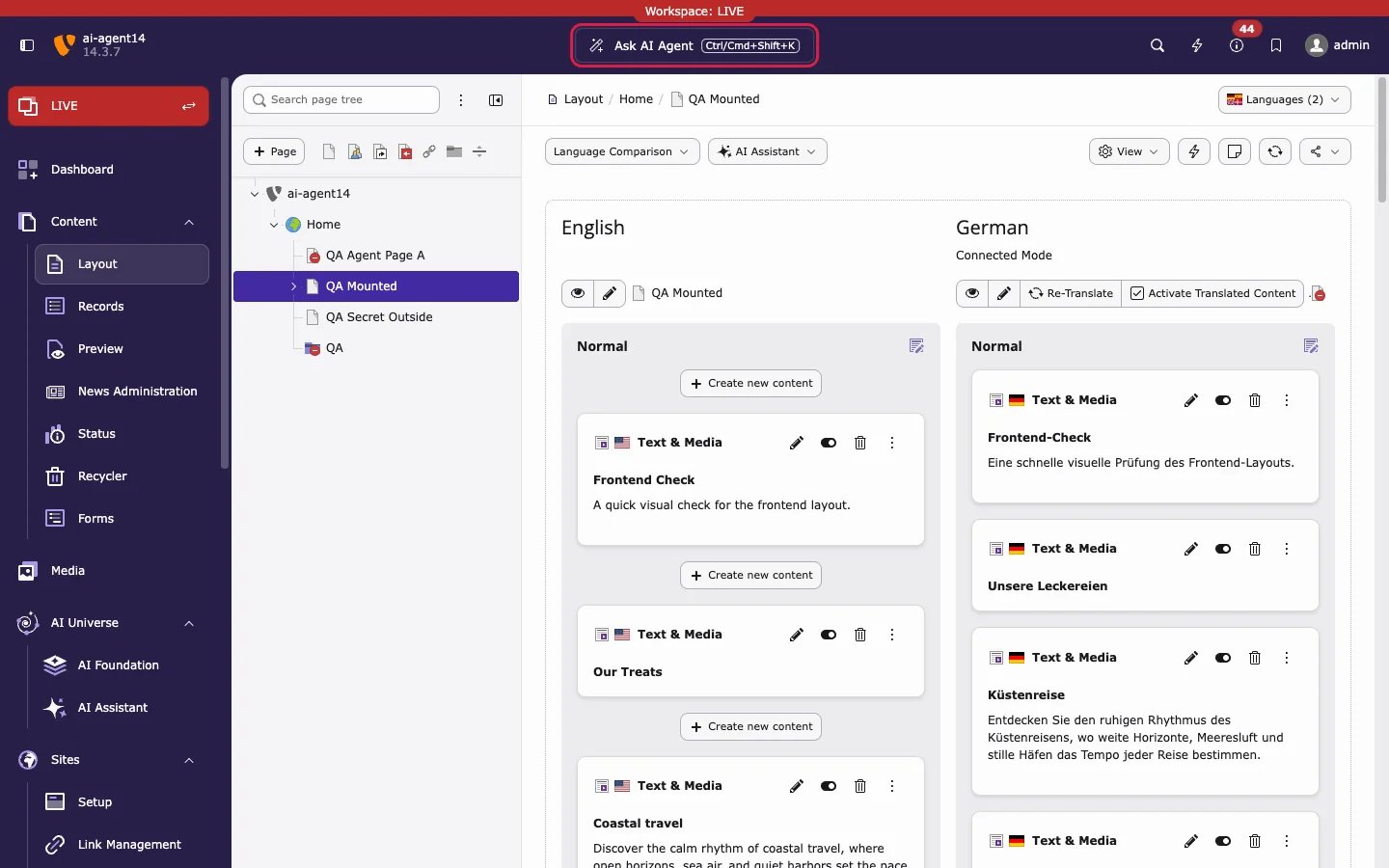
- Ask AI Agent sits in the center of the backend top bar and is available in every backend module.
- The button shows the keyboard shortcut. The default is
Ctrl+Shift+K(Windows, Linux) orCmd+Shift+K(macOS), which keepsCtrl/Cmd+Kfree for TYPO3 Live Search. - The bar above the button shows the current workspace, for example Workspace: LIVE. Applied changes are saved in that workspace. In Live, the Workspace selected in AI Foundation > MCP can send them to a draft workspace instead; see Live or draft workspace.
Open the AI agent in three steps
- Select the page you want to work on in the page tree, for example in Content > Layout.
- Click Ask AI Agent, or press
Ctrl/Cmd+Shift+K. - The AI agent window opens on top of the page. Check that the context line shows the right page, then type your request.
Esc or click Close to close the window. Your work in the backend stays open behind it.
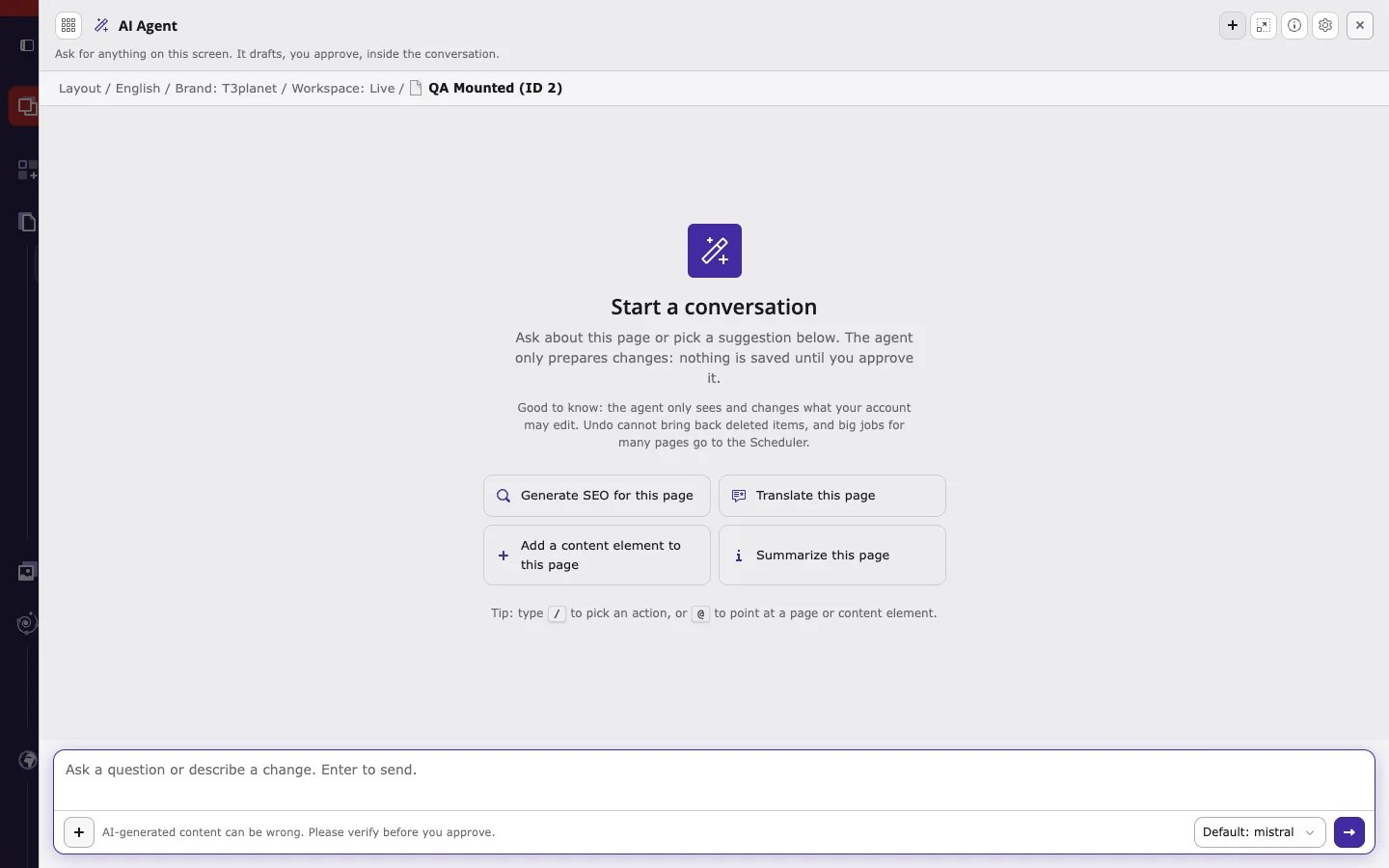
The window, part by part
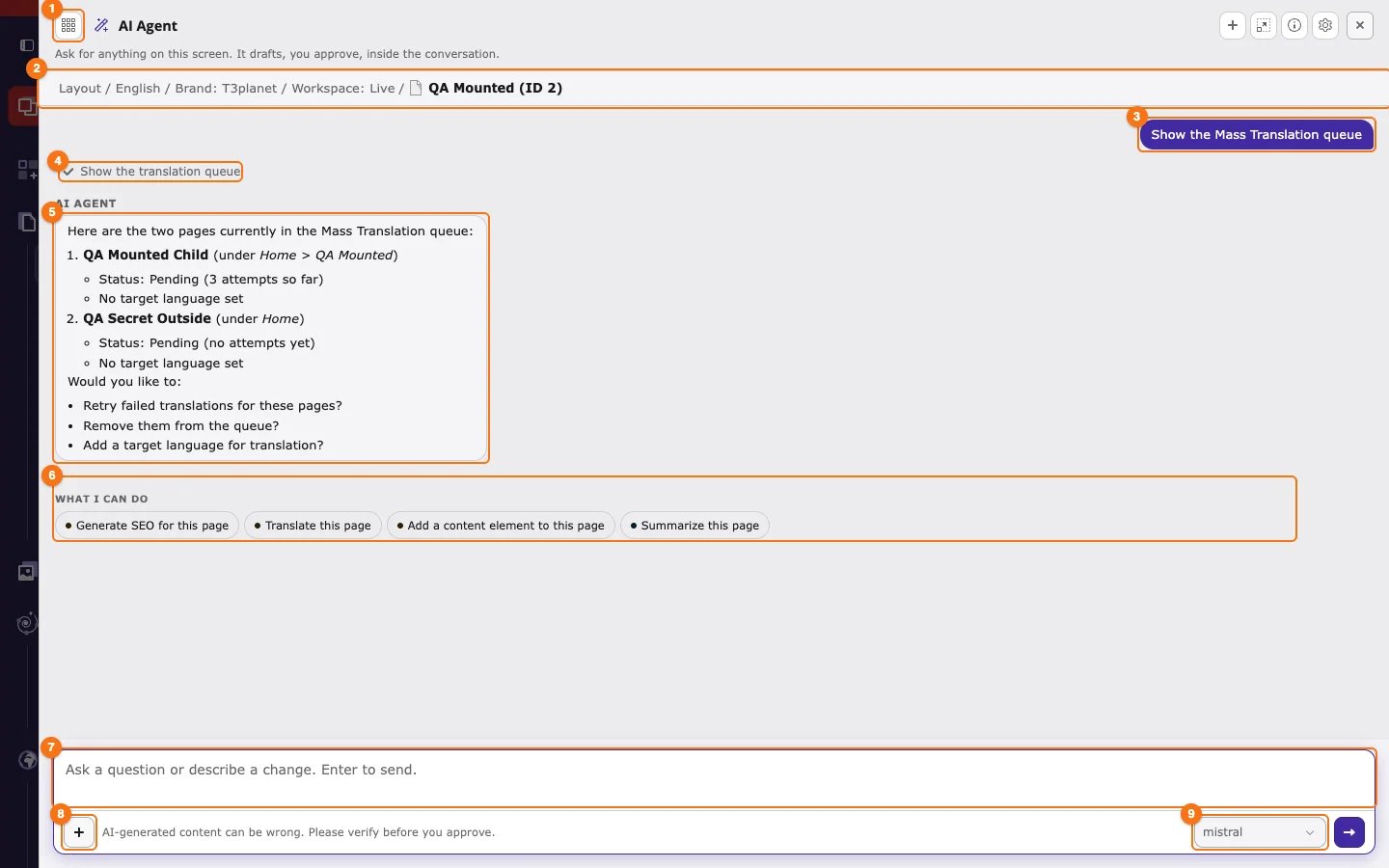
- Conversations: opens the list of earlier conversations. See Conversations.
- Context line: the module, language, brand, workspace, and page the agent works on. This page in your request always means this page.
- Your request, shown on the right.
- Step: each tool the agent runs, here the T3AI tool Show the translation queue. Click a step to see the tool name and its details.
- Answer from the agent.
- What I can do: suggested next requests for this screen. Click one to send it.
- Message field: type your request and press Enter.
- Attach (+): add files to the request.
- AI model: the provider that answers, for example Default: mistral. Choose it before the first message. After the first answer, it is fixed for the conversation.
Header icons

- Show conversations: opens or hides the conversation list.
- New conversation: starts an empty conversation on the current page.
- Full screen: enlarges the window.
- How the AI Agent works: a short built-in guide with your current context (module, page, language, workspace) and the active AI model.
- Settings: opens AI Foundation > AI Agent.
- Close: closes the window.
Pick a T3AI action with /
Type / in the message field to open the action picker. It lists On this module actions first, then All actions. Each entry shows its owner (T3AI or AI Foundation) and what it does: Only reads, Asks before changing, or Asks before deleting. Keep typing to filter, for example /seo or /translat.
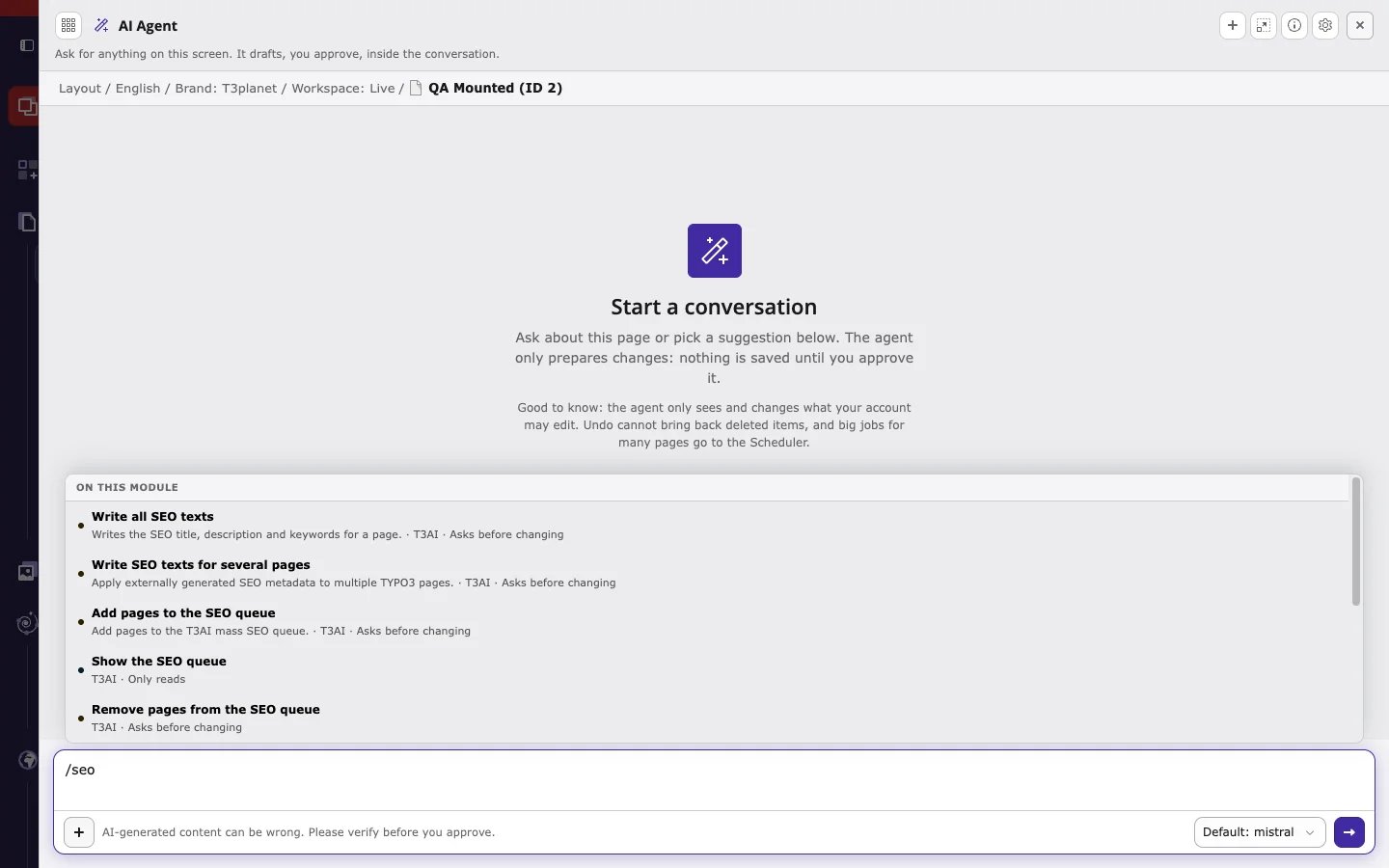
- Type
@to point at a page or content element, for example@pages:12. - Use + to attach files.
/. Plain language works too. The agent picks the T3AI tool from your request.
Conversations
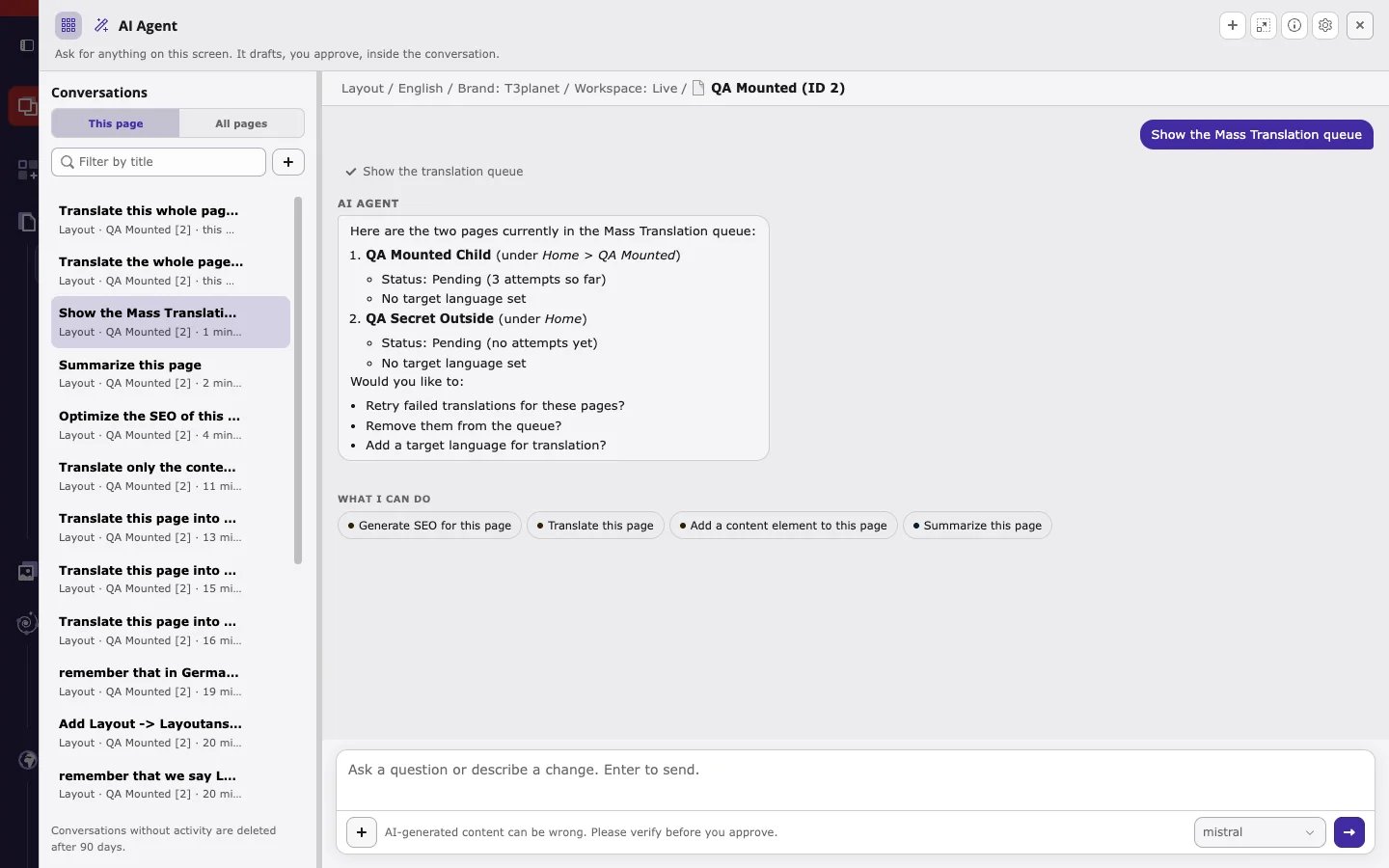
- This page lists the conversations about the current page. All pages lists all of your conversations.
- Use Filter by title to find a conversation, and + to start a new one.
- Use Rename or Delete on a conversation to manage the list.
- Each page has its own conversations. Conversations without activity are deleted after 90 days.
Where administrators manage the agent
Next: How it works