

The page is the context
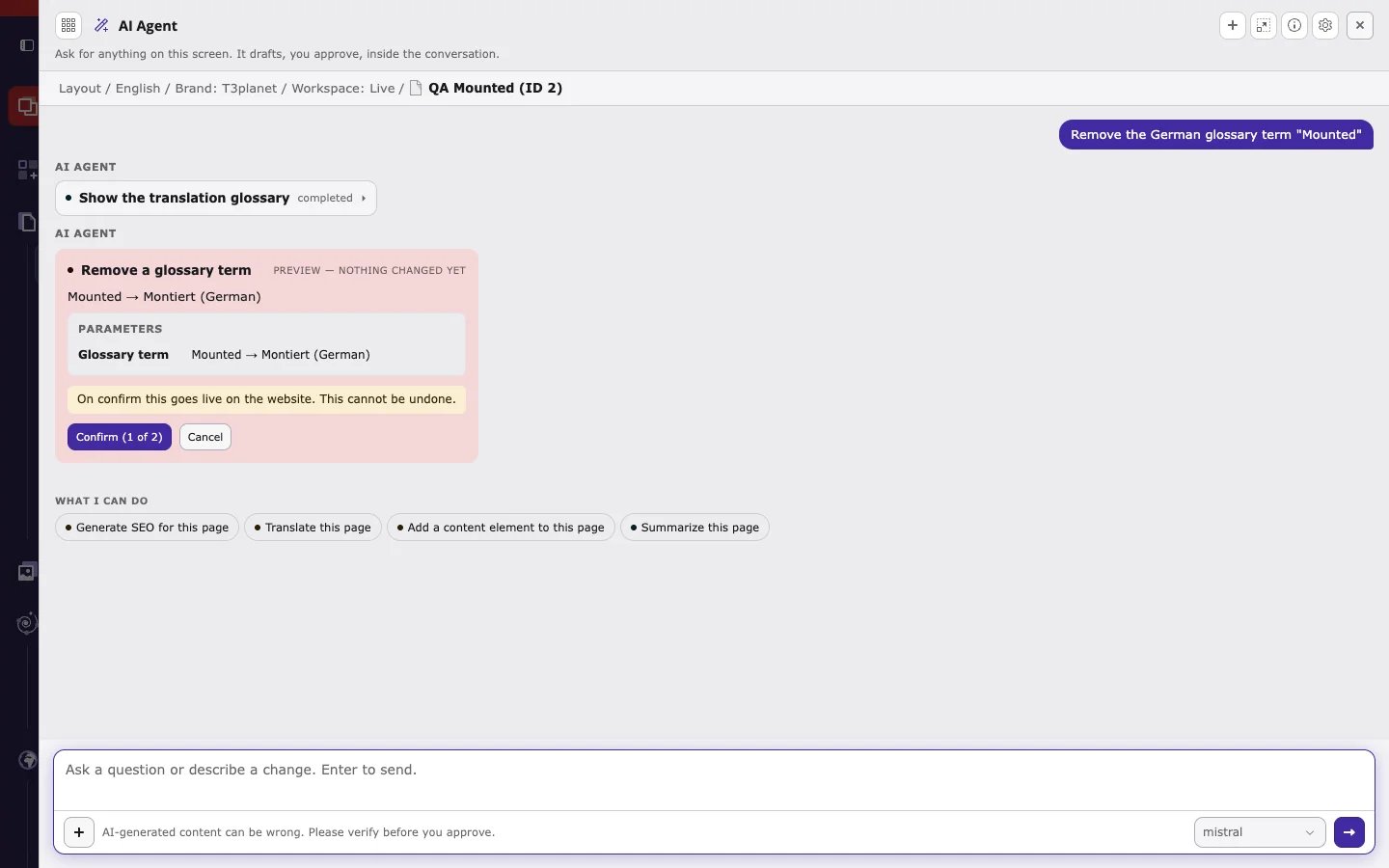
The AI agent works on what you have open. The context line at the top of the window shows the module, language, workspace, and page. This page and here in your request mean that page, unless you name another one, for example “Translate page Contact into German” or@pages:12.
The four steps of every request
- You ask in your own words, in any language. Click a suggestion or pick an action with
/. - The agent looks up what it needs, for example the site languages, the glossary, or the page content. These read steps run automatically and appear as steps marked completed.
- For a change, it shows a preview marked Preview — nothing changed yet. The preview lists exactly what will be written: the page, the languages, the glossary term, or each SEO field with its current and new value.
- You decide. Click Apply to write the change, or Cancel to discard it. After Apply, the result card links to Open page, Edit, View on website, and Undo.
Three kinds of actions
Every T3AI tool declares what it does. The/ picker and the suggestions show this label.
Live or draft workspace
- In Live, an applied change is public immediately. The preview says On confirm this goes live on the website.
- In a draft workspace, the change stays in that workspace until it is published. The preview names the workspace.
- Your backend workspace: if you switched to a draft workspace in the TYPO3 backend, the agent saves there.
- AI Foundation > MCP > MCP Server, tab Connect, field Workspace: if you work in Live, the agent saves to the workspace selected here. Select a draft workspace to keep agent changes as drafts while you stay in Live, or Live to publish directly. The selection is stored per backend user and also applies to new MCP tokens and CLI commands.
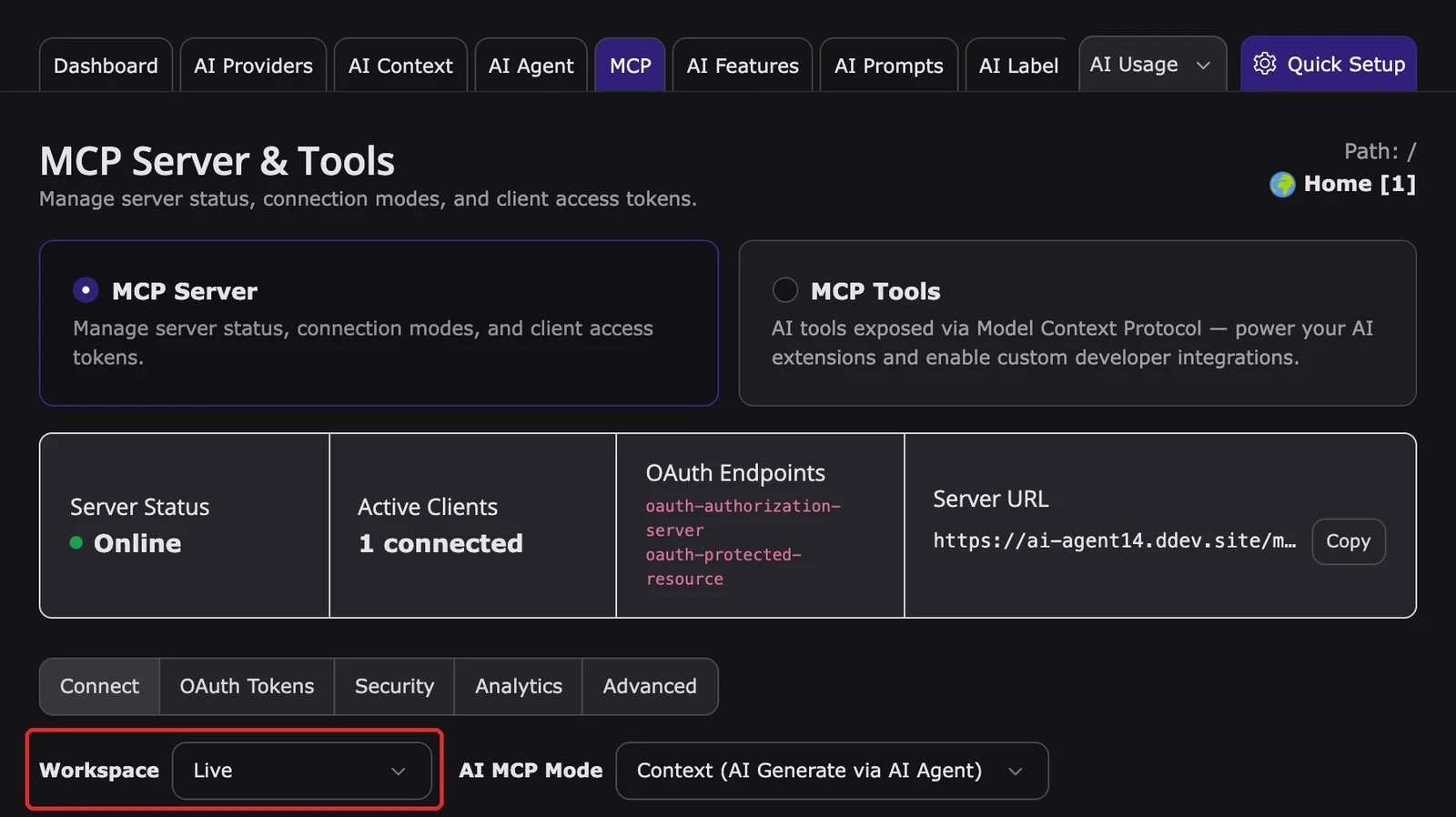
workspaces.
To make drafts mandatory for an editor group, enable Workspace enforcement in AI Foundation > AI Permissions, step Governance & limits of the group. Members of that group then cannot apply agent changes in Live; the agent shows Your group policy requires workspace-only edits. Switch to a draft workspace before applying changes. See AI Permissions.
The Mass SEO and Mass Translation queues are shared by the whole site. The agent changes them only in Live.
Large jobs go to the Scheduler
The agent works on one page or a few pages per request. For many pages, ask it to queue them, for example “Queue all subpages of Products for Mass SEO”. The Mass SEO and Mass Translation Scheduler tasks then process the queue. A single turn warns at 20 tool calls and stops at 40.Where the AI text comes from
T3AI tools generate SEO texts, translations, pages, and images with the AI provider configured in AI Foundation. AI Foundation > MCP > AI MCP Mode decides where the text is generated:- Context: the AI agent’s own model writes the text, and the T3AI tool saves it.
- Native: T3AI generates the text inside TYPO3.
Data protection
Your messages and the content the agent reads are sent to the AI provider shown in the message field. Your backend permissions and the AI Permissions of your user group always apply. See DPA & GDPR.Before you start
Next: Your first T3AI request