

Mass Translation
The Mass Translate module is designed to manage and schedule translation tasks for multiple pages. With this feature, you can select or deselect languages, or delete scheduled translation tasks. Key Features:- Manage a list of scheduled translation tasks.
- Change target languages for mass translation.
- Automate translation for multiple pages at once, saving time and effort.
Manage Mass Translation
The Manage Mass Translation module lets you queue, configure, and monitor translation tasks for multiple pages from one place. Open it from AI Assistant → Translation → Manage Mass Translation. Key Features:- Select pages and add them to the translation queue.
- Configure target languages for mass translation and save the language mapping.
- Remove pages from the queue when they are no longer needed.
- Re-queue failed translation jobs so they can run again.
- Filter the queue by status: Pending, Completed, Failed, or All.
- Filter by site root or view pages across all sites.
- Add pages to the queue by page ID and choose the target language.
- Run the related Scheduler task to process queued translations.
- Open AI Assistant and go to the Translation tab.
- Click Manage Mass Translation.
- Select the pages you want to translate (or use Add pages to queue and enter a page ID).
- Open the language configuration, select the target languages, and click Save.
- Review queue tabs (Pending, Completed, Failed, All) as needed.
- Use Re-queue failed if any jobs failed and should be retried.
- Open Scheduler and run the mass translation task to process the queue.
t3af:bulk:translate — Translate pages from bulk translation queue
Configure these command options in the Scheduler task settings:
- batch-size — Number of pages processed per batch within one run.
- limit — Cap one run at N pending queue pages; the rest stay for the next scheduler tick.
0= unlimited.
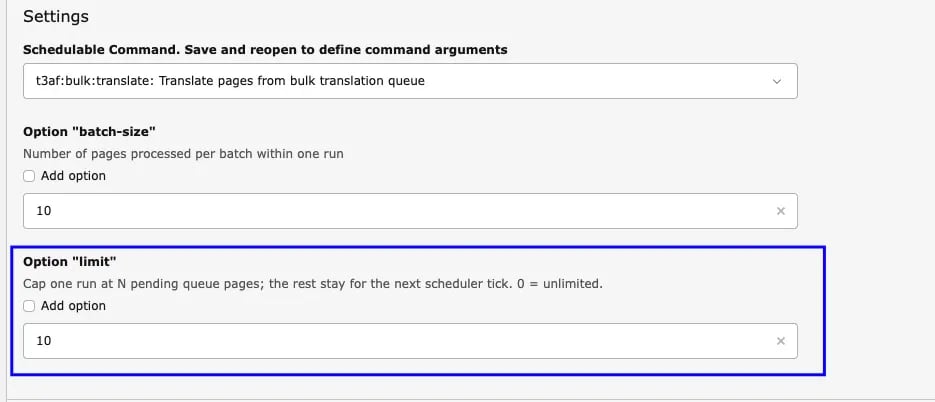
10 and limit to 10 so each scheduler run processes up to 10 pending pages in batches of 10. Remaining pending pages stay in the queue for the next tick.
Mass Pages Translation
Update numerous translated pages simultaneously. Refresh your website content using precise, current AI-driven translations.For Mass page translation, in all pages Allow Mass translation option should be enabled and if you add new pages do not forgot to perform step 5.
- Step 1 - go to page module
- Step 2 - Select the page & Click on edit page properties
- Step 3 - go to tab T3 AI
- Step 4 - Enable option Allow mass translation
- Step 5 - click on drop Down T3AI> Go to Mass translation> Click on Add this page to scheduler queries
Run Mass Translation: From TYPO3-CLI
T3AI Mass Translation feature allows users to efficiently translate multiple elements or entire pages into different languages simultaneously.This is typically useful in multilingual websites where translating individual elements manually would be time-consuming. To run a mass translation from the CLI (Command Line Interface), follow these general steps- Step 1: Go to your command line/Terminal.
- Step 2: Run the following command