

Activate translated content
- Open the Page module, select the page, and set the display mode to Languages (TYPO3 v14: Language Comparison).
- In the column of the language, click Activate Translated Content.
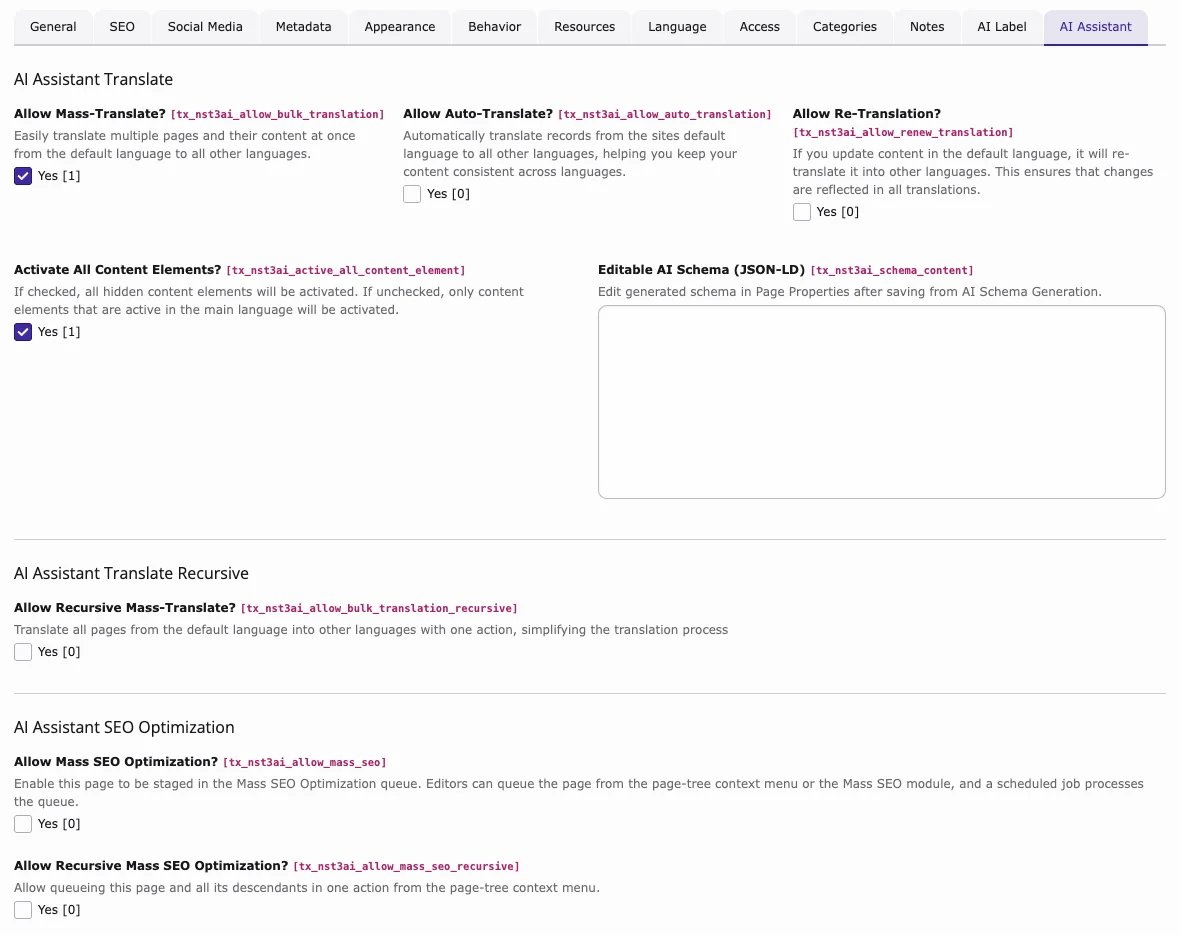
Auto Activate All Content Elements
The page option Activate All Content Elements? decides which elements the button activates:- Enabled (default): all hidden translated elements.
- Disabled: only elements whose original in the default language is visible. Elements that are hidden in the default language stay hidden.
How to Enable
- Edit the page properties and open the AI Assistant tab.
- Enable or disable Activate All Content Elements? and save.
Preview tagging for translated pages
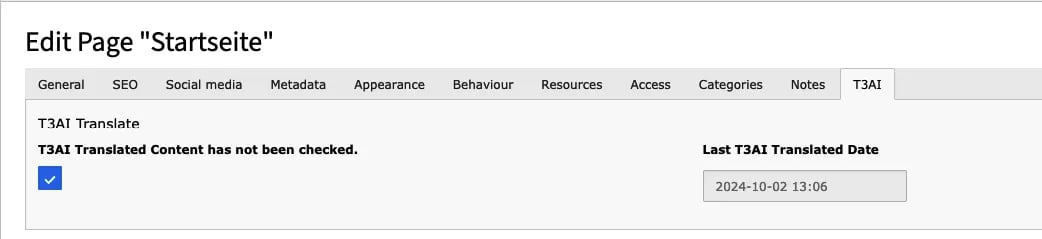
For every AI translation, T3AI sets two page fields:tx_nst3ai_content_not_checked: AI Assistant Translated Content has not been checked.tx_nst3ai_translated_time: Last AI Assistant Translated Date
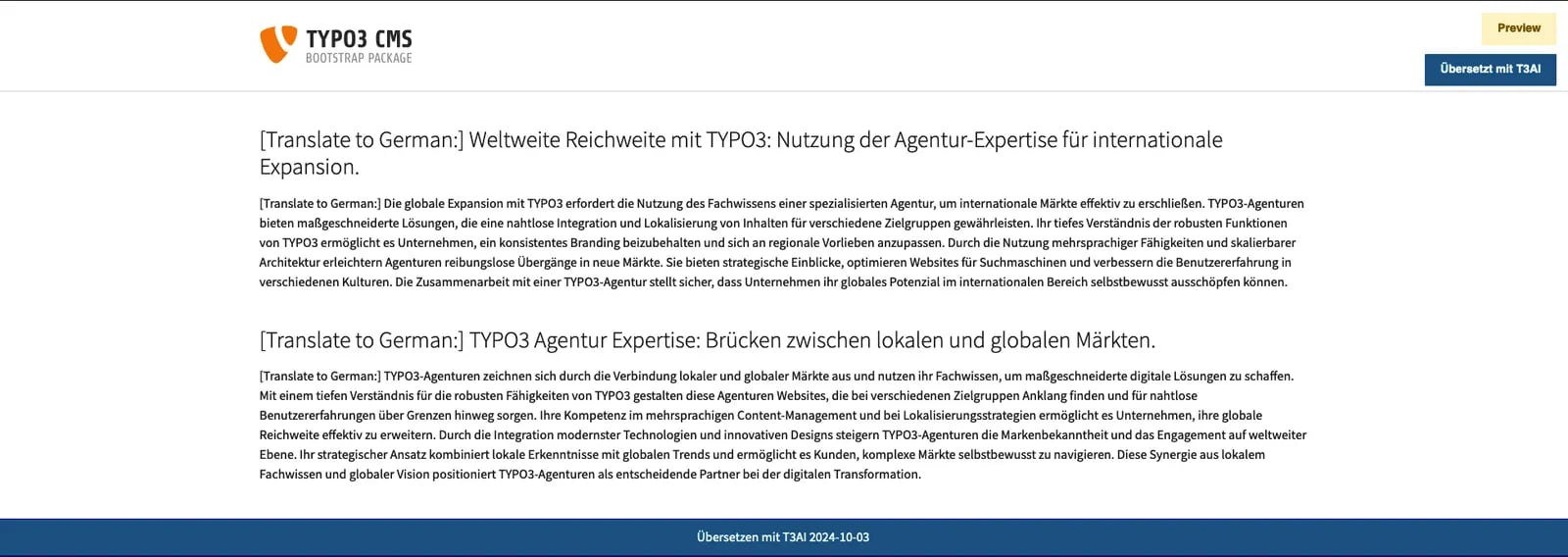
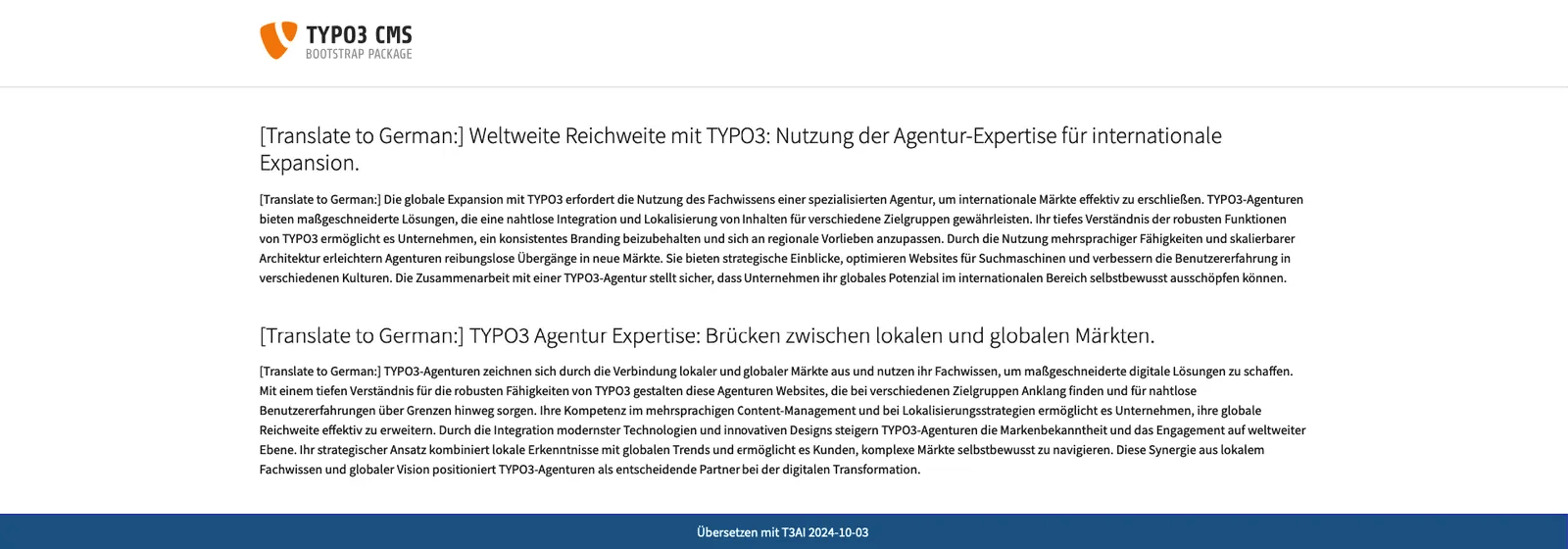
data in the page Fluid template: