

Mass Translation
There are two ways to fill the queue:- Manage Mass Translation module: pick pages and languages in one place. No page settings needed.
- Page tree context menu: queue single pages or page trees. The pages need Allow Mass-Translate? enabled.
Manage Mass Translation
The Manage Mass Translation module lets you queue, configure, and monitor translation tasks for multiple pages from one place. Open it from AI Assistant → Translation → Manage Mass Translation. Key Features:- Select pages and add them to the translation queue.
- Configure target languages for mass translation and save the language mapping.
- Remove pages from the queue when they are no longer needed.
- Re-queue failed translation jobs so they can run again.
- Filter the queue by status: Pending, Completed, Failed, or All.
- Filter by site root or view pages across all sites.
- Add pages to the queue by page ID and choose the target language.
- Run the related Scheduler task to process queued translations.
Add pages to the queue
- Click Add pages to queue.
- Choose the Site root and click Continue. The page tree of that site loads.
- Tick the pages under Select pages, or use Select all. For a single page, tick Include all subpages to add the whole branch.
- Optionally tick Re-translate mode (re-translate queue) to replace existing translations instead of creating new ones.
- Select the target languages, or Select all languages.
- Click Add to queue.
Work with the queue
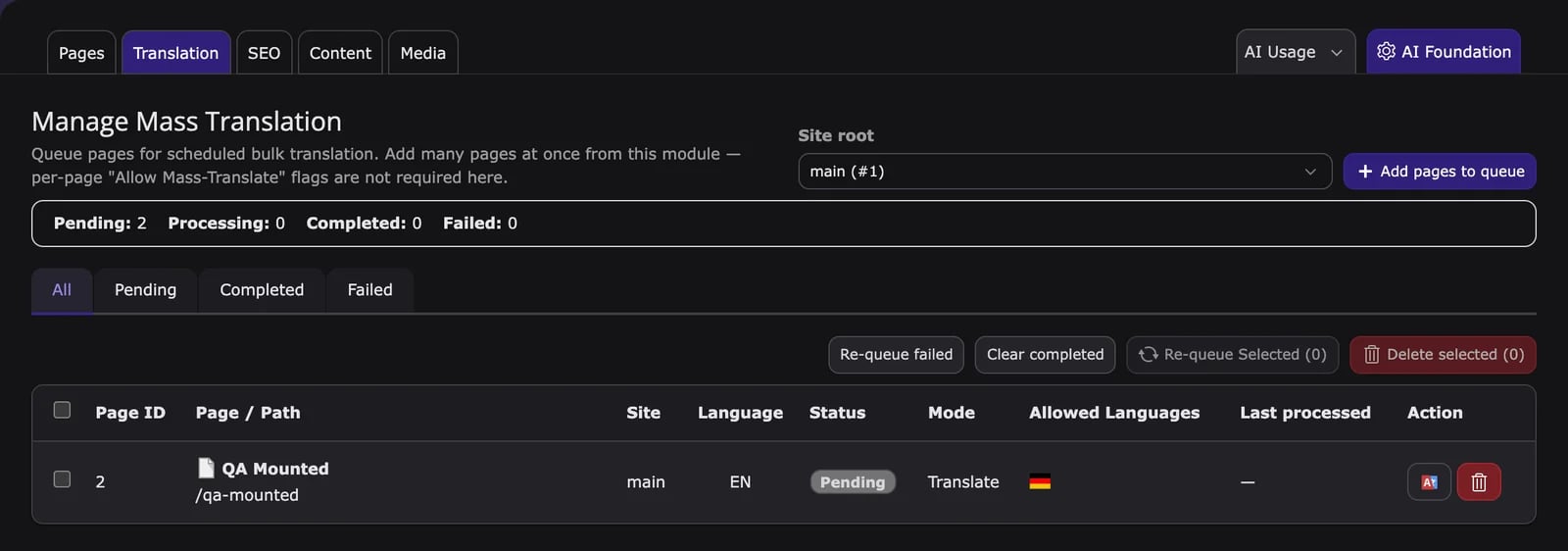
- The summary bar counts Pending, Processing, Completed, and Failed entries. Filter with the tabs All, Pending, Completed, and Failed, and by Site root.
- The table shows the page, site, language, Status, Mode (Translate or Re-translate), Allowed Languages, and Last processed.
- Re-queue failed sends all failed pages back to Pending. Re-queue Selected (n) does this for the ticked pages.
- Clear completed removes finished entries. Delete selected (n) removes the ticked entries.
Mass Pages Translation
Queue pages directly from the page tree.- Edit the page properties, open the AI Assistant tab, enable Allow Mass-Translate?, and save.
- Right-click the page in the page tree and choose Mass Translation > Add this page to the scheduler queue.
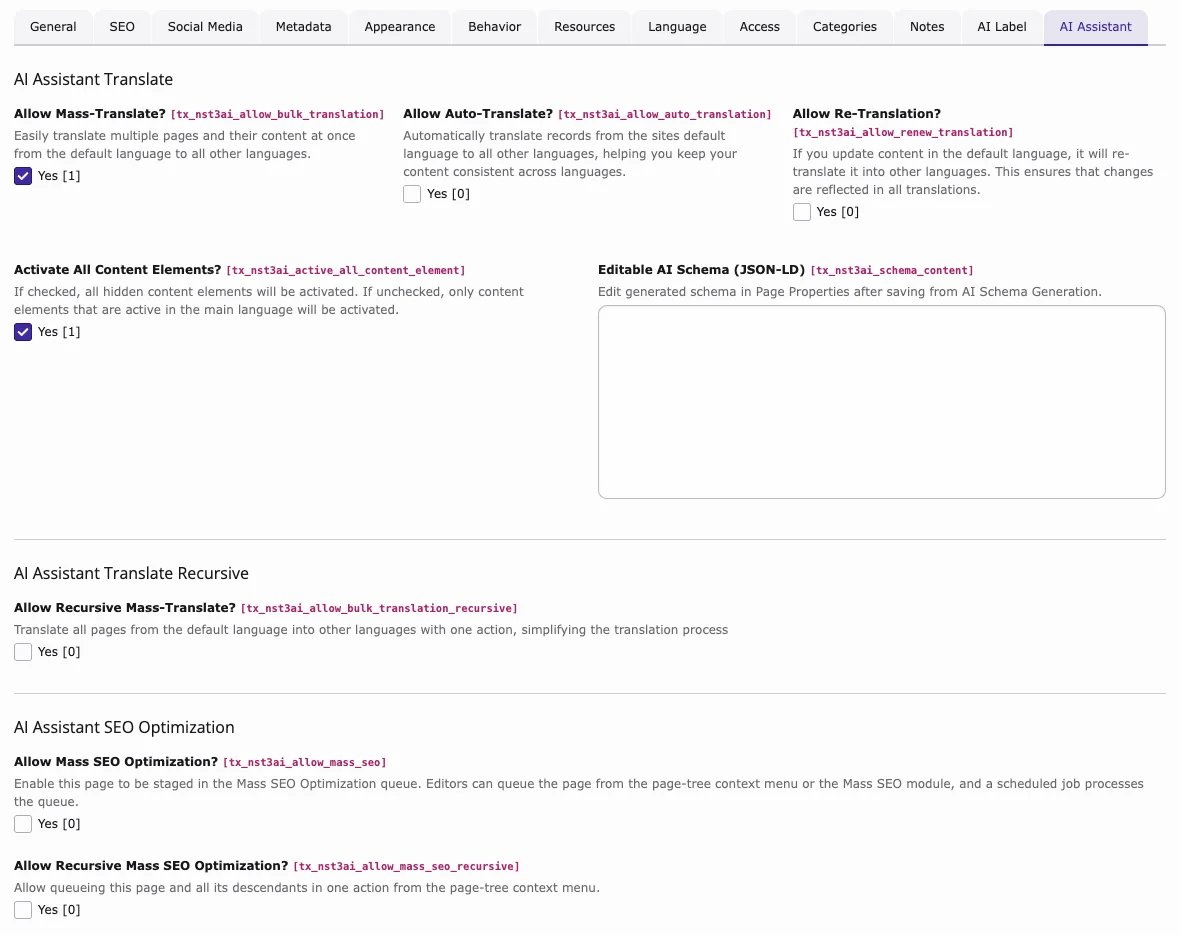
- Recursively add this page to the scheduler queue: the page and its subpages. See Recursive Mass Translate.
- Add this page to the auto-renew translation queue in the scheduler: re-translate the page in the next run.
Process the queue
On TYPO3 v14, create these Scheduler tasks:- T3AF: Bulk Translate (queue) for new translations
- T3AF: Bulk Re-translate (queue) for entries in Re-translate mode
t3af:bulk:translate (or t3af:bulk:retranslate) and set the options batch-size and limit:
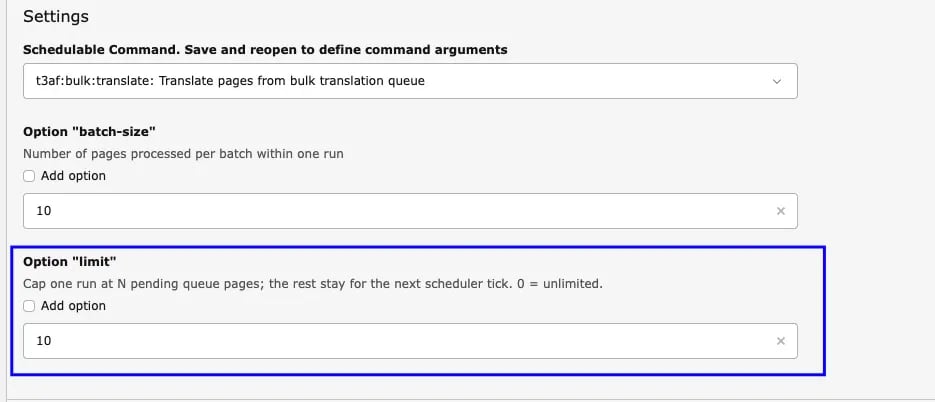
10 and limit 10 processes up to 10 pending pages per run. The rest stay in the queue for the next run.
The Scheduler only runs when a cron job on the server triggers it. Without cron, run the task manually in the Scheduler module or use the CLI below.
Run Mass Translation: From TYPO3-CLI
Composer:<taskUid> with the task UID from the Scheduler module. All options: Scheduler & CLI.
Related: AI Translation card · Permissions · Agent: queue tools · Scheduler & CLI · AI Usage & AI Logs